How to Capture Selenium Table Screenshots with Custom Fonts
Wait for web fonts and table content before capturing with Selenium. This guide covers element and page screenshots, Python, Java, cURL, Node.js, and font failures.
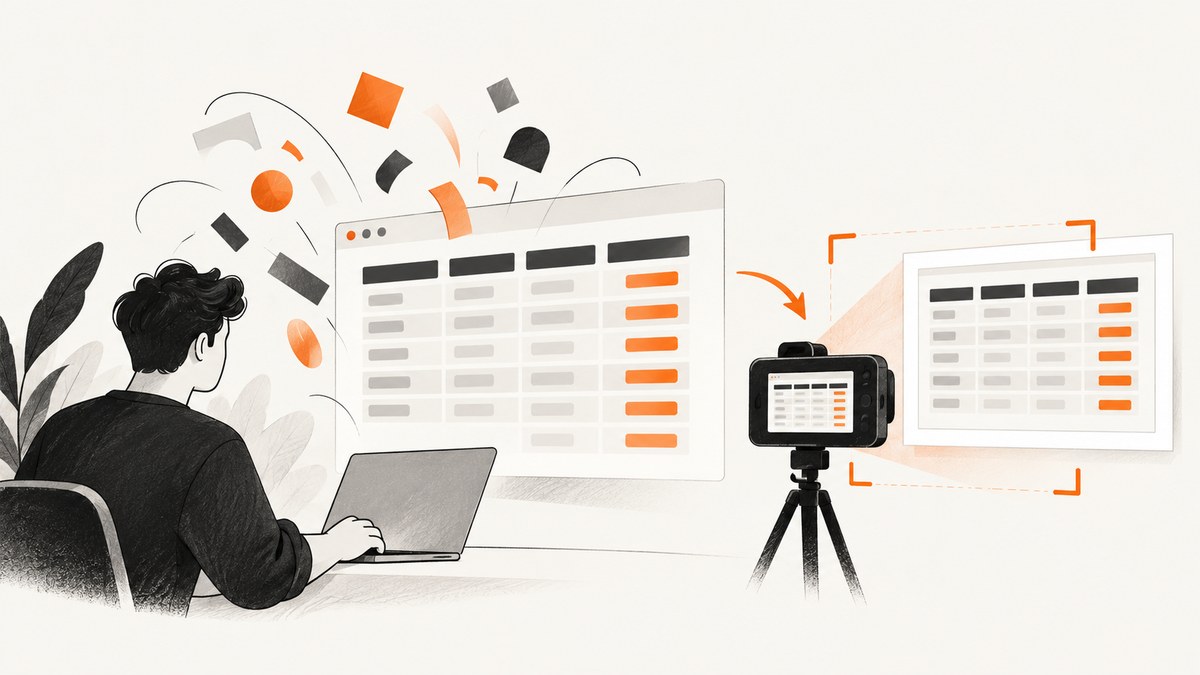
To capture a Selenium table screenshot with its intended custom font, first wait until the table is in its final state, then wait for the browser’s font-loading work to finish, and only then capture the table element or page. In Python, the essential sequence is document.fonts.ready followed by table.screenshot("table.png"). If a specific font face is essential, explicitly request it with document.fonts.load() and fail the test if that request rejects.
This order matters because navigation finishing does not prove that a font used later by a table has loaded. Browsers may fetch a face only when it is needed. Font readiness also does not guarantee that every declared face or every glyph is available, so a reliable capture checks the actual family, weight, and characters the table uses. [MDN: FontFaceSet.ready] [MDN: FontFaceSet.load()]
1. Understand the capture sequence
A table screenshot is the last step of a small synchronization problem. Your test needs to establish three independent conditions: the page has reached the desired data state, the relevant fonts are available and layout has settled, and the chosen screenshot boundary matches what you intend to inspect.
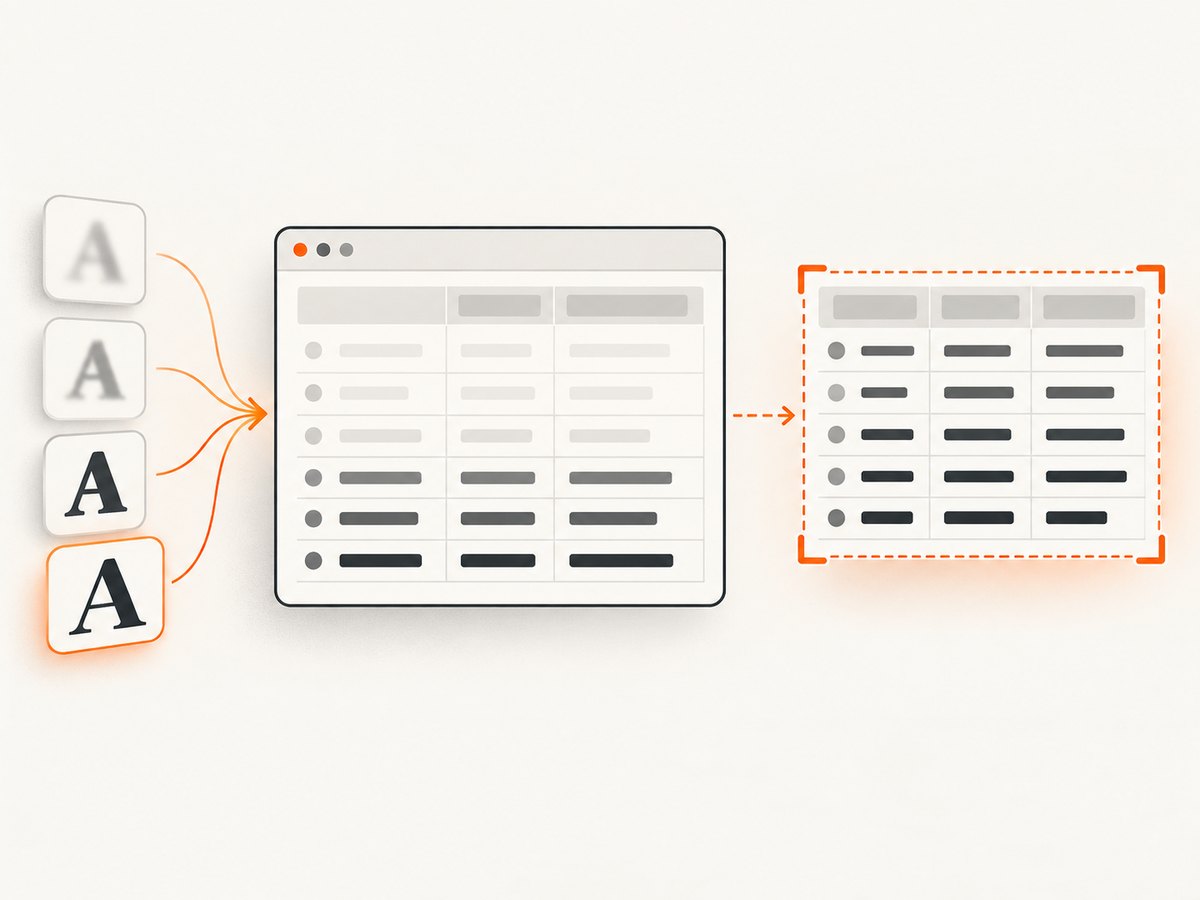
- Wait for the table. Wait for the selector and, where applicable, for an application-specific condition that means the data is complete. A table element existing does not mean its asynchronous rows have finished rendering.
- Request required font faces. When a particular family or weight matters, use the browser Font Loading API with a CSS font descriptor and representative characters from the table.
- Wait for font readiness. Await
document.fonts.ready, which resolves after fonts used by the document have loaded and related layout operations have completed for the current work. - Capture the right boundary. Use an element screenshot for a tight table crop or a page/window screenshot when headings, legends, or context must appear.
- Inspect the artifact. Confirm typography, glyphs, crop, overflow, viewport, and dynamic content in the browser and driver environment used by the test.
Repeat the font wait after an interaction or state change that can introduce new content or trigger another font load. The readiness promise describes current font and layout activity; it is not a promise that future changes cannot request more fonts. [MDN: FontFaceSet.ready] [MDN: Document.fonts]
2. Python: wait for a custom font and capture the table
The following example uses Selenium Python, an explicit font request, an asynchronous wait for document fonts, and a WebElement screenshot. Replace the URL, selector, family, and representative text with values from the page under test.
from selenium import webdriver
from selenium.webdriver.common.by import By
from selenium.webdriver.support.ui import WebDriverWait

URL = "https://example.com/reports"
TABLE_SELECTOR = "table.results"
FONT_FAMILY = '"Brand Sans"'
FONT_TEXT = "Revenue Q4 2026 0123456789"

options = webdriver.ChromeOptions()
# In CI, configure the browser binary and driver through your environment
# or your Selenium installation as appropriate.
driver = webdriver.Chrome(options=options)

try:
    driver.set_script_timeout(20)
    driver.get(URL)

    wait = WebDriverWait(driver, 20)
    table = wait.until(
        lambda d: d.find_element(By.CSS_SELECTOR, TABLE_SELECTOR)
    )

    # If the application populates rows asynchronously, wait for its real
    # completion condition here. This example requires at least one body row.
    wait.until(lambda d: len(
        d.find_elements(By.CSS_SELECTOR, TABLE_SELECTOR + " tbody tr")
    ) > 0)

    # Ask the browser to load faces matching this descriptor and text.
    # A rejected promise is passed to Selenium as a script failure.
    driver.execute_async_script("""
      const done = arguments[arguments.length - 1];
      document.fonts.load('14px \"Brand Sans\"', arguments[0])
        .then(() => done(true), error => done({error: String(error)}));
    """, FONT_TEXT)

    # Wait for used fonts and the resulting layout work to settle.
    driver.execute_async_script("""
      const done = arguments[arguments.length - 1];
      document.fonts.ready.then(() => done(true), done);
    """)

    table = driver.find_element(By.CSS_SELECTOR, TABLE_SELECTOR)
    table.screenshot("table.png")
finally:
    driver.quit()
Selenium’s element screenshot API saves the visible element as a PNG in Python. The WebElement screenshot operation and browser-driver behavior are documented by Selenium. [Selenium Python WebElement API]
Note about promise failures: the example returns an error object from the first asynchronous script so the script itself completes cleanly. Add a Python check if you want the test to raise a clearer assertion:
font_result = driver.execute_async_script("""
  const done = arguments[arguments.length - 1];
  document.fonts.load('14px \"Brand Sans\"', arguments[0])
    .then(() => done({ok: true}), error => done({ok: false, error: String(error)}));
""", FONT_TEXT)
if not font_result["ok"]:
    raise AssertionError("Required font failed to load: " + font_result["error"])
load() selects faces matching the descriptor and text; it is not a certification that every glyph in a font file exists. Pick representative text that includes the scripts, punctuation, and symbols that matter in your table. [MDN: FontFaceSet.load()]
3. Capture the table or the surrounding page?
| Need | Capture | Check |
|---|---|---|
| A close image of one table | Element screenshot | Check clipping, scrollable containers, and whether the driver captures the full element as expected. |
| Table with title, legend, or page context | Page or window screenshot | Set a consistent viewport and scroll position. A window screenshot is not automatically a full-document image in every implementation. |
| Repeatable visual comparison | Same browser, driver, viewport, scale, and environment | Keep these inputs fixed and inspect the exact supported capture behavior of the driver. |
Selenium provides element and driver screenshot APIs. The Java TakesScreenshot reference notes that non-W3C behavior is best effort, which is a reminder to validate capture semantics in the actual target browser and driver rather than assuming identical output everywhere. [Selenium TakesScreenshot] [Selenium Python WebDriver API]
4. Java: wait for fonts and save a screenshot
In Java, use Selenium’s asynchronous script execution to await the browser promise. Configure a script timeout, wait for the table state with an explicit wait, and then capture. This example captures the page as a PNG byte array; use the target driver’s element screenshot support when you need a tight element crop.
import java.nio.file.Files;
import java.nio.file.Path;
import java.time.Duration;

import org.openqa.selenium.By;
import org.openqa.selenium.JavascriptExecutor;
import org.openqa.selenium.OutputType;
import org.openqa.selenium.TakesScreenshot;
import org.openqa.selenium.WebDriver;
import org.openqa.selenium.chrome.ChromeDriver;
import org.openqa.selenium.support.ui.ExpectedConditions;
import org.openqa.selenium.support.ui.WebDriverWait;

public class TableCapture {
  public static void main(String[] args) throws Exception {
    WebDriver driver = new ChromeDriver();
    try {
      driver.manage().timeouts().scriptTimeout(Duration.ofSeconds(20));
      driver.get("https://example.com/reports");
      WebDriverWait wait = new WebDriverWait(driver, Duration.ofSeconds(20));
      wait.until(ExpectedConditions.presenceOfElementLocated(
          By.cssSelector("table.results tbody tr")));

      JavascriptExecutor js = (JavascriptExecutor) driver;
      Object loaded = js.executeAsyncScript(
          "const done = arguments[arguments.length - 1];" +
          "document.fonts.load('14px \\\"Brand Sans\\\"', arguments[0])" +
          ".then(() => document.fonts.ready).then(() => done(true), done);",
          "Revenue Q4 2026 0123456789");

      byte[] png = ((TakesScreenshot) driver).getScreenshotAs(OutputType.BYTES);
      Files.write(Path.of("table-page.png"), png);
    } finally {
      driver.quit();
    }
  }
}
The variable loaded can be inspected or replaced with a structured success/error value if the test needs a custom font failure message. Ensure the source file contains Java strings with the escaping appropriate to your version and that your script returns the async callback. Selenium’s Java screenshot interface describes the screenshot contract and driver-specific behavior. [Selenium TakesScreenshot]
5. Diagnose the browser’s font state
When the screenshot still uses a fallback face, inspect the live page before changing timeouts. The browser exposes the document’s FontFaceSet, including faces and their loading states. Check computed styles on the table cells and verify the requested family and weight match the CSS actually applied.
const table = document.querySelector("table.results");
const cell = table?.querySelector("th, td");
({
  computedFamily: cell ? getComputedStyle(cell).fontFamily : null,
  computedWeight: cell ? getComputedStyle(cell).fontWeight : null,
  status: document.fonts.status,
  faces: [...document.fonts].map(face => ({
    family: face.family,
    weight: face.weight,
    style: face.style,
    status: face.status
  }))
});
Run this through Selenium’s script execution and log the returned data with the test artifact. A declared face can remain unloaded if it was never used. A CSS family name alone also does not ensure the requested weight or glyph coverage is present. The browser Font Loading API exposes loading state and failure information for diagnosis. [MDN: Document.fonts] [MDN: CSS Font Loading API]
6. cURL, Python requests, and Node.js alternatives
Selenium is the right tool when the test must exercise a real browser session, application state, or a particular driver. For a server-side screenshot that does not need your Selenium session, a screenshot API can avoid maintaining browser and driver setup. These calls capture a URL; they do not inherit the current Selenium session, local cookies, or unsaved page state.
ScreenshotNeo is a website screenshot API and MCP server from Yorker Media. Its one-call API accepts a URL and returns an image or PDF, and its parameter names used by other screenshot APIs also work. For rendered pages, set the target URL and any options needed for the content. See the ScreenshotNeo API documentation.
7. Or skip the browser setup
For a URL-based capture, ScreenshotNeo accepts a single GET request. Adapt the target URL and output filename as needed.
curl -G "https://api.screenshotneo.com/v1/shot" \
  -d access_key=YOUR_API_KEY \
  --data-urlencode url=https://example.com/reports \
  -o table.webp
import requests
r = requests.get(
"https://api.screenshotneo.com/v1/shot",
params={"access_key": "YOUR_API_KEY", "url": "https://example.com/reports"},
timeout=90,
)
open("table.webp", "wb").write(r.content)const q = new URLSearchParams({
access_key: 'YOUR_API_KEY',
url: 'https://example.com/reports'
});
const res = await fetch(`https://api.screenshotneo.com/v1/shot?${q}`);
if (!res.ok) throw new Error(`Screenshot request failed: ${res.status}`);
await Bun.write('table.webp', res);ScreenshotNeo removes cookie banners, newsletter popups, and chat widgets before the shot; bot checks, blank pages, and failed loads are never billed. Its MCP server lets AI agents take screenshots. The free plan includes 1,000 screenshots a month with no card, and paid plans start at $5 for 3,000 screenshots. Every feature is on every plan. Create a free account at ScreenshotNeo sign-up.
For direct JavaScript runtimes without Bun, convert the response body to bytes and write it using the runtime’s filesystem API. Keep the access key on the server side rather than exposing it in a public page. For an element-specific Selenium test, continue to use Selenium’s element screenshot method because the API call captures a URL independently of the current browser session.
8. Options that affect table screenshots
Font synchronization is only one part of a stable capture. Decide these inputs explicitly when building a repeatable workflow:
- Selector: use a stable ID, data attribute, or table class rather than a fragile positional selector.
- Table state: wait for final rows, sorting, pagination, filters, and any client-side formatting.
- Font descriptor: match family, size, style, and weight. Request representative characters from the content.
- Capture boundary: choose the element for a table crop, or page/window capture for context.
- Viewport and scroll: set consistent dimensions and position; inspect horizontal overflow and nested scroll regions.
- Timeouts: use explicit waits for table state and script timeouts for browser promises. Set them to fit the application’s real loading behavior.
- Environment: pin the browser, driver, Selenium version, operating system, and installed fonts for visual regression work.
Do not use a fixed sleep as the only readiness check. A sleep may be too short on a slow run and unnecessarily long on a fast one, while a promise or state condition represents the event the test actually needs.
9. Troubleshooting
| Symptom | Likely cause | Fix |
|---|---|---|
| Screenshot shows a fallback font | The face was not used yet, the requested descriptor does not match, the font request failed, or the shown characters lack coverage. | Inspect computed family/weight and face statuses. Request the matching face with document.fonts.load(), include representative characters, and investigate font responses and CSS. |
| Navigation completed but screenshot is early | Navigation readiness and font readiness are different; app data may also render asynchronously. | Wait for a table-specific content condition, then font loading and layout, then capture. |
execute_async_script times out |
The script timeout is too short, the callback was not reached, or the page’s font activity is stuck. | Set an adequate script timeout, ensure both resolve and reject paths call the callback, and inspect network/font errors. |
| Font request rejects | Bad font URL or CSS declaration, unavailable network, access restrictions, or mismatched weight/style. | Surface the error as a test failure and check the font response, cross-origin configuration, face declaration, and descriptor. |
| Only some letters look wrong | The face may not contain those glyphs or the test requested text that did not select the needed face. | Use text covering the relevant scripts and symbols; confirm font coverage and fallback rules. |
| Table image is clipped | Element capture and scroll container behavior vary, or the table overflows its wrapper. | Inspect overflow and scroll position; compare with a page capture or capture a wrapper that includes the intended content. |
| Intermittent typography or layout | A later interaction, lazy load, or render triggered more font work after the first wait. | Wait for the final UI state and await font readiness again immediately before capture. |
10. Performance, reliability, and cost
Waiting on a promise and an explicit table condition usually gives better timing behavior than choosing a large fixed sleep: the test can proceed when the browser reports readiness while still failing on a real timeout. Keep timeouts bounded so a broken font host or application does not stall the suite indefinitely. For reliability, save the screenshot alongside browser, driver, viewport, and font-state diagnostics when a visual test fails.
Capturing one element can produce a smaller artifact and avoids surrounding page content, while a page screenshot may be needed to validate layout in context. The exact cost of Selenium execution depends on your own browser infrastructure; the supplied Selenium and font references do not publish a universal per-capture cost or speed benchmark. If you instead use ScreenshotNeo, the stated plans are Free: 1,000 shots/month; Starter: $5 for 3,000; Growth: $15 for 15,000; Pro: $39 for 60,000; Scale: $99 for 250,000; and Business: $249 for 1,000,000. Yearly billing gives two months free. Its responses identify page verdict and billing status in headers, and only clean shots are billed.
Use Selenium when the screenshot must reflect authenticated browser state, interactions, or a specific local test environment. Use a URL screenshot API when a URL-based capture fits the job and you want to avoid configuring browser drivers. ScreenshotNeo also supports full-page captures, element selectors, custom CSS and JavaScript, waits, headers, cookies, and other capture options; consult its documentation for parameter details.
11. Frequently asked questions
Does document.fonts.ready prove that every font on the page loaded?
No. It resolves after fonts used by the document and associated layout work have settled for that activity. Unused declared faces may not load, and glyph coverage is a separate concern.
Should I always call document.fonts.load()?
No. Use it when a particular face is a requirement you want to verify explicitly. For a general screenshot, waiting for the used-font set may be sufficient.
Can a WebElement screenshot include the entire long table?
Check the behavior in your browser and driver. Element screenshot semantics and support can vary; a table inside a scrollable wrapper may require scrolling or a different capture boundary.
Why can screenshots differ between machines after fonts are ready?
Font readiness does not make browser versions, installed font files, rendering environments, viewport sizes, or driver implementations identical. Keep those inputs consistent for visual comparisons.


