How to Display Selenium Screenshots in TestNG Results Under Jenkins
Capture Selenium screenshots when TestNG tests fail, publish results in Jenkins, and link retained images from a report that developers can open.
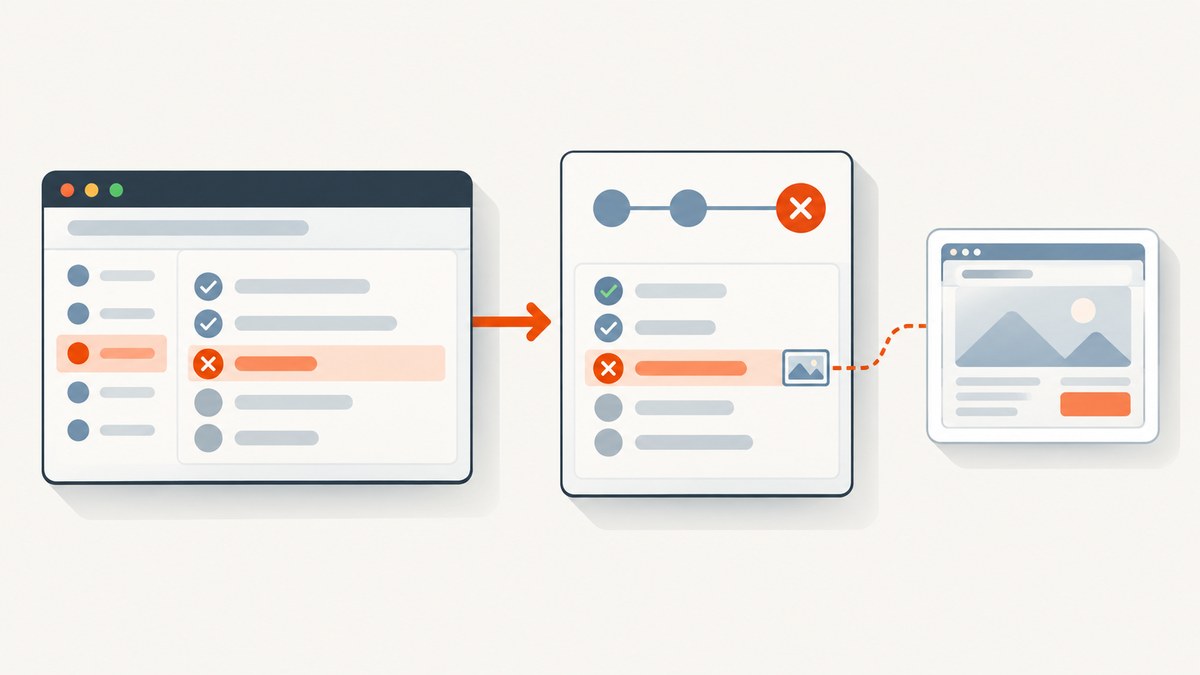
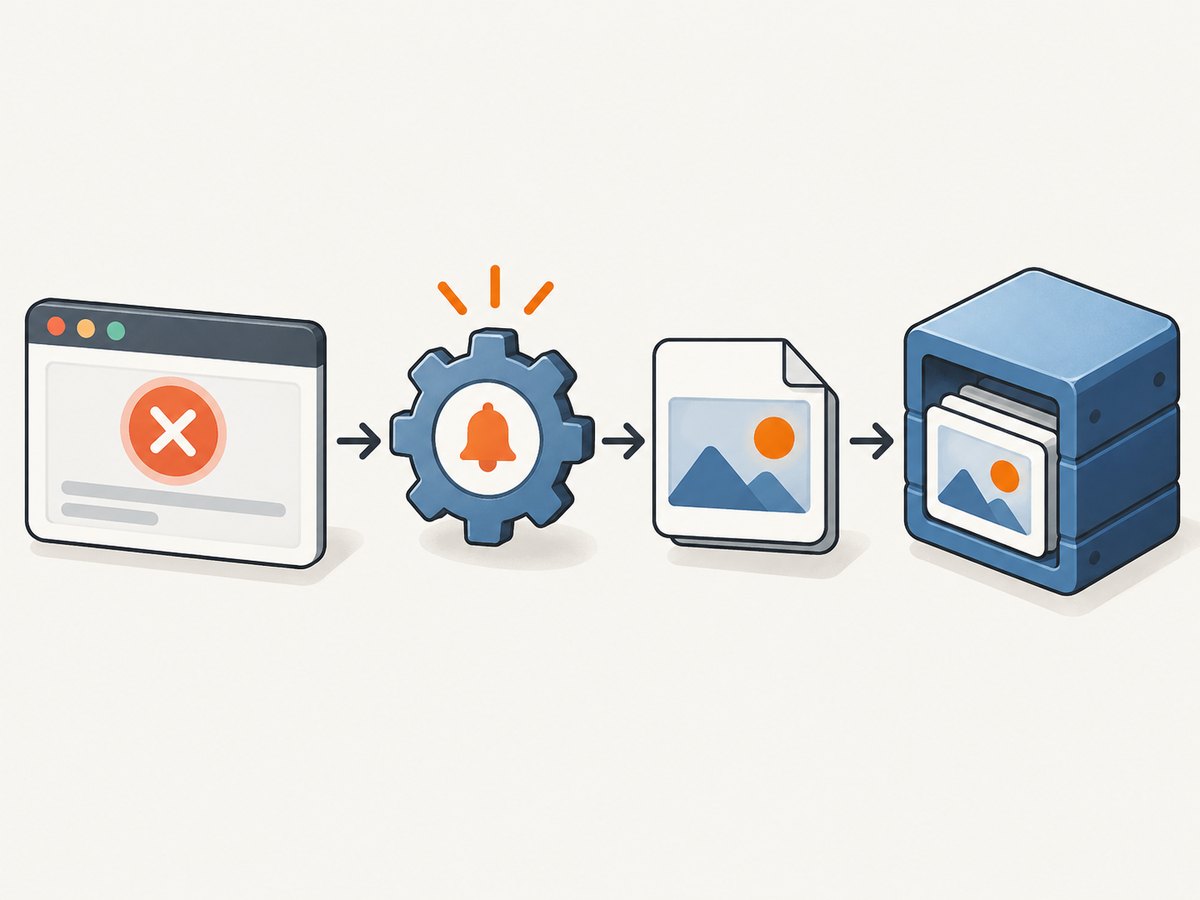
To display Selenium screenshots alongside TestNG results in Jenkins, capture the image in a TestNG ITestListener failure callback, while the WebDriver session is still open. Save it to a predictable workspace path, publish the screenshot as a Jenkins build artifact, and publish the test XML separately. To show an image link in a test report, generate a report that includes a link to the retained artifact; importing TestNG or JUnit XML alone does not guarantee that Jenkins embeds screenshots.
This guide uses Java, Selenium WebDriver and TestNG. It covers failure-time capture, parallel-safe filenames, TestNG XML, Jenkins Pipeline publishing, artifact links, and common failure modes.
1. Choose how Jenkins should display test results
There are three related but separate jobs: capturing an image, publishing machine-readable test outcomes, and making the image reachable to someone viewing a build. Configure each explicitly.
| Route | Use it when | Screenshot handling |
|---|---|---|
| TestNG XML + Jenkins TestNG Results | You want TestNG-specific result details and views. | Publish screenshots as artifacts and link to them from a report if you need a clickable image. |
| JUnit-format XML + Jenkins JUnit | General test results and trends are sufficient. | JUnit result publishing is separate from screenshot retention and display. |
| Custom HTML report + Selenium HTML report plugin | You need a report page containing screenshot links or thumbnails. | Ensure image links still resolve after the plugin copies reports into the build. |
TestNG provides ITestListener for real-time test lifecycle events and reporters such as XMLReporter for post-run results. Jenkins’s TestNG Results and JUnit plugins publish result data; neither should be assumed to attach an arbitrary screenshot automatically. See the [TestNG logging and results documentation](https://testng.org/logging_and_results.html), [Jenkins TestNG Results plugin](https://plugins.jenkins.io/testng-plugin), and [Jenkins JUnit plugin](https://plugins.jenkins.io/junit).
2. Capture screenshots in a TestNG listener
The listener below saves a PNG after a failed test. It creates the output directory, names files with the test class, method, and a UUID, and treats screenshot errors as secondary so they do not replace the original test failure. It also records the relative path in the test output for later use in a custom report.
package example;

import java.io.File;
import java.io.IOException;
import java.nio.file.Files;
import java.nio.file.Path;
import java.nio.file.Paths;
import java.util.UUID;

import org.openqa.selenium.OutputType;
import org.openqa.selenium.TakesScreenshot;
import org.openqa.selenium.WebDriver;
import org.testng.ITestListener;
import org.testng.ITestResult;

public class ScreenshotListener implements ITestListener {
    private static final Path SCREENSHOT_DIR =
        Paths.get("target", "screenshots");

    @Override
    public void onTestFailure(ITestResult result) {
        Object instance = result.getInstance();
        if (!(instance instanceof HasWebDriver)) {
            System.err.println("No HasWebDriver instance for "
                + result.getName());
            return;
        }

        WebDriver driver = ((HasWebDriver) instance).getDriver();
        if (!(driver instanceof TakesScreenshot)) {
            System.err.println("Driver cannot take screenshots for "
                + result.getName());
            return;
        }

        String className = result.getTestClass().getName()
            .replaceAll("[^A-Za-z0-9._-]", "_");
        String methodName = result.getMethod().getMethodName()
            .replaceAll("[^A-Za-z0-9._-]", "_");
        String fileName = className + "-" + methodName + "-"
            + UUID.randomUUID() + ".png";

        try {
            Files.createDirectories(SCREENSHOT_DIR);
            File source = ((TakesScreenshot) driver)
                .getScreenshotAs(OutputType.FILE);
            Path destination = SCREENSHOT_DIR.resolve(fileName);
            Files.copy(source.toPath(), destination);
            result.setAttribute("screenshot", destination.toString());
            System.out.println("Screenshot: " + destination);
        } catch (IOException | RuntimeException screenshotError) {
            // Preserve the test's original failure as the primary failure.
            System.err.println("Could not save screenshot for "
                + result.getName() + ": " + screenshotError.getMessage());
        }
    }
}
In this example, test classes expose their driver through a small interface. Adapt that accessor to the way your tests manage WebDriver:
package example;

import org.openqa.selenium.WebDriver;

public interface HasWebDriver {
    WebDriver getDriver();
}
Have each test class implement HasWebDriver, or replace the interface check with your own base-class or dependency-injection lookup. Avoid creating a second browser session in the listener: the point is to capture the state of the session that encountered the failure.
Register the listener with TestNG, for example using the annotation on a test class:
import org.testng.annotations.Listeners;

@Listeners(example.ScreenshotListener.class)
public class CheckoutTest implements example.HasWebDriver {
    // Implement getDriver() using the test's existing driver field.
}
You can also register listeners through your TestNG suite configuration or test framework setup. Keep registration in one predictable place so CI and local runs behave alike. TestNG describes listeners as real-time lifecycle extensions in its [documentation](https://testng.org/).
Keep the browser alive until capture completes
Do not quit the driver in an unconditional @AfterMethod hook before the failure listener has a chance to run. TestNG invokes listeners during the test lifecycle, but teardown ordering can depend on the framework structure. A robust pattern is to capture in the failure callback and close the driver in teardown after the test outcome is known. If your framework or listener ordering closes the session first, move capture into a failure-aware teardown hook that runs before quit(), or adjust the lifecycle arrangement and verify it with a deliberately failing test.
For parallel execution, use a distinct driver per test thread and unique filenames. A method name alone can collide when the same method runs with multiple data-provider inputs, retries, or concurrent workers. A UUID avoids overwrites; alternatively include a run ID, invocation index, and sanitized parameter digest. Do not put raw test parameters into a filename if they can contain secrets or unsafe path characters.
3. Generate TestNG XML results
TestNG XML generation is separate from screenshot capture. Enable the XML reporter in the test invocation when you want the TestNG-specific XML output. The documented reporter example is:
java -cp "target/classes:target/test-classes:lib/*" \
  org.testng.TestNG \
  -reporter org.testng.reporters.XMLReporter:generateTestResultAttributes=true,generateGroupsAttribute=true \
  testng.xml
Use the classpath and suite path appropriate to your build. Maven and Gradle projects generally run tests through their respective TestNG integrations; configure the reporter or suite output there rather than copying this standalone classpath literally. Check the generated file locations from a clean local run before setting Jenkins globs.
The TestNG Results plugin needs a matching report pattern. The Jenkins plugin page documents Pipeline publishing through a testNG step; configure it to match the XML your job actually produces. If TestNG-specific views are unnecessary, the Jenkins JUnit plugin can publish JUnit-format XML, including the format used by TestNG. See the official [JUnit plugin documentation](https://plugins.jenkins.io/junit).
4. Publish result XML and screenshot artifacts in Jenkins
A Pipeline should publish the result file and preserve screenshot files even when tests fail. Adapt the paths to your build tool and reporter configuration. This example uses the TestNG Results publisher; install a compatible plugin version and verify the step syntax for your Jenkins installation.
pipeline {
  agent any
  stages {
    stage('Test') {
      steps {
        sh 'mvn -B test'
      }
    }
  }
  post {
    always {
      archiveArtifacts artifacts: 'target/screenshots/**/*.png',
                       allowEmptyArchive: true
      testNG failedFails: 0,
            failedSkips: 0,
            failedTests: 0,
            skippedTests: 0,
            tests: 'target/surefire-reports/testng-results.xml'
    }
  }
}
Publisher options and generated XML locations differ by plugin and build. Confirm the TestNG step fields against the installed [TestNG Results Pipeline reference](https://plugins.jenkins.io/testng-plugin) and use the exact report pattern emitted by your job. The key behaviors are to publish in an always post condition and to retain screenshots from the workspace. If using the JUnit route, a typical publisher step is junit 'target/surefire-reports/TEST-*.xml'; point it only at valid JUnit-format result files.
Artifact archiving makes images downloadable from the Jenkins build, but it does not necessarily render them inside a test row. For a link beside each test, build an HTML report containing artifact URLs or use a reporting integration that explicitly supports attachments. The Jenkins Selenium HTML report plugin can scan a workspace-relative folder of test-created HTML and copy it beneath seleniumReports in the build root. Check that relative image references remain valid after copying; archiving the HTML alone does not copy sibling image files unless configured.
5. Link screenshots from a custom report
A useful custom report maps each test identity to its screenshot artifact. Store paths in a structured record or collect them from the listener attributes, then render a link using the report framework’s supported attachment mechanism. The link needs to resolve in the Jenkins build context where users view the report.
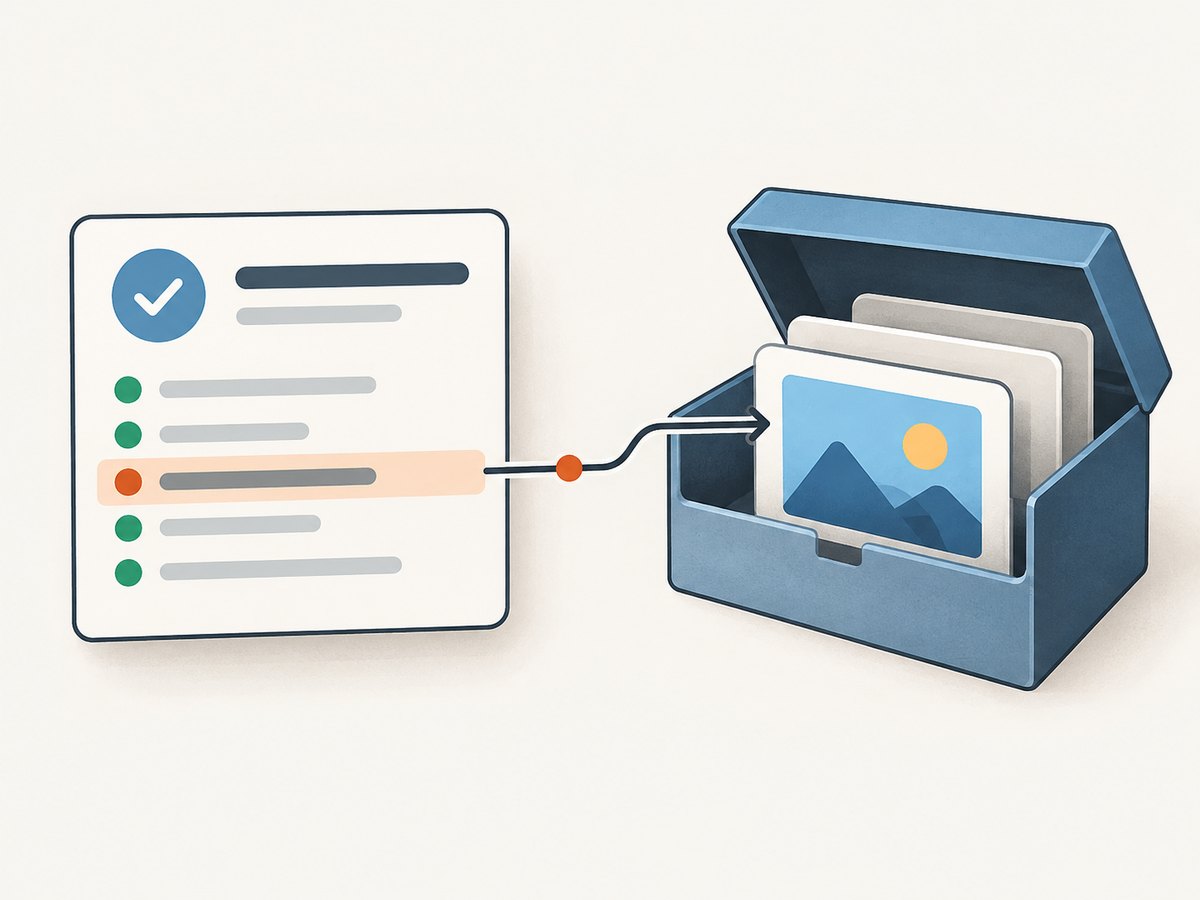
If you generate HTML directly, treat test names, exception messages, URLs, and parameters as untrusted data. Escape them for HTML output and do not interpolate raw values into markup. Prefer artifact links generated from known relative filenames. A report that references target/screenshots/foo.png will break if Jenkins copies only the HTML page elsewhere; either copy the screenshot beside it or link to the archived build artifact path supported by your setup.
The TestNG Results plugin escapes test descriptions and exception messages by default. Its documentation warns that allowing HTML in exception messages can create a cross-site scripting risk. Keep escaping enabled unless an administrator has reviewed and accepted that risk. See the plugin’s [security notes and configuration](https://plugins.jenkins.io/testng-plugin).
6. Or skip the browser setup
If you need screenshots of pages outside your test’s live browser session, ScreenshotNeo offers a one-request capture API. The Java listener above remains the appropriate way to capture the exact state of a failing Selenium session. For a standalone URL capture, this is the cURL form; find authentication and options in the [ScreenshotNeo API documentation](https://screenshotneo.com/docs/).
curl -G "https://api.screenshotneo.com/v1/shot" \
  -d access_key=YOUR_API_KEY \
  --data-urlencode url=https://stripe.com \
  -o shot.webp
Cookie banners, popups, and chat widgets are removed before the shot. Bot checks, blank pages, and failed loads are never billed. An MCP server gives AI agents tools to take screenshots. The free plan includes 1,000 screenshots a month with no card; paid plans start at $5 for 3,000. See [ScreenshotNeo](https://screenshotneo.com) and [create a free account](https://screenshotneo.com/account/sign-up/).
7. Troubleshooting
| Symptom | Likely cause | Fix |
|---|---|---|
| No screenshot file after a failure | The callback did not run, the driver was already quit, or the test object does not expose the driver. | Confirm listener registration, log callback entry, expose the active driver, and capture before teardown closes it. |
| Screenshot directory is missing | The build never creates the destination, or the test process writes to a different working directory. | Create directories in the listener and resolve the path from the job workspace. Inspect the workspace after the test step. |
| Jenkins says no test reports were found | The report glob points to the wrong location or XML reporter did not generate the expected format. | List report files in the workspace and update the publisher pattern. Verify one XML file locally before changing Jenkins. |
| Tests show in Jenkins, but no inline image | Result publishers report test outcomes; screenshot embedding is not implicit. | Archive images and add valid links in a custom HTML report or use a verified attachment-capable integration. |
| Images overwrite each other | Filenames use only a method name during parallel runs or retries. | Add a UUID, invocation identifier, or run ID and ensure each thread has its own driver. |
| HTML report shows broken image links | Relative paths changed when Jenkins copied the report or screenshots were not copied. | Keep images beside the copied report or point links at retained build artifacts; inspect the published directory layout. |
| Screenshot failure masks the test failure | Capture exceptions escape the listener. | Catch screenshot and filesystem exceptions, log the capture issue, and preserve the original test result as the primary failure. |
8. Reliability, performance, and maintenance
Screenshot capture adds browser and filesystem work at failure time. Limit capture to failures unless the debugging value justifies capturing every test; full-page images can take more time and storage than viewport images. Avoid retrying capture indefinitely in a listener. Set retention policies for archived artifacts so repeated CI runs do not accumulate images forever, and keep artifacts long enough to match your team’s debugging window.
For reliability, make filenames unique, create directories explicitly, and keep screenshot errors from replacing test failures. In parallel suites, avoid sharing one WebDriver instance between tests unless your framework safely serializes access. Consider adding a run identifier for grouping screenshots from a build, while retaining uniqueness for retries and data-driven invocations. Treat screenshots as potentially sensitive: pages may include account details, tokens, personal data, or internal URLs. Restrict artifact access and retention accordingly.
Jenkins plugin compatibility is a deployment concern. At the time represented by the research for this article, the TestNG Results plugin page reported version 981.v1dc64d227855, a Jenkins minimum of 2.492.3, and an adoption notice. These details can change. Check the current [plugin page](https://plugins.jenkins.io/testng-plugin) against your controller before installing or upgrading, and test changes on a non-production controller.
9. Implementation checklist
- Register an
ITestListenerand capture inonTestFailurebefore WebDriver closes. - Write images to a workspace-relative directory and use collision-resistant filenames.
- Catch screenshot errors so they do not hide the test’s actual failure.
- Generate TestNG XML or JUnit-format XML and confirm the output path.
- Configure the matching Jenkins result publisher separately from image retention.
- Archive screenshot artifacts in a post-always block.
- Add report links only after verifying the published URLs or relative paths.
- Keep Jenkins HTML escaping enabled for test-controlled descriptions and exceptions.
- Review artifact access, retention, and plugin compatibility.
FAQ
Can I attach a screenshot to a passing test too?
Yes. Implement the listener’s success callback or add an explicit capture condition. Consider the storage and runtime impact before capturing every test.
Will this capture a screenshot after the browser has crashed?
Often it cannot: the driver command may fail if the session is gone. Log the capture error and preserve other debugging data such as browser logs or the exception.
Should I use TestNG XML or JUnit XML?
Use TestNG XML with the TestNG Results plugin when TestNG-specific result details matter. Use JUnit-format output and the Jenkins JUnit plugin when general result views and trends are sufficient.
Does archiving an image make it appear inside the test row?
No. Archiving preserves a downloadable build artifact. A report needs a valid link or explicit attachment support to display it beside a test.


