How to Capture a Selenium URL with Robot Screenshots
Capture the active Selenium URL and page screenshot together in Robot Framework, save reliable CI artifacts, and troubleshoot common failures.
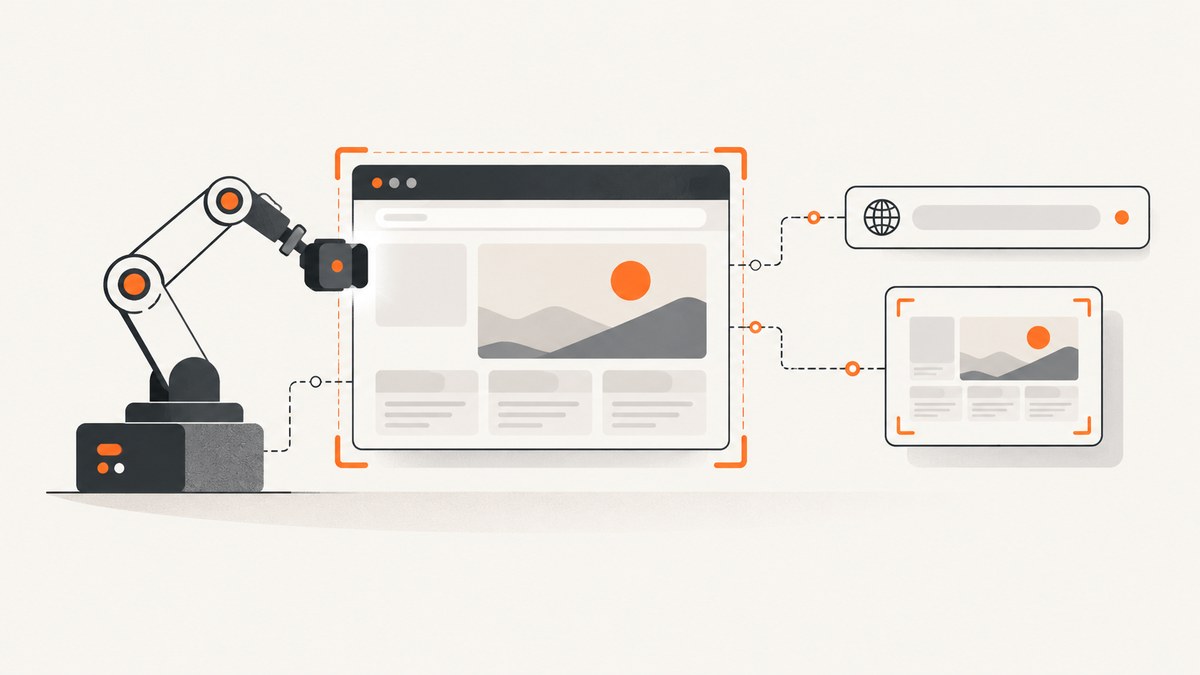
Use SeleniumLibrary’s Get Location and Capture Page Screenshot together. Read the URL immediately before capturing the page, then write the image under ${OUTPUTDIR} with a unique filename. This keeps the URL and screenshot aligned and gives CI systems an artifact directory to archive.
Complete Robot Framework example
*** Settings ***
Library    SeleniumLibrary

*** Keywords ***
Capture URL And Screenshot
    ${url}=    Get Location
    ${image}=    Capture Page Screenshot    ${OUTPUTDIR}/screenshots/page-{index}.png
    Set Test Message    URL: ${url}; screenshot: ${image}
    RETURN    ${url}    ${image}

*** Test Cases ***
Record browser state
    Open Browser    https://example.com    chrome
    ${url}    ${image}=    Capture URL And Screenshot
    Log    Captured ${url}
    Log    Screenshot: ${image}
    [Teardown]    Close All Browsers
Get Location returns the active browser URL. Capture Page Screenshot captures the current page and returns the resulting filename or embedding value. The {index} marker gives repeated captures distinct names. See the SeleniumLibrary keyword documentation.
Capture the intended URL, not an intermediate navigation
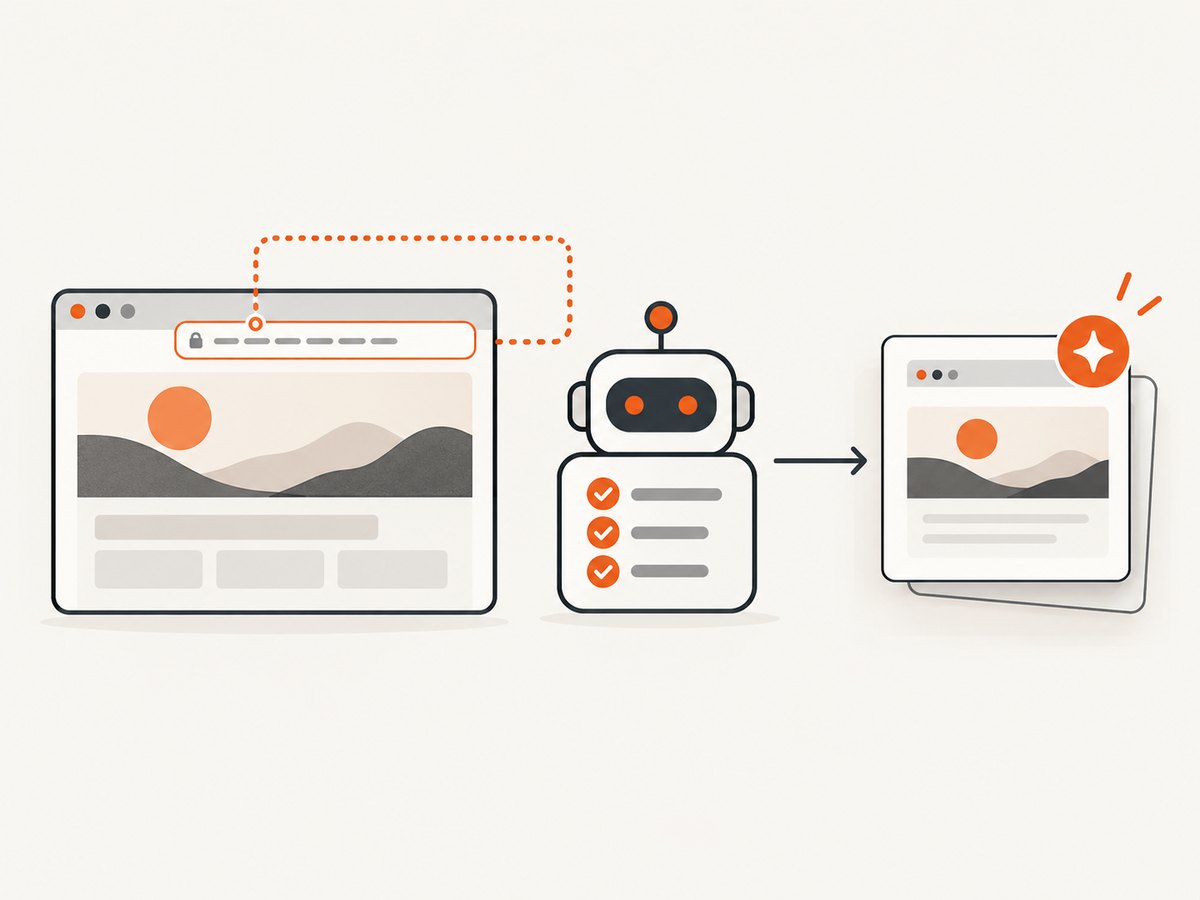
Single-page applications and redirects can change the URL asynchronously. Wait for the condition that defines the state you want to prove, then call the two keywords in this order:
*** Test Cases ***
Capture after navigation completes
    Open Browser    https://example.com    chrome
    Wait Until Location Contains    /dashboard    20 seconds
    ${url}    ${image}=    Capture URL And Screenshot
    Should Contain    ${url}    /dashboard
    [Teardown]    Close All Browsers
The URL and screenshot are captured close together, but the keywords do not freeze JavaScript navigation. If the page can still change, wait for a stable element, URL fragment, or application-specific readiness condition first.
Where does the screenshot file go?
With a normal filename, SeleniumLibrary writes a PNG file. If no screenshot directory is configured, the file is normally placed alongside the Robot Framework log. Configure a directory explicitly for predictable CI artifacts:
*** Settings ***
Library    SeleniumLibrary    screenshot_directory=${OUTPUTDIR}/screenshots

*** Test Cases ***
Capture in configured directory
    Open Browser    https://example.com    chrome
    ${url}=    Get Location
    ${image}=    Capture Page Screenshot    page-{index}.png
    Log    ${url} - ${image}
    [Teardown]    Close All Browsers
You can also set it during a suite with Set Screenshot Directory. Keep the path under ${OUTPUTDIR} so your CI job can archive the whole output directory.
Output modes: file, embedded image, and Base64
| Mode | Use it when | Result |
|---|---|---|
| PNG filename | You need CI artifacts, bug reports, or later inspection | A file is written |
EMBED |
The Robot HTML log is the only deliverable | The image is embedded in log.html; no separate file is created |
BASE64 |
Another log message or custom HTML needs the encoded image | Encoded image data is returned and embedded |
*** Test Cases ***
Embed in Robot log
    Open Browser    https://example.com    chrome
    ${url}=    Get Location
    ${image}=    Capture Page Screenshot    EMBED
    Set Test Message    URL: ${url}
    [Teardown]    Close All Browsers

Return Base64 data
    Open Browser    https://example.com    chrome
    ${base64}=    Capture Page Screenshot    BASE64
    Log    Screenshot data length: ${base64.__len__()}
    [Teardown]    Close All Browsers
Capture a screenshot only when a test fails
Put the reusable keyword in a teardown or failure hook and include the URL in the log. A teardown runs after each test, so check the test status before capturing if you want failure-only artifacts.
*** Settings ***
Library    SeleniumLibrary
Test Teardown    Capture failure evidence

*** Keywords ***
Capture failure evidence
    Run Keyword If    '${TEST STATUS}' == 'FAIL'    Capture URL And Screenshot

Capture URL And Screenshot
    ${url}=    Get Location
    ${image}=    Capture Page Screenshot    ${OUTPUTDIR}/screenshots/failure-{index}.png
    Set Test Message    URL: ${url}; screenshot: ${image}
    RETURN    ${url}    ${image}
If your suite uses a listener or a custom failure hook, call the same keyword there. Keep the browser open until the evidence has been collected.
Python Selenium equivalent
The same workflow in Selenium’s Python API uses the current URL property and save_screenshot(). Use an absolute path on remote workers or containers.
from pathlib import Path
from selenium import webdriver

out = Path("artifacts").resolve()
out.mkdir(parents=True, exist_ok=True)

driver = webdriver.Chrome()
try:
    driver.get("https://example.com")
    url = driver.current_url
    image_path = out / "page.png"
    ok = driver.save_screenshot(str(image_path))
    if not ok:
        raise OSError(f"Screenshot could not be written: {image_path}")
    print({"url": url, "screenshot": str(image_path)})
finally:
    driver.quit()
get_screenshot_as_file(filename) is another PNG-writing method and also reports an I/O failure with False. get_screenshot_as_base64() is useful when the image must be embedded. See the Selenium screenshot documentation.
Page versus element screenshots
Use a page screenshot for portable test evidence. Element capture can be useful for a focused component, but SeleniumLibrary documents limited support among browser vendors. If element capture fails or produces inconsistent results, capture the page and crop it later in your reporting pipeline.
Reliable artifact handling in CI
- Create the output directory before the capture.
- Use
${OUTPUTDIR}or an absolute path. - Use
{index}or a run-specific filename to avoid overwrites. - Archive the directory even when the test fails.
- Log both the URL and returned screenshot path.
- Close the browser after evidence collection, not before.
Troubleshooting
| Symptom | Cause | Fix |
|---|---|---|
| URL is wrong | Capture happened during a redirect or before SPA navigation finished | Wait for the target URL or readiness element, then call Get Location |
| No image file appears | Directory does not exist, is not writable, or EMBED was used |
Create the directory, check permissions, inspect the returned value, and use a filename for a file artifact |
| Images overwrite one another | A fixed filename is reused | Add {index} or generate a unique run filename |
| CI cannot find screenshots | The path is relative to a different worker directory | Use ${OUTPUTDIR} or an absolute path and archive that directory |
| Failure screenshot is blank | The browser was closed by an earlier teardown or the page had not loaded | Capture before closing the browser and wait for the required page state |
| Element screenshot fails | Driver support varies by browser vendor | Fall back to Capture Page Screenshot |
| Only the HTML log is required | A separate PNG adds unnecessary artifact handling | Use EMBED |
| Custom HTML needs the image | The image must travel as data | Use BASE64 |
Performance, reliability, and cost considerations
- Screenshot capture adds browser rendering and PNG encoding time; avoid taking multiple identical captures in tight loops.
- Wait for a specific readiness condition instead of using a long fixed delay. This reduces wasted time while preserving deterministic evidence.
- Full-page captures can be larger and slower than viewport captures, especially on pages with lazy-loaded images.
- Unique filenames prevent silent evidence loss when retries or parallel workers write to the same directory.
- For remote browsers, write to a path that exists on the worker where the browser runs, then copy or archive artifacts from that worker.
- Robot Framework and Selenium are self-hosted test tooling; infrastructure, browser, and CI costs depend on your environment.
Or skip the browser setup
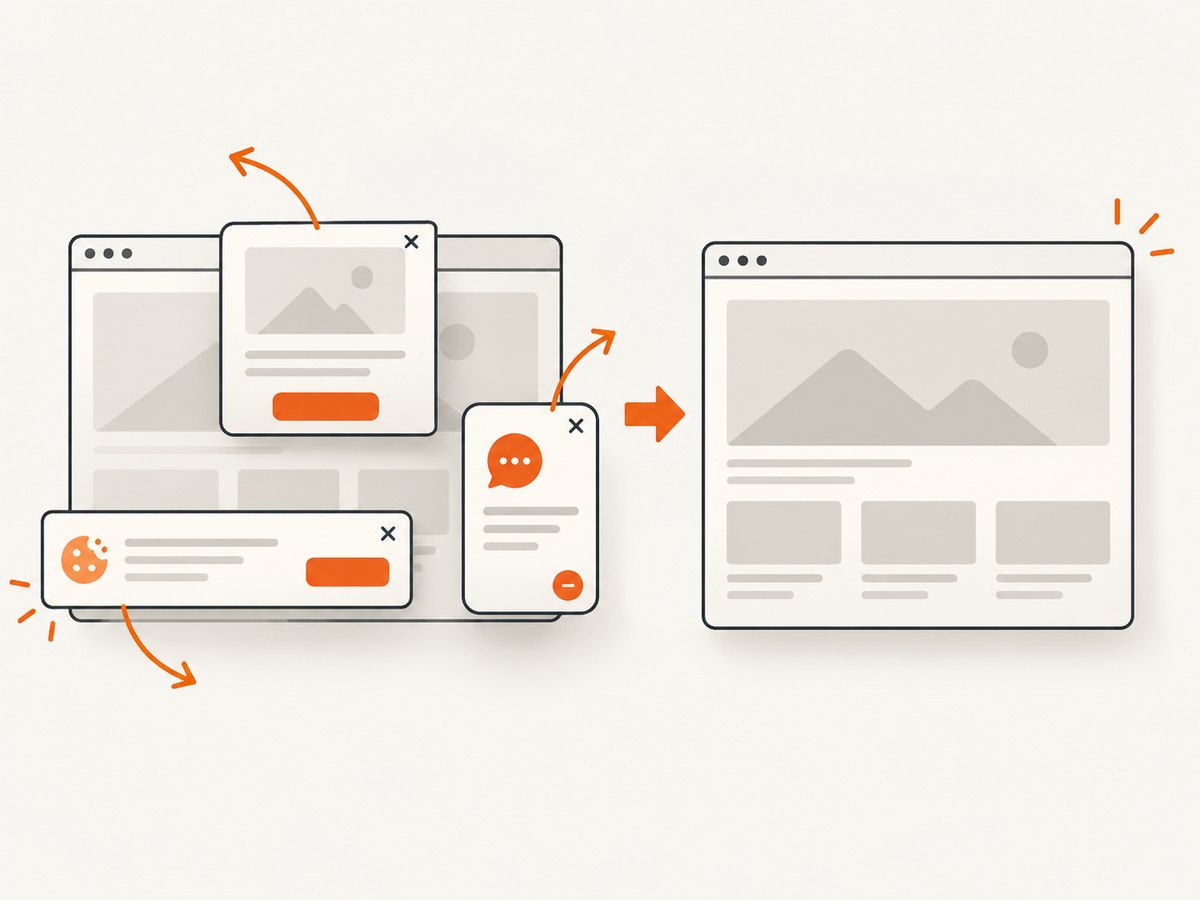
ScreenshotNeo provides a website screenshot API when you need an image from a URL without managing Selenium, browser drivers, or CI browser workers. One request returns PNG, JPEG, WebP, or PDF. Its consent step accepts cookie banners and removes more than 60 known consent platforms, newsletter popups, and chat widgets before capture. Bot checks, blank pages, timeouts, failed loads, and cache hits are not billed, and the response identifies the result with X-Page-Verdict and X-Billed headers. The service also provides an MCP server for AI agents, including Claude and Cursor.
See the ScreenshotNeo API documentation for all options.
cURL
curl -G "https://api.screenshotneo.com/v1/shot" -d access_key=YOUR_API_KEY --data-urlencode url=https://example.com -o shot.webpPython
import requests
r = requests.get("https://api.screenshotneo.com/v1/shot", params={"access_key": "YOUR_API_KEY", "url": "https://example.com"}, timeout=90)
r.raise_for_status()
open("shot.webp", "wb").write(r.content)
Node.js
const q = new URLSearchParams({ access_key: 'YOUR_API_KEY', url: 'https://example.com' });
const res = await fetch(`https://api.screenshotneo.com/v1/shot?${q}`);
if (!res.ok) throw new Error(`Screenshot failed: ${res.status}`);
const fs = await import('node:fs/promises');
await fs.writeFile('shot.webp', Buffer.from(await res.arrayBuffer()));
ScreenshotNeo includes full-page capture, selector capture, device presets, custom viewport and retina scale, PDF settings, custom CSS and JavaScript, waits, request blocking, headers, cookies, user agents, timezone and geolocation, transparent backgrounds, resizing, caching, signed links, asynchronous jobs, webhooks, bulk capture, and a usage API. The Free plan includes 1,000 shots per month with no card; paid plans start at $5 for 3,000 shots. Create a free ScreenshotNeo account.
FAQ
Does Get Location return the URL displayed in the address bar?
It returns the active URL for the current Selenium browser window, including changes made by redirects or client-side navigation.
Can I save a screenshot and embed it at the same time?
Use a normal filename for a file artifact and add a separate EMBED capture if the HTML log also needs an embedded image.
Why is {index} useful?
SeleniumLibrary replaces it with a number so repeated captures do not overwrite earlier screenshots.
Should I use a machine screenshot library?
Machine screenshot tools capture the operating-system display. Use SeleniumLibrary when the evidence must represent the browser page itself.


