Selenium WebDriver: How to Take a Viewport Screenshot
Capture exactly the visible browser viewport with Selenium WebDriver, save PNG files or bytes, size windows reliably, and troubleshoot common failures.
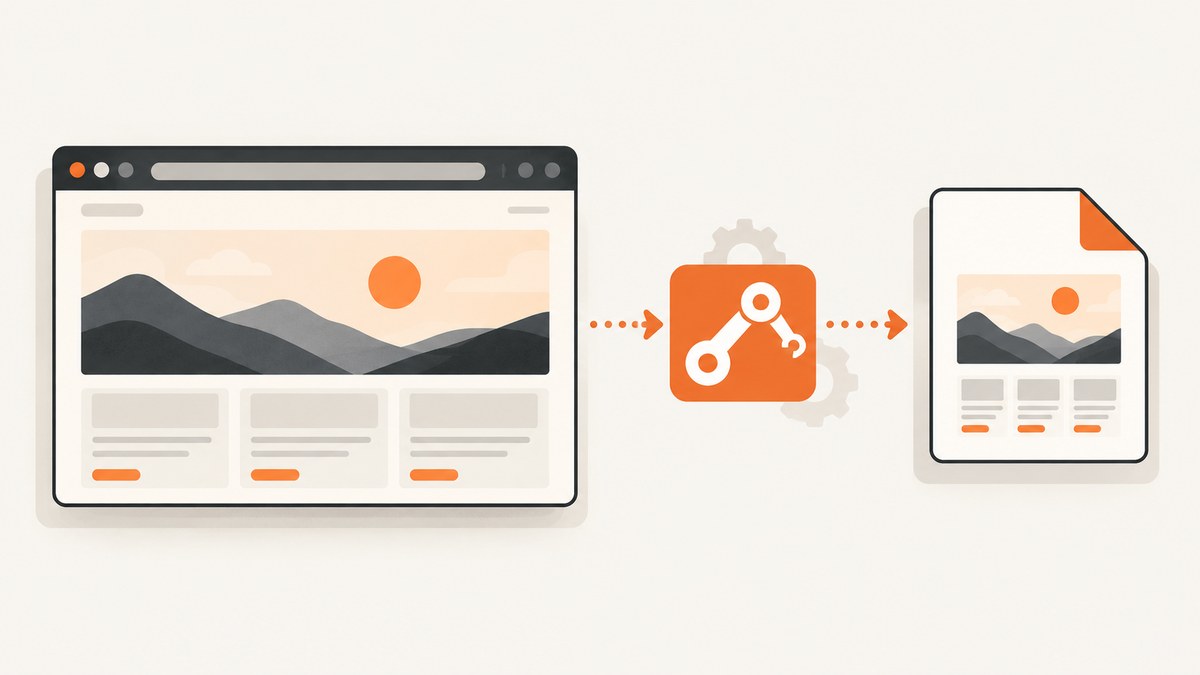
Direct answer: navigate with Selenium, then call the driver screenshot method. In Python, the shortest working example is:
from selenium import webdriver

options = webdriver.ChromeOptions()
options.add_argument("--headless=new")

driver = webdriver.Chrome(options=options)
driver.get("https://www.example.com")
driver.save_screenshot("screenshot.png")
driver.quit()
save_screenshot() writes a PNG of the current browser window. It captures the visible viewport, not every pixel in a long document. Selenium also provides methods that return PNG bytes or a Base64 string when you need to upload or process the image in memory. The official Selenium documentation covers driver and element screenshots in its screenshots guide and Python API reference.
What a Selenium viewport screenshot contains
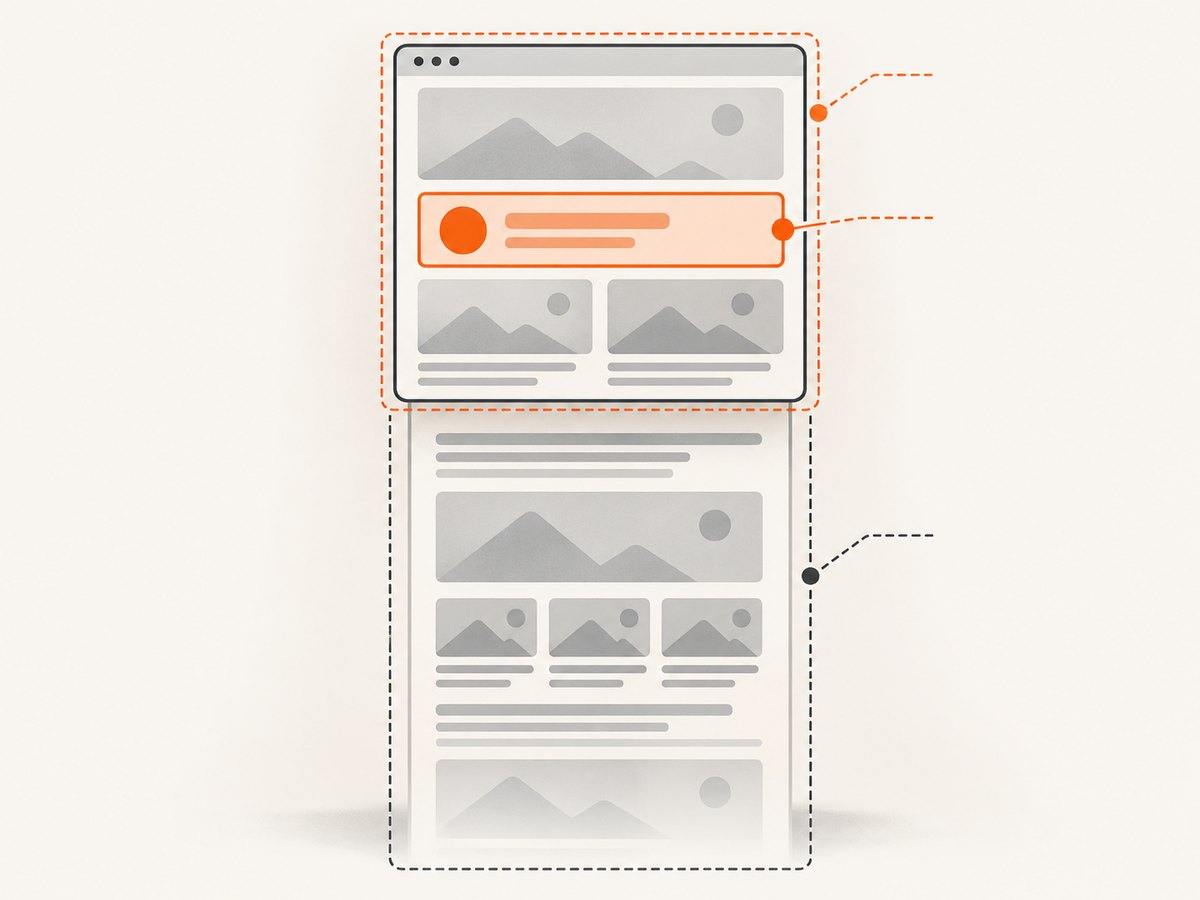
A normal WebDriver screenshot represents the current browsing context: the page area Selenium is displaying at capture time. Content below the fold is not automatically stitched into the image. Browser chrome such as the address bar is not part of the result. The exact pixel dimensions depend on the browser’s CSS viewport, device scale factor, operating system, and headless configuration.
This distinction matters in visual tests. A viewport screenshot answers “what does the user see right now?” A full-page screenshot answers “what does the entire document look like?” An element screenshot answers “what does this one WebElement look like?” Choose the API according to that scope.
1. Install Selenium and a browser driver
Install the Python package:
python -m pip install -U seleniumRecent Selenium releases can manage compatible drivers through Selenium Manager when a supported browser is installed. Chrome, Chromium, Firefox, and Edge are common choices. In CI, install the browser and its dependencies in the build image, then record the browser and Selenium versions so a visual difference can be reproduced.
2. Take and verify a viewport PNG in Python
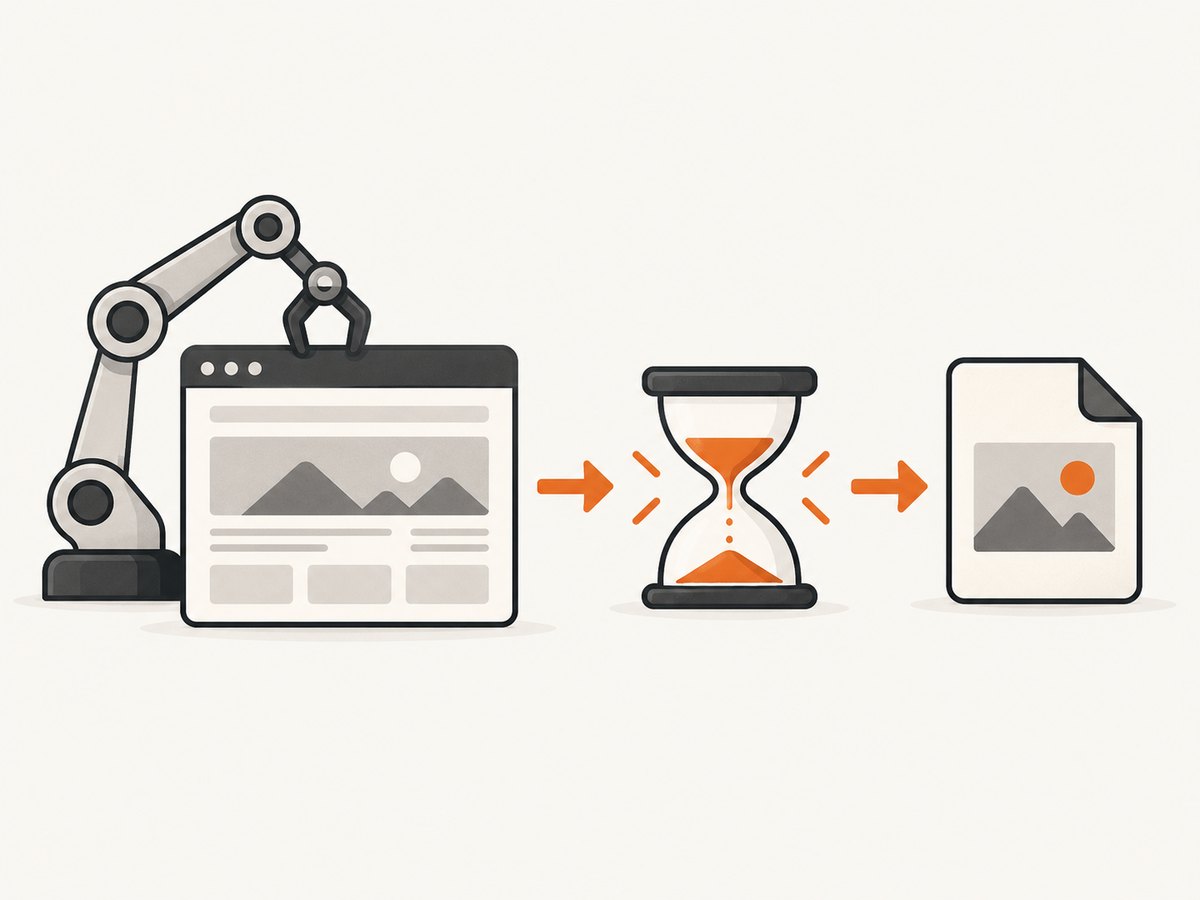
This complete example sets a window size, waits for a meaningful element, saves the image, and checks the Boolean result returned by Selenium:
from pathlib import Path

from selenium import webdriver
from selenium.webdriver.common.by import By
from selenium.webdriver.support.ui import WebDriverWait
from selenium.webdriver.support import expected_conditions as EC

URL = "https://www.example.com"
OUTPUT = Path("artifacts/example-viewport.png")

options = webdriver.ChromeOptions()
options.add_argument("--headless=new")
options.add_argument("--window-size=1440,900")

OUTPUT.parent.mkdir(parents=True, exist_ok=True)
driver = webdriver.Chrome(options=options)

try:
    driver.get(URL)
    WebDriverWait(driver, 20).until(
        EC.visibility_of_element_located((By.TAG_NAME, "body"))
    )

    saved = driver.save_screenshot(str(OUTPUT))
    if not saved:
        raise RuntimeError(f"Selenium did not save {OUTPUT}")

    print(f"Saved {OUTPUT} ({OUTPUT.stat().st_size} bytes)")
finally:
    driver.quit()
The filename should end in .png. Selenium’s Python API also exposes the equivalent get_screenshot_as_file(filename) method. Both file methods report success as a Boolean, so check the return value in test or build code rather than assuming the file exists.
Return PNG bytes instead of writing a file
Use get_screenshot_as_png() when the next step is an upload, image comparison, or object-store write:
png_bytes = driver.get_screenshot_as_png()
with open("screenshot.png", "wb") as image_file:
    image_file.write(png_bytes)
For systems that require text, get_screenshot_as_base64() returns the encoded image:
base64_png = driver.get_screenshot_as_base64()
print(base64_png[:40])
The WebDriver protocol represents a screenshot as Base64-encoded data; decode it only at the boundary where your application needs binary data.
3. Wait for the state you intend to capture
The screenshot command does not know whether your application has finished rendering. A page can have a loaded document while JavaScript is still fetching data, fonts are still swapping, or a cookie banner is covering the content. Wait for the state that matters to the test.
from selenium.webdriver.common.by import By
from selenium.webdriver.support.ui import WebDriverWait
from selenium.webdriver.support import expected_conditions as EC

# Wait for the application shell or a specific result, not an arbitrary sleep.
WebDriverWait(driver, 30).until(
    EC.visibility_of_element_located((By.CSS_SELECTOR, "main.dashboard"))
)

# If a loading mask must disappear, wait for it to become invisible.
WebDriverWait(driver, 30).until(
    EC.invisibility_of_element_located((By.CSS_SELECTOR, ".loading-mask"))
)

driver.save_screenshot("dashboard.png")
Use a short explicit delay only for a known animation or transition that cannot be observed through a DOM condition. For stable visual tests, disable animations with injected CSS or wait for a class that your application sets after rendering.
4. Make the viewport reproducible
Set the browser dimensions before navigation or capture when layout is part of the expected result:
options.add_argument("--window-size=1280,800")In a headed session, you can resize the outer window at runtime:
driver.set_window_size(1280, 800)
print(driver.get_window_size())
Do not assume that an outer window size maps to the same CSS viewport on every operating system. Browser decorations, display scaling, and headless implementations affect the relationship. If pixel-level reproducibility matters, record at least:
- browser name and version;
- Selenium version and driver version;
- headless or headed mode;
- requested window dimensions;
- device scale factor or display scaling where applicable;
- URL, locale, timezone, and test data state.
For responsive testing, run the same capture at several explicit sizes instead of relying on the machine’s default display.
5. Capture one element instead of the viewport
When the artifact should contain a component rather than the visible browser, locate the element and call its screenshot method:
header = driver.find_element(By.CSS_SELECTOR, "header.site-header")
header.screenshot("header.png")
Element screenshots are useful for component regression tests and receipts. The element must be present and normally visible; a hidden, detached, or zero-size element can produce an error or an unusable image. Scroll it into view first when necessary:
element = driver.find_element(By.ID, "invoice")
driver.execute_script(
    "arguments[0].scrollIntoView({block: 'center'});", element
)
element.screenshot("invoice.png")
6. Full-document screenshots are a different operation
A driver screenshot is a viewport capture. If you need the entire document, use a browser-specific full-page API where it is supported. Selenium documents Firefox methods such as get_full_page_screenshot_as_file() and save_full_page_screenshot() separately from the regular current-window methods:
# Firefox-specific Python example
from selenium import webdriver

options = webdriver.FirefoxOptions()
options.add_argument("-headless")
driver = webdriver.Firefox(options=options)
try:
    driver.get("https://www.example.com/long-page")
    driver.save_full_page_screenshot("full-page.png")
finally:
    driver.quit()
Full-page support and rendering behavior vary by browser and Selenium version. If your test requires one consistent long-page artifact across browsers, validate the chosen browser path separately. Do not substitute a full-page capture when the requirement is the visible viewport: the two images answer different questions.
Java and other Selenium bindings
In Java, the driver implements TakesScreenshot. Selenium’s Java API supports a file output target and other output types:
WebDriver driver = new ChromeDriver();
try {
    driver.get("https://www.example.com");
    File image = ((TakesScreenshot) driver)
        .getScreenshotAs(OutputType.FILE);
    Files.copy(image.toPath(), Path.of("screenshot.png"),
        StandardCopyOption.REPLACE_EXISTING);
} finally {
    driver.quit();
}
The same scope rules apply in Java and other bindings: the driver targets the current window, while an element screenshot targets a WebElement. Consult the binding’s API for its exact output type and file-handling behavior.
Common errors and fixes
| Symptom | Likely cause | Fix |
|---|---|---|
SessionNotCreatedException |
Browser and driver versions are incompatible, or the browser is missing. | Install a supported browser, update Selenium, and let Selenium Manager resolve the driver or pin matching versions in CI. |
| Screenshot file is missing | The parent directory does not exist, the process lacks write permission, or the Boolean result was ignored. | Create the directory, use an absolute or known workspace path, check the return value, and inspect the file after capture. |
| Image is the wrong size | Only the outer window was sized, or display scaling/headless behavior changed the CSS viewport. | Set dimensions explicitly, record browser mode and scale settings, and compare the actual image dimensions. |
| Content is blank or incomplete | Screenshot ran before asynchronous rendering, an iframe was not selected, or a loading mask covered the page. | Wait for a specific element or loading state; switch into the correct iframe before locating its content. |
| Cookie banner covers the page | The page requires consent before showing its normal layout. | Locate and click the consent control, or remove the overlay in test setup when consent is outside the behavior under test. |
| Element screenshot fails | The element is hidden, detached, outside the active frame, or has no rendered size. | Wait for visibility, switch frames, scroll into view, and verify dimensions before calling screenshot(). |
| Flaky visual diffs | Animations, rotating content, fonts, ads, timestamps, or network data vary between runs. | Freeze animations, use deterministic fixtures, wait for fonts and data, block nonessential requests, and mask genuinely dynamic regions. |
| Headless output differs from local output | Different browser flags, fonts, GPU paths, viewport, or operating-system rendering. | Use the same container or image for comparisons and document all browser launch arguments. |
Performance, reliability, and storage
Most capture time is page time: DNS, network requests, JavaScript, images, fonts, and any waits you add. Reusing one WebDriver session for related captures avoids repeatedly starting a browser, but isolate tests when cookies or local storage could affect the result. Always call quit() in a finally block so failed tests do not leave browser processes behind.
Keep screenshots as artifacts only when they help diagnose a failure or represent a required deliverable. PNG is lossless and best for pixel comparisons, but can be large. If your pipeline accepts another format, convert after capture with an image tool rather than expecting Selenium’s standard screenshot command to emit JPEG or WebP.
Use explicit timeouts for navigation and waits. A single global sleep makes fast pages slower and still does not guarantee that a slow page is ready. For parallel jobs, give each worker a separate output directory and deterministic filename so captures cannot overwrite one another.
Visual comparisons should compare like with like: same viewport, browser, fonts, zoom, locale, timezone, and data. A difference can be a legitimate responsive change rather than a regression.
Or skip the browser setup
ScreenshotNeo provides a hosted screenshot API when you need a clean viewport image without managing WebDriver. One GET request returns PNG, JPEG, WebP, or a PDF. Before capture it accepts cookie and consent banners and removes more than 60 known consent platforms, newsletter popups, and chat widgets; each step can be turned off. Bot checks or CAPTCHAs, blank pages, timeouts, failed loads, and cache hits cost nothing, and the response identifies the result with X-Page-Verdict and X-Billed headers.
See the ScreenshotNeo API documentation for all options. The basic request is:
curl -G "https://api.screenshotneo.com/v1/shot" -d access_key=YOUR_API_KEY --data-urlencode url=https://stripe.com -o shot.webpimport requests
r = requests.get("https://api.screenshotneo.com/v1/shot", params={"access_key": "YOUR_API_KEY", "url": "https://stripe.com"}, timeout=90)
open("shot.webp", "wb").write(r.content)const q = new URLSearchParams({ access_key: 'YOUR_API_KEY', url: 'https://stripe.com' }); const res = await fetch(`https://api.screenshotneo.com/v1/shot?${q}`);For viewport work, you can set any viewport or use one of 12 device presets, choose retina scale, enable dark mode, wait for a selector, delay, or network idle, click an element, hide selectors, inject CSS or JavaScript, supply headers, cookies, a user agent, authorization, timezone, or geolocation, and block ads, trackers, requests, or resource types. It also supports full-page capture with lazy images loaded, one-element capture by CSS selector, transparent backgrounds, resizing, configurable caching TTL, signed links, asynchronous jobs with signed webhooks, bulk capture of 100 URLs per call, a usage API, and HTML/CSS to image.
ScreenshotNeo has an MCP server with take_screenshot, get_page_info, and capture_pdf tools for Claude, Cursor, and other MCP clients. The Free plan includes 1,000 shots each month with no card; paid plans start at $5 for 3,000 shots. Create a free ScreenshotNeo account.
FAQ
Does Selenium save screenshots as JPEG?
The standard Selenium screenshot methods produce PNG output. Save the PNG, then convert it with an image-processing library if a JPEG or WebP deliverable is required.
Can a viewport screenshot include content below the fold?
Not with the ordinary current-window method. Use a supported full-page API or a deliberate scroll-and-stitch workflow when the entire document is required.
Why does my screenshot show a different layout in CI?
Viewport dimensions, browser version, fonts, display scaling, headless flags, locale, and dynamic data can all change rendering. Record and standardize those inputs.
Should I use a fixed sleep before every screenshot?
No. Wait for the element or application state that defines readiness. Fixed sleeps add delay and still miss slow or failed loads.
How do I screenshot an iframe?
Switch to the frame before locating its elements, capture the element or driver view you need, then switch back with driver.switch_to.default_content().


