How to Wait for a Page to Load in Selenium Before a Screenshot
Learn which Selenium wait to use, how to detect real page readiness, and how to capture reliable screenshots from dynamic pages.
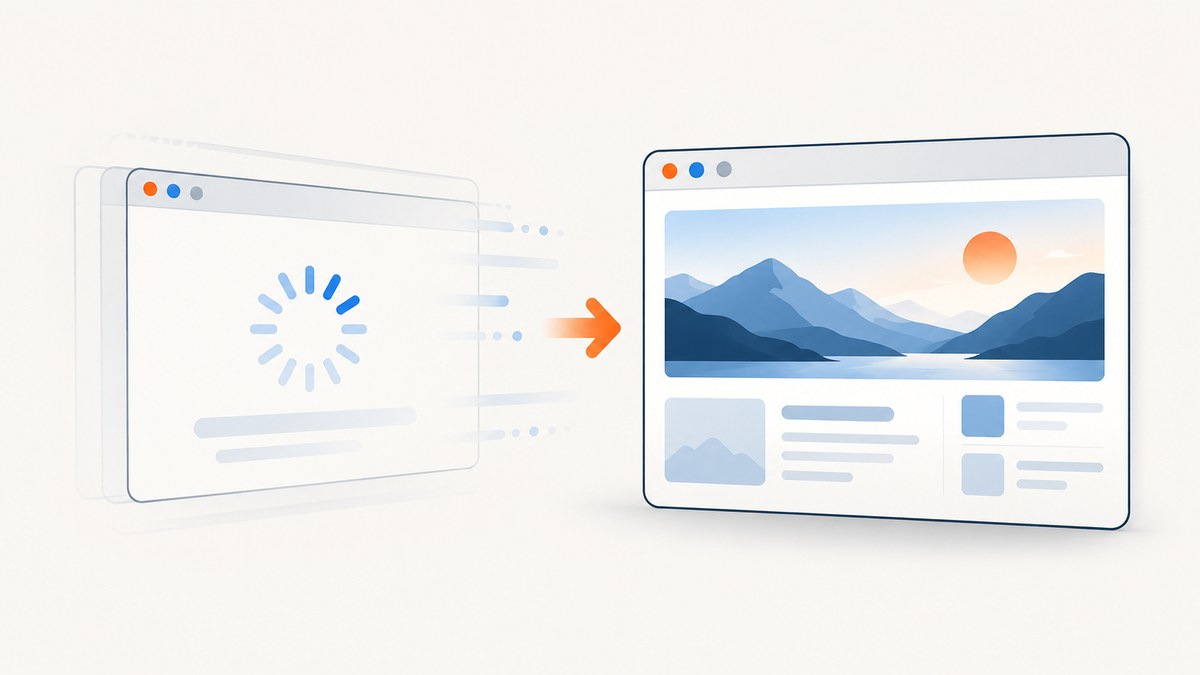
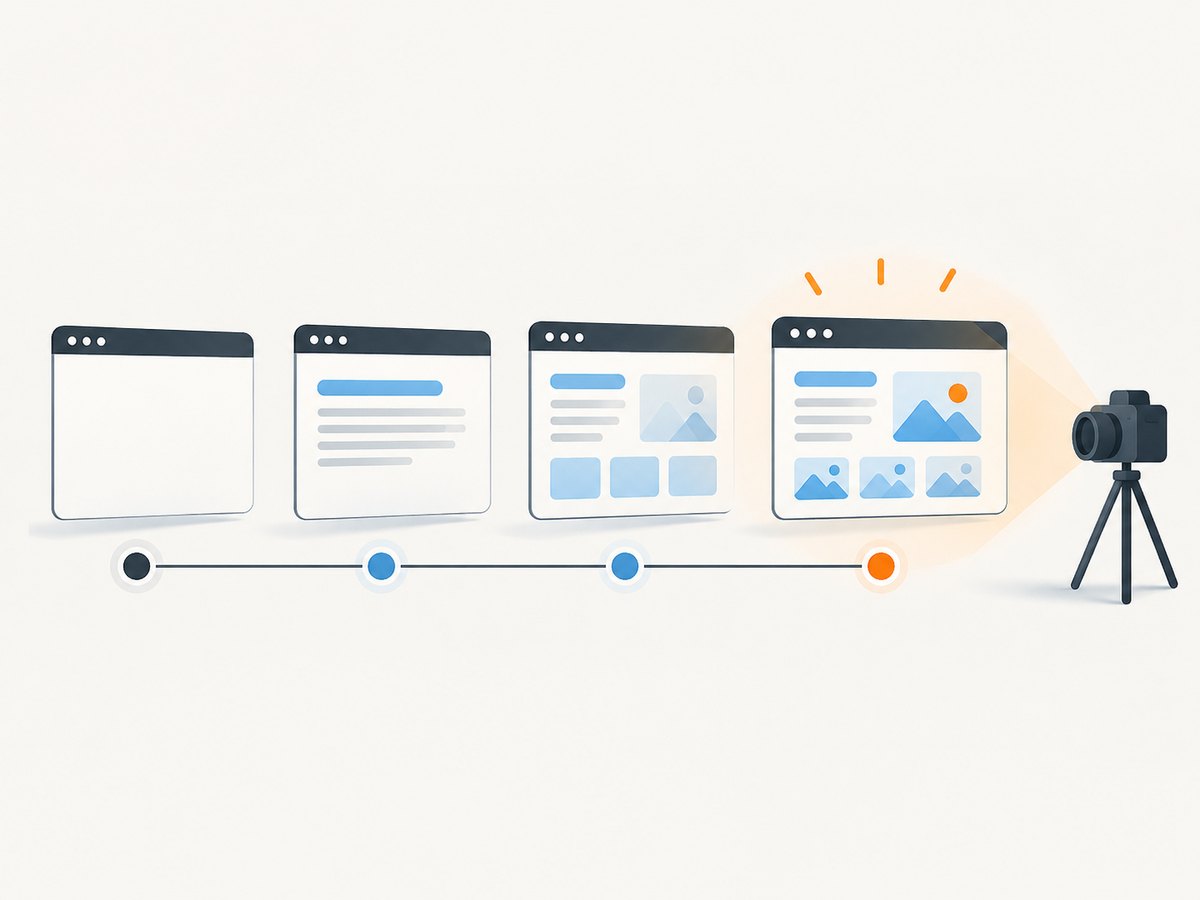
Use an explicit wait for the condition that makes your target content ready, then call Selenium’s screenshot method. A successful driver.get() only tells you that the browser reached its configured document readiness state. JavaScript applications can continue fetching data, rendering components, decoding images, or replacing loading placeholders afterward. If you capture immediately, the PNG can contain a spinner, an empty panel, or a partially rendered layout.
The reliable sequence is:
- Navigate to the URL.
- Wait for a page-specific signal, such as a visible result element or a loading marker disappearing.
- Wait for images or other assets your screenshot depends on to finish loading.
- Capture the current window.
This guide shows complete Python examples, page-load strategies, explicit and implicit waits, image readiness checks, post-click waits, troubleshooting, and production considerations.
What Selenium waits for during navigation
Selenium’s page-load strategy controls when a navigation command returns. The default normal strategy waits for the document’s complete readiness state and the resources covered by the browser’s page-load behavior. That state is useful, but it is not a promise that a single-page application has finished updating its interface. The Selenium documentation explicitly cautions that JavaScript can load content after readyState becomes complete. See the WebDriver options documentation and waiting strategies guide.
| Strategy | Navigation returns at | Screenshot implication |
|---|---|---|
normal |
complete |
Images and ordinary page resources usually have been considered, but application data may still be arriving. |
eager |
interactive |
Navigation returns earlier; images and other resources may still load. Add explicit waits before capture. |
none |
Without blocking on document readiness | Use only when you will perform all required synchronization yourself. |
These strategies apply to URL navigation. A click, form submission, or script can trigger an application update without invoking the same navigation wait, so synchronization after interactions must be explicit.
Recommended Python pattern: wait for a stable element
Choose a locator that represents the actual state you want to capture. It might be a report table, a chart container, a logged-in user panel, or a page-specific “ready” marker. The following runnable example waits until that element is visible.
from selenium import webdriver
from selenium.webdriver.common.by import By
from selenium.webdriver.support import expected_conditions as EC
from selenium.webdriver.support.ui import WebDriverWait

url = "https://example.com/dashboard"

options = webdriver.ChromeOptions()
# options.add_argument("--headless=new")  # Enable for headless runs.
driver = webdriver.Chrome(options=options)

driver.set_page_load_timeout(30)

try:
    driver.get(url)

    wait = WebDriverWait(driver, 15)
    wait.until(
        EC.visibility_of_element_located(
            (By.CSS_SELECTOR, "main .page-ready-marker")
        )
    )

    driver.save_screenshot("dashboard.png")
finally:
    driver.quit()
The selector is deliberately page-specific. Replace it with a stable element from your application. A timeout is an upper bound: Selenium polls the condition and continues as soon as it succeeds. If it never succeeds, WebDriverWait raises TimeoutException.
Useful expected conditions
visibility_of_element_located: the element exists and is visible.presence_of_element_located: the element exists in the DOM, even if it is hidden.element_to_be_clickable: useful before an interaction that starts the state you will capture.invisibility_of_element_located: wait for a loading overlay or spinner to disappear.title_isortitle_contains: useful when navigation changes the document title.- A custom callable: inspect application state, text, attributes, or JavaScript properties.
Use visibility when pixels must be present. Presence alone can succeed while an element is covered, collapsed, or still outside the useful state.
Wait for images to finish decoding
A visible card or container does not prove that its image has loaded. For image-dependent screenshots, inspect the target image’s complete property and its natural dimensions. This is a page-specific synchronization check, not a universal guarantee for every rendering pipeline.
from selenium import webdriver
from selenium.webdriver.common.by import By
from selenium.webdriver.support.ui import WebDriverWait

url = "https://example.com/gallery"
driver = webdriver.Chrome()
driver.set_page_load_timeout(30)

try:
    driver.get(url)
    wait = WebDriverWait(driver, 20)

    image = wait.until(
        lambda d: d.find_element(By.CSS_SELECTOR, "main img.hero")
    )

    wait.until(
        lambda d: d.execute_script(
            """
            const img = arguments[0];
            return img.complete && img.naturalWidth > 0 && img.naturalHeight > 0;
            """,
            image,
        )
    )

    driver.save_screenshot("gallery.png")
finally:
    driver.quit()
If the page lazy-loads images only after scrolling, scroll the target into view before waiting. If the site swaps the src attribute, locate the image again after the swap or wait on a stable parent and then inspect its current image.
Wait for a loading indicator to disappear
Some applications do not expose a “ready” element, but they do expose a loading state. Waiting for the overlay to become invisible can be more accurate than waiting for a generic container.
from selenium.webdriver.common.by import By
from selenium.webdriver.support import expected_conditions as EC
from selenium.webdriver.support.ui import WebDriverWait

wait = WebDriverWait(driver, 20)
wait.until(
    EC.invisibility_of_element_located((By.CSS_SELECTOR, "[data-testid='loading']"))
)
wait.until(
    EC.visibility_of_element_located((By.CSS_SELECTOR, "[data-testid='results']"))
)
driver.save_screenshot("results.png")
Use both conditions when a hidden or removed spinner can disappear before the result has been rendered.
Wait after clicks, form submissions, and SPA route changes
A click may update the current document without a full navigation. Wait for the state produced by the interaction. A common pattern is to wait for stale content to be replaced and then wait for the new content to appear.
from selenium.webdriver.common.by import By
from selenium.webdriver.support import expected_conditions as EC
from selenium.webdriver.support.ui import WebDriverWait

wait = WebDriverWait(driver, 15)
old_panel = driver.find_element(By.CSS_SELECTOR, "#results")
driver.find_element(By.CSS_SELECTOR, "button[data-view='monthly']").click()

wait.until(EC.staleness_of(old_panel))
wait.until(EC.visibility_of_element_located((By.CSS_SELECTOR, "#results")))
wait.until(
    EC.text_to_be_present_in_element(
        (By.CSS_SELECTOR, "#results"), "Monthly"
    )
)
driver.save_screenshot("monthly.png")
For a route change that keeps the same DOM node, wait for a URL change, a route attribute, changed text, or a request-specific marker instead of staleness.
Custom readiness conditions
When the application has a meaningful JavaScript state, write a small callable. The callable should return a truthy value only when the screenshot state is complete.
from selenium.webdriver.support.ui import WebDriverWait

wait = WebDriverWait(driver, 20)
wait.until(
    lambda d: d.execute_script(
        """
        return window.appState &&
               window.appState.reportLoaded === true &&
               document.querySelectorAll('.chart canvas').length > 0;
        """
    )
)
driver.save_screenshot("report.png")
Keep the condition tied to the page contract. A generic condition such as “the body exists” is usually true far too early.
Explicit waits, implicit waits, and fixed sleeps
| Approach | Use it when | Main limitation |
|---|---|---|
| Explicit wait | You know the element or state required by this screenshot. | Requires a useful condition. |
| Implicit wait | You need a global baseline for element lookup. | It applies broadly and can make timing harder to reason about. |
| Fixed sleep | The application exposes no observable readiness signal. | It can be too short on a slow run and wasteful on a fast run. |
Selenium warns that combining implicit and explicit waits can produce unpredictable total wait times. Prefer explicit waits for screenshot synchronization. If you must use an implicit wait, keep its value small and account for its effect on every element lookup.
# Usually prefer this local, explicit synchronization.
wait = WebDriverWait(driver, 15)
wait.until(EC.visibility_of_element_located((By.CSS_SELECTOR, "#invoice")))

# Fixed delays are a fallback, not proof of readiness.
import time
time.sleep(2)
Page-load timeout versus application readiness timeout
driver.set_page_load_timeout(30) limits how long Selenium waits for navigation. It does not express when your application has finished fetching data or settling its layout. Your WebDriverWait timeout is a separate limit for the condition required before capture. Set both deliberately and catch their different failures.
from selenium.common.exceptions import TimeoutException
from selenium.common.exceptions import WebDriverException

try:
    driver.set_page_load_timeout(30)
    driver.get(url)
    WebDriverWait(driver, 20).until(
        EC.visibility_of_element_located((By.CSS_SELECTOR, "#ready"))
    )
    driver.save_screenshot("page.png")
except TimeoutException:
    # Navigation or an explicit condition reached its timeout.
    driver.save_screenshot("timeout-state.png")
except WebDriverException as exc:
    print(f"WebDriver failure: {exc}")
Screenshot capture methods and output
save_screenshot(filename) writes a PNG file. get_screenshot_as_png() returns PNG bytes, which is useful when you need to upload the result or process it in memory.
png_bytes = driver.get_screenshot_as_png()
with open("page.png", "wb") as output:
    output.write(png_bytes)
The screenshot API captures the current window; it does not synchronize your front end for you. Put all waits before the capture call. For a full-page result, remember that the default window screenshot is normally the visible viewport; full-page behavior depends on the driver and browser strategy you choose. If exact full-page output matters, validate that strategy separately for your browser version.
Reliability checklist for production captures
- Use a stable data attribute or semantic selector instead of a generated class name.
- Wait for the result state, not merely
document.readyState. - Wait for critical images to have nonzero natural dimensions.
- Wait for overlays, cookie dialogs, and animations that would cover the target.
- Set a page-load timeout and an application-condition timeout.
- Capture a diagnostic screenshot when a wait times out.
- Use a consistent viewport, device scale, timezone, and locale in repeatable jobs.
- Close the driver in a
finallyblock so failed jobs do not leak browser processes. - Do not mix implicit and explicit waits casually.
- Record the URL, condition name, elapsed time, and exception for each failure.
Performance and cost considerations
Explicit waits usually reduce wasted time because they stop polling as soon as the required state exists. A large fixed sleep makes every fast run slower, while a short sleep makes slow runs flaky. The right timeout depends on the application and environment; the illustrative values above are not benchmarks.
Use eager or none only when you have strong, page-specific synchronization afterward. Returning from navigation earlier does not make the final screenshot faster if you still need to wait for the same data and assets.
For repeated captures, browser startup is often a larger cost than the wait itself. Reuse a driver only when sessions can be isolated safely, clear cookies and storage between jobs, and avoid sharing a driver across concurrent tasks unless your architecture protects each session.
Troubleshooting common failures
The screenshot contains a spinner or empty panel
Cause: navigation reached complete before the application finished its asynchronous update.
Fix: wait for the result element, a loading overlay to disappear, or a custom application marker.
TimeoutException even though the page eventually looks correct
Cause: the selector is wrong, the element is inside an iframe, the state takes longer than the timeout, or the page failed to load its data.
Fix: verify the selector in the same browser session, switch into the required iframe, inspect browser and application logs, and increase the timeout only after confirming the condition is correct.
The element exists but is not visible
Cause: a hidden template, collapsed panel, overlay, or animation is still active.
Fix: use a visibility condition and wait for the overlay or animation state to finish.
Images are blank or show broken placeholders
Cause: lazy loading, a failed request, or image decoding has not completed.
Fix: scroll the image into view, wait for complete and nonzero natural dimensions, and check the image URL and network permissions.
The wait works locally but fails in headless mode
Cause: a different viewport, timing, font availability, permissions, or responsive layout changes the DOM.
Fix: set the window size explicitly, use stable selectors, and make the readiness condition describe content rather than coordinates or transient classes.
The click starts a new tab
Cause: the screenshot is taken in the original window handle.
Fix: wait for the new window, switch to its handle, then apply the normal readiness wait before capturing.
Or skip the browser setup
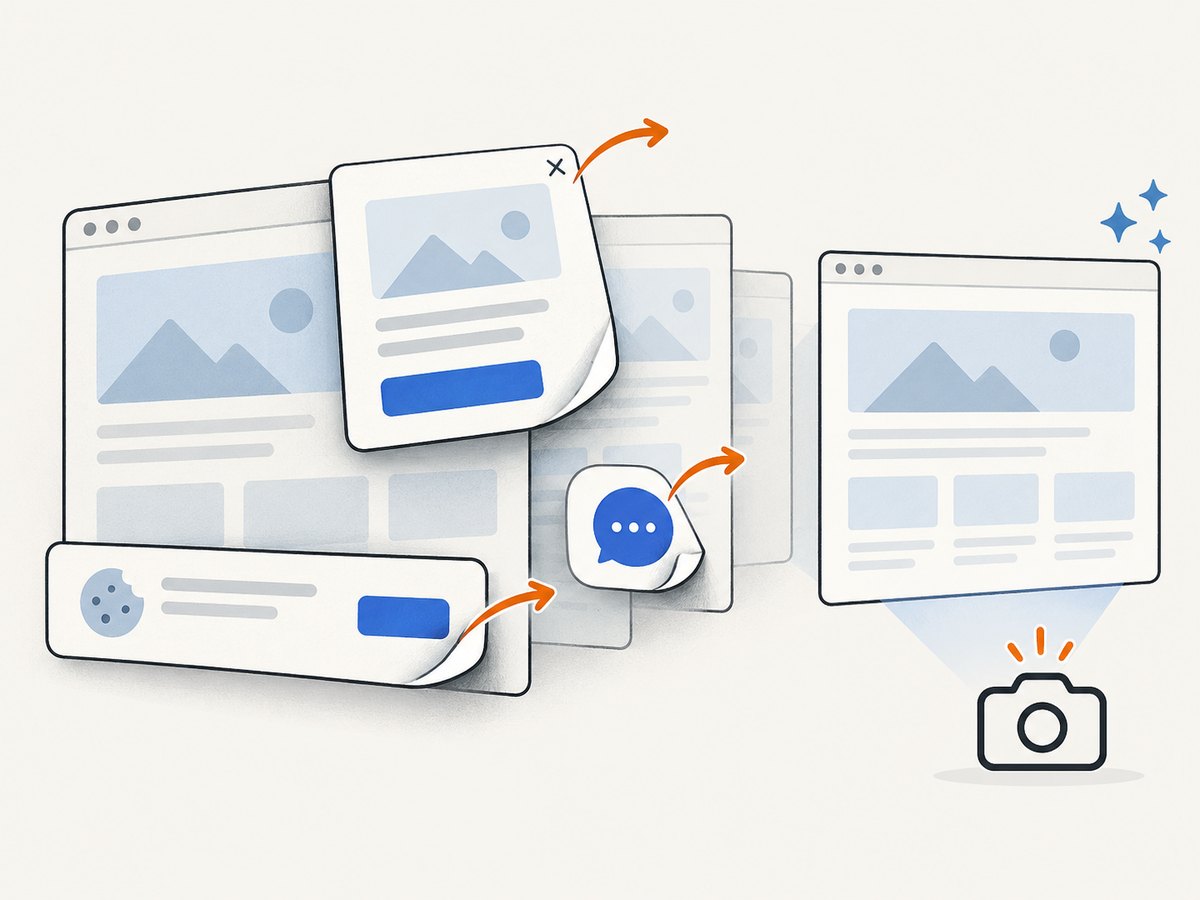
If your goal is a clean website image rather than browser automation, ScreenshotNeo provides a single request that returns PNG, JPEG, WebP, or PDF. Its capture flow accepts cookie and consent banners, then removes more than 60 known consent platforms, newsletter popups, and chat widgets before the shot. Each step can be turned off. Bot checks and CAPTCHAs, blank pages, timeouts, failed loads, and cache hits are not billed; the response identifies the result with X-Page-Verdict and X-Billed headers.
See the ScreenshotNeo API documentation for all options. The basic call is:
cURL
curl -G "https://api.screenshotneo.com/v1/shot" \
  -d access_key=YOUR_API_KEY \
  --data-urlencode url=https://stripe.com \
  -o shot.webp
Python
import requests

r = requests.get(
    "https://api.screenshotneo.com/v1/shot",
    params={"access_key": "YOUR_API_KEY", "url": "https://stripe.com"},
    timeout=90,
)
r.raise_for_status()
open("shot.webp", "wb").write(r.content)
Node.js
const q = new URLSearchParams({
  access_key: 'YOUR_API_KEY',
  url: 'https://stripe.com'
});
const res = await fetch(`https://api.screenshotneo.com/v1/shot?${q}`);
if (!res.ok) throw new Error(`HTTP ${res.status}`);
const bytes = Buffer.from(await res.arrayBuffer());
await import('node:fs/promises').then(fs => fs.writeFile('shot.webp', bytes));
ScreenshotNeo also supports full-page capture with lazy images loaded, CSS-selector element capture, dark mode, device presets or custom viewports, retina scale, custom CSS and JavaScript, clicks, selector or network-idle waits, request blocking, headers, cookies, user agents, authorization, timezone, geolocation, transparent backgrounds, resizing, configurable caching, signed links, asynchronous jobs with signed webhooks, bulk capture of up to 100 URLs per call, usage reporting, and PDF options. An MCP server exposes take_screenshot, get_page_info, and capture_pdf to Claude, Cursor, and other MCP clients.
There is a free plan with 1,000 screenshots per month and no card. Paid plans start at $5 for 3,000 shots; yearly billing gives two months free, and every feature is available on every plan. Create your free ScreenshotNeo account.
FAQ
Is document.readyState == 'complete' enough?
Only when your requirement is specifically document readiness. It is not a reliable signal that a JavaScript application has finished rendering the content you need.
Should I always use a 15-second wait?
No. That value is illustrative. Choose a timeout based on the page’s normal behavior and your failure policy, then measure and adjust it from observed job data.
Can I use an implicit wait with an explicit wait?
You can, but Selenium warns that combining them can make total timing unpredictable. Prefer explicit waits for screenshot conditions.
How do I wait for a page after a button click?
Wait for the state caused by that click: a new element, changed text, a URL change, a replaced node, or a loading indicator disappearing.
Does Selenium screenshot the whole page?
The documented screenshot methods capture the current window. Full-page output depends on the browser and driver approach, so verify it for the environment you deploy.
When should I use an API instead of Selenium?
Use Selenium when you need custom browser interactions or application-specific control. Use a screenshot API when you want a request-based capture without maintaining browser drivers and synchronization code.


