Why Selenium WebDriver Waits Click Buttons Inconsistently and How to Fix Them
Selenium clicks fail when page state, overlays, or redraws race your test. Learn the right waits, diagnostics, fixes, and reliable patterns.
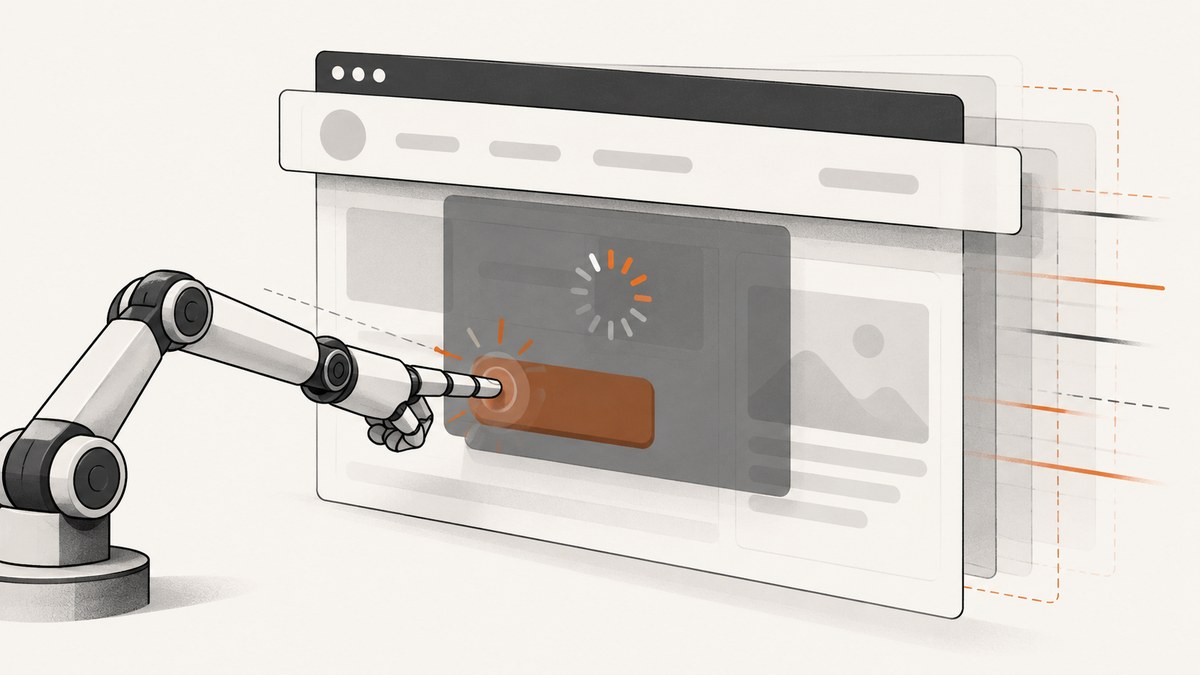
Short answer: Selenium waits click buttons inconsistently because a wait proves only the condition it checks. A button can be present, visible, and enabled while an overlay still covers its center, an animation is moving it, or JavaScript is about to replace it. Use explicit waits for the state your next action requires, remove or wait out overlays, re-find elements after redraws, and avoid mixing implicit and explicit waits.
Selenium describes this as a synchronization problem: navigation can finish before JavaScript-driven changes make an interaction safe. See the official waiting strategies documentation and element interaction documentation.
What Selenium’s clickable wait actually guarantees
element_to_be_clickable checks that an element is visible and enabled. It does not guarantee that the element’s center remains unobstructed until the click command executes. Selenium clicks the center point; if another element covers that point, the command can raise ElementClickInterceptedException.
| Check | What it proves | What it does not prove |
|---|---|---|
| Presence | The node exists in the DOM | It is displayed, enabled, or ready |
| Visibility | The element is displayed with usable dimensions | It is enabled or unobstructed |
| Enabled | The control is not disabled | Loading has finished or the center is clear |
| Clickable | Visible and enabled | No overlay, sticky header, animation, or redraw will interfere |
| Successful click | The browser accepted the click | The application completed the resulting action |
Use a condition that matches the next action
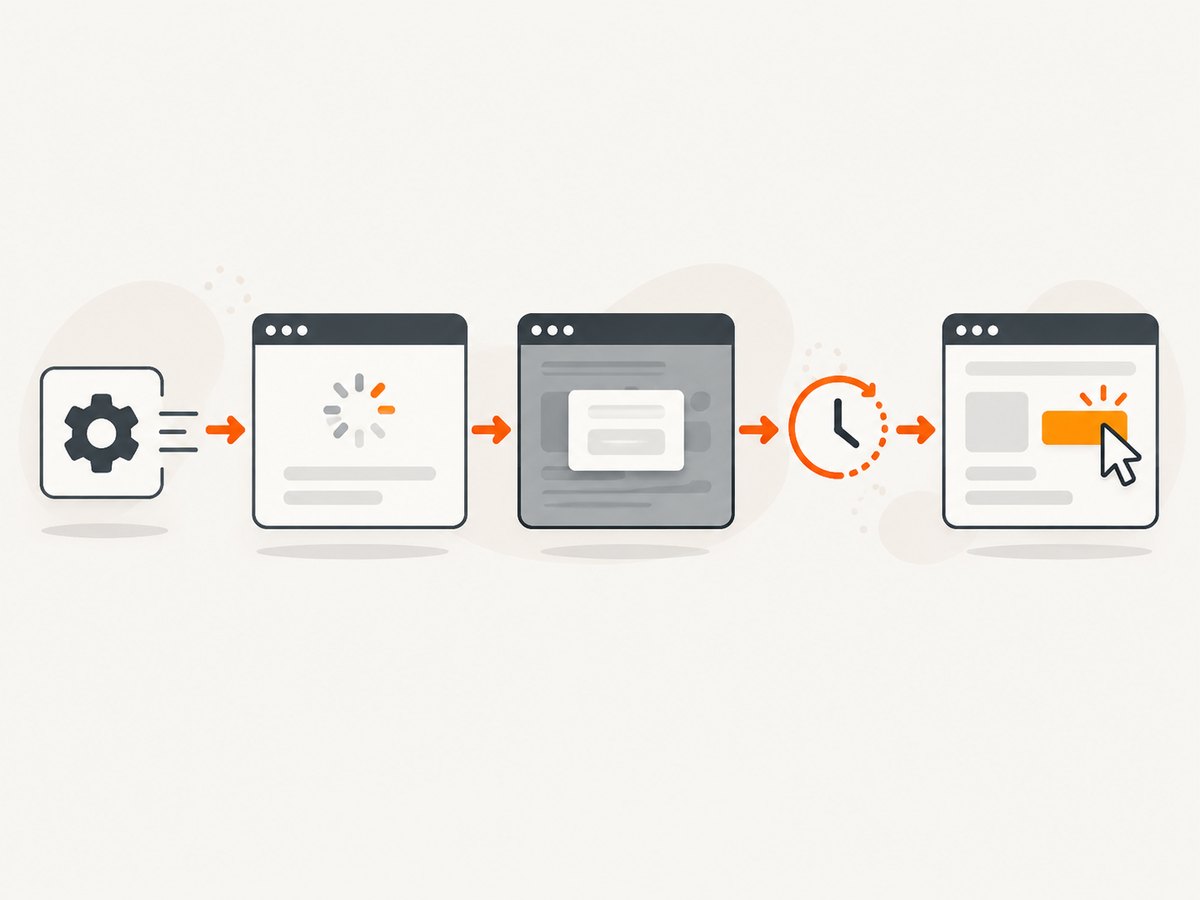
Replace fixed sleeps with an explicit wait tied to a locator and a real application transition. A sleep waits for time; an explicit wait polls until a condition becomes true. Selenium notes that short sleeps can miss a transition while long sleeps waste session time.
Basic Python pattern
from selenium import webdriver
from selenium.webdriver.common.by import By
from selenium.webdriver.support.ui import WebDriverWait
from selenium.webdriver.support import expected_conditions as EC

options = webdriver.ChromeOptions()
options.add_argument("--headless=new")
driver = webdriver.Chrome(options=options)
wait = WebDriverWait(driver, 15)

try:
    driver.get("https://example.com/checkout")

    submit_locator = (By.CSS_SELECTOR, "button[type='submit']")
    submit = wait.until(EC.element_to_be_clickable(submit_locator))
    submit.click()

    # Wait for the result of the click, not merely the click itself.
    wait.until(EC.visibility_of_element_located(
        (By.CSS_SELECTOR, ".confirmation")
    ))
finally:
    driver.quit()
This is a starting point. If a loading mask or dialog covers the button, add a wait for that state to disappear before waiting for the button.
Wait for an overlay or loading mask to disappear
from selenium.webdriver.common.by import By
from selenium.webdriver.support.ui import WebDriverWait
from selenium.webdriver.support import expected_conditions as EC

wait = WebDriverWait(driver, 20)

# Use the selector used by your application.
wait.until(EC.invisibility_of_element_located(
    (By.CSS_SELECTOR, ".loading-mask, [aria-busy='true']")
))

button_locator = (By.CSS_SELECTOR, "button[type='submit']")
wait.until(EC.element_to_be_clickable(button_locator)).click()
If the selector matches several temporary nodes, use the application’s specific loading component. Waiting on a selector that never disappears produces a timeout rather than fixing the race.
Wait for a modal to close
modal = (By.CSS_SELECTOR, "[role='dialog']")
close = (By.CSS_SELECTOR, "[role='dialog'] button[aria-label='Close']")

wait.until(EC.visibility_of_element_located(modal))
wait.until(EC.element_to_be_clickable(close)).click()
wait.until(EC.invisibility_of_element_located(modal))

wait.until(EC.element_to_be_clickable(
    (By.CSS_SELECTOR, "#continue")
)).click()
Why clicks fail even after the wait passes
1. The center point is covered
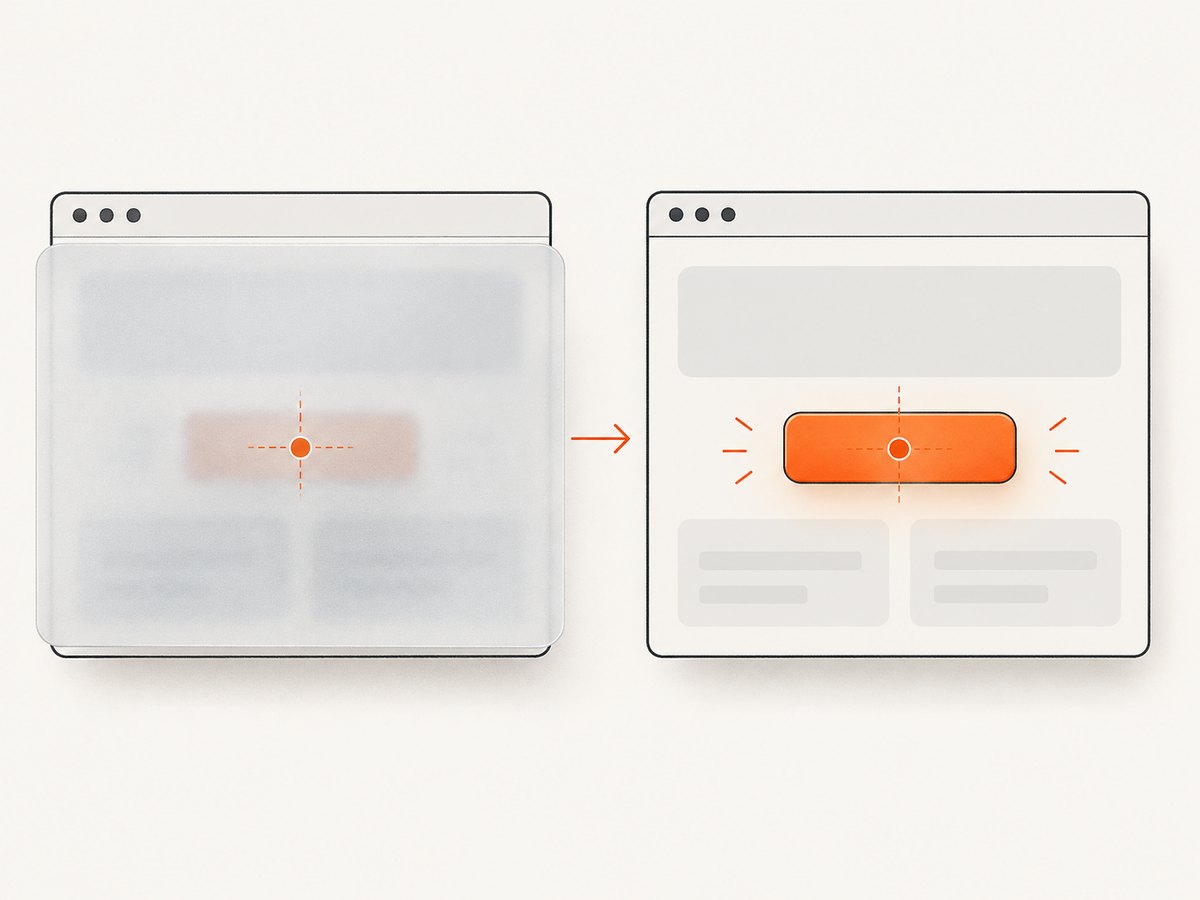
A sticky header, cookie banner, chat widget, loading mask, tooltip, or modal may overlap the button’s center. Inspect the exception message and the page at the failure moment. Capture a screenshot and inspect the layout rather than increasing the timeout blindly.
2. The page is still moving
Animations, expanding validation messages, lazy-loaded images, and font swaps can move a button after the wait returns. Wait for the transition that causes the movement to finish, disable nonessential animation in test mode, or wait for a stable application state.
3. JavaScript replaced the node
React, Vue, Angular, and other frameworks can redraw a control. The old WebElement then points to a detached node and raises StaleElementReferenceException. Keep the locator, discard the old element, and find the current node again.
button_locator = (By.CSS_SELECTOR, "button[type='submit']")

# Locate only when you are ready to act.
wait.until(EC.element_to_be_clickable(button_locator)).click()

# If a redraw is expected, wait for the old node to detach, then locate again.
old_button = driver.find_element(*button_locator)
trigger_redraw()
wait.until(EC.staleness_of(old_button))
wait.until(EC.element_to_be_clickable(button_locator)).click()
4. The locator targets the wrong control
Duplicate buttons may exist in desktop and mobile layouts, hidden dialogs, templates, or repeated rows. Prefer a stable ID, a test-specific attribute, or a locator scoped to the correct component.
# Prefer a stable test attribute when the application provides one.
button_locator = (By.CSS_SELECTOR, "[data-testid='checkout-submit']")

# Scope a repeated button to its row or dialog.
button_locator = (
    By.CSS_SELECTOR,
    "[data-testid='cart-row'][data-sku='ABC-123'] button[type='submit']"
)
Scroll and geometry issues
Selenium generally scrolls an element into view before clicking, but the resulting position can still be covered by a fixed header or another element. Scroll with a margin, then wait for the intended control to be displayed.
button = wait.until(EC.visibility_of_element_located(button_locator))
driver.execute_script(
    "arguments[0].scrollIntoView({block: 'center', inline: 'nearest'});",
    button,
)
wait.until(EC.element_to_be_clickable(button_locator)).click()
Use JavaScript clicks only as a deliberate diagnostic or when the application’s interaction contract permits it. A JavaScript click can bypass the browser’s real pointer-hit testing and hide the overlay or geometry bug your user would experience.
Wait for the result of the previous action
The most reliable sequence is action, then observable result. For example, after submitting a form, wait for a URL change, a confirmation element, a status message, or a loading indicator to disappear.
from selenium.webdriver.support import expected_conditions as EC

save_locator = (By.CSS_SELECTOR, "button[data-testid='save']")
status_locator = (By.CSS_SELECTOR, "[role='status']")

wait.until(EC.element_to_be_clickable(save_locator)).click()
wait.until(EC.text_to_be_present_in_element(status_locator, "Saved"))
Do not mix implicit and explicit waits
Selenium warns that combining implicit and explicit waits can produce unpredictable timeout durations. An illustrative Selenium example shows a 10-second implicit wait combined with a 15-second explicit wait taking about 20 seconds. Set the implicit wait to zero when your test strategy uses explicit waits.
driver.implicitly_wait(0)
wait = WebDriverWait(driver, 15)
Custom conditions for real application state
When built-in conditions do not represent readiness, write a small predicate. It should return the element or a truthy value only when the next action is safe.
from selenium.common.exceptions import StaleElementReferenceException

def unobstructed(locator):
    def predicate(driver):
        try:
            element = driver.find_element(*locator)
            if not element.is_displayed() or not element.is_enabled():
                return False
            return driver.execute_script("""
                const el = arguments[0];
                const r = el.getBoundingClientRect();
                const x = r.left + r.width / 2;
                const y = r.top + r.height / 2;
                const top = document.elementFromPoint(x, y);
                return top === el || el.contains(top);
            """, element) and element
        except StaleElementReferenceException:
            return False
    return predicate

button_locator = (By.CSS_SELECTOR, "button[type='submit']")
button = WebDriverWait(driver, 15).until(unobstructed(button_locator))
button.click()
This condition checks the center point at the moment of polling. The page can still change between the check and click, so keep the application state stable and use a short action sequence.
JavaScript Selenium example
import { Builder, By, until } from "selenium-webdriver";

const driver = await new Builder().forBrowser("chrome").build();
try {
  await driver.get("https://example.com/checkout");
  const button = await driver.wait(
    until.elementLocated(By.css("button[type='submit']")),
    15000
  );
  await driver.wait(until.elementIsVisible(button), 15000);
  await driver.wait(async () => await button.isEnabled(), 15000);
  await button.click();
  await driver.wait(
    until.elementLocated(By.css(".confirmation")),
    15000
  );
} finally {
  await driver.quit();
}
Diagnostic checklist
- Identify the exact exception: timeout, stale element, not interactable, or click intercepted.
- Confirm that the locator selects the intended button and not a hidden duplicate.
- Wait for visibility and enabled state.
- Wait for loading masks, dialogs, cookie banners, and other overlays to disappear.
- Check scroll position, sticky headers, animations, and layout movement.
- If the page redraws the control, discard the old element and locate it again.
- Wait for the result of the click.
- Keep implicit waits disabled when using explicit waits.
Common errors and fixes
| Error | Likely cause | Fix |
|---|---|---|
TimeoutException |
Condition never becomes true, wrong selector, or application transition exceeds the timeout | Verify the locator, wait for the actual state transition, and set a timeout that matches the application |
ElementClickInterceptedException |
Another element covers the button center | Wait for the overlay to disappear; inspect sticky headers, dialogs, banners, and scroll position |
StaleElementReferenceException |
The framework replaced the node | Wait for staleness when appropriate, then locate the element again |
ElementNotInteractableException |
The element is hidden, has no usable dimensions, or is in an invalid state | Use a stable locator and wait for visibility, enabled state, and the correct component state |
| Click succeeds but nothing changes | The click was accepted but the application is still processing, or the wrong duplicate was clicked | Wait for a URL, status, confirmation, or other result and verify the selected element |
Performance and reliability guidance
- Use condition-based waits so fast runs proceed immediately and slow runs receive more time.
- Keep locators stable and scoped to the component under test.
- Wait for one meaningful transition instead of chaining arbitrary sleeps.
- Use a separate timeout for genuinely slow operations such as uploads or third-party callbacks.
- Record the exception, URL, locator, and a screenshot when a click fails.
- Disable or shorten test-only animations where the application supports that configuration.
- Do not treat retries as the primary fix; a retry can hide a race and make failures harder to diagnose.
Or skip the browser setup
If your goal is a clean visual capture rather than an interactive browser test, ScreenshotNeo provides a website screenshot API and MCP server. One request returns a PNG, JPEG, WebP, or PDF, without maintaining Selenium drivers and wait logic.
See the ScreenshotNeo API documentation for the request options.
cURL
curl -G "https://api.screenshotneo.com/v1/shot" -d access_key=YOUR_API_KEY --data-urlencode url=https://stripe.com -o shot.webpPython
import requests

r = requests.get(
    "https://api.screenshotneo.com/v1/shot",
    params={"access_key": "YOUR_API_KEY", "url": "https://stripe.com"},
    timeout=90,
)
r.raise_for_status()
open("shot.webp", "wb").write(r.content)
Node.js
const q = new URLSearchParams({ access_key: 'YOUR_API_KEY', url: 'https://stripe.com' });
const res = await fetch(`https://api.screenshotneo.com/v1/shot?${q}`);
if (!res.ok) throw new Error(`Screenshot failed: ${res.status}`);
const fs = await import('node:fs/promises');
await fs.writeFile('shot.webp', Buffer.from(await res.arrayBuffer()));
Cookie and consent banners, newsletter popups, and chat widgets are removed before the shot. Bot checks, blank pages, timeouts, failed loads, and cache hits cost nothing, and response headers identify the page verdict and whether the shot was billed. ScreenshotNeo also provides an MCP server with take_screenshot, get_page_info, and capture_pdf tools for Claude, Cursor, and other MCP clients. The Free plan includes 1,000 screenshots per month with no card; paid plans start at $5 for 3,000 shots.
Create a free ScreenshotNeo account.
FAQ
Should I add a longer sleep when clicks are flaky?
Usually no. Wait for the loading, overlay, redraw, or result state that explains the delay. A longer blind sleep can still miss a race and slows every run.
Is element_to_be_clickable broken?
No. It checks visibility and enabled state. An overlay or layout change can still make the center point unavailable when Selenium performs the click.
When should I use staleness_of?
Use it when an action is expected to replace or remove the old node. Then locate the replacement through the original locator and wait for its required state.
Can I mix implicit and explicit waits?
Avoid it. Selenium documents unpredictable timeout behavior when both mechanisms are active.


