Running Selenium WebDriver in GitHub Actions for Unit Tests
Run reliable Selenium browser checks in GitHub Actions with complete workflows, waits, caching, artifacts, troubleshooting, and CI design guidance.
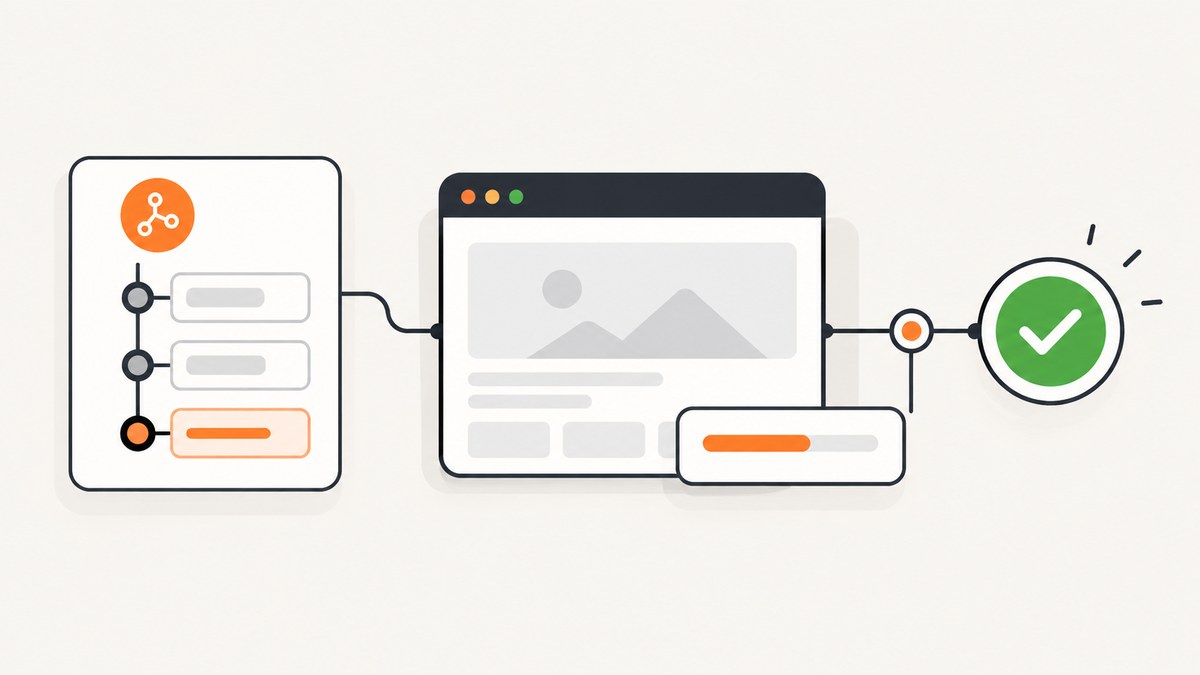
Short answer: run Selenium in a workflow that checks out your repository, installs the same language runtime and dependencies used locally, provides a compatible browser and WebDriver, and executes your normal test command. Choose runs-on according to the operating system and browser your tests require. Use condition-specific explicit waits, save screenshots and logs as artifacts, and keep fast unit tests separate from slower browser checks.
GitHub describes Actions as a CI/CD platform for automating build, test, and deployment pipelines. A workflow is a YAML file containing jobs and steps; each job selects an execution environment. GitHub provides hosted Linux, Windows, and macOS runners and also supports self-hosted runners. The example below uses an Ubuntu hosted runner, Python, pytest, and Chrome. Pin your own language, Selenium version, browser assumptions, and test command before publishing the workflow.
1. Decide what the Selenium job must provide
Selenium tests drive a real browser. Although teams often call them unit tests, they are browser-level checks and are slower and more failure-prone than isolated unit tests. Keep the two layers visible in your pipeline:
- Unit tests: run without a browser and give fast feedback on functions and modules.
- Selenium checks: start a browser, load pages, execute JavaScript, and verify user-visible behavior.
You can run both in one workflow, but separate job names and commands make failures easier to interpret. A typical repository has commands such as pytest tests/unit and pytest tests/e2e. Start by writing down the command that already works locally. The CI job should reproduce that command after setup rather than inventing a second test entry point.
Hosted or self-hosted runner?
| Choice | Use when | Trade-offs |
|---|---|---|
| GitHub-hosted | You need a disposable Linux, Windows, or macOS VM and a conventional browser test. | Simple provisioning; the image changes over time, so verify the current image documentation when pinning browser assumptions. |
| Self-hosted | You require private network access, a specialized OS, hardware, or tightly controlled browser images. | You own patching, capacity, isolation, cleanup, and runner availability. |
The runner choice determines whether the browser, display support, fonts, certificates, and network routes your tests need are available. Do not assume that a particular browser or driver version is permanently installed on every hosted image. Either use the image documentation for the publication date or install and verify the required software in the job.
2. Minimal Python workflow with Chrome
This workflow assumes a repository with a requirements.txt, pytest tests under tests/, and Selenium 4 or later. Recent Selenium releases include Selenium Manager, which can resolve a compatible driver when a browser is installed and no driver is otherwise found. That behavior depends on your Selenium version and runner environment.
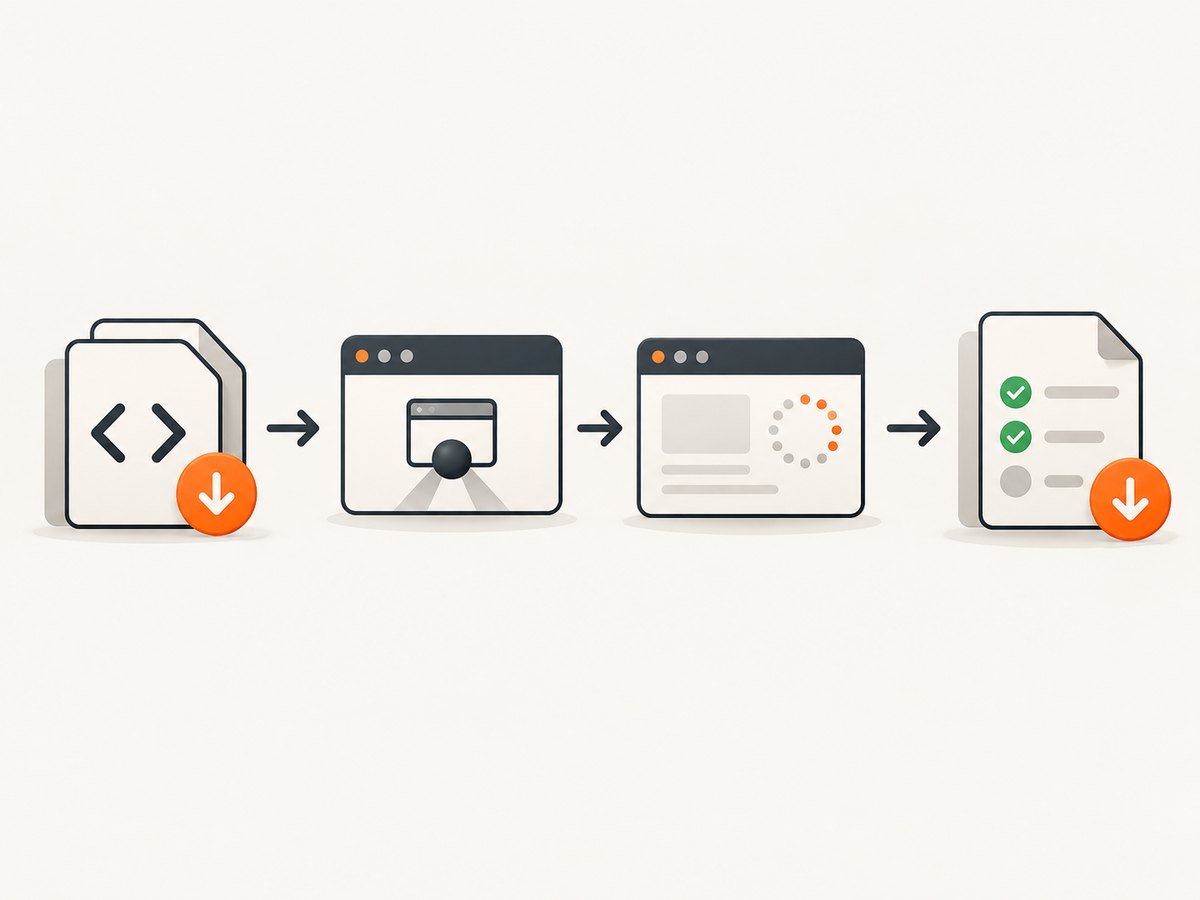
name: browser-tests

on:
  push:
    branches: [main]
  pull_request:

permissions:
  contents: read

jobs:
  unit:
    runs-on: ubuntu-latest
    steps:
      - name: Check out repository
        uses: actions/checkout@v4

      - name: Set up Python
        uses: actions/setup-python@v5
        with:
          python-version: '3.12'
          cache: pip

      - name: Install dependencies
        run: python -m pip install -r requirements.txt

      - name: Run fast unit tests
        run: python -m pytest tests/unit -q

  selenium:
    runs-on: ubuntu-latest
    steps:
      - name: Check out repository
        uses: actions/checkout@v4

      - name: Set up Python
        uses: actions/setup-python@v5
        with:
          python-version: '3.12'
          cache: pip

      - name: Install dependencies
        run: python -m pip install -r requirements.txt

      - name: Run Selenium tests
        run: python -m pytest tests/selenium -q --junitxml=artifacts/selenium.xml

      - name: Upload Selenium diagnostics
        if: always()
        uses: actions/upload-artifact@v4
        with:
          name: selenium-diagnostics
          path: artifacts/
          if-no-files-found: ignore
Create the output directory before writing reports, or configure pytest to create it. For example, add mkdir -p artifacts before the test command on Linux. If your local command is different, replace the command rather than adding flags your test runner does not understand.
A runnable Selenium test
from selenium import webdriver
from selenium.webdriver.common.by import By
from selenium.webdriver.support import expected_conditions as EC
from selenium.webdriver.support.ui import WebDriverWait


def test_homepage_title():
    options = webdriver.ChromeOptions()
    options.add_argument('--headless=new')
    options.add_argument('--no-sandbox')
    options.add_argument('--disable-dev-shm-usage')

    driver = webdriver.Chrome(options=options)
    try:
        driver.get('https://example.com')
        wait = WebDriverWait(driver, 15)
        heading = wait.until(
            EC.visibility_of_element_located((By.TAG_NAME, 'h1'))
        )
        assert heading.text == 'Example Domain'
    finally:
        driver.quit()
The headless flags are useful on a runner without a desktop session. --no-sandbox and --disable-dev-shm-usage are common container or constrained-VM workarounds; keep only flags required by your environment. A local desktop may need neither.
3. Browser, driver, and Selenium setup
Selenium setup has three parts: install the language binding, provide a browser, and provide that browser’s WebDriver implementation. Selenium Manager in current Selenium versions can download a driver when it cannot find one, but it cannot install a missing browser and may be restricted by network policy. If the runner does not have Chrome, Firefox, or Edge, install the browser explicitly or select a runner image that includes it.
For a pinned, manually managed setup, install a browser and matching driver during the job, then pass the driver path to your binding. This gives you control but adds maintenance whenever a browser release changes. A remote WebDriver or Selenium Server is another option when you need a larger browser and operating-system matrix. It is not required for a single browser on one runner.
Java and Maven shape
GitHub’s Java and Maven example uses actions/setup-java, runs a normal Maven goal, and can cache Maven dependencies. The same structure applies to Selenium tests:
- name: Set up Java
  uses: actions/setup-java@v4
  with:
    distribution: temurin
    java-version: '21'
    cache: maven

- name: Run tests
  run: mvn --batch-mode test
Configure your Maven test plugin to select browser tests, and upload reports such as target/surefire-reports or target/failsafe-reports as artifacts.
4. Synchronization: replace sleeps with conditions
Selenium’s documentation identifies races between application state and test commands as a major source of flaky tests. Navigation reaching a document-ready state does not mean that client-side JavaScript has rendered, revealed, or updated the element needed by the next action. Wait for the condition that matters at the point of use.
wait = WebDriverWait(driver, 20)
submit = wait.until(
    EC.element_to_be_clickable((By.CSS_SELECTOR, 'button[type=submit]'))
)
submit.click()
wait.until(
    EC.visibility_of_element_located((By.CSS_SELECTOR, '.success-message'))
)
Use visibility when the element must be seen, presence when it only needs to exist in the DOM, and clickability when an action requires an enabled, unobstructed control. A fixed sleep can be too short on a busy runner and unnecessarily slow on a fast run.
Selenium documents implicit waits as a global element-location setting and explicit waits as polling for a specific condition. Do not mix them: combined timeout behavior can become unpredictable. Set no implicit wait, or use one deliberately and consistently across the suite.
5. Permissions, secrets, and pull requests
Declare the smallest workflow token permissions needed. When permissions are explicitly listed, omitted scopes become none. A read-only contents permission is sufficient for the checkout in the example. Add other scopes only for actions that truly need them.
Do not expose write-capable secrets to untrusted pull-request code without a separate security design. Browser tests often navigate external systems, upload diagnostics, or use test credentials. Store credentials in GitHub encrypted secrets, pass only the required values to the process, and ensure screenshots and logs do not contain passwords, tokens, or personal data.
6. Caches and artifacts
A cache reuses files that are expensive to regenerate, such as pip or Maven dependencies. An artifact preserves outputs after a run or transfers them between jobs. A cache miss must still produce a successful dependency installation, so never make correctness depend on a cache hit.
Do not put secrets in caches. GitHub warns that low-trust workflows can read restored cache data and that cache writes in those contexts can create cache-poisoning risk. Treat restored cache files as untrusted input. Use artifacts for failure evidence:
- JUnit or HTML test reports.
- Browser screenshots captured after a failure.
- Driver logs and browser console logs.
- Application logs collected from a local test server.
Use if: always() on upload steps so diagnostics are retained when the test command fails. Keep artifact paths deterministic and avoid uploading an entire workspace that may contain secrets.
7. Making failures diagnosable
- Capture a screenshot in the test’s failure handler.
- Record the current URL, page title, and relevant browser console output.
- Print the browser and Selenium versions at the beginning of the job.
- Upload reports and logs even when assertions fail.
- Use a unique test-data namespace per parallel job.
For a local web application, start the server in a background step, wait for its health endpoint, and stop it in a cleanup step. Avoid testing against a service that is still starting; an explicit HTTP health check is more reliable than a fixed delay.
8. Troubleshooting common errors
| Symptom | Likely cause | Fix |
|---|---|---|
Unable to obtain driver |
Selenium Manager cannot download a driver, the browser is absent, or outbound access is blocked. | Install the browser and matching driver, configure a driver path, or allow the required network access. Print versions to confirm the pairing. |
| Session not created | Browser and driver major versions are incompatible. | Use a known compatible pair or let Selenium Manager resolve the driver for the installed browser. |
| Chrome exits immediately | Headless or sandbox restrictions on the runner. | Use --headless=new; on constrained Linux runners try --disable-dev-shm-usage and, only when required, --no-sandbox. |
| Element not found | The selector is wrong, the frame or shadow root is different, or JavaScript has not rendered the element. | Verify the selector, switch to the correct frame or shadow root, and wait for the specific condition. |
| Element click intercepted | A modal, cookie banner, animation, or overlay covers the control. | Wait for the overlay to disappear, close it through the UI, or assert that the control is clickable before clicking. |
| Tests pass locally but time out in CI | CI is slower, the service is not ready, or a network dependency is unavailable. | Use condition-specific waits, a health check, deterministic test data, and a bounded retry only for a known transient dependency. |
| No report is available after failure | The upload step ran only on success or the path was never created. | Use if: always(), create the directory, and set if-no-files-found: ignore while diagnosing paths. |
9. Performance and reliability choices
- Run unit tests first so quick failures stop unnecessary browser startup.
- Parallelize independent browser tests only when the application and test data are isolated.
- Reuse a driver within a test class when safe, but start each test with a known browser state.
- Prefer local fixtures and seeded data over slow third-party systems.
- Keep waits bounded and specific; a long global timeout hides real regressions.
- Cache dependencies, never correctness-critical generated state.
- Use a matrix for browsers or operating systems only when the coverage justifies the extra minutes and maintenance.
Hosted-runner minutes, browser startup, dependency installation, and remote network calls are the main cost and time drivers. Self-hosted runners may reduce per-run waiting but add operational ownership. Remote WebDriver providers can expand coverage; compare their supported browsers, privacy terms, pricing, network location, and debugging facilities separately before choosing one.
10. Or skip the browser setup
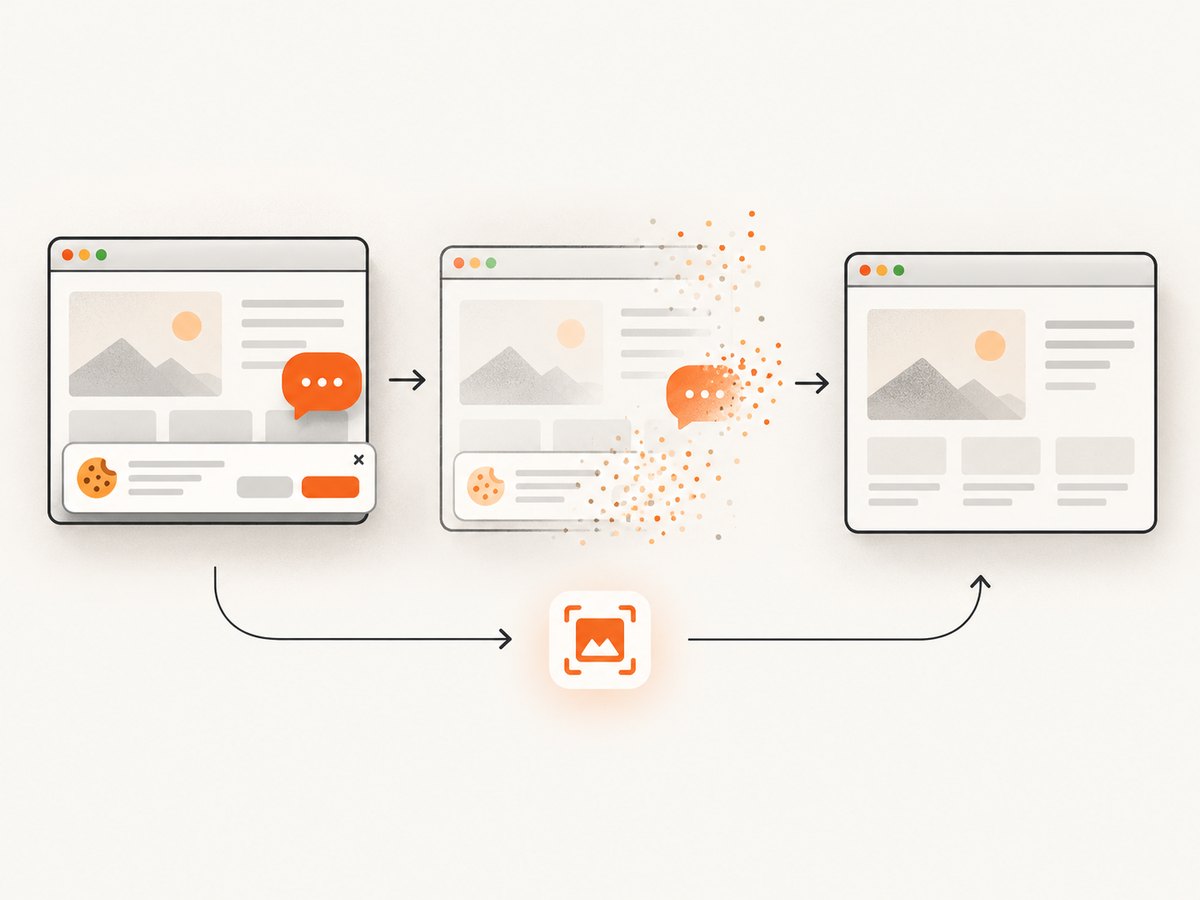
If your goal is to capture a page for a test report, visual regression reference, documentation, or debugging artifact, ScreenshotNeo provides a website screenshot API at screenshotneo.com. Its endpoint returns PNG, JPEG, WebP, or PDF from one GET request. See the ScreenshotNeo API documentation for the complete option list.
curl -G 'https://api.screenshotneo.com/v1/shot' -d access_key=YOUR_API_KEY --data-urlencode url=https://stripe.com -o shot.webpimport requests
r = requests.get('https://api.screenshotneo.com/v1/shot', params={'access_key': 'YOUR_API_KEY', 'url': 'https://stripe.com'}, timeout=90)
open('shot.webp', 'wb').write(r.content)const q = new URLSearchParams({ access_key: 'YOUR_API_KEY', url: 'https://stripe.com' });
const res = await fetch(`https://api.screenshotneo.com/v1/shot?${q}`);Cookie banners, newsletter popups, and chat widgets are removed before the shot. Bot checks, blank pages, failed loads, timeouts, and cache hits are not billed, and response headers identify the page verdict and billing result. ScreenshotNeo also offers an MCP server so Claude, Cursor, and other MCP clients can take screenshots, inspect pages, and capture PDFs. The Free plan includes 1,000 screenshots per month with no card; paid plans start at $5 for 3,000 shots. Create a free ScreenshotNeo account.
Frequently asked questions
Should Selenium tests run on every pull request?
Run a focused smoke set on pull requests when feedback time matters, and schedule broader browser matrices or longer scenarios separately.
Do I need Selenium Server for GitHub Actions?
No. A local browser and driver on the runner are enough for a single environment. Selenium Server or remote WebDriver is useful for distributed or cross-platform execution.
Why did a page load but the test still fail?
Document readiness only covers navigation. JavaScript may still be rendering or changing the target element, so wait for the condition your action requires.
Are artifacts safer than caches for screenshots?
Artifacts are the appropriate place for run-specific evidence. Both are accessible according to repository permissions, so redact secrets and personal data before uploading either.


