Selenium WebDriver: How to Handle Popups
Learn how to identify and control JavaScript alerts, new tabs, HTML modals, and OS dialogs in Selenium with reliable waits and cleanup.
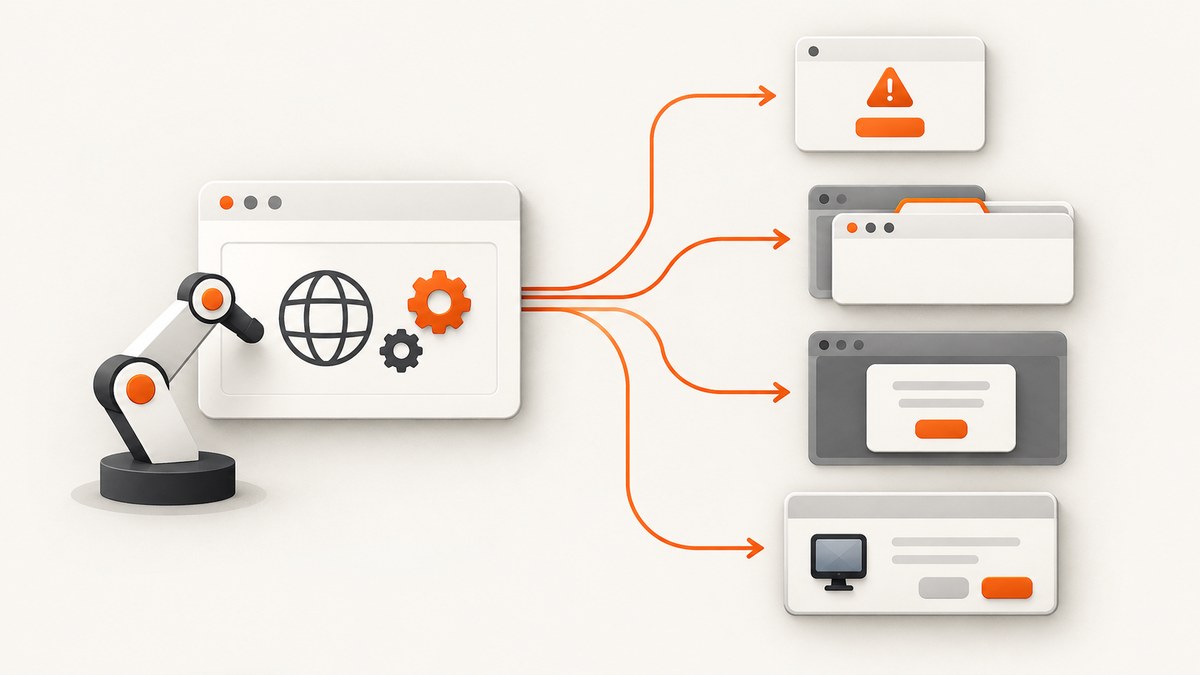
Selenium popups are not all the same. The reliable solution starts by classifying the popup, then using the API that matches its type:
- JavaScript alert, confirm, or prompt: wait for an alert and use the WebDriver alert API.
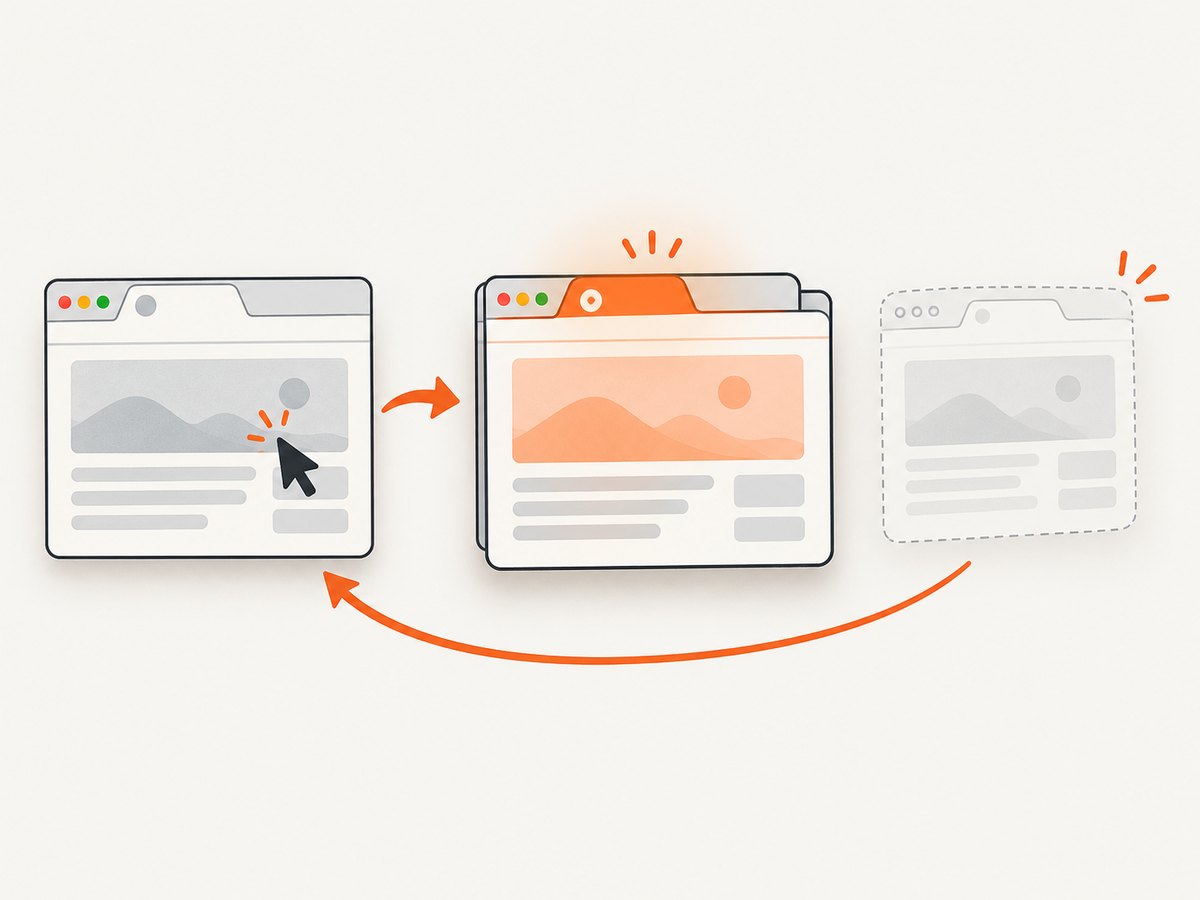
- New tab or window: save the original window handle, wait for a new handle, switch to it, and restore the original handle during cleanup.
- HTML/CSS modal: treat it as an ordinary element in the current document. Locate its controls and wait for them normally.
- Operating-system dialog: it is outside WebDriver’s alert and window-handle APIs. It needs a browser or operating-system integration rather than
switch_to.alert.
WebDriver supports JavaScript alerts, confirms, and prompts, and can read their text and accept or dismiss them. Selenium’s documentation also describes a window handle as the way to work with a new tab or window. See the official guides for JavaScript alerts, prompts and confirmations and working with windows and tabs.
1. Identify the popup before writing code
Misclassification causes most popup failures. A JavaScript alert is rendered by the browser and is not a DOM node, so searching for an “OK” button with a CSS selector will fail. A new tab is a separate browsing context, so the elements in it are invisible until you switch handles. An HTML modal is part of the current page, so switch_to.alert will report that no alert is present.
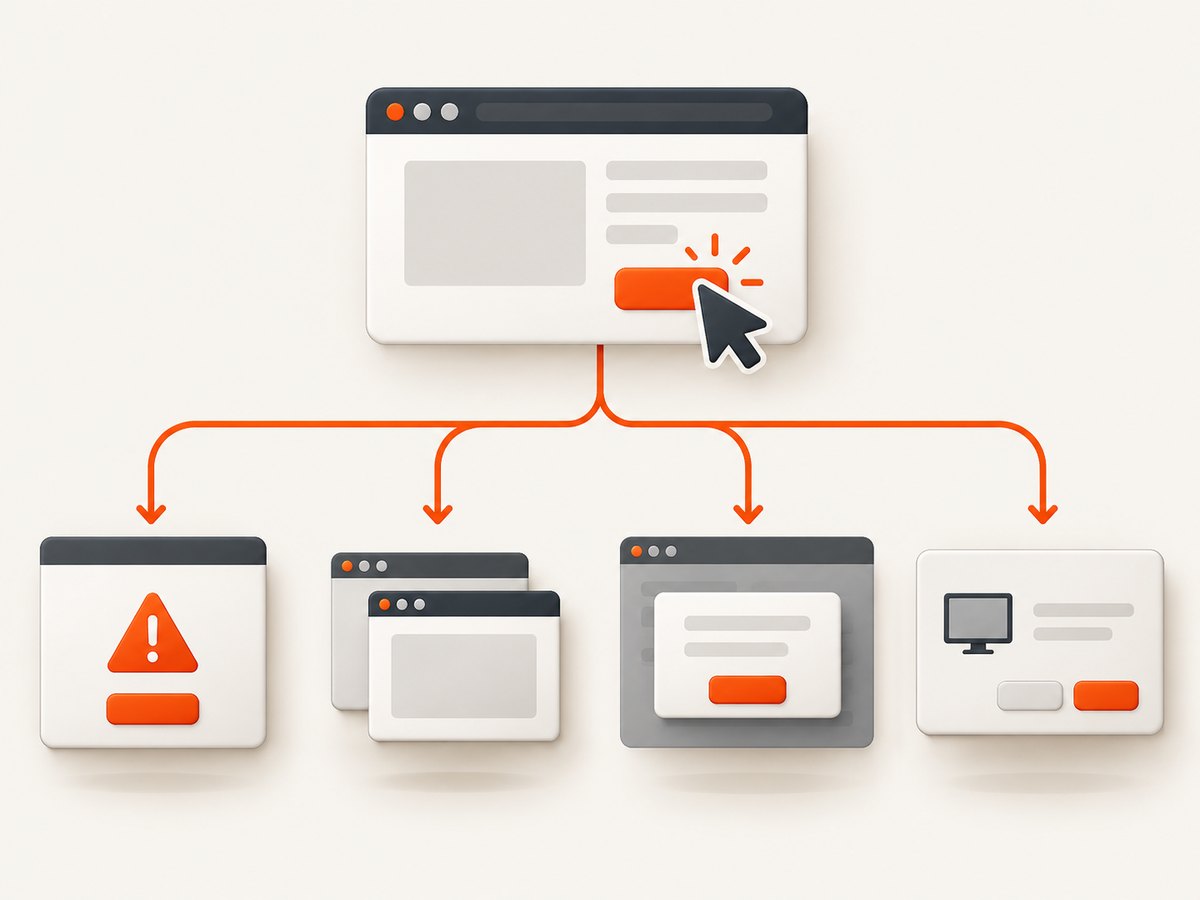
| What you see | Correct Selenium mechanism | Typical wait | Typical failure |
|---|---|---|---|
| Browser alert, confirm, or prompt | Alert object | alert_is_present() |
NoAlertPresentException |
| Link opens a tab or window | Window handles | number_of_windows_to_be or new_window_is_opened |
Timeout or wrong handle |
| Cookie banner or dialog inside the page | Normal locator and element wait | Visibility or clickability condition | Element not found or intercepted click |
| File picker, print dialog, or other OS window | Browser/OS-specific integration | Not provided by the popup APIs | Selenium cannot control it directly |
2. Handle JavaScript alerts, confirms, and prompts in Python
The safest pattern is to wait for the alert instead of calling switch_to.alert immediately. The expected-conditions API defines alert_is_present() for this synchronization.
from selenium import webdriver
from selenium.webdriver.support.ui import WebDriverWait
from selenium.webdriver.support import expected_conditions as EC

options = webdriver.ChromeOptions()
options.add_argument("--headless=new")
driver = webdriver.Chrome(options=options)
wait = WebDriverWait(driver, 10)

try:
    driver.get("https://example.test/alert-page")
    driver.find_element("id", "show-alert").click()

    alert = wait.until(EC.alert_is_present())
    message = alert.text
    print("Alert message:", message)
    alert.accept()
finally:
    driver.quit()
Use accept() for the OK action and dismiss() for Cancel. A confirm can be handled either way:
alert = WebDriverWait(driver, 10).until(EC.alert_is_present())
message = alert.text
alert.dismiss()  # or alert.accept()
A prompt has an input field. Send the response to the alert object before accepting it:
alert = WebDriverWait(driver, 10).until(EC.alert_is_present())
alert.send_keys("response text")
alert.accept()
Do not search for the dialog’s buttons as DOM elements. The browser owns a JavaScript dialog, and the documented interface is the alert object itself.
3. Handle alerts with Selenium’s JavaScript binding
In Node.js, switch to the alert, read its text, and accept or dismiss it. If your application triggers the dialog asynchronously, put this operation behind a retry or an explicit wait in your test framework.
const { Builder } = require('selenium-webdriver');

(async function handleAlert() {
  const driver = await new Builder().forBrowser('chrome').build();
  try {
    await driver.get('https://example.test/alert-page');
    await driver.findElement({ id: 'show-alert' }).click();

    const alert = await driver.switchTo().alert();
    const message = await alert.getText();
    console.log('Alert message:', message);
    await alert.accept();
  } finally {
    await driver.quit();
  }
}());
The same alert object supports dismiss() and, for prompts, sendKeys() before accepting.
4. Handle a popup tab or window in Python
Selenium uses a unique, persistent window handle for every browsing context. The API does not distinguish a tab from a window. Save the handle set before clicking, wait for one additional context, then switch to the handle that was not present before.
from selenium import webdriver
from selenium.webdriver.common.by import By
from selenium.webdriver.support.ui import WebDriverWait
from selenium.webdriver.support import expected_conditions as EC

options = webdriver.ChromeOptions()
options.add_argument("--headless=new")
driver = webdriver.Chrome(options=options)
wait = WebDriverWait(driver, 15)

try:
    driver.get("https://example.test")
    original = driver.current_window_handle
    before = set(driver.window_handles)

    driver.find_element(By.LINK_TEXT, "Open new window").click()
    wait.until(EC.number_of_windows_to_be(len(before) + 1))

    new_handle = (set(driver.window_handles) - before).pop()
    driver.switch_to.window(new_handle)
    wait.until(EC.title_contains("Popup"))
    print(driver.title)

    # Interact with the popup page here.
    driver.close()
    driver.switch_to.window(original)
finally:
    driver.quit()
If the number of windows is not predictable, use the documented new_window_is_opened(before) predicate:
before = driver.window_handles
driver.find_element(By.CSS_SELECTOR, "a[target='_blank']").click()
wait.until(EC.new_window_is_opened(before))
new_handle = next(h for h in driver.window_handles if h not in before)
driver.switch_to.window(new_handle)
Always switch back to a valid handle after closing a child context. If WebDriver remains focused on the closed page, later commands can raise NoSuchWindowException.
5. Create a tab or window directly with Selenium 4
When the test itself needs another browsing context, Selenium 4 can create and select it in one call:
driver.switch_to.new_window('tab')
# The new tab is already selected.

driver.switch_to.new_window('window')
# The new window is already selected.
This is different from a site opening a popup: you do not need to discover a new handle after the call, but you should still save any handle you must return to and close contexts during teardown.
6. Handle an HTML/CSS modal in the current page
An in-page modal remains in the current document. Locate its container and controls like any other elements, and wait for the state you need. For example:
from selenium.webdriver.common.by import By
from selenium.webdriver.support import expected_conditions as EC

modal = wait.until(EC.visibility_of_element_located((By.ID, "cookie-modal")))
allow = wait.until(EC.element_to_be_clickable((By.CSS_SELECTOR, "#cookie-modal button.accept")))
allow.click()
wait.until(EC.invisibility_of_element_located((By.ID, "cookie-modal")))
If a backdrop intercepts the click, wait for clickability rather than visibility. If the modal is inside an iframe, switch into that frame first; its elements are not available from the top-level document. If it is inside a shadow root, use Selenium’s shadow-root APIs or JavaScript supported by your browser binding.
7. Operating-system dialogs
File pickers, native print dialogs, certificate prompts, and other OS windows are not JavaScript alerts and are not browsing contexts exposed through window_handles. The Selenium popup guides do not define a general OS-dialog API. Prefer a web-facing alternative where possible: for uploads, send a file path directly to an <input type="file">; for downloads, configure the browser profile and verify the downloaded file. If a native dialog is unavoidable, use a browser-specific or operating-system automation integration and keep that dependency outside the WebDriver alert logic.
8. Synchronization patterns that prevent flaky popup tests
- Wait for the event, not a fixed sleep. Use
alert_is_present(),number_of_windows_to_be(),new_window_is_opened(), or an element condition. - Capture state before the action. Store the original handle and the pre-click handle set before triggering a new context.
- Use one explicit timeout policy. A short timeout hides slow but valid pages; an excessive timeout makes genuine failures expensive. Choose a value that matches the application and override it for known slow flows.
- Make cleanup unconditional. Put alert dismissal, child-window closing, handle restoration, and
driver.quit()in teardown code. - Keep popup handling local. Return the alert text or selected handle from a helper rather than leaving every test responsible for browser state.
For parallel test runs, each test should own its driver session. Sharing a driver makes window-handle sets and alert state race with other tests.
9. Troubleshooting common errors
NoAlertPresentException
Cause: the code requested an alert before the page created one, the dialog was already accepted, or the popup is actually an HTML modal. Fix: use WebDriverWait(...).until(EC.alert_is_present()), check the popup classification, and avoid trying to locate native dialog buttons in the DOM.
Timeout waiting for a new window
Cause: the click did not happen, a popup blocker prevented it, the site reused an existing tab, or the expected count is wrong. Fix: verify the click target is clickable, inspect the handle list before and after the action, and use new_window_is_opened(before) when the final count is variable.
NoSuchWindowException
Cause: a command was sent to a closed tab or window. Fix: close the child, then immediately switch to a still-valid original handle. Do not continue interacting with a handle after driver.close().
The modal is found but the click is intercepted
Cause: an animation, backdrop, sticky header, or another overlay covers the control. Fix: wait for clickability, wait for the animation to finish, scroll the control into view, or close the higher overlay first. Avoid arbitrary sleeps unless the application has no observable state you can wait on.
The prompt text is empty or incorrect
Cause: the prompt was read before it was ready, or the test sent keys to a page element instead of the alert object. Fix: wait for alert_is_present(), call alert.text, then use alert.send_keys() and accept.
beforeunload behaves differently across runs
Recent drivers automatically dismiss beforeunload prompts by default. If your test requires the prior behavior, configure the WebDriver session’s unhandledPromptBehavior policy and record that choice with the test setup.
10. Performance, reliability, and cost considerations
Popup handling itself is inexpensive; browser startup, page loading, JavaScript execution, and cross-browser coverage dominate runtime. Reuse a driver only within a controlled test fixture, and reset to a known page and handle state between cases. Use headless mode in CI when it matches the behavior you need, but reproduce failures in headed mode to inspect the actual popup.
Reliability improves when tests assert observable outcomes: alert text, the destination URL, a title, a visible modal state, or a completed download. Record the handle list and current URL when a wait times out. This makes it clear whether the site failed to open a context or the test switched to the wrong one.
Selenium has no per-popup service charge; your costs are the machines, browser sessions, CI minutes, and any external grid provider. A screenshot API can be useful when you need a rendered image rather than an interactive test session.
11. Or skip the browser setup
If your goal is a clean image of a page rather than interaction with a popup, ScreenshotNeo provides a single GET request that returns PNG, JPEG, WebP, or PDF. Its capture flow accepts cookie and consent banners before the shot and removes more than 60 known consent platforms, newsletter popups, and chat widgets; each step can be turned off. Only clean shots are billed: bot checks, blank pages, timeouts, failed loads, and cache hits cost nothing, and the response reports the result in X-Page-Verdict and X-Billed headers.
See the ScreenshotNeo API documentation for all options, including full-page capture, CSS selectors, dark mode, device presets, custom CSS and JavaScript, waits, request blocking, headers and cookies, geolocation, caching, signed links, asynchronous jobs, bulk capture, and PDF settings.
cURL
curl -G "https://api.screenshotneo.com/v1/shot" -d access_key=YOUR_API_KEY --data-urlencode url=https://stripe.com -o shot.webpPython
import requests
r = requests.get("https://api.screenshotneo.com/v1/shot", params={"access_key": "YOUR_API_KEY", "url": "https://stripe.com"}, timeout=90)
open("shot.webp", "wb").write(r.content)
Node.js
const q = new URLSearchParams({ access_key: 'YOUR_API_KEY', url: 'https://stripe.com' }); const res = await fetch(`https://api.screenshotneo.com/v1/shot?${q}`);An MCP server also provides take_screenshot, get_page_info, and capture_pdf tools for Claude, Cursor, and other MCP clients. The free plan includes 1,000 screenshots per month with no card; paid plans start at $5 for 3,000. Create a free ScreenshotNeo account.
12. Practical checklist
- Classify the popup as JavaScript, new context, HTML modal, or OS dialog.
- Use
alert_is_present()for native alerts and prompts. - Save the original handle and pre-action handle set before opening a tab.
- Wait for a new handle, switch to it, and restore a valid handle after closing it.
- Use ordinary element waits for HTML/CSS modals.
- Configure
unhandledPromptBehaviorwhenbeforeunloadpolicy matters. - Capture URLs, handles, and screenshots when a wait fails.
- Keep cleanup in
finallyor test teardown code.
FAQ
Can Selenium tell whether a popup is a tab or a window?
No. Both are browsing contexts represented by window handles. Your test can switch to either using the same API.
Can I click an alert’s OK button with XPath?
No. A JavaScript alert is not a DOM element. Read and control it through the alert object.
What should I do when a site opens several popups?
Record the handle set before each action, wait for the expected change, and select the new handle by set difference or by a property such as title or URL.
Does accepting an alert automatically return focus to the page?
The alert belongs to the current browsing context, so after accepting or dismissing it, continue in that context. For a separate tab or window, you must explicitly switch handles.
When should I use a screenshot API instead of Selenium?
Use Selenium when you need interactive control, assertions, or browser workflows. Use ScreenshotNeo when you need a rendered page image or PDF without maintaining browser setup, especially when consent banners, popups, and chat widgets should be removed before capture.


