How to Use Selenium WebDriver’s Screenshot Method
Capture browser windows or individual elements with Selenium, save PNG files, handle Base64 and bytes, and troubleshoot common screenshot failures.
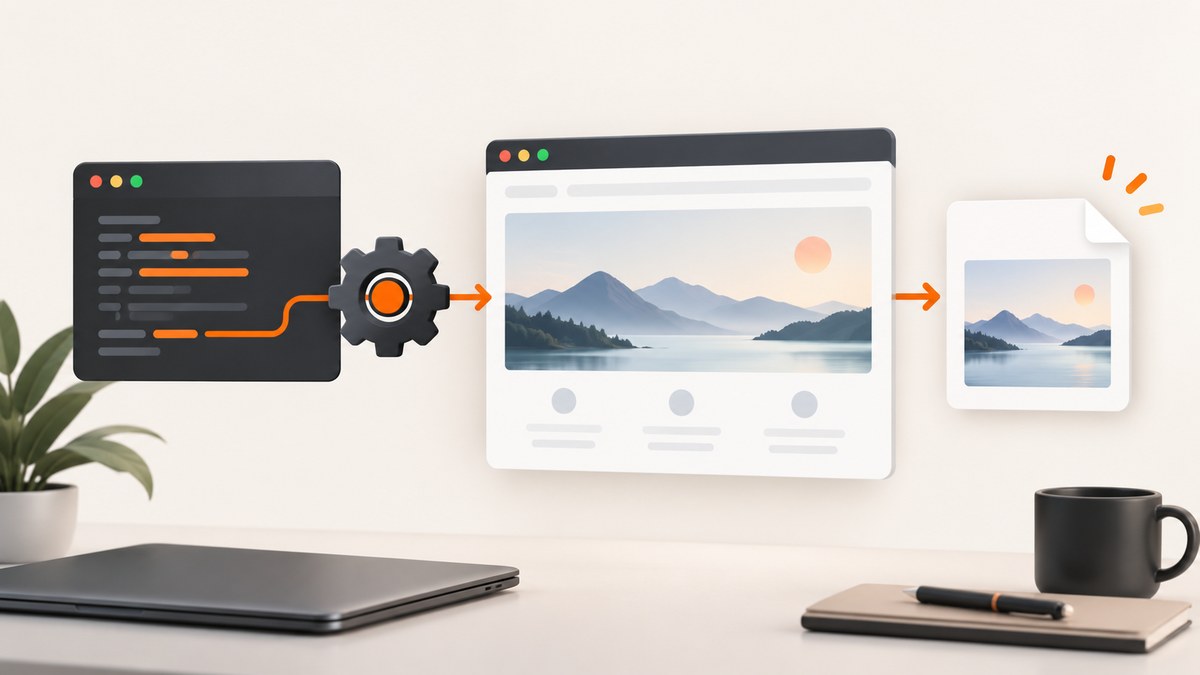
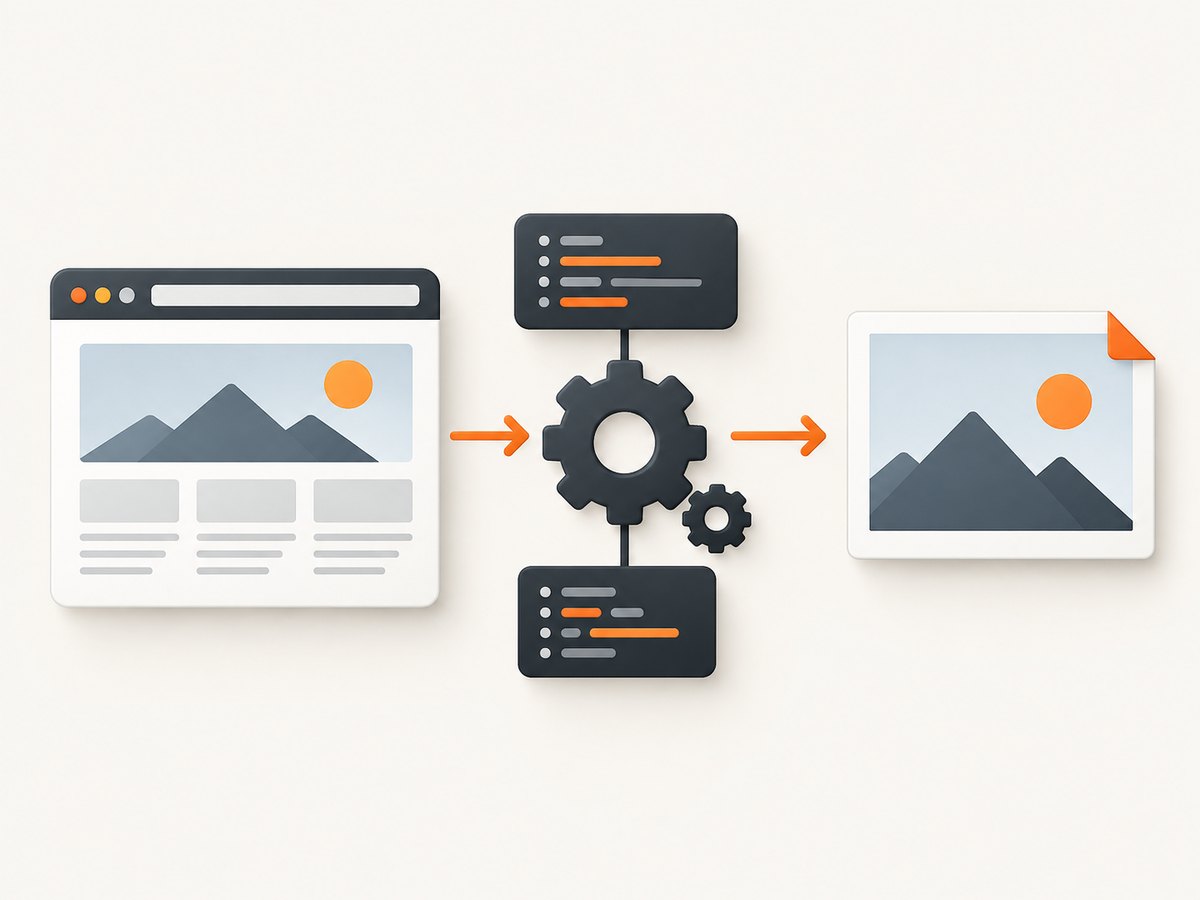
Direct answer: Selenium WebDriver captures the current browsing context through its screenshot method. In Python, call driver.save_screenshot("screenshot.png"); in Java, call ((TakesScreenshot) driver).getScreenshotAs(OutputType.FILE). Use an element-level screenshot when you only need one located element, and use Base64 or PNG bytes when the image must stay in memory. Selenium’s WebDriver endpoint returns Base64-encoded image data, while language bindings provide convenient file, Base64 and binary methods.
This guide covers browser screenshots, element screenshots, output formats, waits, viewport and full-page considerations, reliable cleanup, troubleshooting and alternatives. The examples use official Selenium APIs: WebDriver window documentation, the Python WebDriver API, the Python WebElement API and the Java TakesScreenshot API.
1. Take a browser screenshot in Selenium Python
Install Selenium, start a driver, navigate to a URL, save the current window, and always quit the driver in a finally block.
pip install seleniumfrom pathlib import Path
from selenium import webdriver
output = Path("screenshot.png")
driver = webdriver.Chrome()
try:
driver.get("https://example.com")
saved = driver.save_screenshot(str(output))
if not saved:
raise IOError(f"Could not save screenshot to {output}")
print(f"Saved {output.resolve()}")
finally:
driver.quit()save_screenshot(filename) is the Python convenience alias for saving the current-window screenshot. The Python API documents PNG output and says the file method returns False on an IOError; use a writable path with a .png suffix.
2. Wait for the page before capturing
A screenshot captures the state that exists when the command runs. Navigation may have finished while JavaScript, images or a component are still rendering. Wait for a meaningful condition instead of relying only on a fixed sleep.
from selenium import webdriver
from selenium.webdriver.common.by import By
from selenium.webdriver.support.ui import WebDriverWait
from selenium.webdriver.support import expected_conditions as EC

 driver = webdriver.Chrome()
try:
    driver.get("https://example.com/dashboard")
    WebDriverWait(driver, 20).until(
        EC.visibility_of_element_located((By.CSS_SELECTOR, "main.dashboard"))
    )
    driver.save_screenshot("dashboard.png")
finally:
    driver.quit()
Use an explicit wait for a selector, text, URL change or a state your application controls. A delay can still be useful for an animation or a third-party widget, but it makes runs slower and less deterministic:
import time

time.sleep(1)
driver.save_screenshot("after-animation.png")
3. Capture one element instead of the whole window
Locate the element first, then call the element screenshot method. This is useful for a chart, card, button, form or test failure attachment.
from selenium import webdriver
from selenium.webdriver.common.by import By
from selenium.webdriver.support.ui import WebDriverWait
from selenium.webdriver.support import expected_conditions as EC

 driver = webdriver.Chrome()
try:
    driver.get("https://example.com/pricing")
    card = WebDriverWait(driver, 20).until(
        EC.visibility_of_element_located((By.CSS_SELECTOR, "article.plan-card"))
    )
    card.screenshot("plan-card.png")
finally:
    driver.quit()
The Python WebElement API also exposes element.screenshot_as_base64 and element.screenshot_as_png. Element capture can avoid unrelated page content, but the element must be displayed and laid out. An element inside a closed shadow root or an iframe may require switching into the correct browsing context first.
4. Choose file, Base64 or PNG-byte output
| Need | Python method | Result |
|---|---|---|
| Save an artifact | driver.save_screenshot(path) or driver.get_screenshot_as_file(path) |
PNG file; check the Boolean return value |
| Embed or transmit encoded data | driver.get_screenshot_as_base64() |
Base64 string |
| Process the image in memory | driver.get_screenshot_as_png() |
PNG bytes |
| Capture one element | element.screenshot(path), element.screenshot_as_base64, element.screenshot_as_png |
Image limited to the located element |
Base64 example
import base64
from selenium import webdriver

 driver = webdriver.Chrome()
try:
    driver.get("https://example.com")
    encoded = driver.get_screenshot_as_base64()
    with open("image-data.txt", "w", encoding="ascii") as file:
        file.write(encoded)
    data_uri = "data:image/png;base64," + encoded
    print(data_uri[:80] + "...")
finally:
    driver.quit()
PNG bytes example
from selenium import webdriver

 driver = webdriver.Chrome()
try:
    driver.get("https://example.com")
    png_bytes = driver.get_screenshot_as_png()
    with open("screenshot.png", "wb") as file:
        file.write(png_bytes)
finally:
    driver.quit()
5. Selenium Java screenshot code
Java uses TakesScreenshot.getScreenshotAs(OutputType<X>). The selected OutputType determines the representation.
import java.io.File;
import java.nio.file.Files;
import java.nio.file.Path;
import org.openqa.selenium.OutputType;
import org.openqa.selenium.WebDriver;
import org.openqa.selenium.chrome.ChromeDriver;
import org.openqa.selenium.TakesScreenshot;

public class ScreenshotExample {
    public static void main(String[] args) throws Exception {
        WebDriver driver = new ChromeDriver();
        try {
            driver.get("https://example.com");
            File temporary = ((TakesScreenshot) driver)
                    .getScreenshotAs(OutputType.FILE);
            Files.copy(temporary.toPath(), Path.of("screenshot.png"));
        } finally {
            driver.quit();
        }
    }
}
For an encoded result, use OutputType.BASE64:
String base64 = ((TakesScreenshot) driver)
        .getScreenshotAs(OutputType.BASE64);
The Java API states that conformant WebDriver implementations follow the WebDriver specification. Non-conformant drivers may use best-effort behavior, and an implementation that does not support screenshots can raise UnsupportedOperationException. Verify the actual browser and driver combination when a capture fails.
6. Selenium Node.js example
The JavaScript binding returns a Base64 PNG string from takeScreenshot(). Decode it when you need a file.
npm install selenium-webdriverconst fs = require('node:fs/promises');
const { Builder } = require('selenium-webdriver');
(async function () {
const driver = await new Builder().forBrowser('chrome').build();
try {
await driver.get('https://example.com');
const base64 = await driver.takeScreenshot();
await fs.writeFile('screenshot.png', Buffer.from(base64, 'base64'));
} finally {
await driver.quit();
}
})();7. Window size, device scale and full-page limits
A normal WebDriver screenshot represents the current browser viewport or browsing context. Set the viewport before navigation when a stable layout matters:
driver.set_window_size(1440, 900)
driver.get("https://example.com")
driver.save_screenshot("desktop.png")
Responsive breakpoints, browser zoom, operating-system scale, fonts and driver behavior can change pixels. Keep those inputs consistent in visual regression jobs.
Full-page capture is implementation-dependent. Some browser drivers capture only the visible viewport; others provide additional full-page behavior. If you need a full document, check the driver and browser documentation you deploy, or assemble scroll segments yourself. A scroll-and-stitch routine must account for fixed headers, lazy-loaded content and overlapping pixels.
8. Capture inside iframes and shadow DOM
Iframe
from selenium.webdriver.common.by import By

frame = driver.find_element(By.CSS_SELECTOR, "iframe.payment")
driver.switch_to.frame(frame)
try:
    driver.find_element(By.CSS_SELECTOR, "button.confirm").screenshot("confirm.png")
finally:
    driver.switch_to.default_content()
Without switch_to.frame, selectors target the parent document and the element may appear to be missing.
Shadow DOM
host = driver.find_element(By.CSS_SELECTOR, "checkout-widget")
root = host.shadow_root
submit = root.find_element(By.CSS_SELECTOR, "button.submit")
submit.screenshot("submit.png")
Shadow DOM support depends on the binding and browser version. If a component is inside a closed shadow root, its internals are not directly selectable through normal WebDriver commands.
9. Hide unstable content before capture
For repeatable images, disable animations, hide timestamps and remove transient overlays with test-only CSS. Applying CSS through JavaScript is useful for your own pages:
driver.execute_script("""
const style = document.createElement('style');
style.textContent = `
  *, *::before, *::after {
    animation: none !important;
    transition: none !important;
    caret-color: transparent !important;
  }
  .chat-widget, .cookie-banner, .live-counter {
    display: none !important;
  }
`;
document.head.appendChild(style);
""")
driver.save_screenshot("stable.png")
Only hide content when your test or workflow is allowed to alter the page. A screenshot intended to document the visitor experience should preserve the visible state.
10. Troubleshooting Selenium screenshots
| Symptom | Likely cause | Fix |
|---|---|---|
save_screenshot returns False |
Path is unwritable, invalid or not a PNG path | Use an absolute writable path ending in .png; check permissions and the return value. |
ScreenshotException or unsupported operation |
Driver implementation does not support the command or is mismatched | Align browser and driver versions, use a conformant driver, and check the Java TakesScreenshot caveat. |
| Element is not found | Wrong frame, shadow root, selector or page state | Wait for the element, switch into its iframe, query its shadow root, and verify the selector. |
| Element screenshot is blank | Element is hidden, off-layout, covered or not yet painted | Wait for visibility, scroll it into view, close overlays and capture after rendering completes. |
| Only part of a long page appears | Viewport screenshot behavior | Set a larger window, use supported full-page functionality, or create a scroll-and-stitch workflow. |
| Fonts or images differ between runs | Fonts, network timing, lazy loading or responsive dimensions differ | Use a fixed viewport, wait for the relevant content, preload fonts where possible and control the test environment. |
| Screenshot captures a login or bot-check page | Authentication, consent or bot protection changed the browsing state | Authenticate in the session, handle consent explicitly and inspect the page before saving the image. |
| Driver process remains after a failure | quit() was skipped |
Put cleanup in finally (Python/Java) or finally/try...catch (Node.js). |
11. Reliability and performance practices
- Reuse a driver for a related batch of pages when isolation requirements allow it; starting a browser for every image adds startup cost.
- Use explicit waits tied to page state instead of long global sleeps.
- Capture after the smallest required condition, such as a chart becoming visible, rather than waiting for unrelated requests.
- Record the URL, viewport, browser version, driver version and timestamp with visual test artifacts.
- Take failure screenshots in exception handlers, then always quit the driver.
- Limit parallel sessions to the CPU, memory and remote-driver capacity available to your environment.
- PNG preserves lossless detail but can be large. Compress or convert only after considering the needs of visual comparison.
Selenium itself does not charge for a screenshot call. Your costs come from the machine or remote browser infrastructure running the session, plus storage and network transfer for the resulting files.
12. Or skip the browser setup
If you need an image from a URL rather than browser automation, ScreenshotNeo provides a single GET request that returns PNG, JPEG, WebP or PDF. Its capture options include full-page screenshots with lazy images loaded, CSS-selector element capture, device presets or custom viewports, retina scale, dark mode, custom CSS and JavaScript, waits, cookies, headers, user agents, authorization, timezone, geolocation, request blocking, caching, signed links, asynchronous jobs, webhooks and bulk capture.
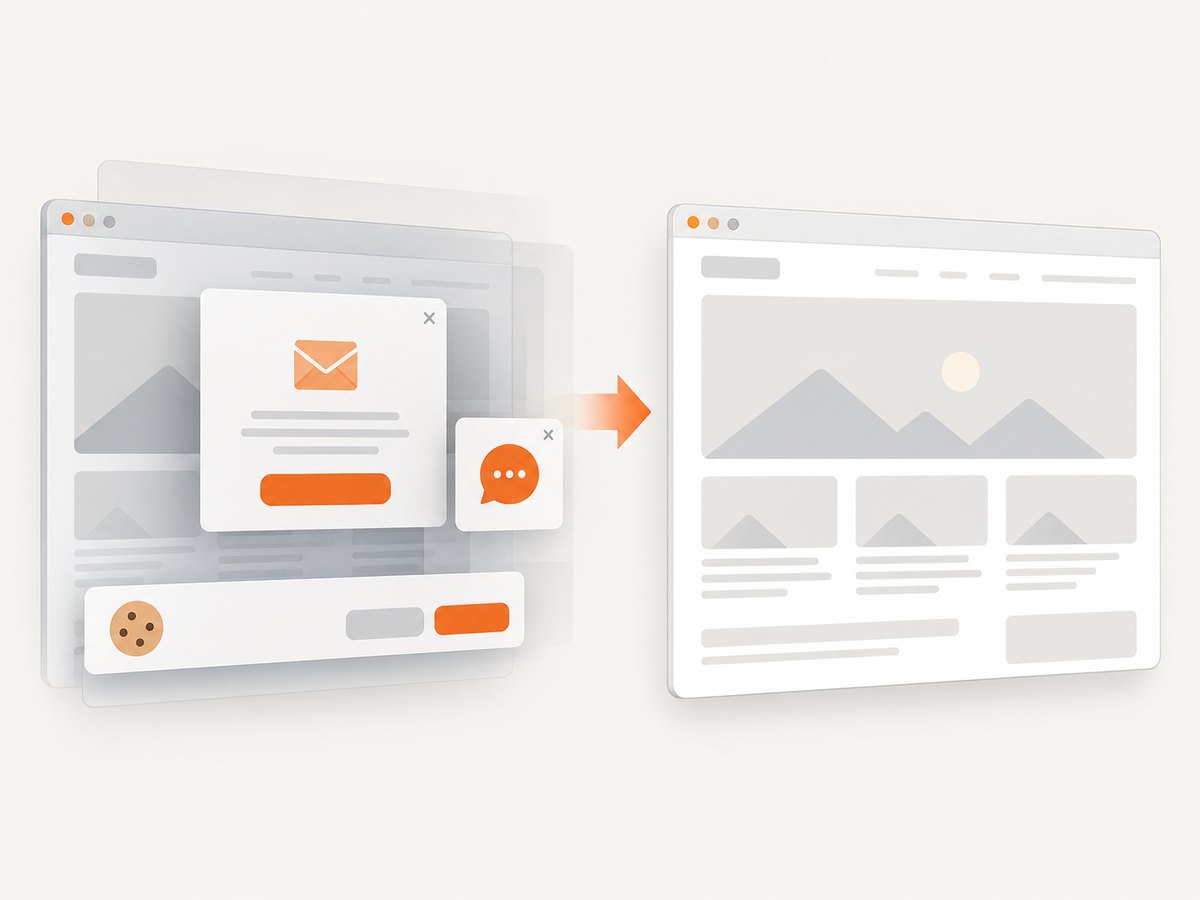
Cookie banners, newsletter popups and chat widgets are removed before the shot. Bot checks, blank pages and failed loads are never billed, and response headers identify the page verdict and whether it was billed. ScreenshotNeo also provides an MCP server with take_screenshot, get_page_info and capture_pdf tools for Claude, Cursor and other MCP clients.
See the ScreenshotNeo API documentation for parameters and response details.
cURL
curl -G "https://api.screenshotneo.com/v1/shot" -d access_key=YOUR_API_KEY --data-urlencode url=https://stripe.com -o shot.webpPython
import requests
r = requests.get("https://api.screenshotneo.com/v1/shot", params={"access_key": "YOUR_API_KEY", "url": "https://stripe.com"}, timeout=90)
open("shot.webp", "wb").write(r.content)
Node.js
const q = new URLSearchParams({ access_key: 'YOUR_API_KEY', url: 'https://stripe.com' });
const res = await fetch(`https://api.screenshotneo.com/v1/shot?${q}`);
The Free plan includes 1,000 screenshots each month with no card. Paid plans start at $5 for 3,000 shots, and every feature is available on every plan. Create a free ScreenshotNeo account.
13. FAQ
Does Selenium save screenshots as JPEG?
The documented Selenium save methods produce PNG screenshots. Convert the PNG afterward if your workflow requires another format.
Can I screenshot a page without displaying a browser window?
Run the browser in headless mode, for example with Chrome’s headless option. The same WebDriver screenshot methods apply, but verify viewport and font behavior in your environment.
Why is my screenshot different on CI?
CI often uses different fonts, window dimensions, browser versions, device scale settings or network timing. Pin those inputs and wait for the same application state before capture.
Should I use a browser screenshot or an element screenshot?
Use a browser screenshot for the visible page or a visual regression artifact. Use an element screenshot when the surrounding page is irrelevant and the located component is the subject.
What does Selenium return internally?
The WebDriver screenshot endpoint returns Base64-encoded image data. Bindings expose that data through convenient file, Base64 and byte-oriented methods.


