How to Convert a Selenium WebElement to a Byte Array or Image in Java
Capture a Selenium WebElement as Java byte[] data, decode it to BufferedImage, save it as a PNG, and handle common driver and ImageIO edge cases.
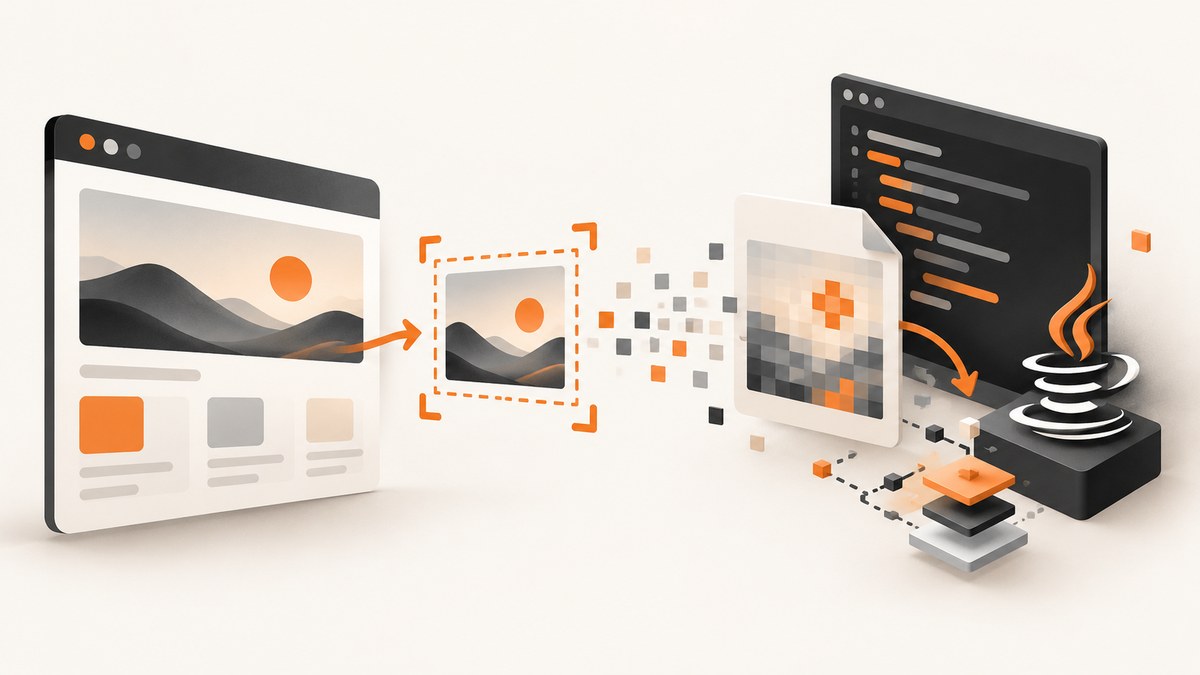
Use Selenium’s element.getScreenshotAs(OutputType.BYTES) to capture a WebElement as a Java byte[]. To work with the pixels as a BufferedImage, wrap those bytes in a ByteArrayInputStream and pass it to ImageIO.read. To save directly, request OutputType.FILE and copy Selenium’s temporary file to a durable path.
The examples below use Selenium’s Java API and standard Java image classes. They capture rendered pixels, not the element’s HTML or a serialized Java object. The result is generally PNG image data. Consult the Selenium TakesScreenshot API, OutputType API, Selenium WebDriver guide, and Java ImageIO API for details.
1. Get a WebElement screenshot as a byte array
Call getScreenshotAs with OutputType.BYTES. The returned byte[] contains encoded image data, so you can store it, send it to an image-processing library, or write it to a file.
import org.openqa.selenium.OutputType;
import org.openqa.selenium.WebElement;

WebElement element = driver.findElement(By.cssSelector(".product-card"));
byte[] pngBytes = element.getScreenshotAs(OutputType.BYTES);

if (pngBytes.length == 0) {
    throw new IllegalStateException("Selenium returned an empty screenshot");
}
This assumes that driver is an initialized WebDriver and the element lookup succeeds. The full runnable example later in this article shows setup and cleanup. For a reusable method, make the element an argument and return the byte array:
static byte[] screenshotBytes(WebElement element) {
    return element.getScreenshotAs(OutputType.BYTES);
}
The call can throw a WebDriverException if the browser or driver cannot capture the element. Some implementations may also throw UnsupportedOperationException when screenshot capture is unavailable.
2. Decode screenshot bytes to BufferedImage
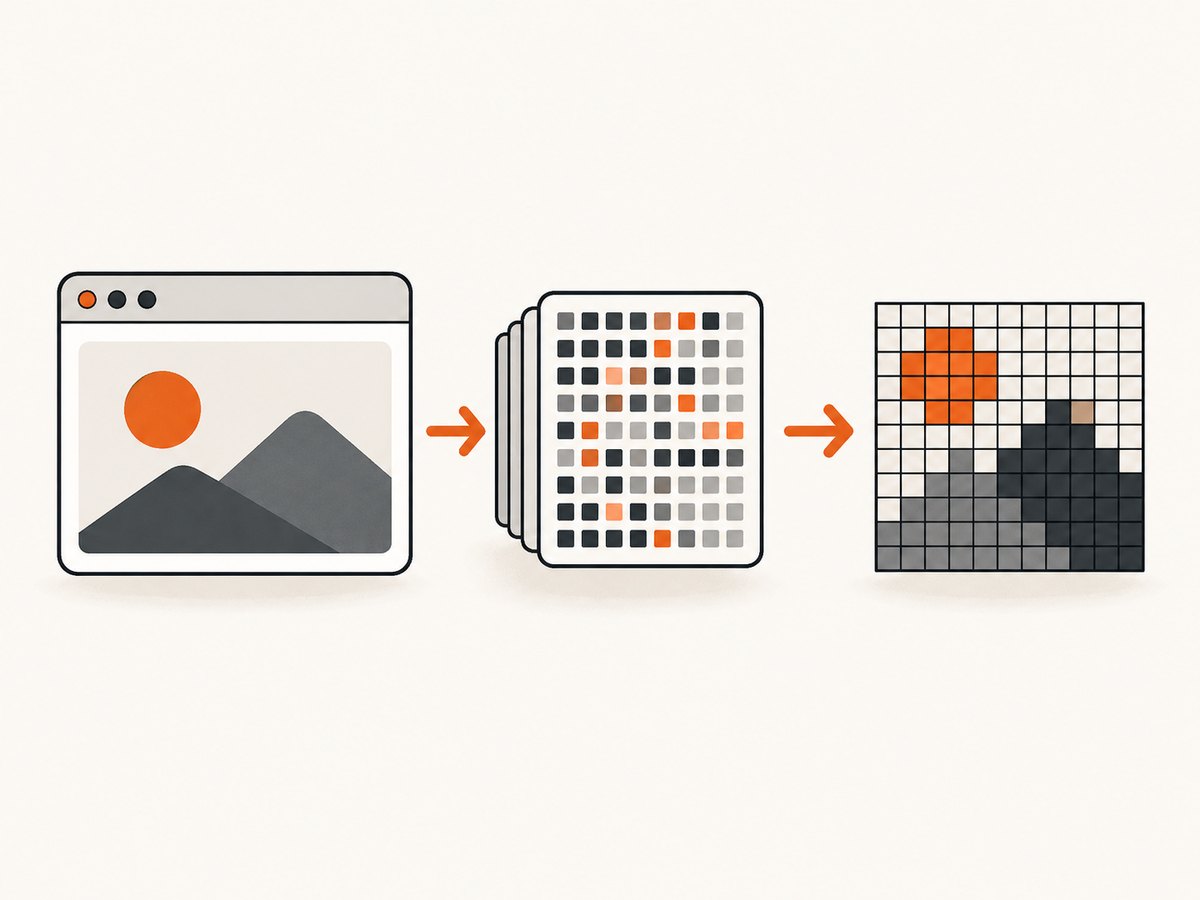
ImageIO.read decodes image data from an input stream and returns a BufferedImage when a registered reader recognizes the format. Close the stream with try-with-resources and check for null: a null result means no installed reader could decode the data.
import java.awt.image.BufferedImage;
import java.io.ByteArrayInputStream;
import java.io.IOException;
import javax.imageio.ImageIO;
import org.openqa.selenium.OutputType;

byte[] pngBytes = element.getScreenshotAs(OutputType.BYTES);
BufferedImage image;

try (ByteArrayInputStream input = new ByteArrayInputStream(pngBytes)) {
    image = ImageIO.read(input);
}

if (image == null) {
    throw new IOException("Screenshot bytes could not be decoded by an installed ImageIO reader");
}

System.out.println("Captured " + image.getWidth() + " x " + image.getHeight());
The screenshot bytes are already an encoded image; BufferedImage is the decoded, in-memory pixel representation. It is useful when you need to inspect dimensions, crop, compare, annotate, or otherwise process the pixels. If you only need to keep or transmit the original screenshot, avoid decoding and retain the byte array.
3. Save the image as a PNG
After decoding, use ImageIO.write with the format name png. It returns false if no writer for that format is available, so handle the result explicitly.
import java.awt.image.BufferedImage;
import java.io.File;
import java.io.IOException;
import javax.imageio.ImageIO;

boolean written = ImageIO.write(image, "png", new File("element.png"));
if (!written) {
    throw new IOException("No ImageIO writer was found for PNG");
}
You can also write the original bytes directly when you do not need to decode or alter the image:
import java.io.IOException;
import java.nio.file.Files;
import java.nio.file.Path;

Files.write(Path.of("element.png"), pngBytes);
The direct byte write avoids decoding and re-encoding. Use a filename or storage metadata that matches the actual format returned by your browser driver. If another part of your application requires a normalized PNG, decode and write via ImageIO instead.
4. Runnable Java example
This example assumes Selenium’s Java dependency and a compatible browser driver are already available to the project. It opens a page, locates an element, saves both the original bytes and a decoded PNG, and always quits the driver. Replace the URL and selector with the page and element you need.
import java.awt.image.BufferedImage;
import java.io.ByteArrayInputStream;
import java.io.IOException;
import java.nio.file.Files;
import java.nio.file.Path;
import javax.imageio.ImageIO;

import org.openqa.selenium.By;
import org.openqa.selenium.OutputType;
import org.openqa.selenium.WebDriver;
import org.openqa.selenium.WebElement;
import org.openqa.selenium.chrome.ChromeDriver;

public class ElementScreenshot {
    public static void main(String[] args) throws IOException {
        WebDriver driver = new ChromeDriver();
        try {
            driver.get("https://example.com");
            WebElement element = driver.findElement(By.cssSelector("h1"));

            byte[] screenshotBytes = element.getScreenshotAs(OutputType.BYTES);
            Files.write(Path.of("element-original.png"), screenshotBytes);

            BufferedImage image;
            try (ByteArrayInputStream input = new ByteArrayInputStream(screenshotBytes)) {
                image = ImageIO.read(input);
            }
            if (image == null) {
                throw new IOException("No ImageIO reader recognized the screenshot");
            }

            if (!ImageIO.write(image, "png", Path.of("element.png").toFile())) {
                throw new IOException("No PNG ImageIO writer is available");
            }
        } finally {
            driver.quit();
        }
    }
}
For production code, wait until the element is present and in the intended visual state before capturing it. A successful lookup does not guarantee that asynchronous content, fonts, images, or animations have finished rendering.
5. Choose bytes, file, or Base64
| Need | Selenium output | Use it when |
|---|---|---|
| In-memory image data | OutputType.BYTES |
You will retain, process, upload, or write the encoded bytes. |
| Image object | BYTES then ImageIO.read |
You need pixel access through BufferedImage. |
| File-oriented capture | OutputType.FILE |
You want Selenium to materialize a temporary screenshot file. |
| Text transport | OutputType.BASE64 |
A protocol or text-only field requires an encoded string. |
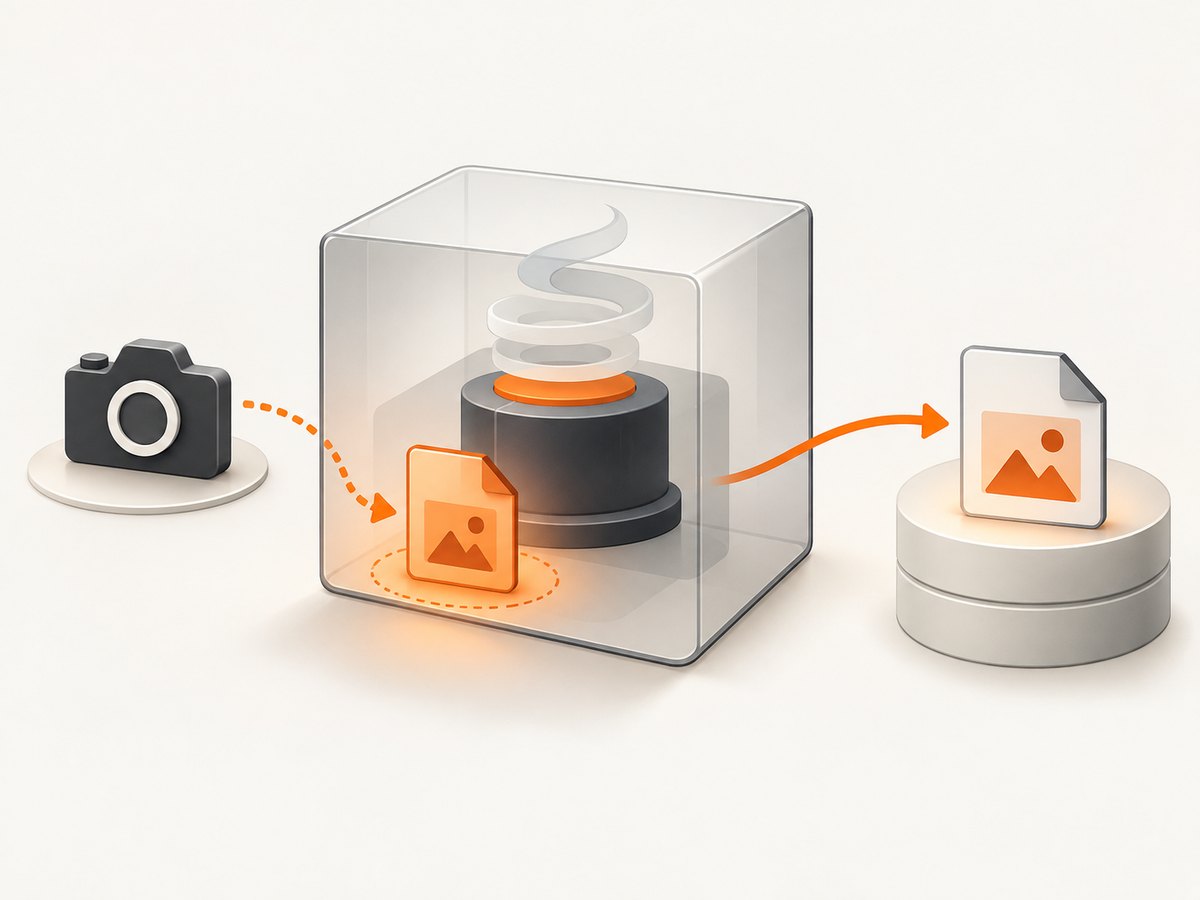
Selenium’s OutputType.FILE result is temporary and is deleted when the JVM exits. Copy it promptly if it must persist:
import java.io.File;
import java.nio.file.Files;
import java.nio.file.Path;
import java.nio.file.StandardCopyOption;
import org.openqa.selenium.OutputType;

File temporaryScreenshot = element.getScreenshotAs(OutputType.FILE);
Files.copy(temporaryScreenshot.toPath(), Path.of("element.png"),
           StandardCopyOption.REPLACE_EXISTING);
Base64 increases the representation size compared with raw bytes and requires encoding/decoding work. Prefer bytes for Java-to-Java processing or binary uploads; choose Base64 only when the receiving interface needs text.
6. Element capture behavior and edge cases
Visible portion and driver behavior
For W3C-conformant implementations, Selenium documents screenshot behavior according to the WebDriver specification. Non-conformant implementations may behave on a best-effort basis and vary by browser or driver. Depending on implementation, a capture can cover the element’s content or only what is visible. If dimensions or clipping matter, inspect the resulting image and test the target browser/driver combination.
Element state and page readiness
Capture after navigation and after the element reaches the visual state you want. Wait for a meaningful condition rather than relying on a fixed sleep where possible. For example, use an explicit wait for visibility, and then capture:
import java.time.Duration;
import org.openqa.selenium.support.ui.ExpectedConditions;
import org.openqa.selenium.support.ui.WebDriverWait;

WebDriverWait wait = new WebDriverWait(driver, Duration.ofSeconds(10));
WebElement element = wait.until(
    ExpectedConditions.visibilityOfElementLocated(By.cssSelector(".chart")));
byte[] bytes = element.getScreenshotAs(OutputType.BYTES);
Visibility does not prove that a chart has finished drawing or that a lazy-loaded image has arrived. If the page exposes a readiness signal, wait for that signal too. Avoid changing the page while the screenshot command is running.
Large elements and memory
A large element screenshot can consume substantial memory, especially if you hold the encoded byte array and decoded BufferedImage at the same time. Release references when finished and avoid keeping many screenshots in a collection. For file workflows, use OutputType.FILE and copy it rather than also decoding unnecessarily.
Image formats and decoding
ImageIO.read selects a reader based on the input data and installed readers. It returns null if none recognizes the stream. Selenium’s screenshot output is commonly used as PNG data; if your pipeline accepts only a specific encoding, verify that assumption at its boundary and normalize with ImageIO.write when needed. A writer can likewise be unavailable for a requested format, in which case ImageIO.write returns false.
7. Troubleshooting
| Symptom | Likely cause | Fix |
|---|---|---|
NoSuchElementException |
The locator did not match at capture time, or the page had not loaded the element. | Check the selector and wait for presence or visibility before calling screenshot. |
StaleElementReferenceException |
The page re-rendered and invalidated the previously located element. | Wait for the update to finish, locate the element again, then capture the fresh reference. |
WebDriverException during capture |
The driver/browser failed the screenshot command, or the element state is unsupported. | Check browser and driver compatibility, confirm the element still exists, and retry only after restoring a stable page state. |
UnsupportedOperationException |
The implementation does not support screenshot capture for that target. | Use a supported browser/driver path or capture the full page through a screenshot-capable driver API. |
ImageIO.read returns null |
No registered reader recognized the supplied bytes, or the bytes are not a valid image. | Confirm the capture returned non-empty bytes, avoid treating Base64 text as raw image bytes, and use a reader that supports the actual format. |
| Output file disappears later | OutputType.FILE creates a temporary file that is removed when the JVM exits. |
Copy it to the destination immediately, or use BYTES and write the bytes yourself. |
| PNG file cannot be written | ImageIO.write returned false because no writer was found, or the destination is not writable. |
Check the boolean result and filesystem permissions; use the standard PNG writer or another installed writer. |
| Screenshot is clipped or incomplete | The element extends beyond the visible region, the driver uses best-effort behavior, or content was not ready. | Inspect the output dimensions, test the browser implementation, and wait for page content before capture. |
| Screenshot contains a loading state | The element existed before its asynchronous content finished rendering. | Wait for an application-specific ready condition, image completion, or a stable visual state. |
8. Performance, reliability, and cost
Element screenshots are browser commands, so total time includes page navigation and rendering as well as the capture itself. Keep a WebDriver session alive across related captures when appropriate, but isolate tests that mutate shared page state. Waiting for a precise condition improves reliability and avoids both premature captures and unnecessary delays.
For memory-sensitive paths, keep only one representation: use the byte array when transporting the original image, a temporary file when streaming or storing is the main goal, and BufferedImage only when pixel processing is necessary. Avoid Base64 for large payloads unless required by the receiving system. Browser execution, infrastructure, and storage costs depend on your own environment; Selenium and Java APIs do not define a per-screenshot price.
9. Or skip the browser setup
If you need a website screenshot but do not need Selenium’s local browser session or element-specific Java flow, ScreenshotNeo provides a screenshot API and MCP server. A single GET request returns an image or PDF. See the API documentation for request options and response details.
curl -G "https://api.screenshotneo.com/v1/shot" -d access_key=YOUR_API_KEY --data-urlencode url=https://stripe.com -o shot.webpimport requests
r = requests.get(
"https://api.screenshotneo.com/v1/shot",
params={"access_key": "YOUR_API_KEY", "url": "https://stripe.com"},
timeout=90,
)
r.raise_for_status()
open("shot.webp", "wb").write(r.content)const q = new URLSearchParams({ access_key: 'YOUR_API_KEY', url: 'https://stripe.com' });
const res = await fetch(`https://api.screenshotneo.com/v1/shot?${q}`);
if (!res.ok) throw new Error(`Screenshot request failed: ${res.status}`);
const bytes = new Uint8Array(await res.arrayBuffer());
await import('node:fs/promises').then(fs => fs.writeFile('shot.webp', bytes));Cookie and consent banners, newsletter popups, and chat widgets are removed before the shot. Bot checks, blank pages, failed loads, timeouts, and cache hits are not billed, and response headers report the page verdict and billing status. Its MCP server lets AI agents use screenshot tools. The free plan includes 1,000 screenshots per month with no card; paid plans start at $5 for 3,000. These captures target a URL and do not replace Selenium when you need a specific WebElement’s screenshot or browser-session interaction.
Sign up free for 1,000 screenshots a month with no card.
10. FAQ
Does the byte array contain HTML?
No. It contains encoded screenshot image data representing rendered pixels. Use DOM APIs if you need markup or element attributes.
Can I return the bytes from a helper method?
Yes. Return the byte[] from getScreenshotAs(OutputType.BYTES); ensure the caller knows the image encoding expected by the next step.
Should I use FILE or BYTES?
Use bytes for in-memory handling and direct binary writes. Use file output when a temporary file fits your workflow, and copy it before JVM exit.
Can ImageIO resize or crop the capture?
Yes. Once decoded into a BufferedImage, Java image operations can process its pixels; write the result with an available ImageIO writer.


