How to Run Selenium as a Windows Service and Capture Screenshots on Errors
Run Selenium tests unattended with NSSM or WinSW, capture failure screenshots, preserve logs, and configure safe Windows service recovery.
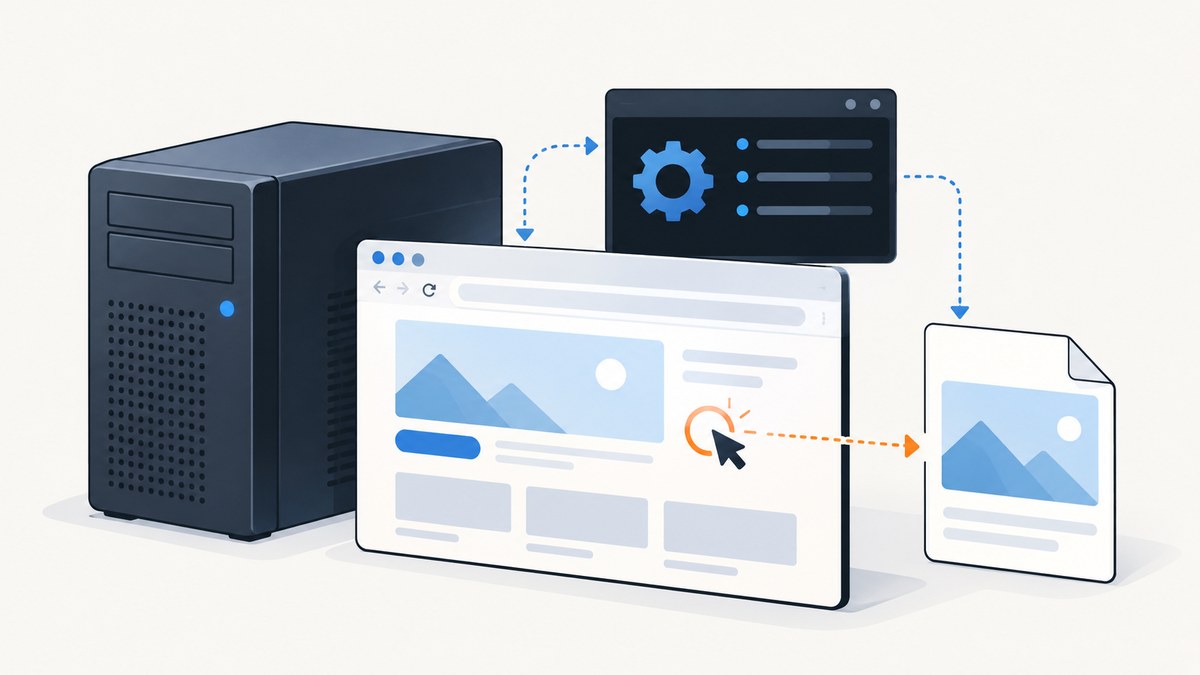
Run Selenium as a Windows service by putting your test runner behind a service wrapper such as NSSM or WinSW, then configure the wrapper with an explicit executable, working directory, service account, and log paths. In the runner, use Selenium’s Python Service object for the browser-driver process, save a screenshot when the job fails, and always call driver.quit(). The Windows service supervises the runner; it does not replace Selenium’s browser-driver lifecycle.
This setup is for unattended work. A Windows service runs in its own session, so a browser window that is not visible on the interactive desktop does not by itself mean the job failed. Use logs, exit codes, service status, and saved screenshots to check what happened.
1. Prepare a runner and artifact directory
Give the service a dedicated account with permission to read the application and virtual environment, launch the browser, and write to the log and screenshot directories. Use absolute paths throughout. Relative paths can resolve differently when a script runs as a service instead of from your shell.
For example, create a project directory at C:\SeleniumJob and an artifact directory at C:\SeleniumJob\artifacts. Create a virtual environment and install Selenium and your test dependencies from an elevated or appropriately authorized command prompt:
py -m venv C:\SeleniumJob\venv
C:\SeleniumJob\venv\Scripts\python.exe -m pip install selenium pytest
Modern Selenium can use Selenium Manager to help manage driver installation. The browser and driver still need compatible supported versions, and the service account needs an environment in which the browser can launch. Install or provision the browser for the machine, and verify that the service account can access it.
Choose a screenshot directory that will remain available across service restarts. Check its permissions using the account configured for the service rather than relying on a successful write from your own administrator session.
2. Write a runner that captures the failure and always cleans up
The following script visits a target URL, saves a timestamped PNG if the work raises an exception, logs the original failure, and quits the driver in a finally block. Change TARGET_URL to the page your job needs to inspect. This example uses headless Chrome, which is usually the practical choice for an unattended service.
from datetime import datetime, timezone
from pathlib import Path
import logging
import sys

from selenium import webdriver
from selenium.webdriver.chrome.service import Service as ChromeService

ROOT = Path(r"C:\SeleniumJob")
ARTIFACTS = ROOT / "artifacts"
LOG_FILE = ARTIFACTS / "runner.log"
TARGET_URL = "https://example.com"

ARTIFACTS.mkdir(parents=True, exist_ok=True)
logging.basicConfig(
    filename=str(LOG_FILE),
    level=logging.INFO,
    format="%(asctime)s %(levelname)s %(message)s",
)


def main():
    driver = None
    try:
        options = webdriver.ChromeOptions()
        options.add_argument("--headless")
        options.add_argument("--disable-gpu")
        options.add_argument("--window-size=1440,1000")

        # Selenium's Service starts the driver process. Selenium Manager
        # may locate/manage a compatible driver in supported environments.
        service = ChromeService(log_output=str(ARTIFACTS / "chromedriver.log"))
        driver = webdriver.Chrome(service=service, options=options)
        driver.set_page_load_timeout(45)
        driver.get(TARGET_URL)

        logging.info("Page loaded: %s", driver.current_url)
        # Put your assertions or page processing here.

    except Exception:
        logging.exception("Selenium job failed")
        if driver is not None:
            stamp = datetime.now(timezone.utc).strftime("%Y%m%dT%H%M%SZ")
            shot_path = ARTIFACTS / f"failure-{stamp}.png"
            try:
                saved = driver.save_screenshot(str(shot_path))
                if saved:
                    logging.error("Failure screenshot saved: %s", shot_path)
                else:
                    logging.error("WebDriver did not save screenshot: %s", shot_path)
            except Exception:
                # Preserve the original job exception in the log even if
                # the browser has already crashed or the path is unwritable.
                logging.exception("Could not save failure screenshot")
        return 1

    finally:
        if driver is not None:
            try:
                driver.quit()
            except Exception:
                logging.exception("Could not cleanly quit WebDriver")

    return 0


if __name__ == "__main__":
    sys.exit(main())
driver.save_screenshot(path) writes the current browser view to a PNG file. A WebDriver screenshot is returned by the protocol as Base64-encoded image data; Selenium’s Python method handles writing the file. The screenshot reflects the page at the moment it is captured, so capture it before quitting the driver.
The exception handler deliberately catches screenshot errors separately. If the browser has already crashed, the screenshot request can fail too. If the service account cannot write to the directory, it can fail for a different reason. Logging this secondary error while retaining the original exception makes the primary failure diagnosable.
Keep the return code meaningful: zero for success and nonzero for failure. Service wrappers can then distinguish a clean run from a failed job and apply their configured recovery policy.
3. Register the runner with a Windows service wrapper
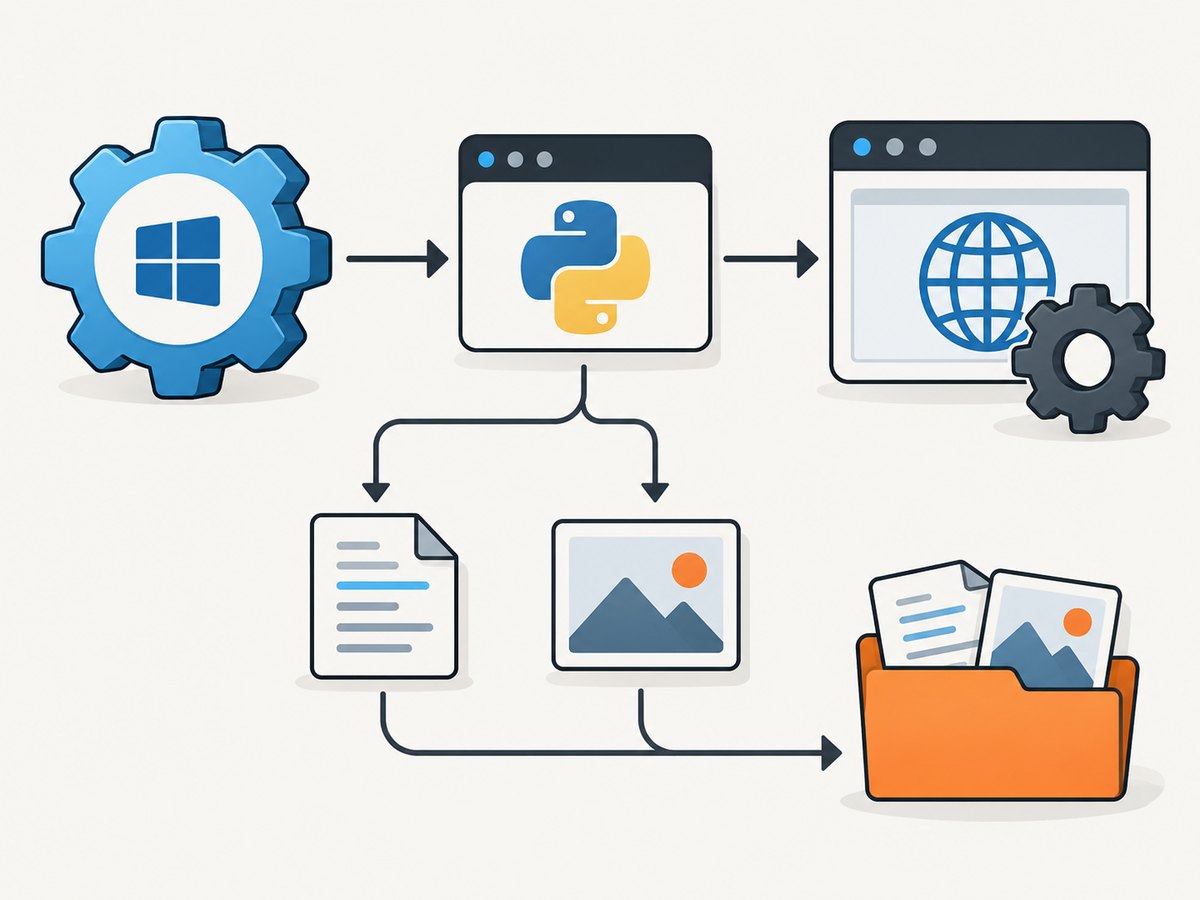
NSSM and WinSW both supervise a program as a Windows service. Configure the wrapper to start the Python executable from the virtual environment, pass the runner script as an argument, use the project directory as the working directory, and send stdout and stderr to persistent files. The service wrapper supervises the runner process; Selenium’s Service object separately starts and stops the driver child process.
Option A: NSSM
NSSM is configured through its command-line interface and service settings. A typical setup uses the full path to the virtual environment’s Python executable and an explicit script argument:
nssm install SeleniumJob "C:\SeleniumJob\venv\Scripts\python.exe" "C:\SeleniumJob\run_job.py"
nssm set SeleniumJob AppDirectory "C:\SeleniumJob"
nssm set SeleniumJob AppStdout "C:\SeleniumJob\artifacts\service-stdout.log"
nssm set SeleniumJob AppStderr "C:\SeleniumJob\artifacts\service-stderr.log"
nssm start SeleniumJob
Set the service account and any environment variables through the Windows service configuration or your deployment process. Confirm that the chosen account has the directory and browser permissions described above. NSSM launches the configured application when the service receives a start signal; by default, it also attempts to restart an application that dies without a service stop signal. Configure recovery intentionally rather than allowing an unnoticed rapid loop.
Option B: WinSW
WinSW uses an XML configuration file alongside its executable. A minimal configuration can set the service ID, executable, arguments, working directory, log mode, and recovery delay:
<service>
  <id>SeleniumJob</id>
  <name>Selenium Job</name>
  <description>Runs an unattended Selenium job.</description>
  <executable>C:\SeleniumJob\venv\Scripts\python.exe</executable>
  <arguments>C:\SeleniumJob\run_job.py</arguments>
  <workingdirectory>C:\SeleniumJob</workingdirectory>
  <log mode="roll" />
  <onfailure action="restart" delay="10 sec" />
</service>
Use the installed WinSW version’s configuration documentation when setting up the service, including account and environment settings. WinSW supports the recovery actions restart, reboot, and none. A delayed restart is useful for a transient failure, but repeated failures should trigger investigation or alerting rather than an endless fast restart cycle.
Choosing between the wrappers
| Consideration | NSSM | WinSW |
|---|---|---|
| Configuration | Command-line and registry-backed service settings | XML file beside the service executable |
| Recovery | Application restart behavior and service recovery settings | XML onfailure action and delay |
| Logs | Configure stdout and stderr paths explicitly | Configure log mode and retain application output |
| Team fit | Useful when operators already use NSSM and its setup flow | Useful when the team wants service configuration stored as XML |
Use whichever wrapper your Windows operators can configure and maintain consistently. In either case, keep the service definition, runner, and artifact paths explicit. Test start, stop, failure, and restart behavior under the configured service identity.
4. Capture screenshots from pytest failures
If the runner is a pytest suite, pytest-selenium can collect failure debugging data. Its default failure debug set includes the URL, HTML, logs, and screenshot, and its default capture mode is failure. This is more convenient than repeating screenshot code in every test, and it can retain context beyond the image.
Install the plugin in the same virtual environment as the service runner:
C:\SeleniumJob\venv\Scripts\python.exe -m pip install pytest-seleniumRun pytest with the plugin’s capture behavior configured for your suite, and make sure the report or artifact destination is retained by the service environment. For custom storage, implement its pytest_selenium_capture_debug(item, report, extra) hook. The hook receives debug entries; screenshot content is Base64 data that can be decoded and written as a PNG:
import base64
from pathlib import Path
import re

ARTIFACTS = Path(r"C:\SeleniumJob\artifacts")


def pytest_selenium_capture_debug(item, report, extra):
    ARTIFACTS.mkdir(parents=True, exist_ok=True)
    safe_name = re.sub(r"[^A-Za-z0-9_.-]+", "_", item.name)

    for name, content in extra:
        if name.lower() == "screenshot":
            image_bytes = base64.b64decode(content)
            output = ARTIFACTS / f"{safe_name}.png"
            output.write_bytes(image_bytes)
Use the direct save_screenshot approach for a small custom runner or when you need precise control over the failure path. Use pytest-selenium’s hook when its test-report integration and extra debugging details suit the suite. Check how your pytest invocation reports or stores the captured data so service restarts do not discard it.
5. Configure recovery, logs, and artifact retention
A service can restart after a transient process failure, but restart policy is not a substitute for preserving evidence. Before enabling automatic restarts, ensure the runner writes logs and screenshots to persistent storage and that the wrapper’s stdout and stderr are retained. Configure a delay between restarts. For a job that repeatedly fails, stop and alert or use a bounded recovery policy rather than creating a rapid restart loop.
Use a simple operational checklist:
- Set an absolute working directory, interpreter path, script path, log paths, and screenshot path.
- Run the service under a dedicated account with least necessary access and confirmed write permissions.
- Keep runner logs, driver logs, wrapper output, and screenshots available after a restart.
- Choose recovery actions and delays that fit the job’s failure modes.
- Rotate logs and purge old screenshots on a schedule to control disk use.
- Record where artifacts are stored and how operators can retrieve them.
- Check browser and driver compatibility after updates to Windows, Selenium, or the browser.
Do not use desktop visibility as the service health signal. Services run outside the normal interactive desktop session; a headed browser may be invisible or unreliable in that context. Headless mode makes the intended operation explicit, while logs and artifacts provide observability. If you require interactive behavior, document the session and account assumptions and validate them in the actual deployment environment.
6. Troubleshooting common service failures
| Symptom | Likely cause | What to check or change |
|---|---|---|
| Service starts, then stops immediately | Bad executable or arguments, a script exception, or a nonzero exit | Inspect wrapper stdout/stderr and runner log; run the same absolute command under the service account. |
| Works interactively but not as a service | Different account, working directory, environment, permissions, or session | Set the working directory and environment explicitly; verify browser access and write permissions as the configured account. |
| Driver cannot be created | Browser/driver mismatch, unavailable browser, or driver installation issue | Check the browser version and Selenium/driver logs; confirm Selenium Manager can operate in the service environment or provision a compatible driver. |
| No screenshot appears | The driver crashed before capture, capture ran after quit, or the directory is unwritable | Capture in the exception path before cleanup; log screenshot exceptions; test directory writes as the service account. |
| Screenshot exists but page is blank or incomplete | Page load timed out, content is delayed, or the capture happened before rendering finished | Wait for the required element or condition, set a sensible page-load timeout, and preserve the URL and logs alongside the image. |
| Service keeps restarting | Runner exits nonzero repeatedly and wrapper recovery is unbounded or too aggressive | Add a delay or bounded recovery policy, inspect the first failure logs, and stop/alert after repeated errors. |
| Logs or screenshots grow without limit | No rotation or retention policy | Enable log rolling where available and schedule cleanup for old artifacts while retaining enough history to diagnose failures. |
When diagnosing, preserve the first runner exception. Errors raised while saving a screenshot or quitting the browser are useful secondary evidence, but should not hide the original failure that caused the job to enter its error path.
7. Performance, reliability, and cost considerations
Service wrapping itself does not make Selenium faster; it provides process supervision and unattended startup. Browser launch and page rendering usually dominate a screenshot job’s work, while artifact retention affects disk use over time. Keep the job focused, wait for the page state it actually needs, and avoid adding long fixed delays where a selector or condition can determine readiness.

For reliability, make cleanup explicit, use meaningful exit codes, retain driver and runner logs, and account for transient network or page failures. A failure screenshot is best-effort evidence: if the driver process is already unavailable, WebDriver cannot take the image. For cost, account for the Windows host and browser runtime you operate, plus storage for logs and screenshots; the research sources provide no benchmark or universal cost estimate. Set artifact retention according to the debugging value and available disk space.
Or skip the browser setup
If the goal is a screenshot rather than browser automation or interaction, ScreenshotNeo provides a website screenshot API and MCP server. Its one-call API can return an image or PDF without managing a Windows service, browser installation, and driver process. See the ScreenshotNeo API documentation.
curl -G "https://api.screenshotneo.com/v1/shot" -d access_key=YOUR_API_KEY --data-urlencode url=https://example.com -o shot.webpimport requests
r = requests.get(
"https://api.screenshotneo.com/v1/shot",
params={"access_key": "YOUR_API_KEY", "url": "https://example.com"},
timeout=90,
)
open("shot.webp", "wb").write(r.content)const q = new URLSearchParams({
access_key: 'YOUR_API_KEY',
url: 'https://example.com'
});
const res = await fetch(`https://api.screenshotneo.com/v1/shot?${q}`);
if (!res.ok) throw new Error(`Screenshot request failed: ${res.status}`);
await Bun.write('shot.webp', res);ScreenshotNeo accepts cookie or consent banners like a visitor and removes more than 60 known consent platforms, newsletter popups, and chat widgets before the shot; each of those steps can be turned off. Bot checks, CAPTCHAs, blank pages, timeouts, failed loads, and cache hits cost nothing, with response headers identifying page verdict and billing status. Its MCP server gives AI agents tools for screenshots, page information, and PDF capture. The free plan includes 1,000 screenshots per month with no card; paid plans start at $5 for 3,000 screenshots. ScreenshotNeo is made by Yorker Media; visit ScreenshotNeo for product details.
Sign up for free and get 1,000 screenshots a month with no card.
FAQ
Does registering Selenium as a service make the browser a Windows service?
No. The wrapper supervises your Python runner. Selenium’s own Service object manages the browser-driver subprocess launched by that runner.
Can I use the screenshot as proof that every failure is reproducible?
No. It records the browser view at capture time. It may be unavailable if the driver has crashed, and it does not replace logs or test results.
Should I use a headed browser to confirm the service is working?
A visible desktop window is not a reliable service health check because services run in a separate session. Check the service state and retained logs and artifacts instead.
When is a browser service the wrong tool?
If the task only needs a rendered screenshot and does not need Selenium interactions, assertions, or browser-side test logic, a screenshot API can avoid operating a browser and driver on the Windows host.


