How to Send Base64 Screenshot Images by Email from Web Pages
Export a browser canvas screenshot and send it as an email attachment or inline image, with runnable examples and fixes for CORS and large payloads.
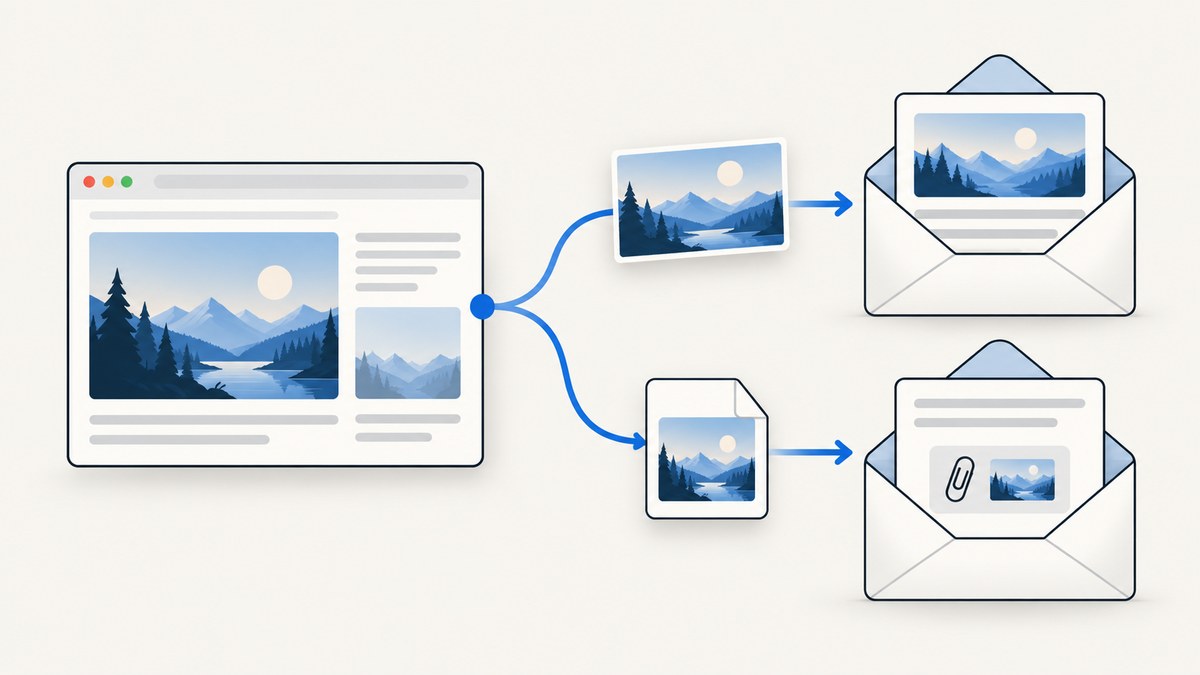
To send a Base64 screenshot from a web page, export the rendered canvas with canvas.toDataURL("image/png"), then pass that data URL to an email service configured to accept it as an attachment. If the screenshot should appear inside the message, put the data URL in an HTML <img src> instead. These are different email formats: an attachment is a MIME part; an inline image is part of the HTML body and must be supported by the recipient’s mail client.
This method starts with a canvas you already have, such as one drawn by your app. It does not capture an arbitrary web page by itself. If your goal is a screenshot of a URL, use a browser capture method or a screenshot API such as ScreenshotNeo to obtain the image first.
1. Choose attachment or inline image
| Method | What the recipient gets | Use it when |
|---|---|---|
| Attachment | A separately downloadable image file, sent as an email MIME part. | The image should be saved, forwarded, or viewed independently of the message body. |
| Inline HTML image | An image referenced in the message HTML. | The image should appear at a chosen place in the message, and you can validate rendering in the target mail clients. |
A Base64 data URL is a convenient representation for moving canvas output through APIs that accept it. It is not a universal email attachment format: check that the sending service supports data URL or Base64 content and configure the template accordingly. EmailJS documents a canvas-to-attachment example using a template variable. Microsoft Power Automate documents a Base64 data URL as an HTML image source. Neither example establishes that every email service or client behaves the same way.
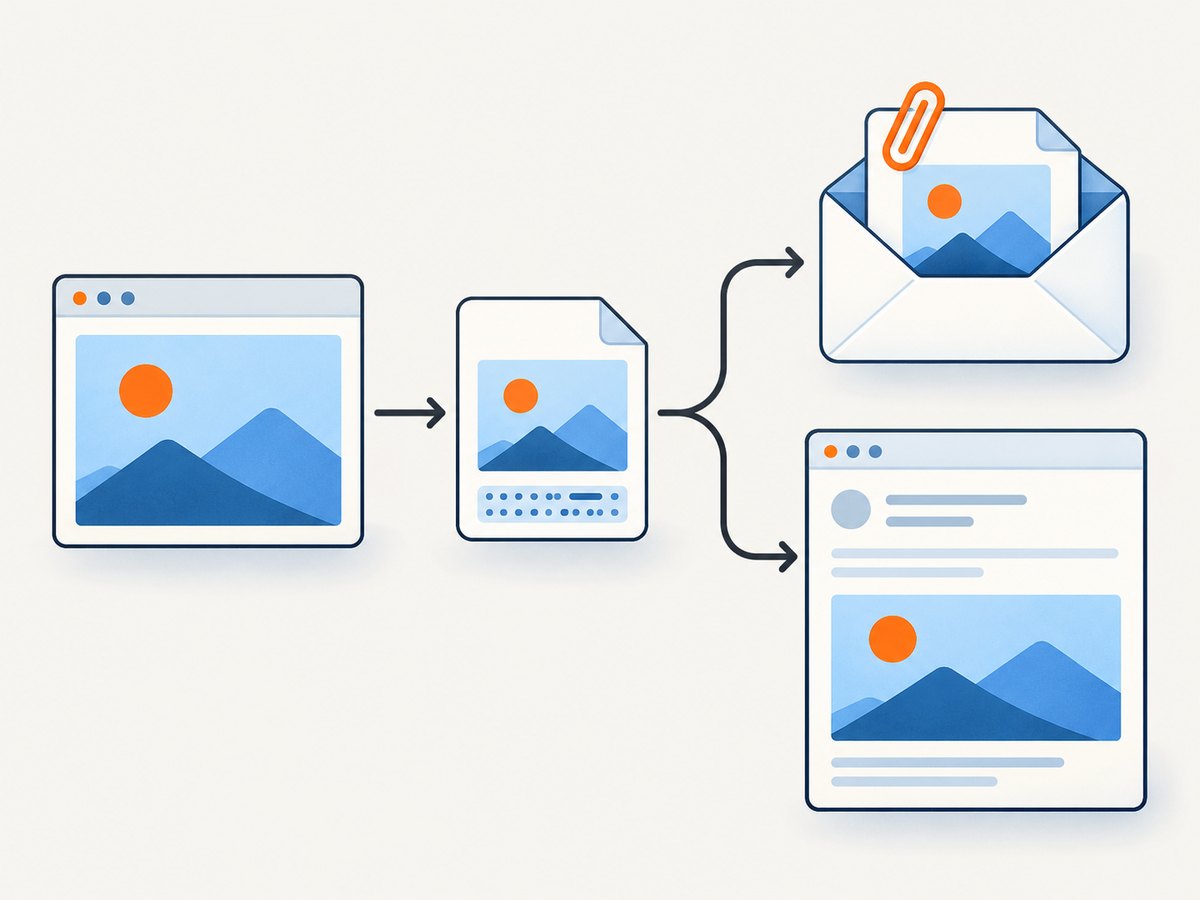
2. Export a canvas screenshot
Wait until drawing is complete, then export. PNG is the default and is supported by browsers. If a browser does not support a requested output format, canvas export falls back to PNG.
const canvas = document.querySelector("#preview");
if (!canvas) throw new Error("Screenshot canvas was not found");

try {
  const dataUrl = canvas.toDataURL("image/png");
  console.log(dataUrl.slice(0, 40)); // data:image/png;base64,...
} catch (error) {
  console.error("Could not export the screenshot canvas:", error);
}
For another supported image format, pass its MIME type, for example image/jpeg. The returned string includes a metadata prefix such as data:image/png;base64, followed by the encoded image payload. Keep that prefix when the receiving API expects a data URL. Strip it only when the documented API explicitly asks for raw Base64, and then send the MIME type separately if the API supports that metadata.
Origin-clean canvases and CORS
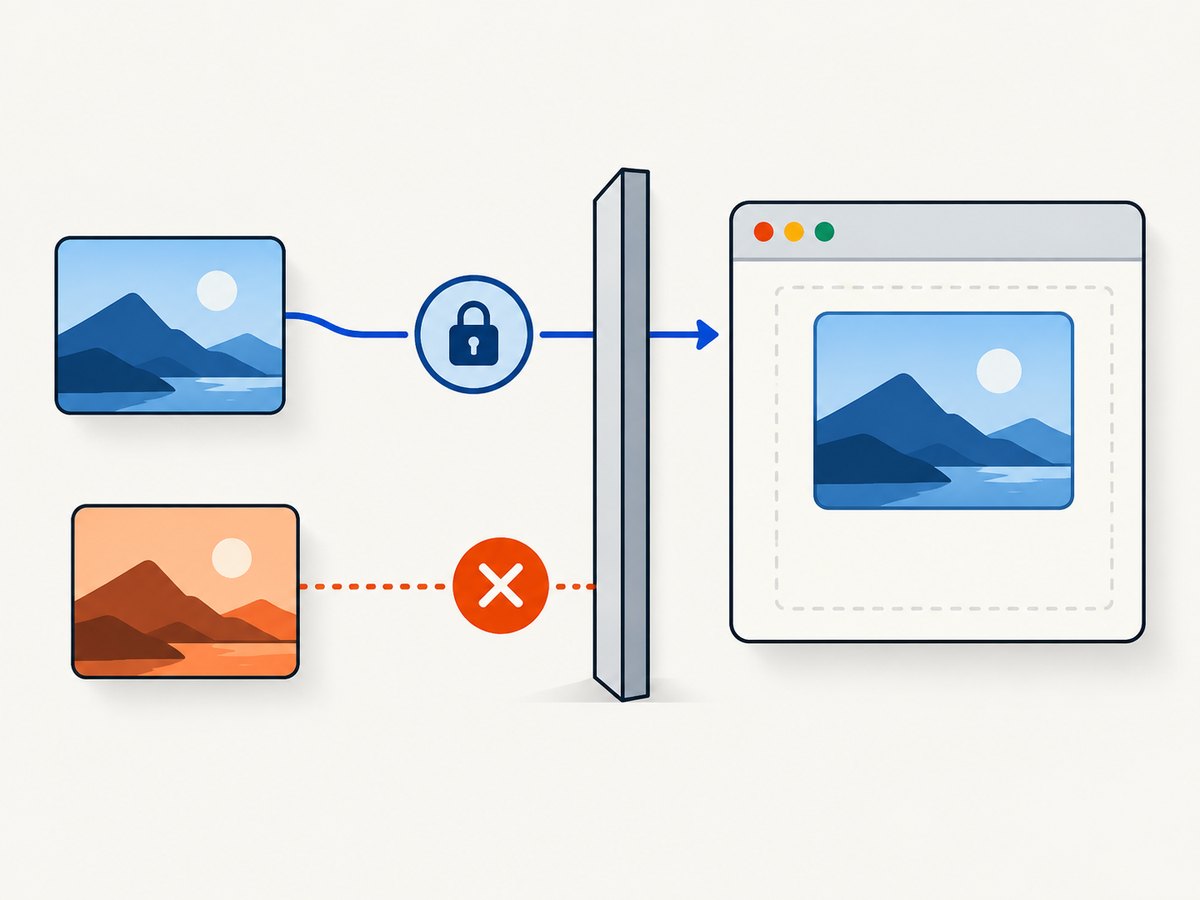
A canvas becomes tainted when it contains image data from another origin that was not loaded with an appropriate cross-origin configuration. A tainted canvas cannot be exported; toDataURL() throws a SecurityError. This is a browser security boundary, not a Base64 encoding problem, and client-side code cannot bypass it.
- Configure the image host to allow the page’s origin with CORS response headers.
- Set the image element’s
crossOriginproperty before assigning its source. - Wait for the image to load successfully before drawing it to the canvas.
- Catch export errors and give the user a clear recovery path.
async function loadCorsImage(src) {
  const image = new Image();
  image.crossOrigin = "anonymous"; // set before src
  image.src = src;
  await image.decode();
  return image;
}

async function drawAndExport(canvas, src) {
  const image = await loadCorsImage(src);
  const context = canvas.getContext("2d");
  context.drawImage(image, 0, 0);
  return canvas.toDataURL("image/png");
}
The image server must also send a suitable Access-Control-Allow-Origin response header. Setting crossOrigin in JavaScript alone does not grant permission. See the MDN canvas export documentation and the WHATWG canvas specification.
3. Send it as an email attachment
An attachment must be configured as a file attachment in the email service or template. With EmailJS, its documented pattern is to pass the canvas data as an attachment variable to emailjs.send(). Configure the template’s attachment variable and its filename/content type according to the service documentation. The following is an integration shape; it assumes you have already initialized EmailJS, configured a service and template, and validated the recipient input.
async function sendCanvasAttachment(canvas) {
  const dataUrl = canvas.toDataURL("image/png");

  return emailjs.send(
    "YOUR_SERVICE_ID",
    "YOUR_TEMPLATE_ID",
    {
      to_email: "recipient@example.com",
      attachment: dataUrl,
    }
  );
}
In the EmailJS template, set the attachment to use the attachment variable and choose an image filename and content type as supported by the service. Exact template fields and initialization depend on your EmailJS setup; follow its file attachments documentation. Do not assume that passing a data URL as an ordinary text field automatically creates an attachment.
When the backend wants raw Base64
Some receiving interfaces want only the payload rather than a complete data URL. Split at the first comma only when the interface requires raw Base64:
function splitDataUrl(dataUrl) {
  const comma = dataUrl.indexOf(",");
  if (comma < 0) throw new Error("Invalid image data URL");
  const metadata = dataUrl.slice(0, comma);
  const base64 = dataUrl.slice(comma + 1);
  const mimeType = metadata.match(/^data:([^;]+)/)?.[1];
  if (!mimeType || !metadata.includes(";base64")) {
    throw new Error("Expected a Base64 data URL");
  }
  return { mimeType, base64 };
}
Send base64 as the content and mimeType as metadata when the backend contract calls for those fields. Do not remove the prefix by habit: many integrations expect the complete data URL.
4. Show the image inline in the email body
For an inline image, generate an HTML body containing the data URL in an image source. The mail service must send HTML content, and recipients’ clients may treat data URLs differently. Test with the actual mail clients your audience uses. Keep an attachment or hosted-image fallback for clients that do not display it.
const dataUrl = canvas.toDataURL("image/png");
const html = `
  <p>Here is the screenshot:</p>
  <img src="${dataUrl}" alt="Screenshot of the page">
`;

// Pass `html` as the HTML body using your email provider's documented API.
Microsoft’s Power Automate image guidance demonstrates a Base64 data URL in an HTML image source. Treat it as an available pattern to validate, not a guarantee of universal inline-image support. Also escape or safely construct HTML if any message text or attributes include user-controlled values.
5. Use a Blob for larger images
toDataURL() encodes the whole image into one in-memory string. That is simple for small images, but the string can be large and may perform poorly or exceed limits in contexts that constrain URL length. MDN recommends considering toBlob() for larger images. This is not a statement of any universal email size limit; provider and recipient limits vary, and the sources here do not establish a single threshold.
function canvasToBlob(canvas, type = "image/png", quality) {
  return new Promise((resolve, reject) => {
    canvas.toBlob((blob) => {
      if (blob) resolve(blob);
      else reject(new Error("Canvas could not be encoded"));
    }, type, quality);
  });
}

async function uploadScreenshot(canvas) {
  const blob = await canvasToBlob(canvas, "image/png");
  const form = new FormData();
  form.append("screenshot", blob, "screenshot.png");

  const response = await fetch("/api/email-screenshot", {
    method: "POST",
    body: form,
  });
  if (!response.ok) throw new Error(`Upload failed: ${response.status}`);
  return response.json();
}
This example uploads binary image data to your own endpoint. That endpoint can validate the request and pass the file to the selected email service using its documented attachment mechanism. It is not a complete email backend: implement authentication, recipient validation, rate controls, and service-specific sending there. Avoid embedding privileged provider credentials in public browser code, and protect any endpoint that can send email from abuse.
6. Capture a web page before emailing it
If your page is already rendered into a canvas by your application, the examples above cover the export and email handoff. If you need a screenshot of a URL, you need a browser capture step first. A browser screenshot tool can render the page and return an image; then send that image as an attachment or process it through a backend. For example, tools may let you select a viewport, capture the full page, wait for content, or apply CSS before capture. Keep the capture step separate from email delivery so you can handle failed renders and sending failures independently.
Or skip the browser setup
ScreenshotNeo is a website screenshot API and MCP server from Yorker Media. One GET request with a URL returns a PNG, JPEG, WebP, or PDF. Cookie banners, newsletter popups, and chat widgets are removed before the shot; each cleanup step can be turned off. Bot checks, blank pages, timeouts, failed loads, and cache hits cost nothing, and response headers report the page verdict and billing status. Its MCP server gives AI agents tools to take screenshots, get page information, and capture PDFs. It includes 1,000 screenshots a month free with no card; paid plans start at $5 for 3,000 shots. See the ScreenshotNeo API documentation for request options and response details.
curl -G "https://api.screenshotneo.com/v1/shot" \
  -d access_key=YOUR_API_KEY \
  --data-urlencode url=https://stripe.com \
  -o shot.webp
The response is an image file. To email it, send the bytes from your server through your email provider’s attachment API; this avoids putting a large Base64 string in a browser request. ScreenshotNeo also supports signed links for public image tags, async jobs with signed webhooks, bulk capture, custom waits and CSS, and many other capture settings. Every feature is on every plan. Sign up for 1,000 free screenshots a month with no card.
7. Reliability, performance, and cost checklist
- Wait for readiness: Export only after drawing and image loading finish. An early export can produce an incomplete canvas.
- Keep data local to the right step: Avoid putting a data URL in a query string. For larger data, use a binary upload with
BlobandFormDatawhere your backend supports it. - Handle failures independently: Report canvas export, upload, and email-send failures separately. A successful export does not prove that upload or delivery succeeded.
- Plan for retries: Retry transient upload or provider failures carefully. Prevent duplicate messages by associating a request identifier with a send operation when your backend and provider support it.
- Validate size against your service: Check the chosen provider’s current attachment and request limits. There is no universal limit established here.
- Protect sending: Validate recipients and rate-limit endpoints that send mail. Do not expose privileged mail credentials in client-side JavaScript.
- Estimate total cost: Consider screenshot capture charges, email service charges, and storage or transfer costs separately. The browser canvas APIs themselves do not define an email price or provider limit.
8. Troubleshooting
| Symptom | Likely cause | Fix |
|---|---|---|
SecurityError from toDataURL() |
The canvas is tainted by cross-origin image content. | Configure CORS on the image host, set crossOrigin before src, and reload before drawing. If the source cannot allow access, use an authorized server-side image flow. |
| Exported image is blank or incomplete | The export ran before rendering or image decoding finished, or the wrong canvas was selected. | Wait for drawing and image load/decode, confirm the canvas dimensions, and inspect the correct canvas element. |
| The attachment arrives as text | The data URL was passed as a normal template value rather than configured as a file attachment. | Set up the service’s attachment variable, filename, and content type as documented. |
| Backend rejects the image value | It expects raw Base64 but received a data URL, or the reverse. | Check the API contract. Preserve the prefix for data URL fields; split metadata and payload only for raw Base64 fields. |
| Inline image does not display | The mail client or sending pipeline does not render data URLs as expected. | Test recipient clients and provide an attachment or hosted-image fallback. |
| Upload or email request fails on size | The encoded string or request exceeds a limit imposed by the selected service or endpoint. | Use toBlob() and binary upload where supported, resize or reduce image quality if acceptable, and consult the service’s documented limits. |
| Recipients receive duplicate emails | A retry repeated the send after an uncertain response. | Use an idempotency or deduplication strategy supported by your server or email provider before retrying. |
9. FAQ
Can I email a screenshot of any URL using only toDataURL()?
No. toDataURL() exports a canvas that already contains rendered pixels. Capturing an arbitrary URL requires a page-rendering or screenshot step first.
Should I use PNG or JPEG?
PNG is the browser-required canvas format and is a sensible default for crisp interface screenshots. Choose another format only when it fits your image and the downstream service supports it.
Should I Base64-encode a Blob again?
Usually you can upload a Blob as binary when the backend accepts multipart or binary data. Convert to Base64 only when the receiving interface specifically requires it.
Can I rely on a Base64 image showing inline in every inbox?
No universal support is established. Validate the target mail clients and keep a fallback such as a regular attachment.


