How to Send a Full-Page Screenshot on iPhone
Capture an entire webpage on iPhone, save it as a PDF, and send it by Messages, Mail, or AirDrop.
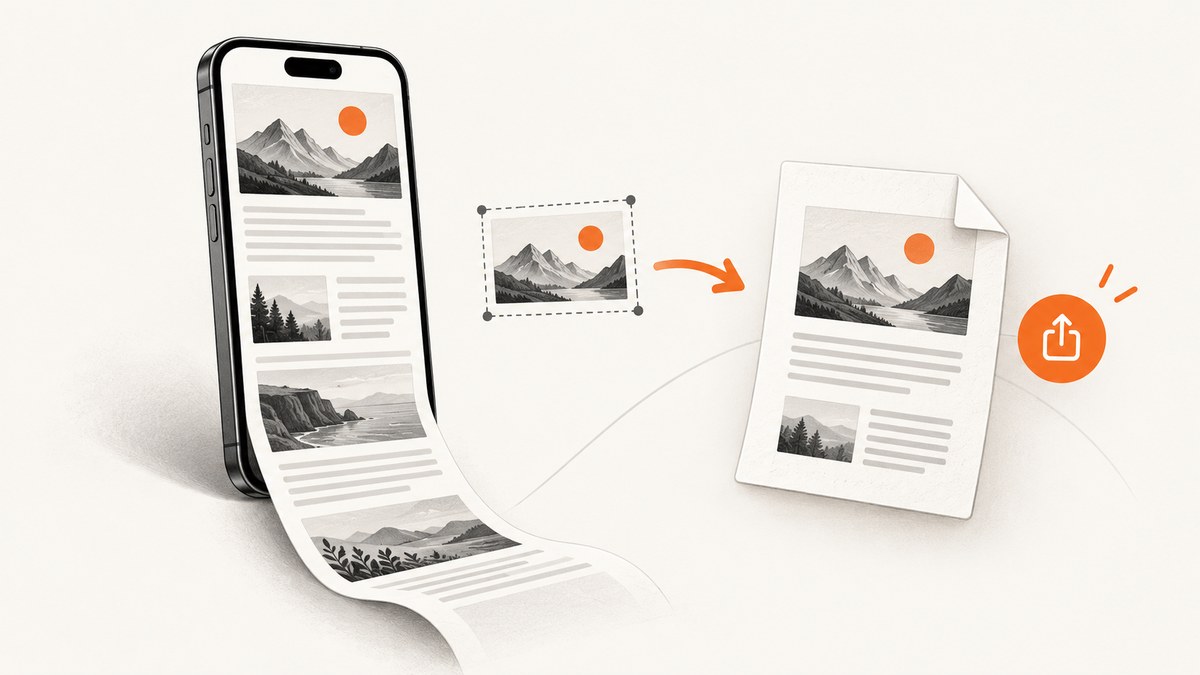
A full-page screenshot captures content that extends beyond the visible iPhone screen. For a webpage in Safari, take a normal screenshot, open its preview, choose Full Page, then share the result or save it as a PDF.
Send an entire webpage from your iPhone
- Open the webpage in Safari and wait for the content you need to load.
- Take a screenshot. On an iPhone with Face ID, quickly press and release the side button and volume-up button together. On an iPhone with a Home button, quickly press and release the side button and Home button together.
- Tap the screenshot thumbnail that appears, usually near the lower-left corner.
- At the top of the preview, tap Full Page. This switches from the visible screen capture to a capture of the supported page’s full scrollable content.
- Review the long preview. Drag through it to inspect the page. Use cropping or Markup if you need to remove or annotate part of it.
- Tap Share, then choose Messages, Mail, AirDrop, or another available destination.
Apple’s documented full-page workflow saves the result as a PDF rather than as a single image in Photos. If you want to keep the file for later, use the save/options control, choose Save PDF to Files, select a folder, and share the PDF from the Files app.

How to save the full-page capture as a PDF
- Complete the screenshot and tap Full Page.
- Tap the Share button.
- Choose Save PDF to Files.
- Select a location such as On My iPhone or iCloud Drive, then tap Save.
- Open Files when you are ready to send it. Press and hold the PDF, tap Share, and select the recipient or app.
Saving first is useful when the document is large, when you need to rename it, or when you want to send it to several people at different times.
Send the long capture by Messages, Mail, or AirDrop
| Destination | What to do | What the recipient gets |
|---|---|---|
| Messages | Tap Share from the Full Page preview and choose Messages, or share the saved PDF from Files. | A PDF attachment. A regular screenshot can be sent as an image. |
| Choose Mail in the Share sheet, add the address and message, and send. If needed, share the saved PDF from Files. | A PDF attachment that can be opened and downloaded. | |
| AirDrop | Choose AirDrop, then select a nearby Apple device or contact. | The PDF file on the receiving device. |
| Files or cloud storage | Save the PDF to Files, then use the storage provider’s share action. | A reusable file link or attachment, depending on the provider. |
Can a full-page screenshot be sent as a photo?
Apple’s built-in Full Page option produces a PDF. It does not place the entire scrolling page into Photos as one tall image. If the recipient specifically needs a photo, take and send the ordinary screen capture, or use an app-specific export workflow that can create a long image.
For a long page that must remain readable, the PDF is usually the better format: it preserves the page as a document and can be opened from Messages, Mail, AirDrop, or Files.
Crop or annotate before sending
- Crop: In the screenshot preview, adjust the crop handles before sharing.
- Markup: Add drawings, highlights, shapes, or a signature with the Markup tools.
- Review: Drag through the Full Page preview after editing to check that the important section remains included.
Edits made in the preview apply to the copy you share or save. Keep the original page open if you may need an unedited version later.
Why “Full Page” may not appear
Full Page is commonly available for Safari webpages and other supported content, but iOS does not expose it in every app or for every document. If the tab is missing:
- Try opening the same webpage in Safari.
- Take the screenshot again and tap its thumbnail immediately.
- Check whether the content is a supported, scrollable page rather than a video, image, or app view.
- Use the app’s own export or print-to-PDF option when available.
Button placement and the screenshot preview can change with iOS releases. Follow the labels shown on the device.
Troubleshooting
| Problem | Likely cause | Fix |
|---|---|---|
| No screenshot thumbnail appears | The buttons were held too long, pressed one after another, or the preview disappeared. | Press and release the correct button pair simultaneously, then take the screenshot again. |
| There is no Full Page tab | The current app or content does not support Apple’s full-page capture. | Repeat the workflow in Safari for a webpage, or use the app’s export/PDF feature. |
| The result stops before the bottom | The page did not finish loading, or only the supported scrollable area was captured. | Wait for the page to load fully, reload it, and capture again. Review the long preview before sharing. |
| The recipient cannot see an image | The Full Page workflow created a PDF. | Send the PDF attachment, or take a regular screenshot if an image is required. |
| Annotations or cropping are missing | The file was shared before edits were applied, or a different copy was selected in Files. | Make the edits in the screenshot preview, then share that preview or save a new PDF. |
| The PDF is difficult to find | It was saved to a different Files location. | Open Files and check Recents, On My iPhone, and iCloud Drive, or use the location chosen during Save PDF to Files. |
When an automated screenshot is more practical
The iPhone workflow is ideal when you are already viewing one page and need to send it manually. For repeated captures, scheduled reports, many URLs, or a server-side file, an API avoids keeping a browser open on the phone.

Or skip the browser setup
ScreenshotNeo captures a URL with one GET request and can return PNG, JPEG, WebP, or PDF. Before capture it accepts cookie/consent banners like a visitor and removes more than 60 known consent platforms, newsletter popups, and chat widgets; each step can be turned off. Bot checks, blank pages, timeouts, failed loads, and cache hits cost nothing, and the response identifies the page verdict and billing status with X-Page-Verdict and X-Billed headers. Its MCP server provides take_screenshot, get_page_info, and capture_pdf tools for Claude, Cursor, and other MCP clients.
See the ScreenshotNeo API documentation for authentication and options.
cURL
curl -G "https://api.screenshotneo.com/v1/shot" -d access_key=YOUR_API_KEY --data-urlencode url=https://stripe.com -o shot.webpPython
import requests
r = requests.get("https://api.screenshotneo.com/v1/shot", params={"access_key": "YOUR_API_KEY", "url": "https://stripe.com"}, timeout=90)
open("shot.webp", "wb").write(r.content)
Node.js
const q = new URLSearchParams({ access_key: 'YOUR_API_KEY', url: 'https://stripe.com' }); const res = await fetch(`https://api.screenshotneo.com/v1/shot?${q}`);ScreenshotNeo includes full-page capture with lazy images loaded, PDF paper sizes, margins, landscape mode, page ranges, custom CSS and JavaScript, waits, device presets, caching, signed links, asynchronous jobs, webhooks, bulk capture, and usage reporting. The Free plan includes 1,000 screenshots a month with no card; paid plans start at $5 for 3,000.
Create a free ScreenshotNeo account to get 1,000 screenshots a month with no card.
FAQ
Does Full Page work in every iPhone app?
No. It is commonly available for Safari webpages and other supported content, but each app decides whether to expose full-page capture.
Is a full-page screenshot stored in Photos?
The built-in Full Page workflow saves through Save PDF to Files. Ordinary screenshots can be saved to Photos.
Can I edit the page before sending it?
Yes. Crop and annotate with Markup in the screenshot preview before sharing or saving the PDF.
What should I send if someone needs a single image?
Send a regular screenshot, or use an export tool that specifically creates a long image. The built-in Full Page result is a PDF.
Can I capture several webpages without doing this manually?
Use a server-side screenshot service such as ScreenshotNeo for repeated or bulk URL captures. Its API supports bulk capture of up to 100 URLs per call.


