How to Send Screenshot Results to WebDAV
Capture a screenshot, save the bytes, and upload them to WebDAV with an authenticated PUT. Includes Windows, Python, cURL, browser, and automation workflows.
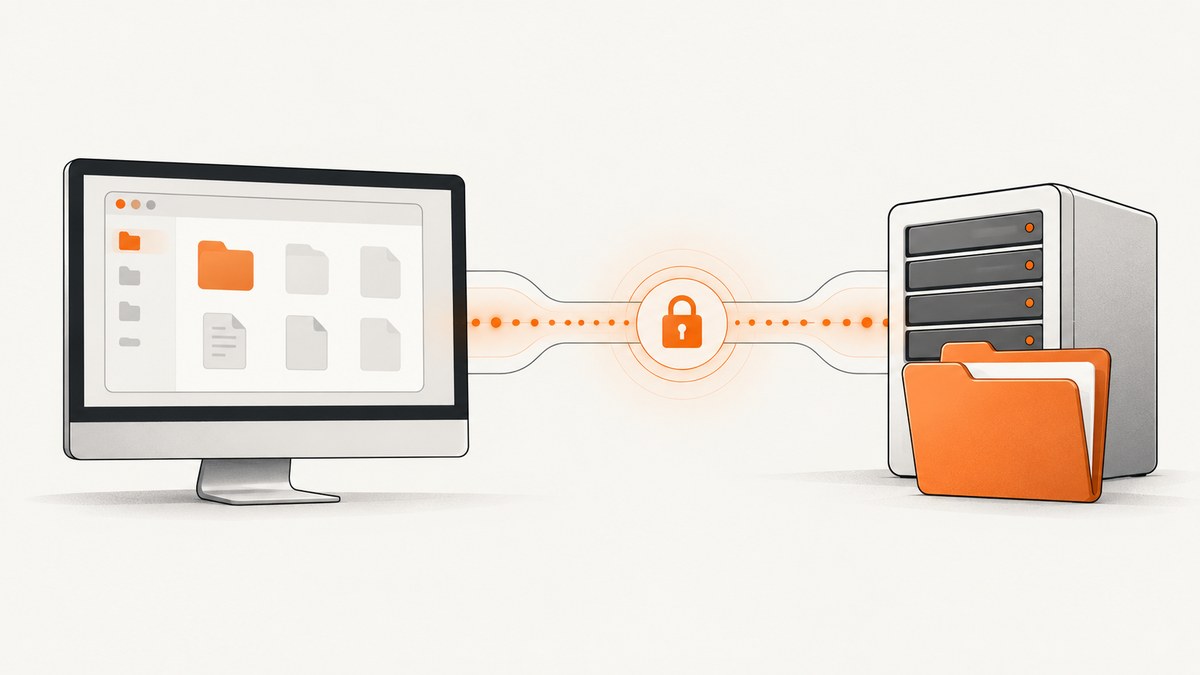
To send a screenshot to WebDAV, first obtain the image as a local file or byte stream, then upload it to the destination URL with an authenticated HTTP PUT. The destination URL must include the filename, for example https://dav.example.com/screenshots/homepage.png.
Capture and transfer are separate operations. Snipping Tool, a browser, or an API produces the image; WebDAV stores it. Keeping those steps separate makes failures easier to diagnose and lets you replace the capture method without changing the upload code.
How the workflow fits together
A reliable implementation follows this sequence:
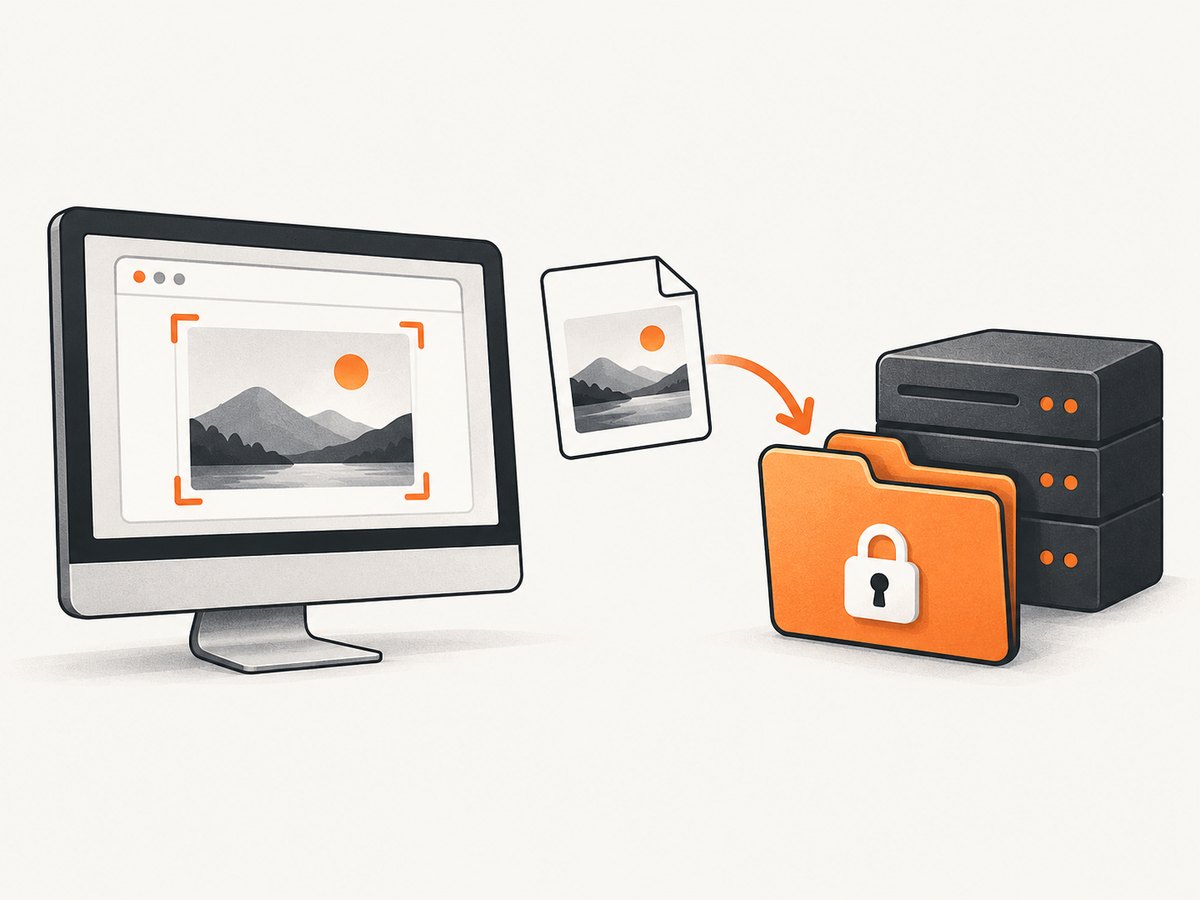
- Start a capture, or receive a screenshot from an API.
- Save the result to disk or keep it in memory.
- Construct the complete WebDAV URL, including the target filename.
- Authenticate to the WebDAV server.
- Send the image bytes with
PUT. - Check the HTTP status code and verify the object with a directory listing or a subsequent
GET.
WebDAV uses HTTP methods for file operations. Microsoft’s protocol example uses GET to enumerate or read a directory and PUT to write a selected file. See the Microsoft WebDAV protocol example.
| Value | Example | Why it matters |
|---|---|---|
| Server URL | https://dav.example.com/remote.php/dav/files/alex/ |
The WebDAV collection or folder. |
| Destination filename | 2026-09-30-home.png |
The final path component of the PUT URL. |
| Credentials | Username and password, app password, or server-supported token | WebDAV writes require authentication. Microsoft’s IIS guidance states that “WebDAV requests require authentication.” |
| Content type | image/png, image/jpeg, or image/webp |
Helps the server and clients interpret the file. |
Upload an existing screenshot with cURL
If the screenshot already exists as shot.png, this is the smallest useful command:
curl --fail --show-error --user 'DAV_USER:DAV_PASSWORD' \
  --upload-file shot.png \
  -H 'Content-Type: image/png' \
  'https://dav.example.com/screenshots/shot.png'
--upload-file sends the file body with PUT. --fail makes cURL return a failure for HTTP errors instead of silently accepting an error page. Use an HTTPS URL whenever credentials or screenshots cross an untrusted network.
Overwrite versus create-only behavior
A normal PUT commonly creates a new file or replaces an existing file with the same name. If overwriting is undesirable, generate a unique filename, such as a UTC timestamp plus a random suffix, and check the destination with HEAD or a directory listing before uploading. Server behavior can differ, so verify it with a harmless test file.
Windows Snipping Tool capture and upload
Windows applications can launch Snipping Tool through the ms-screenclip://capture/image contract. The documented modes include rectangle, freeform, and window capture. Add auto-save when the application needs Snipping Tool to write the result locally, and provide a redirect URI so the application receives completion information. Microsoft documents that, when capture completes or is canceled, Snipping Tool activates the application through the redirect URI with result parameters appended as query strings. See Microsoft’s Screen Snipping launch documentation.
A desktop application therefore needs to:
- Register or choose a redirect URI that the application can handle.
- Launch the desired capture mode.
- Resolve the returned file path or access information.
- Read the image bytes.
- Issue the authenticated WebDAV
PUT. - Report success only after the upload response is successful.
For manual delivery, Windows can expose a WebDAV site as a network location. Microsoft’s network-location workflow lets you enter the site URL, provide credentials when prompted, and copy files through File Explorer. This is useful when a person takes the screenshot and uploads it occasionally: save the capture, open the mapped location, and drag the file into the destination folder.
PowerShell upload example
The following script uploads a local PNG with Basic authentication. Store credentials securely in production rather than embedding them in a script.
$file = "C:\Screenshots\shot.png"
$target = "https://dav.example.com/screenshots/shot.png"
$user = "DAV_USER"
$password = "DAV_PASSWORD"

$pair = "{0}:{1}" -f $user, $password
$encoded = [Convert]::ToBase64String([Text.Encoding]::ASCII.GetBytes($pair))
$headers = @{ Authorization = "Basic $encoded" }

Invoke-WebRequest -Uri $target -Method Put -InFile $file `
  -ContentType "image/png" -Headers $headers
Check the returned status before deleting the local file. If your server uses a self-signed certificate, fix the certificate chain instead of disabling TLS validation.
Python: capture bytes, then upload them
This example uploads an existing file using the widely available requests package:
import os
from pathlib import Path
import requests

source = Path("shot.png")
webdav_url = "https://dav.example.com/screenshots/shot.png"
username = os.environ["DAV_USERNAME"]
password = os.environ["DAV_PASSWORD"]

with source.open("rb") as image:
    response = requests.put(
        webdav_url,
        data=image,
        auth=(username, password),
        headers={"Content-Type": "image/png"},
        timeout=60,
    )

response.raise_for_status()
print("Uploaded", source, response.status_code)
To stream an API result directly into WebDAV, write the response to a temporary file first, or pass its content as the request body after checking that the capture succeeded. A temporary file is safer for large images because it avoids holding multiple copies in memory.
Node.js: upload with built-in fetch
import { readFile } from "node:fs/promises";

const file = "shot.png";
const target = "https://dav.example.com/screenshots/shot.png";
const username = process.env.DAV_USERNAME;
const password = process.env.DAV_PASSWORD;

const bytes = await readFile(file);
const token = Buffer.from(`${username}:${password}`).toString("base64");

const response = await fetch(target, {
  method: "PUT",
  headers: {
    "Authorization": `Basic ${token}`,
    "Content-Type": "image/png",
    "Content-Length": String(bytes.length)
  },
  body: bytes
});

if (!response.ok) {
  throw new Error(`WebDAV upload failed: ${response.status} ${response.statusText}`);
}

console.log(`Uploaded ${file}`);
Browser applications need a backend bridge
A browser can capture a canvas or receive an image, but a direct cross-origin WebDAV request may be blocked by CORS. The server must explicitly allow the browser’s origin, methods, and authorization headers. You should not expose a long-lived WebDAV password in browser JavaScript.

A safer pattern is:
- The browser sends the encoded image or multipart file to your own same-origin endpoint.
- Your backend validates the user and filename.
- The backend uploads the bytes to WebDAV.
- The backend returns a small success or error response.
This bridge pattern is also described in a Dynamsoft Flask and WebDAV tutorial. Keep WebDAV credentials in server-side environment variables or a secret manager.
Sending a screenshot from ScreenshotNeo to WebDAV
ScreenshotNeo can produce the screenshot so your application only has to transfer the returned bytes. Its endpoint returns PNG, JPEG, WebP, or PDF. The API can capture full pages, a CSS-selected element, a chosen device or viewport, dark mode, retina scale, custom CSS and JavaScript, and authenticated pages with headers or cookies. See the ScreenshotNeo API documentation for parameter names and response handling.
Capture to a local file, then upload that file to WebDAV:
curl -G "https://api.screenshotneo.com/v1/shot" \
  -d access_key=YOUR_API_KEY \
  --data-urlencode url=https://stripe.com \
  -o shot.webp

curl --fail --show-error --user 'DAV_USER:DAV_PASSWORD' \
  --upload-file shot.webp \
  -H 'Content-Type: image/webp' \
  'https://dav.example.com/screenshots/stripe.webp'
In Python:
import os
import requests

capture = requests.get(
    "https://api.screenshotneo.com/v1/shot",
    params={"access_key": "YOUR_API_KEY", "url": "https://stripe.com"},
    timeout=90,
)
capture.raise_for_status()

upload = requests.put(
    "https://dav.example.com/screenshots/stripe.webp",
    data=capture.content,
    auth=(os.environ["DAV_USERNAME"], os.environ["DAV_PASSWORD"]),
    headers={"Content-Type": "image/webp"},
    timeout=60,
)
upload.raise_for_status()
In Node.js:
const q = new URLSearchParams({ access_key: 'YOUR_API_KEY', url: 'https://stripe.com' });
const res = await fetch(`https://api.screenshotneo.com/v1/shot?${q}`);
if (!res.ok) throw new Error(`Screenshot failed: ${res.status}`);
const image = Buffer.from(await res.arrayBuffer());

const auth = Buffer.from(`${process.env.DAV_USERNAME}:${process.env.DAV_PASSWORD}`).toString('base64');
const upload = await fetch('https://dav.example.com/screenshots/stripe.webp', {
  method: 'PUT',
  headers: { Authorization: `Basic ${auth}`, 'Content-Type': 'image/webp' },
  body: image
});
if (!upload.ok) throw new Error(`WebDAV upload failed: ${upload.status}`);
Or skip the browser setup
ScreenshotNeo removes cookie banners, newsletter popups, and chat widgets before the shot. Bot checks, blank pages, timeouts, failed loads, and cache hits are not billed, and each response identifies the page verdict and billing result in headers. It also provides an MCP server with take_screenshot, get_page_info, and capture_pdf tools so Claude, Cursor, and other MCP clients can capture pages. The free plan includes 1,000 screenshots each month with no card; paid plans start at $5 for 3,000 shots.
After receiving the response, send it to WebDAV with the same authenticated PUT shown above. Create a free ScreenshotNeo account.
WebDAV options that affect uploads
Authentication
Use the authentication method required by your server: Basic over HTTPS, an app password, or a provider-specific token. A 401 response usually means the credentials are missing or invalid. A 403 response usually means the account authenticated but lacks write permission.
Directories and parent creation
Many servers will not create missing parent directories during a file PUT. Create the folder first with the server’s WebDAV client or a MKCOL request if supported. Confirm that the URL points to the WebDAV endpoint rather than a web login page.
File names and encoding
URL-encode spaces, Unicode characters, question marks, and hash characters in filenames. Prefer a conservative name such as site-2026-09-30T120000Z.webp. Never concatenate untrusted user input into a path without validation; reject .. path segments and unexpected slashes.
Content type and extensions
Send the correct MIME type and extension together. IIS request filtering or server policies can reject particular methods, extensions, or request sizes. Microsoft’s IIS documentation covers WebDAV authentication and request filtering at IIS WebDAV configuration.
Troubleshooting
| Symptom | Likely cause | Fix |
|---|---|---|
| 401 Unauthorized | Wrong credentials, missing auth header, or expired app password. | Test the same account with the provider’s WebDAV client and inspect the request URL. |
| 403 Forbidden | The account cannot write to that directory. | Grant create and overwrite permission, or choose a writable folder. |
| 404 Not Found | The URL is a web page, collection path is wrong, or parent folder is absent. | Open the collection with a WebDAV client, correct the path, and create parents. |
| 405 Method Not Allowed | WebDAV is disabled or the server blocks PUT. |
Enable WebDAV and review reverse-proxy and IIS method filtering. |
| 409 Conflict | A parent directory does not exist. | Create the directory before uploading. |
| 413 Request Entity Too Large | Proxy or server upload limit is smaller than the image. | Raise the limit or resize/compress the screenshot. |
| TLS or certificate error | Invalid hostname, expired certificate, or incomplete trust chain. | Fix DNS and certificates; do not disable certificate verification. |
| Browser CORS error | The WebDAV server does not allow the browser origin or headers. | Use a same-origin backend bridge. |
| Uploaded file is HTML | The capture endpoint returned an error page or login page. | Check the screenshot response status and content headers before uploading. |
| File exists but is empty | The local file was still being written or the stream was not rewound. | Close or flush the capture file, then upload its final byte length. |
Reliability and performance checklist
- Use HTTPS and keep credentials outside source code.
- Set explicit connect and read timeouts for both capture and upload.
- Retry transient 408, 429, and 5xx responses with exponential backoff and a maximum attempt count.
- Do not blindly retry a reused filename if replacement would be harmful; use an idempotent unique name or verify the existing object first.
- Write to a temporary local name, flush it, upload it, verify it, then rename or delete it.
- Record the destination URL, status code, byte count, and request ID without logging passwords or API keys.
- For many images, limit concurrency so the WebDAV server and network are not saturated.
- Use WebP or JPEG when smaller files are acceptable; use PNG when lossless pixels or transparency are required.
- For ScreenshotNeo, choose caching and a TTL when repeated captures can reuse a result, and use bulk capture for up to 100 URLs per call when processing a batch.
Cost considerations
WebDAV storage and bandwidth costs depend on your provider. Capture costs depend on the capture service and frequency. ScreenshotNeo bills only clean shots; bot checks, blank pages, timeouts, failed loads, and cache hits cost nothing. Its plans are Free (1,000 shots/month), Starter ($5 for 3,000), Growth ($15 for 15,000), Pro ($39 for 60,000), Scale ($99 for 250,000), and Business ($249 for 1,000,000); yearly billing gives two months free, and every feature is on every plan.
FAQ
Can WebDAV receive a screenshot directly from memory?
Yes. Send the image byte stream as the body of an authenticated PUT. A temporary file is useful when you need retries or post-upload verification.
Do I need WebDAV-specific software?
No. Any HTTP client that supports authenticated PUT can upload a file. A WebDAV client or mapped network location is convenient for manual work.
Why does a browser upload fail while cURL works?
That is usually CORS. cURL is not restricted by browser origin policy. Move the WebDAV request to your backend or configure the server’s CORS policy carefully.
Should I use PUT or POST?
Use PUT for writing a file to a specified WebDAV path. The filename belongs in the destination URL.
How can I confirm the upload?
Check the successful response, then issue a GET or directory listing and compare the expected content type and byte size.


