How to Send Web Scraping Results to Google Sheets
Build a reliable pipeline that extracts permitted web data, normalizes it into rows, and appends it to Google Sheets with Python, Node.js, cURL, or Apps Script.

Direct answer: fetch pages you are allowed to access, extract records into a consistent two-dimensional array, authenticate to Google, and write the rows with the Sheets API or Apps Script. For a repeatable external process, the Sheets API method spreadsheets.values.append is the usual building block: it finds the next row in a table within your chosen range and appends the values there. Google’s values resource is designed for reading and writing cell values (official guide).
This guide shows the complete pipeline, including authentication, normalization, append versus update, Python, Node.js, cURL, Apps Script, quotas, retries, and failure diagnosis. The source website’s terms, robots rules, authentication requirements, and applicable law determine whether your collection is permitted; Google Sheets documentation cannot answer that question for a particular site.
1. Plan the pipeline before writing code
Separate the job into four stages so a failure in one stage does not silently corrupt another:
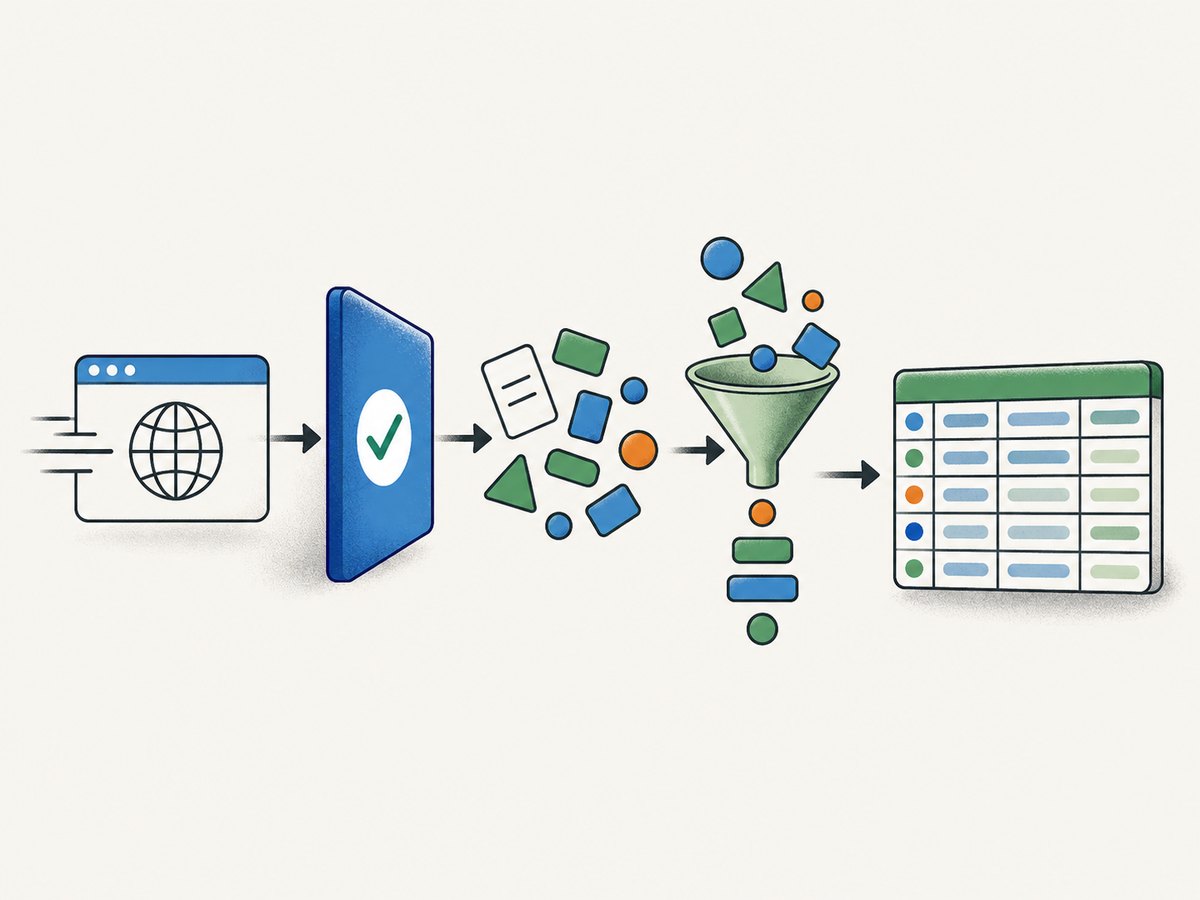
- Fetch: request an allowed URL, or use an approved browser process for JavaScript-rendered pages.
- Extract: select the fields you need from the response.
- Normalize: convert every record to the same column order and data types.
- Write: append new rows or update a known range in Sheets.
Choose stable columns before collecting data. For example, a products sheet might use source_url, name, price, currency, captured_at, and source_id. Keep a stable identifier if you will later deduplicate or update records.
| Decision | Append is suitable when… | Update is suitable when… |
|---|---|---|
| Destination | Each run creates new observations or events. | You know the exact A1 range to replace. |
| Identity | Duplicates are acceptable or filtered before writing. | Rows map to known keys and must be refreshed. |
| Scheduling | You process a stream or periodic batch. | You maintain a fixed report or snapshot. |
2. Prepare a Google Sheet and credentials
- Create or select a Google Cloud project.
- Enable the Google Sheets API.
- Create credentials that match your runtime and access model.
- Share the destination spreadsheet with the identity that will write it, when required.
- Record the spreadsheet ID from the URL. In
https://docs.google.com/spreadsheets/d/SPREADSHEET_ID/edit, it is the section between/d/and/edit.
Google’s Python quickstart uses an OAuth flow simplified for testing. Treat that flow as a starting point, then choose production credentials and secret storage for your application’s actual access pattern (Python quickstart). Keep tokens, client secrets, and API keys out of source control and logs. Use the narrowest OAuth scope that supports the operation; Google documents Sheets and Drive scopes for the append method in its append reference.
3. Extract and normalize records
The Sheets API accepts rows as a two-dimensional array. Every inner array is one row, and values must follow the same column order. Normalize missing fields to an empty string or a deliberate null policy, parse numeric values consistently, and convert timestamps to one timezone.
const columns = ["source_url", "name", "price", "currency", "captured_at", "source_id"];

function normalize(item) {
  return [
    String(item.source_url ?? ""),
    String(item.name ?? ""),
    item.price == null ? "" : Number(item.price),
    String(item.currency ?? ""),
    new Date(item.captured_at || Date.now()).toISOString(),
    String(item.source_id ?? "")
  ];
}

const rows = items.map(normalize);
Validate before sending. Reject records with no stable ID, cap unexpectedly long text, and record the original URL so a later review can find the source. If your parser returns nested objects or arrays, flatten them deliberately instead of relying on a language’s implicit string conversion.
4. Append rows with Python
Install the client libraries:
python -m pip install google-api-python-client google-auth-httplib2 google-auth-oauthlib requests beautifulsoup4The following example fetches permitted pages, extracts simple article fields, authenticates with OAuth, and appends a batch. Replace the selectors with the structure of your source.
from datetime import datetime, timezone
from pathlib import Path
import requests
from bs4 import BeautifulSoup
from google_auth_oauthlib.flow import InstalledAppFlow
from googleapiclient.discovery import build

SCOPES = ["https://www.googleapis.com/auth/spreadsheets"]
SPREADSHEET_ID = "YOUR_SPREADSHEET_ID"
RANGE = "Data!A:F"
URLS = ["https://example.com/article-1", "https://example.com/article-2"]

def extract(url):
    response = requests.get(url, timeout=30, headers={"User-Agent": "your-approved-client/1.0"})
    response.raise_for_status()
    soup = BeautifulSoup(response.text, "html.parser")
    title = soup.select_one("h1")
    return [
        url,
        title.get_text(" ", strip=True) if title else "",
        "", "",
        datetime.now(timezone.utc).isoformat(),
        url.rstrip("/").split("/")[-1]
    ]

rows = [extract(url) for url in URLS]
if not rows:
    raise SystemExit("No rows to write")

flow = InstalledAppFlow.from_client_secrets_file("credentials.json", SCOPES)
creds = flow.run_local_server(port=0)
service = build("sheets", "v4", credentials=creds)
body = {"majorDimension": "ROWS", "values": rows}
result = service.spreadsheets().values().append(
    spreadsheetId=SPREADSHEET_ID,
    range=RANGE,
    valueInputOption="USER_ENTERED",
    insertDataOption="INSERT_ROWS",
    body=body,
).execute()
print(result.get("updates", {}))
Use RAW instead of USER_ENTERED when values must remain literal strings. The valueInputOption controls how Sheets interprets values; it does not select the append position. The supplied range helps the API locate the existing table, then values are added after it.
5. Append with Node.js
Install googleapis and use an OAuth or service credential appropriate for your deployment:
npm install googleapis cheerioconst { google } = require('googleapis');
const cheerio = require('cheerio');
const spreadsheetId = process.env.SPREADSHEET_ID;
const auth = new google.auth.GoogleAuth({
keyFile: process.env.GOOGLE_APPLICATION_CREDENTIALS,
scopes: ['https://www.googleapis.com/auth/spreadsheets']
});
async function extract(url) {
const response = await fetch(url, { headers: { 'User-Agent': 'your-approved-client/1.0' } });
if (!response.ok) throw new Error(`${url}: HTTP ${response.status}`);
const $ = cheerio.load(await response.text());
return [url, $('h1').first().text().trim(), '', '', new Date().toISOString(), url];
}
(async () => {
const rows = await Promise.all(['https://example.com/article-1'].map(extract));
const sheets = google.sheets({ version: 'v4', auth: await auth.getClient() });
const result = await sheets.spreadsheets.values.append({
spreadsheetId,
range: 'Data!A:F',
valueInputOption: 'RAW',
insertDataOption: 'INSERT_ROWS',
requestBody: { majorDimension: 'ROWS', values: rows }
});
console.log(result.data.updates);
})().catch(error => { console.error(error); process.exit(1); });6. Append with cURL
After obtaining an OAuth access token with permission to edit the spreadsheet, send a JSON array of rows:
curl -X POST \
  "https://sheets.googleapis.com/v4/spreadsheets/YOUR_SPREADSHEET_ID/values/Data%21A%3AF:append?valueInputOption=RAW&insertDataOption=INSERT_ROWS" \
  -H "Authorization: Bearer YOUR_ACCESS_TOKEN" \
  -H "Content-Type: application/json" \
  -d '{"majorDimension":"ROWS","values":[["https://example.com","Example title","","","2026-09-30T12:00:00Z","example"]]}'
URL-encode sheet names and ranges when constructing URLs yourself. Do not put a long-lived access token in a shell history, CI log, or client-side application.
7. Use Apps Script when the workflow belongs in Workspace
Apps Script can fetch HTTP or HTTPS resources with UrlFetchApp and write directly to a spreadsheet. A simple project can run on a time trigger and use the script user’s authorization. If you declare scopes explicitly, include https://www.googleapis.com/auth/script.external_request for UrlFetch (UrlFetchApp reference).
function scrapeToSheet() {
  const sheet = SpreadsheetApp.openById('YOUR_SPREADSHEET_ID').getSheetByName('Data');
  const url = 'https://example.com/article-1';
  const response = UrlFetchApp.fetch(url, {
    muteHttpExceptions: true,
    headers: { 'User-Agent': 'your-approved-client/1.0' }
  });
  if (response.getResponseCode() !== 200) {
    throw new Error('Fetch failed: ' + response.getResponseCode());
  }
  const html = response.getContentText();
  const titleMatch = html.match(/]*>([\s\S]*?)<\/h1>/i);
  const title = titleMatch ? titleMatch[1].replace(/<[^>]+>/g, '').trim() : '';
  sheet.appendRow([url, title, new Date().toISOString()]);
}
For larger batches, accumulate rows and call getRange(...).setValues(rows) once rather than appending one row at a time. Check current Apps Script quotas and execution limits before choosing this route. Google lists 20,000 URL Fetch calls per day for consumer accounts and 100,000 for Workspace accounts in its quota documentation; these values can change (Apps Script quotas).
8. Append, update, and deduplicate safely
spreadsheets.values.append appends after the detected table in the supplied range. It does not know that two records represent the same product or URL. Common strategies are:
- Read existing IDs, filter incoming rows, then append only unseen IDs.
- Maintain a key-to-row index in a database or cache and use
values.updatefor known rows. - Write each run to a dated tab, then build a deduplicated report with formulas or a later process.
For fixed cells or several ranges, use spreadsheets.values.update or batchUpdate. Keep header rows out of repeated append payloads unless you intentionally create a new table.
9. Reliability, quotas, and performance
Google documents limits of 300 read requests per minute per project and 60 per minute per user per project, plus 300 write requests per minute per project and 60 per minute per user per project (Sheets API usage limits). Batch rows into one request where practical. Google recommends a payload around 2 MB or less for performance, even though the API does not specify a hard request-size limit.
For HTTP 429 or other time-based quota errors, retry with truncated exponential backoff. A practical schedule is 1, 2, 4, 8, and 16 seconds, with random jitter and a maximum attempt count. Do not retry validation errors such as an invalid range without changing the request. Record a run ID, source URL, row count, response status, and the returned update range so a rerun can be audited.
import random, time

def with_backoff(operation, attempts=5):
    for attempt in range(attempts):
        try:
            return operation()
        except Exception as exc:
            if attempt == attempts - 1:
                raise
            time.sleep(min(32, 2 ** attempt) + random.random())
10. Troubleshooting common failures
| Symptom | Likely cause | Fix |
|---|---|---|
| 403 permission denied | The authorized identity cannot edit the file, or the scope is too narrow. | Share the sheet with the writing identity and request the documented Sheets scope. |
| 404 spreadsheet not found | Wrong spreadsheet ID or inaccessible project/account. | Copy the ID from the document URL and verify the credential’s account. |
| Rows land in the wrong place | The A1 range or sheet name is wrong. | Use an exact tab name and inspect the append response’s updated range. |
| Numbers become text | valueInputOption or the input formatting is unsuitable. |
Choose USER_ENTERED for Sheets parsing or normalize numeric values before sending. |
| 429 too many requests | Per-minute project or user quota exceeded. | Batch writes, slow the producer, and retry with truncated exponential backoff. |
| Empty extracted fields | The page is client-rendered, selector changed, or access was denied. | Inspect the response, use an approved rendering method, and log status codes and content length. |
| Duplicate rows after rerun | Append has no built-in business-key deduplication. | Store a stable source ID and filter or update before appending. |
11. Or skip the browser setup
If your collection workflow needs a rendered-page image for review, archiving, or visual checks, ScreenshotNeo provides a one-call website screenshot API. It is separate from the Sheets write step: you still parse structured data, while ScreenshotNeo handles reliable page capture.

Use the API directly (see the ScreenshotNeo documentation):
curl -G "https://api.screenshotneo.com/v1/shot" -d access_key=YOUR_API_KEY --data-urlencode url=https://stripe.com -o shot.webpimport requests
r = requests.get("https://api.screenshotneo.com/v1/shot", params={"access_key": "YOUR_API_KEY", "url": "https://stripe.com"}, timeout=90)
open("shot.webp", "wb").write(r.content)const q = new URLSearchParams({ access_key: 'YOUR_API_KEY', url: 'https://stripe.com' }); const res = await fetch(`https://api.screenshotneo.com/v1/shot?${q}`);Cookie banners, newsletter popups, and chat widgets are removed before the shot. Bot checks, blank pages, timeouts, failed loads, and cache hits are never billed, and response headers identify the page verdict and billing status. An MCP server lets Claude, Cursor, and other MCP clients use take_screenshot, get_page_info, and capture_pdf. The Free plan includes 1,000 screenshots a month with no card; paid plans start at $5 for 3,000. Start free with ScreenshotNeo.
12. A production checklist
- Confirm the source permits your requests and collection method.
- Define stable columns, IDs, timestamp format, and missing-value rules.
- Keep credentials in a secret manager or protected environment variables.
- Batch rows and keep payloads modest.
- Log source URL, status, row count, and append response.
- Retry only transient quota or transport failures.
- Make reruns idempotent with a key or run-specific tab.
- Monitor API and Apps Script quotas as volume grows.
FAQ
Can I send CSV data to Sheets?
Yes. Parse each CSV record into an array, then send the resulting array of arrays with the same append call. Keep the CSV header separate from recurring data rows.
Does append always write below the last non-empty row?
It searches the table in the range you provide and appends to the detected end. A precise range and consistent table layout are essential.
Should I use Python or Apps Script?
Use the runtime that fits your access model and schedule. Python offers an external process and broad library choices; Apps Script keeps fetching and writing inside Google Workspace but has its own quotas and execution limits.
How do I handle JavaScript-heavy pages?
A basic HTTP client may receive only a shell document. Use an approved browser or rendering service, then pass the extracted, normalized records to Sheets. A screenshot service can provide visual evidence, but it does not replace your field extractor.


