How to Create Separate PDF Headers and Footers by Layer
Learn how to create different PDF headers and footers for page ranges, understand the limits of literal PDF layers, and avoid common layout errors.

Short answer: Acrobat supports separate header and footer sets for different page ranges. Open the PDF, choose Edit > Header and footer > Add, create the first set, then choose Add > Add New for another set. Use page-range controls to apply each set to the appropriate pages.
If by “layer” you mean a literal PDF optional-content layer, Acrobat’s documented header and footer workflow does not establish that one running header or footer can be attached directly to each optional-content layer. Treat the requirement as separate page groups unless your source document or specialist PDF workflow explicitly supports optional-content-layer targeting.
What “by layer” means in a PDF
The phrase can describe two different jobs:
| Meaning | Recommended approach | What the documented Acrobat workflow supports |
|---|---|---|
| Different sections or groups of pages | Create separate header/footer sets and assign each to a page range. | Supported. You can configure multiple sets, preview them, and use page-range options. |
| Literal optional-content layers (OCGs) | Use a source-authoring or specialized PDF-layer workflow if layer visibility must control the running header/footer. | Not established by the documented Header and footer tool. |
For most reports, books, and appendices, page ranges are the reliable interpretation. For example, pages 1–2 might use a cover treatment, pages 3–20 a chapter header, and pages 21–26 an appendix footer.
Adobe Acrobat desktop: create separate sets
- Open the PDF in Acrobat desktop.
- Choose Edit from the global bar.
- Choose Header and footer > Add.
- Enter content in the header and footer positions. Use the formatting controls to choose typeface, size, and color.
- Set the top, bottom, left, and right margins. Leave enough clear space that the running text cannot collide with body content.
- Review the preview, then select OK.
- To create a second distinct set, choose Header and footer > Add > Add New.
- Configure the new text and formatting while checking the combined preview.
- Use page-range options when the second set belongs only to selected pages.
- Save the PDF and inspect pages at every range boundary.
Menu labels can vary by Acrobat release and region. The workflow above follows Adobe’s current desktop help instructions.
Apply a different header or footer to selected pages
Page ranges are the practical way to create section-specific running information.
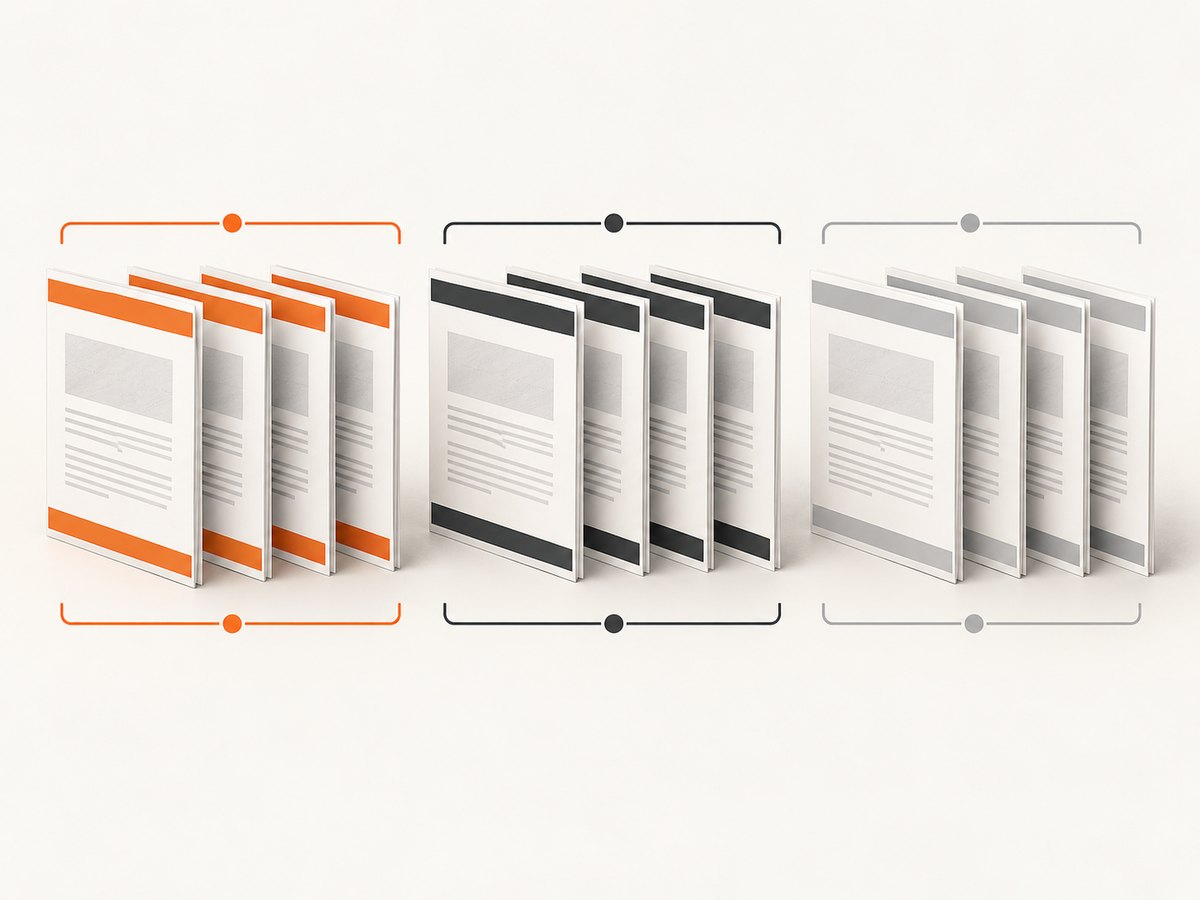
- Define the first range, such as pages 1–2, and apply the first set.
- Define the next range, such as pages 3–20, and apply the second set.
- For an appendix, create another set and restrict it to the appendix pages.
- Check the first and last page of every range. These boundaries are where omissions, overlaps, and incorrect page numbers are easiest to find.
Adobe’s tutorial demonstrates a footer applied to pages 2–26, with a starting page number of 2 and an adjusted bottom margin. Use the same pattern when numbering begins after a cover or front matter.
Example range plan
| Pages | Header | Footer | Checks |
|---|---|---|---|
| 1 | Report title | Blank | Confirm the cover is not crowded. |
| 2–10 | Chapter title | Page number | Check the first chapter page and page 10. |
| 11–14 | Appendix label | Appendix page number | Confirm numbering restarts or continues as intended. |
Format content that belongs in a running header or footer
Use short, stable information that helps readers identify their location:
- Document title or report name
- Current chapter or section
- Page numbers with context, such as “Page 3–4” or “Page 9 of 15”
- Author or organization
- Date or revision label
Consistent repeated information can help readers locate themselves, including people using screen readers or with low vision. W3C recommends creating headers and footers in the authoring tool when possible; Acrobat or another repair tool can modify an already-created PDF.
Prevent common layout problems
- Keep the header and footer inside the printable area.
- Use margins rather than positioning text over body content.
- Preview pages with long section names and long page numbers.
- Verify that a section label changes exactly where the section changes.
- Check pages with tables, full-bleed artwork, and footnotes separately.
- Confirm that page numbering remains correct after inserting or deleting pages.
When to add headers and footers in the source document
If you control the source file, add repeated content in the authoring application before exporting to PDF. This usually makes section changes, page numbering, accessibility structure, and later edits easier to maintain. Use Acrobat when the PDF already exists, when you need to repair a delivered file, or when you need to apply the same saved settings to multiple PDFs.
Acrobat supports saving header/footer settings for reuse and applying saved settings to multiple files. Keep a named template for each recurring document family so that revisions do not require rebuilding every set manually.
Literal optional-content layers: what you can and cannot assume
PDF optional-content layers control visibility of content groups. A visible layer can contain artwork, text, or annotations, but the standard Header and footer tool is documented around header/footer sets, formatting, margins, preview, and page ranges. The official material does not document assigning one running header/footer set to each optional-content layer.

If your specification truly requires layer-dependent headers:
- Confirm that “layer” means an optional-content group rather than a page range.
- Check whether the authoring application can place the running text inside the required layer before export.
- Test each layer visibility state in a PDF viewer that supports optional content.
- Do not rely on Acrobat’s page-range controls to change automatically when a layer is toggled.
Online numbering versus desktop header/footer editing
Adobe also provides an online page-numbering tool for the narrower task of adding page numbers. The documented flow is to upload or select the PDF, sign in with a free Adobe account to save, choose pages, place and format the number, then save or download the result. Adobe states a 100 MB limit for the free online numbering tool.
This online workflow should not be treated as a replacement for desktop multi-set header/footer editing. It is aimed at page numbering, and numbers need to be redone after adding, deleting, or reordering pages.
Troubleshooting
| Symptom | Likely cause | Fix |
|---|---|---|
| The second set appears on every page. | No page range was selected. | Edit the set and restrict it to the intended pages, then inspect both boundaries. |
| Header text overlaps the document. | Top margin is too small or the source content reaches the page edge. | Increase the top margin and preview pages with the densest content. |
| Footer numbering starts at the wrong value. | The starting page number does not match the selected range. | Set the starting number explicitly and verify the first two pages of the range. |
| A section name is wrong on some pages. | The range boundary does not match the actual section break. | Split or move the range boundary and preview the transition. |
| Changes disappear after pages are reordered. | Page-range assignments and numbering were based on the old order. | Reapply or review each set after structural edits. |
| The document has visible layers, but headers do not change with them. | Optional-content layers are not the same as page ranges. | Place layer-specific content in the source or use a workflow that explicitly supports optional-content targeting. |
| Text is clipped when printed. | Content is outside the printer’s safe area. | Increase margins and test on the target paper size. |
| The online tool rejects the file. | The PDF exceeds the stated 100 MB free-tool limit. | Use Acrobat desktop or reduce the file size before numbering. |
Performance, reliability, and cost considerations
- Performance: A single PDF with several header/footer sets is usually easier to maintain than many manually overlaid text objects. Preview representative pages instead of relying only on the first page.
- Reliability: Save a copy before applying changes. Record the page ranges, starting numbers, margins, and saved setting name so the result can be reproduced.
- Batch work: Save settings when the same layout will be reused across multiple PDFs, then verify each output because page counts and section boundaries can differ.
- Accessibility: Keep repeated information concise and consistent. When possible, create it in the authoring tool before conversion.
- Cost: The desktop workflow depends on the Acrobat product and license available to you. Adobe’s online numbering tool requires sign-in to save and has the documented 100 MB free-tool limit.
Or skip the browser setup
If you also need clean screenshots of the finished PDF or its web-based source, ScreenshotNeo provides a single GET request. Its documented API options include full-page capture, custom CSS and JavaScript, waiting for selectors or network idle, PDF output, and signed links. See the ScreenshotNeo documentation for parameters and response details.
curl -G "https://api.screenshotneo.com/v1/shot" -d access_key=YOUR_API_KEY --data-urlencode url=https://screenshotneo.com/docs/ -o shot.webpimport requests
r = requests.get("https://api.screenshotneo.com/v1/shot", params={"access_key": "YOUR_API_KEY", "url": "https://screenshotneo.com/docs/"}, timeout=90)
open("shot.webp", "wb").write(r.content)const q = new URLSearchParams({ access_key: 'YOUR_API_KEY', url: 'https://screenshotneo.com/docs/' });
const res = await fetch(`https://api.screenshotneo.com/v1/shot?${q}`);Cookie banners, newsletter popups, and chat widgets are removed before the shot. Bot checks, blank pages, timeouts, failed loads, and cache hits are not billed, and the response reports the page verdict and billing status in headers. An MCP server lets AI agents use take_screenshot, get_page_info, and capture_pdf. The Free plan includes 1,000 screenshots a month with no card; paid plans start at $5 for 3,000 shots.
Create a free ScreenshotNeo account to get started.
FAQ
Can I assign a different footer to each PDF layer?
Only if your layer-specific authoring workflow explicitly supports that behavior. Acrobat’s documented Header and footer tool supports separate sets and page ranges, not confirmed per-optional-content-layer assignment.
How do I add a footer only to pages 2 through 26?
Create or edit a footer set, select the page-range option, enter pages 2–26, set the starting number as needed, and check both boundary pages in the preview.
Can two header/footer sets overlap?
Overlapping assignments can produce unexpected combined content. Use non-overlapping ranges unless you intentionally need multiple sets on the same pages.
Should headers be added before converting to PDF?
Yes, when you control the source. Authoring tools are generally easier for maintaining section labels, numbering, and accessibility. Acrobat is useful for existing PDFs and repairs.
Do I need separate sets for different paper sizes?
Usually, yes. A margin and position that works on one page size may collide on another, so preview each size and adjust the relevant set.


