How to Serve PDFs to Users with Headless Chrome
Generate PDFs with headless Chrome, then serve them as inline browser documents or downloads with the right HTTP headers.
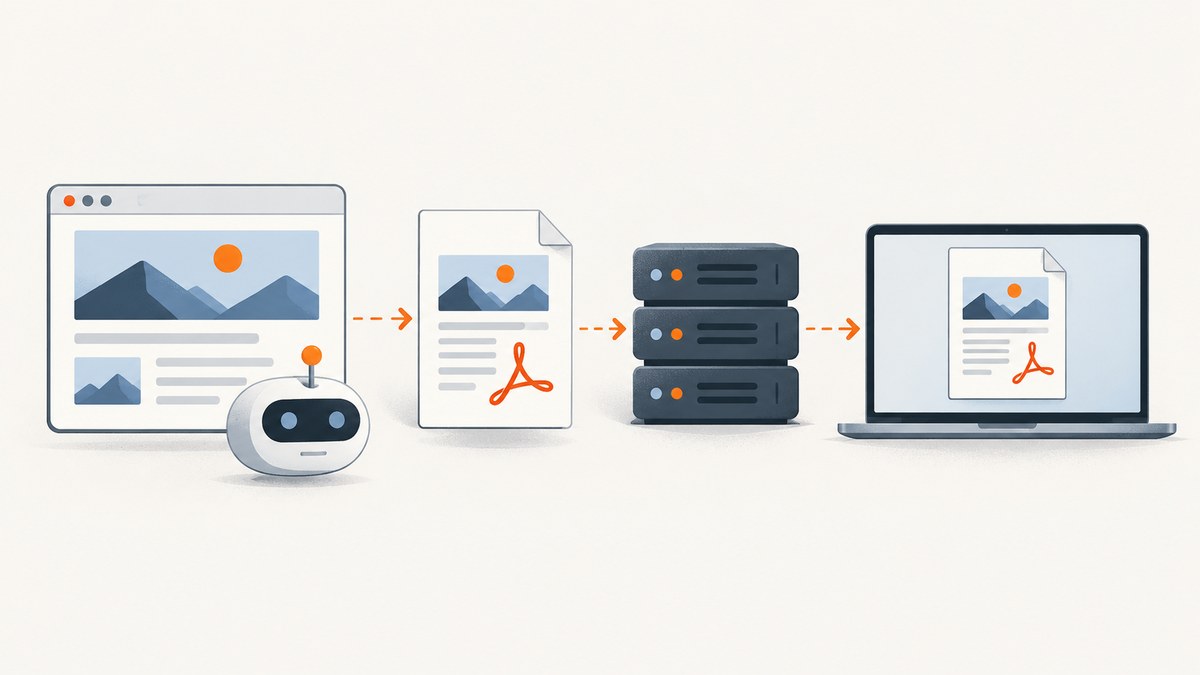
To serve a PDF generated with headless Chrome, first render the page to PDF bytes or a file, then return those bytes from an HTTP endpoint with Content-Type: application/pdf. Use Content-Disposition: inline when you want the browser to try to display it, or attachment with a filename when you want to offer a download. These are separate operations: Chrome generates the document; your server delivers it. Browser settings and client capabilities can affect whether an inline PDF opens in a viewer.
1. Generate the PDF, then serve its bytes
Headless Chrome can generate a PDF using its command line, Puppeteer’s page.pdf(), or the DevTools Protocol’s Page.printToPDF. The command-line method writes a file. With Puppeteer or the protocol, your application can obtain PDF data and return it directly from a route.
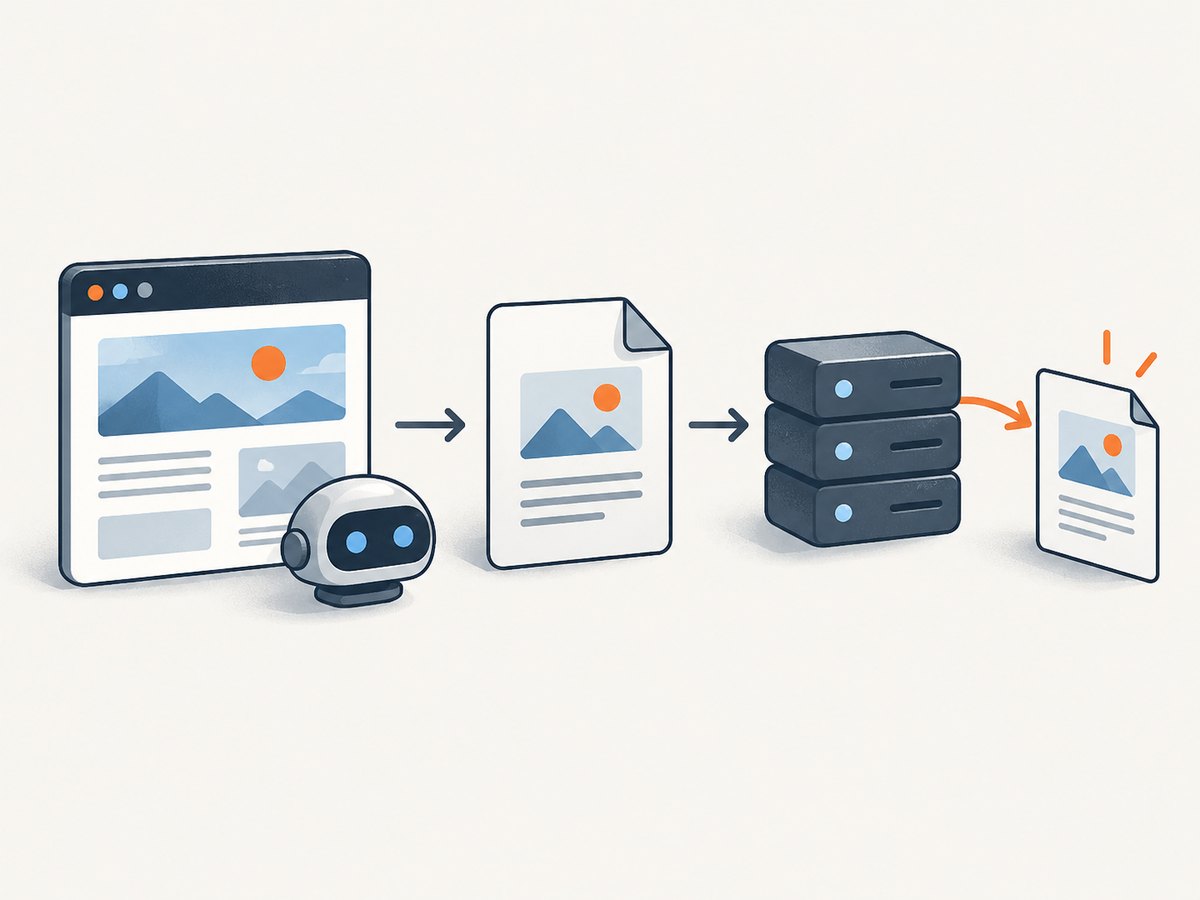
The HTTP response tells the client what the resource is and how it may be handled:
HTTP/1.1 200 OK
Content-Type: application/pdf
Content-Disposition: inline; filename="report.pdf"

<PDF bytes>
For a download-oriented response, change the disposition:
Content-Type: application/pdf
Content-Disposition: attachment; filename="report.pdf"
The MIME type matters independently of the URL’s file extension. A route called /report.pdf should still declare application/pdf. The MIME type documentation explains that browsers use the media type when processing a resource.
2. Choose inline display or a download
| Intent | Response | What to expect |
|---|---|---|
| Try to display the PDF in the browser | Content-Type: application/pdf and Content-Disposition: inline, or omit disposition |
The client may display it inline if its settings and capabilities allow. |
| Suggest that the user download it | Content-Type: application/pdf and Content-Disposition: attachment; filename="report.pdf" |
The browser treats it as an attachment, though the precise save interaction varies. |
| Offer a download link from your own page | Use an appropriate response and optionally a same-origin download attribute |
Chrome and Firefox prioritize a same-origin link’s download attribute over inline disposition. |
inline means the response may be displayed in the browser; it is not a guarantee that every client has a PDF viewer or will open it. MDN documents Content-Disposition and its suggested filename behavior in its header reference. The HTML anchor download attribute is intended for same-origin URLs and blob/data URLs; do not assume it controls arbitrary cross-origin downloads.

3. Runnable Node.js example with Puppeteer and Express
This example navigates to a page, generates a PDF, and sends it from an endpoint. Install the dependencies with npm install express puppeteer, save the code as server.mjs, and run node server.mjs. Puppeteer downloads a compatible browser as part of its standard installation flow; deployment environments should pin and verify the browser and package versions they use.
import express from 'express';
import puppeteer from 'puppeteer';

const app = express();
const port = Number(process.env.PORT || 3000);

app.get('/report.pdf', async (req, res) => {
  let browser;
  try {
    browser = await puppeteer.launch({ headless: true });
    const page = await browser.newPage();
    await page.goto('https://example.com', { waitUntil: 'networkidle0' });

    const pdf = await page.pdf({
      format: 'A4',
      printBackground: true,
      preferCSSPageSize: true
    });

    res.status(200);
    res.set({
      'Content-Type': 'application/pdf',
      'Content-Disposition': 'inline; filename="report.pdf"',
      'Content-Length': String(pdf.length)
    });
    res.end(pdf);
  } catch (error) {
    console.error('PDF generation failed:', error);
    if (!res.headersSent) {
      res.status(500).type('text/plain').send('Could not generate the PDF.');
    }
  } finally {
    if (browser) await browser.close();
  }
});

app.listen(port, () => {
  console.log(`PDF server listening on port ${port}`);
});
Replace the example URL with a page your service is authorized to access. The networkidle0 navigation condition is a useful starting point, but it is not proof that every application-specific render is complete. If the page has a known readiness signal, wait for that selector or application state before calling page.pdf(). A fixed delay can help with a known animation, but it cannot reliably establish that arbitrary asynchronous work has finished.
To return a download instead, change the disposition line to:
'Content-Disposition': 'attachment; filename="report.pdf"'For a same-origin link, you can also offer an explicit download hint:
<a href="/report.pdf" download="report.pdf">Download PDF</a>Do not rely on the hint for a cross-origin PDF. Verify the behavior in the actual clients you support and with your real authentication and redirects.
4. Choose print settings deliberately
Puppeteer’s PDF generation uses print CSS media by default. A page may therefore look different in the PDF from its on-screen appearance: print styles can hide navigation, alter layout, or change colors. The Puppeteer Page.pdf() reference describes PDF generation and print media behavior.
If the document should use screen styles, emulate screen media before generating the PDF:
await page.emulateMediaType('screen');
const pdf = await page.pdf({ printBackground: true });
For intentional print layout, add print CSS to the page you control:
@media print {
  nav, .screen-only { display: none !important; }
  .page-break { break-before: page; }
}

@page {
  size: A4;
  margin: 16mm;
}
PDF generation can adjust colors for printing. Set -webkit-print-color-adjust: exact in the relevant print styles when preserving specified colors is required, then inspect the resulting document. It is still wise to make color and contrast choices that work on paper.
| Setting or choice | Use it when |
|---|---|
format |
You want a standard page size such as A4 or Letter. |
printBackground: true |
Background colors and images are part of the document design. |
preferCSSPageSize: true |
Your document’s @page CSS should control page dimensions. |
emulateMediaType('screen') |
You specifically need screen media styles instead of print styles. |
| Print CSS | You control the source page and need predictable page breaks, margins, or hidden elements. |
5. Command-line generation and the DevTools Protocol
For a one-off job or a shell-driven pipeline, headless Chrome can write a PDF file:
chrome --headless --print-to-pdf=report.pdf https://example.comExecutable names and how Chrome is installed vary by operating system and deployment. The Chrome Headless documentation covers command-line options, including capture timeouts. A timeout limits waiting; it does not prove that a specific site’s asynchronous content is ready.
After generation, serve the output file with a web server or application route that sets Content-Type: application/pdf and the disposition you intend. Avoid exposing a filesystem path directly as a public URL. If the response is generated for a particular user, apply your application’s normal authentication and authorization checks before returning it.
For protocol-level control, Chrome DevTools Protocol provides Page.printToPDF. It is useful when an application already controls Chrome through the protocol. Depending on the interface and options, PDF data can be returned or streamed; your server still has to send those bytes as an HTTP response.
6. cURL, Python, and Node.js delivery checks
These examples request an already generated PDF endpoint and save the response locally. They help check that the route returns PDF bytes; they do not generate the PDF themselves.
cURL
curl --fail --show-error --location \
  -H 'Accept: application/pdf' \
  'http://localhost:3000/report.pdf' \
  -o report.pdf
Inspect response headers with -I when the endpoint supports HEAD, or use -D - to print headers during a GET:
curl --fail --show-error --location -D - \
  'http://localhost:3000/report.pdf' -o report.pdf
Python
import requests

response = requests.get('http://localhost:3000/report.pdf', timeout=90)
response.raise_for_status()
content_type = response.headers.get('Content-Type', '').split(';', 1)[0]
if content_type != 'application/pdf':
    raise ValueError(f'Expected application/pdf, got {content_type!r}')
with open('report.pdf', 'wb') as output:
    output.write(response.content)
Node.js
const response = await fetch('http://localhost:3000/report.pdf');
if (!response.ok) throw new Error(`HTTP ${response.status}`);
const contentType = (response.headers.get('content-type') || '').split(';')[0];
if (contentType !== 'application/pdf') {
  throw new Error(`Expected application/pdf, got ${contentType}`);
}
const bytes = Buffer.from(await response.arrayBuffer());
await import('node:fs/promises').then(({ writeFile }) =>
  writeFile('report.pdf', bytes)
);
For a private route, pass the required authentication in your normal secure way. Avoid putting secrets in command histories, logs, or publicly shared URLs.
7. Filenames, authentication, and response details
For attachments, a filename in Content-Disposition is a suggestion to the client. Use a fixed or sanitized filename; never insert a raw user-controlled path or header value. For international filenames, MDN documents filename* and recommends supplying a compatible fallback when using both parameters. Keep the extension consistent with the actual PDF content.
Use an authenticated route when a document contains user-specific or confidential information. Check authorization before doing expensive browser work where possible. Do not assume a difficult-to-guess URL is access control. If you cache generated output, ensure that the cache key and access rules cannot serve one user’s private document to another.
Send an error status if generation fails before the response begins. Once PDF bytes have started streaming, a later failure cannot be cleanly converted into a different HTTP response; the client may receive a truncated document. For modest documents, generating the PDF buffer before writing headers makes it easier to return a clear error. For large documents, streaming can reduce memory use, but requires careful handling of stream errors and response termination.
8. Reliability, performance, and cost
Browser rendering takes work: Chrome must navigate, execute page code, load relevant resources, lay out print pages, and encode the PDF. Runtime and memory depend on the page and the deployment, so measure against your own representative pages rather than relying on a universal timing estimate.
- Reuse browser processes carefully. Launching Chrome for every request adds process startup work. A service can keep browser processes available and create a fresh page per job, while closing pages and recycling unhealthy processes.
- Bound concurrency. Each active page consumes resources. Limit simultaneous jobs and queue excess work so a burst does not exhaust memory or browser capacity.
- Set timeouts and clean up. Bound navigation and job duration. Close pages and browsers in cleanup paths, including on exceptions and client disconnects.
- Wait for meaningful readiness. Prefer application-specific selectors or state over arbitrarily increasing a timeout. Avoid relying on network quiet alone for sites that keep connections open.
- Cache only when safe. A PDF can be reused when its source and relevant options are unchanged. Include identity and authorization context in cache policy for personalized documents.
- Control resource use. Large pages, high-resolution assets, and many printed pages can increase memory, output size, and processing work. Restrict the pages and inputs your service accepts.
Cost is driven by your Chrome hosting, CPU and memory allocation, storage or transfer, and the amount of browser work your application performs. The cited documentation does not provide a universal cost or performance benchmark. Measure resource use in your environment and account for retries and failed navigations in your own job accounting.
9. Troubleshooting common problems
| Symptom | Likely cause | Fix |
|---|---|---|
| The PDF downloads instead of opening | The response uses attachment, the link has a download hint, or the client is configured to download PDFs. |
Use inline or omit disposition, remove the same-origin download attribute, and check client settings. Inline display cannot be guaranteed for every client. |
| The browser displays text or corrupted data | The route sent HTML or JSON, used the wrong MIME type, or altered the binary bytes. | Return the PDF buffer unchanged, set application/pdf, and inspect the response body and status for an error page. |
| The PDF is blank or missing page content | Rendering had not finished, navigation reached an error page, or the content depends on a later application event. | Check the loaded URL and page errors, then wait for a page-specific readiness selector or state before printing. |
| Colors or layout differ from the screen | Puppeteer uses print media by default; print CSS and print color adjustment affect output. | Choose print styles intentionally, emulate screen media only when appropriate, and enable backgrounds if the design needs them. |
| The route returns 500 or times out | Chrome launch, navigation, resource loading, or PDF generation failed. | Log the failing stage, apply bounded timeouts, check browser installation and runtime resources, and clean up pages/processes after failure. |
| An attachment has an unexpected name | The disposition filename is missing, malformed, or overridden by client behavior. | Provide a safe filename in Content-Disposition, use compatible filename* handling for international names, and verify in target clients. |
| A private PDF is visible to the wrong user | Authorization is missing or a shared cache key omits user-specific context. | Authorize each request and make cache behavior respect the document’s access scope. |
10. Or skip the browser setup
If your goal is to capture a page as an image or PDF without managing Chrome, ScreenshotNeo provides a website screenshot API and MCP server. For its PDF options, see the ScreenshotNeo documentation.
curl -G "https://api.screenshotneo.com/v1/shot" \
  -d access_key=YOUR_API_KEY \
  --data-urlencode url=https://stripe.com \
  -d format=pdf -o page.pdf
Cookie banners, popups, and chat widgets are removed before the shot. Bot checks, blank pages, and failed loads are never billed. An MCP server lets AI agents take screenshots. The free plan includes 1,000 screenshots a month with no card; paid plans start at $5 for 3,000. For an endpoint that needs to return a PDF to your users, you remain responsible for your route, access checks, and response headers.
Sign up free for 1,000 screenshots a month, no card required.
11. Frequently asked questions
Can Chrome return a PDF directly from an HTTP request?
Chrome generates the PDF; your application’s endpoint returns the resulting bytes. Set the response’s PDF media type and the disposition appropriate to your intended experience.
How can I check whether the browser supports inline PDF viewing?
MDN points to navigator.pdfViewerEnabled as a feature-detection API. Do not infer support from the legacy navigator.mimeTypes property. A feature check still does not override user preferences.
Does inline force a browser to open the document?
No. It communicates the intended handling, while browser support, settings, and link behavior can affect the result.
Should I send the PDF as a file or a buffer?
Use whichever fits your server’s generation path. A buffer is convenient for modest outputs and clear error handling before response headers; file or stream approaches can suit larger documents when the application manages partial failures correctly.
Does --print-to-pdf serve the file?
No. It creates a PDF file. A web server or application must expose the file through an HTTP response with the correct headers.


