How to Generate Server-Side PDFs of Angular Apps
Render an Angular route with SSR, then use Playwright or Puppeteer to create and return a PDF. Includes runnable code, print CSS, security, and troubleshooting.
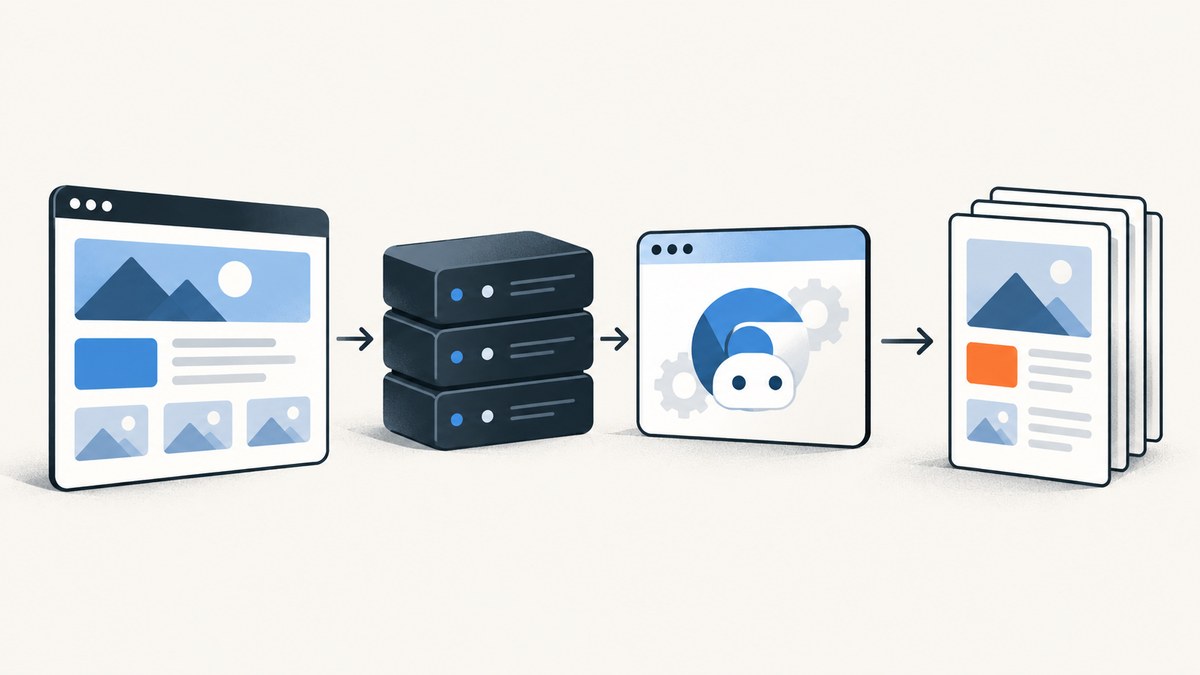
To generate a PDF from an Angular app on the server, render the document route with Angular SSR, load that route in a controlled Chromium browser, wait until its data and layout are ready, and call page.pdf(). Angular SSR produces HTML; Playwright or Puppeteer performs the print-to-PDF step. For request-specific reports, use a server-rendered route. For documents whose content is fixed at build time, prerendering can be a better fit.
This guide uses Angular SSR and Playwright, then shows the corresponding Puppeteer call. It covers route setup, a PDF endpoint, print styling, readiness, security, operations, common failures, and when a managed screenshot or PDF API may save browser setup.
1. Choose the rendering path
There are two separate jobs in server-side PDF generation:
- Angular renders the document. SSR returns HTML for the report route. Angular supports client, server, and prerender modes. Add SSR to an existing app with
ng add @angular/ssr, or create a new SSR app withng new --ssr. [Angular SSR guide] - A browser prints the document. A server-side Chromium page navigates to the rendered route and converts it to a PDF buffer with
page.pdf(). [Playwright PDF API]
Use RenderMode.Server for a report that depends on the authenticated request or changing data. Use RenderMode.Prerender when the document is known at build time and is the same for every visitor. SSR does not itself create a PDF; the browser renderer is still needed.
2. Add SSR and configure the report route
For an existing application, add the server-rendering integration:
ng add @angular/ssrAngular’s SSR setup uses a server route configuration registered with provideServerRendering(withRoutes(serverRoutes)). For example, the report route can be rendered per request:
// app.routes.server.ts
import { RenderMode, ServerRoute } from '@angular/ssr';

export const serverRoutes: ServerRoute[] = [
  {
    path: 'reports/:reportId/pdf',
    renderMode: RenderMode.Server,
  },
  {
    path: '**',
    renderMode: RenderMode.Server,
  },
];
// app.config.server.ts
import { ApplicationConfig } from '@angular/core';
import { provideServerRendering, withRoutes } from '@angular/ssr';
import { serverRoutes } from './app.routes.server';
const serverConfig: ApplicationConfig = {
providers: [provideServerRendering(withRoutes(serverRoutes))],
};
export default serverConfig;Match the route syntax and configuration-file names to the structure generated by your Angular version. The report route should get its data through server-controlled application logic. Avoid exposing a public endpoint that accepts arbitrary URLs and tells Chromium where to navigate.
Make the route safe to execute on the server
Code that reads browser globals can fail during SSR because objects such as window, document, navigator, and location may not exist there. Put browser-only setup in Angular’s afterNextRender or afterEveryRender callbacks. When code needs document access that works across platforms, inject Angular’s DOCUMENT token and account for server behavior. [Angular SSR browser APIs]
Keep the PDF route predictable: bind report data from a trusted server-side source and use stable layout rules. Avoid making the PDF depend on the end user’s viewport measurements or browser-only initialization.
3. Add a PDF endpoint with Playwright
The following is an implementation pattern. It assumes an authenticated application endpoint, an internal base URL configured by the server, and a report ID that the caller is authorized to access. Install Playwright and its Chromium browser as part of your deployment process; pin compatible package and browser versions in the production image.

npm install playwright
npx playwright install chromium
// pdf-service.ts
import { chromium } from 'playwright';
const browser = await chromium.launch({ headless: true });
export async function createReportPdf(
internalBaseUrl: string,
reportId: string,
): Promise<Buffer> {
// Validate these values before calling this function. In particular,
// internalBaseUrl must come from trusted configuration, not the request.
const target = new URL(
`/reports/${encodeURIComponent(reportId)}/pdf`,
internalBaseUrl,
);
const context = await browser.newContext();
try {
const page = await context.newPage();
page.setDefaultNavigationTimeout(30_000);
page.setDefaultTimeout(15_000);
const response = await page.goto(target.toString(), {
waitUntil: 'domcontentloaded',
timeout: 30_000,
});
if (!response || !response.ok()) {
throw new Error(`Report route failed to load: ${response?.status() ?? 'no response'}`);
}
// Set this marker only once report data and final layout are ready.
await page.locator('[data-pdf-ready="true"]').waitFor({ state: 'attached' });
await page.evaluate(() => document.fonts.ready);
const pdf = await page.pdf({
format: 'A4',
printBackground: true,
preferCSSPageSize: true,
margin: { top: '16mm', right: '14mm', bottom: '16mm', left: '14mm' },
});
return Buffer.from(pdf);
} finally {
await context.close();
}
}
// In your authenticated HTTP handler, adapt to your framework:
// const bytes = await createReportPdf(config.internalBaseUrl, authorizedReport.id);
// response.status(200).type('application/pdf').send(bytes);The route should render the marker only when data binding and any asynchronous report preparation have finished:
<main [attr.data-pdf-ready]="reportReady ? 'true' : null">
  <app-report [report]="report" />
</main>
In a real app, ensure reportReady means the final report content is available, rather than merely that the component has been created. If the page includes images, wait for the required image elements to load or render a route-level ready state only after that work completes.
Return the PDF from an HTTP handler
After generation, send the bytes with Content-Type: application/pdf. Set a safe filename in Content-Disposition if callers should download it. Framework-specific response APIs differ, so keep the PDF service independent of Express, Fastify, or another HTTP framework.
For larger documents, consider writing to a temporary file or object storage and streaming it, instead of retaining many large buffers in application memory. Delete temporary files reliably, and enforce limits on concurrent jobs and output size.
4. Make the PDF match the Angular page
Playwright and Puppeteer generate PDFs using print CSS by default. That means a page that looks correct on screen can change when printed unless the app has deliberate print styles. Playwright’s PDF options include paper format, margins, background printing, CSS page sizing, page ranges, and tagged output. [Playwright PDF API]

/* report.component.css or a global stylesheet */
@page {
  size: A4;
  margin: 16mm 14mm;
}

@media print {
  .site-nav,
  .screen-only,
  .download-controls {
    display: none !important;
  }

  body {
    color: #17202a;
    background: #fff;
    -webkit-print-color-adjust: exact;
    print-color-adjust: exact;
  }

  thead {
    display: table-header-group;
  }

  tr,
  figure,
  .keep-together {
    break-inside: avoid;
  }

  h1,
  h2 {
    break-after: avoid;
  }

  .new-page {
    break-before: page;
  }
}
Set preferCSSPageSize: true when the @page size and margins should control the output. Otherwise, specify the format and margins in page.pdf(). Set printBackground: true if the design relies on background colors or images. Use -webkit-print-color-adjust: exact when print output should preserve specified colors.
If you need the screen media rules rather than print rules, configure the page to emulate screen media before generating the PDF, then review the pagination carefully. A long screen layout may not translate cleanly to paper. For reports, explicit print CSS usually produces more predictable page breaks, repeated table headers, and hidden navigation.
5. Readiness, assets, and route data
Waiting for domcontentloaded only confirms that the initial HTML document has been parsed. It does not guarantee that Angular has finished fetching report data, that fonts are ready, or that images have loaded. A route-specific marker is a more reliable contract: set it after the content required for the PDF is ready, then wait for it before printing.
The example also waits for document.fonts.ready. This avoids capturing before browser-managed web font loading has settled. For important images, add an app-specific readiness condition that checks the relevant images’ completion and natural dimensions. Do not rely on a fixed sleep as the primary readiness mechanism; it is slow when the page is fast and still unreliable when the page is slow.
Playwright supports navigation wait states including commit, domcontentloaded, load, and networkidle. Its documentation cautions against using networkidle as a testing readiness signal. Pages that maintain analytics or other ongoing connections may not become idle at all. Prefer the application marker and explicit checks for the assets your document needs. [Playwright navigation API]
Pass report data through authenticated, server-controlled state. For a same-origin internal route, the browser context may need an appropriate authenticated session. Create that session in a controlled way, keep credentials out of logs, and close the context after each job so cookies and page state do not leak between customers.
6. Puppeteer alternative
If your service already uses Puppeteer, the core PDF step is similar. Puppeteer documents page.pdf() as generating a PDF with the print CSS media type and returning a Promise<Uint8Array>. [Puppeteer PDF API]
import puppeteer from 'puppeteer';

const browser = await puppeteer.launch({ headless: true });
try {
  const page = await browser.newPage();
  page.setDefaultNavigationTimeout(30_000);
  await page.goto('https://internal.example/reports/123/pdf', {
    waitUntil: 'domcontentloaded',
  });
  await page.waitForSelector('[data-pdf-ready="true"]');
  await page.evaluate(() => document.fonts.ready);

  const pdf = await page.pdf({
    format: 'A4',
    printBackground: true,
    preferCSSPageSize: true,
  });
  // Return pdf from an authenticated HTTP handler with application/pdf.
} finally {
  await browser.close();
}
There is no authoritative head-to-head benchmark here establishing that Puppeteer or Playwright is faster for Angular PDF workloads. Choose the browser automation library your team can operate and support; measure your own templates, browser versions, and expected concurrency before making performance claims.
7. Security, reliability, and performance
Keep navigation and data under your control
- Authenticate the caller and authorize access to the specific report before launching a browser job.
- Keep the target origin on a server-side allow-list. Do not accept an arbitrary URL from an untrusted request; an unrestricted browser can be abused to reach internal services.
- Pass report IDs and data through validated, server-controlled routes. Encode path components and reject unexpected identifiers.
- Use an isolated browser context per job when handling different users’ sessions, and close it in a
finallyblock. - Apply navigation, readiness, PDF-generation, and total-request timeouts. Log error types and request IDs, but avoid logging report contents, cookies, or authorization headers.
Bound resource use
Starting a new browser process for every request adds overhead. A long-running service can reuse a controlled browser process while creating a fresh context for each job. Cap concurrent pages and queue or reject excess work; Chromium rendering consumes CPU and memory, especially for large reports or high-resolution images. Recycle browser processes periodically or when they become unhealthy, and close pages and contexts after each job.
Large PDFs and concurrent buffers can raise memory use. Set practical limits on report size, page count, generation time, and concurrency. If the document is not personalized, consider prerendering or caching the generated output with a key that includes the document version and relevant access scope. Never serve a cached private report to a caller who is not authorized for it.
Watch Angular SSR response limits
Angular’s server-side HttpClient fetch backend has a default response-body limit of 1 MB. If a report genuinely needs a larger server-fetched response, configure maxResponseBodySize deliberately and keep the limit as small as practical. Larger buffering consumes more memory and can increase denial-of-service risk. [Angular response body size configuration]
Pin Angular, Playwright or Puppeteer, and the browser revision as deployment dependencies. Browser upgrades can affect layout or rendering, so keep representative PDF fixtures and compare them when changing those versions. This is a release practice, not a claim that output will be identical across every browser revision.
8. Troubleshooting
| Symptom | Likely cause | Fix |
|---|---|---|
| SSR throws “window is not defined” or similar | Browser-only code ran during server rendering. | Move it into afterNextRender/afterEveryRender, or use platform-aware code and Angular’s DOCUMENT token. |
| PDF is blank or missing report data | The browser printed before Angular’s async data work completed, or the route returned an error. | Check the navigation response and server logs; expose and wait for a readiness marker set after the final data binding. |
| Fonts or images are missing | Assets were not loaded before printing, or the server browser cannot reach their URLs. | Check asset paths and network access; wait for document.fonts.ready and explicit image readiness. |
| Colors or backgrounds disappear | Print defaults omit backgrounds or print CSS changes the palette. | Set printBackground: true and use print color adjustment where needed. |
| Content is clipped or pages break awkwardly | Screen layout has no print-specific page rules, or CSS and API margins conflict. | Use @page, choose one source of page size and margins, and add break-inside/break-before rules for important elements. |
| Navigation timeout or endless waiting | A request is slow, an ongoing connection prevents network idle, or the internal URL is unreachable. | Use a finite navigation timeout, verify server-to-server connectivity, and wait for a route marker instead of global network idle. |
| Memory rises under load | Too many concurrent browser pages or large buffers are active. | Cap concurrency, close contexts in cleanup paths, impose document limits, and consider streaming or temporary-file handling. |
| SSR fetch fails for a large report | The server-side HttpClient response exceeds its 1 MB default limit. | Reduce the payload or configure a narrowly sized maxResponseBodySize after reviewing the memory implications. |
| Browser launches locally but fails in deployment | The Chromium binary or its runtime dependencies are missing or differ from the package revision. | Install the browser in the deployment image and pin the package/browser pair; diagnose using deployment logs without exposing report contents. |
9. Or skip the browser setup
For a web page screenshot or PDF, ScreenshotNeo is a website screenshot API and MCP server: make one GET request with a URL to receive an image or PDF. For PDFs, use the documented PDF options. It can avoid operating your own capture browser for a URL-based page capture. It does not replace Angular SSR or implement authenticated, report-specific server routes for you.
See the ScreenshotNeo API documentation for available parameters. This cURL example requests a PDF capture of a page:
curl -G "https://api.screenshotneo.com/v1/shot" \
  -d access_key=YOUR_API_KEY \
  --data-urlencode url=https://angular.dev/guide/ssr \
  -d format=pdf \
  -o angular-ssr-guide.pdf
Use a URL that ScreenshotNeo can access. If the report requires a private session or user-specific data, first design a secure way to expose that page for capture; do not put sensitive credentials in a public URL.
- Cookie and consent banners are accepted or removed before capture, along with known newsletter popups and chat widgets; each cleanup step can be turned off.
- Bot checks/CAPTCHAs, blank pages, timeouts, failed loads, and cache hits cost nothing; response headers say the page verdict and whether it was billed.
- An MCP server lets AI agents use
take_screenshot,get_page_info, andcapture_pdf. - 1,000 screenshots a month are free with no card; paid plans start at $5 for 3,000. All features are on every plan.
Sign up for ScreenshotNeo’s free plan to get 1,000 screenshots a month with no card.
10. Frequently asked questions
Does Angular SSR create the PDF file?
No. SSR renders the route to HTML. A browser renderer such as Chromium, controlled through Playwright or Puppeteer, prints that page to PDF.
Should I use server rendering or prerendering?
Use server rendering for reports whose data depends on the request. Use prerendering when the document is known at build time and does not vary per visitor.
Can I use browser-only Angular libraries on the PDF route?
Only if they are kept from executing during server rendering and their browser-side work finishes before the PDF readiness marker is set.
Is Puppeteer or Playwright better for Angular PDFs?
Both provide a Chromium-based page.pdf() workflow. There is no universal performance winner in the sources cited here; choose based on your team’s existing tooling and measure your workload.
Can I capture only one Angular component?
A browser-driven PDF route can be designed around a specific report component and print layout. ScreenshotNeo also supports CSS element capture for image captures; PDF page selection and document layout are separate concerns.


