How to Generate a Webpage Screenshot With a Server-Side Script
Generate webpage screenshots on the server with Puppeteer or Playwright, including full-page capture, readiness waits, errors, scaling, and production tips.
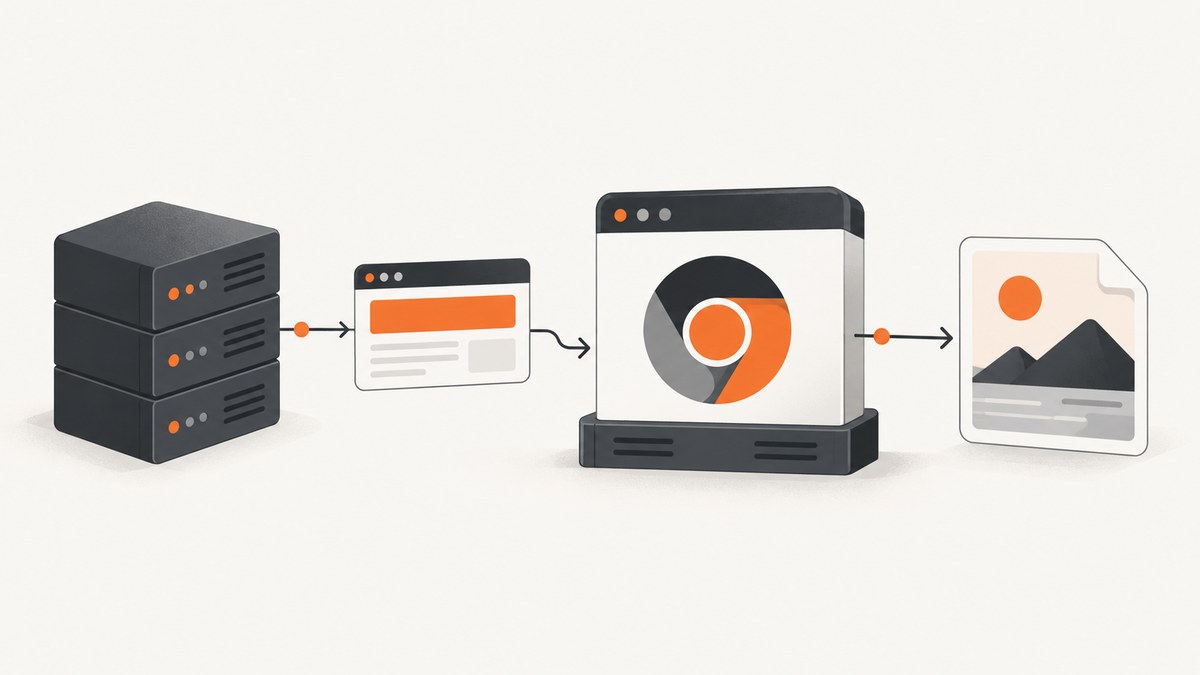
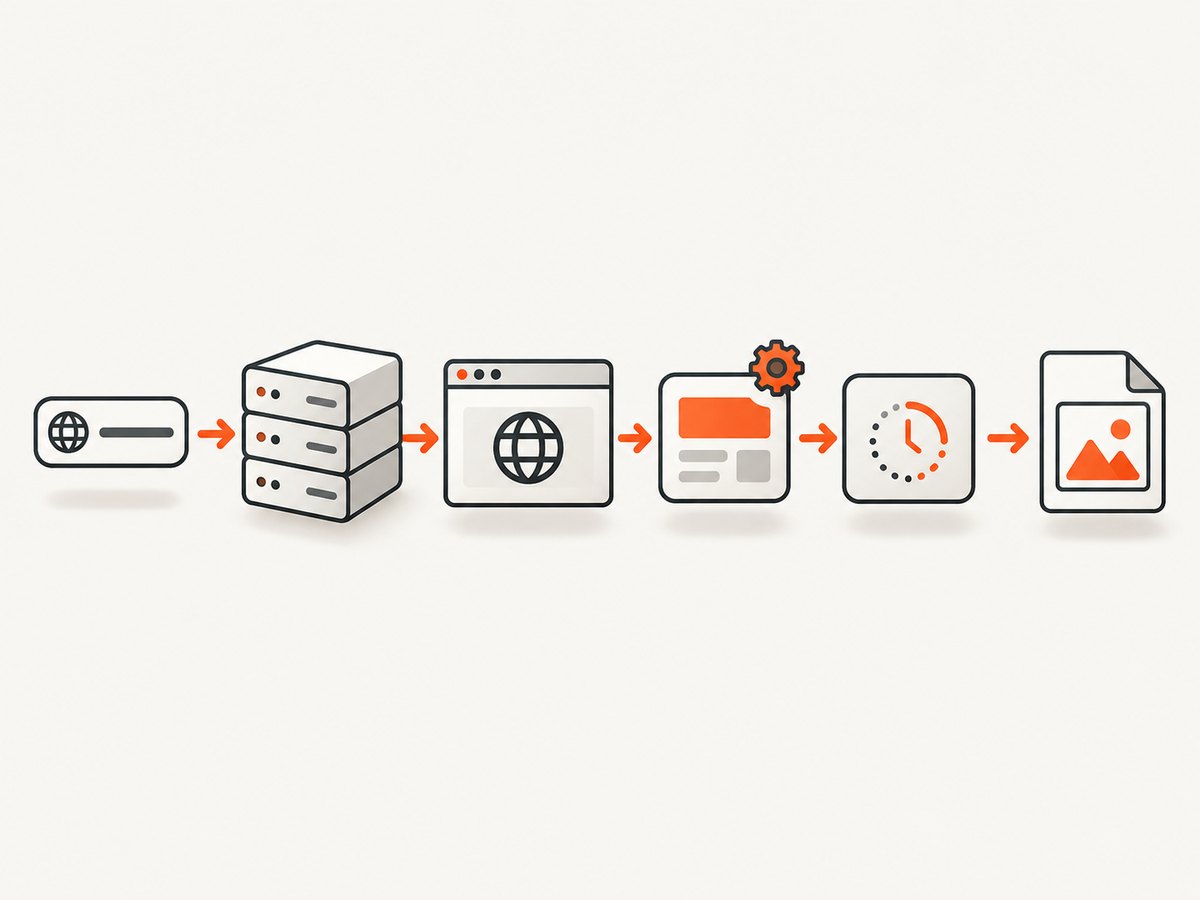
Use a headless browser such as Puppeteer or Playwright. A server-side job launches a browser, creates a page, navigates to the URL, waits for the page to be ready, captures pixels with page.screenshot(), stores the image bytes, and closes the browser.
An ordinary HTTP GET downloads HTML. It does not execute JavaScript, load fonts and images like a browser, or turn the rendered result into pixels. A browser renderer is required for modern pages.
What the server-side screenshot lifecycle looks like
- Start or reuse a headless Chromium browser.
- Create an isolated page or browser context for the job.
- Set the viewport, device scale factor, locale and other emulation settings.
- Navigate to the target URL with a bounded timeout.
- Wait for a reliable readiness signal.
- Capture the viewport, full document or a particular element.
- Write the returned bytes to disk or durable object storage.
- Close the page and browser resources, including on errors.
Node.js with Puppeteer
Install Puppeteer and create a small script:
npm install puppeteerimport puppeteer from 'puppeteer';
const browser = await puppeteer.launch();
try {
const page = await browser.newPage();
await page.setViewport({
width: 1280,
height: 800,
deviceScaleFactor: 1
});
await page.goto('https://example.com', {
waitUntil: 'networkidle2',
timeout: 30_000
});
await page.screenshot({
path: 'screenshot.png',
fullPage: true,
type: 'png'
});
} finally {
await browser.close();
}Page.screenshot() returns image data; supplying path writes it to a file. The finally block prevents orphaned browser processes when navigation or capture fails. See the Puppeteer screenshot API and Puppeteer screenshot guide.
Capture only the viewport
await page.screenshot({ path: 'viewport.png' });Capture the full scrollable document
await page.screenshot({
  path: 'full-page.png',
  fullPage: true
});
Capture one element
const card = await page.waitForSelector('.pricing-card', {
  timeout: 10_000
});
if (!card) throw new Error('pricing card was not found');
await card.screenshot({ path: 'pricing-card.png' });
Output options
| Option | Use |
|---|---|
path |
Write the image to a file. |
type |
Choose png, jpeg or webp where supported. |
quality |
Set JPEG or WebP quality; it does not affect PNG. |
fullPage |
Capture the complete scrollable document. |
clip |
Capture a specific rectangle. |
captureBeyondViewport |
Control capture outside the visible viewport. |
omitBackground |
Keep the page background transparent when the format and page allow it. |
Python with Playwright
Install the Python package and browser binaries:
pip install playwright
playwright install chromium
from pathlib import Path
from playwright.sync_api import sync_playwright
with sync_playwright() as p:
browser = p.chromium.launch()
try:
page = browser.new_page(
viewport={"width": 1280, "height": 800},
device_scale_factor=1,
)
page.goto(
"https://example.com",
wait_until="networkidle",
timeout=30_000,
)
page.screenshot(
path=Path("screenshot.png"),
full_page=True,
type="png",
)
finally:
browser.close()Playwright can capture the viewport, a specific element or the full scrollable page. Its screenshot API also supports clipping, masking, scale and PNG, JPEG and WebP output. Read the Playwright screenshot documentation.
Element capture in Playwright
page.locator(".pricing-card").screenshot(path="pricing-card.png")Waiting for a page that is actually ready
Choosing the wait condition is often more important than the screenshot call. networkidle2 or Playwright’s networkidle can work for pages whose assets finish loading, but long polling, analytics, WebSockets and streaming can prevent network idle from ever representing visual readiness.
Wait for a required selector
await page.goto('https://example.com/dashboard', {
  waitUntil: 'domcontentloaded',
  timeout: 30_000
});
await page.waitForSelector('[data-ready="true"]', {
  timeout: 15_000
});
await page.screenshot({ path: 'dashboard.png', fullPage: true });
Wait for a short, explicit delay
await page.goto('https://example.com', { waitUntil: 'domcontentloaded' });
await new Promise(resolve => setTimeout(resolve, 1_000));
await page.screenshot({ path: 'delayed.png' });
Use a delay only when the page has no better readiness signal. A selector, application flag or completed data request is more deterministic.
Make lazy-loaded content appear
await page.evaluate(async () => {
  await new Promise(resolve => {
    let y = 0;
    const step = 600;
    const timer = setInterval(() => {
      window.scrollBy(0, step);
      y += step;
      if (y >= document.body.scrollHeight) {
        clearInterval(timer);
        window.scrollTo(0, 0);
        resolve();
      }
    }, 100);
  });
});
await page.screenshot({ path: 'lazy-content.png', fullPage: true });
Rendering controls that affect the pixels
Viewport and device scale
Set width, height and device scale explicitly. A larger deviceScaleFactor produces denser images but uses more memory and storage.
await page.setViewport({
  width: 1440,
  height: 900,
  deviceScaleFactor: 2
});
Mobile emulation
await page.emulate({
  viewport: { width: 390, height: 844, deviceScaleFactor: 3 },
  userAgent: 'Mozilla/5.0 (iPhone; CPU iPhone OS 17_0 like Mac OS X) AppleWebKit/605.1.15 Version/17.0 Mobile/15E148 Safari/604.1'
});
Cookies, headers and authentication
await page.setExtraHTTPHeaders({
  Authorization: `Bearer ${process.env.TOKEN}`
});
await page.setCookie({
  name: 'session',
  value: process.env.SESSION_COOKIE,
  domain: 'example.com',
  path: '/'
});
Hide overlays before capture
await page.addStyleTag({
  content: '.cookie-banner, .chat-widget, .newsletter-modal { display: none !important; }'
});
Run page JavaScript before the shot
await page.evaluate(() => {
  document.querySelector('.menu-button')?.click();
});
Full-page versus element screenshots
| Need | Method | Typical issue |
|---|---|---|
| What a visitor sees initially | Viewport screenshot | Below-the-fold content is absent. |
| The entire article or landing page | fullPage: true |
Lazy images may not load without scrolling. |
| A card, chart or component | Element or locator screenshot | The selector must exist and have nonzero dimensions. |
| A fixed rectangle | clip |
Coordinates depend on viewport and device scale. |
Production reliability checklist
- Use navigation and selector timeouts so one URL cannot hold a worker indefinitely.
- Close pages, contexts and browsers in cleanup code.
- Give each concurrent job its own page or context to prevent cookies and navigation from leaking between jobs.
- Keep browser, operating system, headless mode and hardware consistent for visual regression work. Playwright documents that these conditions can change rendering.
- Write files to durable object storage when workers are ephemeral.
- Record the URL, viewport, browser version, wait condition and capture timestamp with each artifact.
- Limit concurrency based on available memory. Multiple full-page captures can be substantially more expensive than viewport shots.
- Validate the HTTP response and resulting byte length before publishing an image.
Performance, reliability and cost
Launching a browser for every request is simple but adds startup time. A long-running worker can reuse one browser while creating isolated pages or contexts per job. Reuse must still include cleanup and isolation.
Full-page images, high device scale factors and large pages consume more CPU, memory and storage. JPEG or WebP can reduce storage when lossless PNG pixels are unnecessary. Cache screenshots when the source and rendering settings have not changed.
Self-hosting means paying for compute, browser binaries, storage and operational work. The research sources document browser behavior and APIs, not a universal benchmark, so measure your own URLs and concurrency level.
Common errors and fixes
| Error or symptom | Cause | Fix |
|---|---|---|
| Navigation timeout | The origin is slow, blocked or never becomes idle. | Set a bounded timeout, use domcontentloaded, then wait for a page-specific selector. |
| Blank or partly rendered image | Capture happened before fonts, data or images finished loading. | Wait for a required selector, explicit readiness flag or a short delay; verify lazy content. |
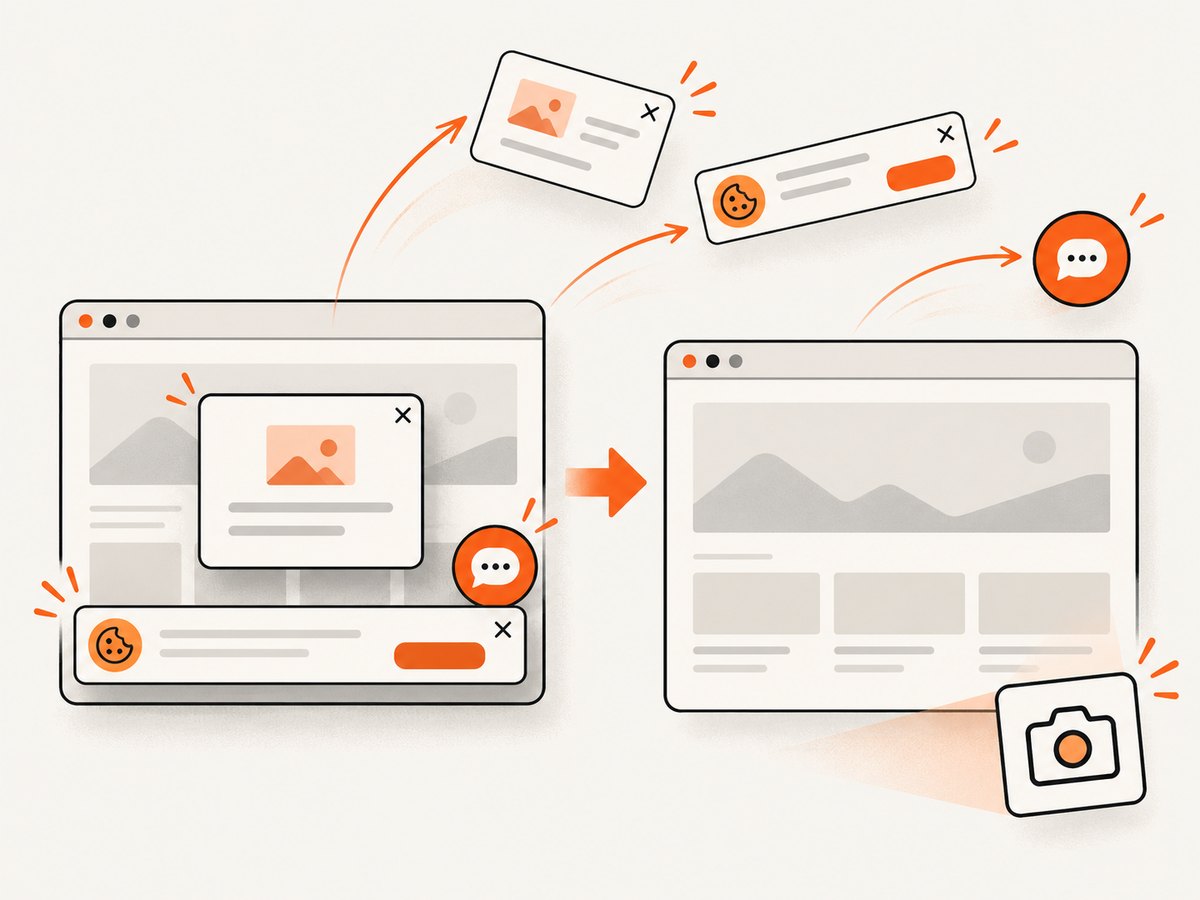
| Cookie banner covers the page | Consent UI is part of the rendered DOM. | Accept it with a click or hide the known selector before capture. |
| Element not found | The selector is wrong, content is inside an iframe, or rendering is unfinished. | Wait for the selector, check the frame, and confirm the element exists before calling screenshot. |
| Screenshot is clipped | Viewport capture was used for a page that needed full-page capture, or a clip rectangle was too small. | Use fullPage: true or calculate the clip from the element bounds. |
| Different pixels in CI | Browser version, fonts, OS, hardware or headless settings differ. | Pin the environment and browser version and use fixed rendering settings. |
| Browser processes accumulate | An exception bypassed cleanup. | Put close operations in finally and monitor worker process counts. |
| HTTPS or certificate failure | The target has an invalid certificate or restricted network path. | Fix the target certificate or explicitly configure the browser only in a controlled environment. |
Or skip the browser setup
ScreenshotNeo provides a hosted screenshot API and MCP server. One GET request returns a PNG, JPEG, WebP or PDF, while the service handles browser setup and capture options. See the ScreenshotNeo API documentation.
curl -G "https://api.screenshotneo.com/v1/shot" -d access_key=YOUR_API_KEY --data-urlencode url=https://stripe.com -o shot.webpimport requests
r = requests.get("https://api.screenshotneo.com/v1/shot", params={"access_key": "YOUR_API_KEY", "url": "https://stripe.com"}, timeout=90)
open("shot.webp", "wb").write(r.content)const q = new URLSearchParams({ access_key: 'YOUR_API_KEY', url: 'https://stripe.com' });
const res = await fetch(`https://api.screenshotneo.com/v1/shot?${q}`);Cookie banners, newsletter popups and chat widgets are removed before the shot. Bot checks, blank pages and failed loads are never billed, and response headers identify the page verdict and whether it was billed. An MCP server lets AI agents such as Claude and Cursor take screenshots. The Free plan includes 1,000 screenshots each month with no card; paid plans start at $5 for 3,000 shots. Create a free ScreenshotNeo account.
FAQ
Can an HTTP client take a screenshot without a browser?
No. An HTTP client can download HTML and assets, but a browser renderer is needed to execute JavaScript and produce pixels.
Should I use Puppeteer or Playwright?
Both support headless browser screenshots. Compare browser coverage, language and runtime needs, waiting and locator APIs, output controls, concurrency design and CI reproducibility for your project.
When should I choose an element screenshot?
Use it when the deliverable is a component such as a card, chart or invoice. Use full-page capture for a complete document.
Why does network idle sometimes hang?
Long polling, streaming and persistent connections can keep network activity alive. Wait for an application-specific selector or readiness signal instead.
How do I make visual comparisons repeatable?
Pin the browser and operating system, use fixed viewport and device scale settings, keep fonts available, and use the same headless configuration.


