How to Take Server-Side Webpage Screenshots on Windows Server
Learn how to capture reliable webpage screenshots on Windows Server with headless Playwright, Edge, full-page options, troubleshooting, and ScreenshotNeo.

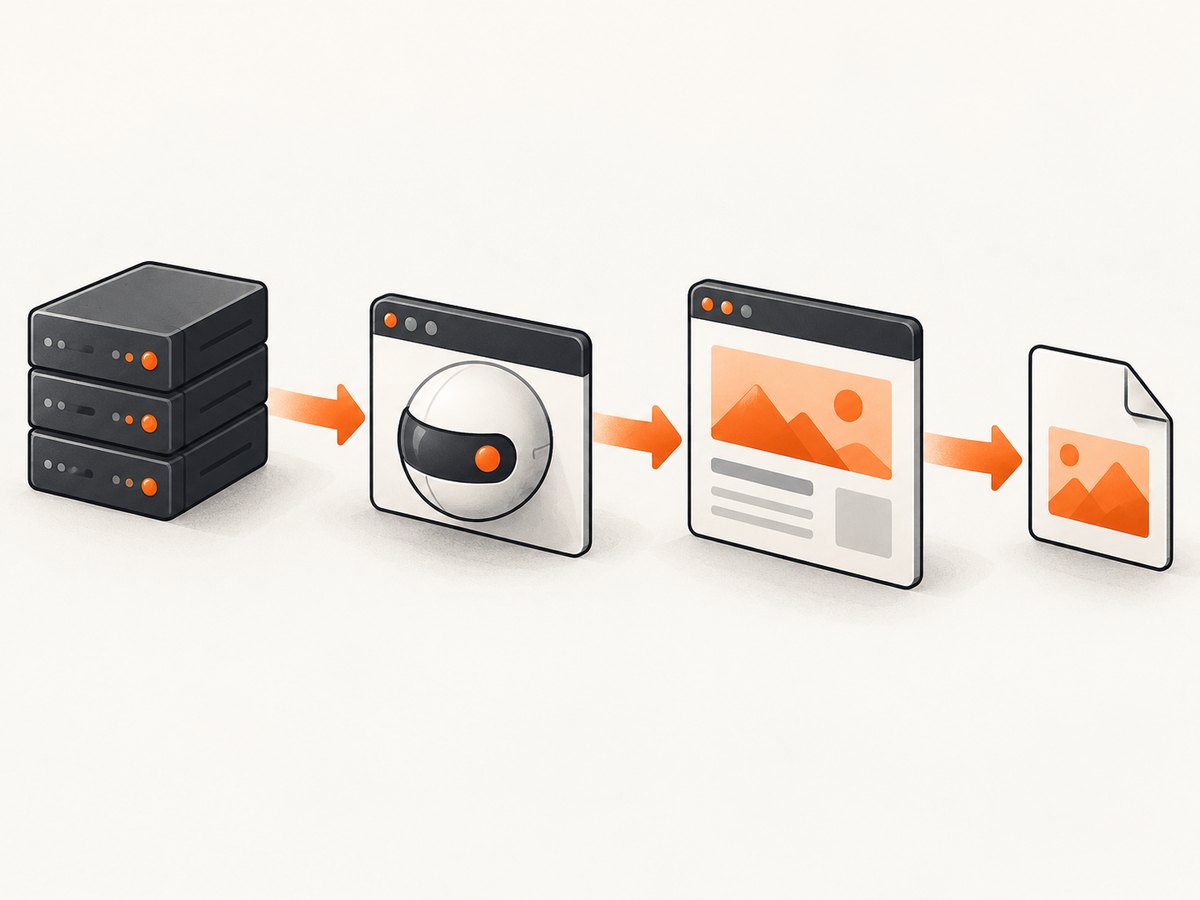
To take a webpage screenshot on Windows Server without opening a desktop, run a headless browser process such as Playwright. The browser loads the URL, waits for the page state you need, and writes a PNG, JPEG, or WebP image. Playwright runs headless by default and can use its managed Chromium build or a branded Microsoft Edge channel.
The smallest useful flow is:
- Install Node.js, Playwright, and the browser binary.
- Launch Chromium or Edge in headless mode.
- Create a context with a fixed viewport and device scale.
- Navigate to the page and wait for a meaningful ready state.
- Capture the full page, an element, or a clipped rectangle.
- Close the browser and return the image from your worker or HTTP endpoint.
Playwright’s official screenshot API documents full-page, element, clipping, format, quality, and scale controls. See the Playwright screenshot documentation and the browser installation documentation.
1. Install Playwright on Windows Server
Use PowerShell in the application directory. A regular Node.js package is enough for a script; the test runner is optional.
mkdir webpage-capture
cd webpage-capture
npm init -y
npm install playwright
npx playwright install chromium
If you need Microsoft’s branded Edge rendering, install the Edge channel and select it when launching:
npm install playwright
npx playwright install msedge
Microsoft’s Edge automation guidance documents the equivalent @playwright/test installation, the browser installer, and the msedge channel. Use the channel when matching a site’s production Edge rendering matters. Use Playwright-managed Chromium when you want browser versions controlled by your application deployment.
For a Chromium-only workload, Playwright also documents a smaller headless-shell installation:
npm install playwright
npx playwright install --with-deps --only-shell
On Windows, confirm that the account running the service can read the browser installation and write to the output directory. Corporate application-control policies, antivirus rules, proxy settings, and service-account profiles can prevent a browser from starting even when the Node package is installed correctly.
2. Minimal full-page screenshot
Create capture.js:
const { chromium } = require('playwright');

(async () => {
  const browser = await chromium.launch({ headless: true });
  const context = await browser.newContext({
    viewport: { width: 1440, height: 900 },
    deviceScaleFactor: 1
  });
  const page = await context.newPage();

  await page.goto('https://example.com', { waitUntil: 'networkidle' });
  await page.screenshot({ path: 'example.png', fullPage: true });

  await browser.close();
})();
Run it with:
node capture.jsfullPage: true captures the scrollable document rather than only the initial viewport. A full-page image can be very tall; long dashboards and feeds may consume considerably more memory than a viewport capture.
3. Make the capture deterministic
A screenshot is only useful when the page has finished rendering the content you care about. networkidle is a practical starting point, but it is not a universal “the application is ready” signal. Analytics, chat, advertisements, and long-lived connections can keep network activity alive. Prefer an application-specific selector or readiness flag when one exists.
const { chromium } = require('playwright');

(async () => {
  const browser = await chromium.launch({ headless: true });
  const context = await browser.newContext({
    viewport: { width: 1440, height: 900 },
    deviceScaleFactor: 1,
    colorScheme: 'light',
    locale: 'en-US',
    timezoneId: 'UTC'
  });
  const page = await context.newPage();

  page.setDefaultNavigationTimeout(60000);
  page.setDefaultTimeout(15000);

  await page.goto('https://example.com/dashboard', {
    waitUntil: 'domcontentloaded'
  });
  await page.locator('[data-page-ready="true"]').waitFor({ state: 'visible' });
  await page.screenshot({ path: 'dashboard.png', fullPage: true });

  await browser.close();
})();
Use a short, explicit delay only when a page has a known animation or delayed paint that cannot expose a selector. Fixed sleeps make jobs slower and can still capture too early or too late.
Fonts, animations, and lazy content
Keep the operating system, browser version, installed fonts, viewport, device scale, and color scheme consistent between reference images and production images. Playwright notes that visual output can vary with the host operating system, browser version, hardware, power source, and headless mode. Pin package and browser versions where practical, and review screenshots after upgrades.
If images load only when scrolled into view, a full-page screenshot may trigger lazy loading as the document is measured, but application-specific behavior varies. For a critical page, scroll through the document or wait for the images you require:
await page.goto('https://example.com/article', { waitUntil: 'domcontentloaded' });
await page.evaluate(async () => {
  for (const image of document.images) {
    if (!image.complete) {
      await new Promise(resolve => {
        image.addEventListener('load', resolve, { once: true });
        image.addEventListener('error', resolve, { once: true });
      });
    }
  }
});
await page.screenshot({ path: 'article.png', fullPage: true });
4. Choose what to capture
Viewport screenshot
await page.screenshot({ path: 'viewport.webp', type: 'webp' });Without fullPage, Playwright captures the current viewport. This is the right choice for a browser-like preview, monitoring a fixed hero area, or limiting image dimensions.
Element screenshot
const chart = page.locator('#revenue-chart');
await chart.waitFor({ state: 'visible' });
await chart.screenshot({ path: 'chart.png' });
Element capture is useful for invoices, charts, dashboard cards, and components that should be sent to another system without surrounding navigation.
Clipped region
await page.screenshot({
  path: 'region.png',
  clip: { x: 80, y: 120, width: 900, height: 500 }
});
Coordinates are CSS pixels relative to the page viewport. A clip that extends outside the available page or has zero dimensions will fail; calculate the rectangle from a locator when possible.
Image format, quality, and scale
await page.screenshot({
  path: 'compressed.jpg',
  type: 'jpeg',
  quality: 82,
  scale: 'css'
});- PNG: lossless and a good default for text, diagrams, and pixel comparisons.
- JPEG: smaller for photographic pages;
qualitycontrols compression. - WebP: supported by the screenshot API and often useful when your consumers accept it.
scale: 'css': keeps output dimensions tied to CSS pixels, which helps stable comparisons.- Device scale: produces higher-resolution output when a retina-like image is required, at the cost of larger files and more memory.
5. Use branded Microsoft Edge
When the target is specifically Microsoft Edge, launch the installed Playwright Edge channel:
const { chromium } = require('playwright');

(async () => {
  const browser = await chromium.launch({
    channel: 'msedge',
    headless: true
  });
  const page = await browser.newPage({
    viewport: { width: 1365, height: 768 }
  });
  await page.goto('https://example.com', { waitUntil: 'networkidle' });
  await page.screenshot({ path: 'edge.png', fullPage: true });
  await browser.close();
})();
Compare managed Chromium and branded Edge on rendering fidelity, browser update control, policy compatibility, installation footprint, and operational support. Enterprise browser policies may affect automation, so validate the service account, proxy rules, profile location, and application-control settings before deployment.
6. Add authentication and request controls
For private applications, create a context with HTTP credentials, cookies, or extra headers. Keep secrets outside source control.
const context = await browser.newContext({
  viewport: { width: 1440, height: 900 },
  extraHTTPHeaders: {
    'X-Capture-Source': 'server'
  },
  httpCredentials: {
    username: process.env.SITE_USER,
    password: process.env.SITE_PASSWORD
  }
});

await context.addCookies([{
  name: 'session',
  value: process.env.SESSION_COOKIE,
  domain: 'example.com',
  path: '/',
  httpOnly: true,
  secure: true
}]);
Create a fresh browser context for each capture request. Contexts isolate cookies, local storage, permissions, and other state while allowing a carefully managed browser process to be reused by a queue worker.
7. Put the script behind a service
A production capture service should validate URLs, enforce navigation and screenshot timeouts, limit output dimensions, and write files atomically. Use a queue when several requests can arrive at once. Reuse browser processes carefully, but do not share a context between unrelated customers.
For reliability:
- Set a navigation timeout and an overall job deadline.
- Close pages and contexts in a
finallyblock. - Log the URL, browser version, timing, failure stage, and output size.
- Retry transient navigation failures with a small bounded retry count.
- Reject private-network destinations if untrusted users can submit URLs.
- Limit concurrent pages to protect CPU, memory, and network bandwidth.
- Store reference images and production images in the same environment for visual comparisons.
8. cURL, Python, and Node.js alternatives
If you already expose your own capture endpoint, a client can call it with cURL:
curl -G "http://localhost:3000/screenshot" \
  --data-urlencode "url=https://example.com" \
  --data "fullPage=true" \
  -o example.png
A Python client for such an endpoint:
import requests

response = requests.get(
    "http://localhost:3000/screenshot",
    params={"url": "https://example.com", "fullPage": "true"},
    timeout=90,
)
response.raise_for_status()
with open("example.png", "wb") as output:
    output.write(response.content)
A Node.js client:
const q = new URLSearchParams({
  url: 'https://example.com',
  fullPage: 'true'
});
const res = await fetch(`http://localhost:3000/screenshot?${q}`);
if (!res.ok) throw new Error(`HTTP ${res.status}`);
require('fs').writeFileSync('example.png', Buffer.from(await res.arrayBuffer()));
9. Troubleshooting Windows Server captures
| Symptom | Likely cause | Fix |
|---|---|---|
| Browser executable not found | The Playwright browser was not installed for the deployed account. | Run npx playwright install chromium or npx playwright install msedge during deployment and verify the service account can read the browser directory. |
| Works interactively but fails as a service | The Windows service has a different profile, permissions, environment, or proxy. | Run under the intended service account, use an explicit writable output path, and inspect enterprise policy and proxy settings. |
| Navigation timeout | The origin is slow, blocked, waiting for an endless connection, or unreachable from the server. | Check DNS and outbound firewall rules, use domcontentloaded, wait for a specific selector, and set a bounded retry policy. |
| Blank or incomplete screenshot | The application renders after navigation or requires authentication. | Wait for a ready selector, load cookies or credentials, and confirm the expected content exists before capture. |
| Full-page image is enormous | The document is unusually long or device scale is high. | Capture a viewport or element, use CSS scale, limit page length, or split the document into sections. |
| Text differs from local output | Fonts, browser versions, OS rendering, locale, timezone, or headless mode differ. | Pin versions, install the same fonts, set locale and timezone, and generate references in the same environment. |
| Edge launch is blocked | Enterprise policy or the installed channel is unavailable to the service account. | Validate policy and installation permissions, or use Playwright-managed Chromium. |
| Images are missing | Lazy loading has not completed, requests are blocked, or the image returned an error. | Wait for image readiness, inspect failed requests, and allow the required resource types. |
10. Performance, reliability, and cost considerations
There is no universal screenshot throughput number: page complexity, browser version, CPU, memory, network latency, image count, and concurrency all change the result. Measure your own representative URLs. Browser startup is expensive, so a queue worker can keep a browser process alive while creating an isolated context per job. Monitor memory because full-page and high-scale captures are substantially heavier than viewport images.
Cache only when the page can safely be reused. A cache key should include the URL and every input that changes pixels, such as viewport, device scale, color scheme, authentication state, custom headers, and capture options. If a page is time-sensitive, use a short TTL or disable caching.
Self-hosting means maintaining browser binaries, Windows patches, fonts, service permissions, proxy configuration, retries, storage, and observability. A managed API can move those operational tasks out of your server.
Or skip the browser setup
ScreenshotNeo provides a website screenshot API and MCP server. One GET request returns a PNG, JPEG, WebP, or PDF. The API accepts the common parameter names used by other screenshot services, and the ScreenshotNeo documentation lists all options.
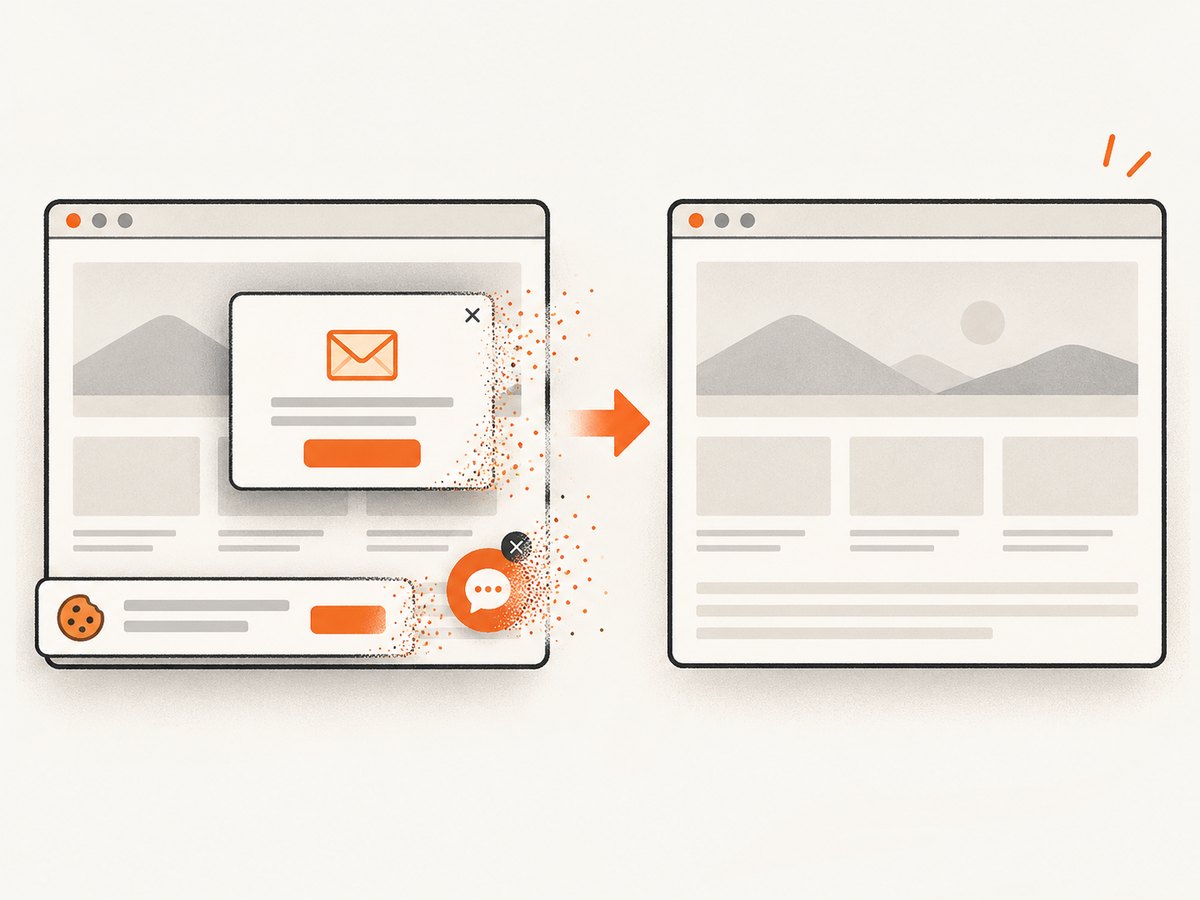
curl -G "https://api.screenshotneo.com/v1/shot" -d access_key=YOUR_API_KEY --data-urlencode url=https://stripe.com -o shot.webpimport requests; r = requests.get("https://api.screenshotneo.com/v1/shot", params={"access_key": "YOUR_API_KEY", "url": "https://stripe.com"}, timeout=90); open("shot.webp", "wb").write(r.content)const q = new URLSearchParams({ access_key: 'YOUR_API_KEY', url: 'https://stripe.com' }); const res = await fetch(`https://api.screenshotneo.com/v1/shot?${q}`);Before capture, ScreenshotNeo accepts cookie and consent banners and removes more than 60 known consent platforms, newsletter popups, and chat widgets; each step can be turned off. Bot checks and CAPTCHAs, blank pages, timeouts, failed loads, and cache hits are not billed, and each response identifies the result with X-Page-Verdict and X-Billed headers. It also provides full-page and element capture, dark mode, device presets, custom CSS and JavaScript, click and wait controls, request blocking, headers, cookies, user agents, authorization, timezone, geolocation, transparent backgrounds, resizing, caching, signed links, asynchronous jobs, webhooks, bulk capture, usage data, PDFs, HTML/CSS rendering, and an MCP server with take_screenshot, get_page_info, and capture_pdf for Claude, Cursor, and other MCP clients.
Free usage includes 1,000 screenshots per month with no card. Paid plans start at $5 for 3,000 screenshots; yearly billing gives two months free. Create a free ScreenshotNeo account and try the API without adding a card.
FAQ
Can Playwright run without an interactive Windows desktop?
Yes. Playwright launches headless browsers by default, so a Windows Server process does not need an open desktop session.
Should I use Edge or Chromium?
Use branded Edge when matching Edge rendering or enterprise browser behavior is a requirement. Use managed Chromium when you want browser binaries controlled with your application deployment.
Why does networkidle sometimes hang?
Analytics, chat, advertisements, and other persistent connections can prevent network activity from becoming idle. Wait for an application-specific selector or readiness signal instead.
What is the best format for visual regression tests?
PNG with a fixed viewport, scale, browser version, operating system, fonts, locale, and timezone is a dependable baseline. JPEG is better when file size matters more than lossless pixels.
Can I capture only one component?
Yes. Locate the component and call its screenshot method, or use a clip rectangle when the region is defined by coordinates.


