How to Set the Download Directory in Puppeteer
Configure Puppeteer downloads with an absolute writable path, choose a naming policy, isolate contexts, and fix common downloadPath errors.
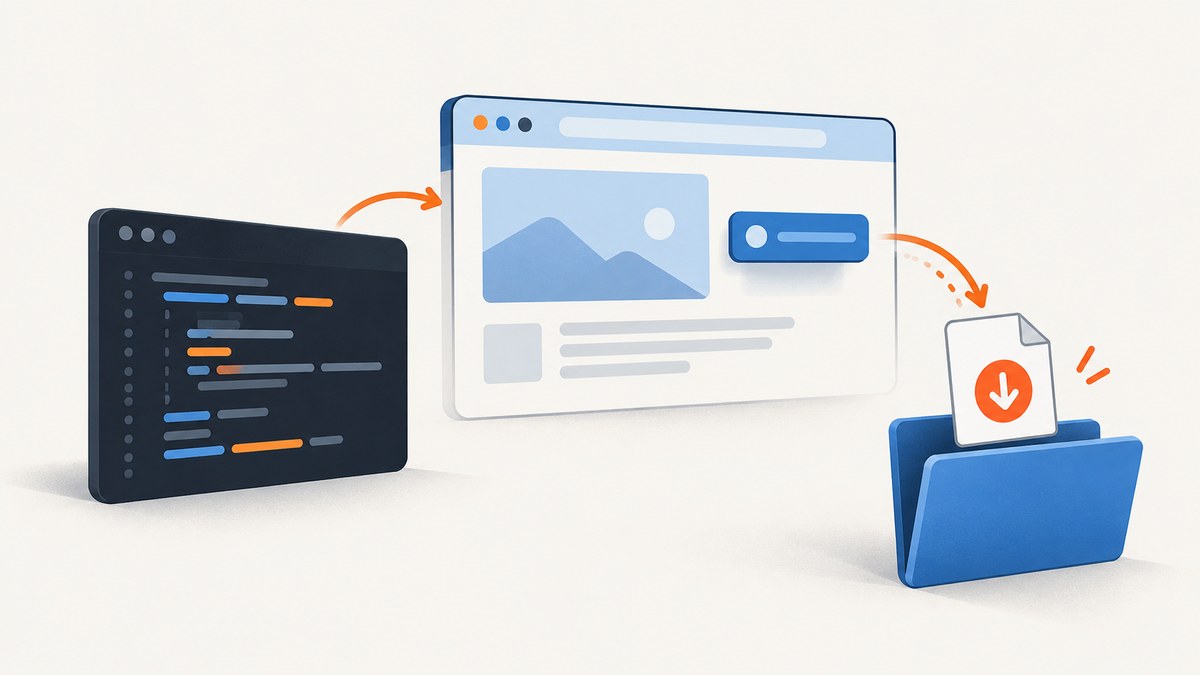
Direct answer: set Puppeteer’s browser download behavior to allow (or allowAndName) and provide an absolute, writable downloadPath. Create the directory before launching or before triggering the download, then apply the setting to the browser context that owns the page.
import puppeteer from 'puppeteer';
import fs from 'node:fs/promises';

const downloadPath = '/absolute/path/to/downloads';
await fs.mkdir(downloadPath, { recursive: true });

const browser = await puppeteer.launch({
  downloadBehavior: {
    policy: 'allow',
    downloadPath,
  },
});

const page = await browser.newPage();
await page.goto('https://example.com/report', { waitUntil: 'networkidle2' });
await page.click('a[download]');
await browser.close();
The path must be absolute for predictable deployments. The Node.js process must have permission to write there. Puppeteer documents that a path is required when the policy is allow or allowAndName. See the Puppeteer DownloadBehavior reference and the Chrome DevTools Protocol method.
1. Choose the right download policy
Puppeteer’s DownloadBehavior has a policy and, for permitting downloads, a destination path. The practical choices are:
| Policy | What it does | When to use it |
|---|---|---|
deny |
Blocks page-triggered downloads. | Tests that must not write files, or untrusted pages. |
allow |
Permits downloads and uses the server-suggested filename where supported. | Most automation jobs. |
allowAndName |
Permits downloads and names files using download GUIDs. | When deterministic collision avoidance matters more than friendly names. |
default |
Uses Chrome’s default behavior when available; otherwise downloads may be denied. | Only when you intentionally want browser defaults. |
For allow and allowAndName, always supply downloadPath. With allowAndName, do not assume the filename in the HTTP response will be retained; GUID-based names are expected.
2. A complete Puppeteer example
This script creates a temporary job directory, launches Chromium, enables downloads before navigation, clicks a download link, waits for a file to appear, and closes the browser in a finally block.
import puppeteer from 'puppeteer';
import fs from 'node:fs/promises';
import path from 'node:path';
import os from 'node:os';

const downloadPath = path.join(os.tmpdir(), `puppeteer-download-${Date.now()}`);
await fs.mkdir(downloadPath, { recursive: true });

const browser = await puppeteer.launch({
  headless: true,
  downloadBehavior: {
    policy: 'allow',
    downloadPath,
  },
});

try {
  const page = await browser.newPage();
  await page.goto('https://example.com/report', {
    waitUntil: 'networkidle2',
    timeout: 60_000,
  });

  await page.waitForSelector('a[download]', { timeout: 15_000 });
  await page.click('a[download]');

  const deadline = Date.now() + 60_000;
  let files = [];
  while (Date.now() < deadline) {
    files = (await fs.readdir(downloadPath)).filter(
      file => !file.endsWith('.crdownload')
    );
    if (files.length > 0) break;
    await new Promise(resolve => setTimeout(resolve, 250));
  }

  if (files.length === 0) {
    throw new Error(`No completed download found in ${downloadPath}`);
  }
  console.log('Downloaded:', path.join(downloadPath, files[0]));
} finally {
  await browser.close();
}
A polling loop is useful when the page does not expose a reliable completion event. Chromium can leave a partial file ending in .crdownload; treat that as in progress rather than as a completed artifact.
3. Configure a separate browser context
Browser contexts isolate cookies and local storage. If your Puppeteer release supports downloadBehavior in BrowserContextOptions, configure the path when creating the context:
const browser = await puppeteer.launch();
const context = await browser.createBrowserContext({
  downloadBehavior: {
    policy: 'allow',
    downloadPath: '/absolute/path/to/context-downloads',
  },
});
const page = await context.newPage();
await page.goto('https://example.com');
This is useful for parallel jobs that need separate output directories or separate authenticated sessions. The exact option availability depends on the installed Puppeteer version. Check your local type definitions and the release documentation; a “next” API page can describe options absent from an older package.
4. Portable paths and permissions
Use Node’s path module instead of hard-coding separators:
import path from 'node:path';
const downloadPath = path.resolve(process.env.DOWNLOAD_DIR ?? './downloads');
On Linux containers, the directory may be owned by a different user than the Node process. On Windows, use a path such as C:\\work\\downloads or construct it with path.join. In CI, prefer a workspace or temporary directory that the runner explicitly grants to the job. Create it with fs.mkdir(..., { recursive: true }) and fail early if a write probe fails.
await fs.mkdir(downloadPath, { recursive: true });
const probe = path.join(downloadPath, '.write-test');
await fs.writeFile(probe, 'ok');
await fs.unlink(probe);
5. Browser cache is not the download directory
Puppeteer’s cacheDirectory controls where Puppeteer stores downloaded browser binaries. It does not control where a page’s files are saved. Changing cacheDirectory will not fix a missing PDF or ZIP in your output folder. Keep these settings separate:
cacheDirectory: Puppeteer-managed browser installation files.downloadBehavior.downloadPath: files initiated by pages in Chromium.
Likewise, PUPPETEER_* installation settings are not a replacement for download behavior. Puppeteer’s configuration guide notes that configuration files and environment variables are ignored by puppeteer-core; pass the runtime option explicitly.
6. When to use Chrome DevTools Protocol directly
If your installed Puppeteer version does not expose the required launch or context option, the lower-level Chrome DevTools Protocol command is Browser.setDownloadBehavior. It is marked experimental, and compatibility depends on the Chrome build and the session target, so treat it as a version-sensitive fallback.
const client = await page.createCDPSession();
await client.send('Browser.setDownloadBehavior', {
  behavior: 'allow',
  downloadPath: '/absolute/path/to/downloads',
});
Validate this approach against the Chrome and Puppeteer versions used in deployment. Prefer Puppeteer’s supported option when it is available, because it makes the intended scope clearer and avoids depending directly on an experimental protocol command.
7. Reliable download workflows
Wait for the trigger, not an arbitrary delay
Wait for the link, button, or application state that starts the download. A fixed delay can be too short on a slow run and wasteful on a fast one. Use waitForSelector, a response predicate, or an application-specific completion signal.
Handle generated files and duplicate names
Servers may return a generated filename, omit a filename, or reuse the same name on every request. Use a per-job directory, inspect the directory after completion, and move the final artifact to an application-controlled name. If you choose allowAndName, expect GUID names by design.
Do not close the browser too early
Calling browser.close() immediately after a click can interrupt the download. Wait for the completed file or a download event before cleanup. Also remove stale partial files when retrying a job.
Authenticated and API-triggered downloads
A page download uses the cookies, headers, and authentication state available to that page. If clicking the UI produces a request that your application can call directly, an HTTP client may be simpler and more observable. Preserve required cookies or authorization, and still write the response to an explicit directory.
8. Troubleshooting Puppeteer downloadPath
| Symptom | Likely cause | Fix |
|---|---|---|
| Download is blocked | Policy is deny or default resolved to deny. |
Set policy: 'allow' and an absolute downloadPath. |
| Files go somewhere else | The option was applied to another browser or context. | Configure the context that created the page, before triggering the download. |
downloadPath error at launch |
Path is missing, relative, nonexistent, or not writable. | Create the directory, resolve it to an absolute path, and run a write probe. |
Only .crdownload exists |
Transfer is still running or failed partway through. | Wait for completion, inspect browser logs, and remove stale partial files before retrying. |
| Filename is an unexpected GUID | allowAndName intentionally uses download GUIDs. |
Use allow for suggested names or rename the completed file yourself. |
| Works locally, fails in CI | Different user permissions, container filesystem, or browser version. | Use a writable workspace directory and log the resolved path and Puppeteer/Chrome versions. |
| Context option is rejected | Installed Puppeteer predates that context option. | Check the installed API types; configure launch behavior or use a validated CDP fallback. |
| Changing Puppeteer cache has no effect | cacheDirectory stores browser binaries, not page downloads. |
Set downloadBehavior.downloadPath. |
9. Performance, reliability, and cost considerations
Disk I/O, browser startup, and the page’s own response time dominate most download jobs. Reuse a browser for multiple jobs when isolation permits, but create separate contexts or directories when concurrent jobs could overwrite files. Keep output on local or attached storage with enough capacity, and delete artifacts according to your retention policy.
For reliability, record the resolved directory, URL, start and finish times, final filename, and failure reason. Set navigation and download timeouts explicitly. Retry only transient failures, and use a new output directory for each retry so an old partial file cannot be mistaken for a successful result.
There is no Puppeteer service charge for writing a file: your costs are the compute, browser runtime, storage, and bandwidth of your own environment. If the task is really “turn a URL into an image or PDF,” running a browser yourself also means maintaining Chromium, permissions, wait logic, consent banners, popups, and failed-page handling.
10. Or skip the browser setup
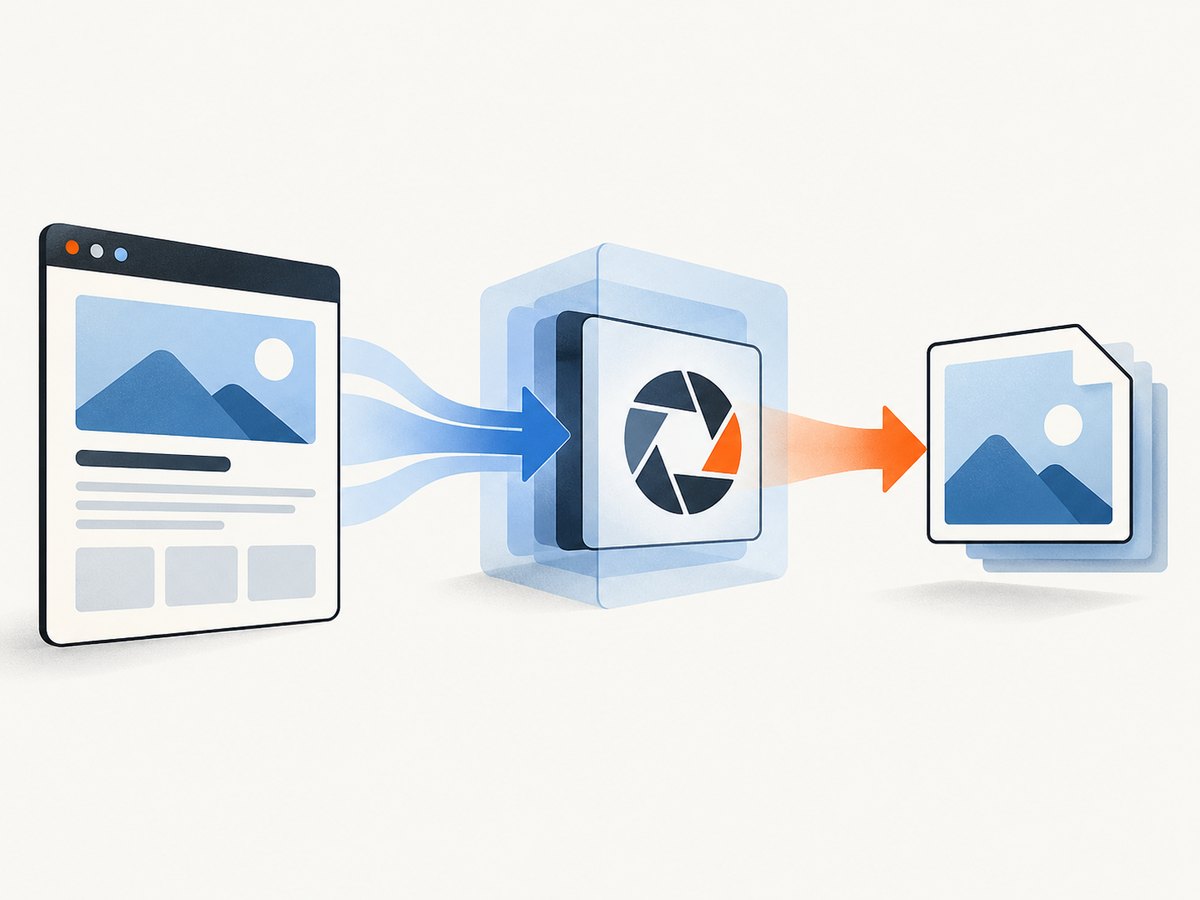
ScreenshotNeo provides a single GET request for a PNG, JPEG, WebP, or PDF. Before capture it accepts cookie and consent banners as a visitor and removes more than 60 known consent platforms, newsletter popups, and chat widgets. Bot checks, blank pages, timeouts, failed loads, and cache hits are not billed; response headers identify the page verdict and whether the request was billed. Its MCP server gives Claude, Cursor, and other MCP clients take_screenshot, get_page_info, and capture_pdf tools.

See the ScreenshotNeo API documentation for all options.
cURL
curl -G "https://api.screenshotneo.com/v1/shot" -d access_key=YOUR_API_KEY --data-urlencode url=https://stripe.com -o shot.webpPython
import requests
r = requests.get("https://api.screenshotneo.com/v1/shot", params={"access_key": "YOUR_API_KEY", "url": "https://stripe.com"}, timeout=90)
open("shot.webp", "wb").write(r.content)
Node.js
const q = new URLSearchParams({ access_key: 'YOUR_API_KEY', url: 'https://stripe.com' });
const res = await fetch(`https://api.screenshotneo.com/v1/shot?${q}`);
if (!res.ok) throw new Error(`Screenshot failed: ${res.status}`);
require('node:fs').writeFileSync('shot.webp', Buffer.from(await res.arrayBuffer()));
The API includes full-page capture with lazy images loaded, element capture by CSS selector, dark mode, device presets, custom viewports, retina scale, PDF paper sizes and page ranges, custom CSS and JavaScript, clicks, waits, request blocking, headers, cookies, user agents, authorization, timezone, geolocation, transparent backgrounds, resizing, configurable caching, signed links, asynchronous jobs with signed webhooks, bulk capture for up to 100 URLs per call, a usage API, and an OpenAPI specification. Parameter names used by other screenshot APIs also work, which simplifies migration.
Plans include 1,000 shots per month free with no card; paid plans start at $5 for 3,000 shots. Create a free ScreenshotNeo account and try the API without entering a card.
11. FAQ
Can I set the directory after the download starts?
Set the behavior before triggering the download. Changing it afterward can leave the first transfer blocked or placed according to the previous policy.
Does Puppeteer download a file when I use page.goto()?
Only if the response causes the browser to treat the navigation as a download. Many downloads require clicking a link, submitting a form, or making an authenticated request.
Should every parallel job share one directory?
No. Separate directories avoid filename collisions, simplify cleanup, and make it easier to associate an artifact with a job.
Why does puppeteer-core ignore my environment setting?
puppeteer-core does not use Puppeteer’s normal configuration files and environment variables. Pass download behavior in code and verify the option supported by your installed version.
When is ScreenshotNeo a better fit?
Use it when you need a rendered screenshot or PDF from a URL without maintaining a browser, handling consent UI, or paying for failed captures. It also fits workflows where an MCP server should let an AI agent capture pages.


