How to Set EvoPDF Page Margins in HTML
Set EvoPDF margins in code or CSS, understand precedence, headers, print styles, units, and fixes for margins that appear ignored.
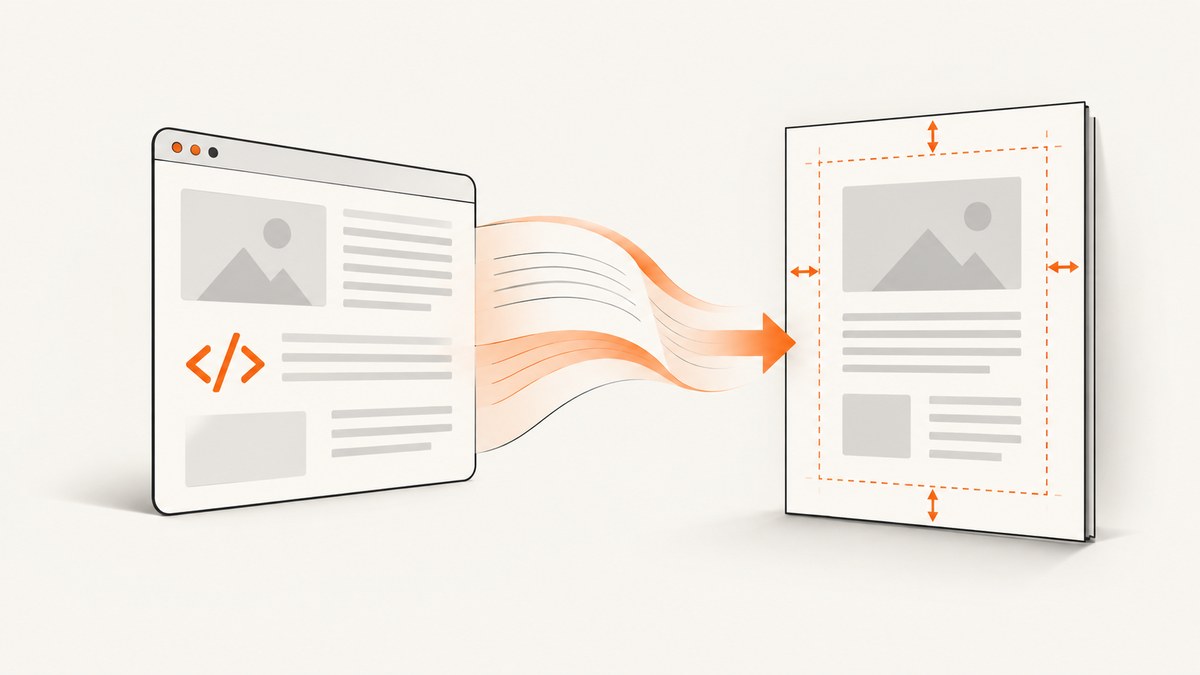
EvoPDF page margins can be set through PdfDocumentOptions: LeftMargin, RightMargin, TopMargin, and BottomMargin. EvoPDF documents these values in points and their default is zero. Before changing code, inspect the HTML stylesheet: a CSS @page margin overrides values set in EvoPDF code. Also check header/footer auto-resizing, print media styles, page size, and orientation.
Set the four margins in EvoPDF code
The converter exposes the options through PdfDocumentOptions. This illustrative C# example sets independent margins (values are points; 72 points equal one inch).
var options = converter.PdfDocumentOptions;
options.LeftMargin = 36;
options.RightMargin = 36;
options.TopMargin = 48;
options.BottomMargin = 48;
The documented default for all four properties is zero. The exact converter construction and conversion call differ between EvoPDF editions, so adapt this options block to the edition and package installed in your application. See EvoPDF’s HTML content and scaling documentation and the converter options reference.
Choose between code margins and CSS @page
There are two valid ownership models:
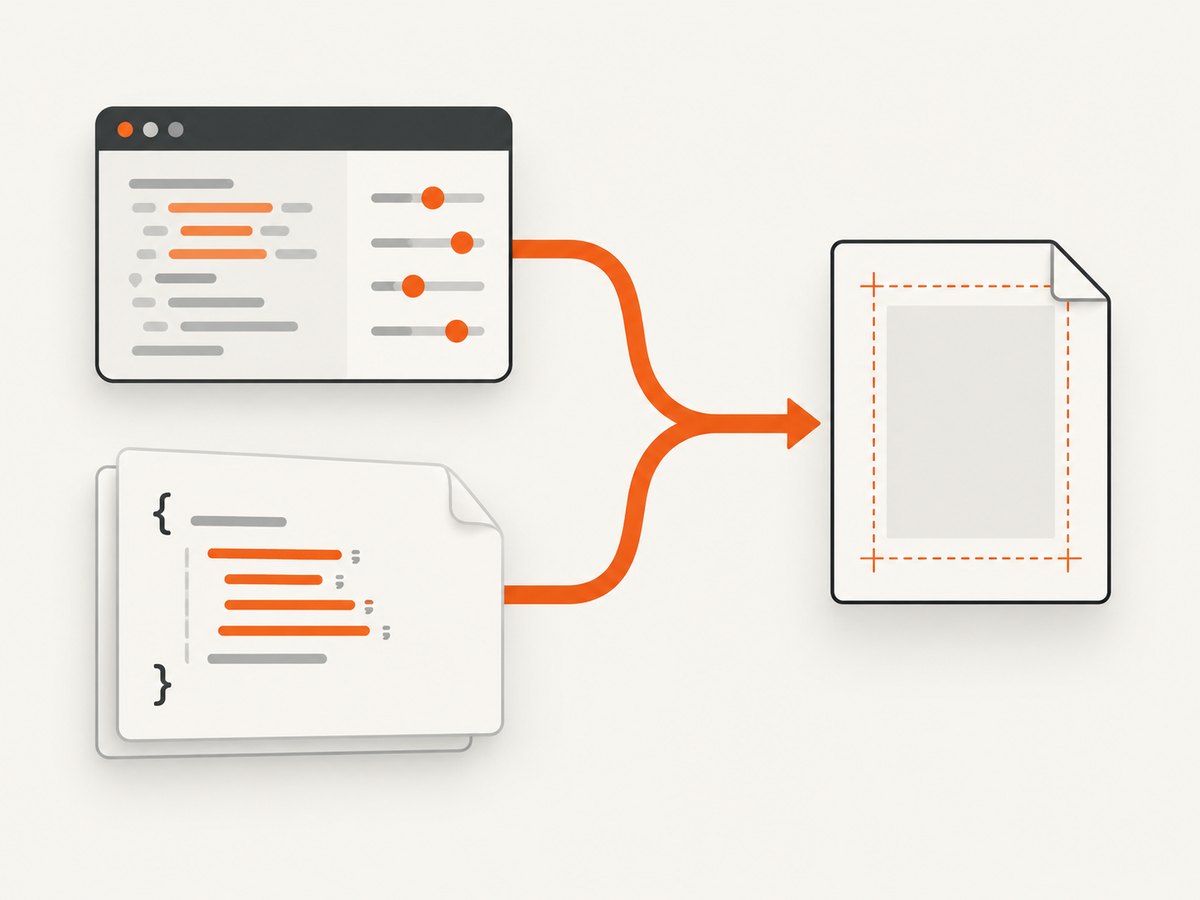
| Model | Where margins live | Precedence and maintenance |
|---|---|---|
| Application-controlled | PdfDocumentOptions |
Centralized in converter configuration; remove competing CSS declarations. |
| Document-controlled | HTML print stylesheet with @page |
The CSS rule overrides code-set margins and travels with the document. |
If your HTML contains this rule, it takes priority over the four code properties:
@page {
  margin: 2cm;
}
To let code control the output, remove the declaration or change the stylesheet so it expresses the intended values. To let CSS control it, put the final values in @page and treat the EvoPDF properties as fallback configuration. Do not debug by repeatedly changing both places; first decide which layer owns the layout.
Units and converting common measurements
EvoPDF’s documented margin properties use points. One point is 1/72 inch. Use these conversions when translating a design specification:
| Desired size | Points | Approximate CSS length |
|---|---|---|
| 0.25 inch | 18 pt | 6.35 mm |
| 0.5 inch | 36 pt | 12.7 mm |
| 1 inch | 72 pt | 25.4 mm |
| 2 cm | about 56.7 pt | 2 cm |
These are unit conversions, not EvoPDF recommended settings. Keep enough space for text, headers, footers, and any required print marks.
Headers, footers, and AutoResizePdfMargins
Top and bottom margins can appear to be ignored when AutoResizePdfMargins is enabled. EvoPDF documents that this mode uses the documented header and footer heights to set the top and bottom margins, replacing the corresponding code values.
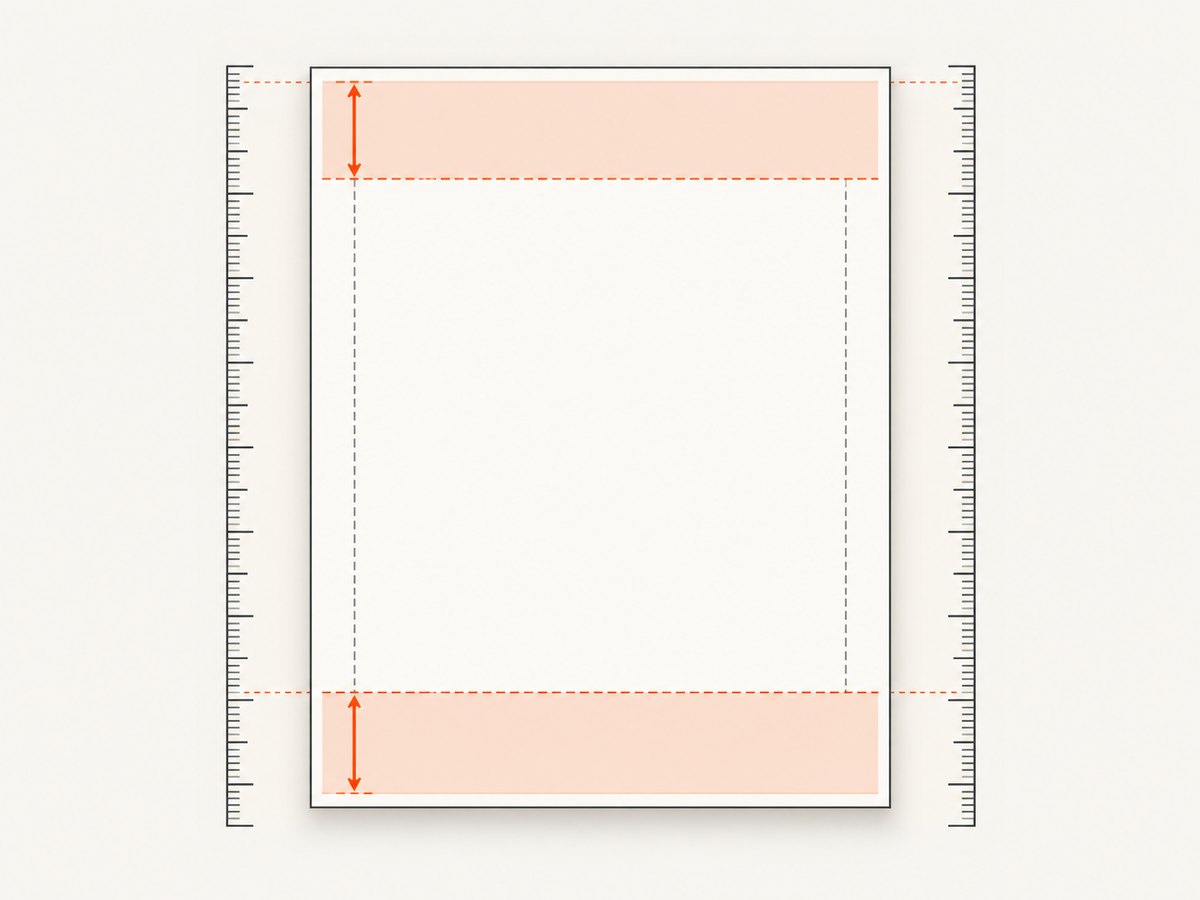
- Disable auto-resizing when your explicit
TopMarginandBottomMarginmust remain authoritative. - When auto-resizing is enabled, size the header and footer deliberately and verify that body content has sufficient clearance.
- Check for overlap after changing header/footer height; a larger header can reduce the usable body area or move content to another page.
Print media, page size, and orientation
The EvoPDF Next .NET guide documents screen as the default CSS media type. Set MediaType to print when you want print styles applied, then inspect the print stylesheet for an @page rule and print-only dimensions.
// Illustrative: use the property name exposed by your EvoPDF edition.
converter.MediaType = "print";
Page size and orientation determine the available page rectangle; they do not change the meaning of the four margin properties. Choose the required paper size and landscape/portrait orientation, then calculate whether the content width plus left and right margins fits. CSS page-size preferences can also affect layout, so inspect both converter settings and @page declarations when the result differs from the browser.
A repeatable setup procedure
- Identify the EvoPDF edition and version used by the application.
- Set
LeftMargin,RightMargin,TopMargin, andBottomMarginin points. - Search all loaded HTML and CSS for
@pageand itsmargin,margin-top,margin-right,margin-bottom, andmargin-leftdeclarations. - Choose whether CSS or code owns the values; remove or revise the competing declaration.
- Inspect
AutoResizePdfMarginsand header/footer heights. - Set the intended media type, page size, orientation, and layout method.
- Render a document containing a border or ruler near each edge and inspect every page, including pages with headers, footers, tables, and images.
Why margins are ignored: troubleshooting
| Symptom | Likely cause | Fix |
|---|---|---|
| All four values appear unchanged | An HTML @page rule overrides code. |
Remove/revise the rule or move the final values into CSS. |
| Only top and bottom differ | AutoResizePdfMargins is using header/footer heights. |
Disable auto-resizing or adjust those heights and reserve space. |
| Browser preview and PDF disagree | EvoPDF is using screen while your design expects print CSS, or vice versa. |
Set the intended MediaType and inspect print rules. |
| Right edge clips or wraps unexpectedly | Page width, orientation, content width, and horizontal margins do not fit together. | Check paper size/orientation and reduce content width or margins. |
| Changing a value has no visible effect on one template | A template-specific stylesheet or embedded style contains a later @page rule. |
Inspect the complete HTML sent to EvoPDF, including embedded and linked CSS. |
| Header overlaps body text | Header space is smaller than the rendered header, especially with auto-resizing disabled. | Increase top margin or header allocation and render again. |
| Footer is cut off | Bottom margin/footer allocation is insufficient. | Increase bottom margin or footer height and verify the page count. |
Performance, reliability, and cost considerations
- Performance: Margin assignment itself is a small configuration step. Large images, complex CSS, scripts, and multi-page documents dominate conversion time.
- Reliability: Keep margin ownership consistent across templates. Record the effective page size, orientation, media type, and whether auto-resizing is enabled so a rendering change can be reproduced.
- Validation: Use a representative fixture with long paragraphs, tables, page breaks, headers, footers, and images. Check the first, middle, and final pages rather than only a cover page.
- Cost: EvoPDF licensing and infrastructure costs depend on the edition and deployment choices. The cited documentation does not provide pricing; consult the vendor for current terms.
CSS versus code: which should you use?
Use code properties when one application applies a consistent document policy across many HTML templates. Use CSS @page when each document owns its print layout or when designers maintain the stylesheet. In either case, document the precedence rule so a future template change does not silently replace the converter configuration.
Or skip the browser setup
If your goal is a rendered page image or PDF from a URL rather than a locally controlled EvoPDF document, ScreenshotNeo provides a single HTTP request. Its capture options include PDF paper size, margins, landscape mode, and page ranges. Cookie and consent banners, newsletter popups, and chat widgets are removed before the shot; bot checks, blank pages, timeouts, failed loads, and cache hits are not billed. Responses identify the page verdict and billing result with X-Page-Verdict and X-Billed headers. An MCP server lets Claude, Cursor, and other MCP clients use take_screenshot, get_page_info, and capture_pdf. The Free plan includes 1,000 screenshots per month without a card; paid plans start at $5 for 3,000.
See the ScreenshotNeo documentation for all parameters and response details.
cURL
curl -G "https://api.screenshotneo.com/v1/shot" -d access_key=YOUR_API_KEY --data-urlencode url=https://stripe.com -o shot.webpPython
import requests
r = requests.get("https://api.screenshotneo.com/v1/shot", params={"access_key": "YOUR_API_KEY", "url": "https://stripe.com"}, timeout=90)
open("shot.webp", "wb").write(r.content)
Node.js
const q = new URLSearchParams({ access_key: 'YOUR_API_KEY', url: 'https://stripe.com' });
const res = await fetch(`https://api.screenshotneo.com/v1/shot?${q}`);
Create a free ScreenshotNeo account with 1,000 screenshots a month and no card.
FAQ
What is EvoPDF’s default margin?
The documented default for LeftMargin, RightMargin, TopMargin, and BottomMargin is zero points.
Can I use different left and right margins?
Yes. Set each property independently, or declare the corresponding sides in CSS @page.
Does a CSS margin in pixels work?
CSS and EvoPDF code use different configuration layers. For predictable results, use CSS lengths in @page or convert your specification to EvoPDF’s documented point values.
Why did changing page size alter apparent margins?
Changing the paper rectangle or orientation changes the available content area. Recheck the combined page dimensions, content width, and margins.
Where can I verify edition-specific property names?
Check the official EvoPDF documentation for your edition, including the Next .NET page setup guide and the .NET Core HTML content guide.


