How to Set a Favicon in HTML
Add a browser favicon with one link tag, choose the right format and sizes, deploy it correctly, and fix common display problems.
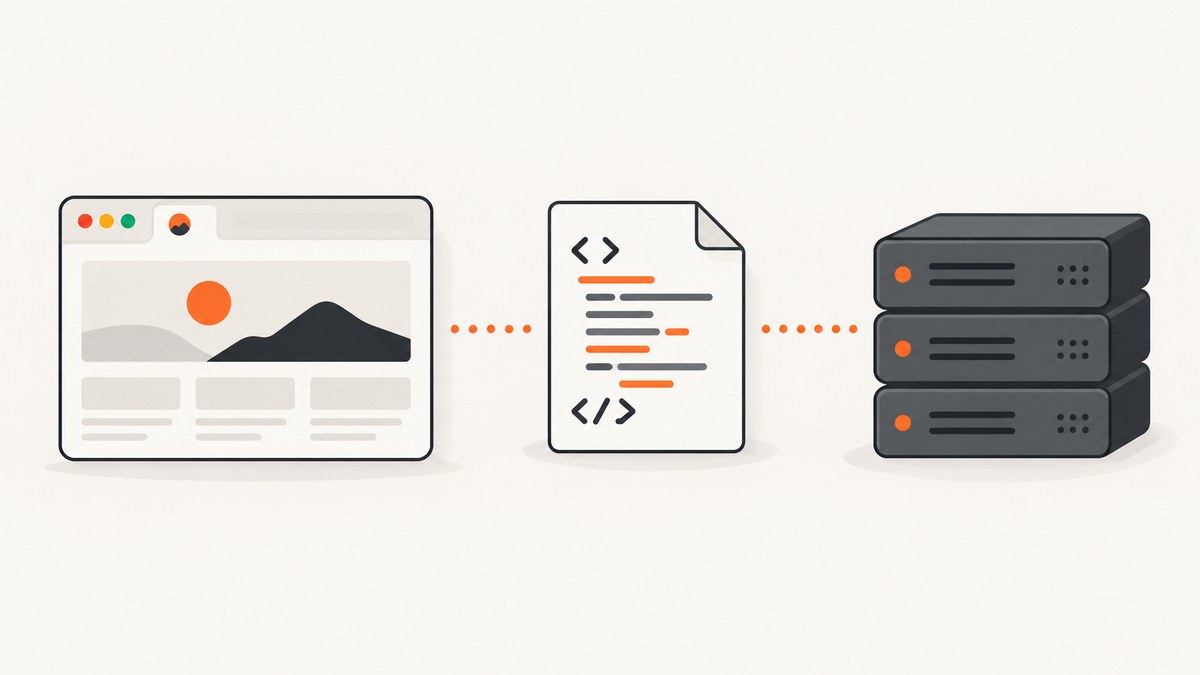
Direct answer: put the favicon image in your deployed site and reference it inside the document’s <head>:
<head>
  <meta charset="utf-8">
  <title>Example page</title>
  <link rel="icon" href="/favicon.ico">
</head>
The rel="icon" value identifies the linked resource as the current document’s icon. The href must point to an image URL that is included in the deployed build.
1. Add the basic favicon link
Create an icon file, copy it into the site’s published files, and add a <link rel="icon"> element inside every page’s <head>. A root-relative path works when the file is at the site root:
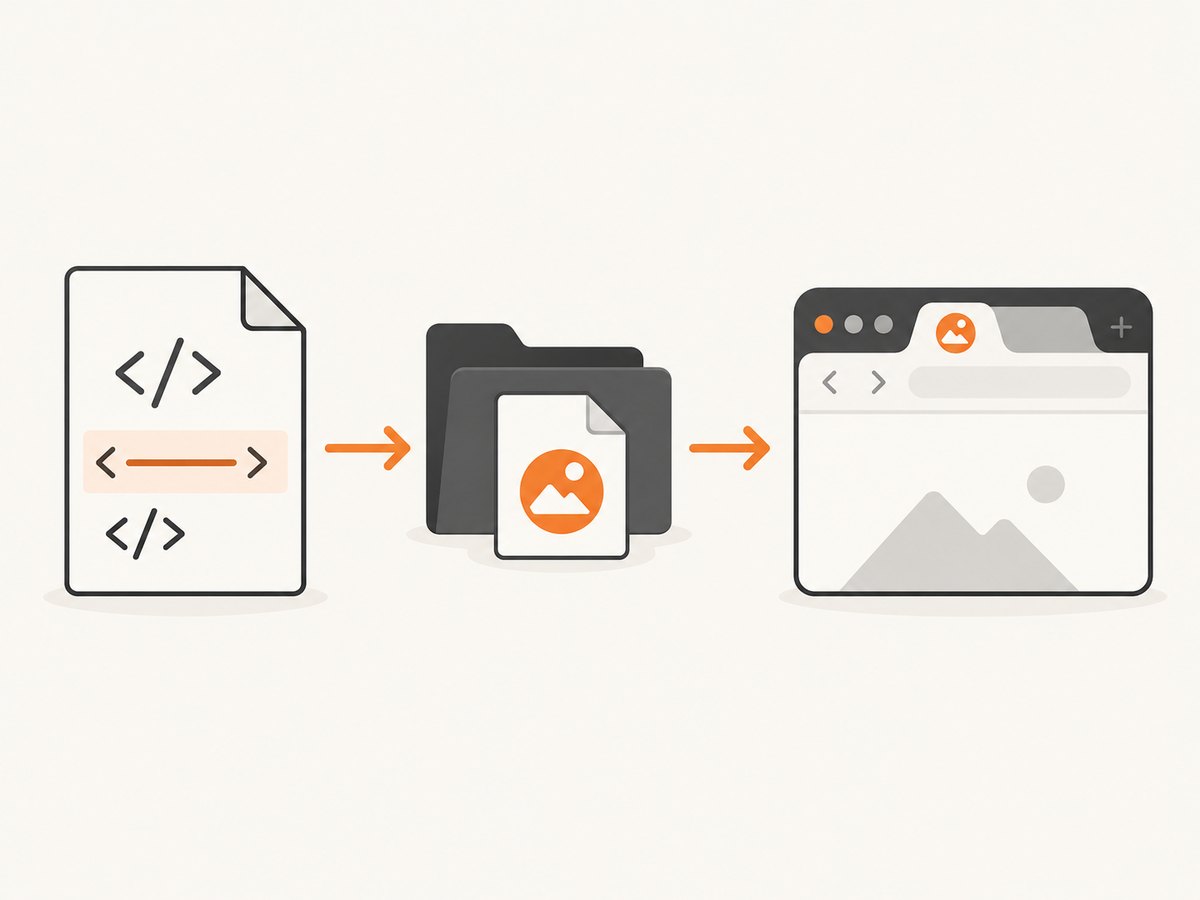
<link rel="icon" href="/favicon.ico">For an icon stored in a subdirectory, point to that location instead:
<link rel="icon" href="/images/favicon.png">Do not put the tag in <body>. The URL is case-sensitive on many hosting systems, so the filename and capitalization in href must match the deployed file exactly.
2. Choose a favicon format
| Format | When to use it | Example |
|---|---|---|
| ICO | Compatibility-oriented default and convenient root file | /favicon.ico |
| PNG | Common modern raster format | /icons/favicon-32.png |
| GIF | Supported favicon format for appropriate assets | /icons/favicon.gif |
| SVG | Scalable artwork where the target browser supports it | /icons/favicon.svg |
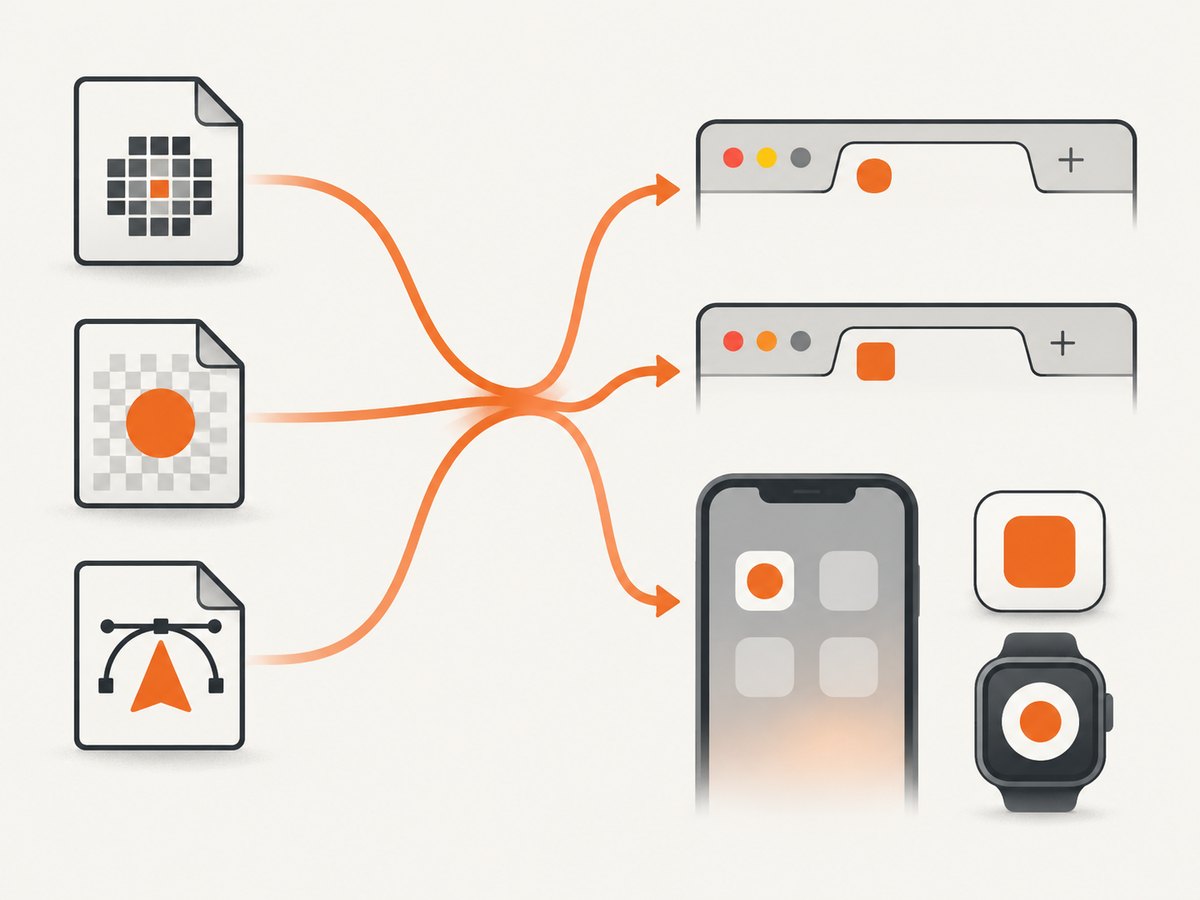
ICO is a practical compatibility choice. PNG is a straightforward modern choice. SVG scales without selecting multiple raster sizes, but provide a raster fallback when you need broad compatibility across targets.
3. Declare type and size hints
When you know the image format, add its MIME type. The sizes value is a space-separated list such as 16x16 32x32; use any for a scalable SVG:
<link rel="icon" type="image/png" sizes="32x32" href="/icons/favicon-32.png">
<link rel="icon" type="image/svg+xml" sizes="any" href="/icons/favicon.svg">
These attributes are selection hints. If several icon links are present, browsers can use media, type, and sizes to choose an appropriate supported resource.
4. Use a practical multi-format head
A site that wants a compatibility fallback, a modern raster icon, a scalable icon, and an Apple home-screen icon can use:
<head>
  <meta charset="utf-8">
  <title>Example page</title>
  <link rel="icon" href="/favicon.ico">
  <link rel="icon" type="image/png" sizes="32x32" href="/icons/favicon-32x32.png">
  <link rel="icon" type="image/svg+xml" sizes="any" href="/icons/favicon.svg">
  <link rel="apple-touch-icon" sizes="180x180" href="/icons/apple-touch-icon.png">
</head>
The ordinary rel="icon" declaration handles browser favicon use. apple-touch-icon is a separate convention for iPhone and iPad home-screen or web-clip icons; it does not replace the browser favicon declaration.
5. Decide which sizes to publish
A 16×16 icon is a common favicon convention. Publishing a 32×32 PNG is also useful for contexts that display a larger raster icon. The exact set depends on your targets and design:
- Smallest simple setup: one
favicon.icoat the site root. - Modern browser setup: a PNG with an explicit
sizesvalue, optionally alongside ICO. - Scalable artwork: an SVG link with
sizes="any", optionally alongside a raster fallback. - Apple home-screen support: an
apple-touch-icon, commonly declared at 180×180 in the example above.
Use artwork that remains recognizable at the smallest size. If you publish multiple variants, keep each path, MIME type, and size declaration accurate.
6. Understand the automatic /favicon.ico fallback
Browsers may request /favicon.ico automatically when a page has no explicit icon link. An explicit declaration is still useful because it documents the asset location and lets you select PNG, SVG, size, or media variants. Automatic lookup does not remove the need to deploy the file at the URL being requested.
7. Deploy the asset with your site
- Place the icon in the directory copied to the web server or static host.
- Build the site so the icon is included in the output directory.
- Deploy the HTML and image together.
- Open the exact
hrefURL directly in a browser. - Confirm that the response is the image, not an HTML error page.
For a root-relative declaration such as /favicon.ico, the deployed URL must be https://your-domain.example/favicon.ico. For /icons/favicon-32x32.png, it must be https://your-domain.example/icons/favicon-32x32.png.
8. Verify a favicon without guessing
Use this checklist after deployment:
- The
<link>element is inside<head>. - The
hrefpath and filename match the deployed asset, including letter case. - The direct asset URL returns the intended icon.
- The server returns a supported image format and the correct MIME type.
- Every declared
typeandsizesvalue matches its file. - If you use
media, its condition is intentional. - You hard-refresh or clear the browser cache after replacing the icon.
- For Apple home-screen behavior, an
apple-touch-iconis present when needed.
9. Common mistakes and fixes
| Symptom | Likely cause | Fix |
|---|---|---|
| No icon appears | The link is outside <head>, or the file was not deployed |
Move the link into <head> and verify the published file exists. |
| The direct URL shows an error page | The path is wrong or routing rewrites the request | Open the exact href URL and correct the path or deployment rule. |
| Works locally but not in production | The build copied HTML but omitted the icon | Inspect the production output and include the image in the deployed build. |
| Only one of several icons is used | A type, sizes, or media hint is inaccurate |
Make each hint describe the resource it references. |
| Updated icon is not visible | The browser is using a cached favicon | Hard-refresh or clear the browser’s cached icon, then reload. |
| Apple home-screen icon is missing | Only rel="icon" was declared |
Add an apple-touch-icon resource with its size and path. |
| Icon looks wrong or unsupported | Format or MIME type is not supported by the target browser | Check the response MIME type and add an ICO or PNG fallback. |
10. Performance and reliability notes
- Keep favicon files small because browsers may request them on many page loads.
- Serve the image from a stable URL and avoid changing filenames unless you also update every reference.
- Use explicit links so the browser does not need to infer an asset location.
- For a single simple icon, one root file is operationally easiest. Multiple variants add flexibility but require more paths and metadata to maintain.
- When replacing an icon at the same URL, expect cached copies to remain visible until a refresh or cache expiration.
11. Capture the result with ScreenshotNeo
After deploying a favicon, a screenshot can confirm what a real page looks like at a chosen viewport. ScreenshotNeo is a website screenshot API and MCP server. It can capture PNG, JPEG, WebP, or PDF output from one GET request, and it supports full-page captures, device presets, custom viewports, retina scale, custom CSS and JavaScript, waits, cookies, headers, and caching.
Or skip the browser setup
Call the ScreenshotNeo API with your deployed page URL. The full API documentation is at screenshotneo.com/docs/.
curl -G "https://api.screenshotneo.com/v1/shot" \
  -d access_key=YOUR_API_KEY \
  --data-urlencode url=https://example.com \
  -o shot.webp
import requests
r = requests.get(
"https://api.screenshotneo.com/v1/shot",
params={"access_key": "YOUR_API_KEY", "url": "https://example.com"},
timeout=90,
)
r.raise_for_status()
open("shot.webp", "wb").write(r.content)const q = new URLSearchParams({
access_key: 'YOUR_API_KEY',
url: 'https://example.com'
});
const res = await fetch(`https://api.screenshotneo.com/v1/shot?${q}`);
if (!res.ok) throw new Error(`Screenshot failed: ${res.status}`);
const bytes = await res.arrayBuffer();
// Save bytes as shot.webp in your application.ScreenshotNeo removes cookie and consent banners, newsletter popups, and chat widgets before capture. Bot checks, blank pages, failed loads, timeouts, and cache hits are not billed, and the response identifies the page verdict and billing status with X-Page-Verdict and X-Billed headers. Its MCP server provides take_screenshot, get_page_info, and capture_pdf tools for Claude, Cursor, and other MCP clients. The Free plan includes 1,000 screenshots a month with no card; paid plans start at $5 for 3,000.
Create a free ScreenshotNeo account and start with 1,000 screenshots per month at no charge.
12. FAQ
What tag sets the favicon?
<link rel="icon" href="..."> inside the document’s <head>.
Where does favicon.ico go?
Put it in the deployed site root when your link uses href="/favicon.ico".
Can I use a PNG instead of ICO?
Yes. Declare its MIME type and size, for example <link rel="icon" type="image/png" sizes="32x32" href="/icons/favicon-32.png">.
Can an SVG be a favicon?
Yes, where supported. Use type="image/svg+xml" and sizes="any", and consider a raster fallback.
Why does the old favicon remain after I replace it?
Favicons are cached. Hard-refresh or clear the browser’s cached icon after replacing the file.
Is apple-touch-icon required?
No. It is a separate resource for Apple home-screen or web-clip icons, while rel="icon" handles browser favicon use.


