How to Set the Time Zone in Headless Chrome on Windows
Set a page’s timezone in headless Chrome on Windows with the Chrome DevTools Protocol. Includes a runnable Node.js example, verification steps, and fixes for common errors.
To make a page in headless Chrome use a different time zone on Windows, send the Chrome DevTools Protocol (CDP) command Emulation.setTimezoneOverride to that page’s target. Set its timezoneId to a supported identifier such as America/Los_Angeles or Europe/London. This changes the timezone the page sees; it does not change Windows’ configured timezone or system clock. [CDP Emulation reference]
For remote debugging, launch Chrome with --headless, a dedicated --user-data-dir, and a debugging port. Connect to the page’s CDP session, apply the override, then verify it from JavaScript in that page. The runnable example below uses Node.js and the ws package to send the CDP commands directly.
1. What the timezone override changes
CDP documents Emulation.setTimezoneOverride as overriding the host system timezone for the page. Page code that asks the browser for its local timezone or formats dates locally will therefore use the emulated timezone. The setting is scoped to browser emulation: Windows itself retains its existing timezone.
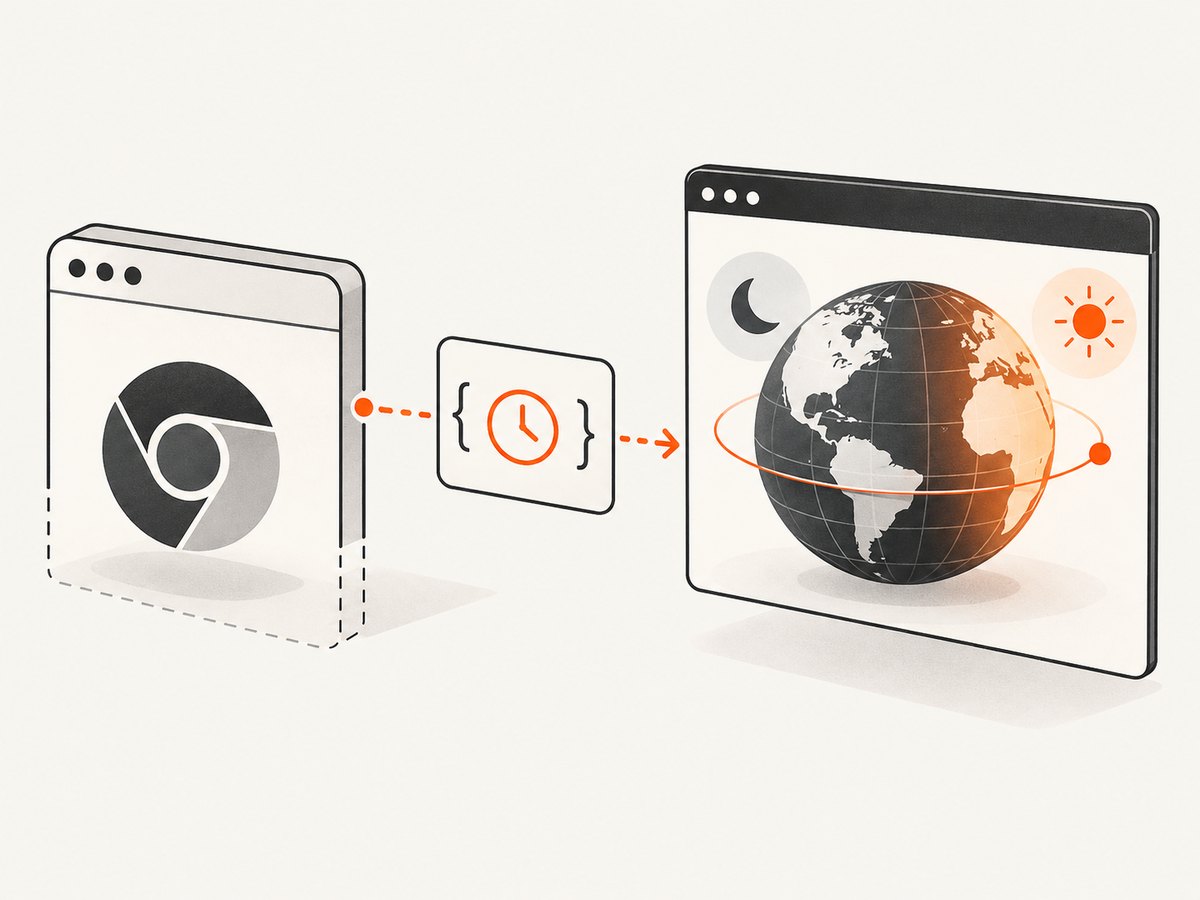
The protocol expects a supported timezone identifier. Use an ICU/IANA-style name such as America/Los_Angeles, not a Windows Control Panel display label. The CDP reference points to ICU timezone data for supported names; availability should be confirmed against the Chrome build you deploy. [CDP Emulation reference]
To remove the override, send the same method with an empty string for timezoneId. CDP says this disables the override and restores the host timezone for the page.
2. Launch headless Chrome on Windows
Open Command Prompt or PowerShell and start Chrome with a dedicated profile directory. Adjust the executable path if Chrome is installed elsewhere. The command below uses the common per-user installation path; Google’s Windows remote-debugging example also uses a custom profile directory. Add --headless for a no-UI run. [Chrome DevTools configuration]
start "" "%ProgramFiles%\Google\Chrome\Application\chrome.exe" ^
  --headless ^
  --remote-debugging-port=9222 ^
  --user-data-dir="%TEMP%\chrome-profile-tz" ^
  https://example.com
If Chrome is installed under your user profile, use its actual executable path in place of the one shown. Keep the profile directory separate from your normal Chrome profile. Starting with Chrome 136, the remote debugging port and pipe switches are not honored with the default Chrome data directory. Chrome’s announcement recommends Chrome for Testing for browser automation scenarios. [Chrome remote debugging changes]
The debugging-enabled Chrome instance exposes protocol information through its local endpoint. The protocol overview describes finding the browser WebSocket endpoint at /json/version and target information through the debugging endpoints. For this example, the page target list is read from http://127.0.0.1:9222/json. [Chrome DevTools Protocol overview]
3. Apply the override with Node.js
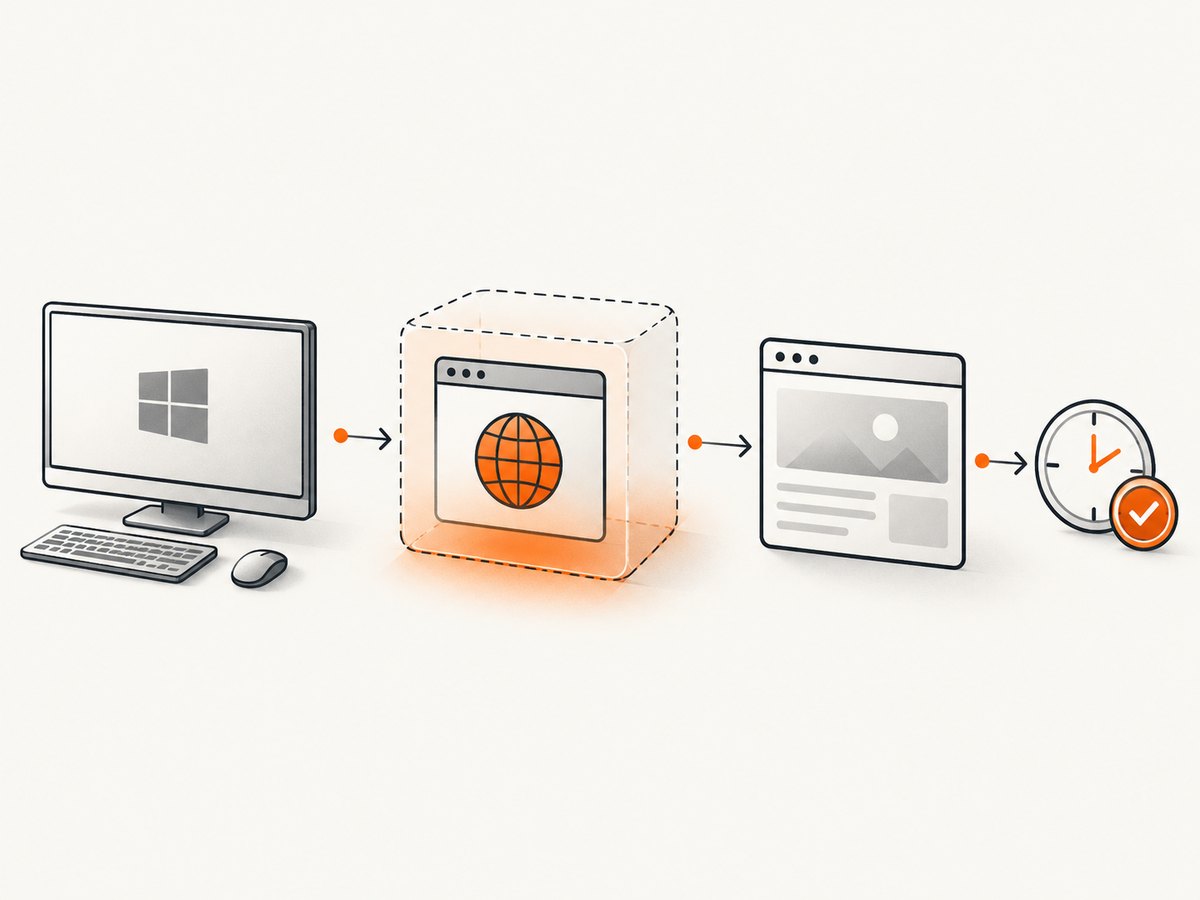
This example attaches to the first page target returned by Chrome, enables the Page domain, navigates to a URL, sets the timezone override, and evaluates page-side values to confirm the effective timezone. It uses the ws package as the WebSocket transport; CDP’s method and parameters are the protocol-defined part of the operation.
Install the dependency
In a new folder, create a Node project and install the WebSocket package:
npm init -y
npm install ws
Save and run the script
Save this as timezone.cjs. Change targetUrl and timezoneId as needed. Ensure the Chrome process from the previous step is still running.
const WebSocket = require('ws');

const targetUrl = 'https://example.com';
const timezoneId = 'America/Los_Angeles';

async function main() {
  const response = await fetch('http://127.0.0.1:9222/json');
  if (!response.ok) {
    throw new Error(`Could not list Chrome targets: HTTP ${response.status}`);
  }

  const targets = await response.json();
  const page = targets.find((target) => target.type === 'page');
  if (!page || !page.webSocketDebuggerUrl) {
    throw new Error('No page target found. Open a page in the debug Chrome instance.');
  }

  const ws = new WebSocket(page.webSocketDebuggerUrl);
  let nextId = 0;
  const pending = new Map();

  function send(method, params = {}) {
    const id = ++nextId;
    return new Promise((resolve, reject) => {
      pending.set(id, { resolve, reject });
      ws.send(JSON.stringify({ id, method, params }));
    });
  }

  ws.on('message', (raw) => {
    const message = JSON.parse(raw.toString());
    if (!message.id || !pending.has(message.id)) return;
    const { resolve, reject } = pending.get(message.id);
    pending.delete(message.id);
    if (message.error) reject(new Error(message.error.message));
    else resolve(message.result);
  });

  ws.on('error', (error) => {
    for (const { reject } of pending.values()) reject(error);
    pending.clear();
  });

  await new Promise((resolve, reject) => {
    ws.once('open', resolve);
    ws.once('error', reject);
  });

  try {
    await send('Page.enable');
    await send('Emulation.setTimezoneOverride', { timezoneId });
    await send('Page.navigate', { url: targetUrl });

    // Allow the navigation to begin before evaluating page JavaScript.
    await new Promise((resolve) => setTimeout(resolve, 1500));
    const result = await send('Runtime.evaluate', {
      expression: `JSON.stringify({
        timezone: Intl.DateTimeFormat().resolvedOptions().timeZone,
        localTime: new Date().toString(),
        isoTime: new Date().toISOString()
      })`,
      returnByValue: true
    });
    console.log(result.result.value);
  } finally {
    ws.close();
  }
}

main().catch((error) => {
  console.error(error);
  process.exitCode = 1;
});
node timezone.cjsThe output should include the timezone identifier you set in the timezone field. localTime is formatted in the page’s local timezone; isoTime is an ISO timestamp and represents a UTC time, so it is not expected to display as a local wall-clock value.
CDP command itself
If your automation library already provides a page-level CDP session, the core operation is just:
await client.send('Emulation.setTimezoneOverride', {
  timezoneId: 'America/Los_Angeles',
});
The exact way to create and attach that session depends on the automation library and version. Keep the command on the intended page target, and consult that library’s current documentation for its session API. The protocol method shown above is the source-backed operation.
4. Validate the page’s effective timezone
Run the check in the same page target where the override was applied. A compact browser-side check is:
Intl.DateTimeFormat().resolvedOptions().timeZone
new Date().toString()
new Date().toISOString()
The first expression reports the timezone resolved by the page’s internationalization API. The second formats a date in local time, while the third serializes the instant in UTC. Comparing the first two is useful for confirming the override; the UTC output is useful for distinguishing a timezone display change from a changed clock.
If the page was already open when you connected, apply the command to that page target. If you navigate to a different tab or target, ensure your automation attaches and sends the command to that target too. The protocol overview covers target discovery through the debugging endpoint. [CDP overview]
5. Clear the override
To restore the host timezone behavior for the page, send an empty identifier:
await client.send('Emulation.setTimezoneOverride', {
  timezoneId: '',
});
In the direct WebSocket example, replace the timezone command with this call before closing the session. A fresh Chrome process/profile also starts without an override unless your automation applies one again.
6. cURL, Python, and Node.js for screenshot capture
These examples are useful if the goal is a screenshot of a page after setting up a capture flow. They call ScreenshotNeo’s screenshot API. They do not configure the timezone inside a local Chrome instance; use the CDP steps above when you need to control your own browser session. See the ScreenshotNeo API documentation for request details.
cURL
curl -G "https://api.screenshotneo.com/v1/shot" \
  -d access_key=YOUR_API_KEY \
  --data-urlencode url=https://stripe.com \
  -o shot.webp
Python
import requests

r = requests.get(
    "https://api.screenshotneo.com/v1/shot",
    params={"access_key": "YOUR_API_KEY", "url": "https://stripe.com"},
    timeout=90,
)
open("shot.webp", "wb").write(r.content)
Node.js
const q = new URLSearchParams({
  access_key: 'YOUR_API_KEY',
  url: 'https://stripe.com'
});
const res = await fetch(`https://api.screenshotneo.com/v1/shot?${q}`);
7. Or skip the browser setup
ScreenshotNeo is a website screenshot API and MCP server from Yorker Media. Make one GET request for a screenshot:
curl -G "https://api.screenshotneo.com/v1/shot" -d access_key=YOUR_API_KEY --data-urlencode url=https://stripe.com -o shot.webpScreenshotNeo accepts cookie and consent banners before capture and removes more than 60 known consent platforms, newsletter popups, and chat widgets; each of those steps can be turned off. Bot checks and CAPTCHAs, blank pages, timeouts, failed loads, and cache hits cost nothing, and response headers report the page verdict and billing status. Its MCP server gives AI agents tools for screenshots, page information, and PDF capture. The free plan includes 1,000 screenshots a month with no card; paid plans start at $5 for 3,000. See the API docs, then sign up for 1,000 free screenshots a month with no card.
8. Configuration and practical edge cases
| Need | What to configure | What to keep in mind |
|---|---|---|
| Choose a timezone | Pass a supported identifier as timezoneId. |
Use names such as Europe/London; do not substitute a Windows display label. |
| Return to host behavior | Send an empty timezoneId. |
The protocol says this disables the override and restores the host timezone for that page. |
| Run headless on Windows | Launch Chrome with --headless. |
For remote debugging, use a dedicated profile directory and an available port. |
| Use Chrome 136 or newer | Set --user-data-dir to a non-default directory. |
Remote debugging switches are not honored with Chrome’s default data directory. |
| Control a specific tab | Discover and attach to that page target. | Apply and verify the override in the same page session. |
Timezone emulation is separate from changing the clock. It also does not configure the Windows host. If your task requires changing Windows’ actual timezone for other applications, configure Windows independently; CDP’s page override will not do that.
9. Troubleshooting
Chrome starts, but port 9222 is unavailable
Cause: Chrome may have failed to start with the remote debugging option, the port may already be occupied, or the script is using a different port. Fix: confirm the launched command includes --remote-debugging-port=9222, use an available port, and make the URL in the script match it.
Chrome 136 ignores remote debugging
Cause: the browser was started with its default data directory. Fix: specify a non-standard --user-data-dir, such as a dedicated directory under %TEMP%. Chrome documents this security change and recommends Chrome for Testing for automation scenarios. [Chrome remote debugging changes]
The script reports no page target
Cause: the debugging endpoint is not the Chrome instance you launched, or no page target is available. Fix: check that the browser is running with the selected port, open a page in that instance, and inspect its target list. Confirm your client attaches to a target of type page.
Chrome reports an invalid timezone
Cause: the supplied value is not a supported timezone identifier for that Chrome build, or it is a Windows label rather than an identifier. Fix: use an ICU/IANA-style value such as America/Los_Angeles and verify that the deployed Chrome build supports it. [CDP Emulation reference]
The page still shows the old timezone
Cause: the command may have been sent to a different target, or the inspected value may be a UTC timestamp. Fix: evaluate Intl.DateTimeFormat().resolvedOptions().timeZone in the same page session after applying the override. Remember that toISOString() serializes in UTC.
The Windows clock did not change
Cause: this is expected. CDP overrides the timezone for the page environment; it does not modify Windows configuration. Use Windows settings if the host system itself must use another timezone.
WebSocket connection fails
Cause: the script may have a stale target URL, the Chrome process may have exited, or the debugging endpoint may not be reachable. Fix: fetch the current target list from the same host and port, then connect to that page’s current webSocketDebuggerUrl. Do not reuse a target URL from an earlier Chrome process.
10. Performance, reliability, and cost
The timezone override is one CDP command, so it adds little setup compared with starting Chrome and loading the page. The longer and less predictable parts of a capture workflow are generally the browser startup, navigation, and page readiness. The example’s 1.5-second wait is a simple demonstration delay, not a guarantee that any page has finished loading. For production automation, wait on an application-specific selector or a navigation/readiness condition using your chosen automation library.
For reliable runs, use an isolated profile directory, ensure the debugging port is available, attach to the intended page target, and verify the effective timezone before depending on page output. Keep the identifier explicit in configuration rather than relying on whichever timezone happens to be set on the Windows machine. Close the browser process when the job is finished so it does not retain resources or leave a port open.
CDP itself does not introduce a per-request service fee: it is a protocol used to control the Chrome instance you run. Your operational costs are the machine and browser time used by your automation. If you instead use a hosted screenshot API, check its billing behavior and response metadata. ScreenshotNeo states that only clean shots are billed, while bot checks, blank pages, timeouts, failed loads, and cache hits are free; the response includes X-Page-Verdict and X-Billed headers. Plans range from a free 1,000 shots per month to paid tiers; yearly billing gives two months free. Every feature is available on every plan.
11. Frequently asked questions
Can I pass a Windows timezone name like “Pacific Standard Time”?
Use a supported timezone identifier instead, for example America/Los_Angeles. The protocol documentation refers to ICU timezone data.
Does this change the server’s or computer’s timezone?
No. It changes the timezone exposed to the emulated page. Windows and other applications continue to use the host configuration.
How do I undo the setting without restarting Chrome?
Send Emulation.setTimezoneOverride again with timezoneId set to an empty string.
Is there a standard --timezone Chrome launch switch?
The source-backed method described here is the CDP emulation command. Do not rely on a --timezone launch switch for this workflow.
Can I set the timezone for a screenshot from ScreenshotNeo?
The ScreenshotNeo facts provided for this article do not establish a timezone option. Use local Chrome with CDP when a specific emulated page timezone is required, and consult the ScreenshotNeo docs for its supported screenshot parameters.


