How to Set –no-sandbox for Portable Headless Chrome
Set Chrome’s --no-sandbox launch flag correctly, understand its security tradeoff, and fix portable Headless startup failures.
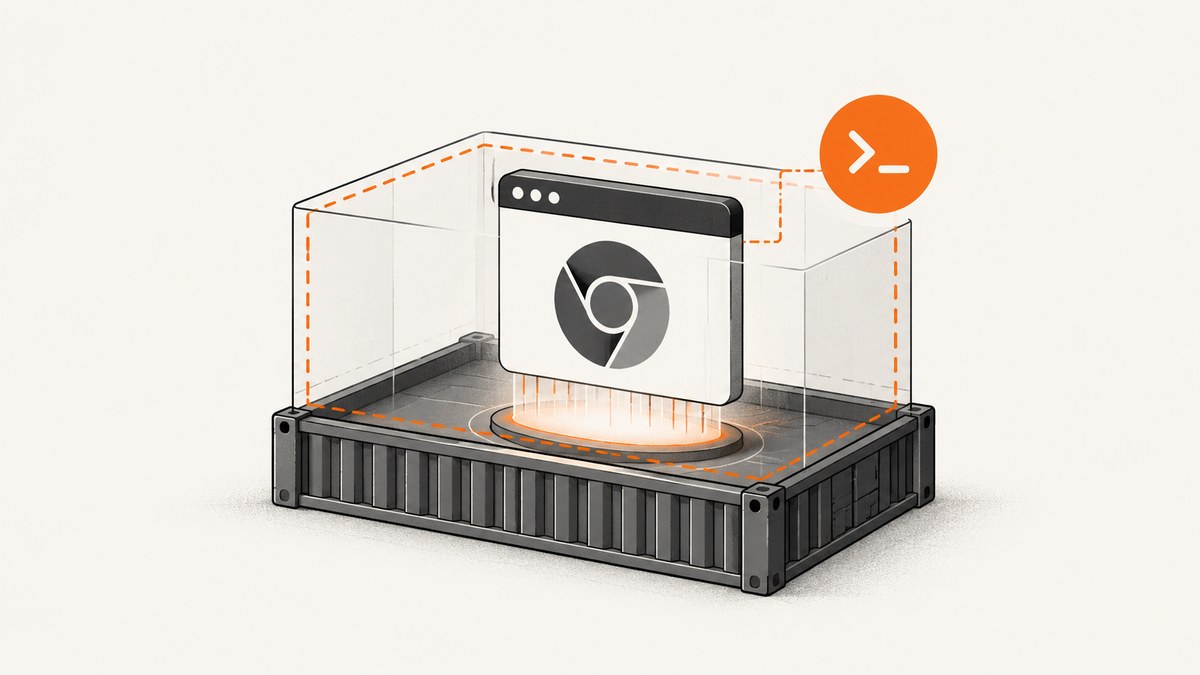
Direct answer: pass --no-sandbox as a launch argument to the Chrome executable or automation framework. For example:
/path/to/portable/chrome \
  --headless \
  --no-sandbox \
  --user-data-dir=/path/to/writable/profile \
  --dump-dom https://example.com/
This is a last-resort workaround, not a portable-Chrome requirement. Chrome documents disabling the sandbox for root-user startup failures as unsupported and highly discouraged. In a container, create a suitable non-root user first; Chrome’s Headless Shell documentation says
See the Chrome startup troubleshooting guidance.--no-sandbox is not needed if you properly setup a user in the container.
What the flag does
Chrome normally uses multiple sandbox layers to isolate browser processes. --no-sandbox disables those protections. The switch only changes sandboxing; it does not enable headless mode, select a binary, create a profile, or solve page-load problems.
“Portable” describes how the browser is distributed. It does not change the security purpose of the sandbox or make disabling it safe by default. This is an inference from Chrome’s warning about the flag and its documentation for portable, version-controlled binaries.
Choose the right Chrome binary and mode
- Current Headless Chrome: invoke the regular Chrome binary with
--headless. Modern Headless shares Chrome’s implementation with headful mode. - Chrome Headless Shell: since Chrome 132.0.6793.0, the old Headless implementation is distributed separately as
chrome-headless-shell. Chrome describes it as lighter, while unified Headless is more authentic and supports more full-Chrome use cases. - Chrome for Testing: use its version-pinned binaries when repeatable automation matters. Pin the browser version rather than depending on an auto-updating installation. Read the Chrome for Testing and version-selection documentation.
The binary choice and the sandbox decision are separate. A lighter shell does not make --no-sandbox safer.
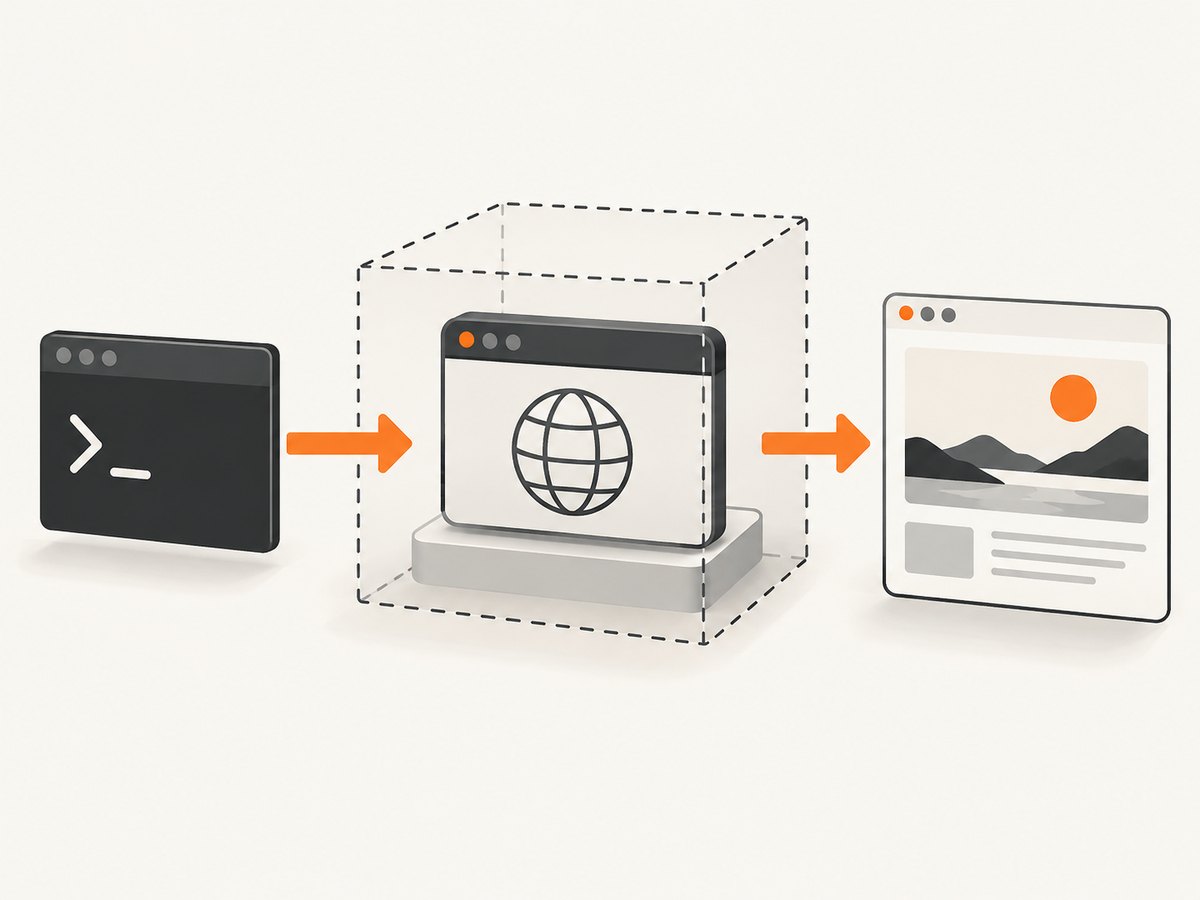
Run the portable binary from a shell
Minimal launch
/path/to/portable/chrome --headless --no-sandbox https://example.com/For automation, add a writable profile and an output operation:
/path/to/portable/chrome \
  --headless \
  --no-sandbox \
  --user-data-dir=/tmp/chrome-profile \
  --dump-dom https://example.com/
The profile directory must be writable by the account running Chrome. Use an operating-system-appropriate temporary or persistent directory. The command illustrates argument placement; it is not a universal launcher recipe and has not been tested here.
Useful launch switches
| Switch | Purpose | Notes |
|---|---|---|
--headless |
Runs without a visible window. | It does not require disabling the sandbox. |
--no-sandbox |
Disables Chrome’s sandbox. | Use only when a constrained environment leaves no supported alternative. |
--user-data-dir=PATH |
Selects the browser profile. | PATH must be writable and isolated when parallel jobs run. |
--dump-dom |
Prints the serialized DOM. | Useful for a simple smoke check. |
--screenshot=FILE |
Writes a screenshot. | Combine with an explicit window size when consistent dimensions matter. |
--window-size=WIDTH,HEIGHT |
Sets the viewport size. | Choose dimensions that match your capture target. |
Configure Puppeteer
Pass the switch in Puppeteer’s launch options. Set executablePath to the portable binary when Puppeteer should not download or select its own browser.
import puppeteer from 'puppeteer';

const browser = await puppeteer.launch({
  executablePath: '/path/to/portable/chrome',
  headless: true,
  args: [
    '--no-sandbox',
    '--user-data-dir=/tmp/puppeteer-profile'
  ]
});

try {
  const page = await browser.newPage();
  await page.setViewport({ width: 1365, height: 768, deviceScaleFactor: 1 });
  await page.goto('https://example.com/', { waitUntil: 'networkidle2', timeout: 60000 });
  await page.screenshot({ path: 'example.png', fullPage: true });
} finally {
  await browser.close();
}
Keep the argument in the launch configuration, not in the page URL or JavaScript executed after startup. If your environment supports a non-root user, remove the flag and verify that Chrome starts normally.
Configure Selenium WebDriver in Python
from selenium import webdriver
from selenium.webdriver.chrome.options import Options

options = Options()
options.binary_location = "/path/to/portable/chrome"
options.add_argument("--headless")
options.add_argument("--no-sandbox")
options.add_argument("--user-data-dir=/tmp/selenium-profile")
options.add_argument("--window-size=1365,768")

# Supply a driver compatible with the browser version in your environment.
driver = webdriver.Chrome(options=options)
try:
    driver.get("https://example.com/")
    driver.save_screenshot("example.png")
finally:
    driver.quit()
ChromeDriver guidance describes --no-sandbox as a Chrome argument added through the WebDriver options object. Driver and browser versions still need to be compatible.
Configure Selenium WebDriver in Node.js
import { Builder } from 'selenium-webdriver';
import chrome from 'selenium-webdriver/chrome.js';

const options = new chrome.Options();
options.setChromeBinaryPath('/path/to/portable/chrome');
options.addArguments(
  '--headless',
  '--no-sandbox',
  '--user-data-dir=/tmp/selenium-node-profile',
  '--window-size=1365,768'
);

const driver = await new Builder()
  .forBrowser('chrome')
  .setChromeOptions(options)
  .build();

try {
  await driver.get('https://example.com/');
  await driver.takeScreenshot().then(data => require('node:fs').writeFileSync('example.png', data, 'base64'));
} finally {
  await driver.quit();
}
Container setup: fix the cause before using the flag
- Check the user with
id. If the process runs as root, create or select a non-root account for browser automation. - Give that account ownership of the portable binary, profile directory, temporary directory, and any download or cache paths Chrome needs.
- Confirm the executable can run and report its version:
/path/to/portable/chrome --version. - Launch with
--headlessonly. - If the environment still cannot provide a supported sandbox setup, document the exception, isolate the job, and add
--no-sandboxdeliberately.
Do not assume that adding the flag fixes every container failure. Missing libraries, permissions, incompatible drivers, a locked profile, and insufficient shared memory produce different errors.
Common errors and fixes
| Symptom | Likely cause | Fix |
|---|---|---|
Running as root without --no-sandbox is not supported |
Chrome is starting as root on Linux. | Prefer a non-root container user. Use the flag only as a constrained-environment workaround. |
| Chrome exits immediately after launch | Wrong binary, missing shared libraries, bad permissions, or an invalid profile path. | Print the binary version, run it directly, inspect stderr, and use a writable --user-data-dir. |
DevToolsActivePort file doesn't exist |
Chrome crashed before WebDriver connected, often because of a profile or environment problem. | Use a unique writable profile, verify the binary and driver versions, and test without parallel launches. |
SessionNotCreatedException |
Driver and browser versions or capabilities do not match. | Pin compatible versions and check the selected executable path. |
| Permission denied for profile or temporary files | The runtime user cannot write to the configured directories. | Create directories first and assign ownership to the browser user. |
| Blank screenshot or incomplete page | Capture happened before navigation, fonts, scripts, or lazy content finished. | Wait for a meaningful selector or network condition and set an explicit timeout. |
| Works locally but fails in CI | Different user, filesystem, libraries, sandbox policy, or browser version. | Log the user, browser version, executable path, arguments, and directory permissions in CI. |
Security considerations
Disabling the sandbox removes an isolation layer. Treat the browser process as more exposed when this switch is present:
- Run the job with the least-privileged user available.
- Restrict network access and filesystem mounts to what the job requires.
- Use isolated, disposable profiles for untrusted pages.
- Keep the portable browser and driver versions controlled and patched.
- Record where the flag is enabled so it is not copied into environments that do not need it.
Chrome’s official guidance does not provide one universal threat model for every container runtime. Match controls to your deployment rather than treating this list as a complete security design.
Reliability and performance
- Version pinning: Chrome for Testing makes browser versions controllable, which reduces surprise changes between runs.
- Startup cost: Reusing a browser process can avoid repeated startup overhead, but isolate profiles and contexts carefully when jobs run concurrently.
- Profile contention: Never point multiple simultaneous Chrome processes at the same profile directory.
- Shared memory: Container limits can cause crashes unrelated to sandboxing. Inspect container memory and shared-memory settings before adding more flags.
- Timeouts: Set navigation and capture timeouts explicitly, and collect stderr so a failed launch is distinguishable from a slow page.
Or skip the browser setup
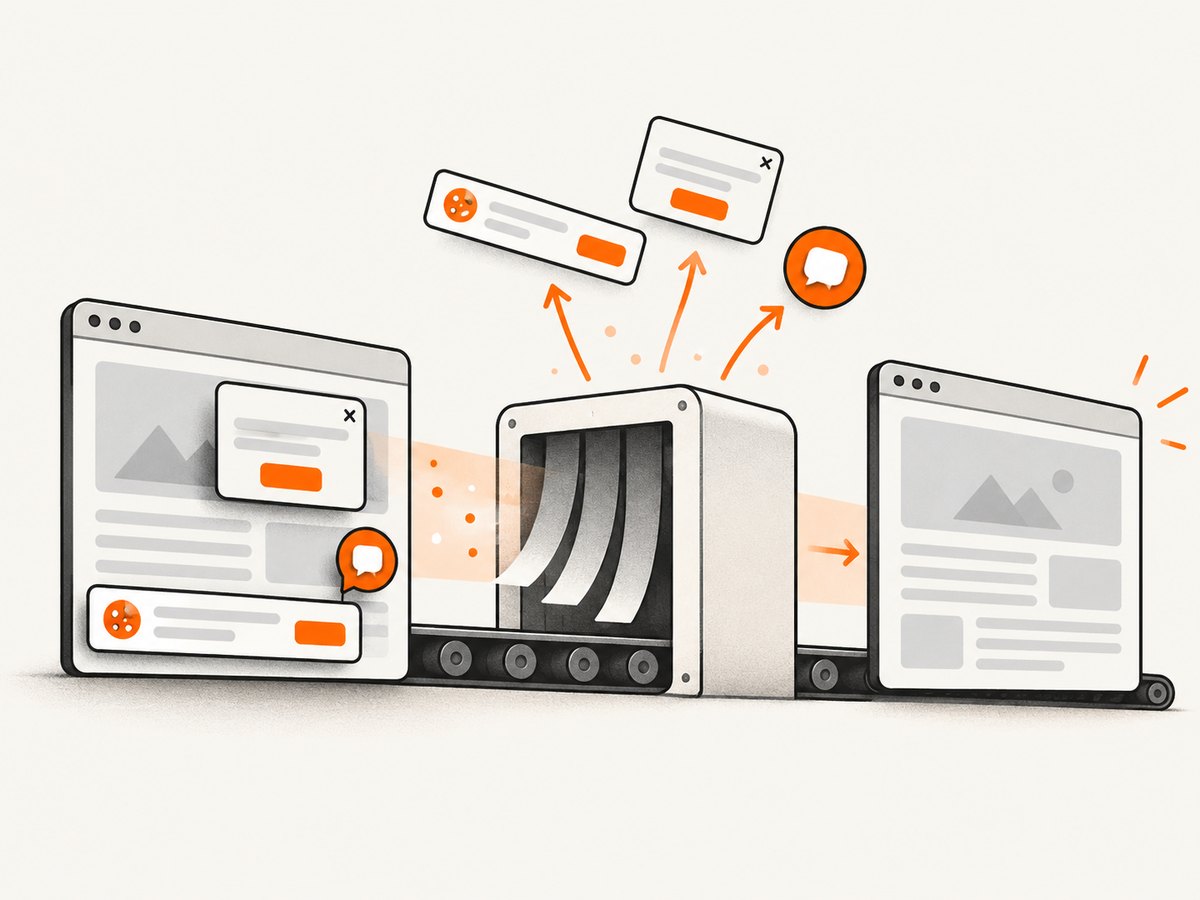
If your goal is a clean website image rather than maintaining Chrome in a container, ScreenshotNeo provides a single HTTP request. Its API handles the browser and capture environment for you; see the ScreenshotNeo API documentation.
curl -G "https://api.screenshotneo.com/v1/shot" -d access_key=YOUR_API_KEY --data-urlencode url=https://stripe.com -o shot.webpimport requests
r = requests.get("https://api.screenshotneo.com/v1/shot", params={"access_key": "YOUR_API_KEY", "url": "https://stripe.com"}, timeout=90)
open("shot.webp", "wb").write(r.content)const q = new URLSearchParams({ access_key: 'YOUR_API_KEY', url: 'https://stripe.com' });
const res = await fetch(`https://api.screenshotneo.com/v1/shot?${q}`);Cookie and consent banners, newsletter popups, and chat widgets are removed before the shot. Bot checks, blank pages, failed loads, timeouts, and cache hits are not billed; response headers identify the page verdict and billing status. ScreenshotNeo also offers an MCP server so Claude, Cursor, and other MCP clients can take screenshots, inspect pages, and capture PDFs. The free plan includes 1,000 screenshots per month with no card; paid plans start at $5 for 3,000.
Create a free ScreenshotNeo account.
FAQ
Does Headless Chrome require --no-sandbox?
No. Headless mode and sandboxing are independent. A correctly configured non-root container should normally run without this switch.
Does a portable binary need a special flag?
No. Portable distribution changes how you obtain the executable, not how sandbox security works.
Should I use chrome-headless-shell?
Choose it when its lighter footprint fits your workload. Choose current unified Headless when you need behavior closer to full Chrome.
Where should the flag be added in Selenium?
Add it to the Chrome options object before creating the WebDriver session.
How can I prove which Chrome is launching?
Log the absolute executable path and run that binary with --version before starting automation.


