How to Set the Open Graph Image in Yoast SEO
Set a custom Open Graph image in Yoast SEO, understand image fallbacks, and fix previews that show the wrong or missing image.

Short answer: Enable Open Graph data in Yoast SEO > Settings > Site features > Social sharing. Then edit the post or page, open Social media appearance in the Yoast sidebar (or the Social tab in the classic meta box), upload or select the image, and update the content. If the social network still shows an old image, clear your caches and request a fresh crawl with that platform’s debugger.
This guide explains the complete process, including homepage settings, image fallbacks, dimensions, duplicate metadata, cache problems, and a practical way to create a clean image from a page when you do not already have one.
1. How Yoast chooses an Open Graph image
Open Graph metadata is placed in the page’s <head> so social platforms can build a link preview. Yoast’s specification describes a priority order rather than a single universal image setting. For an individual post or page, the order is generally:
- The image explicitly selected in Yoast’s Social media appearance editor.
- The post’s featured image.
- A prominent image found in the page content.
- For WooCommerce products, the first product-gallery image when Yoast SEO WooCommerce is active.
- The social default configured for that content type.
- The site-wide fallback social image.
That order explains why changing a site-wide default may not change one particular post: a higher-priority image is already available. Author archives use a separate fallback sequence that can include the content-type default, the author’s Gravatar, and the site fallback. See Yoast’s OpenGraph functional specification for the field behavior.
2. Enable Open Graph data in Yoast SEO
- Sign in to WordPress with an account that can change Yoast settings.
- Go to Yoast SEO > Settings > Site features > Social sharing.
- Find Open Graph data.
- Turn it on if it is disabled, then save the settings.
Yoast says Open Graph output is enabled by default, but checking this switch is the fastest way to explain missing og:image, og:title, or og:description tags. If your version uses slightly different labels, look for the equivalent Social sharing or Open Graph control.
3. Set the image for a post or page
Block editor
- Open the post or page in WordPress.
- Open the Yoast panel in the editor sidebar.
- Select Social media appearance.
- Choose the social network preview if your installation offers separate previews.
- In the image field, upload an image or select one from the Media Library.
- Optionally set the social title and social description. These can differ from the SEO title and meta description.
- Click Update or Publish.
Classic editor
Scroll to the Yoast meta box below the editor, open the Social tab, and set the image, title, and description there. Save or update the post after making the change.

The image selected here is the highest-priority choice for that post or page. It does not change the featured image shown in your theme or in archive listings.
4. Configure products, categories, tags, and the homepage
Products, categories, and tags
Open the relevant taxonomy or product editor and use its Social tab. Set the image, social title, and social description just as you would for a post. This is useful when a category archive needs a deliberate image rather than the first image found on the page.
Static homepage
If WordPress uses a static page as the homepage, edit that page and set its image in Social media appearance. The page-level setting applies to the homepage URL.
Homepage showing latest posts
If the homepage displays the latest posts, configure it under Yoast SEO > Settings > Content types > Homepage > Social appearance. Save the settings there. Editing an unrelated page will not change the archive-style homepage preview.
5. Choose an image that survives social previews
Yoast’s troubleshooting guidance gives these practical limits:
| Guidance | Yoast recommendation |
|---|---|
| Minimum dimensions | 200 × 200 pixels |
| Maximum recommended dimensions | 2000 × 1600 pixels |
| File size | Less than 2 MB |
These are Yoast’s guidance, not a permanent guarantee from every social platform. Use a clear subject with enough empty space for platform cropping. Put essential detail near the center, because some networks use a wide crop while others use a square or vertical crop. Use a stable public URL, a common image format such as JPEG or PNG, and an image that does not require authentication to download.
Do not confuse the Open Graph image with the WordPress featured image. They may be identical, but the Social media appearance field lets you choose a separate asset for sharing.
6. Inspect the generated tags before debugging a platform
Open the public URL in a private browser window, view the page source, and search for:
<meta property="og:image" content="https://example.com/wp-content/uploads/share-image.jpg">
<meta property="og:title" content="Your social title">
<meta property="og:description" content="Your social description">
<meta property="og:url" content="https://example.com/page/">
Also check that the image URL returns a successful response without a login challenge. If the tags are absent, fix Yoast settings or plugin conflicts first. If the tags are correct but a social network shows an older card, the issue is usually platform caching.
7. Troubleshooting: wrong, missing, or stale images
There is no og:image tag
- Cause: Open Graph data is disabled, Yoast is not outputting metadata, or another SEO plugin has replaced it.
- Fix: Enable Open Graph data, clear caches, and inspect the source again. Make sure only one plugin is responsible for Open Graph output.
The featured image appears instead of my selected image
- Cause: The custom image was not saved in Social media appearance, or you are viewing a different URL such as an archive or canonical URL.
- Fix: Reopen the exact post, save the Social tab, confirm the canonical URL, and inspect that URL’s source.
The old image still appears after an update
- Cause: Server, theme, plugin, CDN, or social-platform cache.
- Fix: Purge relevant WordPress and CDN caches, then use the platform’s debugger or link preview refresh tool to request a new crawl. Yoast specifically recommends Facebook’s debugger for Facebook previews.
Two different images appear in the source
- Cause: Yoast and another plugin or theme are both emitting Open Graph tags.
- Fix: Disable Open Graph output in one system. Duplicate tags can cause a platform to select the wrong image or text.
The image is rejected or not downloaded
- Cause: The file is too large, below the minimum dimensions, blocked by authentication, redirected unexpectedly, or unavailable to crawlers.
- Fix: Keep the file under 2 MB, use at least 200 × 200 pixels, test the public URL while logged out, and check firewall or hotlink-protection rules.
The homepage uses the wrong image
- Cause: The site uses a latest-posts homepage, but the image was set on a static page.
- Fix: Configure Content types > Homepage > Social appearance in Yoast settings.
8. Create a clean social image from a web page
If your social image is a rendered web page, dashboard, report, or landing page, a browser screenshot can produce the asset. A do-it-yourself workflow uses a headless browser such as Playwright or Puppeteer:
- Launch Chromium in a controlled environment.
- Set the viewport and device scale factor.
- Navigate to the public page and wait for the required content.
- Hide cookie banners, chat widgets, and other overlays with CSS or JavaScript.
- Capture the viewport or full page.
- Resize or compress the result below your chosen file limit.
- Upload it to WordPress and select it in Yoast’s Social media appearance field.
A minimal Playwright example:
import { chromium } from 'playwright';

const browser = await chromium.launch({ headless: true });
const page = await browser.newPage({
  viewport: { width: 1200, height: 630 },
  deviceScaleFactor: 1
});
await page.goto('https://example.com', { waitUntil: 'networkidle' });
await page.screenshot({ path: 'og-image.png', type: 'png' });
await browser.close();
For production use, add timeouts, retries, a fixed browser version, and selectors for content that must be present. Avoid capturing private dashboards or pages whose terms prohibit automated access. If the page uses lazy-loaded images, scroll or wait for the relevant selector before capture.
9. Or skip the browser setup
ScreenshotNeo provides a website screenshot API and MCP server. It can render a URL as PNG, JPEG, WebP, or PDF and includes options for full-page capture, a CSS element, custom CSS and JavaScript, dark mode, device presets, retina scale, waits, cookies, headers, geolocation, blocking, resizing, caching, signed links, asynchronous jobs, bulk capture, and usage reporting. The API accepts the same parameter names used by many screenshot services, which helps when switching.
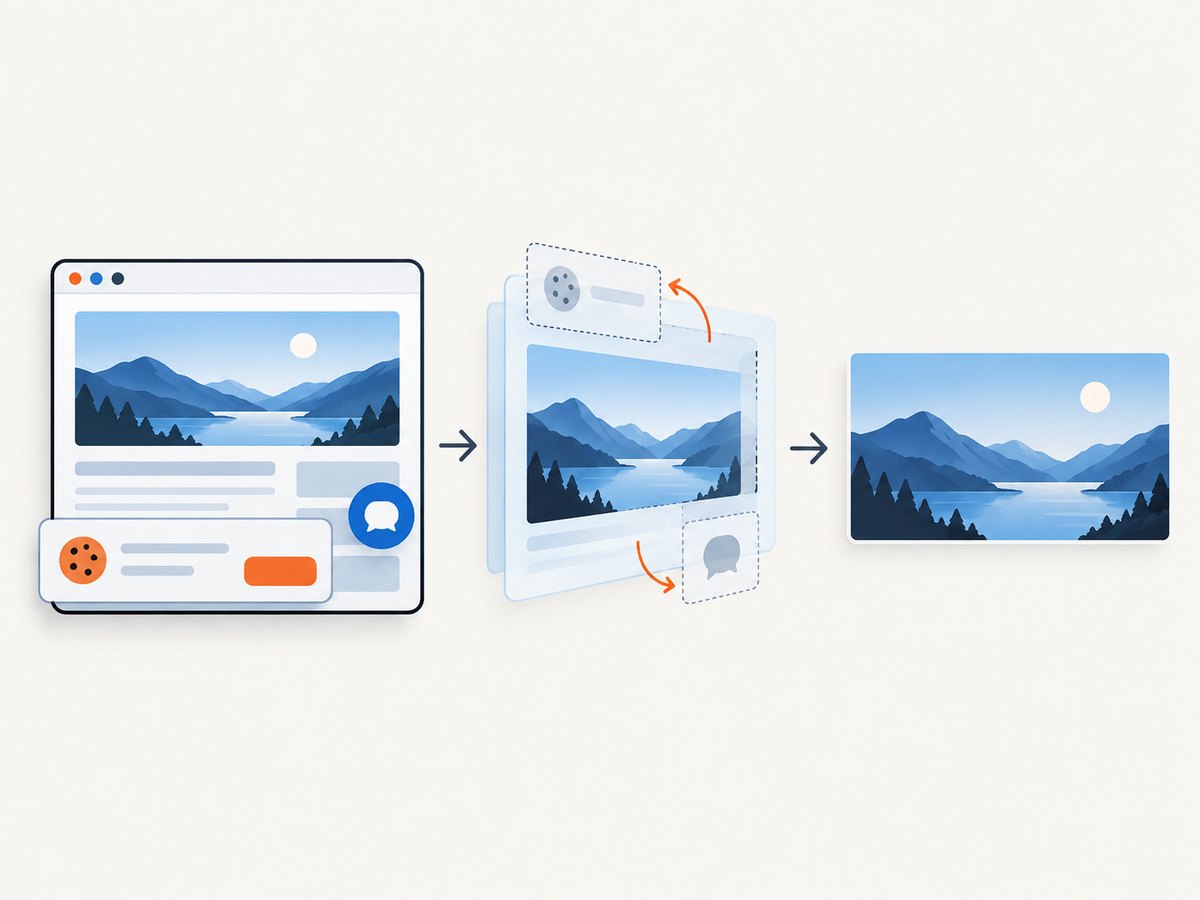
One request can create an image sized for a social card:
curl -G "https://api.screenshotneo.com/v1/shot" \
  -d access_key=YOUR_API_KEY \
  --data-urlencode url=https://stripe.com \
  -d width=1200 \
  -d height=630 \
  -o og-image.webp
Python:
import requests

r = requests.get(
    "https://api.screenshotneo.com/v1/shot",
    params={
        "access_key": "YOUR_API_KEY",
        "url": "https://stripe.com",
        "width": 1200,
        "height": 630,
    },
    timeout=90,
)
r.raise_for_status()
open("og-image.webp", "wb").write(r.content)
Node.js:
const q = new URLSearchParams({
  access_key: 'YOUR_API_KEY',
  url: 'https://stripe.com',
  width: '1200',
  height: '630'
});
const res = await fetch(`https://api.screenshotneo.com/v1/shot?${q}`);
if (!res.ok) throw new Error(`Screenshot failed: ${res.status}`);
const fs = await import('node:fs/promises');
await fs.writeFile('og-image.webp', Buffer.from(await res.arrayBuffer()));
See the ScreenshotNeo documentation for the complete parameter list and response behavior. Cookie banners, newsletter popups, and chat widgets are removed before capture; each step can be turned off. Bot checks, blank pages, timeouts, failed loads, and cache hits are not billed, and response headers identify the page verdict and billing status. Its MCP server lets Claude, Cursor, and other MCP clients call take_screenshot, get_page_info, and capture_pdf.
The Free plan includes 1,000 shots per month with no card. Paid plans start at $5 for 3,000 shots; yearly billing gives two months free, and every feature is available on every plan. After downloading the image, upload it to WordPress, select it in Yoast’s Social media appearance panel, update the page, and refresh the social preview.
Create a free ScreenshotNeo account and get 1,000 screenshots each month with no card.
10. Performance, reliability, and cost considerations
- Cache the finished asset: Generate the image when content changes, then store the file in WordPress or object storage. Do not render the page for every social crawler.
- Use deterministic settings: Keep viewport, device scale, timezone, locale, and custom CSS fixed so repeated captures produce predictable images.
- Wait for the right condition: Network idle can be slow on pages with analytics; a selector wait or short delay may be more reliable when you know the hero element.
- Control file size: WebP or optimized JPEG usually produces a smaller social asset than an uncompressed PNG. Verify that your target platform accepts the chosen format.
- Check billing headers: ScreenshotNeo responses include
X-Page-VerdictandX-Billed, so automation can distinguish a clean billed capture from a failed or cached response. - Retry carefully: Retry transient network errors with backoff, but do not blindly repeat a request when the page is blocked or requires a CAPTCHA.
11. Final checklist
- Open Graph data is enabled in Yoast.
- The image is set in the correct post, page, product, taxonomy, or homepage editor.
- The image is at least 200 × 200 pixels, preferably within Yoast’s 2000 × 1600 recommendation, and under 2 MB.
- The public page source contains one correct
og:imagetag. - No second plugin or theme emits conflicting Open Graph tags.
- WordPress, theme, plugin, CDN, and social-platform caches have been refreshed.
- The final preview has been checked with the relevant platform debugger.
FAQ
Can I use a different image from the featured image?
Yes. Set the alternative in Yoast’s Social media appearance editor. That custom social image has priority over the featured image.
Does changing the Yoast image change old posts already shared?
No. Existing social posts keep their stored preview. A new crawl affects future shares and refreshed previews.
Why does the source show the right image but Facebook shows another one?
Facebook may have cached an earlier crawl. Use its debugger to request a refresh after confirming the public HTML and image URL are correct.
Should I set an image for every post?
Set one when the share image matters. Otherwise Yoast follows its fallback order, which may use the featured image, an in-content image, or a configured default.
Can ScreenshotNeo capture only the hero section?
Yes. Use its element capture option with a CSS selector, then upload the resulting image to the Yoast Social media appearance field.


