How to Set an Owner Password on a PDF
Set a PDF owner password in Acrobat, qpdf, or Python, configure permissions, and understand what these restrictions can and cannot protect.
Direct answer: A PDF owner password is the permissions password. It controls whether a compatible PDF viewer allows editing, printing, copying, commenting, and related security changes. It is different from a user password, also called an open password, which is required to open the file.
For a graphical workflow, use Acrobat’s Protect a PDF tool and choose Editing. For automation, use qpdf from the command line or pikepdf in Python. Use a strong owner password and 256-bit encryption when recipient compatibility permits it.
1. Owner password vs. open password
| Password | Purpose | Typical result |
|---|---|---|
| Owner password | Controls permissions and security changes | Readers may open the file but are asked to honor restrictions |
| User password | Controls opening the file | Readers must enter the password before viewing |
You can set both passwords, or set only an owner password with a blank user password. A blank user password allows anyone to view the file while the owner password controls permitted operations in compliant viewers.
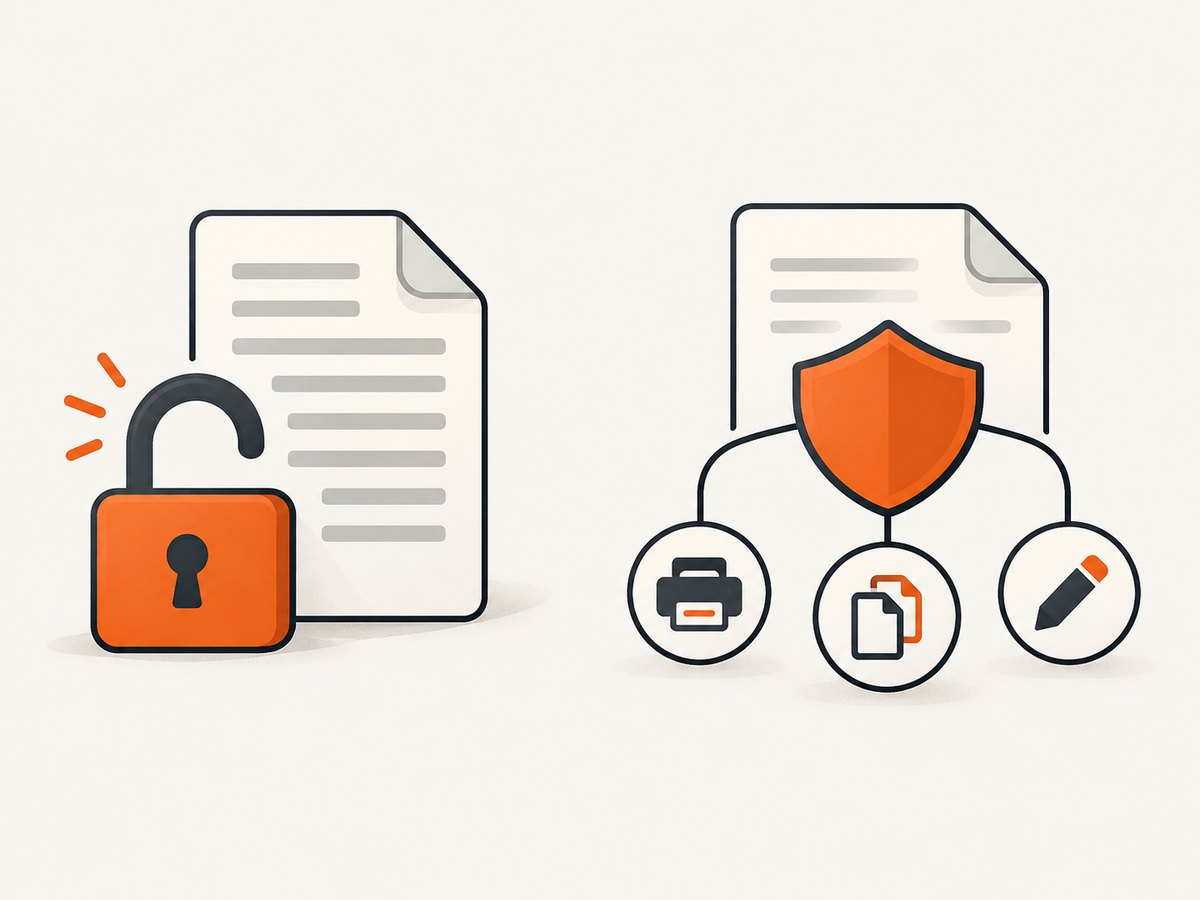
These controls are not absolute DRM. Viewer applications decide how strictly to enforce permissions. Someone who has either password can create a visually identical copy, and a static PDF can be subjected to unlimited offline password guesses. Use a separate confidentiality or access-control system when you need revocation or strong protection against copying.
2. Set an owner password in Adobe Acrobat
- Open the PDF in Acrobat.
- Select All tools.
- Choose Protect a PDF.
- Select Protect with password.
- In the password choice, select Editing. This sets a permissions password rather than a password required to open the file.
- Enter the password, retype it, and apply the protection.
- Save the protected PDF, preferably as a new file until you have verified the result.
Acrobat can also restrict copying, changing, and printing, and supports password or certificate encryption. Its web workflow is limited to setting a viewing password; use Acrobat desktop when you need editing and permission controls. See Adobe’s Acrobat password instructions and its password-protection guide.
Choose Acrobat permission settings
- Printing: disallow printing, allow low-resolution printing, or allow high-resolution printing, depending on the Acrobat version.
- Changes: disallow changes or allow selected changes such as form filling, commenting, or page assembly.
- Copying: disable content copying when your recipients’ viewer honors that flag.
- Accessibility: consider whether screen-reader access should remain enabled when restricting copying.
3. Set an owner password with qpdf
qpdf is suitable for repeatable builds, CI jobs, and server-side processing. Its encryption command accepts a user password, an owner password, and a key length.
qpdf --encrypt user-password owner-password 256 -- input.pdf output.pdfThe positional form above creates output.pdf from input.pdf. Replace both passwords with secure values. If you want the PDF to open without a prompt, pass an empty user password:
qpdf --encrypt '' 'use-a-long-random-owner-password' 256 -- input.pdf output.pdfqpdf supports 40-, 128-, and 256-bit keys and recommends 256-bit encryption unless compatibility requirements require an older setting. The owner password is the credential that allows a conforming reader to change or override security restrictions. Consult the qpdf encryption manual for the option form and compatibility details.
Use explicit qpdf options in scripts
qpdf --empty --pages input.pdf 1-z -- \
  --encrypt '' "$OWNER_PASSWORD" 256 \
  -- output.pdf
Keep passwords out of shell history and source files. Supply them through a secret manager or protected environment variable in production, and restrict access to generated PDFs and logs.
4. Set an owner password with Python and pikepdf
Install pikepdf in an isolated environment:
python -m pip install pikepdfThis complete script leaves the user password blank, sets an owner password, and disables content extraction in viewers that enforce the permission:
import os
import pikepdf

owner_password = os.environ["PDF_OWNER_PASSWORD"]

with pikepdf.open("input.pdf") as pdf:
    pdf.save(
        "output.pdf",
        encryption=pikepdf.Encryption(
            user="",                  # no open-password prompt
            owner=owner_password,
            allow=pikepdf.Permissions(
                extract=False,
            ),
        ),
    )
Run it with a secret supplied by the environment:
PDF_OWNER_PASSWORD='use-a-long-random-password' python protect_pdf.pyCommon pikepdf permission controls
allow=pikepdf.Permissions(
    print_lowres=False,
    print_highres=False,
    modify_annotation=False,
    modify_form=False,
    modify_other=False,
    extract=False,
    accessibility=True,
    assemble=False,
)
Permission names and defaults vary by pikepdf version. Check the pikepdf security documentation for the version installed in your environment. Its tutorial uses pikepdf.Encryption(user=..., owner=..., allow=...) and describes AES-256 as the strongest available handler by default.
5. Verify that the protection was applied
- Open the output in Acrobat or another standards-compliant viewer.
- Inspect document properties or security settings to confirm that encryption and permissions are enabled.
- Try the operations you meant to restrict: printing, copying text, editing, commenting, and page assembly.
- Open the file on a second viewer if recipient compatibility matters.
- Confirm that the original file remains available if you need an unrestricted archival copy.
A viewer may still permit an operation that another viewer blocks. That is expected for advisory PDF permissions and does not necessarily mean your command failed.
6. Troubleshooting
| Symptom | Cause | Fix |
|---|---|---|
| The PDF asks for a password before opening | A user password was set | Use user="" in pikepdf or an empty first password in qpdf if viewing should be open. |
| Readers can still copy or print | The viewer does not enforce advisory permissions | Test with a compliant viewer; use separate access controls when copying must be prevented. |
| qpdf reports an invalid encryption argument | Passwords, key length, or option order are malformed | Use qpdf --encrypt user owner 256 -- input.pdf output.pdf and quote passwords containing shell characters. |
| pikepdf raises an encryption or permission error | Installed versions or permission names differ | Check python -m pip show pikepdf and match the API in that version’s documentation. |
| The output is much larger | Encryption rewrote object streams or image data | Compare file size and viewer behavior; avoid unnecessary recompression and keep the original for archival use. |
| The owner password is lost | There is no recovery mechanism for a forgotten secret | Restore from an unrestricted source or a securely stored backup; do not rely on the protected PDF as your only copy. |
| Accessibility tools cannot extract text | Extraction or accessibility permissions were disabled | Enable accessibility and extraction where required by your audience and policy. |
7. Security, performance, and cost considerations
Security
- Use a long, randomly generated owner password. Do not reuse an account password.
- Use AES-256 or qpdf’s 256-bit setting unless an older recipient viewer requires another key length.
- Do not put passwords in command history, source control, CI logs, or error messages.
- Keep an unrestricted source under access control so you can regenerate the protected file.
- For confidential documents, combine PDF encryption with authenticated delivery, expiry, revocation, or a document-management system.
Performance
Applying encryption requires rewriting the PDF, so runtime and output size depend on page count, embedded images, fonts, and object streams. Batch jobs should write to local temporary storage, process files sequentially or with a bounded worker pool, and verify each output before publishing it.
Cost
Acrobat is the simplest desktop option but may require a paid Acrobat plan. qpdf and pikepdf are automation-oriented open-source tools; your practical costs are compute, storage, and secret management. Choose based on whether you need a graphical workflow, repeatability, or granular scripted permissions.
8. Or skip the browser setup
If your workflow starts with a webpage that must become a PDF, ScreenshotNeo can capture the page or generate a PDF through one API request. It does not set a PDF owner password; run qpdf or pikepdf on the returned PDF when you need permissions protection.
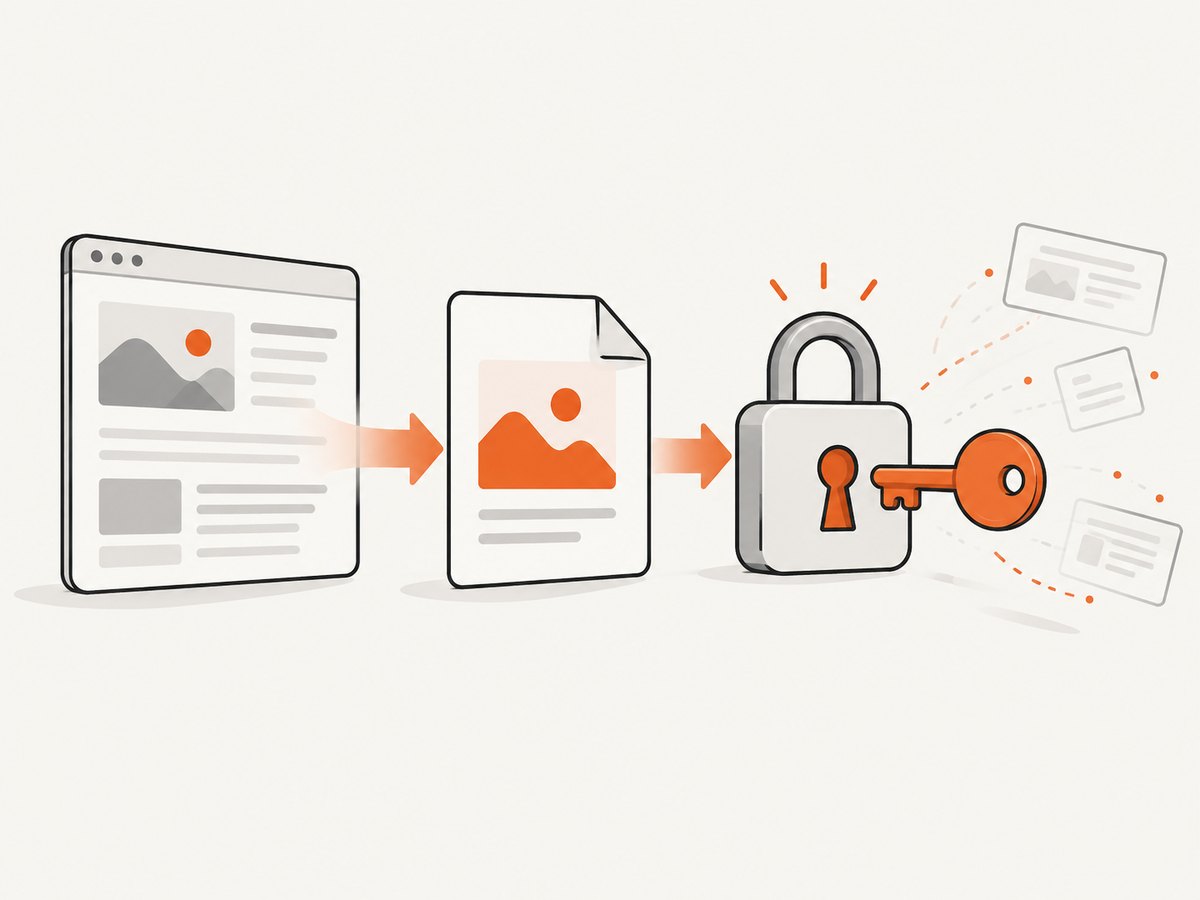
ScreenshotNeo removes cookie and consent banners, newsletter popups, and chat widgets before capture. Bot checks, blank pages, failed loads, timeouts, and cache hits are not billed, and each response reports the result in X-Page-Verdict and X-Billed headers. Its MCP server provides take_screenshot, get_page_info, and capture_pdf tools for Claude, Cursor, and other MCP clients.
See the ScreenshotNeo API documentation for PDF options and authentication.
cURL
curl -G "https://api.screenshotneo.com/v1/shot" \
  -d access_key=YOUR_API_KEY \
  --data-urlencode url=https://stripe.com \
  -o shot.webp
Python
import requests

r = requests.get(
    "https://api.screenshotneo.com/v1/shot",
    params={"access_key": "YOUR_API_KEY", "url": "https://stripe.com"},
    timeout=90,
)
r.raise_for_status()
open("shot.webp", "wb").write(r.content)
Node.js
const q = new URLSearchParams({ access_key: 'YOUR_API_KEY', url: 'https://stripe.com' });
const res = await fetch(`https://api.screenshotneo.com/v1/shot?${q}`);
if (!res.ok) throw new Error(`HTTP ${res.status}`);
const data = Buffer.from(await res.arrayBuffer());
require('node:fs').writeFileSync('shot.webp', data);
Plans include 1,000 screenshots per month free with no card. Paid plans start at $5 for 3,000 shots, and every feature is available on every plan. Create a free ScreenshotNeo account.
9. FAQ
Does an owner password stop someone from opening a PDF?
No. Use a user/open password when opening the file must require a secret.
Can I set only an owner password?
Yes. A blank user password allows viewing without a prompt while retaining permissions metadata for compliant viewers.
Is a PDF owner password encryption?
Yes, the PDF is encrypted, but permissions remain advisory because viewers differ in enforcement.
Which method is best for automated pipelines?
Use qpdf for shell and CI workflows or pikepdf when the surrounding pipeline is Python.
Should I use 256-bit encryption?
Use 256-bit encryption when recipient compatibility allows it. qpdf supports 40-, 128-, and 256-bit keys and recommends 256-bit encryption.
Can ScreenshotNeo add the owner password?
No. ScreenshotNeo can capture a webpage or produce a PDF; apply the owner password afterward with Acrobat, qpdf, or pikepdf.


