How to Set Page Breaks in PDFs with iTextRenderer
Force new PDF pages with iTextRenderer using CSS, control margins and sizes, keep sections together, and fix common pagination problems.

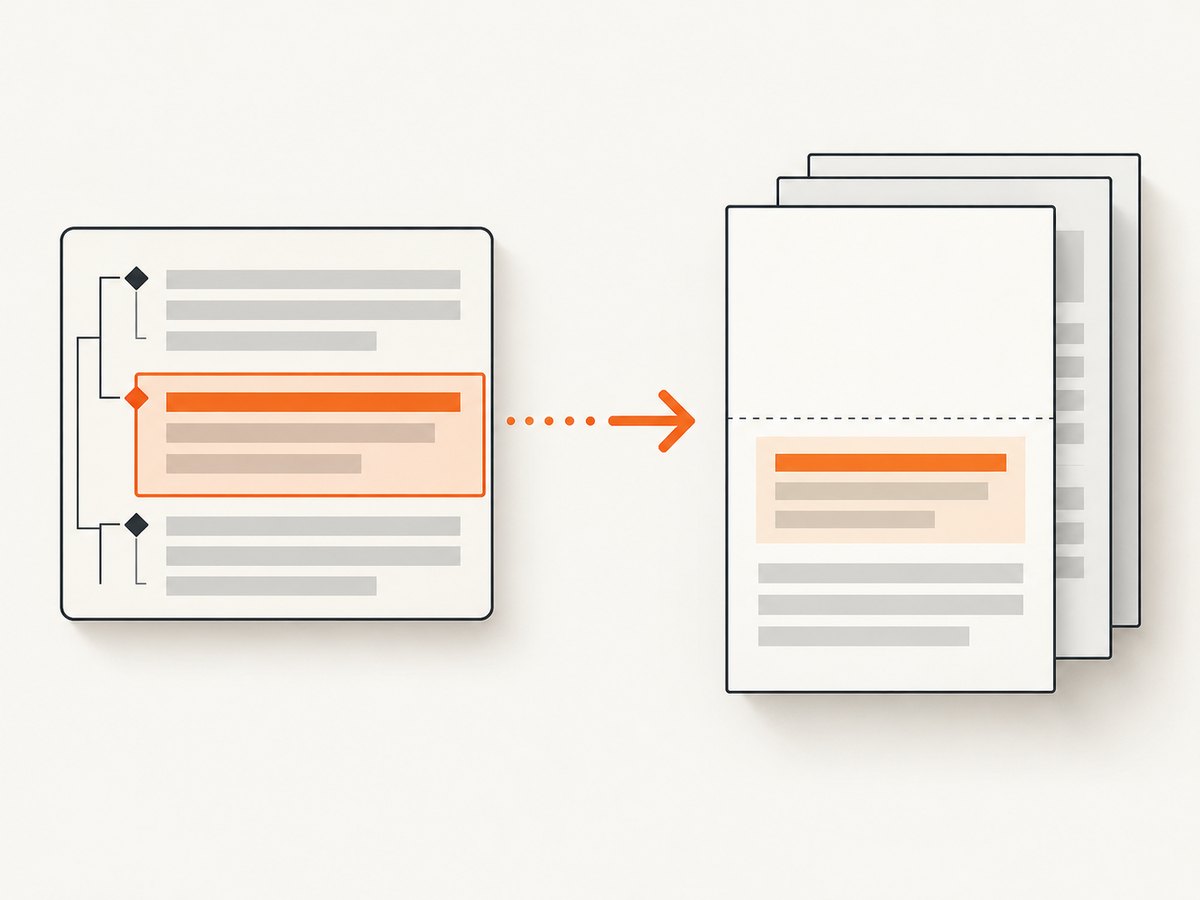
Put page-break-before: always on the XHTML element that must start on a new PDF page. In Flying Saucer’s ITextRenderer, CSS controls pagination. You can also put page-break-after: always on the preceding section, use page-break-inside: avoid as a keep-together hint, and define page size and margins with @page.
<style>
  @page {
    size: A4;
    margin: 1in;
  }

  .new-page {
    page-break-before: always;
  }
</style>

<section>
  <h1>Report summary</h1>
  <p>This content ends naturally.</p>
</section>

<section class='new-page'>
  <h1>Next section</h1>
  <p>This section begins on a fresh PDF page.</p>
</section>
Flying Saucer is a Java XHTML and CSS 2.1 renderer that can produce PDFs. Its official guide states that it supports all CSS page-break properties. Check the exact dependency version before copying examples: the current project README lists Java 11 or later for 9.5.x, Java 17 or later for 9.6.x, and Java 21 or later for 10.x. See the Flying Saucer user guide and the project README.
1. Choose the page-break rule for the boundary
Start the next element on a new page
Apply page-break-before: always to the heading, section, or other block that should begin on the next page.
.chapter {
  page-break-before: always;
}
This is usually the clearest approach for reports because the rule stays with the section being introduced.
End the previous element before a new page
Apply page-break-after: always to the content that must finish the current page.
.summary {
  page-break-after: always;
}
Use this when the preceding block is the stable boundary, such as a cover page or an appendix that always ends before a new section.
Try to keep a block together
Use page-break-inside: avoid on tables, figures, cards, or short sections that should not be split.
.result-card {
  page-break-inside: avoid;
}
avoid is a preference, not an absolute guarantee. If an element is taller than a page, Flying Saucer cannot keep it together and drops the impossible constraint. The guide also notes that page-break-before: avoid and page-break-after: avoid consider adjacent siblings at the relevant break location.
2. A complete Java example
The following example loads XHTML from a string, sets a base URL for relative resources, and writes a PDF. The APIs for setting a parsed document, loading a string, and supplying a base URL are exposed by ITextRenderer; see its current source.
Maven dependency
<dependency>
  <groupId>org.xhtmlrenderer</groupId>
  <artifactId>flying-saucer-pdf</artifactId>
  <version>9.6.0</version>
</dependency>
Use the version already approved by your application and match its Java baseline. The artifact and Java requirements can change between Flying Saucer releases.
Runnable renderer class
import java.io.FileOutputStream;
import java.nio.charset.StandardCharsets;
import java.nio.file.Files;
import java.nio.file.Path;
import org.xhtmlrenderer.pdf.ITextRenderer;

public final class ReportPdf {
    public static void main(String[] args) throws Exception {
        String xhtml = """
            <!DOCTYPE html>
            <html xmlns='http://www.w3.org/1999/xhtml'>
            <head>
              <meta charset='UTF-8' />
              <style>
                @page {
                  size: A4;
                  margin: 20mm 18mm 20mm 18mm;
                }
                body {
                  font-family: sans-serif;
                  font-size: 11pt;
                }
                .chapter {
                  page-break-before: always;
                }
                .keep-together {
                  page-break-inside: avoid;
                }
              </style>
            </head>
            <body>
              <section>
                <h1>Executive summary</h1>
                <p>This section can flow naturally.</p>
              </section>
              <section class='chapter'>
                <h1>Detailed findings</h1>
                <div class='keep-together'>
                  <h2>Finding one</h2>
                  <p>This small block should stay together when it fits.</p>
                </div>
              </section>
            </body>
            </html>
            """;

        Path output = Path.of("report.pdf");
        ITextRenderer renderer = new ITextRenderer();
        renderer.setDocumentFromString(xhtml, Path.of(".").toAbsolutePath().toUri().toString());
        renderer.layout();
        try (FileOutputStream stream = new FileOutputStream(output.toFile())) {
            renderer.createPDF(stream);
        }
        System.out.println("Wrote " + output.toAbsolutePath());
    }
}
The XHTML must be well formed. Close empty elements such as <meta />, <img />, and <br />. If your document references a stylesheet, image, or font with a relative URL, provide a base URL that resolves those paths.
3. Control page size, margins, and orientation
Use the CSS @page rule for PDF geometry. Margins change the usable content area, so they also change where natural breaks occur.

@page {
  size: Letter;
  margin: 0.75in 0.8in 0.75in 0.8in;
}

@page landscape-page {
  size: A4 landscape;
  margin: 15mm;
}

.landscape-section {
  page: landscape-page;
  page-break-before: always;
}
The R8 guide documents page size, margins, and the :first, :right, and :left pseudo-pages. Named-page support differs across versioned documentation, so verify it against the release in your build before depending on it.
4. Tables, images, and long content
Tables
Apply page-break-inside: avoid to a table only when the table is expected to fit on one page. A long table cannot be kept intact. For a table that may span pages, let rows flow and avoid putting an unconditional break on every row.
table {
  width: 100%;
  border-collapse: collapse;
}

thead {
  display: table-header-group;
}

.report-table {
  page-break-inside: auto;
}

.summary-table {
  page-break-inside: avoid;
}
Figures and images
Keep a caption with a figure when the combined block fits within a page. Confirm that image paths resolve from the base URL and that the image dimensions do not exceed the printable area.
.figure {
  page-break-inside: avoid;
}

.figure img {
  max-width: 100%;
}
Oversized sections
A forced break can start a section cleanly, but it cannot make content smaller. If a section is taller than one page, split it into logical blocks or allow it to flow. Do not rely on avoid for multi-page content.
5. A practical pagination checklist
- Put
page-break-before: alwayson the block that must start a new page. - Use
page-break-after: alwayswhen the preceding block defines the boundary. - Use
page-break-inside: avoidfor small blocks, figures, and short tables. - Define
@pagesize and margins before tuning individual breaks. - Keep XHTML well formed and close every element.
- Set a base URL when relative stylesheets, images, or fonts are used.
- Check the actual Flying Saucer version and Java runtime in production.
- Inspect several content lengths; a break that works for one report may move when text grows.
6. Troubleshooting common pagination errors
| Symptom | Cause | Fix |
|---|---|---|
| The section does not start on a new page | The rule is on an inline element, malformed CSS, or the XHTML is not parsed as expected. | Put page-break-before: always on a block element such as section or div; validate the XHTML and CSS. |
A block still splits despite avoid |
The block is taller than the page or the constraint conflicts with available space. | Shorten or split the block. Treat avoid as a preference. |
| Images or styles are missing | Relative URLs cannot be resolved. | Pass a correct base URL to setDocumentFromString or use absolute, accessible resource paths. |
| Fonts or symbols render incorrectly | The font is unavailable or not loaded by the renderer. | Install or register the required font and verify the resource URL in the runtime environment. |
| Content is clipped at the edge | The content is wider or taller than the printable area after margins. | Reduce dimensions, adjust @page margins, or change page size and orientation. |
| Blank pages appear | Adjacent forced breaks, an empty block with a break rule, or an unintended page assignment. | Inspect neighboring elements and remove duplicate always rules. |
| The Java example fails at startup | The dependency version requires a newer Java runtime. | Match Java to the Flying Saucer release, or select a dependency version supported by your runtime. |
| HTML works in a browser but not in the PDF | Flying Saucer targets well-formed XHTML and CSS 2.1, not the full modern browser platform. | Simplify markup and CSS to supported XHTML/CSS, and test resource loading explicitly. |
7. Performance and reliability
Pagination is performed during renderer.layout(), so document size, image dimensions, font loading, and the number of CSS rules affect generation time and memory use. Keep images close to their display resolution, avoid unnecessarily large embedded assets, and split very large reports into sensible sections when your workflow permits.
For reliable output, make resource URLs deterministic, package required fonts and images with the application, use a fixed locale and timezone where dates are rendered, and log the input identifier and renderer version for failed jobs. Generate to a temporary file and move it into place only after createPDF completes, so readers never receive a partially written PDF.
8. When an API is a better fit
If the source is already a web page and you do not need to manage a Java renderer, a screenshot or PDF API can remove browser setup, resource installation, and pagination plumbing.
Or skip the browser setup
ScreenshotNeo is a website screenshot API and MCP server. It can return a clean screenshot or PDF from one GET request. Before capture it accepts consent banners and removes more than 60 known consent platforms, newsletter popups, and chat widgets. Bot checks, blank pages, timeouts, failed loads, and cache hits are not billed, and the response reports the page verdict and billing status in headers. Its MCP server provides take_screenshot, get_page_info, and capture_pdf tools for Claude, Cursor, and other MCP clients.
See the ScreenshotNeo documentation for PDF options such as paper size, margins, landscape mode, and page ranges.
curl -G 'https://api.screenshotneo.com/v1/shot' -d access_key=YOUR_API_KEY --data-urlencode url=https://example.com -o page.pdfimport requests
r = requests.get(
'https://api.screenshotneo.com/v1/shot',
params={'access_key': 'YOUR_API_KEY', 'url': 'https://example.com'},
timeout=90,
)
r.raise_for_status()
open('page.pdf', 'wb').write(r.content)const q = new URLSearchParams({ access_key: 'YOUR_API_KEY', url: 'https://example.com' });
const res = await fetch(`https://api.screenshotneo.com/v1/shot?${q}`);
if (!res.ok) throw new Error(`HTTP ${res.status}`);
const data = Buffer.from(await res.arrayBuffer());
await import('node:fs/promises').then(fs => fs.writeFile('page.pdf', data));ScreenshotNeo includes full-page capture, lazy-image loading, custom CSS and JavaScript, waiting rules, request blocking, cookies and headers, caching with a chosen TTL, asynchronous jobs with signed webhooks, bulk capture for up to 100 URLs per call, signed links, and a usage API. Every feature is on every plan. The Free plan includes 1,000 shots per month with no card; paid plans start at $5 for 3,000 shots.
Create a free ScreenshotNeo account and get 1,000 screenshots a month with no card.
9. FAQ
Should I use page-break-before or page-break-after?
Use before on the section that must begin on a fresh page. Use after when the preceding content owns the boundary. Both express the same kind of forced break.
Can page-break-inside: avoid guarantee that a block stays together?
No. It is a layout preference. Flying Saucer drops it when satisfying the rule is impossible, such as when the block is taller than a page.
Why does changing the margin move my page breaks?
Margins reduce or enlarge the printable content area. Natural pagination is recalculated from that available space.
Does iTextRenderer render arbitrary browser HTML?
Flying Saucer is designed for well-formed XML/XHTML and CSS 2.1. Browser-only markup or modern CSS may require simplification before it renders predictably.
Where should I check version compatibility?
Check the dependency’s release notes and README, then confirm the Java runtime used by the application. The current project README lists different minimum Java versions for different release lines.


