How to Set PDF Page Height for Web Page Exports
Set a deliberate PDF page height with print CSS, Puppeteer, or Playwright. Learn how dimensions, margins, and CSS/API precedence affect exports.
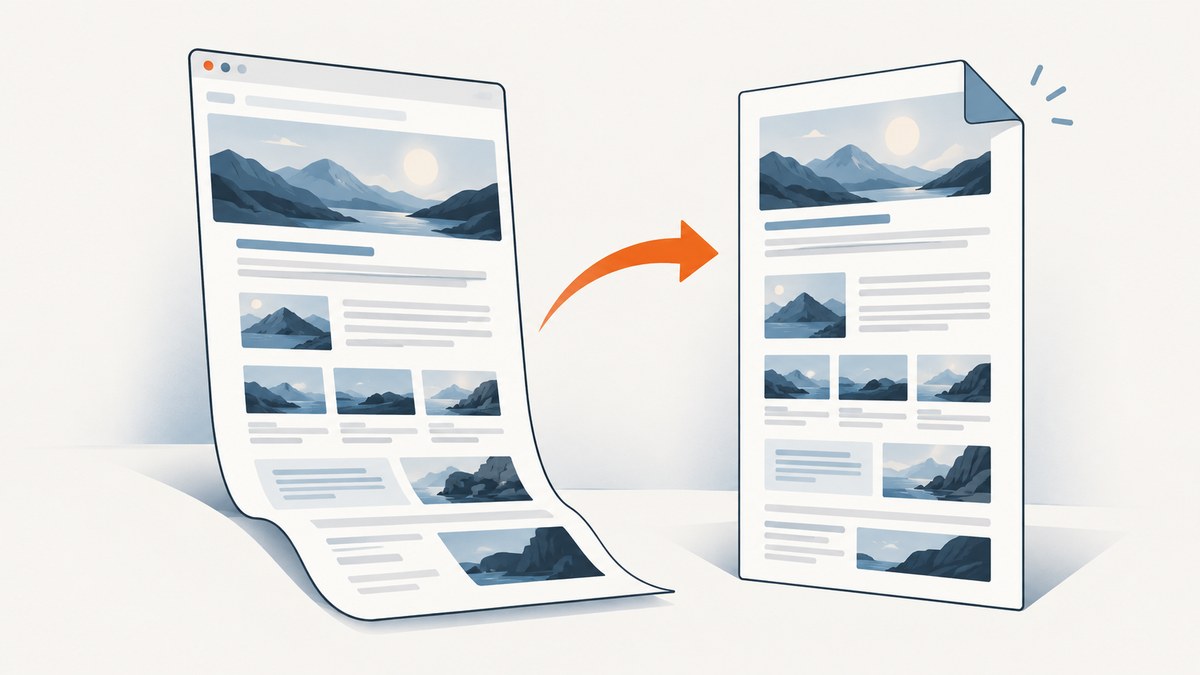
To set a PDF page height for a web page export, specify both page dimensions in CSS @page or pass an explicit height to your PDF-generation API. For print CSS, for example, use @page { size: 210mm 350mm; }. The two values mean width, then height. For Puppeteer or Playwright, set height: '350mm' and make sure CSS page sizing or a paper-format preset is not overriding it.
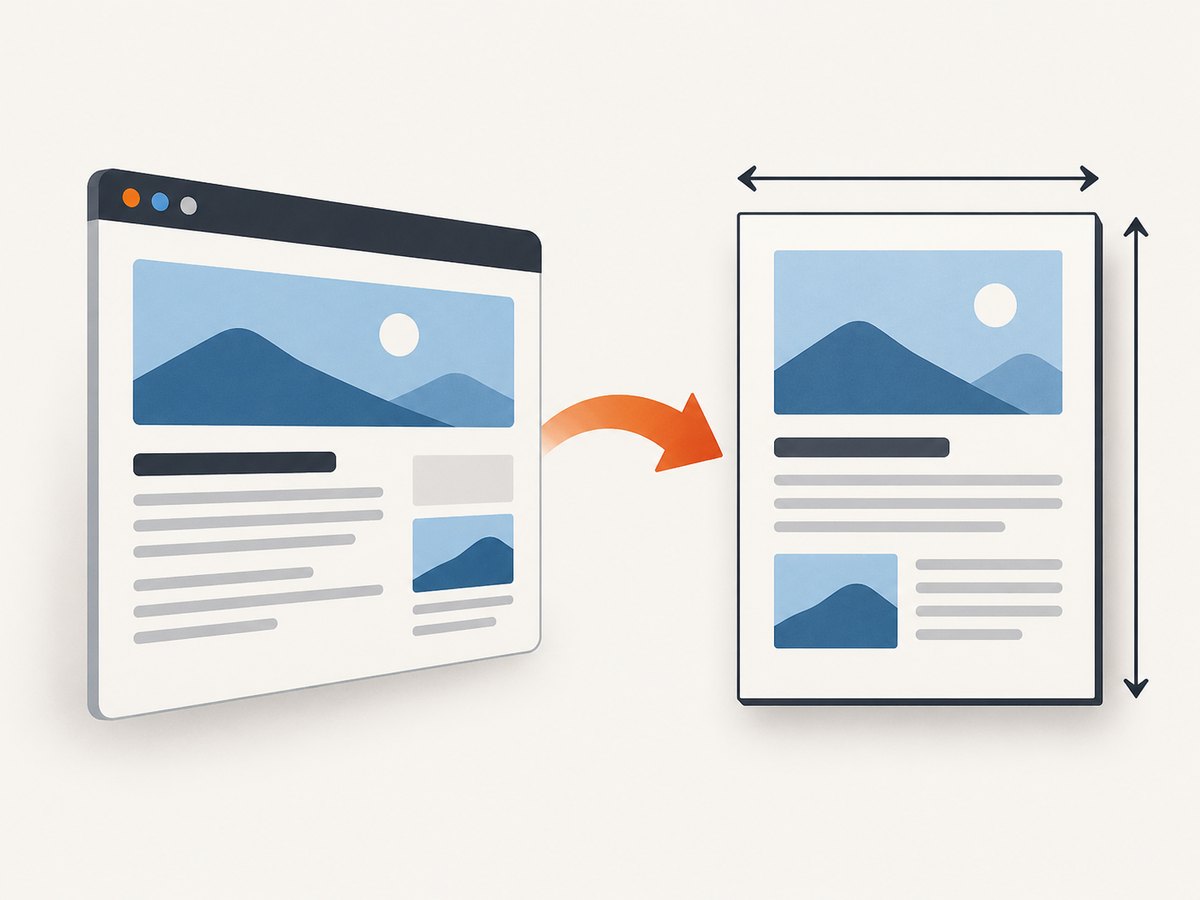
Page height is the size of each PDF page, not the height of the page’s content. If content exceeds the usable area, it can flow onto additional pages. Margins further reduce the area available to content; they do not change the page-box dimensions. The key is to choose one source of truth—print CSS or the PDF API—and configure precedence deliberately.
1. Choose where page size is controlled
There are two common control surfaces. Use CSS when the document’s stylesheet should describe how the page prints. Use the browser automation API when the calling code should decide dimensions for each export. Mixing both without setting precedence can produce a PDF that appears to ignore the requested height.
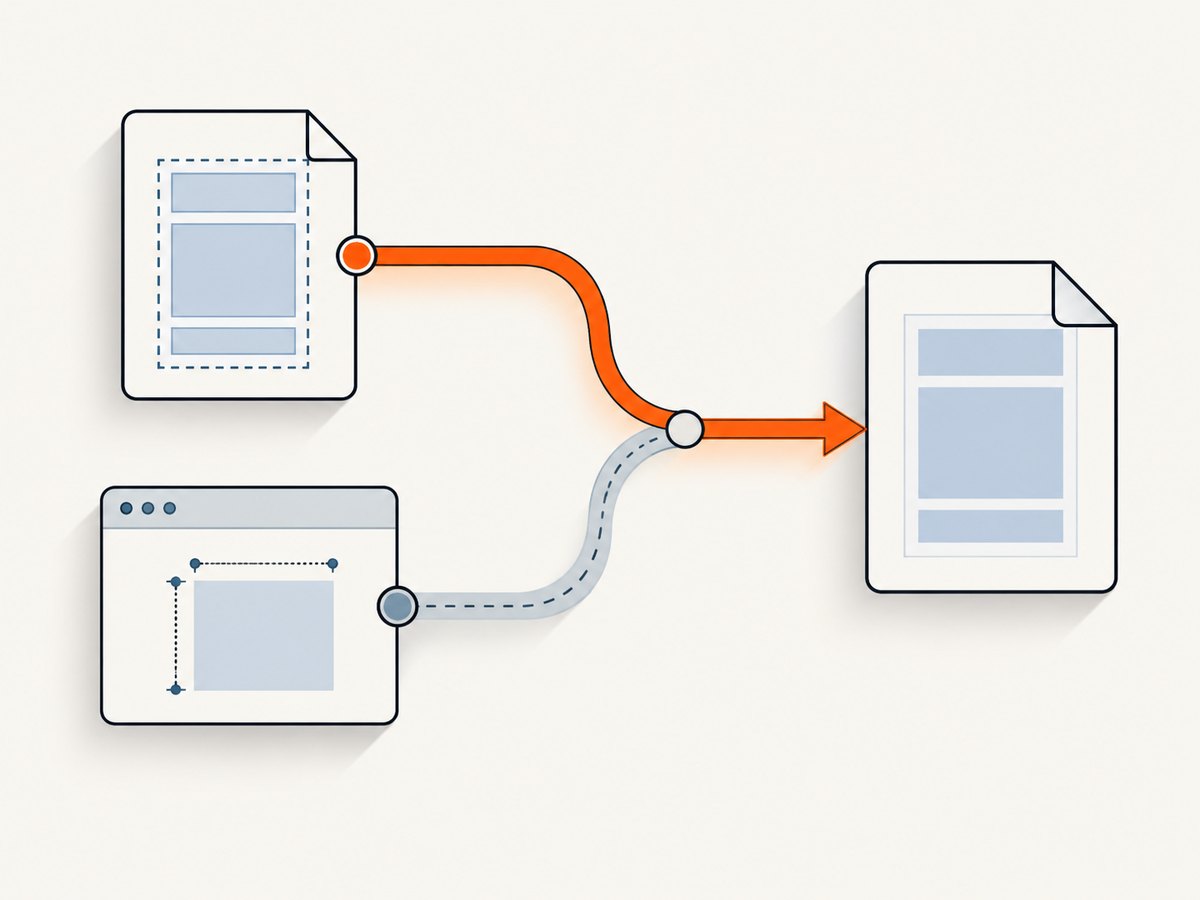
| Approach | Set dimensions with | Best fit |
|---|---|---|
| Print CSS | @page { size: WIDTH HEIGHT; } |
The document owns its print layout or multiple pages share a stylesheet. |
| Puppeteer | page.pdf({ width, height }) |
Node.js automation chooses a paper size at export time. |
| Playwright | page.pdf({ width, height }) |
Node.js automation chooses a paper size at export time. |
In either case, use absolute dimensions such as millimeters, centimeters, or inches for a predictable physical page size. A CSS element’s height is not a substitute: it changes the content box, not the PDF page box.
2. Set a custom height with print CSS
Use two lengths in @page size for a rectangular sheet. For a page 210 mm wide and 350 mm high:
@page {
  size: 210mm 350mm;
  margin: 12mm;
}

@media print {
  html, body {
    margin: 0;
  }

  .screen-only {
    display: none !important;
  }
}
The size descriptor sets the page dimensions; margin controls the inset between the page edge and the printable content. The CSS page size syntax takes width first and height second. A single length makes a square page, so provide two lengths when you need a non-square size. See [MDN’s @page reference](https://developer.mozilla.org/en-US/docs/Web/CSS/@page) for syntax and compatibility details.
Use inches or centimeters if that matches the specification
@page {
  size: 8.5in 14in;
  margin: 0.5in;
}
This defines a page 8.5 inches wide by 14 inches high. CSS also supports separate page-margin properties when different edges need different insets. For example, margin-top can be adjusted without changing the paper height.
Keep print layout separate from screen layout
Put print-only adjustments in @media print. This lets the screen version retain its normal layout while the PDF uses print-specific visibility or spacing rules. Do not add height to the document body expecting each exported page to grow. If the goal is one unusually tall page, set the page-box height; if the goal is a longer document, let the content flow across pages.
CSS @page size support is available in current browser versions, but older browsers or devices may not support the newer sizing behavior. Validate the actual browser and export workflow when compatibility matters. [MDN documents this compatibility caveat](https://developer.mozilla.org/en-US/docs/Web/CSS/@page).
3. Set page height with Puppeteer
Puppeteer’s Page.pdf() uses print CSS. You can give the API an explicit height, along with a width. Use unit-bearing strings so the intended physical dimensions are clear:
import puppeteer from 'puppeteer';

const browser = await puppeteer.launch({ headless: true });
try {
  const page = await browser.newPage();
  await page.goto('https://example.com', { waitUntil: 'networkidle0' });

  await page.pdf({
    path: 'export.pdf',
    width: '210mm',
    height: '350mm',
    printBackground: true
  });
} finally {
  await browser.close();
}
Replace the example URL with the page to export. The path option writes the PDF to a file, and printBackground includes background colors and images. Puppeteer’s PDF options also include margins, scale, page ranges, headers and footers, and the preferCSSPageSize setting. Consult the [Puppeteer PDFOptions reference](https://pptr.dev/api/puppeteer.pdfoptions) for the installed version’s full option list.
Watch for the format override
If format is set, Puppeteer gives it priority over explicit width and height. Remove format when custom dimensions should apply. Puppeteer’s documented default format is Letter, but an explicit format option takes precedence over the custom dimensions.
By default, Puppeteer’s preferCSSPageSize is false: the API paper size wins and CSS page dimensions are scaled to fit. If the stylesheet should control page size, set preferCSSPageSize: true and define dimensions in @page. Do not expect both CSS and API dimensions to win simultaneously.
await page.pdf({
  path: 'export.pdf',
  printBackground: true,
  preferCSSPageSize: true
});
Use that configuration when the page stylesheet contains the intended @page dimensions. The option’s documented default and precedence are described in the [Puppeteer PDFOptions reference](https://pptr.dev/api/puppeteer.pdfoptions).
4. Set page height with Playwright
Playwright also generates PDFs using print CSS. Pass explicit dimensions when the automation code owns the size:
import { chromium } from 'playwright';

const browser = await chromium.launch({ headless: true });
try {
  const page = await browser.newPage();
  await page.goto('https://example.com', { waitUntil: 'networkidle' });

  await page.pdf({
    path: 'export.pdf',
    width: '210mm',
    height: '350mm',
    printBackground: true
  });
} finally {
  await browser.close();
}
Playwright accepts unit-bearing strings for width and height; an unlabeled numeric value is interpreted as pixels. Prefer strings such as '350mm' or '14in' to make the requirement explicit. Its preferCSSPageSize option determines whether CSS @page dimensions take priority over API width, height, or format. Set it when CSS should be the source of truth:
await page.pdf({
  path: 'export.pdf',
  printBackground: true,
  preferCSSPageSize: true
});
For an API-controlled export, omit CSS page sizing or leave CSS precedence disabled and supply the desired dimensions in the call. Check the [Playwright page.pdf() documentation](https://playwright.dev/docs/api/class-page#page-pdf) for exact behavior and defaults in the version you use.
5. Keep units, margins, and content height straight
Page dimensions and content layout answer different questions. If a PDF page is 350 mm high with 12 mm top and bottom margins, the content region is shorter than 350 mm. The margins do not add to the page height; they reserve space inside it.
- Page height: the height of the PDF page box.
- Content height: the space occupied by the rendered page content.
- Margins: the inset between the page edge and printable content.
- Scale: a factor that can shrink or enlarge content to fit; it does not redefine the requested physical page dimensions.
Choose units from the specification and include them explicitly. For instance, 350mm is less ambiguous than 1323, particularly when switching between CSS and a PDF API. If the export is unexpectedly split across pages, check whether you actually need a taller page or simply want the content to continue on ordinary pages.
6. Troubleshoot exports that ignore the requested height
| Symptom | Likely cause | Fix |
|---|---|---|
| PDF uses Letter or another standard page size. | A format preset overrides explicit dimensions, or the API owns sizing. |
Remove Puppeteer’s format when using width and height. If CSS should own sizing, set the appropriate CSS precedence option. |
| Custom CSS size appears scaled to fit. | Puppeteer’s default preferCSSPageSize: false lets API paper size win. |
Set preferCSSPageSize: true when CSS @page should take priority. |
| Height seems far too large or small. | A numeric value was interpreted in a different unit than expected. | Use an explicit unit string, such as '350mm' or '14in'. Playwright treats unlabeled numeric values as pixels. |
| Content is clipped or spills to another page. | The content exceeds the available area after margins, or the requested page height was confused with content height. | Inspect margins and content flow. Increase page height only if a physically taller page is required; otherwise adjust print layout or allow pagination. |
| CSS sizing works in one browser but not another. | The target browser or device may not support the relevant @page size behavior. |
Test in the export runtime actually used and check its CSS support. For older runtimes, control dimensions through the PDF API if available. |
| Backgrounds disappear. | Background printing is disabled in the PDF API options. | Enable printBackground: true in Puppeteer or Playwright when backgrounds belong in the document. |
Debug in a fixed order
- Confirm whether CSS or the API is meant to own dimensions.
- Check that width comes before height in the CSS
sizedeclaration and that both have units. - Inspect API options for a conflicting
formator CSS precedence setting. - Check margins and scale separately from page dimensions.
- Open the generated PDF in the target viewer and verify its page size and pagination.
Print dialogs and third-party PDF pipelines can add their own settings. Confirm the full path from browser to final PDF rather than assuming every exporter applies browser CSS in the same way.
7. Performance, reliability, and cost
Custom page sizing is a layout configuration, so the primary reliability concern is consistent behavior across the browser version, stylesheet, PDF options, and any downstream print settings. Pin or otherwise manage the runtime version used by your application, keep one clear sizing authority, and inspect output after material changes to the page or export pipeline. Longer pages can also mean more content to lay out and render; keep the export scope focused on the content the PDF needs.
Browser-based generation uses the browser automation and PDF-generation setup you operate. Account for that runtime and the work of maintaining it when estimating operational cost. The research sources provide no benchmark or universal cost estimate; actual time and resource use depend on the page and environment. For a third-party screenshot or PDF API, check its documented billing and output options rather than assuming screenshot and PDF requests have identical terms.
8. Or skip the browser setup
If your goal is to capture a page as an image or PDF without managing a browser runtime, ScreenshotNeo is a website screenshot API and MCP server for developers. Its PDF capture options include page size, margins, landscape orientation, and page ranges. The API base is https://api.screenshotneo.com/v1/shot; see the ScreenshotNeo API documentation for request parameters.
Example one-call request to save a PDF (adapt the target URL as needed):
curl -G "https://api.screenshotneo.com/v1/shot" \
  -d access_key=YOUR_API_KEY \
  --data-urlencode url=https://stripe.com \
  -d format=pdf \
  -d pdf_width=210mm \
  -d pdf_height=350mm \
  -o export.pdf
For a browserless image capture, the documented starter examples are:
# cURL
curl -G "https://api.screenshotneo.com/v1/shot" -d access_key=YOUR_API_KEY --data-urlencode url=https://stripe.com -o shot.webp

# Python
import requests
r = requests.get("https://api.screenshotneo.com/v1/shot", params={"access_key": "YOUR_API_KEY", "url": "https://stripe.com"}, timeout=90)
open("shot.webp", "wb").write(r.content)

# Node.js
const q = new URLSearchParams({ access_key: 'YOUR_API_KEY', url: 'https://stripe.com' });
const res = await fetch(`https://api.screenshotneo.com/v1/shot?${q}`);
ScreenshotNeo removes cookie banners, popups, and chat widgets before the shot. Bot checks, blank pages, and failed loads are never billed; response headers report the page verdict and billing outcome. Its MCP server lets AI agents take screenshots. The free plan includes 1,000 screenshots per month with no card, and paid plans start at $5 for 3,000. Sign up for 1,000 free screenshots a month, with no card.
FAQ
Does setting a taller page make the whole web page fit on one PDF page?
It changes the page box, but whether all content fits depends on the content height, margins, and scale. A longer document may still paginate.
Should I set page size in CSS or JavaScript?
Use CSS when the document stylesheet should define print dimensions. Use the API when the export caller chooses dimensions. Set precedence explicitly if both declare a size.
Can I use a custom width and height instead of a standard paper format?
Yes. CSS @page size and the Puppeteer and Playwright PDF APIs support explicit dimensions. Use unit-bearing values and avoid a conflicting format preset.
Why does my page look smaller even though the page height is correct?
The browser may be scaling content to fit the selected paper dimensions, or margins may be reducing usable space. Check the API’s scale and CSS/API precedence settings.


