How to Set PDF Tab Order Programmatically
Learn how PDF tab order works, set structure, row, or column navigation, preserve tags, and verify keyboard and screen-reader behavior.

PDF tab order controls how a keyboard user moves through interactive objects such as form fields and links. To set it correctly, work at two levels:
- Set each page’s
/Tabsentry to choose structure, row, or column navigation. - Build and preserve a correct tagged-PDF structure so the chosen order matches the document’s meaning.
A page-level setting cannot repair a missing or incorrect tag tree. The reliable workflow is to set the page mode, confirm that every field is represented in the logical structure, save the file, and test both keyboard traversal and assistive reading order. W3C summarizes the requirement plainly: “The tab order must reflect the logical order of the document.” W3C PDF3
What PDF tab order means
A PDF page dictionary can contain a /Tabs name that selects the traversal rule for annotations on that page. The principal modes are:
| Mode | Traversal rule | Use it when | Dependency |
|---|---|---|---|
/S (structure) |
Follows the order represented by the tagged document structure. | The form follows a semantic sequence, such as heading, description, field, and confirmation. | Requires a sound tag tree and correctly associated fields. |
/R (row) |
Moves left to right, then continues on the next row. | Fields are laid out as rows, such as a two-column address grid. | Uses field geometry; visual placement must be intentional. |
/C (column) |
Moves top to bottom, then continues in the next column. | The intended sequence is column-wise. | Uses field geometry; rotations and overlapping rectangles can affect results. |
| Unspecified or manual | Viewer-specific default or an application-managed sequence. | Only when you control the target application and have verified its behavior. | Not a portable programmatic recipe. |
Adobe Acrobat exposes equivalent choices in its form-navigation tools: structure, row, column, and unspecified ordering. That interface is useful for inspecting or repairing a file, but an automated pipeline should write the page dictionary and tags directly. Adobe’s navigation documentation describes the viewer choices.
Structure order versus geometric order
Use structure order when accessibility and semantics are the priority. In a tagged PDF, the reading order is primarily determined by the tag order. A screen reader can therefore encounter a field before or after nearby visual content based on the structure tree, even when the rectangles appear in a different geometric order.
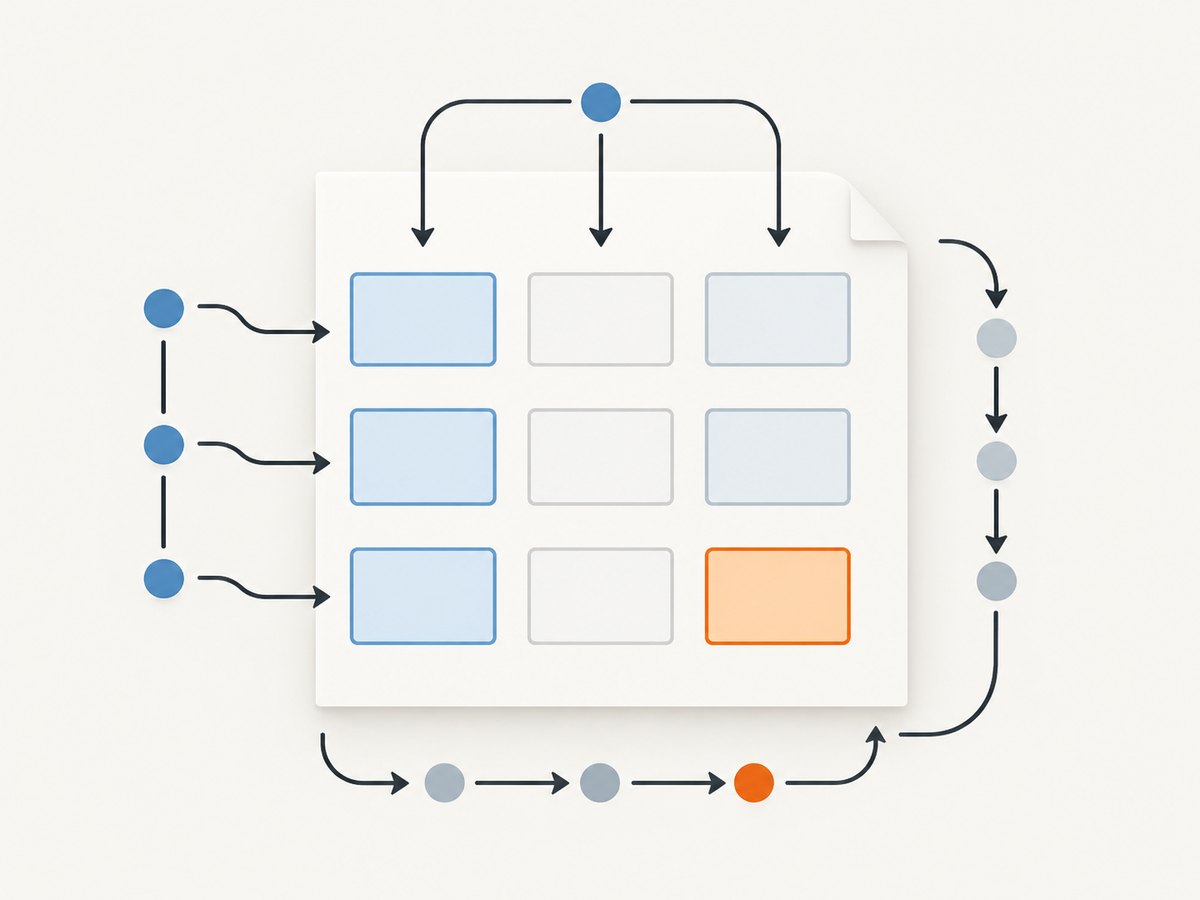
Use row or column order when the form is deliberately designed as a geometric grid and its fields are not yet represented in a reliable semantic sequence. Row order is common for lines such as “First name | Last name”; column order can suit a vertical questionnaire split into columns.
Do not select structure mode as a shortcut for tagging. W3C notes that fields may be absent from tagged content or placed in the wrong location. In that case, a page configured for structure order still produces an incomplete or confusing focus path. Content inside an individual tag also follows the PDF content-tree structure, so a correct-looking page can remain wrong for assistive technology. See the W3C technique.
Set the page entry with iText 7
PDF libraries expose this operation differently. The following Java example uses the documented iText 7 PdfPage.setTabOrder API. Pin the iText version used by your build and review its licensing terms before shipping it.
import com.itextpdf.kernel.pdf.PdfDocument;
import com.itextpdf.kernel.pdf.PdfName;
import com.itextpdf.kernel.pdf.PdfReader;
import com.itextpdf.kernel.pdf.PdfWriter;

public class SetTabOrder {
    public static void main(String[] args) throws Exception {
        try (PdfDocument pdf = new PdfDocument(
                new PdfReader("input-form.pdf"),
                new PdfWriter("output-form.pdf"))) {

            // Structure order: follow the tagged document structure.
            pdf.getPage(1).setTabOrder(PdfName.S);

            // Examples for other pages:
            // pdf.getPage(2).setTabOrder(PdfName.R); // row order
            // pdf.getPage(3).setTabOrder(PdfName.C); // column order
        }
    }
}
After this program runs, inspect output-form.pdf. The code changes the page rule; it does not create tags, move fields into the tag tree, or decide the semantic sequence for you.
Choosing a mode per page
Set the mode independently on every page that contains interactive objects. A multi-page form can use structure order on narrative pages and row order on a deliberately tabular page, but mixed policies increase review work. Keep a written expected sequence for each page so regressions are easy to spot.
for (int pageNumber = 1; pageNumber <= pdf.getNumberOfPages(); pageNumber++) {
    pdf.getPage(pageNumber).setTabOrder(PdfName.S);
}
Only use a loop like this when every page has a valid tagged structure. Otherwise, choose the mode page by page and repair the underlying tags first.
Build the logical field sequence
- List the intended sequence. Write the order a keyboard user should hear and operate: introductory text, first field, related help, next field, submit action, and so on.
- Tag the document. Ensure headings, paragraphs, lists, tables, and form controls are represented in the structure tree.
- Associate each widget with its field structure. A visible widget that is not present at the correct point in tagged content can be skipped or encountered out of context.
- Set
/Tabs. Use/Swhen the tag tree is authoritative; otherwise use/Ror/Conly when geometry expresses the intended order. - Save and reopen. Validate the serialized file, not only the in-memory object. A malformed write, incremental-update issue, or flattening step can discard annotations or tags.
Adobe’s JavaScript guide states that “The reading order of a document is determined by the Tags tree.” Adobe Acrobat forms documentation explains the relationship between fields and the structure tree.
Verification checklist
Run these checks on the final artifact and on representative viewers used by your audience:
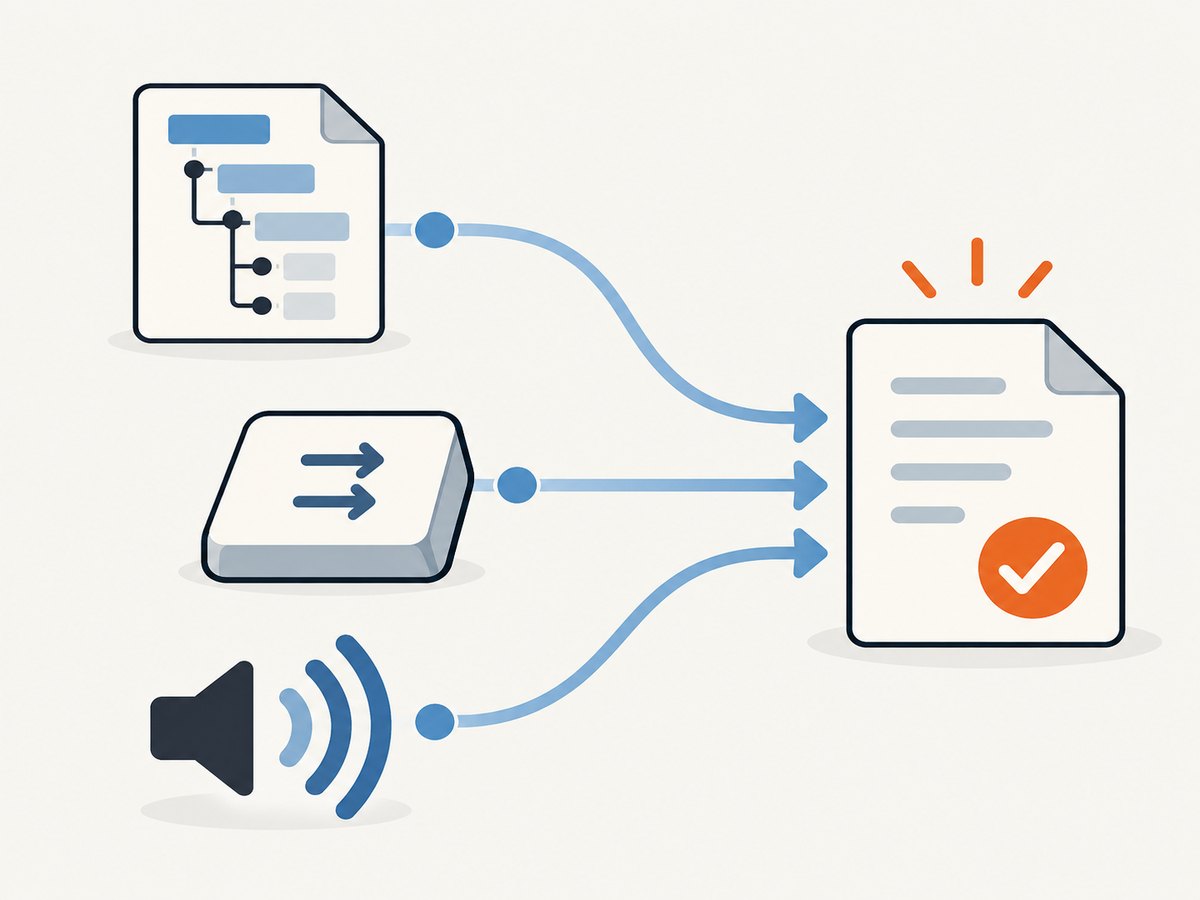
- Start focus before the first field and press Tab repeatedly. Record the order, including links, buttons, radio groups, and other focusable annotations.
- Use Shift+Tab to confirm reverse traversal does not jump unexpectedly.
- Turn on a screen reader or accessibility inspection tool. Confirm that labels, instructions, fields, and errors are announced in the intended sequence.
- Check every page, including pages with rotated content, repeated fields, multi-column layouts, and conditional sections.
- Reopen the saved file after any optimization, signing, flattening, or form-fill operation and repeat the checks.
- Test more than one PDF viewer when the document is public. Viewer defaults and support for tagged forms can differ.
W3C specifically calls for checking both the reading order and keyboard focus traversal. A result in one viewer is evidence for that viewer, not proof of identical behavior everywhere. W3C PDF3 procedure
Common failures and fixes
| Symptom | Likely cause | Fix |
|---|---|---|
| Tab skips a visible field. | The widget is not associated with the form field or is missing from tagged content. | Repair the field/widget association and place the control in the structure tree. |
| Structure mode follows a strange order. | Tags are present but arranged incorrectly. | Reorder the tags and verify the content tree inside each relevant tag. |
| Row mode jumps across columns. | Fields overlap, have inconsistent rectangles, or are rotated. | Normalize geometry, remove overlaps, or use structure order. |
| Only the first page behaves correctly. | /Tabs was set on one page only. |
Apply the setting to every applicable page and reopen the output. |
| Changes disappear after saving. | A later tool flattened, regenerated, signed, or rewrote the PDF. | Set tab order after that transformation, or configure the final writer to preserve annotations and tags. |
| Keyboard order differs between viewers. | Unspecified ordering or viewer-specific handling. | Use an explicit mode, preserve valid tags, and test target viewers. |
| Screen reader order is wrong although Tab order looks right. | Keyboard geometry and semantic structure are separate layers. | Fix the tag tree; do not rely on /R or /C to create semantic reading order. |
Performance, reliability, and deployment notes
Changing a page dictionary entry is inexpensive compared with generating or rewriting a tagged PDF. The expensive and failure-prone work is usually structure repair, annotation regeneration, and validation. Keep the operation deterministic:
- Process a copy and write to a new output path until validation passes.
- Log the input hash, library version, selected mode per page, and output hash.
- Reject documents with encrypted or malformed structures unless your pipeline explicitly supports them.
- Do not flatten forms before validation; flattening removes interactive controls and therefore removes the tab sequence you are trying to test.
- Make validation part of release review for templates that change frequently.
For batch jobs, separate “page mode changed” from “tags repaired” in your result metadata. That distinction makes it clear whether a failure came from the page dictionary or from accessibility structure.
Or skip the browser setup
ScreenshotNeo does not set PDF tab order or repair a tagged PDF. It is useful when your source is a web page and you need a clean screenshot or PDF capture before a separate PDF accessibility workflow. One GET request returns a PNG, JPEG, WebP, or PDF; the API can wait for selectors or network idle, run custom JavaScript, and capture full pages.
Use the documented endpoint and options at ScreenshotNeo docs:
curl -G "https://api.screenshotneo.com/v1/shot" -d access_key=YOUR_API_KEY --data-urlencode url=https://stripe.com -o shot.webpimport requests
r = requests.get("https://api.screenshotneo.com/v1/shot", params={"access_key": "YOUR_API_KEY", "url": "https://stripe.com"}, timeout=90)
open("shot.webp", "wb").write(r.content)const q = new URLSearchParams({ access_key: 'YOUR_API_KEY', url: 'https://stripe.com' });
const res = await fetch(`https://api.screenshotneo.com/v1/shot?${q}`);Cookie banners, newsletter popups, and chat widgets are removed before the shot. Bot checks, blank pages, failed loads, timeouts, and cache hits are not billed, and the response identifies the result with X-Page-Verdict and X-Billed headers. ScreenshotNeo also provides an MCP server so Claude, Cursor, and other MCP clients can take screenshots, inspect pages, and capture PDFs. The Free plan includes 1,000 screenshots each month with no card; paid plans start at $5 for 3,000. Create a free ScreenshotNeo account.
FAQ
Does setting /Tabs /S make a PDF accessible?
No. It tells the viewer to use structure order. The tag tree and field associations still need to be correct.
Should I always choose structure order?
Choose it when the tagged structure expresses the intended semantics. Row or column order can be appropriate for a carefully designed geometric grid.
Can I define an arbitrary field list in the page dictionary?
The page-level entry selects a rule; it is not an arbitrary list. A custom semantic sequence belongs in the tagged structure and field associations.
How do I know whether a field is in the tag tree?
Use a PDF accessibility or structure inspector, then confirm the result with keyboard and screen-reader testing after saving.
Does ScreenshotNeo change tab order?
No. It captures web pages and PDFs. Use a PDF library and accessibility workflow to set and validate tab order.


