How to Set Puppeteer’s executablePath
Set Puppeteer’s executablePath correctly across local machines, Docker and CI, with validation, environment variables, troubleshooting and a hosted alternative.
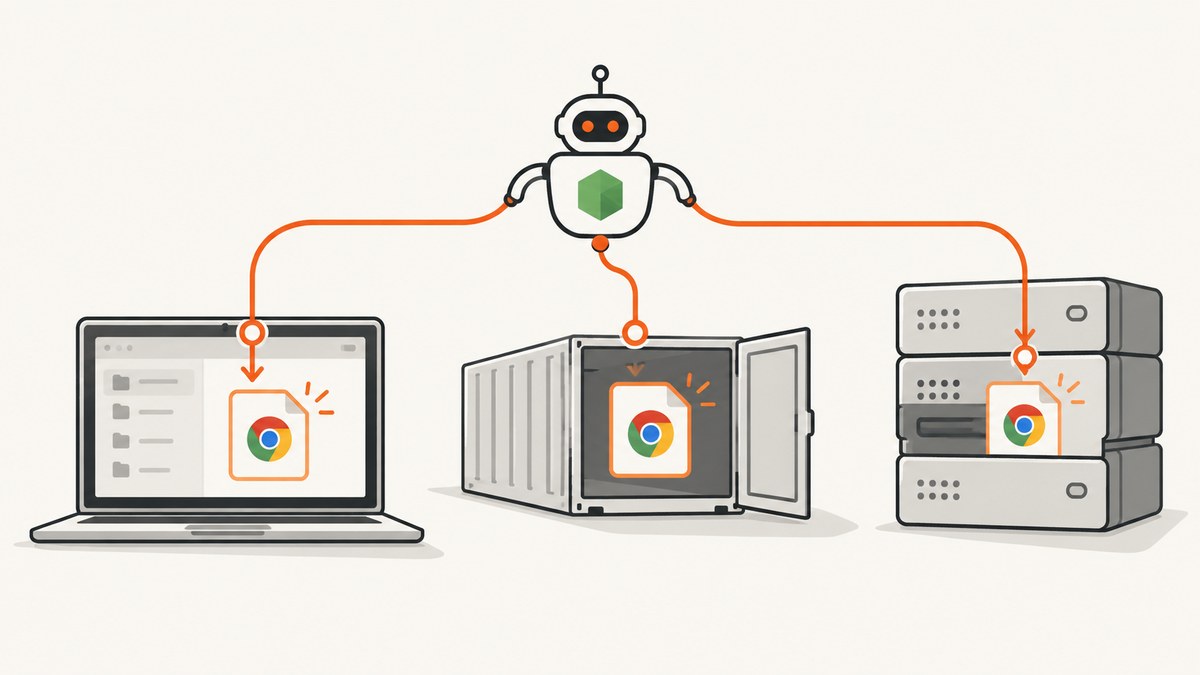
Use an absolute path to the browser executable in puppeteer.launch():
const puppeteer = require('puppeteer');

const browser = await puppeteer.launch({
  executablePath: '/absolute/path/to/chrome',
});
executablePath tells Puppeteer which browser binary to start instead of its bundled browser. The path must exist in the filesystem where Node.js is running: a path on your laptop will not work inside a Docker container or CI worker. Puppeteer documents this option as the path to a browser executable used instead of the bundled browser (LaunchOptions).
1. Choose between executablePath, channel and the bundled browser
| Approach | Use it when | Example |
|---|---|---|
| Bundled Chrome for Testing | You want Puppeteer to manage a compatible browser | puppeteer.launch() |
executablePath |
Your image or host manages Chrome/Chromium at a known path | executablePath: '/usr/bin/google-chrome' |
channel |
Chrome is installed in a standard location | channel: 'chrome' |
Puppeteer’s downloaded Chrome for Testing is the project’s compatibility baseline. Arbitrary external browser versions are not guaranteed to behave the same way. If you manage the browser yourself, the installation guide recommends an explicit executablePath, or channel when the browser is installed in a standard location (installation guide).
2. Common JavaScript launch patterns
CommonJS
const puppeteer = require('puppeteer');

(async () => {
  const browser = await puppeteer.launch({
    executablePath:
      process.env.PUPPETEER_EXECUTABLE_PATH || '/usr/bin/google-chrome',
    headless: true,
  });

  const page = await browser.newPage();
  await page.goto('https://example.com', { waitUntil: 'networkidle2' });
  console.log(await page.title());
  await browser.close();
})();
ES modules
import puppeteer from 'puppeteer';

const browser = await puppeteer.launch({
  executablePath: process.env.PUPPETEER_EXECUTABLE_PATH,
});

const page = await browser.newPage();
await page.goto('https://example.com');
await browser.close();
Use a standard Chrome channel
import puppeteer from 'puppeteer';

const browser = await puppeteer.launch({
  channel: 'chrome',
  headless: true,
});
A channel avoids embedding an OS-specific path, but it depends on Chrome being installed where Puppeteer can discover it.
Using puppeteer-core
import puppeteer from 'puppeteer-core';

const browser = await puppeteer.launch({
  executablePath: process.env.CHROME_BIN,
  headless: true,
});
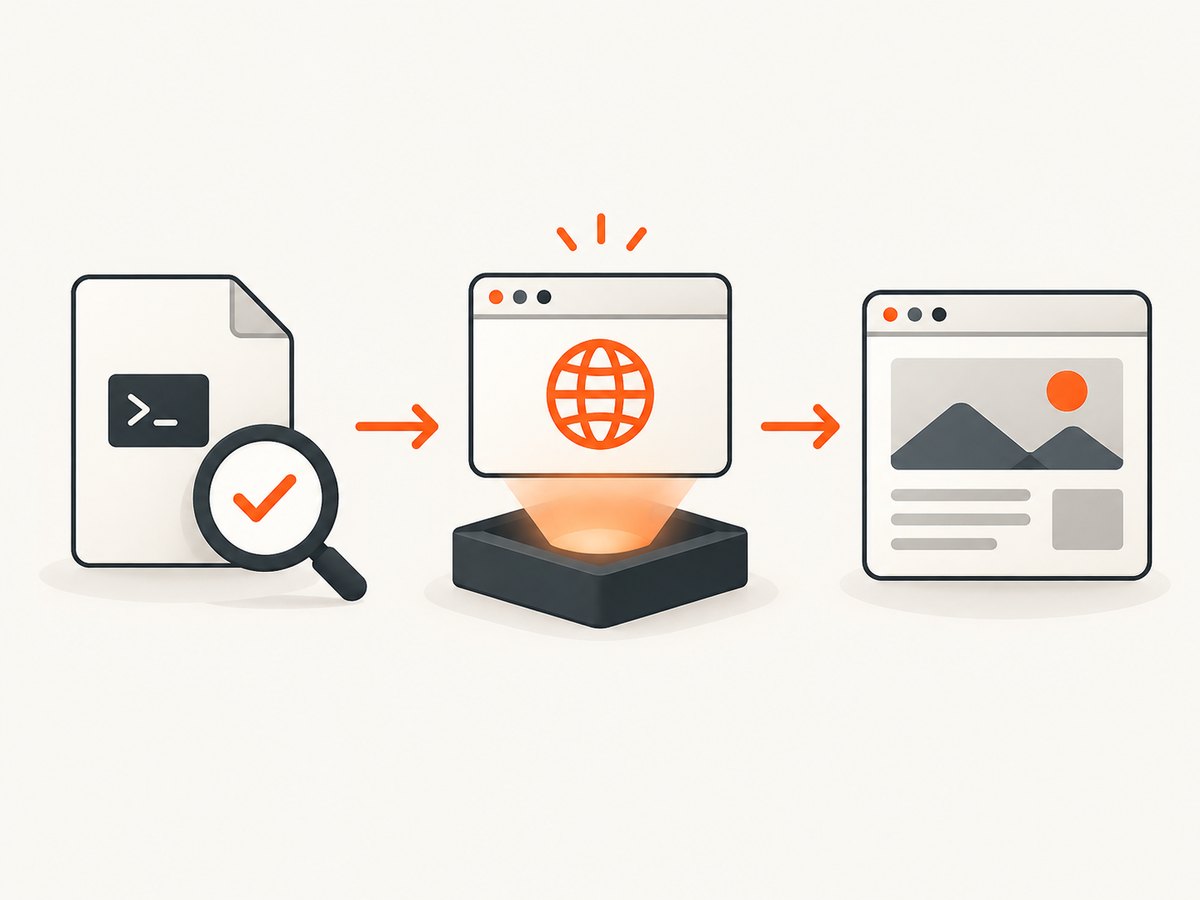
puppeteer-core does not download a browser. Its launch call must provide either executablePath or channel (launch API).
3. Configure the path with an environment variable
PUPPETEER_EXECUTABLE_PATH is Puppeteer’s documented environment-variable override. Keep deployment-specific paths outside source code:
const puppeteer = require('puppeteer');

const executablePath = process.env.PUPPETEER_EXECUTABLE_PATH;
if (!executablePath) {
  throw new Error('PUPPETEER_EXECUTABLE_PATH is not set');
}

(async () => {
  const browser = await puppeteer.launch({ executablePath });
  await browser.close();
})();
For a persistent default, add puppeteer.config.cjs:
/** @type {import('puppeteer').Configuration} */
module.exports = {
  executablePath: process.env.PUPPETEER_EXECUTABLE_PATH,
};
Puppeteer configuration files and environment defaults do not affect puppeteer-core; pass the option directly when using that package (configuration guide).
4. Find the correct executable on each operating system
Linux
command -v google-chrome
command -v google-chrome-stable
command -v chromium
command -v chromium-browser
Use the path returned by the command in the same machine, container or worker that runs Node.js. Confirm it is executable:
test -x /usr/bin/google-chrome && echo "browser is executable"macOS
Point to the binary inside the application bundle, not the .app directory:
/Applications/Google\ Chrome.app/Contents/MacOS/Google\ Chromeconst executablePath = '/Applications/Google Chrome.app/Contents/MacOS/Google Chrome';Windows
Use the complete path to chrome.exe. Escape backslashes or use String.raw:
const executablePath = String.raw`C:\Program Files\Google\Chrome\Application\chrome.exe`;
const browser = await puppeteer.launch({ executablePath });
5. Docker and CI
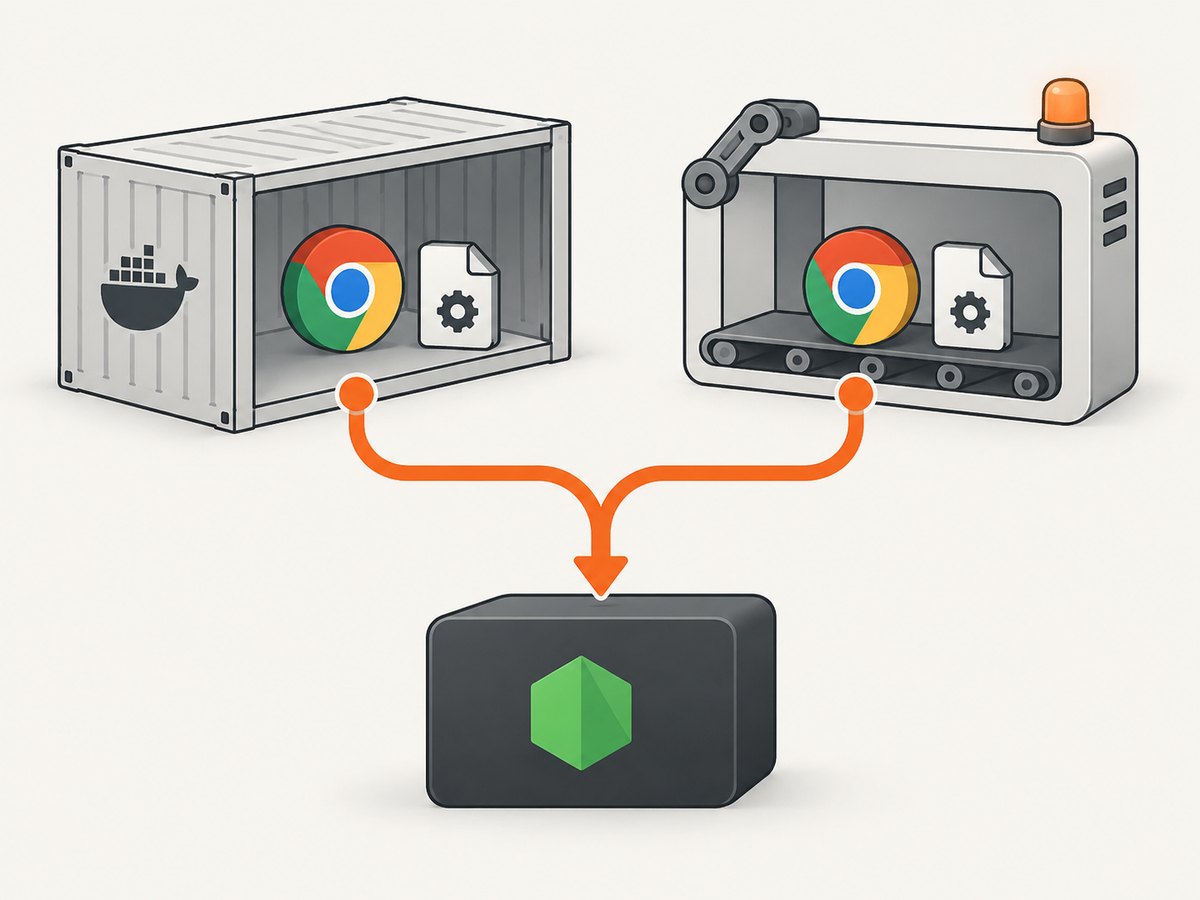
Install the browser and its system dependencies in the same image or worker where Puppeteer runs. Then pass the runtime path through an environment variable:
FROM node:22-bookworm

WORKDIR /app
COPY package*.json ./
RUN npm ci
# Install Chrome using your base image's documented package/repository steps.
COPY . .
ENV PUPPETEER_EXECUTABLE_PATH=/usr/bin/google-chrome
CMD ["node", "index.js"]
The exact path depends on the image. Check it inside the running container:
docker run --rm your-image sh -lc 'command -v google-chrome || command -v chromium || true'

docker run --rm your-image node -e \
  'console.log(process.env.PUPPETEER_EXECUTABLE_PATH)'
In CI, install the browser during the job or use a prebuilt image that contains it. A path that exists on a developer workstation but not on the CI worker will produce a launch failure.
6. Validate the path before launching
const fs = require('node:fs');
const puppeteer = require('puppeteer');

(async () => {
  const path = process.env.PUPPETEER_EXECUTABLE_PATH;
  console.log({ path });

  if (!path || !fs.existsSync(path)) {
    throw new Error(`Browser executable does not exist: ${path}`);
  }
  if (!(fs.statSync(path).mode & 0o111)) {
    throw new Error(`Browser is not executable: ${path}`);
  }

  const browser = await puppeteer.launch({ executablePath: path });
  console.log('browser started');
  await browser.close();
})();
This catches the two most common configuration mistakes before a page navigation or screenshot hides the real cause.
7. Common errors and fixes
| Error or symptom | Cause | Fix |
|---|---|---|
Failed to launch the browser process |
The path is wrong, missing or not executable | Log the resolved value, run test -x in the target runtime, and pass the executable file itself. |
Could not find Chrome |
Puppeteer’s managed browser was not downloaded, or an override points nowhere | Run npx puppeteer browsers install after installation, or set a valid absolute path. Remove a stale override to use the managed browser. |
| Works locally, fails in Docker/CI | The filesystem differs between environments | Install Chrome and dependencies in the same image/worker and discover the path there. |
| macOS launch fails | The value is the .app directory rather than the inner binary |
Use Contents/MacOS/Google Chrome. |
| Windows path is truncated or malformed | Backslashes were interpreted as JavaScript escapes | Escape them or use String.raw. |
puppeteer-core complains about missing executable |
No browser was downloaded and neither executablePath nor channel was supplied |
Provide one of those launch options explicitly. |
| Unexpected browser incompatibility | An external Chrome version differs from the Puppeteer release’s supported baseline | Use Puppeteer’s Chrome for Testing, or align the external browser version with the release. |
8. Performance, reliability and cost considerations
- Startup time: Reuse one browser process and create new pages for multiple tasks when isolation requirements allow it. Launching a fresh browser for every URL adds process startup overhead.
- Reproducibility: Pin the Node, Puppeteer and browser versions in CI or a container image. A moving system Chrome package can change rendering or launch behavior.
- Portability: Environment variables keep code portable across Linux, macOS, Windows, Docker and CI. Never assume a developer-machine path is available in production.
- Disk and network: Puppeteer’s managed browser download is approximately 170 MB on macOS, 282 MB on Linux and 280 MB on Windows according to the installation guide. Account for that in image size and cache strategy.
- Security: Treat browser paths and launch flags as deployment configuration. Do not accept an arbitrary executable path from an untrusted request.
- Cost: Self-hosting means paying for the machines, browser downloads, maintenance and operational work. A hosted screenshot API can move that browser setup out of your application.
9. Or skip the browser setup
If your goal is a screenshot rather than browser process management, ScreenshotNeo returns a PNG, JPEG, WebP or PDF from one GET request. See the API documentation.
curl -G "https://api.screenshotneo.com/v1/shot" -d access_key=YOUR_API_KEY --data-urlencode url=https://stripe.com -o shot.webpimport requests
r = requests.get("https://api.screenshotneo.com/v1/shot", params={"access_key": "YOUR_API_KEY", "url": "https://stripe.com"}, timeout=90)
open("shot.webp", "wb").write(r.content)const q = new URLSearchParams({ access_key: 'YOUR_API_KEY', url: 'https://stripe.com' });
const res = await fetch(`https://api.screenshotneo.com/v1/shot?${q}`);Cookie banners, newsletter popups and chat widgets are removed before the shot. Bot checks, blank pages and failed loads are never billed, and response headers identify the page verdict and whether it was billed. An MCP server lets Claude, Cursor and other MCP clients take screenshots. The free plan includes 1,000 screenshots a month with no card; paid plans start at $5 for 3,000. Create a free ScreenshotNeo account.
10. Checklist
- Use an absolute path to the executable file.
- Resolve the path in the runtime where Node runs.
- Verify existence and execute permission.
- Use
channelfor a standard installation when suitable. - Remember that
puppeteer-corerequiresexecutablePathorchannel. - Install the browser and system dependencies in Docker and CI.
- Remove stale environment overrides when returning to Puppeteer’s managed browser.
FAQ
Can I use a relative path?
Use an absolute path. Relative paths depend on the process working directory and are fragile in CI, services and containers.
Does PUPPETEER_EXECUTABLE_PATH work with puppeteer-core automatically?
No. Read the variable yourself and pass it as executablePath; puppeteer-core ignores Puppeteer configuration files and environment defaults.
Should I choose Chromium or Google Chrome?
Choose the executable installed in your target runtime and keep its version aligned with your Puppeteer release. The managed Chrome for Testing build is the compatibility baseline.
When is channel better?
Use it when Chrome is installed in a standard location and you want Puppeteer to discover it without embedding an OS-specific path.


