How to Set the Screenshot Format in Playwright
Choose PNG, JPEG, or WebP for Playwright screenshots. Learn how file extensions, quality, transparency, locator captures, and visual-test snapshots affect the result.
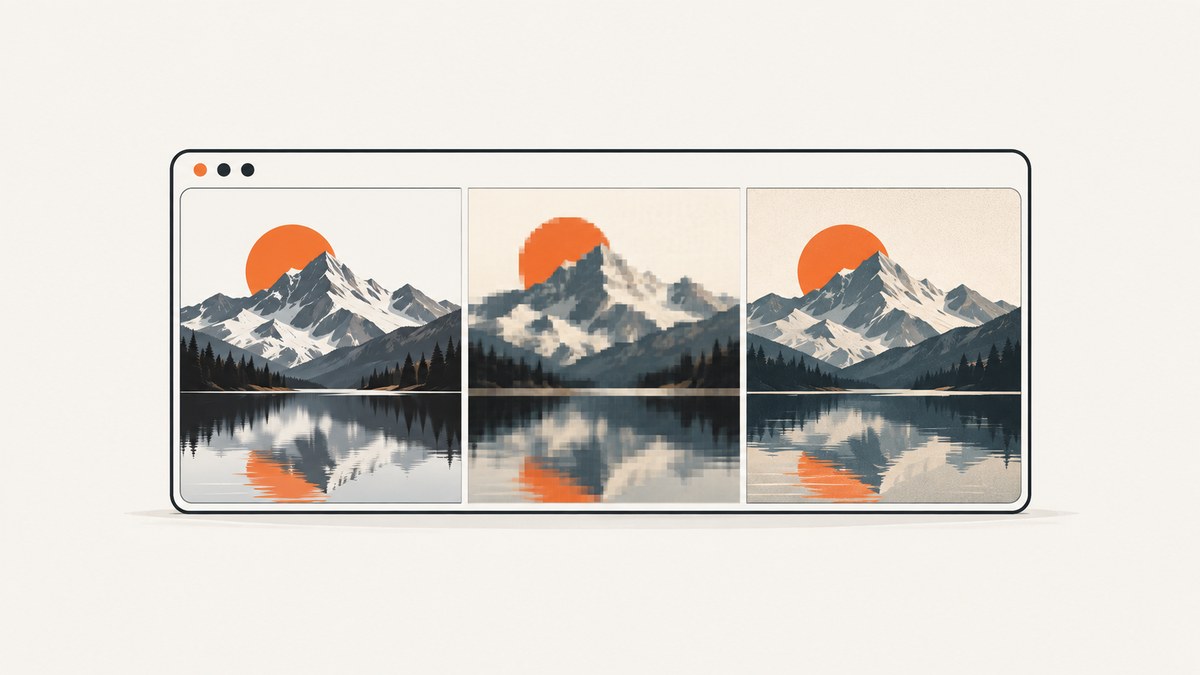
Set type to 'png', 'jpeg', or 'webp' in a regular Playwright screenshot call. PNG is the default. If you provide a path, Playwright can infer the format from its extension, so path: 'page.webp' saves WebP. For JPEG, the option value is 'jpeg', even when the filename ends in .jpg.
This guide uses Playwright’s JavaScript API. It covers saving screenshots to disk or a buffer, page and locator captures, quality and transparency options, visual-test snapshots, and what to check when the output format is wrong. See the official Page screenshot API and visual comparisons documentation for the reference behavior.
1. Choose a format with type or the filename
Use page.screenshot() for a page capture. With a path, the call writes the image to that location. The extension can select the screenshot type; setting type explicitly makes the choice clear in code and is useful when the output path is assembled elsewhere.
import { chromium } from 'playwright';

const browser = await chromium.launch();
const page = await browser.newPage();
await page.goto('https://example.com');

// The .webp extension selects WebP.
await page.screenshot({ path: 'screenshot.webp' });

// Explicit type. Playwright's type name is "jpeg".
await page.screenshot({ path: 'screenshot.jpg', type: 'jpeg' });

// PNG is the default when no type is selected.
await page.screenshot({ path: 'screenshot.png' });

await browser.close();
Run it from a project where Playwright is installed. If you have not installed it yet, follow the official Playwright installation guide for the setup matching your project. The example uses a publicly accessible URL; replace it with the page you need to capture.
Set the type explicitly when output names are dynamic
When your filename is built from input or configuration, couple the extension and type deliberately. The API’s accepted values are png, jpeg, and webp. Do not pass jpg as the type value.
const format = 'webp'; // png, jpeg, or webp
const filename = `capture.${format === 'jpeg' ? 'jpg' : format}`;

await page.screenshot({
  path: filename,
  type: format,
});
For JPEG, both .jpg and .jpeg are common filename extensions. The format option remains 'jpeg'. Keep the extension and actual encoding aligned so downstream tools that inspect filenames do not mistake the file type.
2. Save the screenshot as a buffer
A screenshot does not need a path. Without one, page.screenshot() returns a buffer. Specify type to select the bytes’ encoding, then write or pass those bytes to another library or service.
import { writeFile } from 'node:fs/promises';

const imageBytes = await page.screenshot({ type: 'webp', quality: 82 });
await writeFile('capture.webp', imageBytes);

// imageBytes can instead be passed to an upload client or image-processing step.
The buffer is useful when the next step uploads an image, stores it in object storage, or processes it without first creating a temporary file. The receiver still needs to know the intended format; use a matching content type and filename when you pass the bytes on.
3. Format options and their trade-offs
| Format | When to choose it | Relevant options |
|---|---|---|
| PNG | Lossless screenshot output and the default choice when no format is specified. | quality does not apply. Use omitBackground when transparency is needed. |
| JPEG | Photographic content where lossy compression is acceptable. | quality applies; the documented default is 80. omitBackground does not apply. |
| WebP | When you want WebP output and can choose its quality behavior. | quality applies; the documented default is 100, which Playwright describes as lossless. Lower values are lossy. |
These are API behaviors, not a promise about file size. Actual output size depends on the page content, dimensions, and encoding. The Playwright references do not provide a universal size reduction for switching formats, so measure representative pages from your own workload if bandwidth or storage is a constraint.
Use quality only where it applies
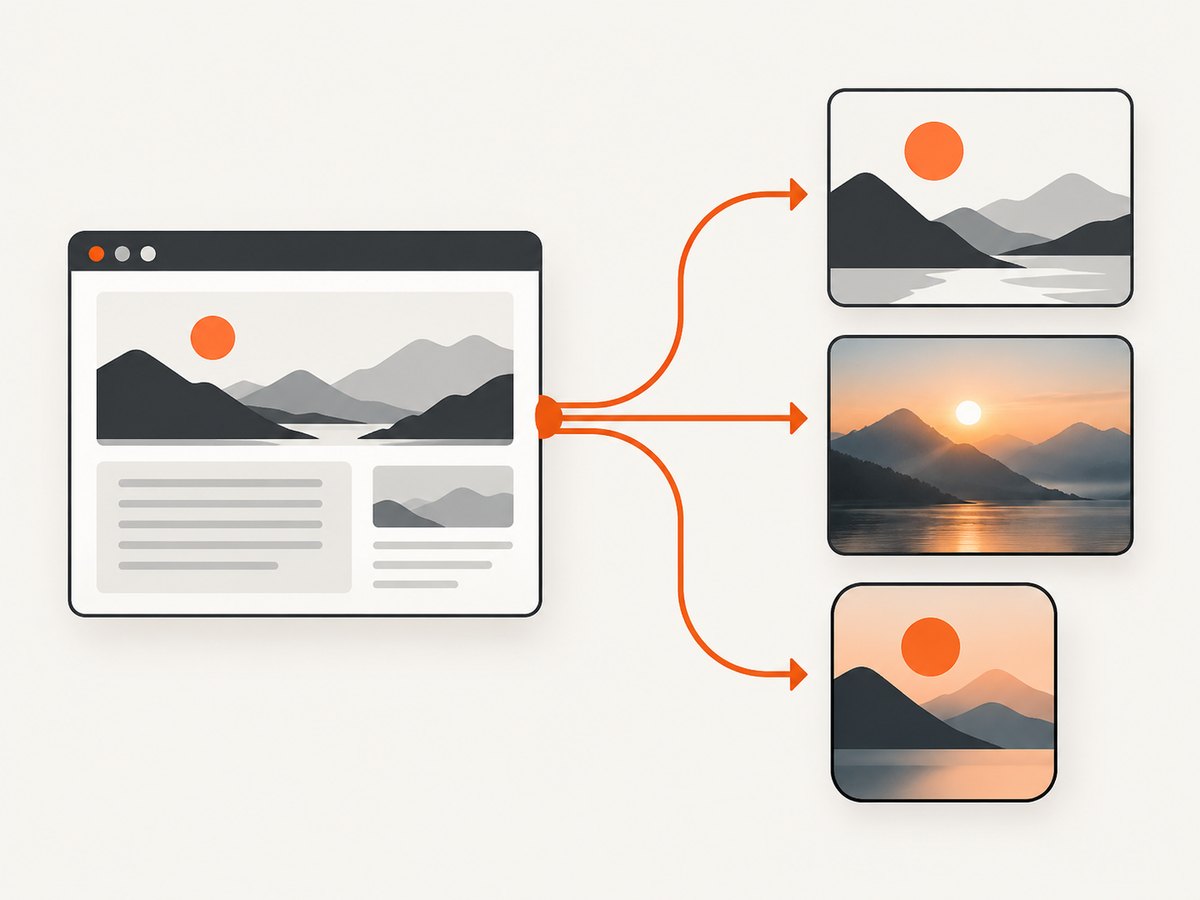
The quality option is for JPEG and WebP, not PNG. Playwright documents defaults of 80 for JPEG and 100 for WebP. At WebP quality 100 the output is lossless; lowering the value makes WebP lossy. For example:
await page.screenshot({
  path: 'compressed.webp',
  type: 'webp',
  quality: 82,
});

await page.screenshot({
  path: 'photo.jpg',
  type: 'jpeg',
  quality: 85,
});
Pick quality by checking the result on representative content. Text, thin borders, gradients, and small icons can make compression artifacts more noticeable than they are in photos. For visual regression baselines, prefer a lossless output and keep capture conditions consistent.
Capture transparent backgrounds
Set omitBackground: true to omit the default page background and allow transparency in a supported output. This option is not applicable to JPEG, which does not support transparency.
await page.screenshot({
  path: 'transparent.png',
  type: 'png',
  omitBackground: true,
});
Transparency only helps when the page content itself has no opaque background covering the area you want transparent. If the page paints a background, remove or override it with page styles before capture. Do not combine a transparency requirement with JPEG output.
4. Set the format for a locator screenshot
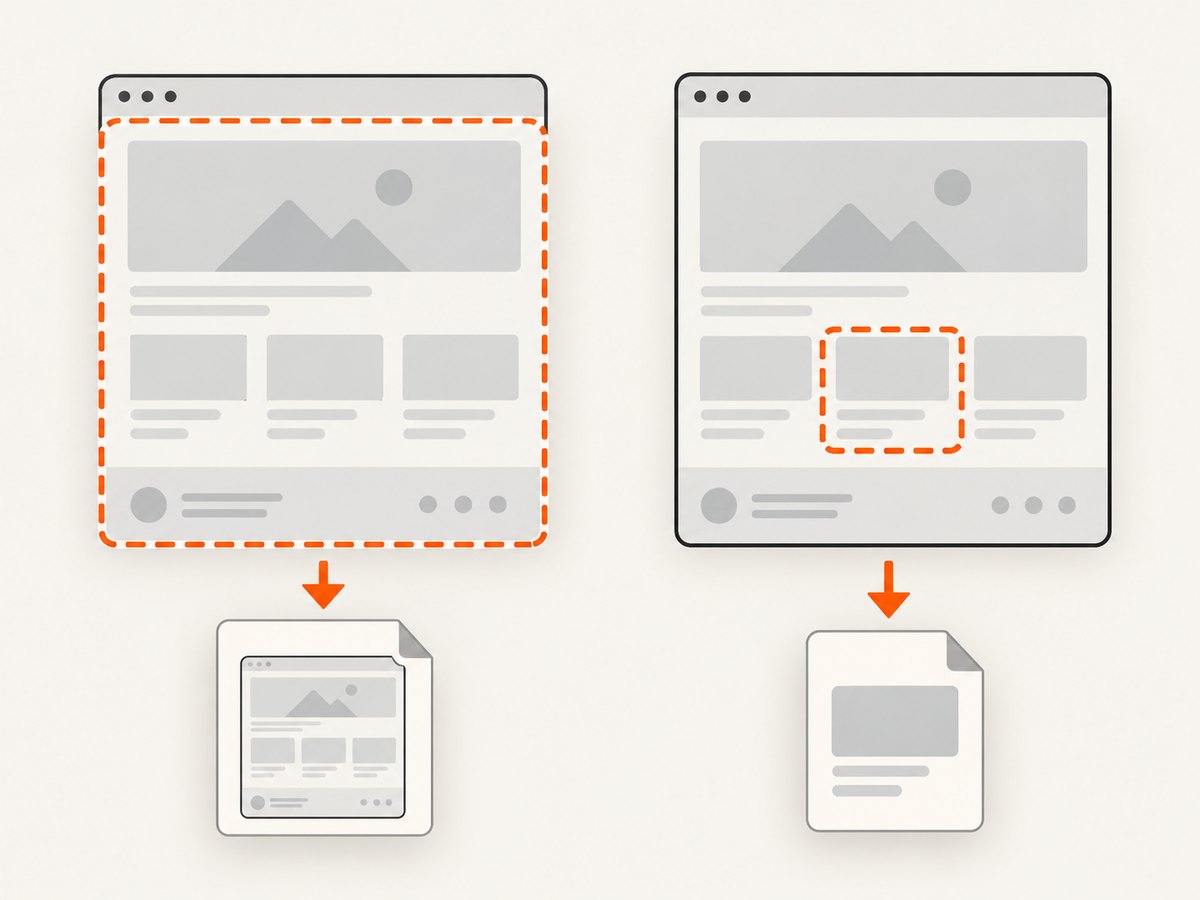
Locator screenshots support the same format choices. Use a locator when you need one element rather than the full viewport or page. The locator must resolve to an element before the screenshot is taken.
const card = page.locator('[data-testid="product-card"]');
await card.screenshot({
  path: 'product-card.webp',
  type: 'webp',
  quality: 90,
});
Locator screenshots are useful for component documentation, targeted bug reports, or visual checks of one region. The format affects the encoded image, not which element Playwright captures. If the element is missing or hidden, address the locator or page state first; changing type will not fix a capture that cannot find the target.
5. Use formats correctly with Playwright Test snapshots
expect(page).toHaveScreenshot() is a visual assertion, not the same API as page.screenshot(). Playwright Test stores screenshot snapshots as PNG by default. To store a WebP snapshot, use a snapshot name ending in .webp. The documented assertion extensions are .png and .webp; do not assume the regular screenshot API’s JPEG type option applies to this assertion.
import { test, expect } from '@playwright/test';

test('product page matches its WebP baseline', async ({ page }) => {
  await page.goto('https://example.com/products');
  await expect(page).toHaveScreenshot('product-page.webp');
});
For an element assertion, use the locator assertion API and a WebP snapshot name:
test('product card matches its baseline', async ({ page }) => {
  await page.goto('https://example.com/products');
  await expect(page.locator('[data-testid="product-card"]'))
    .toHaveScreenshot('product-card.webp');
});
Use the assertion API when you want Playwright Test to compare a new capture with a stored baseline. Use page.screenshot() when you simply need an image file or buffer. Choosing WebP does not by itself make visual comparisons stable: browser rendering can vary with the operating system, browser version, settings, hardware, power source, and headless mode. Generate and compare baselines in the same environment when repeatability matters, following the Playwright visual comparisons guidance.
6. Practical checklist
- Decide what the image is for. Use a regular screenshot for an exported image or buffer; use a screenshot assertion for a visual-test baseline.
- Choose the encoding. PNG is the default; use JPEG or WebP when their lossy or lossless behavior suits your output.
- Align the filename and type. Use
.png,.jpg/.jpeg, or.webpas appropriate. For JPEG, settype: 'jpeg'. - Set quality only for JPEG or WebP. Start from Playwright’s documented defaults, then inspect captures representative of your pages.
- Check transparency requirements. Use
omitBackground: truewith a non-JPEG output and ensure the page has no opaque background in the target area. - For visual tests, pin the environment. Keep browser and host conditions consistent when creating and checking baselines.
- Check output metadata. If another system receives the image, verify the encoded format and set its filename or content type to match.
7. Troubleshooting common format problems
| Symptom | Likely cause | Fix |
|---|---|---|
| The output is PNG when WebP was expected. | No WebP type was set and the call did not infer it from a WebP path. | Set type: 'webp' or use a path ending in .webp. |
| The screenshot call rejects the format. | The type string is unsupported or misspelled, such as 'jpg'. |
Use exactly 'png', 'jpeg', or 'webp'. |
The file ends in .jpg but a tool cannot decode it as JPEG. |
The encoded type and path or downstream metadata disagree. | Set type: 'jpeg' and use a matching .jpg or .jpeg extension. |
Changing quality has no effect. |
Quality does not apply to PNG. | Use JPEG or WebP if lossy quality control is appropriate. |
| The JPEG capture does not have transparency. | JPEG does not support transparency, and omitBackground is not applicable to it. |
Capture as PNG or WebP and use omitBackground: true. |
| A visual assertion does not accept a JPEG name or option. | Screenshot assertions are a separate API, with documented .png and .webp snapshot extensions. |
Use a PNG or WebP snapshot name, or use a regular screenshot call for JPEG output. |
| Visual snapshots differ across machines despite the same format. | Rendering environment differences can change pixels independently of format. | Use the same host environment, browser version, settings, and headless mode for baseline generation and comparison. |
| The output file is empty or missing. | The capture or write step did not complete, or the script wrote to a different path. | Await the screenshot call, check the resolved output path and process permissions, and handle thrown navigation or capture errors. |
8. Performance, reliability, and cost considerations
Format selection happens at image encoding time. The format name alone does not tell you how fast a full workflow will be: page navigation, page readiness, capture dimensions, and later upload or processing can all matter. If you need to reduce transferred bytes, compare file sizes and visual quality for actual pages, then use the same chosen settings consistently.
For reliable automation, wait for the application state your screenshot requires before capturing, and make sure the target page and locator are available. In visual testing, keep the browser environment stable and avoid treating a format change as a fix for rendering differences. Store the format alongside image metadata so later steps do not guess from bytes or filenames.
Playwright is browser automation software; its screenshot format option does not add a per-image service charge. Your operational costs come from the infrastructure and work around the capture, such as running browsers, storing images, and moving them. The cited Playwright references do not publish a universal file-size or cost comparison among PNG, JPEG, and WebP, so estimate using your own capture corpus.
9. Or skip the browser setup
If you only need a screenshot file and do not need Playwright control over an already-running browser, ScreenshotNeo is a website screenshot API and MCP server from Yorker Media. Its API returns PNG, JPEG, WebP, or PDF from one GET request. See the ScreenshotNeo API docs for request options and setup.
curl -G "https://api.screenshotneo.com/v1/shot" -d access_key=YOUR_API_KEY --data-urlencode url=https://stripe.com -o shot.webpIn this call, the API returns the configured response format; adapt the target URL and format options for your use. ScreenshotNeo can accept cookie and consent banners and remove more than 60 known consent platforms, newsletter popups, and chat widgets before capture, with each step independently switchable. Bot checks and CAPTCHAs, blank pages, timeouts, failed loads, and cache hits are not billed, and the response identifies page verdict and billing status in headers. Its MCP server provides take_screenshot, get_page_info, and capture_pdf tools for Claude, Cursor, and other MCP clients.
The free plan includes 1,000 screenshots per month with no card. Paid plans start at $5 for 3,000 shots; yearly billing gives two months free, and every feature is on every plan. Sign up for ScreenshotNeo’s free 1,000 screenshots a month, with no card.
10. FAQ
Does a .webp path work without type: 'webp'?
Yes. For a regular screenshot with a path, Playwright can infer the format from the extension. Setting type explicitly is also supported.
Should I use PNG or WebP for a visual baseline?
Both PNG and WebP can be used for snapshots according to the assertion documentation. Pick a format and keep it consistent with your baseline workflow; keep the rendering environment stable too.
Can I use JPEG for a transparent screenshot?
No. JPEG does not support transparency, and Playwright documents omitBackground as not applicable to JPEG.
Does a screenshot buffer have a format?
Yes. When no path is supplied, the call returns encoded image bytes. Set type so the returned buffer uses the desired format.