How to Set Screenshot Height in Playwright
Choose `clip.height` to crop a screenshot, viewport height to change the page layout, or `fullPage: true` to capture all scrollable content.
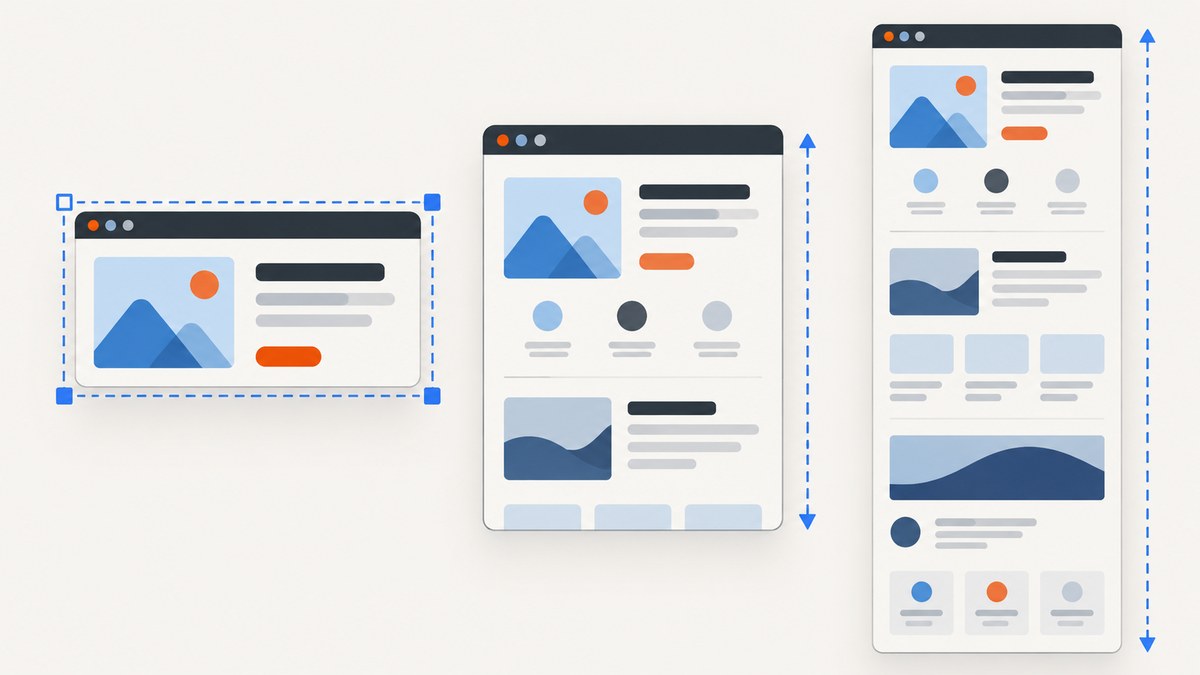
In Playwright, choose the height setting based on what you want the image to contain:
- Use
clip.heightto crop the screenshot to a rectangle with a specific height. - Use
page.setViewportSize()or a browser context viewport to change the browser’s visible height and responsive layout. - Use
fullPage: trueto capture the full vertically scrollable page.
These options do different jobs. A crop bounds the output image; a viewport change affects layout and what is visible; a full-page capture extends the screenshot to the document’s scrollable content. The examples below use Playwright’s JavaScript API. For device-pixel output, also check the screenshot scale setting because it can change the final image height in pixels.
1. Set an exact screenshot crop height with clip
Use clip when you need a screenshot with known pixel dimensions, such as a fixed-height preview or a region for a visual comparison. The clip object has x, y, width, and height properties.
const { chromium } = require('playwright');

(async () => {
  const browser = await chromium.launch();
  const page = await browser.newPage({ viewport: { width: 1280, height: 720 } });
  await page.goto('https://example.com', { waitUntil: 'load' });

  await page.screenshot({
    path: 'crop.png',
    clip: { x: 0, y: 0, width: 1280, height: 500 },
  });

  await browser.close();
})();
This writes a 1280-by-500 image region starting at the page’s top-left coordinate. To capture a lower region, increase y. To keep a fixed right-hand or centered region, adjust x and width. Set all four values deliberately: the clip is a rectangle, not a request to resize the page.
The clip coordinates and dimensions should describe a valid area in the rendered page. If the requested region is outside the page or has invalid dimensions, the screenshot may fail or not represent the intended content. When the page is responsive, select the viewport first, then define the clip against that resulting layout.
2. Change the browser viewport height
Use viewport sizing when the page itself should render as if the browser window had a different height. This can affect responsive behavior, sticky elements, and which content is initially visible. It does not simply crop the output.
const { chromium } = require('playwright');

(async () => {
  const browser = await chromium.launch();
  const page = await browser.newPage();

  await page.setViewportSize({ width: 1280, height: 900 });
  await page.goto('https://example.com', { waitUntil: 'load' });
  await page.screenshot({ path: 'viewport-900.png' });

  await browser.close();
})();
Playwright measures viewport dimensions in pixels. Set the size before navigation when you want the site to initialize at those dimensions. The API also allows resizing after navigation, but resizing can affect sites that do not expect their dimensions to change.
If every page in a context should use the same viewport, configure it when creating the context or page:
const context = await browser.newContext({
  viewport: { width: 1280, height: 900 },
});
const page = await context.newPage();
await page.goto('https://example.com');
await page.screenshot({ path: 'context-viewport.png' });
Browser context viewport emulation defaults to 1280×720. Setting it explicitly makes the capture dimensions easier to reproduce and avoids relying on that default.
3. Capture the full scrollable page
For a page-length image, use fullPage: true. Playwright captures the full scrollable page as if it were displayed on a very tall screen. The default is false, which captures the currently visible viewport.
const { chromium } = require('playwright');

(async () => {
  const browser = await chromium.launch();
  const page = await browser.newPage({ viewport: { width: 1280, height: 720 } });
  await page.goto('https://example.com', { waitUntil: 'load' });
  await page.screenshot({ path: 'full-page.png', fullPage: true });
  await browser.close();
})();
Full-page capture is useful for documentation, archiving a rendered page, and reviewing content that extends below the fold. The resulting image can be much taller than the viewport. On long pages, consider the memory and file-size implications before capturing at large widths or high device scale.
A full-page screenshot captures the document’s scrollable extent; it does not mean that a fixed-height crop was applied. If you need just the first 900 pixels, use clip.height. If you want the page to lay out inside a 900-pixel-high window and screenshot what is visible, set the viewport height to 900.
4. Decide which height option fits
| Goal | Setting | What changes |
|---|---|---|
| Output image must be an exact height | clip: { x, y, width, height } |
The screenshot region is bounded to a rectangle. |
| Change the visible browser area or responsive layout | page.setViewportSize({ width, height }) |
The emulated viewport changes; page layout may respond. |
| Include all vertically scrollable content | fullPage: true |
The screenshot covers the full scrollable page. |
| Set shared dimensions for several pages | Context viewport |
Pages created in the context use the configured viewport. |
A quick decision rule: crop for output bounds, resize for browser behavior, and use full-page for document coverage.
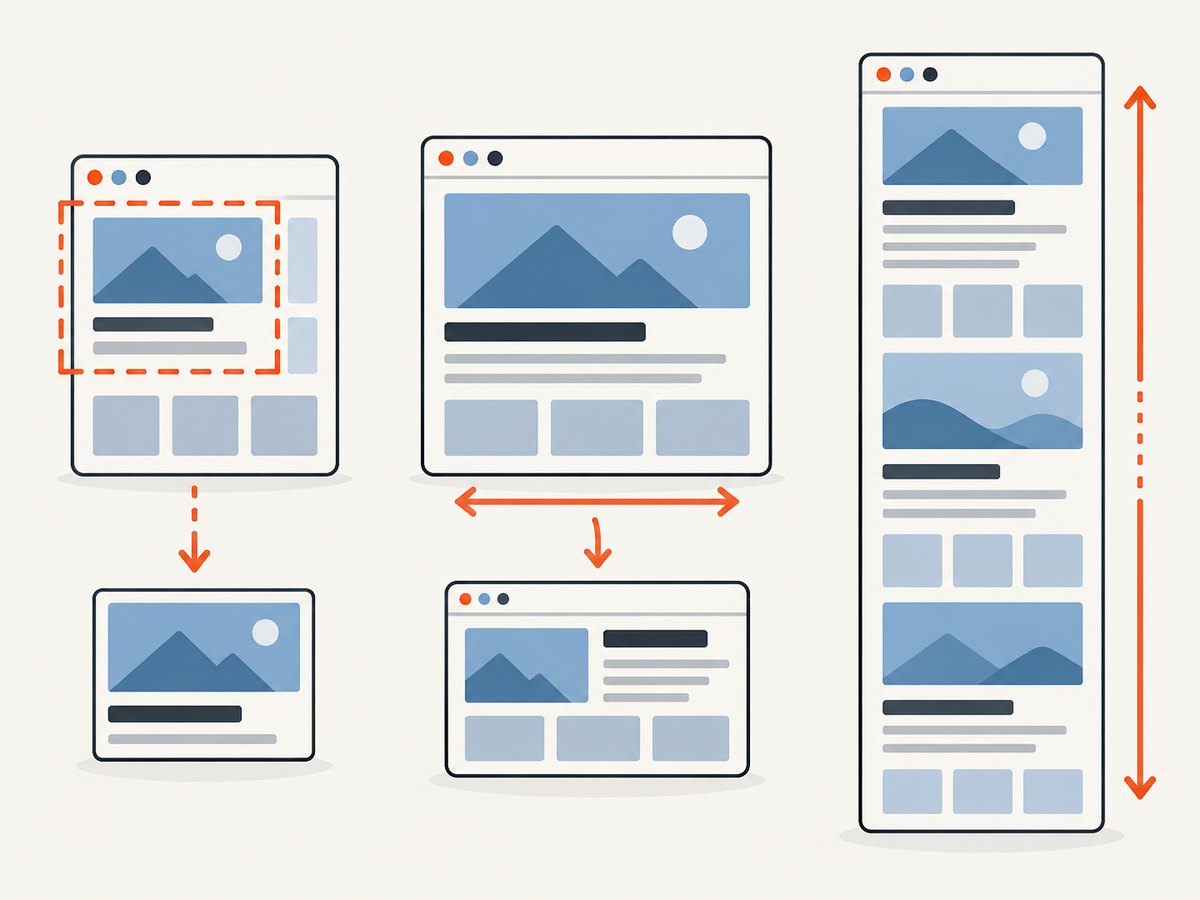
5. Understand CSS pixels, device pixels, and scale
A screenshot’s pixel height can differ from its CSS-pixel height when device scale is involved. Playwright’s screenshot scale option supports 'css', which produces one image pixel per CSS pixel, and 'device', which uses device pixels and can create a larger image on high-DPI devices.
await page.screenshot({
  path: 'css-scale.png',
  scale: 'css',
});

await page.screenshot({
  path: 'device-scale.png',
  scale: 'device',
});
If a viewport is 900 CSS pixels high and the output seems taller than 900 image pixels, inspect the scale setting and device scale factor. Choose CSS scale when predictable CSS-pixel dimensions matter; choose device scale when you need the higher-resolution output.
6. A complete repeatable capture script
This example makes the viewport explicit, navigates, waits for a target element, and then selects one of three capture modes. Set MODE to 'clip', 'viewport', or 'full' to make the behavior clear in a script used by a team.
const { chromium } = require('playwright');

(async () => {
  const browser = await chromium.launch();
  try {
    const page = await browser.newPage({
      viewport: { width: 1280, height: 900 },
      deviceScaleFactor: 1,
    });

    await page.goto('https://example.com', { waitUntil: 'load' });
    await page.locator('body').waitFor({ state: 'visible' });

    const mode = process.env.MODE || 'clip';
    if (mode === 'clip') {
      await page.screenshot({
        path: 'result.png',
        clip: { x: 0, y: 0, width: 1280, height: 600 },
        scale: 'css',
      });
    } else if (mode === 'viewport') {
      await page.screenshot({ path: 'result.png', scale: 'css' });
    } else if (mode === 'full') {
      await page.screenshot({ path: 'result.png', fullPage: true, scale: 'css' });
    } else {
      throw new Error(`Unknown MODE: ${mode}`);
    }

    await page.close();
  } finally {
    await browser.close();
  }
})();
Install Playwright in the project and install its browser binaries according to the official setup instructions before running this script. The important capture options are the documented Page screenshot API and the screenshot guide.
7. Common errors and fixes
| Symptom | Likely cause | Fix |
|---|---|---|
| Image height is the viewport height, not the number expected | You changed the viewport but expected an output crop. | Set clip.height for a bounded image region. |
| The screenshot is much taller than expected | fullPage: true includes the full scrollable page, or device scale increases output pixels. |
Remove fullPage for viewport capture; check scale and device scale factor. |
| Content is cut off at the bottom | A clip height is smaller than the content you intended to include. | Increase clip.height, move its y coordinate, or use full-page capture. |
| Layout changed after changing height | Viewport resizing triggered responsive rules or page scripts. | Set the intended viewport before navigation and verify the site at that size. |
| Full-page output omits content expected below the fold | The content may be loaded only after scrolling or after a delay. | Wait for the site’s content to appear; for lazy-loaded sections, scroll through the page before capture and verify the resulting document extent. |
| Capture is slow or memory-heavy | The page is very long, wide, animated, or rendered at device scale. | Use a smaller viewport or CSS scale, capture a relevant clip, and avoid unnecessary full-page output. |
For automated jobs, also handle navigation timeouts and close the browser in a finally block, as in the complete example. That prevents a failed navigation from leaving a browser process open. Choose an explicit wait condition appropriate to the page: waiting for all network activity indefinitely can be unreliable on sites with persistent requests.
8. Performance, reliability, and cost considerations
Playwright screenshot cost is the compute and storage cost of the environment running the browser, plus the time required for navigation and rendering. A small viewport screenshot is generally less demanding than a very tall full-page image. High device scale produces more output pixels, while full-page capture can make both rendering and image encoding heavier. The actual time depends on the website, network, page scripts, and runtime; there is no single capture duration that applies to every page.
For reliable captures, fix the viewport, scale, browser version, and wait condition. Wait for a meaningful selector when the page has a clear ready element. If content appears after scrolling, scroll it into view or otherwise trigger the page’s lazy-loading behavior before capturing. For visual regression, disable or account for animations and dynamic content so the screenshot reflects a stable state.
- Use
clipwhen only a known region is required; this keeps the output bounded. - Use full-page capture only when the full document is necessary.
- Use CSS scale for predictable one-image-pixel-per-CSS-pixel sizing.
- Use explicit context settings so runs do not depend on implicit viewport defaults.
- Set navigation and application-level timeouts, and make failures visible in logs.
9. Or skip the browser setup
If you need a screenshot without managing a Playwright browser, ScreenshotNeo is a website screenshot API. The API accepts a URL and returns an image or PDF. Its documentation lists capture settings including viewport dimensions and full-page capture: ScreenshotNeo API docs.
curl -G "https://api.screenshotneo.com/v1/shot" \
  -d access_key=YOUR_API_KEY \
  --data-urlencode url=https://example.com \
  -o shot.webp
import requests
r = requests.get(
"https://api.screenshotneo.com/v1/shot",
params={"access_key": "YOUR_API_KEY", "url": "https://example.com"},
timeout=90,
)
open("shot.webp", "wb").write(r.content)const q = new URLSearchParams({
access_key: 'YOUR_API_KEY',
url: 'https://example.com',
});
const res = await fetch(`https://api.screenshotneo.com/v1/shot?${q}`);
if (!res.ok) throw new Error(`Screenshot request failed: ${res.status}`);
const bytes = new Uint8Array(await res.arrayBuffer());
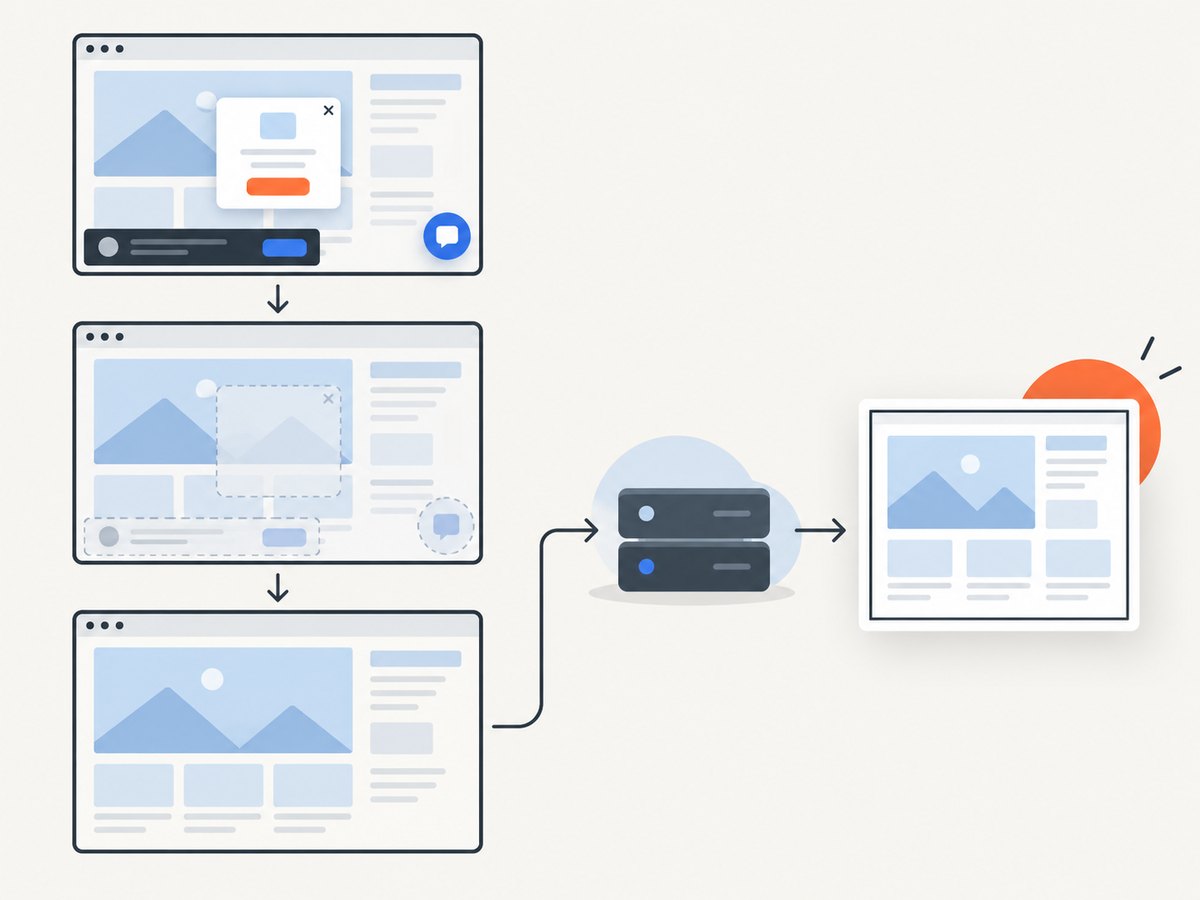
await import('node:fs/promises').then(fs => fs.writeFile('shot.webp', bytes));Cookie banners are accepted and removed before the shot, along with supported newsletter popups and chat widgets; each cleanup step can be turned off. Bot checks, blank pages, failed loads, timeouts, and cache hits are not billed, and response headers identify the page verdict and billing status. An MCP server gives AI agents tools to take screenshots, get page information, and capture PDFs. The free plan includes 1,000 screenshots a month with no card; paid plans start at $5 for 3,000 shots. Create a free ScreenshotNeo account.
10. Frequently asked questions
Does fullPage: true change the viewport height?
No. It asks Playwright to capture the full scrollable page instead of only the visible viewport.
Can I set only the screenshot height and let Playwright choose the width?
A screenshot clip is a rectangle and takes both width and height, as well as its x and y origin. Set all four values to define the region you intend to capture.
Why does the same CSS height produce different file dimensions?
Check the screenshot scale and device scale factor. Device-pixel output can be larger than CSS-pixel dimensions.
Should I resize before or after navigating?
Set the viewport before navigation when you want the page to initialize at the target dimensions. Resizing later is useful when intentional, but can cause responsive layout changes.


