How to Set Timeouts for Headless Chrome
Set the right timeout for Chrome navigation, element waits, scripts, and tests in Puppeteer, Playwright, and Selenium—with runnable examples and fixes.

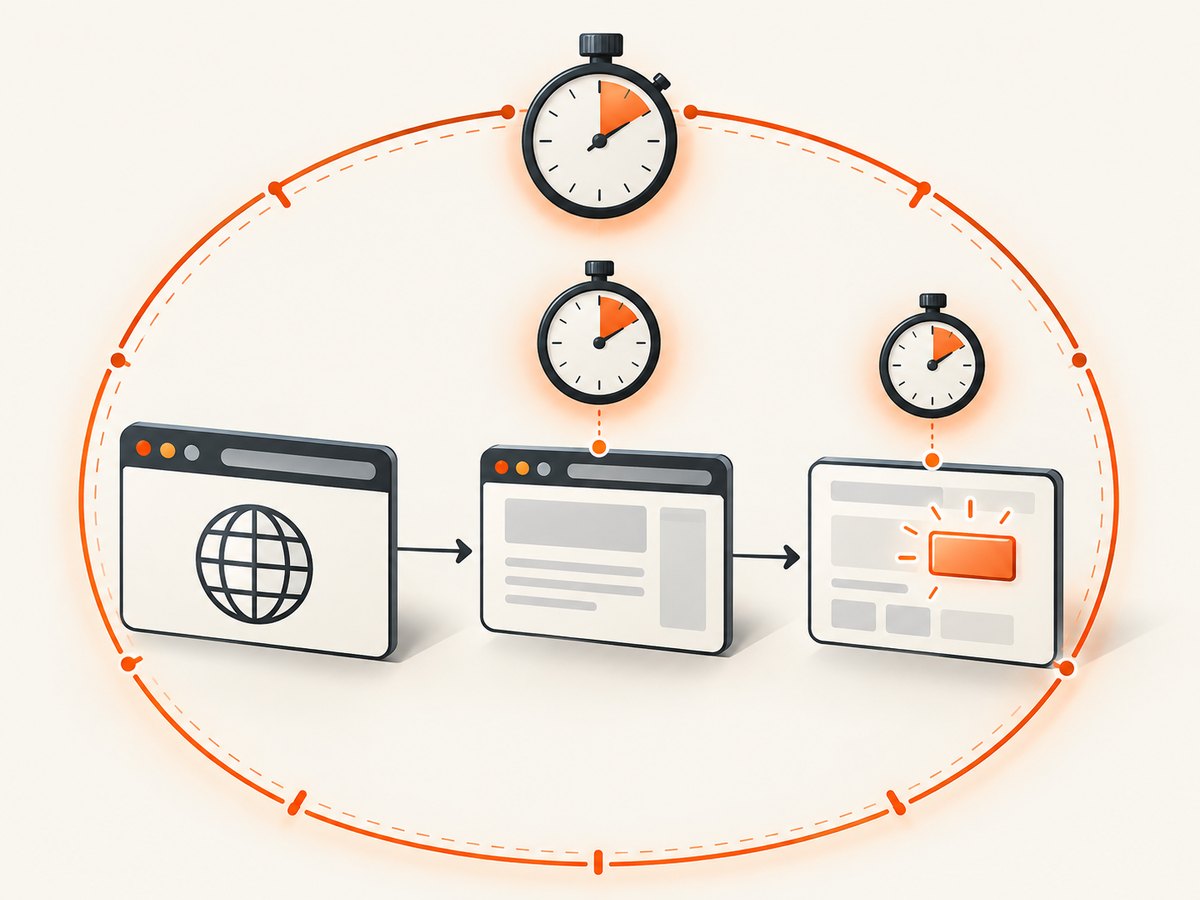
Direct answer: Set timeouts in the automation framework controlling Chrome. Headless mode itself has no universal timeout setting. First identify what is expiring—navigation, an element or action wait, JavaScript execution, a test, or the browser session—then set that framework’s matching timeout. A navigation timeout limits how long the framework waits for its selected navigation condition; it does not guarantee that the application is ready for the next interaction.
This guide covers Puppeteer, Playwright, Playwright Test, and Selenium WebDriver. The examples use illustrative limits, not universal recommendations. Tune them for the expected duration and consequences of waiting, and check the documentation for the framework version you use: defaults and option behavior can vary by method, binding, and release.
1. Identify which timeout is expiring
Before increasing a number, match the failure to its operation. Similar-looking timeout errors can come from different layers, each with a separate setting and deadline.

| What stopped | Setting to inspect | What it bounds |
|---|---|---|
Navigation such as goto |
Navigation timeout or per-call navigation option | Waiting for the selected navigation condition |
| Finding an element or waiting for page state | General action/default timeout or per-call option | The particular wait or action |
| JavaScript execution | Script timeout, especially in Selenium | A script executed through WebDriver |
| Entire test ends while an operation is pending | Test-runner timeout | The test’s overall budget, not just one page operation |
| Browser or remote session ends | Session, worker, or infrastructure limits | The browser process or remote execution environment |
Changing one category does not necessarily change the others. For example, making a test’s overall budget larger does not fix a navigation call that still has a shorter per-operation limit. Likewise, extending Selenium’s page-load limit does not change its script timeout or implicit element wait.
2. Set timeouts in Puppeteer
Puppeteer provides a page default for methods that accept a timeout and a separate navigation default. The navigation setting takes precedence for navigation-related methods. The Page API names methods such as goto, reload, setContent, and waitForNavigation as navigation-related. See the Puppeteer Page API for current method details and defaults.
import puppeteer from 'puppeteer';

const browser = await puppeteer.launch({ headless: true });
try {
  const page = await browser.newPage();

  // Illustrative limits: choose values for your workload.
  page.setDefaultTimeout(15_000);            // general waits and actions
  page.setDefaultNavigationTimeout(30_000);   // navigation-related methods

  await page.goto('https://example.com', { waitUntil: 'domcontentloaded' });
  await page.locator('h1').wait();
  console.log(await page.title());
} finally {
  await browser.close();
}
For a one-off navigation, use the operation’s option instead of changing the page-wide default:
await page.goto('https://example.com', {
  waitUntil: 'domcontentloaded',
  timeout: 20_000,
});
Selected Puppeteer wait methods document a 30-second default, and document 0 as disabling the timeout for those waits. Do not assume that one method’s default or option applies identically to every Page API method. Confirm the method you call, and prefer a deliberate bounded limit for jobs that need a failure deadline.
3. Set timeouts in Playwright
Playwright has general operation defaults and separate navigation defaults at page and browser-context scope. Navigation-specific settings take precedence for navigation methods; individual calls can also accept a timeout option. Consult the Playwright Page API for the current setting names, scopes, and supported navigation conditions.
import { chromium } from 'playwright';

const browser = await chromium.launch({ headless: true });
try {
  const page = await browser.newPage();
  page.setDefaultTimeout(10_000);             // general operations
  page.setDefaultNavigationTimeout(30_000);   // navigation operations

  await page.goto('https://example.com', { waitUntil: 'domcontentloaded' });
  await page.getByRole('heading', { name: 'Example Domain' }).waitFor();
  console.log(await page.title());
} finally {
  await browser.close();
}
For a single call, set its deadline directly:
await page.goto('https://example.com', {
  waitUntil: 'domcontentloaded',
  timeout: 20_000,
});
Playwright documents load, domcontentloaded, commit, and networkidle as navigation completion choices. These describe browser navigation events or conditions, not application-specific readiness. Playwright explicitly discourages using networkidle for testing and recommends web assertions to assess readiness. Prefer waiting for the heading, button, or state your next step actually needs.
The API documentation describes 0 as no timeout for the relevant operations. That can be useful in carefully managed interactive work, but an unbounded wait can leave an automated job hanging indefinitely. Set deliberate limits when a failure deadline matters.
4. Configure Playwright Test’s separate test budget
Playwright Test has a test-level timeout in addition to page operation timeouts. The test budget covers the test as a whole; the page timeout governs an individual browser operation. If an operation still fails at its own limit, increasing only the test budget will not fix it. If page calls succeed but the runner terminates the test, inspect the test budget and its configuration.
import { test, expect } from '@playwright/test';

test.setTimeout(45_000); // illustrative whole-test budget

test('page exposes the expected heading', async ({ page }) => {
  page.setDefaultNavigationTimeout(30_000);
  await page.goto('https://example.com', { waitUntil: 'domcontentloaded' });
  await expect(page.getByRole('heading', { name: 'Example Domain' })).toBeVisible();
});
Configuration can be applied at broader scopes in the test runner. The exact project, test, and configuration behavior is documented in Playwright Test timeouts. Keep the budgets coordinated: the overall test limit must allow enough time for its bounded operations, assertions, and cleanup.
5. Set the matching Selenium WebDriver timeout
Selenium distinguishes script execution, page loading, and implicit element-location waits. Set the category that matches the observed operation. New WebDriver sessions are documented with a 30,000 millisecond script timeout and a 300,000 millisecond page-load timeout in Selenium’s browser options documentation. These are documented defaults, not guarantees for every wrapper, language binding, or future version. Check the Selenium Browser Options documentation for your version.
from selenium import webdriver
from selenium.webdriver.common.by import By
from selenium.webdriver.support.ui import WebDriverWait
from selenium.webdriver.support import expected_conditions as EC

options = webdriver.ChromeOptions()
options.add_argument('--headless=new')

driver = webdriver.Chrome(options=options)
try:
    driver.set_page_load_timeout(30)       # seconds: navigation
    driver.set_script_timeout(15)           # seconds: async JavaScript
    driver.implicitly_wait(0)               # seconds: implicit element lookup

    driver.get('https://example.com')
    heading = WebDriverWait(driver, 10).until(
        EC.visibility_of_element_located((By.TAG_NAME, 'h1'))
    )
    print(heading.text)
finally:
    driver.quit()
The explicit WebDriverWait above bounds a particular condition. Selenium’s implicit wait is a separate setting that applies to element-location calls. Be cautious about combining implicit and explicit waits: the elapsed behavior can become harder to reason about because element lookups inside an explicit wait may themselves wait. Keep the categories clear and choose the condition that describes readiness.
6. Choose the right completion condition
A page can finish its initial document load while client-side rendering, data fetching, or a user-visible control is still pending. Conversely, a page may continue polling or keep a connection open after the content you need is ready. A navigation event therefore answers “did this browser navigation reach its selected condition?” rather than “is my task’s target state ready?”
- For navigation: choose the least restrictive event that suits the next action.
domcontentloadedcan be enough when the required DOM is present and you will wait for a specific control afterward. Use a later condition when your task requires it. - For an interaction: wait for the target element or an assertion about its state, such as visibility or enabled status.
- For dynamic content: wait for a stable, meaningful application signal rather than an arbitrary long delay.
- For pages that never become idle: avoid relying on network silence when polling, analytics, streaming, or long-lived connections are expected.
Use a timeout as an upper bound on waiting, not as a substitute for defining what success means.
7. Troubleshooting common timeout failures
| Symptom | Likely cause | Fix |
|---|---|---|
| Navigation times out although the page visibly rendered | The selected event waits longer than the content your task needs, or ongoing requests delay the condition. | Choose an appropriate navigation condition, then wait for the specific target state. Set the navigation timeout for that operation. |
| Element wait times out after navigation succeeds | The element is absent, hidden, inside a frame, or appears later than expected; the navigation limit does not control this wait. | Check the selector and frame, then set the action/default timeout or that wait’s per-call option. Wait for the required state. |
| Playwright test ends while a page call is pending | The test-level budget is shorter than the remaining work, or the operation itself has its own shorter timeout. | Identify which deadline fired. Adjust the test budget or operation timeout that actually expired, and keep both bounded. |
Selenium throws TimeoutException in a script |
The script deadline is shorter than the asynchronous script, independent of page loading. | Set the script timeout to a reasoned bound and check that the script resolves or rejects as expected. |
| Selenium element lookup is slow or inconsistent | An implicit wait may be active, or mixed with explicit waits. | Review implicit wait configuration and use a targeted explicit condition where appropriate. |
| Increasing timeout changes nothing | The wrong scope was changed, a per-call option overrides the default, or an outer runner/session deadline expires first. | Trace the operation, inspect per-call values and precedence, then check test, worker, and remote-session budgets. |
| Intermittent failures on slow pages | Network or application response time varies, or readiness is being inferred from a fixed sleep. | Wait for a meaningful condition, retain a finite upper bound, and collect the failing URL, operation, selected condition, and elapsed time. |
8. Performance, reliability, and cost considerations
Longer limits do not make Chrome or a site faster. They increase the time a failed or slow operation can occupy a worker before the job reports failure. In a queue, that can reduce throughput and hold resources needed by later work. Very short limits, in turn, can turn ordinary variation into flaky failures.
- Set separate budgets for navigation, element/action waits, scripts, tests, and any outer job or session.
- Use observed operation durations and the impact of a delayed failure to choose a bound; re-evaluate when URLs, infrastructure, or application behavior change.
- Prefer condition-based waits to repeated fixed sleeps. They can proceed as soon as the needed state exists while retaining a finite deadline.
- Log which operation timed out, its condition, URL, configured limit, and elapsed time. Avoid logging secrets in URLs, headers, or cookies.
- Ensure cleanup runs when a wait fails, so a browser process or worker is not left consuming capacity.
The cited framework documentation supplies API behavior and defaults, not independent performance benchmarks or a universal timeout recommendation. Choose values based on your own workload and failure budget.
9. Or skip the browser setup
If your task is to capture a website image or PDF rather than automate an interactive browser session, ScreenshotNeo provides a one-request screenshot API and MCP server. The API accepts a URL and returns PNG, JPEG, WebP, or PDF. See the ScreenshotNeo documentation for options and configuration.
curl -G "https://api.screenshotneo.com/v1/shot" \
  -d access_key=YOUR_API_KEY \
  --data-urlencode url=https://stripe.com \
  -o shot.webp
import requests
r = requests.get(
"https://api.screenshotneo.com/v1/shot",
params={"access_key": "YOUR_API_KEY", "url": "https://stripe.com"},
timeout=90,
)
open("shot.webp", "wb").write(r.content)const q = new URLSearchParams({
access_key: 'YOUR_API_KEY',
url: 'https://stripe.com',
});
const res = await fetch(`https://api.screenshotneo.com/v1/shot?${q}`);
if (!res.ok) throw new Error(`Screenshot request failed: ${res.status}`);
await Bun.write('shot.webp', res);- Cookie banners are accepted and removed before capture, along with 60+ known consent platforms, newsletter popups, and chat widgets; each step can be turned off.
- Bot checks and CAPTCHAs, blank pages, timeouts, failed loads, and cache hits cost nothing. Responses identify the page verdict and billing status in
X-Page-VerdictandX-Billedheaders. - An MCP server gives AI agents tools for screenshots, page information, and PDF capture.
- 1,000 screenshots a month are free with no card. Paid plans start at $5 for 3,000 shots; every feature is on every plan.
Sign up free for 1,000 screenshots a month, no card required.
10. FAQ
Does headless Chrome have a global timeout flag?
There is no single cross-framework headless Chrome timeout. The controlling automation library defines timeout scopes and methods.
Should every timeout be unlimited while debugging?
Usually not for automated jobs. An unlimited wait can hang work indefinitely. Temporarily changing a bound may help isolate behavior, but restore a deliberate deadline for routine runs.
Does a successful navigation mean the application is ready?
No. It means the selected navigation condition completed. Wait separately for the page state required by your next action.
Which documentation should I use for a changed default?
Use the official documentation for the exact framework and version in your project. Method-level defaults and wrapper behavior can differ.


