How to Set Up an MCP Server for Browser Testing
Connect Playwright MCP to your coding assistant, choose a browser and session model, and run browser tests with a practical setup guide.
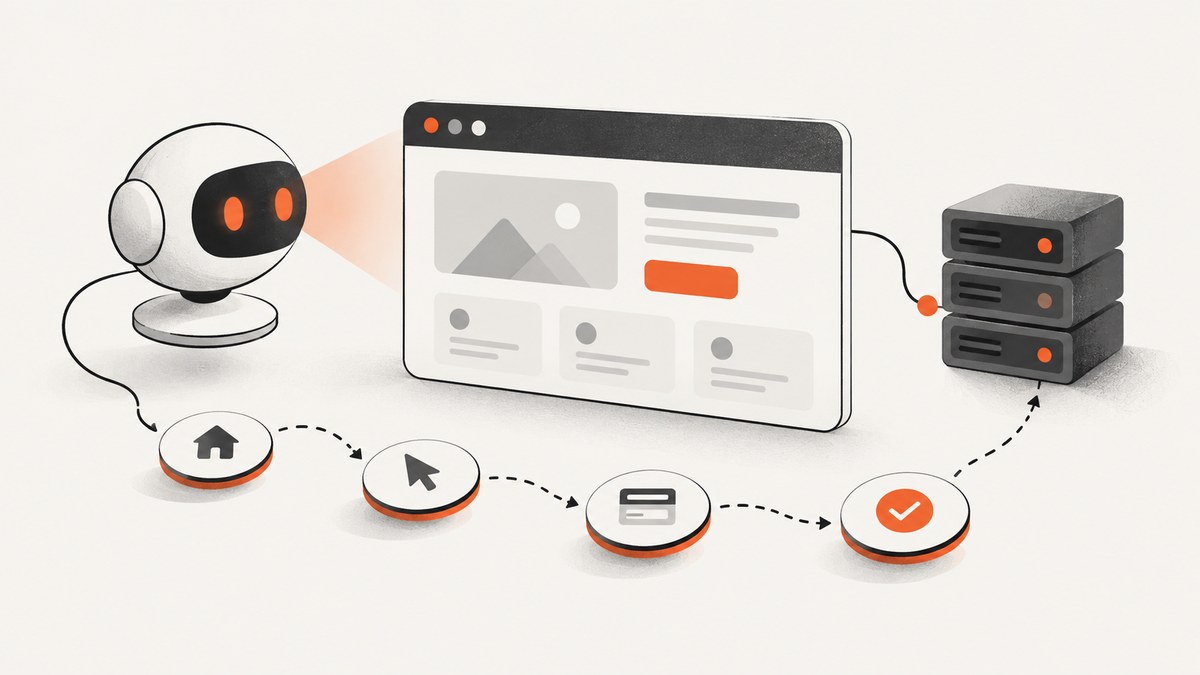
To set up an MCP server for browser testing, install Node.js 20 or newer, configure an MCP client to launch Microsoft’s Playwright MCP server with npx @playwright/mcp@latest, then ask the assistant to navigate to a test page and interact with it. The server exposes browser actions through the Model Context Protocol (MCP), including navigation, clicks, form filling, screenshots, and accessibility snapshots.
This guide covers the standard local setup, a smoke test, headed and headless operation, browser and session choices, HTTP transport, optional capabilities, troubleshooting, and security. Playwright MCP runs arbitrary JavaScript in its server process, so only connect it to trusted MCP clients.
1. Check the prerequisites
You need Node.js 20 or newer and an MCP-compatible client, such as VS Code, Cursor, Windsurf, Claude Code, or Claude Desktop. Install Node.js first if it is not already available. The Playwright browser downloads automatically the first time the server is used.
Check your Node.js version in a terminal:
node --versionThe output should be v20 or newer. Make sure your MCP client is installed and that you know where it reads server definitions. These settings are usually stored in a JSON configuration file or managed through the client’s MCP settings.
2. Add Playwright MCP to your client
For a client that accepts an mcpServers JSON object, add this entry:
{
  "mcpServers": {
    "playwright": {
      "command": "npx",
      "args": ["@playwright/mcp@latest"]
    }
  }
}
Save the configuration and restart or reload the MCP connection in the client. The client launches the server as a local process and communicates with it over standard input and output (stdio). The @latest package tag requests the current package when the command runs; for repeatable team or CI setups, choose and record a package version rather than relying on a moving tag.
You can also add the server through client-specific workflows: VS Code supports code --add-mcp, Cursor has MCP settings, and Claude Code can use:
claude mcp add playwright npx @playwright/mcp@latestFollow your client’s prompts and verify that the server appears as connected. Exact menu names and configuration file locations depend on the client and may change; use its current MCP setup instructions if you cannot find the server settings.
3. Run a browser-testing smoke test
After the server connects, ask the assistant:
Navigate to https://demo.playwright.dev/todomvc and add a few todo items.A successful run should navigate to TodoMVC, inspect the page through an accessibility snapshot, locate the text box, and add the requested items. This checks the full path from client configuration through browser startup and tool calls. It is a setup check, not a substitute for validating your own application’s behavior.
For a more controlled manual check, ask the assistant to perform a short sequence and report the result:
- Navigate to a page that is safe to test.
- Ask it to inspect the page and identify a visible control.
- Ask it to click or fill that control.
- Ask it to verify the resulting page state.
Use a dedicated test site or environment. Browser actions can submit forms or change data just as a person using the browser could.
4. Choose a browser and execution mode
Playwright MCP runs headed by default, so a browser window is visible. Add --headless when the browser should run without a visible window, such as in a container or a CI worker. Select a browser with --browser=<name>; supported choices listed in the setup documentation are chrome, firefox, webkit, and msedge.
For example, a headless Firefox configuration is:
{
  "mcpServers": {
    "playwright": {
      "command": "npx",
      "args": ["@playwright/mcp@latest", "--headless", "--browser=firefox"]
    }
  }
}
To request a specific viewport, add --viewport-size. To emulate a device, use --device. Proxy flags and a JSON config file are also available for additional control. Consult the Playwright MCP option list for the exact values accepted by your installed version; do not assume a desktop viewport and a device preset are interchangeable. A device preset can affect more than viewport dimensions.
| Choice | Use it when | Consider |
|---|---|---|
| Headed | You need to watch what the browser does or diagnose a page visually. | A visible browser needs a graphical environment. |
| Headless | You run in a container, worker, or unattended workflow. | Reproduce the same browser mode when debugging environment-specific behavior. |
| Browser selection | You need to check behavior in Chrome, Firefox, WebKit, or Edge. | Browser engines can behave differently; specify the target rather than treating one run as cross-browser coverage. |
5. Decide how browser state should work
Browser context choice determines whether a run starts clean, reuses saved login state, or operates in an existing browser session.
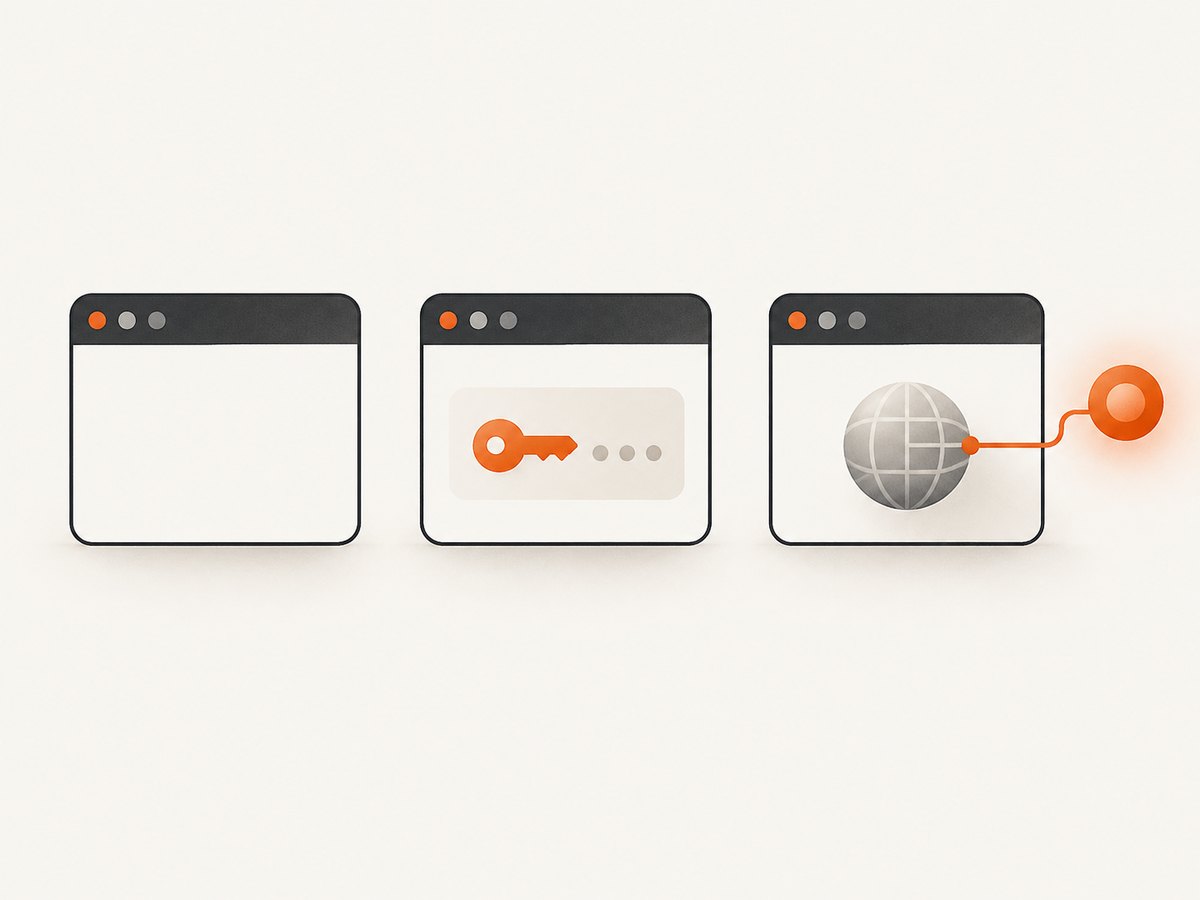
- Persistent profile: the default persistent profile retains cookies and login state. This is convenient for repeated manual work, but can make a test depend on state left by an earlier session.
- Isolated context: add
--isolatedfor a fresh context. Use it to reduce carryover between runs and check unauthenticated behavior. - Saved authentication: use
--storage-stateto preload saved browser state. Treat the state file as sensitive because it may include cookies or other credentials that grant access. - Existing Chrome or Edge tabs: use
--extensionto attach through the browser extension. This helps with SSO, two-factor authentication, or workflows that rely on installed browser extensions.
To reuse an existing browser through a browser debugging endpoint, choose the connection method that matches how that browser is exposed:
# Attach to a running Chrome or Edge channel
npx @playwright/mcp@latest --cdp-endpoint=chrome

# Attach to a Chromium CDP endpoint
npx @playwright/mcp@latest --cdp-endpoint=http://localhost:9222

# Connect to a Playwright server endpoint
npx @playwright/mcp@latest --endpoint=ws://localhost:3000/

# Use extension attachment for existing browser tabs
npx @playwright/mcp@latest --extension
These modes have different prerequisites: the browser or Playwright endpoint must already be available, and an extension connection must be set up in the browser. Avoid putting credentials or private endpoint details in a shared configuration file. For repeatable automated checks, use a dedicated test account and controlled storage state rather than a personal browsing profile.
6. Run Playwright MCP over HTTP
Stdio is the simplest process model when the MCP client launches the server locally. Use HTTP when a container, IDE worker, or separately managed browser process needs to host the server independently. Start it with:
npx @playwright/mcp@latest --port 8931Configure the MCP client to connect to http://localhost:8931/mcp. The server also supports a host setting, allowed-host controls, and a heartbeat timeout for HTTP sessions. The documented heartbeat default is five seconds; it is an operational setting, not a browser performance benchmark.
A simplified client entry for an HTTP MCP connection looks like this, if your client supports URL-based server definitions:
{
  "mcpServers": {
    "playwright": {
      "url": "http://localhost:8931/mcp"
    }
  }
}
Client configuration formats differ, so check your client’s instructions for the HTTP transport schema. Restrict the host and allowed clients to the intended environment. Do not expose an unauthenticated MCP HTTP endpoint to an untrusted network.
| Transport | Process model | Typical fit |
|---|---|---|
| stdio | The MCP client starts and communicates with the server process. | Local development and a straightforward workstation setup. |
| HTTP | A separately started server listens at an endpoint. | Containers, IDE workers, or a separately managed browser environment. |
7. Enable only the capabilities you need
Core browser automation is available by default. Optional capability groups include network, storage, testing, vision, PDF, and devtools. Enable groups with --caps or the corresponding environment-variable or JSON configuration setting.
npx @playwright/mcp@latest --caps=network,storage,testingUse the smallest capability set that supports the task. For example, a workflow that only navigates and fills forms may not need PDF or devtools tools. Add a capability when a workflow requires its functions, and check the installed server’s documentation for the precise tools exposed by each group.
The client uses structured accessibility snapshots to identify page elements and issue actions. This lets an assistant work with named controls and page structure instead of relying only on coordinates. The optional vision capability is available for workflows that need visual interaction. Tool availability depends on the enabled capability groups and server version.
8. Troubleshoot common setup problems
| Symptom | Likely cause | Fix |
|---|---|---|
| The client does not show Playwright MCP. | The JSON is malformed, the entry is in the wrong settings file, or the client has not reloaded. | Validate the JSON, confirm the client’s MCP configuration location, then reload or restart the server connection. |
npx or package startup fails. |
Node.js is missing, older than version 20, or unavailable in the client’s environment. | Check node --version and confirm the MCP client can find the same Node installation used in your terminal. |
| The browser is not found or cannot launch. | The first-use browser download failed, or the runtime environment cannot launch a browser. | Check network access during first startup, then retry. In containers or workers, verify that the environment supports the selected browser and execution mode. |
| The assistant connects but cannot use a requested tool. | An optional capability group is not enabled. | Add the required group with --caps and reconnect. Keep the enabled set limited to the workflow. |
| The site appears logged out. | The run is isolated, storage state was not loaded, or a different browser profile is in use. | Choose the intended session method: persistent profile, valid --storage-state, extension attachment, or a controlled test login. |
| Existing browser attachment fails. | The CDP or Playwright endpoint is unreachable, or the browser is not running with the expected connection available. | Check the endpoint and browser process, then use the matching --cdp-endpoint, --endpoint, or extension mode. |
| The HTTP client cannot connect. | The server is not listening on the requested port, the client URL is wrong, or host controls reject the connection. | Confirm the server is running, use the MCP path /mcp, and check host and allowed-host settings. |
| A headed browser fails in a remote worker. | The worker has no graphical environment. | Use --headless or run in an environment that supports a visible browser. |
When investigating failures, change one configuration dimension at a time: first confirm the client can launch the default server, then check browser startup, then add authentication, capabilities, or a remote transport. This makes it easier to identify which layer is failing.
9. Security, reliability, performance, and cost
Security
The official Playwright MCP setup documentation warns that the tool can run arbitrary JavaScript in the Playwright server process and is RCE-equivalent. In practical terms, a connected assistant can direct code execution in the server’s authority context. Only enable the server for trusted MCP clients, keep configuration under your control, protect saved authentication state, and restrict HTTP access. Treat a browser session as access to whatever accounts and sites are signed into it.
Reliability
Keep the Node version, browser choice, profile strategy, capability set, and server package version consistent across development and CI. Persistent profiles are useful for continuity but can carry stale state; isolated contexts reduce that carryover. A smoke test after changing the client or server configuration catches startup and browser-download problems before a longer workflow depends on them.
Performance
No authoritative setup benchmark is published in the reviewed sources. Startup time and test duration depend on the environment, browser download status, target page, and actions in the workflow. Avoid enabling capabilities that a task does not use, and prefer headless mode for unattended jobs where a visible window is unnecessary. These are configuration choices, not guaranteed speed improvements.
Cost
The Playwright MCP setup described here runs through Node.js and a browser under your control; the setup sources do not specify a Playwright MCP usage fee. Your actual infrastructure costs depend on where the process and browser run. A local workstation, CI worker, and separately managed remote browser have different operational costs. The HTTP transport changes how the server is hosted; it does not itself establish a price.
10. A screenshot-only alternative
If your task is to capture a page rather than interact with it as part of a browser test, [ScreenshotNeo](https://screenshotneo.com) is a website screenshot API and MCP server from Yorker Media. A single GET request returns a PNG, JPEG, WebP, or PDF. Its MCP server exposes take_screenshot, get_page_info, and capture_pdf for Claude, Cursor, and other MCP clients.
Or skip the browser setup
For a screenshot, make one request instead of configuring and managing a Playwright browser. See the [ScreenshotNeo API documentation](https://screenshotneo.com/docs/) for the request options.
curl -G "https://api.screenshotneo.com/v1/shot" -d access_key=YOUR_API_KEY --data-urlencode url=https://stripe.com -o shot.webpScreenshotNeo accepts cookie and consent banners before capture and removes more than 60 known consent platforms, newsletter popups, and chat widgets; each step can be turned off. Bot checks and CAPTCHAs, blank pages, timeouts, failed loads, and cache hits cost nothing, and each response reports the page verdict and billing status in X-Page-Verdict and X-Billed headers. The MCP server lets AI agents take screenshots. The free plan includes 1,000 screenshots a month with no card; paid plans start at $5 for 3,000.
Sign up free for 1,000 screenshots a month, with no card required.
FAQ
Can Playwright MCP test a site without visual selectors?
Yes. Its structured accessibility snapshots let the assistant identify page elements and use browser actions such as navigation, clicking, and form filling. A visual capability group is available for workflows that need it.
Can I use it with Claude Desktop or Cursor?
Yes. The research lists both among compatible clients. Add the server using the client’s MCP settings; the standard process command is npx @playwright/mcp@latest.
Can the same configuration work in CI?
The server can run headless and can use HTTP transport for separately managed environments. CI still needs a compatible Node.js runtime, browser environment, and deliberate handling of authentication state and endpoint access.
Does an MCP server replace a test suite?
It provides browser automation tools to an MCP client. How you organize assertions, repeat runs, and report results depends on the workflow and the testing capabilities you enable.


