How to Set the Window Size with PhantomJS and Selenium WebDriver in Python
Set browser window dimensions with Selenium’s Python WebDriver, check the size, and understand what changes when you’re maintaining a legacy PhantomJS script.
Use Selenium Python’s driver.set_window_size(width, height) after creating a WebDriver session:
driver.set_window_size(1024, 768)The arguments are width and height in pixels. That call is the same basic sizing operation whether the driver controls a current browser or a legacy PhantomJS session that your existing environment can still start. The dimensions are your requested window size; do not assume every browser, operating system, driver, or headless configuration will present an identical page viewport.
For new work, note that PhantomJS development is suspended. The project’s official homepage says, “Important: PhantomJS development is suspended until further notice.” Use current Selenium WebDriver APIs with a currently maintained browser for new automation, and treat PhantomJS-specific setup instructions as historical and dependent on the exact versions in your project. PhantomJS project homepage
1. Set a Selenium Python window size
First create a working WebDriver session using the setup supported by your browser and installed Selenium version. Then resize the current window:
from selenium import webdriver

# Create a session using your project's supported browser setup.
driver = webdriver.Chrome()
try:
    driver.set_window_size(1024, 768)
    print(driver.get_window_size())
finally:
    driver.quit()
This example uses Chrome to make the current Selenium workflow concrete. It does not establish that Chrome is the only suitable browser or that every environment will honor the requested dimensions exactly. Selenium’s official Python API documents set_window_size(width, height), and its window guide uses driver.set_window_size(1024, 768) as an example. Selenium Python WebDriver API · Selenium window management guide
- Start a WebDriver session successfully.
- Call
driver.set_window_size(width, height)with positive pixel dimensions. - Navigate to the page or continue your existing workflow.
- Read back
driver.get_window_size()if you need to diagnose the requested size. - Close the session with
driver.quit(), including on errors.
The example’s 1024 by 768 values are a choice, not a required size. Select dimensions that fit the layout or test case you want to exercise.
2. What the width and height mean
The method takes width first and height second, in pixels. For example, driver.set_window_size(1440, 900) requests a window 1440 pixels wide and 900 pixels high. Swapping the values requests a tall, narrow window instead.
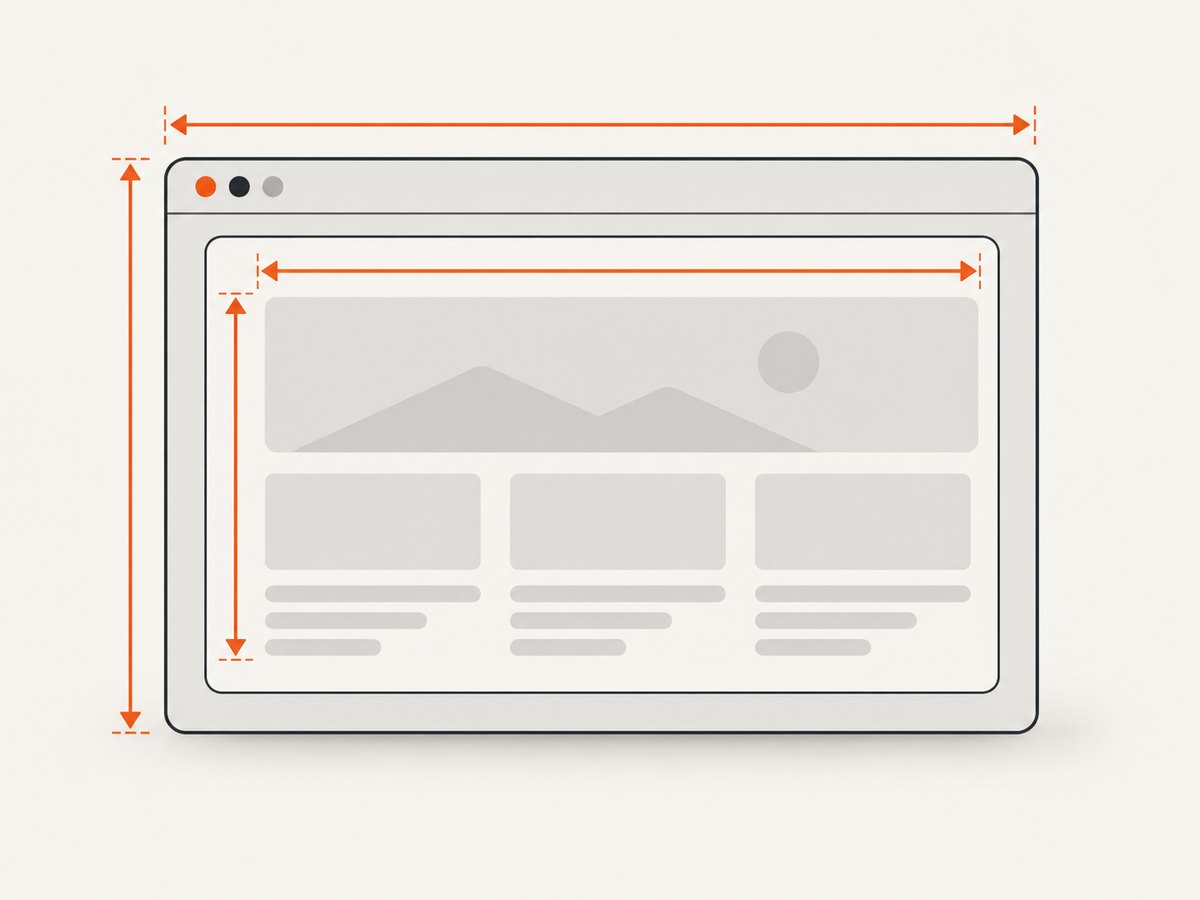
Window size and the webpage’s content viewport are related, but should not be treated as interchangeable measurements in every configuration. Browser chrome, operating-system window handling, scaling, and headless behavior can affect what content area the page receives. If your test depends on responsive breakpoints, inspect the dimensions that matter to the page as well as the dimensions Selenium reports. Avoid assuming a requested window size proves a particular CSS viewport without checking your setup.
To inspect the window dimensions Selenium reports:
size = driver.get_window_size()
print(f"width={size['width']}, height={size['height']}")
The API describes the getter as returning window width and height. It can help distinguish a sizing request from the size subsequently reported by the driver. Selenium get_window_size API
3. Resize, move, or set the whole window rectangle
Selenium has separate operations for window size and position. Choose the operation that matches what you need:
| Need | Operation | Arguments |
|---|---|---|
| Set dimensions | set_window_size(width, height) |
Width and height in pixels |
| Move the window | set_window_position(x, y) |
Horizontal and vertical position |
| Set both position and dimensions | set_window_rect(x, y, width, height) |
Position and size together |
Example using the separate size and position calls:
driver.set_window_position(40, 30)
driver.set_window_size(1280, 800)
print(driver.get_window_rect())
Use set_window_rect when a single operation should define both:
driver.set_window_rect(x=40, y=30, width=1280, height=800)Selenium documents the rectangle operation for W3C-compatible browsers. Support and behavior still depend on the browser and driver in use. Selenium Python WebDriver window operations
4. What to do with PhantomJS
PhantomJS is a JavaScript-scriptable headless browser, but its project states that development is suspended. That makes it a legacy dependency to maintain carefully, rather than a current default for new Selenium automation. PhantomJS official homepage
If you have an existing PhantomJS script, the common sizing call you are looking for is:
driver.set_window_size(1024, 768)That line operates on an already-created driver. It does not provide a reliable, current recipe for creating a PhantomJS session. The authoritative sources reviewed for this article do not establish a current PhantomJS and Selenium compatibility matrix or a supported modern constructor sequence. Keep the session startup that matches your pinned historical dependencies, and validate it in the environment where the script runs.
For new browser automation, use Selenium’s current documentation for your chosen browser and Selenium version. Avoid copying old constructor examples without checking them: Selenium’s Python changelog records removal of the deprecated desired_capabilities property in Selenium 4.17.0. That change is a reason to verify old initialization code, not proof of a particular PhantomJS setup. Selenium Python changelog
5. Keep dimensions predictable in automation
Use an explicit size for layout checks
Set dimensions as part of the test setup instead of relying on a machine’s default browser size. This makes the requested input visible in the test and reduces ambiguity when comparing layout behavior. Record the browser, driver, Selenium version, and dimensions when a failure depends on rendering.
Resize at the point the window exists
Call the method after WebDriver has created a session and before the interaction or screenshot whose layout depends on the size. If the driver has no active session, a window-management command cannot be applied.
Verify the result when it matters
Use get_window_size() after setting the size and report the returned values in diagnostic logs. If the test is about a page breakpoint, also inspect the page’s effective viewport using the browser-side mechanism appropriate to that browser. Do not infer exact page dimensions solely from the outer-window request.
Use one window handle deliberately
The documented set_window_size method accepts an optional windowHandle argument and defaults to the current window. If your script opens multiple windows or tabs, ensure the intended one is current before resizing. A size change on one window does not mean all other windows have been resized.
Keep resource and time costs in view
Changing window dimensions is a small WebDriver command, but the overall cost of a screenshot or rendering job is usually dominated by starting the browser, loading the page, waiting for content, and saving or transferring the result. Reuse a session when the test design allows it, but isolate state when cookies, authentication, or page changes could leak between cases. Set a bounded page-load or wait strategy in your application so a slow page does not stall a whole run indefinitely. Exact timings and resource use depend on the page and execution environment; no universal benchmark follows from the sizing API.
6. Troubleshooting common problems
| Symptom | Likely cause | What to check |
|---|---|---|
set_window_size is not found |
The object is not the Selenium WebDriver instance you expect, or the code is using a different wrapper. | Inspect the object and confirm a session was created; consult the API for the installed Selenium version. |
| Session creation fails before sizing | The browser setup, driver, or legacy PhantomJS dependency is incompatible or unavailable. | Separate session-startup errors from resize errors. Verify pinned versions and use browser-specific current setup documentation. PhantomJS development is suspended. |
| Reported size differs from requested size | The browser or environment may not apply the request exactly as expected. | Read back get_window_size(), record browser/driver versions, and check the page’s effective viewport if the test concerns responsive layout. |
| Page still shows the wrong responsive layout | The tested breakpoint may depend on content viewport dimensions, or the page may not have finished updating. | Check effective viewport dimensions, wait for the relevant layout condition, and confirm the requested width crosses the intended breakpoint. |
| Only one tab seems resized | The command applies to the current window by default. | Switch to the intended window handle before setting its size; verify the active handle and read back dimensions. |
| Old initialization code raises an argument error | Historical Selenium examples may use APIs later deprecated or removed. | Check the installed Selenium version and current Python API. Selenium’s changelog notes a deprecated desired_capabilities property removal in 4.17.0. |
Keep the exception context when debugging and always close the driver:
from selenium import webdriver

 driver = webdriver.Chrome()
try:
    driver.set_window_size(1024, 768)
    print(driver.get_window_size())
finally:
    driver.quit()
In production code, align indentation and place driver creation within the same error-handling scope if session startup itself can fail.
7. Or skip the browser setup
If the job is to capture a website image rather than automate browser interactions, ScreenshotNeo provides a one-request screenshot API and MCP server. The API returns PNG, JPEG, WebP, or PDF output. A basic cURL call is:
curl -G "https://api.screenshotneo.com/v1/shot" -d access_key=YOUR_API_KEY --data-urlencode url=https://stripe.com -o shot.webpPython:
import requests

r = requests.get(
    "https://api.screenshotneo.com/v1/shot",
    params={"access_key": "YOUR_API_KEY", "url": "https://stripe.com"},
    timeout=90,
)
open("shot.webp", "wb").write(r.content)
Node.js:
const q = new URLSearchParams({ access_key: 'YOUR_API_KEY', url: 'https://stripe.com' });
const res = await fetch(`https://api.screenshotneo.com/v1/shot?${q}`);
Replace the example target URL and provide your API key. See the ScreenshotNeo API documentation for request options and response details.
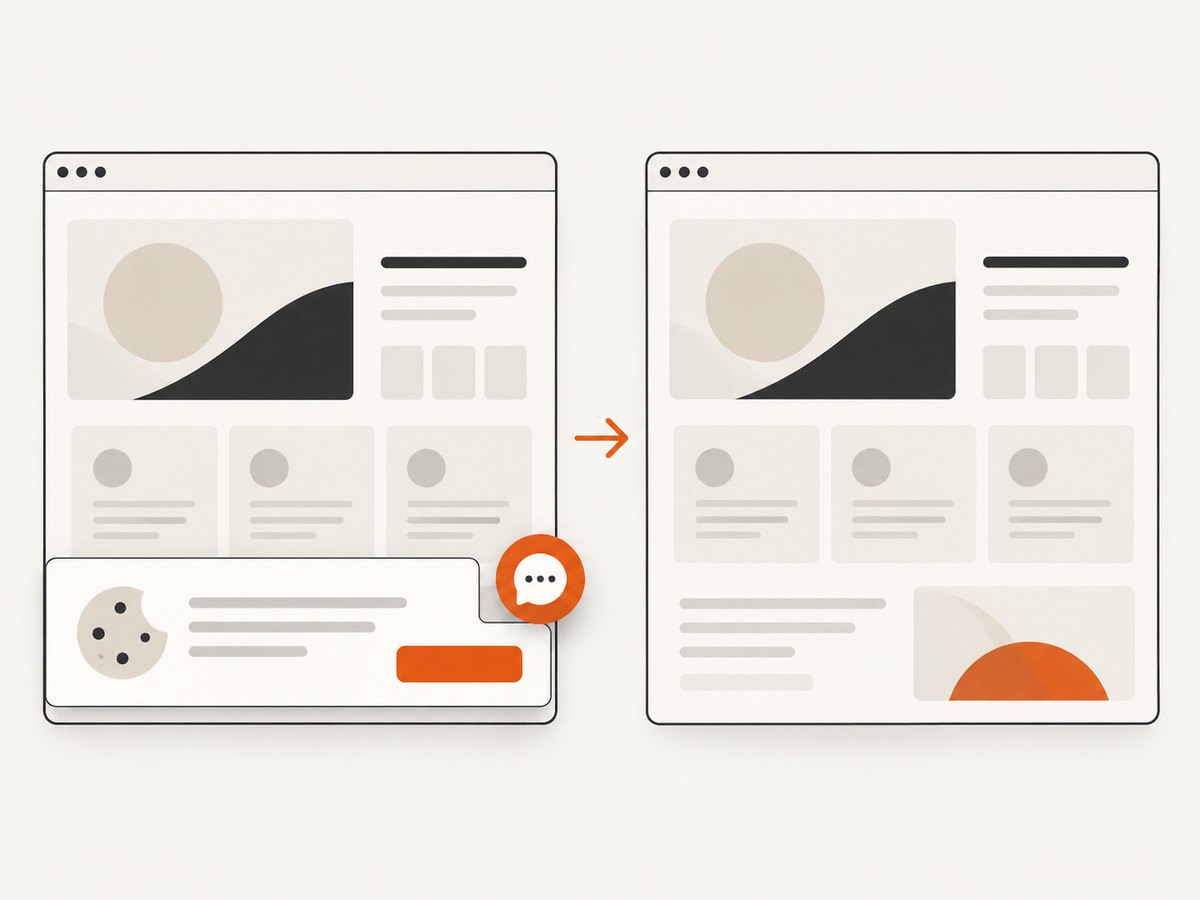
- Cookie banners are accepted and removed before capture; the service also removes known consent platforms, newsletter popups, and chat widgets. Each cleanup step can be turned off.
- Bot checks, CAPTCHAs, blank pages, timeouts, failed loads, and cache hits cost nothing. Response headers identify the page verdict and whether the capture was billed.
- An MCP server lets AI agents using Claude, Cursor, or another MCP client take screenshots, inspect page information, and capture PDFs.
- The free plan includes 1,000 screenshots each month with no card. Paid plans start at $5 for 3,000 screenshots; every feature is available on every plan.
Create a free ScreenshotNeo account for 1,000 screenshots a month with no card.
8. FAQ
Does Selenium 4 support setting a window size?
The current Selenium Python WebDriver API documents set_window_size(width, height). The precise session setup depends on the browser and installed versions.
Are 1024 by 768 the required dimensions?
No. It is a documented example. Choose dimensions that suit your test or target layout.
Can I set a different window’s size?
The API has an optional window handle and defaults to the current window. Switch to the intended window and pass its handle if needed.
Should I start a new project with PhantomJS?
PhantomJS development is suspended. For new automation, follow current Selenium documentation for a browser with an actively maintained setup.


