How to Set a Website Preview Image in WordPress
Set the WordPress image people see when your link is shared, with Featured Images, Open Graph tags, defaults, troubleshooting, and automation.
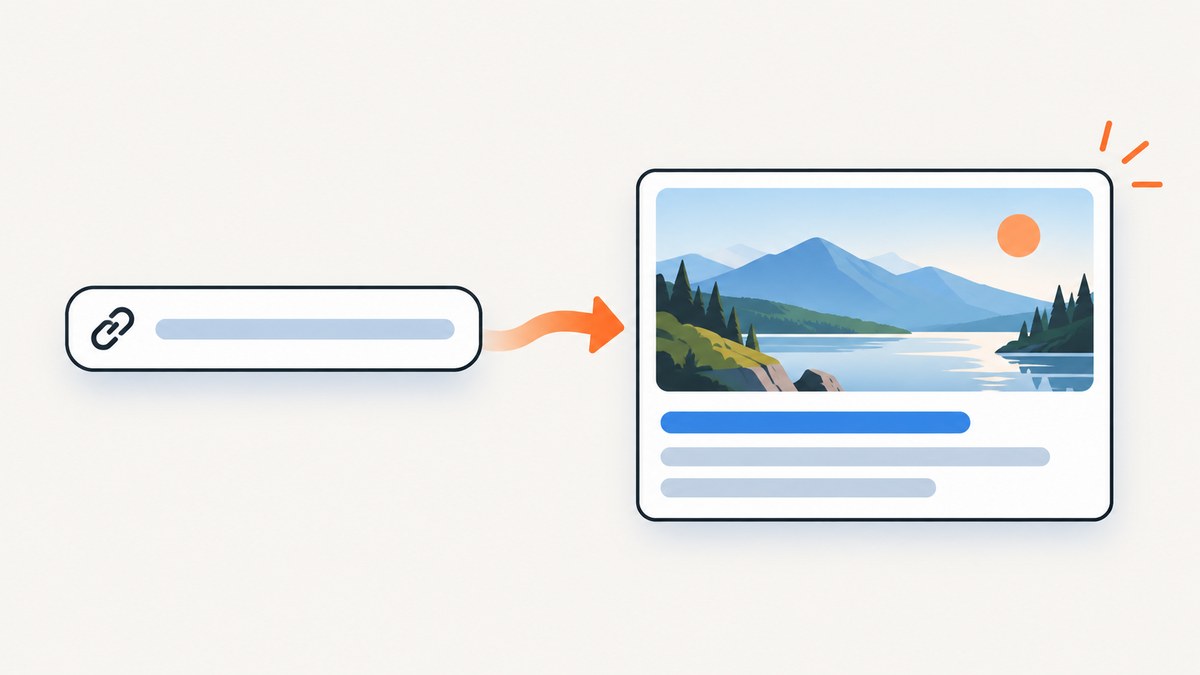
Set the page’s Featured Image, then make sure your site outputs Open Graph metadata that points to that image. The Featured Image controls what many WordPress themes display, but it does not automatically guarantee the image used by Facebook, LinkedIn, WhatsApp, X, or other sharing surfaces. Social crawlers read the page’s <head>, especially og:image.
For a reliable result, use this sequence:
- Choose a clear landscape image and upload it to the Media Library.
- Set it as the post or page’s Featured Image.
- Enable Open Graph and X card metadata in your SEO plugin.
- Set a page-specific social image when the shared artwork must differ from the Featured Image.
- Set a site-wide fallback image for pages without their own image.
- Clear caches and ask the target platform to fetch the URL again.
1. Set the WordPress Featured Image
WordPress calls this the Featured Image, although older documentation and themes may call it a Post Thumbnail. WordPress notes that Featured Images are used differently depending on the theme: they can appear in archives, home-page listings, templates, or above the post. A Featured Image is therefore the right first step for both your on-site design and your social fallback.
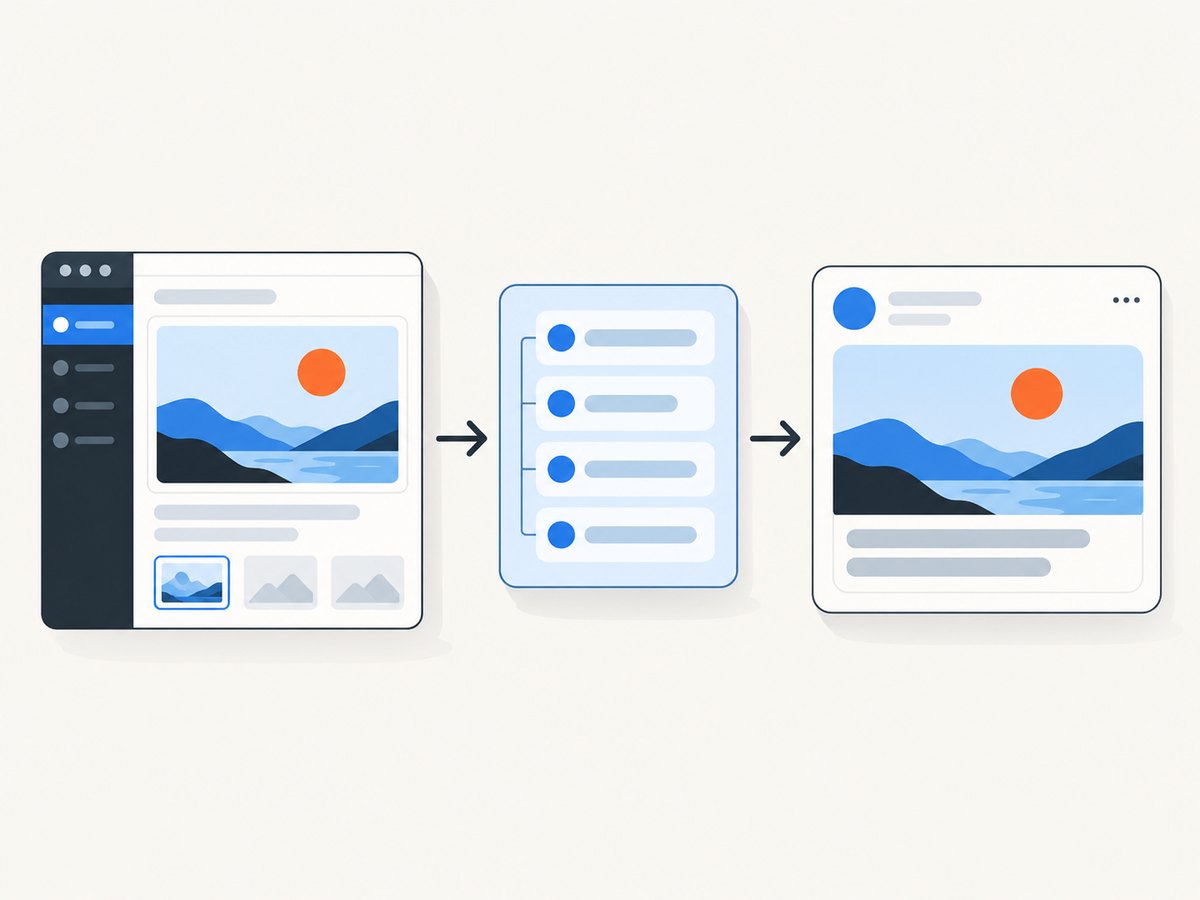
Posts and pages in the block editor
- Open the post or page you want to share.
- Click the settings gear to open the document sidebar.
- Find Featured image and click Set featured image.
- Upload an image or select one from the Media Library.
- Add useful alternative text and confirm the selection.
- Click Update or Publish.
For a block theme, the Site Editor can place the Post Featured Image block in a post template. That makes the selected image part of the visible page layout. It still does not replace the need for social metadata, because sharing services do not render your template like a normal visitor.
Choosing an image
- Use a landscape composition with the subject near the center.
- Keep important faces, logos, and text away from the edges so platform crops do not remove them.
- Upload a file large enough for the target network, but avoid an unnecessarily huge file that slows page loads.
- Use a common web image format and sensible compression.
- Check the image at a small preview size; fine detail and thin text often disappear.
There is no single universal pixel dimension established by the WordPress documentation. Networks and devices crop cards differently, so preview the final card in the tools provided by your SEO plugin or sharing platform.
2. Turn on Open Graph metadata
Sharing platforms inspect metadata in the document head. The key fields are og:title, og:description, og:url, and og:image. Yoast describes the effect directly: when Open Graph tags are added, Facebook can display a preview with an image and excerpt when somebody shares a URL. Open Graph is also consumed by services such as Pinterest, LinkedIn, WhatsApp, and Google, although each service may cache and display the information differently.
Yoast SEO workflow
- In WordPress, open SEO → Settings → Social sharing.
- Make sure Open Graph data is enabled.
- Enable X card data under SEO → Settings → Site features → Social sharing.
- Set a default social image for posts or pages that do not have a specific image.
- Edit an individual post or page and open its social preview or social media appearance controls.
- Upload a custom social image when the shared art should differ from the Featured Image.
- Save the page and inspect the generated source.
Yoast’s documented image priority explains many unexpected results. A custom per-page Facebook image is considered first, followed by the post’s Featured Image, a prominent image in the content, a WooCommerce product-gallery image when applicable, a template social default, and finally the site-wide fallback. The practical rule is simple: use a page-specific social image whenever the exact shared artwork matters.
What the generated head should contain
Your final HTML should contain one coherent set of tags similar to this example. Values will vary by page:
<meta property="og:title" content="How to Choose a Running Shoe">
<meta property="og:description" content="A practical guide to fit, cushioning, and terrain.">
<meta property="og:url" content="https://example.com/running-shoes/">
<meta property="og:image" content="https://example.com/wp-content/uploads/running-shoes.jpg">
<meta name="twitter:card" content="summary_large_image">
<meta name="twitter:image" content="https://example.com/wp-content/uploads/running-shoes.jpg">
Do not copy this example with the placeholder domain. Confirm that your own page emits the correct absolute URLs, title, description, and image.
3. Configure a default image for the homepage and other pages
A homepage often has no normal post Featured Image. Pages may also lack an image because they were built with a custom template. Set a site-wide default social image in your SEO plugin so those URLs still produce a useful card.
Use the fallback for:
- The homepage when it has no page-specific social image.
- Author, archive, or taxonomy pages that do not expose a Featured Image.
- Older posts imported without media.
- Landing pages whose design is assembled entirely by a page builder.
A default should identify the site without pretending to describe every article. A simple brand image works better than a random post thumbnail. For important campaigns, override the fallback with a page-specific image.
4. Featured Image versus social image
| Setting | Primary purpose | Can control a social preview? | Best use |
|---|---|---|---|
| Featured Image | Theme and template display | Often, as a fallback | Normal posts and archive cards |
| Per-page social image | Open Graph/X sharing art | Yes | Exact campaign or launch artwork |
| Template social default | Fallback for a content type | Yes | Consistent page or post families |
| Site-wide default | Last-resort fallback | Yes | Homepage and unconfigured URLs |
If the image on the page looks correct but the shared card is wrong, inspect the social image field and the emitted og:image before changing the Featured Image again.
5. Verify the result before sharing
- Open the published URL in a private browser window.
- View the page source and search for
og:image,og:title, andtwitter:image. - Confirm the image URL is absolute, uses HTTPS, and returns an image file.
- Open the image URL directly. It must not redirect to a login page or access-denied screen.
- Use the target network’s URL inspection or share-debugging tool when available.
- After changing metadata, purge your WordPress page cache, CDN cache, and any platform preview cache you can refresh.
Social networks commonly cache previews. Updating the image in WordPress may therefore appear to do nothing until the crawler requests the page again.
6. Troubleshooting common preview problems
The logo appears instead of the Featured Image
Cause: The page has no page-specific social image, the Featured Image is not exposed as a fallback, or the platform is showing an older cached card.
Fix: Set the image in the SEO plugin’s social controls, confirm og:image in source, purge caches, and request a fresh scrape.
The preview has no image
Cause: Open Graph is disabled, the image URL is inaccessible, or the page emits malformed or relative metadata.
Fix: Enable Open Graph, use an absolute HTTPS URL, and open the image URL without being logged in. Check that security software is not blocking crawler requests.
The wrong image is selected
Cause: Multiple candidate images exist, or another plugin is writing a second set of Open Graph tags.
Fix: Set a custom social image for the page and search the source for every occurrence of og:image. Disable duplicate Open Graph output so one plugin owns these tags.
The image is cropped badly
Cause: The platform applies its own aspect ratio and crop.
Fix: Recompose the artwork with safe margins, keep essential content near the center, and inspect the card in the target platform’s preview tool.
The old card keeps appearing
Cause: WordPress, a CDN, or the social network has cached the previous metadata.
Fix: Purge site and CDN caches, then use the platform’s debugger or URL inspection feature to request a new fetch. Testing in a private window helps you avoid your browser cache.
Two plugins disagree about the title or image
Cause: Both plugins output Open Graph tags. Crawlers may choose whichever appears first or apply inconsistent heuristics.
Fix: Keep one source of Open Graph and X metadata. Remove or disable the duplicate feature in the other plugin, then inspect the source again.
7. Automate screenshots of the final page
A browser screenshot is useful when reviewing the rendered page rather than the social card metadata. It can reveal whether a Featured Image appears in the template, whether an image is lazy-loaded, and whether a cookie banner or chat widget covers the content.

Or skip the browser setup
ScreenshotNeo provides a website screenshot API. It accepts one GET request and returns PNG, JPEG, WebP, or PDF. Before capture it accepts cookie and consent banners and removes more than 60 known consent platforms, newsletter popups, and chat widgets; each cleanup step can be disabled. Bot checks, blank pages, timeouts, failed loads, and cache hits are not billed, and response headers identify the page verdict and billing state.
See the ScreenshotNeo documentation for all options. A basic WebP capture looks like this:
curl -G "https://api.screenshotneo.com/v1/shot" \
  -d access_key=YOUR_API_KEY \
  --data-urlencode url=https://example.com/your-wordpress-page \
  -o shot.webp
import requests
r = requests.get(
"https://api.screenshotneo.com/v1/shot",
params={
"access_key": "YOUR_API_KEY",
"url": "https://example.com/your-wordpress-page",
},
timeout=90,
)
r.raise_for_status()
open("shot.webp", "wb").write(r.content)const q = new URLSearchParams({
access_key: 'YOUR_API_KEY',
url: 'https://example.com/your-wordpress-page'
});
const res = await fetch(`https://api.screenshotneo.com/v1/shot?${q}`);
if (!res.ok) throw new Error(`Screenshot failed: ${res.status}`);
const buffer = Buffer.from(await res.arrayBuffer());
require('fs').writeFileSync('shot.webp', buffer);For WordPress review workflows, relevant options include full-page capture with lazy images loaded, a CSS-selector element capture, custom CSS or JavaScript, click actions, selector or network-idle waits, hidden selectors, custom headers and cookies, dark mode, device presets, arbitrary viewports, retina scale, image resizing, caching with a chosen TTL, signed links for public <img> tags, asynchronous jobs with signed webhooks, bulk capture of up to 100 URLs per call, and PDF output with paper size, margins, orientation, and page ranges. The service also provides an MCP server with take_screenshot, get_page_info, and capture_pdf tools for Claude, Cursor, and other MCP clients.
Use a selector capture when you only need the social-preview component; use full-page capture when checking the complete template. Add a wait when the Featured Image is lazy-loaded or injected by JavaScript. Keep credentials in server-side code, never in public page markup.
ScreenshotNeo includes 1,000 screenshots per month free with no card. Paid plans start at $5 for 3,000 shots; yearly billing gives two months free, and every feature is available on every plan. Create a free ScreenshotNeo account to capture your WordPress pages.
8. Performance, reliability, and cost considerations
- Page speed: Large social images increase transfer size. Compress the upload and avoid using a multi-megapixel original when a smaller file meets the display need.
- Caching: Purge only the relevant page and CDN objects when possible. A full-site purge can create unnecessary origin traffic.
- Metadata stability: Keep one Open Graph owner and use deterministic fallbacks. This reduces inconsistent crawler results.
- Screenshot cost: ScreenshotNeo bills only clean shots. Bot checks, blank pages, failed loads, timeouts, and cache hits are free, with
X-Page-VerdictandX-Billedheaders explaining the result. - High-volume review: Use caching, asynchronous jobs, webhooks, or bulk capture when reviewing many URLs instead of opening a browser for each page.
9. Practical launch checklist
- Featured Image is selected in the editor.
- Image is publicly reachable over HTTPS.
- Open Graph data is enabled.
- X card data is enabled where needed.
- Page-specific social image is set for campaigns.
- Site-wide fallback exists for the homepage and unconfigured pages.
- Only one plugin emits Open Graph tags.
- Source contains the expected
og:imageandtwitter:image. - Caches were cleared after the final update.
- Preview was refreshed in the destination platform.
FAQ
Does setting a Featured Image automatically set the social preview?
No. A theme may display it, and an SEO plugin may use it as a fallback, but the page must emit social metadata for predictable results.
Can the homepage have a different image from blog posts?
Yes. Set a site-wide default for the homepage and use per-page social images for posts or landing pages that need different artwork.
Why does X show a different crop?
X can use its own card metadata and crop rules. Enable X card data and inspect the final card after refreshing its cache.
Should I install a dedicated Open Graph plugin?
Use one reliable source of metadata. If your SEO plugin already provides Open Graph, X cards, defaults, and per-page controls, adding another plugin can create duplicate tags.
Can I capture the WordPress page without displaying consent banners?
Yes. ScreenshotNeo removes known consent platforms, newsletter popups, and chat widgets before capture, and its cleanup steps can be configured. It also reports whether a response was billed.


