How to Set a Thumbnail from a YouTube Video
Change a YouTube video thumbnail in Studio, on Android, or for a Short. Learn image requirements, eligibility, troubleshooting, and testing options.
To set or change a YouTube video thumbnail, open the video in YouTube Studio, choose an uploaded image or one of YouTube’s generated suggestions under Thumbnail, then save. Custom thumbnails require a verified account. For a Short, YouTube currently says you can add a custom thumbnail only in YouTube Studio on a computer. YouTube Help explains the current workflow and image recommendations.
1. Choose the right thumbnail workflow
The steps depend on whether you are editing a regular video or a Short, and whether you want to upload your own image or choose from YouTube’s generated suggestions.
| Content | Where to edit | Thumbnail choices |
|---|---|---|
| Regular video on a computer | YouTube Studio | Upload an image or choose a generated suggestion |
| Regular video on Android | YouTube Studio app, or the YouTube app route | Choose an auto-generated image or a custom image |
| Short | YouTube Studio on a computer | Upload an image under Thumbnail |
YouTube’s labels and availability can change. If a menu item is missing, check that you have the right account and content selected, then refer to the linked official help page.
2. Set or change a regular video thumbnail on a computer
- Sign in to YouTube Studio with the channel that owns the video.
- Select Content from the left menu.
- Open the video you want to edit.
- In the Thumbnail section, choose Upload file to use an image on your computer, or choose Get suggestions to pick a generated option.
- Wait for the image to finish uploading or for the suggestions to load. Select the thumbnail you want.
- Select Save.
If you upload a file, prepare it to match the video’s content and YouTube’s image recommendations below. If you use a suggestion, you are choosing among the options YouTube presents; this is different from uploading an arbitrary frame or image yourself.
3. Change a regular video thumbnail on Android
YouTube Studio app
- Open the YouTube Studio app and choose Content.
- Select the video, then tap Edit.
- Tap Edit thumbnail.
- Choose an auto-generated image or tap Custom thumbnail to select an image from your device.
- Confirm your choice and save the change.
YouTube app route
YouTube also lists a route from its main app: open the profile menu, choose Your videos, open the video’s more-options menu, and choose Edit thumbnail. Labels can vary with app versions, so use the Studio app route if the option is not where expected.
The cited mobile guidance lists a 2 MB limit for regular video thumbnails. If the upload fails, check both the file size and the dimensions and format recommendations before retrying.
4. Set a thumbnail for a Short
YouTube’s current help instructions say custom Shorts thumbnails can be added only in YouTube Studio on a computer. The Short workflow is:
- Open YouTube Studio on a computer and choose Content.
- Select the Shorts filter or section, then open the Short to edit.
- Under Thumbnail, upload the image you want to use.
- Save the change.
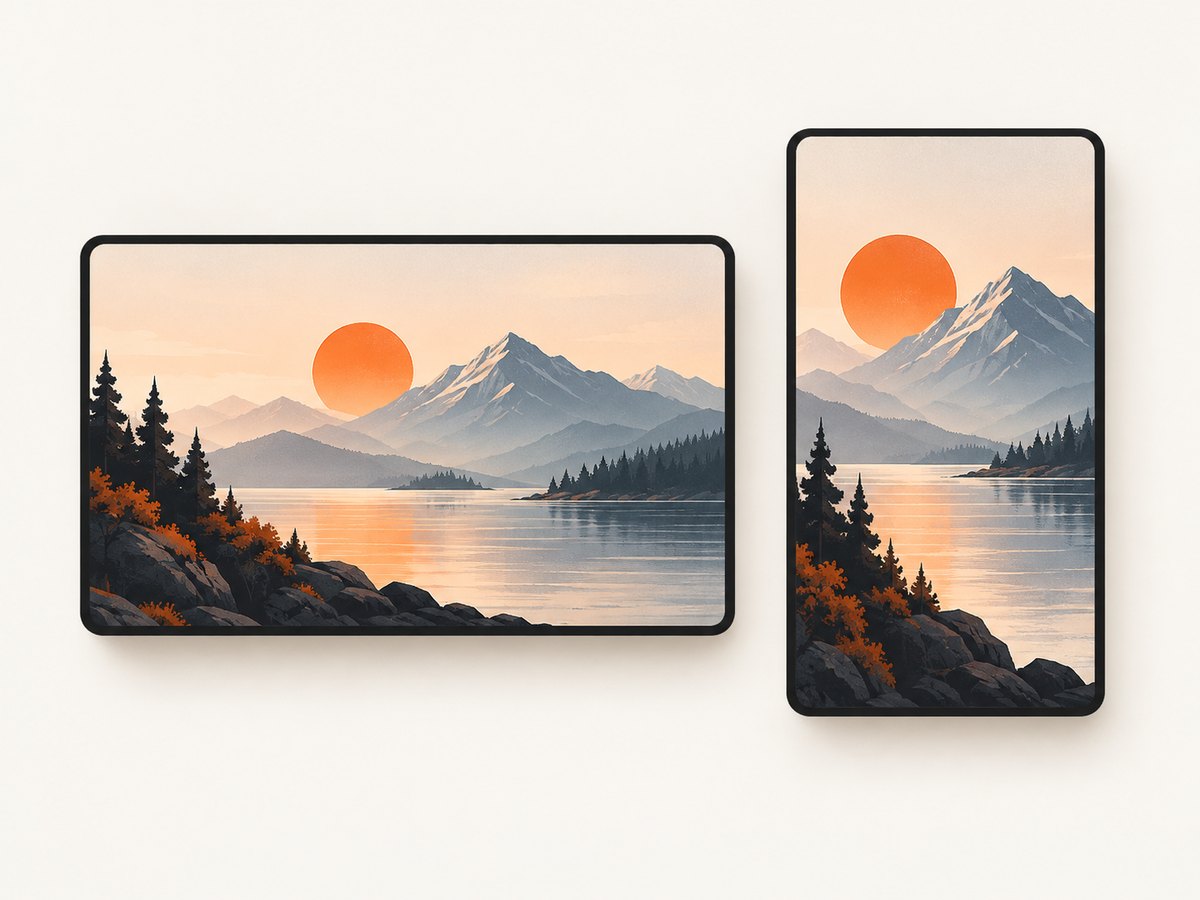
YouTube recommends a 9:16 image for an uploaded Shorts thumbnail. If you are working on a phone, you can prepare or transfer the image there, but use Studio on a computer to add the custom thumbnail according to the current guidance.
5. Prepare an image that fits YouTube’s recommendations
| Use | Recommended dimensions and shape | Formats and size limits in the cited guidance |
|---|---|---|
| Regular video | 3840 × 2160 pixels; minimum width 640 pixels; 16:9 recommended | JPG or PNG. Desktop limit: 50 MB. Mobile video limit: 2 MB. |
| Short | 2160 × 3840 pixels; minimum height 640 pixels; 9:16 recommended | Desktop limit: 50 MB. |
These are YouTube recommendations and device-specific limits from its help page, not a single universal upload limit. Check the device and content type you are using. If your file is too large, export a smaller JPG or PNG while keeping the recommended shape and enough resolution for the displayed thumbnail.
Vertical video display caveat
A vertical video with a 16:9 custom thumbnail may show an automatically generated 4:5 thumbnail on Home, Explore, and Subscriptions on mobile. YouTube says the custom thumbnail still appears in places such as the watch feed, watch history, and non-mobile platforms. That means the same uploaded image may not appear identically in every surface.
6. Verify eligibility and save the change
YouTube states: “Your account must be verified to use this feature.” If the custom upload control is unavailable, verify the channel and return to the video’s Thumbnail controls. YouTube can also limit daily uploads; the limit may depend on country or region and channel history. Copyright strikes can affect channel-history eligibility, and Community Guidelines strikes affect the number of custom thumbnails you can upload. If YouTube reports that you have reached the daily limit, its advice is to try again in 24 hours.
After saving, give the change time to appear. YouTube says an update may take time but does not specify a fixed delay. Check the video again later rather than repeatedly uploading the same file. YouTube may also turn off custom thumbnails for certain search results when it considers them inappropriate for viewers.
7. Optional: compare thumbnail options with Test & compare
If you want to evaluate alternatives after setting a thumbnail, YouTube Studio’s Test & compare thumbnails feature can compare up to three options. The cited YouTube Help page says it is available on computers, requires advanced features, and applies to eligible public long-form videos or podcast episodes. Private and made-for-kids videos are among the excluded cases, so the feature is not a required part of changing a thumbnail and may not be available for every upload.
Use the ordinary upload or suggestion workflow when you simply need to change the image. Consider Test & compare only if your channel and video meet the feature’s eligibility requirements and you have distinct options to compare. See YouTube’s Test & compare help page for the current availability details.
8. Troubleshooting common thumbnail problems
| Problem | Likely cause | What to do |
|---|---|---|
| No custom thumbnail option | The account is not verified, or you are editing a Short in a workflow that does not support custom thumbnails. | Verify the account. For a Short, use YouTube Studio on a computer. |
| Upload rejected or fails | The image may exceed the applicable device-specific file limit or may not match the recommended file type or dimensions. | Use JPG or PNG for a regular video and check the relevant limit: the cited guidance lists 2 MB on mobile video and 50 MB on desktop. For Shorts, use the computer workflow and check the desktop limit. |
| Thumbnail looks cropped or different on mobile | A vertical video’s 16:9 custom image can be represented by an automatically generated 4:5 thumbnail on some mobile surfaces. | Review the image in the surfaces where it will appear and keep important visual details away from the edges. |
| Saved image has not appeared yet | YouTube says changes can take time to appear. | Wait and check again later. The cited help page gives no fixed propagation time. |
| Daily upload limit message | YouTube applies a daily limit that can vary with region and channel history; strikes can affect eligibility or upload limits. | Follow YouTube’s advice and try again in 24 hours. Review the channel’s status if the limit continues. |
| Thumbnail unavailable in search | YouTube may disable custom thumbnails for some search results it considers inappropriate for viewers. | Review the image against Community Guidelines and check how YouTube displays the video in other surfaces. |
| Test & compare is missing | The feature requires advanced features and is limited to eligible public long-form videos or podcast episodes. | Check the video’s privacy and content type and review current feature eligibility in YouTube Help. |
9. Create a thumbnail image from a video frame
If the image you want is a moment from the video, you can make an image file from that frame using a video editor or an image tool that can extract a frame. YouTube’s upload workflow then accepts that image as a file, subject to its current format, dimensions, and size requirements. This is separate from Get suggestions, which presents options generated by YouTube.
Choose a frame that clearly represents the video and remains legible at small display sizes. Keep the original image file available so you can adjust its crop, dimensions, or compression if YouTube rejects the first upload. The YouTube help sources cited here describe the upload workflow and constraints; they do not endorse a particular editing application.
10. Reliability, performance, and cost
Changing a thumbnail is a metadata and image upload task in YouTube Studio; it does not require buying hardware or a paid service. The practical time costs are preparing a compliant image, uploading it, and waiting for the change to propagate. Keep a correctly sized copy so you can retry without rebuilding the artwork. For high-volume channel work, account for the daily upload limit and avoid assuming every upload will be accepted immediately.
If the thumbnail is an extracted frame, the work is local to your video-editing workflow until you upload the resulting image. If YouTube’s generated suggestions are good enough, choosing one avoids preparing a separate file. There is no benefit to repeatedly re-uploading an unchanged image while a saved change is still propagating.
11. Or skip the browser setup
ScreenshotNeo is a website screenshot API and MCP server from ScreenshotNeo. It captures a webpage as an image or PDF; it does not set or upload a YouTube thumbnail for you. If your thumbnail workflow starts by capturing a webpage, one API request can produce the image without you managing a browser capture setup. See the ScreenshotNeo API documentation for request options.
curl -G "https://api.screenshotneo.com/v1/shot" -d access_key=YOUR_API_KEY --data-urlencode url=https://stripe.com -o shot.webpimport requests
r = requests.get(
"https://api.screenshotneo.com/v1/shot",
params={"access_key": "YOUR_API_KEY", "url": "https://stripe.com"},
timeout=90,
)
open("shot.webp", "wb").write(r.content)const q = new URLSearchParams({ access_key: 'YOUR_API_KEY', url: 'https://stripe.com' });
const res = await fetch(`https://api.screenshotneo.com/v1/shot?${q}`);
if (!res.ok) throw new Error(`Screenshot request failed: ${res.status}`);
const bytes = new Uint8Array(await res.arrayBuffer());
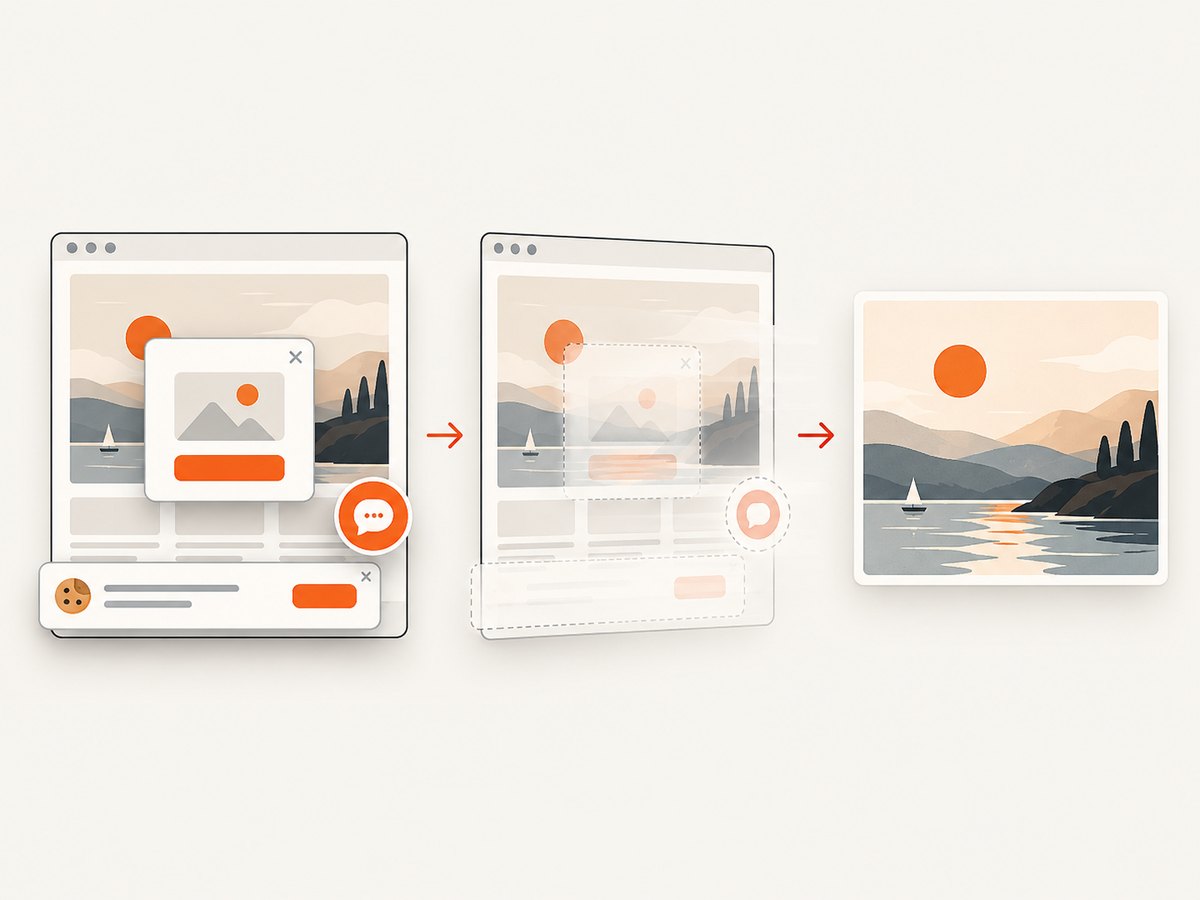
await import('node:fs/promises').then(fs => fs.writeFile('shot.webp', bytes));Replace the example target with a webpage you have permission to capture. ScreenshotNeo removes cookie banners, newsletter popups, and chat widgets before the shot; each cleanup step can be turned off. Bot checks, blank pages, timeouts, and failed loads are not billed, and cache hits cost nothing; response headers report the page verdict and billing status. Its MCP server gives AI agents tools for screenshots, page information, and PDF capture. The free plan includes 1,000 screenshots a month with no card; paid plans start at $5 for 3,000 screenshots. The image still needs to meet YouTube’s thumbnail requirements, and you upload it in Studio yourself.
Sign up for 1,000 free screenshots a month with no card.
12. Frequently asked questions
Can I choose any frame from the video as the thumbnail?
You can upload an image file you create from a frame. YouTube’s Get suggestions option presents generated choices; it is not an arbitrary frame picker.
Can I change a thumbnail after publishing?
The Studio workflow is for editing an existing video’s thumbnail, so you can return to its Thumbnail controls and save another choice.
Why does a thumbnail look different on a phone?
For vertical videos, YouTube may use an automatically generated 4:5 version of a 16:9 custom thumbnail on some mobile surfaces.
Do I need Test & compare to change the thumbnail?
No. It is an optional feature for eligible videos; uploading an image or choosing a suggestion is the regular change workflow.
Does ScreenshotNeo upload the image to YouTube?
No. ScreenshotNeo captures webpages into an image or PDF. You still choose and upload the resulting image in YouTube Studio.


