15 SFTP Command Examples for Linux
Copy, resume, automate, and troubleshoot secure file transfers with 15 practical SFTP commands for Linux.

Direct answer: SFTP commands run either at your normal Linux shell or inside the interactive sftp> prompt. Use get to download from a server, put to upload, get -R/put -R for directories, and reget/reput to resume interrupted transfers. SFTP is the OpenSSH secure file transfer client and runs through an SSH transport. The examples below use safe placeholders that you can replace with your username, host, and paths.
These command forms follow the OpenSSH manuals for Ubuntu and Debian. Check man sftp on the distribution where you will run them because optional extensions and flags can differ by release. See the Ubuntu sftp(1) manual and Debian sftp(1) manual.
1. Connect interactively
Run at your Linux shell:
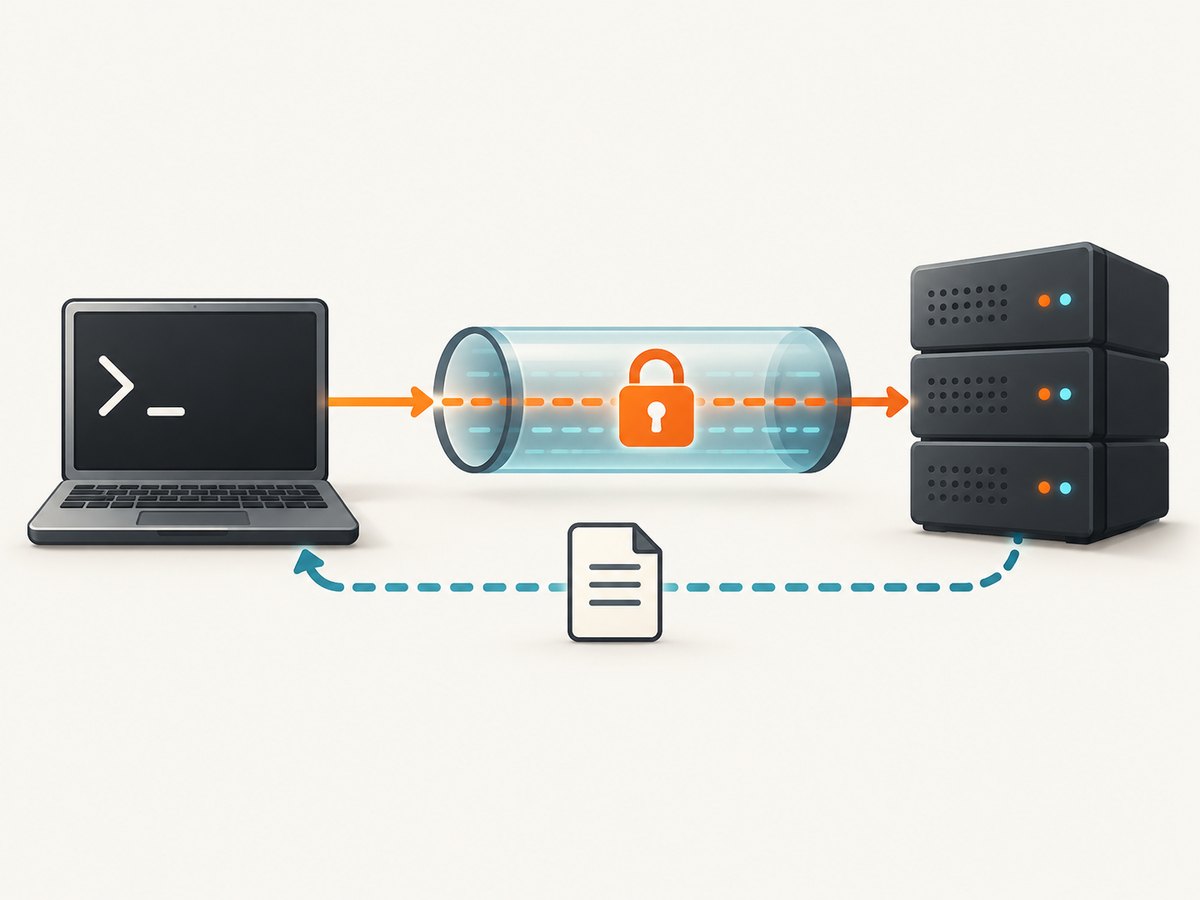
sftp user@example.comSFTP asks for the account password unless your SSH keys or another configured authentication method are available. After a successful connection, the prompt changes to sftp>. Commands such as ls, cd, and get then operate on the remote server.
2. Connect on a non-default port
Run at your Linux shell:
sftp -P 2222 user@example.comCapital -P selects the SFTP/SSH port. The default is normally 22. Do not confuse this option with lowercase -p, which preserves permissions and times during a transfer.
3. Select an identity file
Run at your Linux shell:
sftp -i ~/.ssh/id_ed25519 user@example.comThe identity file is your private key. Restrict its permissions if needed:
chmod 600 ~/.ssh/id_ed25519If the key has a passphrase, your SSH agent can cache it so batch jobs do not need an interactive prompt. Never copy a private key to the remote server.
4. List files on the remote server
Run at the sftp> prompt:
ls -lahThis lists the current remote directory with permissions, ownership, sizes, and hidden files. Add a path to inspect another location:
ls -lah /var/www/releasesRemote paths are interpreted by the server account. A path outside that account’s permissions returns an error.
5. Print and change the remote working directory
Run at the sftp> prompt:
pwd
cd /var/www/releases
pwd
pwd prints the remote working directory. cd changes it for later relative paths. Use an absolute path when you want a command to be independent of the directory in which the session started.
6. Inspect and change your local directory
Run at the sftp> prompt:
lpwd
lls -lah
lcd ~/Downloads
lpwd
The l prefix means local: lpwd prints the local working directory, lls lists local files, and lcd changes the local directory. This distinction matters when both sides contain similarly named files.
7. Download one file with get
Run at the sftp> prompt:
get /remote/path/report.csvThe file is written to the current local directory with the same base name. To choose a local destination:
get /remote/path/report.csv ~/Downloads/report.csvget copies remote data to your local machine. If a wildcard matches multiple files, the destination must be an existing directory:
get /remote/path/*.csv ~/Downloads/8. Upload one file with put
Run at the sftp> prompt:
put ./report.csv /remote/path/report.csvput copies a local file to the server. The remote parent directory must already exist, and your account must have write permission. Multiple local matches also require a directory destination:
put ./exports/*.csv /remote/path/9. Preserve permissions and access times
Run at the sftp> prompt:
get -p /remote/path/archive.tar
put -p ./archive.tar /remote/path/archive.tar
Lowercase -p preserves file permissions and access times. It does not preserve ownership. Ownership is controlled by the remote account and server policy.
10. Download a directory recursively
Run at the sftp> prompt:
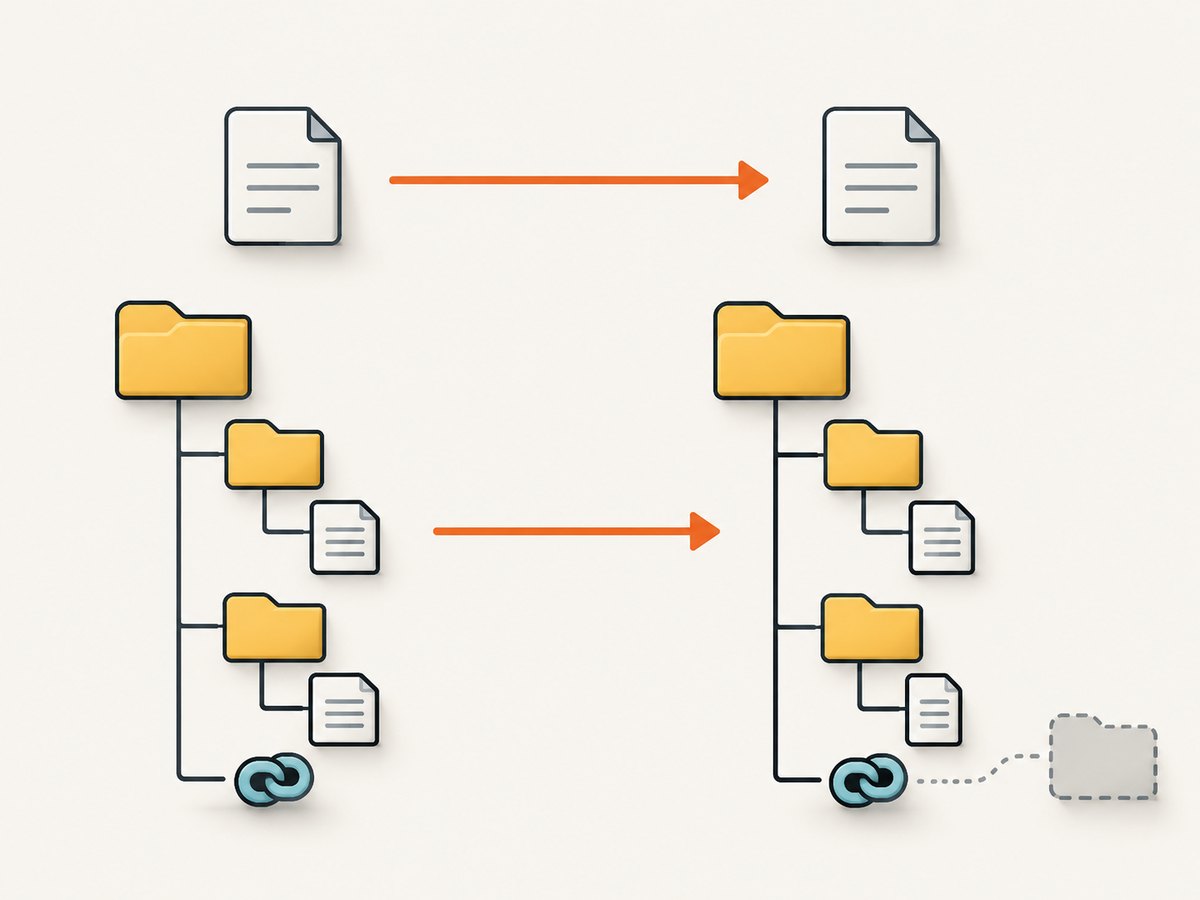
get -R /remote/path/project ~/Downloads/-R traverses directories and copies their files. Recursive SFTP does not follow symbolic links encountered during traversal, so symlink targets will not be copied as regular files. Confirm the resulting tree when a project relies on links.
11. Upload a directory recursively
Run at the sftp> prompt:
put -R ./project /remote/path/The destination directory should exist or be creatable by your account. For large trees, list the local directory first with lls and check available remote space before starting.
12. Resume an interrupted download
Run at the sftp> prompt:
reget /remote/path/archive.tarreget resumes a partial local file and is equivalent to get -a. Resume only when the existing partial file came from the same source version. If the remote file changed, the combined result can be corrupt. Delete the partial file and run a fresh get when you cannot establish that it matches.
13. Resume an interrupted upload
Run at the sftp> prompt:
reput ./archive.tar /remote/path/archive.tarreput resumes a partial remote file and is equivalent to put -a. Verify that the local source has not changed since the interrupted upload. For critical data, compare a checksum after completion:
sha256sum ./archive.tarThen calculate a checksum on the remote host through an approved shell or administrative process; SFTP itself does not provide a universal checksum command.
14. Run a batch file non-interactively
Create commands.sftp locally:
lcd /var/backups
cd /incoming/nightly
put backup.tar.gz
bye
Run it from the shell:
sftp -b ./commands.sftp -i ~/.ssh/id_ed25519 backup@example.comBatch mode reads commands without interactive input, so use non-interactive authentication such as an SSH key loaded into an agent. A command failure normally stops the batch. Prefix a command with - to ignore that command’s failure:
-rm /incoming/nightly/old-backup.tar.gzA batch file can be - to read commands from standard input.
15. Tune a transfer for bandwidth or server extensions
Run at your Linux shell:
sftp -C -l 4096 user@example.com-C enables SSH compression. -l limits bandwidth in Kbit/s. Compression can help text-heavy data and hurt already-compressed archives; test with your workload rather than assuming a speedup.
Some OpenSSH builds expose optional commands through server extensions:
| Feature | Example | Requirement |
|---|---|---|
| Flush uploaded data | fsync remote-file |
Server supports fsync@openssh.com |
| Copy on the server | copy source target or cp source target |
Server supports copy-data |
| Remote filesystem usage | df -h |
Server supports statvfs@openssh.com |
When an extension is unavailable, use a normal download/upload or an administrator-approved command on the server.
Choosing the right command
| Need | Command | Decision point |
|---|---|---|
| Explore a server | sftp user@host |
Interactive follow-up is useful |
| Copy one file | get or put |
Remote-to-local or local-to-remote |
| Copy a directory | get -R or put -R |
Symlinks are not followed |
| Continue a partial transfer | reget or reput |
Partial data must match the source |
| Preserve metadata | -p |
Permissions and access times matter |
| Automate a fixed sequence | sftp -b file |
Authentication must be non-interactive |
Common errors and fixes
“Could not resolve hostname”
Cause: DNS, spelling, or network configuration. Fix: verify the hostname, test DNS with getent hosts example.com, and check VPN or network access.
“Connection refused” or timeout
Cause: wrong port, firewall, stopped SSH service, or a server listening only on a private address. Fix: confirm the port with the administrator and use capital -P.
“Permission denied” during login
Cause: wrong account, rejected key, or a server policy. Fix: run sftp -vvv -i ~/.ssh/id_ed25519 user@host, confirm the public key is installed, and check that the account is allowed to use SFTP.
“No such file or directory”
Cause: the remote or local working directory is not what you expected. Fix: use pwd/lpwd, list with ls/lls, and try an absolute path.
Multiple files require a directory
Cause: a glob matched more than one item but the destination names one file. Fix: provide an existing destination directory such as ~/Downloads/ or /incoming/.
Resume produces a corrupt file
Cause: the partial copy and source are different versions. Fix: remove the partial destination and start again, then verify a checksum where possible.
Batch mode stops unexpectedly
Cause: a command failed or authentication required input. Fix: test commands interactively, use SSH keys or an agent, and prefix only expected, safe-to-ignore failures with -.
Remote copy or df is unsupported
Cause: the server does not advertise the required extension. Fix: transfer through your client or run the operation through an authorized remote shell.
Performance, reliability, and cost notes
- Performance: use compression selectively, set a bandwidth cap with
-lwhen sharing a link, and avoid transferring files that can be regenerated. - Reliability: use
reget/reputonly with unchanged sources, preserve metadata with-pwhen required, and verify important results with checksums. - Automation: keep batch files in version control without secrets, use key-based authentication, log exit status, and make destination paths explicit.
- Security: protect private keys, restrict account permissions, and avoid placing passwords in shell history or batch files.
Or skip the browser setup
SFTP is the right tool for moving files between Linux systems. If your next step is turning a public web page into an image or PDF, you can avoid maintaining a headless browser and use ScreenshotNeo. One GET request returns a PNG, JPEG, WebP, or PDF. Cookie and consent banners, newsletter popups, and chat widgets are removed before the shot; bot checks, blank pages, failed loads, timeouts, and cache hits are not billed. Responses identify the page verdict and billing status with X-Page-Verdict and X-Billed headers. ScreenshotNeo also provides an MCP server so Claude, Cursor, and other MCP clients can call take_screenshot, get_page_info, and capture_pdf.
See the ScreenshotNeo documentation for all options. The same endpoint supports full-page and element captures, device presets, dark mode, custom CSS and JavaScript, waits, request blocking, headers, cookies, geolocation, PDF settings, caching, signed links, asynchronous jobs, bulk capture, and a usage API.
curl -G "https://api.screenshotneo.com/v1/shot" -d access_key=YOUR_API_KEY --data-urlencode url=https://stripe.com -o shot.webpimport requests
r = requests.get("https://api.screenshotneo.com/v1/shot", params={"access_key": "YOUR_API_KEY", "url": "https://stripe.com"}, timeout=90)
open("shot.webp", "wb").write(r.content)const q = new URLSearchParams({ access_key: 'YOUR_API_KEY', url: 'https://stripe.com' });
const res = await fetch(`https://api.screenshotneo.com/v1/shot?${q}`);The free plan includes 1,000 screenshots each month with no card. Paid plans start at $5 for 3,000 shots. Create a free ScreenshotNeo account.
FAQ
Is SFTP the same as FTP?
No. SFTP runs through SSH and uses SSH authentication and encryption. FTP and FTPS use different protocols and configuration.
Can SFTP copy files between two remote servers?
Usually you download to the local client and upload again. The optional remote-side copy/cp command works only when the server supports the copy-data extension.
Does get -p preserve ownership?
No. It preserves permissions and access times. Ownership is determined by the destination account and server policy.
Why did a recursive transfer skip my symlink?
OpenSSH recursive SFTP does not follow symbolic links during directory traversal. Copy the target separately if that is what your deployment requires.
How do I see more diagnostic detail?
Start the shell command with one or more -v flags, for example sftp -vvv user@host. The additional output shows SSH negotiation, authentication, and SFTP request details.


