How to Share User Data Between Chrome and Chrome Canary in Puppeteer
Use Puppeteer’s channel and userDataDir options to launch Chrome Canary with a chosen profile. Learn when to connect, what profile sharing does, and how to avoid common failures.
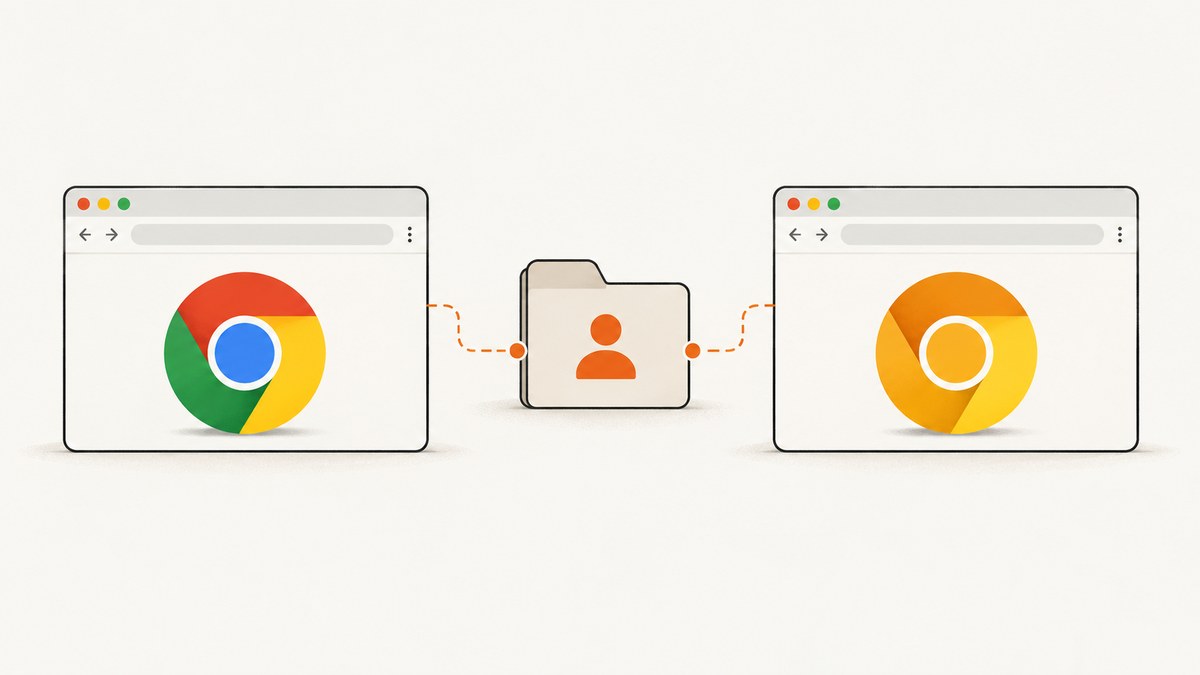
To launch Chrome Canary with a particular user data directory in Puppeteer, set channel: 'canary' and userDataDir in puppeteer.launch(). The directory must be writable by the process running Chrome. This chooses the profile directory for that browser launch; it does not copy, synchronize, or merge data from Chrome’s usual profile. The Puppeteer documentation reviewed here does not establish that Chrome stable and Canary can safely open the same profile at the same time.
If Canary is already running, you may be able to attach to it with Puppeteer’s experimental channel-based connect() option. That attaches to a running browser through its debugging WebSocket; it is not a profile migration mechanism. See the Puppeteer LaunchOptions reference, ConnectOptions reference, and troubleshooting guide.
1. Choose what “share user data” means
There are three different tasks people often describe as sharing a profile:
| Goal | Approach | What it does |
|---|---|---|
| Launch Canary with a chosen profile directory | launch({ channel: 'canary', userDataDir }) |
Selects a directory for that launched browser. It does not copy data. |
| Control an already-running Canary | Use the documented experimental channel option with connect() |
Attaches to a browser’s debugging WebSocket associated with the channel’s default user-data directory. |
| Move or merge profile contents | A separate profile migration task | The Puppeteer launch and connect options do not perform migration or merging. |
If you specifically want Chrome stable and Canary open simultaneously against one directory, do not treat userDataDir as proof that this is supported. The references explain how to choose a directory for a launch and how to connect to a running browser; they do not confirm safe concurrent access to one profile by two browser processes.
2. Launch Chrome Canary with a profile directory
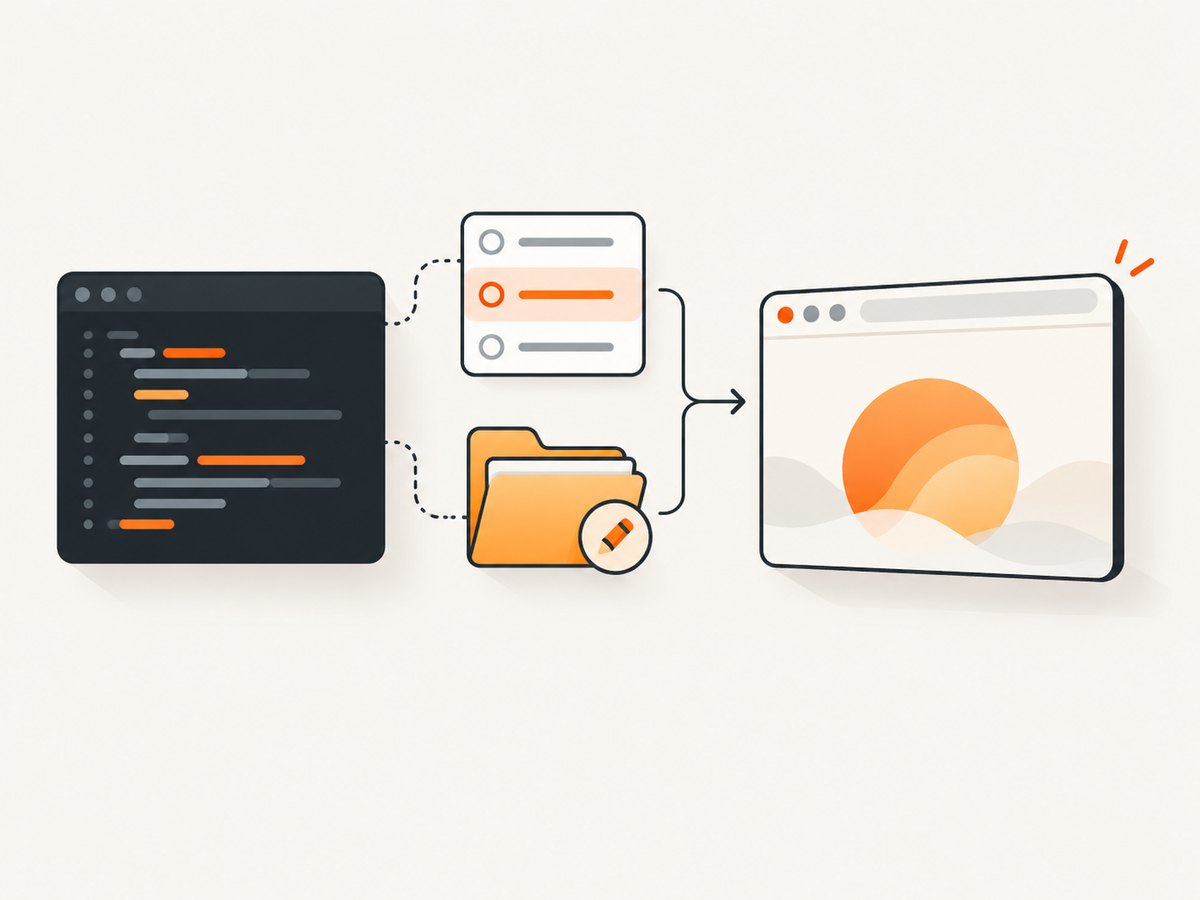
Install Puppeteer in a Node.js project, then run the following example. It launches the Canary release channel, opens a page, and closes the browser even if navigation fails.
npm install puppeteer// save as canary.js
const puppeteer = require('puppeteer');
(async () => {
const browser = await puppeteer.launch({
channel: 'canary',
userDataDir: '/absolute/path/to/canary-profile',
headless: false,
});
try {
const page = await browser.newPage();
await page.goto('https://example.com', {
waitUntil: 'domcontentloaded',
timeout: 30_000,
});
console.log(await page.title());
} finally {
await browser.close();
}
})();Replace the illustrative profile path with an absolute directory path appropriate to your operating system and process. Ensure the account running Node can write to it. The example uses visible mode to make it easy to see which browser is controlled; remove headless: false or set it according to the Puppeteer version and environment you use if you want headless operation.
What the options mean
channel: 'canary'selects the installed Chrome Canary release channel. Puppeteer lists Canary as a supported channel value.userDataDirtells the launched browser which user data directory to use. It is a path selection, not a copy or sync operation.executablePathcan be used when you need to point to a particular browser binary. Avoid setting both channel and executable path unless you have a specific reason and understand which binary Puppeteer will launch.headlesscontrols whether the browser runs with a visible window where supported by your installed Puppeteer and browser combination.
Use a distinct directory for automation when you want to preserve your everyday profile. A dedicated directory is also easier to reason about in repeatable scripts: the script consistently launches with the same browser state, subject to changes made during prior runs.
3. Use Chrome Canary with puppeteer-core
The full puppeteer package manages a compatible browser installation for its normal workflow. With puppeteer-core, you provide the browser choice yourself, using a channel or an executable path. Here is a channel-based example:
npm install puppeteer-core// save as canary-core.js
const puppeteer = require('puppeteer-core');
(async () => {
const browser = await puppeteer.launch({
channel: 'canary',
userDataDir: '/absolute/path/to/canary-profile',
headless: false,
});
try {
const page = await browser.newPage();
await page.goto('https://example.com', { waitUntil: 'domcontentloaded' });
console.log(await page.title());
} finally {
await browser.close();
}
})();If your installation cannot resolve the Canary channel, pass the actual path to the Canary executable instead:
const browser = await puppeteer.launch({
  executablePath: '/path/to/chrome-canary-executable',
  userDataDir: '/absolute/path/to/canary-profile',
  headless: false,
});
The executable path shown is a placeholder, not a platform default. Resolve the real path on the machine where the script runs. Puppeteer’s compatibility guarantee applies to its bundled browser; an arbitrary installed Canary build is not guaranteed to match every Puppeteer version. Canary changes frequently, so a launch that works today may need a Puppeteer or browser update later.
4. Attach Puppeteer to an open Canary browser
When Chrome Canary is already open, Puppeteer documents an experimental channel-based connection option. This looks for the open debugging WebSocket associated with the channel’s well-known default user-data directory. It does not connect to an arbitrary custom profile simply because the profile belongs to Canary.
const puppeteer = require('puppeteer');

(async () => {
  const browser = await puppeteer.connect({
    browserURL: 'http://127.0.0.1:9222',
    // Alternatively, consult the installed Puppeteer ConnectOptions
    // for its experimental channel-based connection option.
  });

  try {
    const pages = await browser.pages();
    console.log(`Connected; open pages: ${pages.length}`);
  } finally {
    browser.disconnect();
  }
})();
The code above shows the conventional debugging-endpoint connection shape. To use the experimental channel lookup, follow the exact option name and availability documented by the ConnectOptions reference for your installed Puppeteer version; because it is experimental, do not assume its interface is stable across versions. A browser must expose a debugging endpoint for endpoint-based connection. Do not use browser.close() when your intention is merely to detach from a browser you did not launch: use browser.disconnect().
5. Can Chrome and Canary use the same user data directory?
Puppeteer’s cited documentation does not confirm that concurrent use is safe. The fact that both launches accept a userDataDir option only tells you how to select a directory for each launch. It does not say that two browser processes can safely operate on the same live files, nor does the channel-based connection documentation make that claim.
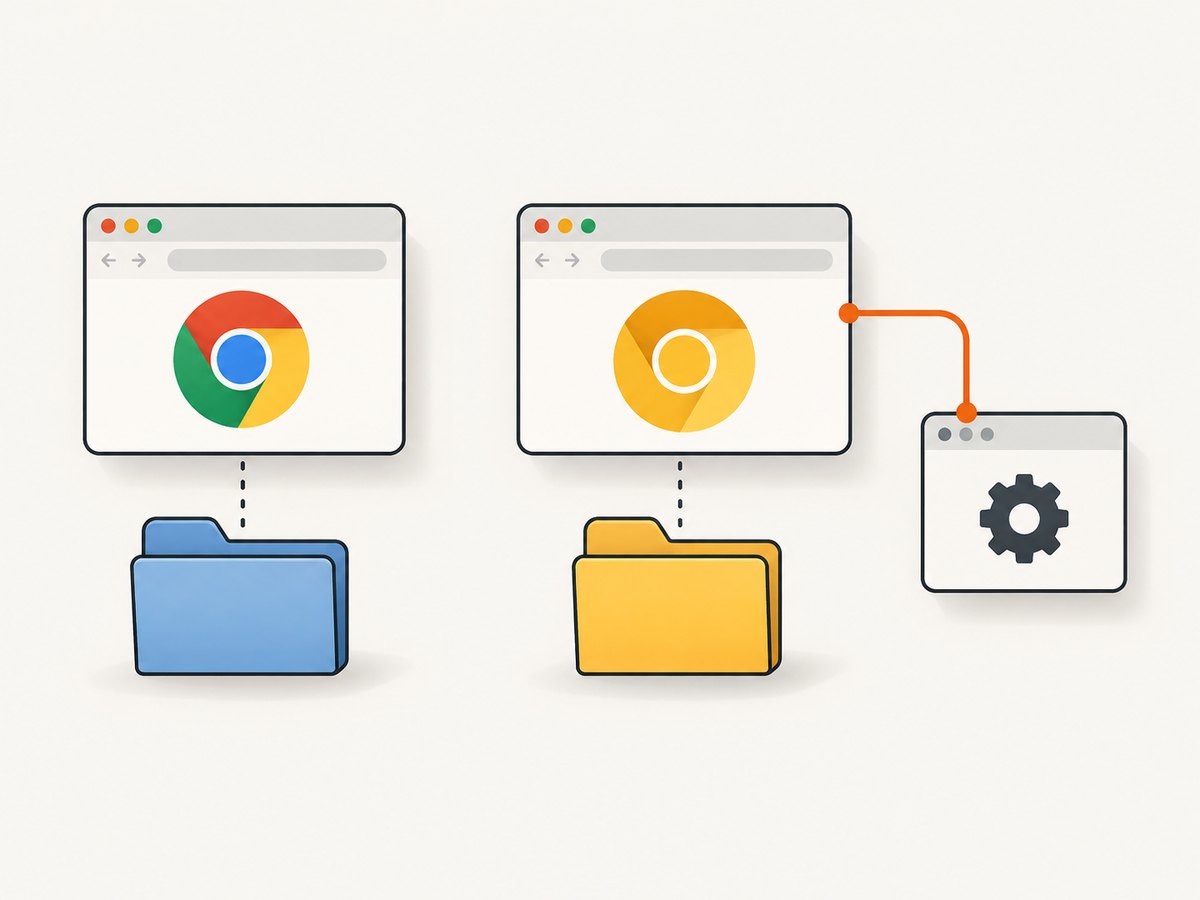
For a controlled workflow, pick one of these patterns:
- Run one browser at a time. Close the browser using a profile before starting another process with that directory.
- Use separate automation profiles. Give stable and Canary distinct writable directories. If you need the same account state in both, handle that as a separate migration or sign-in workflow.
- Attach to the browser already using the profile. Connect to the running process rather than starting a second process pointed at its directory.
Do not describe copying a profile folder while its browser is running as a Puppeteer-supported migration procedure. The sources here do not provide a profile-copy or merge recipe.
6. Find the expected default profile path
The @puppeteer/browsers utilities reference includes resolveDefaultUserDataDir(browser, platform, channel). It resolves the expected directory for a browser, platform, and channel, and is documented as returning a path without checking whether that directory exists.
const { resolveDefaultUserDataDir } = require('@puppeteer/browsers');

const profilePath = resolveDefaultUserDataDir(
  'chrome',
  process.platform,
  'canary',
);
console.log(profilePath);
Use this to inspect a channel-specific expected path when appropriate. Do not infer from the returned path that it exists, is writable, is the profile you intend, or may be opened concurrently. If you need a predictable automation profile, setting your own explicit path is usually clearer.
7. Configure a reliable automation profile
Path and permissions
- Use an absolute path to avoid dependence on the script’s current working directory.
- Create the parent directory if your deployment expects it to be absent initially, and ensure the browser process can write there.
- Keep the profile directory persistent if you want browser state to survive process restarts.
- Use a fresh temporary directory for isolated runs when you do not need state to persist.
Browser selection
Use channel: 'canary' when you want Puppeteer to resolve the Canary channel. Use executablePath when you need a specific installed binary and know its exact path. With puppeteer-core, this browser selection is your responsibility. Record your Puppeteer version and browser version in deployment logs so a later compatibility issue can be diagnosed.
Closing and reconnecting
Always close a browser that your script launched, including on exceptions. When you attach to an externally managed browser, disconnect the Puppeteer client when finished instead of shutting down that browser. This distinction matters in development machines and shared automation services.
8. Troubleshooting
| Symptom | Likely cause | Fix |
|---|---|---|
| “Could not find Chrome” or channel resolution fails | Canary is not installed where Puppeteer expects, the channel is unavailable on the platform, or the package is puppeteer-core without a resolvable browser. |
Install the intended Canary build or provide its actual executablePath. Confirm the runtime user sees the same installation as your interactive account. |
| Browser fails to start with a profile-directory error | The selected path is not writable, its parent is missing, or the process cannot access it. | Use an absolute path, create the parent directory, and grant write access to the account running Node. |
| Canary opens with an unexpected profile | The script is using a different directory than expected, or the connection route is locating the channel’s default profile rather than your custom path. | Log the resolved path; set userDataDir explicitly for launch. For an already-running process, verify which browser endpoint you connected to. |
| Connection times out or no browser is found | The browser is not running with a reachable debugging endpoint, or the endpoint/channel lookup does not match the browser process. | Start the target browser with an appropriate debugging configuration or use Puppeteer launch instead. Confirm the endpoint and process before connecting. |
| Stable and Canary appear to interfere with each other | Both processes may be pointed at the same profile directory. | Stop using a shared live directory; close one process or assign separate directories. The cited Puppeteer docs do not establish concurrent sharing as safe. |
| New Canary release breaks automation | Puppeteer’s guaranteed browser compatibility is for its bundled browser, not every installed Canary build. | Pin a known browser/Puppeteer combination where possible, or update Puppeteer and investigate the changed Canary behavior. |
| Browser remains open after script failure | Cleanup did not run after an exception. | Place browser use in a try block and close in finally; for attached browsers call disconnect(). |
9. Performance, reliability, and cost
Profile selection has no documented performance benchmark in the cited material. In practice, a persistent profile carries accumulated browser state, while a fresh directory starts without that state and may require setup such as signing in. Treat profile choice as a reliability and isolation decision: persistent state can make repeat runs behave consistently for authenticated workflows, while separate profiles reduce accidental state overlap.
Canary is a rapidly changing browser channel, so compatibility can vary. Puppeteer explicitly limits its compatibility guarantee to the bundled browser. If your workload depends on a particular installed Canary build, validate that build in your deployment and make browser upgrades deliberate.
Puppeteer itself is a library and browser automation setup; the sources cited here do not specify infrastructure cost. Account for the machine time, memory, storage for persistent profile data, browser installation, and maintenance required by your environment. Avoid running redundant browser processes against one profile in the hope of improving throughput; the reviewed sources do not establish safe concurrent access.
10. Or skip the browser setup
If your actual goal is to capture a page as an image or PDF rather than automate a persistent Chrome profile, ScreenshotNeo is a website screenshot API and MCP server. One GET request returns a PNG, JPEG, WebP, or PDF. Its capture flow accepts cookie and consent banners and removes more than 60 known consent platforms, newsletter popups, and chat widgets before the shot; each step can be turned off. Bot checks and CAPTCHAs, blank pages, timeouts, failed loads, and cache hits cost nothing, and response headers report the page verdict and billing status. AI agents can use its MCP server tools: take_screenshot, get_page_info, and capture_pdf.
See the ScreenshotNeo API documentation for options and response details. For example, this request captures Stripe as WebP:
curl -G "https://api.screenshotneo.com/v1/shot" -d access_key=YOUR_API_KEY --data-urlencode url=https://stripe.com -o shot.webpimport requests
r = requests.get(
"https://api.screenshotneo.com/v1/shot",
params={"access_key": "YOUR_API_KEY", "url": "https://stripe.com"},
timeout=90,
)
open("shot.webp", "wb").write(r.content)const q = new URLSearchParams({ access_key: 'YOUR_API_KEY', url: 'https://stripe.com' });
const res = await fetch(`https://api.screenshotneo.com/v1/shot?${q}`);
if (!res.ok) throw new Error(`Screenshot request failed: ${res.status}`);
await require('node:fs/promises').writeFile('shot.webp', Buffer.from(await res.arrayBuffer()));ScreenshotNeo offers 1,000 screenshots per month free with no card; paid plans start at $5 for 3,000 shots. Every feature is available on every plan. Sign up free and capture 1,000 screenshots a month with no card.
11. Frequently asked questions
How do I use my Chrome profile in Puppeteer?
Set userDataDir to the profile directory you want the launched browser to use, and make sure it is writable. This does not duplicate another profile’s contents.
How do I launch Chrome Canary with Puppeteer?
Use channel: 'canary' in puppeteer.launch(), or specify Canary’s executable path when channel resolution is not suitable.
Can I use the same Chrome user data directory in Chrome and Chrome Canary?
The cited Puppeteer references do not confirm that two separate processes can safely open one directory at once. Use one process at a time or separate profile directories.
Can Puppeteer copy or merge profiles for me?
The documented launch and connect options cover selecting a directory and attaching to a browser. They do not describe profile copying, merging, or migration.


