How to Share Image Templates with Other Users
Learn how to share image templates safely, choose view, comment, edit, or reuse access, and give each recipient a clean starting copy.
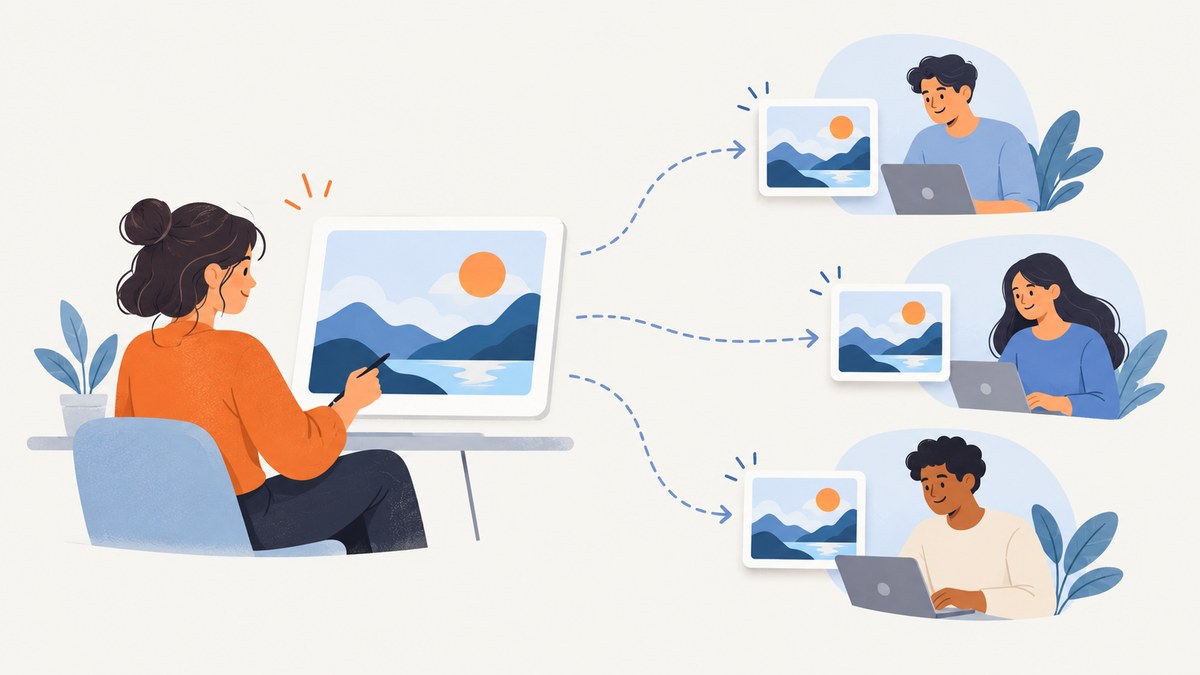
How do I share an image template with someone so they can use it? Open the design, choose the platform’s sharing control, select the audience and permission level, then send the link. If recipients should each start from their own reusable copy, use the platform’s dedicated template-link feature when available. An ordinary edit link may give access to your original instead of creating a separate copy.
Before sharing, decide what the recipient should be able to do:
| Goal | Permission or method | What to verify |
|---|---|---|
| Show the design | View | Recipients cannot change the source |
| Collect feedback | Comment | Comments are enabled for the audience |
| Work together on one file | Edit | Recipients can change the original |
| Let each person make a version | Template link or make-a-copy workflow | The platform creates a separate starting copy |
1. Choose the outcome before creating a link
“Share the template” can mean several different things. A view link is suitable for approval or reference. A comment link is useful for review. An edit link is appropriate when a team needs to work in one source file. A reusable template link is better when every recipient should customize the design independently.
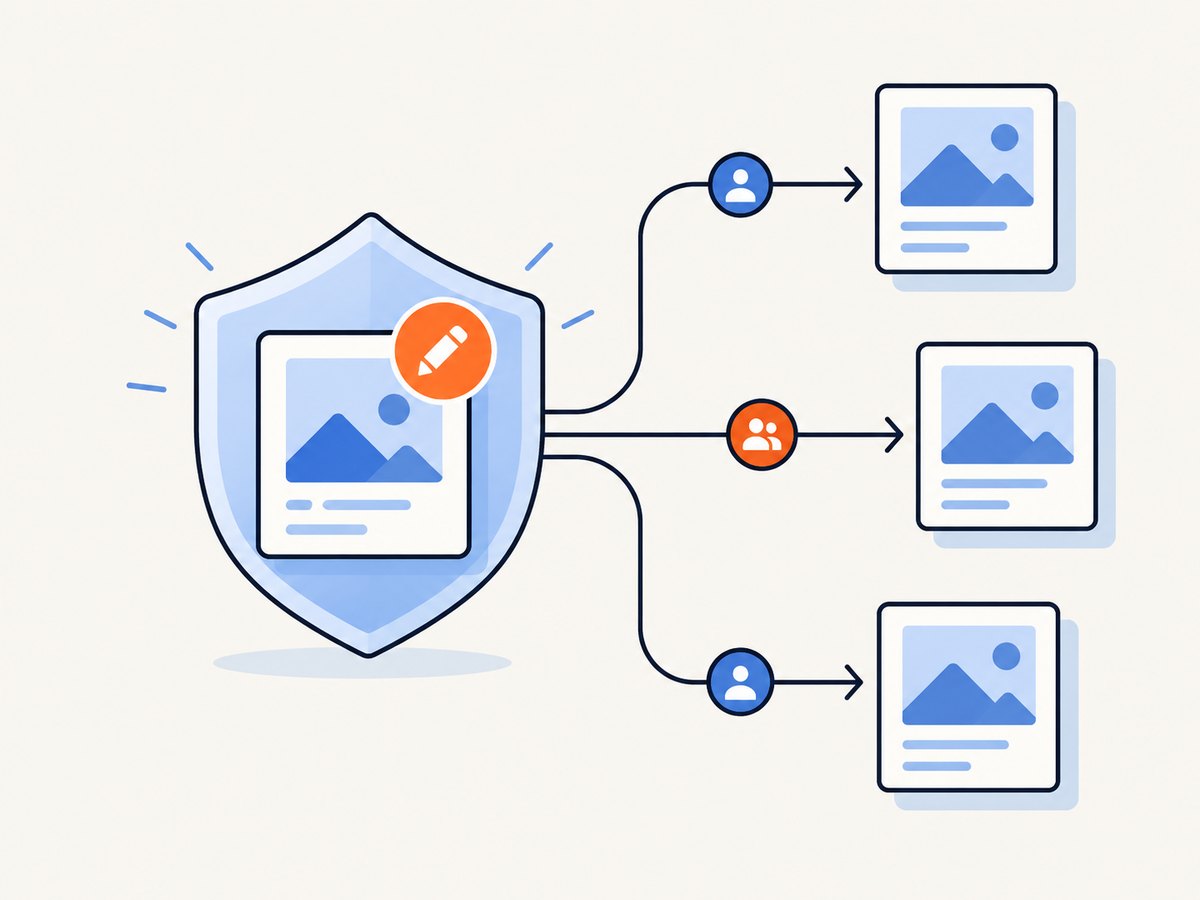
Do not assume that an edit link creates a copy. Platforms use different names and behaviors, and some separate ordinary collaboration links from reusable template links. Check the sharing dialog and its help documentation for the service you use.
2. Canva: share a design or create a Template link
Canva provides separate controls for ordinary design sharing and reusable templates. The exact labels and available options can change, so use the current Share menu in your account.
Share an ordinary Canva design
- Open the design in Canva.
- Select Share.
- Choose the audience available in the dialog: only you, your team, or anyone with the link.
- Choose whether recipients can view, comment, or edit.
- Copy the link and send it through your normal channel.
Canva documents that sharing permissions can be changed later. Revisit the Share menu when someone should lose access or when a review link should become view-only. Canva’s help also describes link-based collaboration and guest limitations, so check whether your recipient’s account type affects the available permission.
Create a reusable Canva Template link
- Open the finished design and select Share.
- Look for the separate Template link option.
- Create the template link and copy it.
- Send that link to the people who should use the design as a starting point.
Canva states that creating and sharing a Template link is available to Canva Pro, Canva Teams, Canva Enterprise, Canva for Education, and Canva for Nonprofits users. If the option is missing, check the current plan eligibility and the latest Share menu.
3. Prepare a clean template before public sharing
A public or broadly shared link can expose more than the visible canvas. Make a clean copy first and inspect the entire file.
- Remove hidden pages that recipients should not see.
- Delete presenter notes and internal instructions.
- Check cropped areas and objects outside the visible frame.
- Remove comments, drafts, or private contact details.
- Confirm that fonts, images, and other assets can be reused by recipients.
- Review previous revisions and any content retained by the platform.
- Open the shared link in a private browser window to confirm the result.
Canva advises removing hidden pages, presenter notes, cropped content, and other material not intended for recipients. It also warns that public sharing may make content from previous revisions accessible; a copy does not include the original’s previous revisions. Treat “anyone with the link” as broad access and inspect the file accordingly.
4. Select the right audience and permissions
Use the narrowest audience that fits the job.
| Audience | Use when | Risk to check |
|---|---|---|
| Named people | You know every recipient | Recipients may need accounts or invitations |
| Your team or workspace | The asset is internal | Former members may retain access depending on the platform |
| Anyone with the link | You need easy external distribution | The link can be forwarded |
For external or organizational distribution, look for controls such as link expiration, download restrictions, watermarking, or access monitoring. These controls are platform-specific; Brandfolder documents examples of such asset-sharing features, but they are not universal.
5. Share templates on platforms other than Canva
Other design and asset-management tools may use labels such as duplicate, make a copy, remix, template URL, or share for editing. Follow this sequence:
- Open the design or asset.
- Choose Share, Publish, or Export.
- Identify whether the link opens the original or creates a recipient copy.
- Set the audience: named users, a workspace, or link holders.
- Set view, comment, edit, or reuse permissions.
- Check account, team, or plan eligibility.
- Preview the link while signed out or in a private window.
- Send the link and record where it was distributed.
If the service has no template-link feature, tell recipients how to duplicate the file before editing, or create a separate copy for each user. Do not describe that workaround as a platform-generated template unless the service documents that behavior.
6. Make a shareable preview image
A preview can help recipients identify the correct template before opening it. You can export a static preview from the design tool, or capture the published page with a browser or screenshot API. Keep the preview separate from the editable source so nobody mistakes a flattened image for the template itself.
Browser-based preview checklist
- Open the published or shared page, not an editor-only URL.
- Wait for fonts, images, and lazy-loaded content to finish.
- Dismiss cookie banners, newsletter popups, and chat widgets.
- Capture the relevant element or the full page at the required viewport.
- Use a consistent file type and naming scheme.
- Confirm that private information is not visible in the preview.
7. Or skip the browser setup
ScreenshotNeo captures a published template or gallery page through one API request. Before the capture it accepts the cookie or consent banner like a visitor and removes more than 60 known consent platforms, newsletter popups, and chat widgets; each cleanup step can be turned off. Bot checks, blank pages, timeouts, failed loads, and cache hits are not billed, and the response identifies the result with X-Page-Verdict and X-Billed headers.
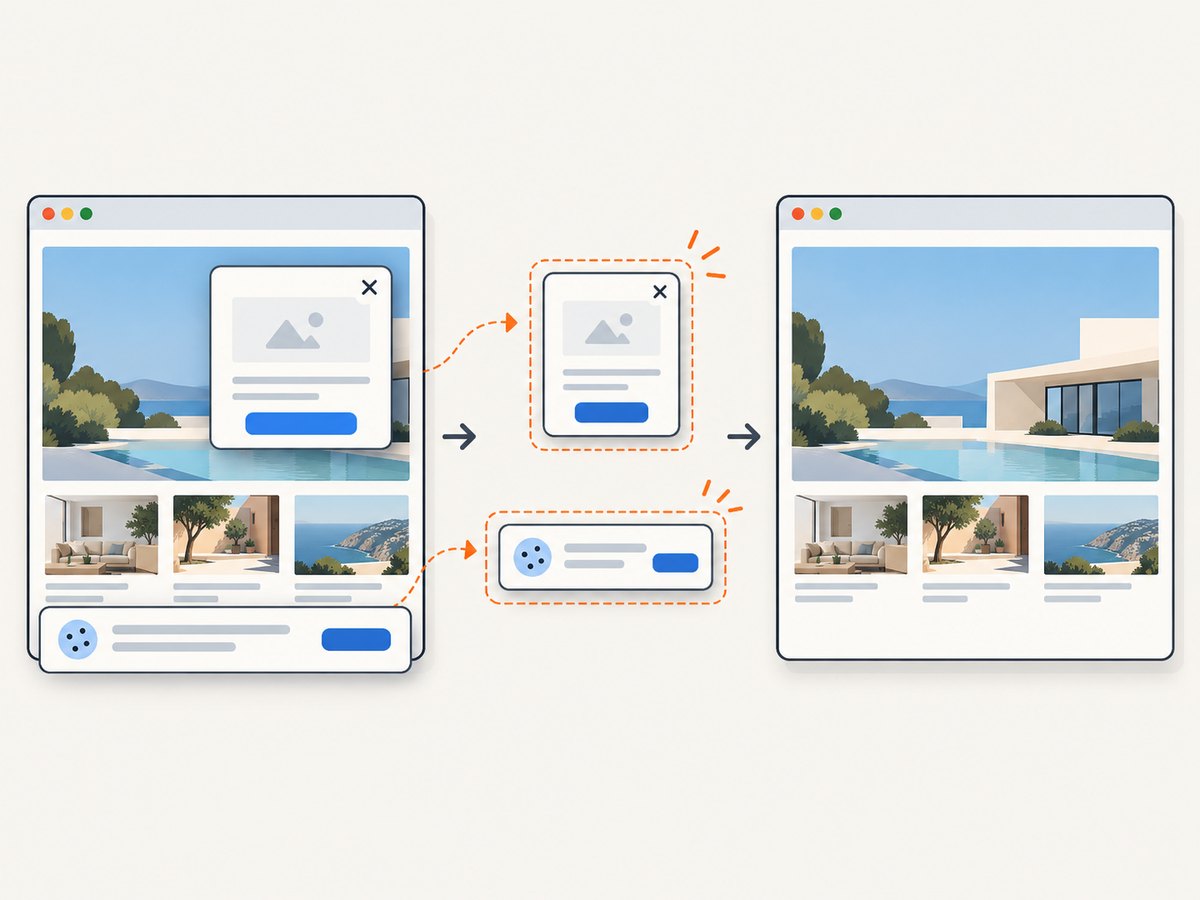
See the ScreenshotNeo API documentation for all options. This captures a preview image; it does not replace the design platform’s permission or template-copy controls.
cURL
curl -G "https://api.screenshotneo.com/v1/shot" -d access_key=YOUR_API_KEY --data-urlencode url=https://stripe.com -o shot.webpPython
import requests

r = requests.get(
    "https://api.screenshotneo.com/v1/shot",
    params={"access_key": "YOUR_API_KEY", "url": "https://stripe.com"},
    timeout=90,
)
open("shot.webp", "wb").write(r.content)
Node.js
const q = new URLSearchParams({ access_key: 'YOUR_API_KEY', url: 'https://stripe.com' });
const res = await fetch(`https://api.screenshotneo.com/v1/shot?${q}`);
Replace the example URL with the public page that displays your template. ScreenshotNeo also supports full-page capture, CSS element capture, device presets, custom viewports, retina scale, custom CSS and JavaScript, waits, headers, cookies, user agents, caching, signed links, asynchronous jobs, bulk capture, and PDF output. An MCP server provides take_screenshot, get_page_info, and capture_pdf tools for Claude, Cursor, and other MCP clients.
There are 1,000 free screenshots each month with no card. Paid plans start at $5 for 3,000 screenshots, and every feature is included on every plan. Create a free ScreenshotNeo account.
8. Troubleshooting
| Problem | Likely cause | Fix |
|---|---|---|
| The recipient can edit the original | An ordinary edit link was shared | Change the permission to view or comment, or use a dedicated template link |
| The Template link option is missing | Plan or workspace eligibility | Check the platform’s current requirements and account type |
| The link shows a login wall | The audience is restricted | Invite the user or choose a supported link audience |
| Private content appears in the shared file | Hidden pages, notes, cropped objects, or revision history | Create and inspect a clean copy before sharing |
| The preview contains a cookie banner | The page was captured before consent handling | Accept or remove the banner in the browser workflow, or configure ScreenshotNeo’s consent cleanup |
| The screenshot is blank | The page failed to load, requires authentication, or renders late | Use a public URL, wait for a selector or network idle, and inspect the response verdict |
| The screenshot shows a bot check | The destination challenged automated traffic | Verify that the page is accessible to a normal visitor; do not treat a challenge page as the template preview |
9. Performance, reliability, and cost notes
- Share links instead of large files when recipients need an editable template; links keep one source of truth and make permission changes possible.
- Use a static preview when the template page is slow or when recipients need a quick visual index.
- Wait for dynamic content before capturing pages with lazy images, web fonts, or client-rendered galleries.
- Cache stable previews when the design has not changed. ScreenshotNeo lets you choose a cache TTL; cache hits are not billed.
- Use asynchronous jobs for large batches and signed webhooks when the caller should not wait for every capture.
- Capture in bulk when generating previews for many template URLs; ScreenshotNeo accepts up to 100 URLs per call.
- Check billing headers and page verdicts so failed loads and unusable captures are distinguishable from clean shots.
10. Final checklist
- Decide whether recipients should view, comment, edit, or reuse.
- Use a dedicated template-link feature for independent copies when the platform provides one.
- Choose named users, a team, or link access deliberately.
- Remove hidden pages, notes, cropped material, and private content.
- Check account and plan eligibility.
- Open the link in a private window before sending it.
- Capture a clean preview only from a page recipients can access.
- Record who received the link and how to revoke access.
FAQ
Does sharing a design automatically create a copy?
No universal rule exists. An ordinary collaboration link may open the original. Use the platform’s template, duplicate, or make-a-copy feature when you need independent versions.
Can I change permissions after sending a link?
Many platforms let the owner return to the Share menu and change access. Verify the current settings after making the change and test the link again.
What should I do if recipients do not have an account?
Check whether the platform supports guest access or public links. If it does not, invite recipients or export a non-editable preview while keeping the editable template restricted.
Is a screenshot a replacement for the template?
No. A screenshot is a visual preview. Recipients still need the design platform’s editable or template link to customize the asset.


