SharePoint Site Logo Size: Recommended Dimensions
Use Microsoft’s recommended 192×64 site logo and 64×64 thumbnail dimensions, with formats, setup steps, and troubleshooting.
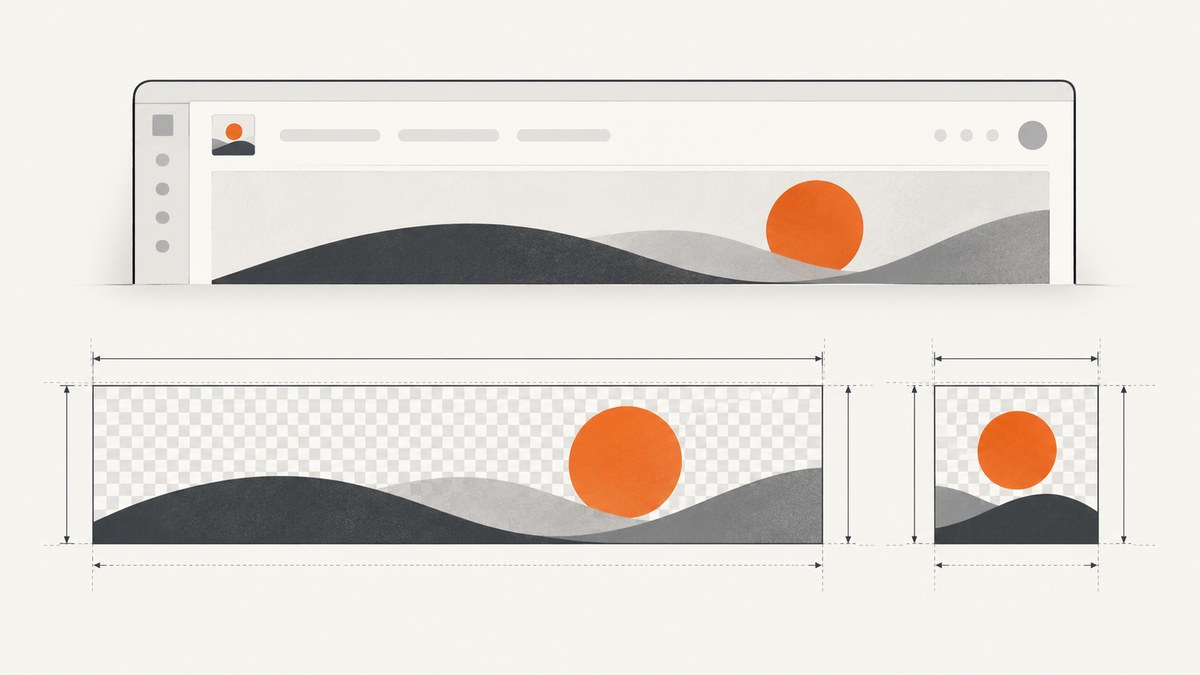
Use a 192 × 64 px main site logo and a separate 64 × 64 px square site logo thumbnail. Microsoft recommends the wide logo for the modern SharePoint header and the square thumbnail for search, site cards, and other places that require a square image. For an extended header, use a 300 × 64 px logo and an optional 2560 × 164 px background image. These are header-asset recommendations, not fixed dimensions for images placed in page web parts.
Official guidance: Microsoft’s header image recommendations, header setup instructions, and logo and permission details.
Recommended SharePoint logo dimensions
| Asset | Recommended size | Formats | Used for |
|---|---|---|---|
| Standard site logo | 192 × 64 px | PNG, JPEG, SVG* | Modern SharePoint site header |
| Site logo thumbnail | 64 × 64 px | PNG, JPEG, SVG* | Search, site cards, and square-logo contexts |
| Extended-layout site logo | 300 × 64 px | JPEG, PNG, SVG | Extended header layout |
| Extended-layout background | 2560 × 164 px | JPEG, PNG | Optional extended-header background |
*SVG is not allowed on group-connected sites. Check your site type before choosing it.
Why two files are needed
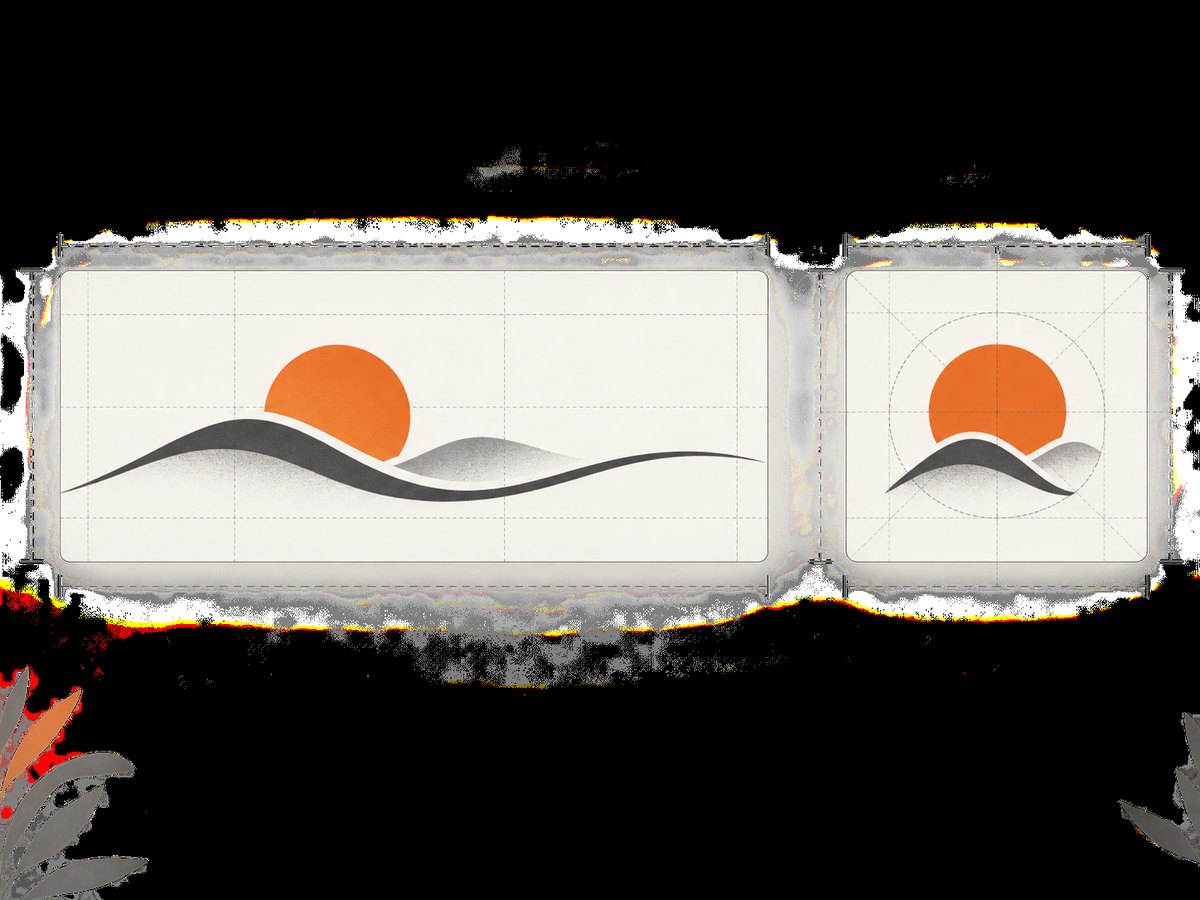
The main logo can be rectangular, transparent, and wider than it is tall. The thumbnail is a separate square asset. Microsoft says the site logo appears in the site header, while the thumbnail appears in searches, on the site card, and anywhere else a square logo is needed.
Choose the right dimensions for your site type
- Compact or standard header: prepare a 192 × 64 px logo and a 64 × 64 px thumbnail.
- Extended header: prepare the 300 × 64 px logo. Add a 2560 × 164 px background only when the extended layout calls for one.
- Communication site: Microsoft also describes a rectangular logo as 192 × 64 px and a square logo as at least 64 × 64 px. Doubling those dimensions can help when designing high-resolution source artwork, but export the recommended header assets at the dimensions your layout requires.
- Group-connected team site: the associated Microsoft 365 group can control the logo, and changing the site logo can also change the group logo. SVG is specifically restricted in this context.
Do not use these numbers as universal sizes for page images. Modern SharePoint page images scale responsively according to the web part, layout, and device. Microsoft’s image sizing guidance does not promise one pixel size for every placement.
Prepare the logo files
- Create a wide master logo with transparent padding kept to a minimum.
- Export the header version at 192 × 64 px, preserving the logo’s proportions.
- Create a separate square composition for the thumbnail and export it at 64 × 64 px.
- If you use an extended header, export the 300 × 64 px logo and, if needed, the 2560 × 164 px background.
- Check legibility at actual display size. Thin strokes and small type may disappear in a 64 px square.
Example SVG assets
SVG is useful for standard sites because it stays sharp at different scales. Replace the sample shapes with your brand artwork and follow your site’s format rules.
<!-- site-logo-192x64.svg -->
<svg xmlns="http://www.w3.org/2000/svg" width="192" height="64" viewBox="0 0 192 64">
  <rect width="192" height="64" fill="none"/>
  <circle cx="32" cy="32" r="20" fill="#2563eb"/>
  <path d="M24 32h16M32 24v16" stroke="#fff" stroke-width="5" stroke-linecap="round"/>
</svg>

<!-- site-logo-thumbnail-64x64.svg -->
<svg xmlns="http://www.w3.org/2000/svg" width="64" height="64" viewBox="0 0 64 64">
  <rect width="64" height="64" rx="8" fill="#2563eb"/>
  <path d="M22 32h20M32 22v20" stroke="#fff" stroke-width="6" stroke-linecap="round"/>
</svg>
These examples contain no Microsoft branding. Replace them with your own artwork before publishing.
Upload a logo in modern SharePoint
- Open the site and select Settings.
- Choose Change the look, then Header.
- Select the header layout: compact, standard, or extended where available.
- In Display, add or change the site logo and the site logo thumbnail.
- For an extended header, add the optional background image if your design needs it.
- Save the changes and check the header, search results, and site card.
You need suitable owner or designer permissions. Administrators can also restrict customization. Header availability can differ in some government and sovereign cloud environments. See Microsoft’s Change the look instructions for the current interface.
Validate dimensions before uploading
Use any image editor, or inspect the files from a terminal. ImageMagick’s identify command prints pixel dimensions:
identify site-logo.png
identify site-logo-thumbnail.png
# Expected output includes 192x64 and 64x64 respectively
For SVG, check the root width, height, and viewBox values. A viewBox alone does not guarantee that an exported raster file has the required pixel dimensions.
Common problems and fixes
| Problem | Likely cause | Fix |
|---|---|---|
| Logo looks stretched | The source aspect ratio does not match the header slot. | Re-export a 192 × 64 or 300 × 64 asset instead of forcing a square image into the wide slot. |
| Thumbnail is rejected or missing | No separate square asset was supplied. | Create and upload a 64 × 64 thumbnail. |
| SVG cannot be selected | The site is group-connected. | Use PNG or JPEG, or confirm whether the site type permits SVG. |
| Logo is blurry | A small raster file is being enlarged or compressed. | Start with a clean master, export at the recommended dimensions, and avoid repeated re-saving. |
| Logo is hard to read | Low contrast, excessive transparent padding, or fine detail. | Increase contrast, crop unused padding, and simplify the mark for the 64 px thumbnail. |
| Header option is unavailable | Insufficient permissions, an administrator restriction, or a cloud-specific limitation. | Ask a site owner or designer to make the change and verify tenant customization settings. |
| Changing the logo changed another logo | The site is connected to a Microsoft 365 group. | Confirm the group-logo behavior before editing and coordinate the replacement asset. |
| Page image appears at an unexpected size | Page web parts use responsive scaling. | Adjust the image crop and web-part layout; do not assume header dimensions apply to page images. |
Performance and accessibility checklist
- Keep files small enough for quick header loading while preserving sharp edges.
- Use transparency only when the logo remains readable against every header background.
- Check light and dark header treatments if your theme changes contrast.
- Test desktop and narrow viewport layouts because the header can scale or rearrange.
- Keep important identity inside the visible bounds; do not rely on transparent margins.
- Review the square thumbnail independently. A wide logo reduced into a square often becomes unreadable.
Or skip the browser setup
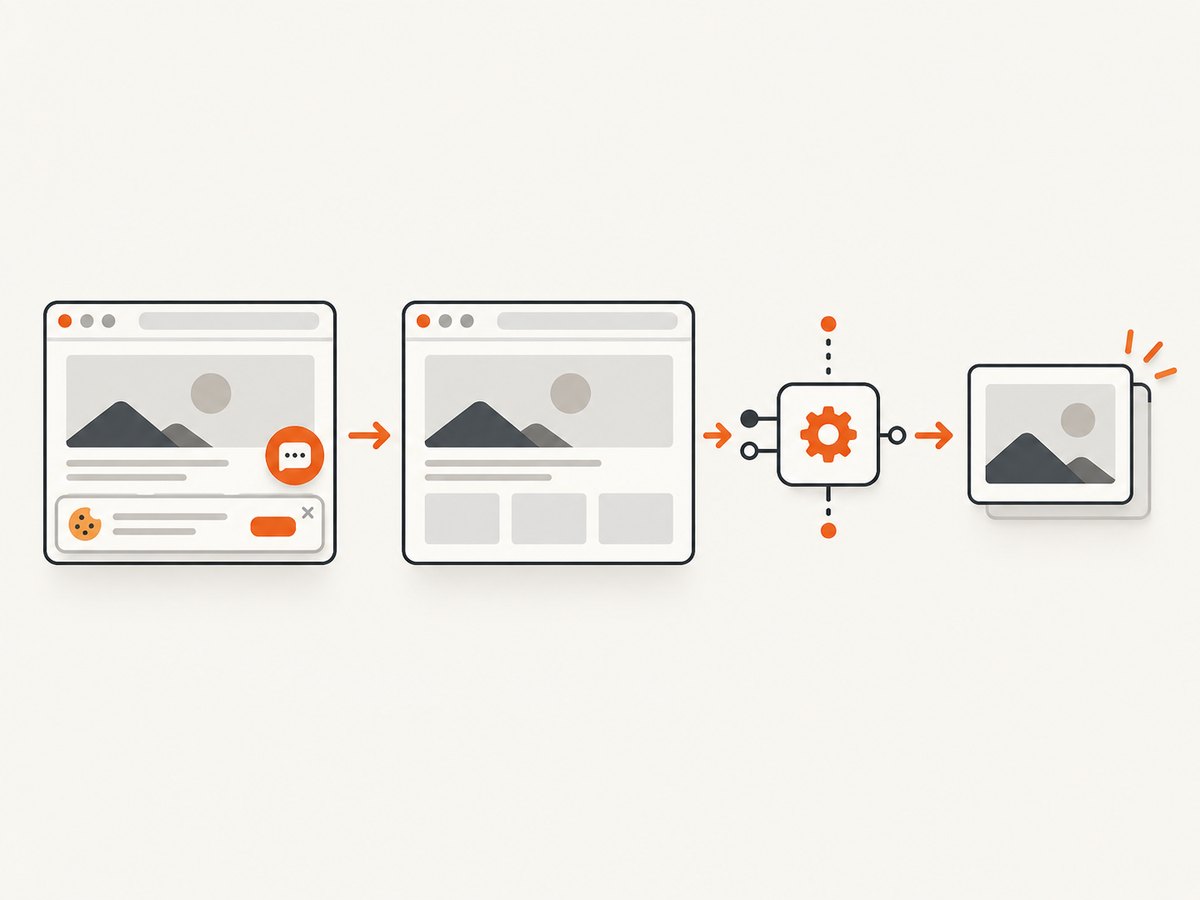
If you also need screenshots of the finished SharePoint header for documentation, QA, or release review, ScreenshotNeo captures a URL through one API request. Cookie and consent banners, newsletter popups, and chat widgets are removed before the shot; bot checks, blank pages, timeouts, failed loads, and cache hits are not billed. Responses identify the result with X-Page-Verdict and X-Billed headers. Its MCP server lets Claude, Cursor, and other MCP clients call take_screenshot, get_page_info, and capture_pdf.
See the ScreenshotNeo API documentation for all options.
cURL
curl -G "https://api.screenshotneo.com/v1/shot" \
  -d access_key=YOUR_API_KEY \
  --data-urlencode url=https://stripe.com \
  -o shot.webp
Python
import requests

r = requests.get(
    "https://api.screenshotneo.com/v1/shot",
    params={"access_key": "YOUR_API_KEY", "url": "https://stripe.com"},
    timeout=90,
)
r.raise_for_status()
open("shot.webp", "wb").write(r.content)
Node.js
const q = new URLSearchParams({
  access_key: 'YOUR_API_KEY',
  url: 'https://stripe.com'
});
const res = await fetch(`https://api.screenshotneo.com/v1/shot?${q}`);
if (!res.ok) throw new Error(`HTTP ${res.status}`);
const buffer = Buffer.from(await res.arrayBuffer());
require('fs').writeFileSync('shot.webp', buffer);
ScreenshotNeo supports full-page capture, element capture by CSS selector, custom CSS and JavaScript, waits, device presets, viewport and retina settings, headers and cookies, caching, PDFs, bulk capture, and signed links. The Free plan includes 1,000 shots per month without a card; paid plans start at $5 for 3,000 shots. Create a free ScreenshotNeo account.
FAQ
What size should a SharePoint logo be?
Use 192 × 64 px for the standard site logo and 64 × 64 px for the square thumbnail.
Can the SharePoint logo be square?
The thumbnail is square. The main header logo is normally rectangular; use the extended dimensions when using the extended header.
Is 64 × 64 enough for a logo?
It is Microsoft’s recommended thumbnail size. Keep the mark simple and test it at actual size.
Which file format is best?
PNG, JPEG, and SVG are listed for standard assets, but SVG is not allowed on group-connected sites. Use PNG or JPEG when SVG eligibility is uncertain.
Do these dimensions apply to SharePoint page images?
No. Page images are responsive and depend on the web part, layout, and device.
Where do I change the logo?
Go to Settings → Change the look → Header, then use Display to add or change the logo and thumbnail.


