How to Show a PDF in React JS
Display PDFs in React with iframe, object, or React-PDF, including worker setup, CORS, large files, troubleshooting, and a no-browser API option.

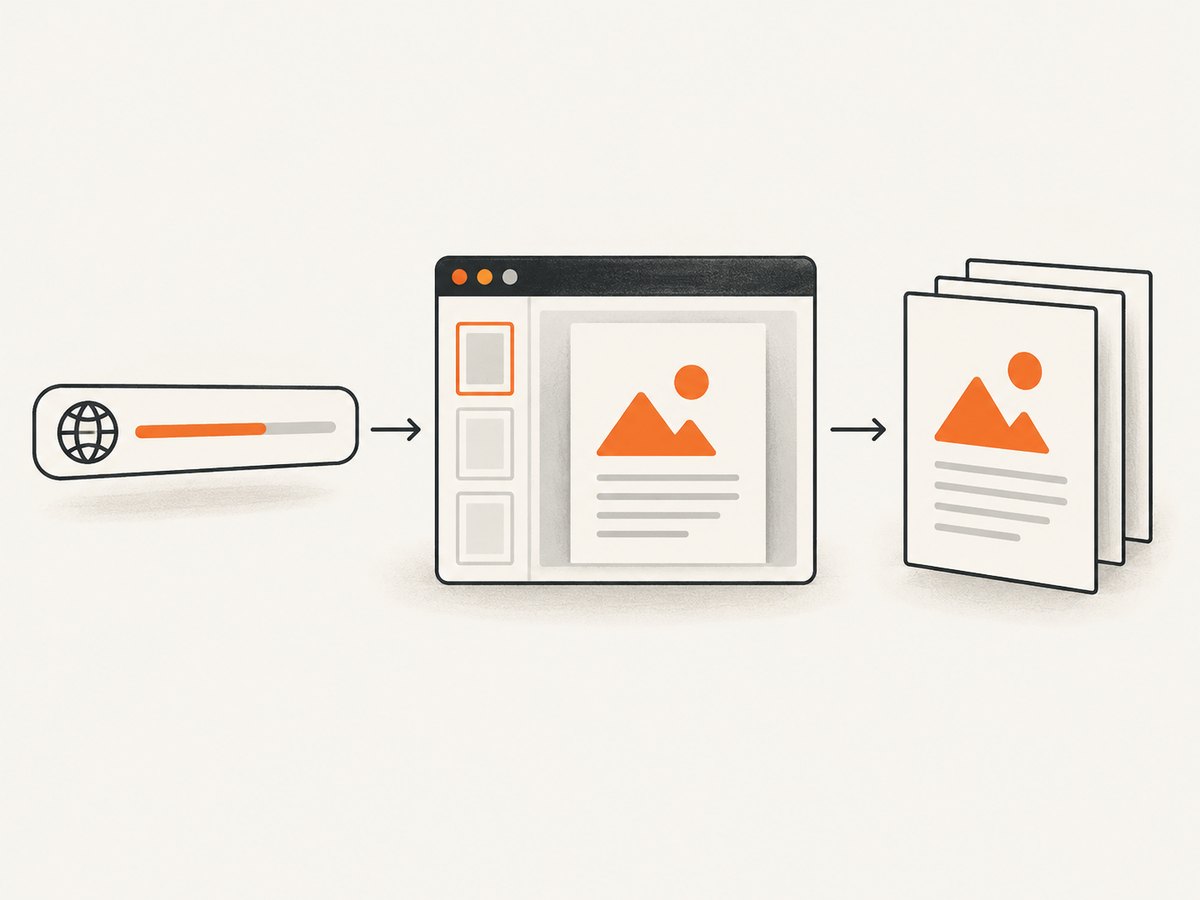
Short answer: For a simple preview, put the PDF URL in an <iframe> or <object>. If your React app needs its own page controls, loading states, zoom, or application state, use React-PDF, which renders existing PDFs through PDF.js. Configure the matching PDF.js worker in the same module as Document and Page, and make sure the PDF can be fetched under the browser’s cross-origin rules.
1. Choose the right way to show a PDF
| Approach | Use it when | Trade-offs |
|---|---|---|
Native iframe or object |
You need a quick preview of a URL-accessible PDF. | Very little code, but browser controls and toolbar behavior vary and are hard to customize. |
react-pdf (PDF.js display layer) |
You need React-controlled pages, custom controls, or integration with app state. | More setup: worker configuration, loading/error UI, CORS handling, and memory management for long files. |
| PDF.js viewer layer | You want a fuller viewer UI to reskin or extend. | It is a separate UI layer. Mozilla asks site authors to reskin or build upon an embedded viewer rather than ship an unmodified copy (PDF.js guidance). |
Keep viewing and generating separate. react-pdf displays an existing file. @react-pdf/renderer creates PDFs from React components. Advice about moving 30-plus-page generation into a web worker applies to the renderer, not to viewing an existing PDF.
2. Fastest option: native browser embedding
If the PDF is public (or the browser already has access to it), this is enough:
export default function PdfPreview({ url }) {
  return (
    <iframe
      src={url}
      title="PDF preview"
      width="100%"
      height="700"
      style={{ border: 0 }}
    />
  );
}
An object element provides a fallback message:
export function PdfObject({ url }) {
  return (
    <object data={url} type="application/pdf" width="100%" height="700">
      <p>Your browser cannot display this PDF inline. <a href={url}>Download it</a>.</p>
    </object>
  );
}
Use a stable, descriptive title, constrain the height on small screens, and provide a download link. The browser’s built-in viewer may be unavailable in some embedded contexts, and you cannot reliably replace its toolbar or page rendering with React state.
3. Build a controlled viewer with React-PDF
Install the display library:
npm install react-pdf pdfjs-distThe current React-PDF branch documents React 19 or later, Node.js 22.13.0 or later, and minimum modern-browser versions of Chrome 125 and Safari 18 (including iOS 18). These requirements change; check the README before publishing. Older browsers may need polyfills, bundler transpilation, and the legacy worker.
Complete Vite/React component
import { useState } from 'react';
import { Document, Page, pdfjs } from 'react-pdf';
import 'react-pdf/dist/Page/AnnotationLayer.css';
import 'react-pdf/dist/Page/TextLayer.css';

pdfjs.GlobalWorkerOptions.workerSrc = new URL(
  'pdfjs-dist/build/pdf.worker.min.mjs',
  import.meta.url,
).toString();

export default function PdfViewer({ file }) {
  const [numPages, setNumPages] = useState(0);
  const [page, setPage] = useState(1);
  const [error, setError] = useState(null);

  function onLoadSuccess({ numPages }) {
    setNumPages(numPages);
    setPage(1);
    setError(null);
  }

  return (
    <section aria-label="PDF viewer">
      <div style={{ display: 'flex', gap: 8, alignItems: 'center' }}>
        <button disabled={page <= 1} onClick={() => setPage(p => p - 1)}>Previous</button>
        <span>Page {page} of {numPages || '…'}</span>
        <button disabled={!numPages || page >= numPages} onClick={() => setPage(p => p + 1)}>Next</button>
      </div>
      <Document
        file={file}
        onLoadSuccess={onLoadSuccess}
        onLoadError={setError}
        loading={<p>Loading PDF…</p>}
        error={<p role="alert">Could not load this PDF.</p>}
      >
        {error ? null : <Page pageNumber={page} width={Math.min(900, window.innerWidth - 32)} />}
      </Document>
      {error && <p role="alert">{String(error.message || error)}</p>}
    </section>
  );
}
Pass either a URL or a file-like object:
<PdfViewer file="https://cdn.example.com/manual.pdf" />
// or: <PdfViewer file={uploadedFile} />
The worker must be configured in the same module that renders Document and Page; module execution order can overwrite a value configured elsewhere. Match pdfjs-dist and React-PDF versions. With Next.js, dynamically import the viewer with server-side rendering disabled because PDF.js depends on browser APIs:
import dynamic from 'next/dynamic';
const PdfViewer = dynamic(() => import('./PdfViewer'), { ssr: false });
4. Loading remote PDFs: CORS, credentials and proxies
PDF.js fetches bytes with JavaScript, so normal same-origin rules apply. A URL that works in a native iframe can still fail in React-PDF. The PDF host must send an Access-Control-Allow-Origin response that includes your app’s origin, or your server must fetch and proxy the file. The PDF.js FAQ explains this distinction.
For private files, issue a short-lived URL from your backend, or proxy the response while preserving Content-Type: application/pdf. Do not expose storage credentials in browser code. If you pass headers or credentials to React-PDF, verify that the server’s CORS preflight permits them.
For large files, HTTP Range Requests let PDF.js request only needed portions when the server and browser support them. Ensure the server accepts Range and returns 206 Partial Content with correct Content-Range. A CDN or proxy that strips range headers can force full downloads.
5. Long documents, zoom and responsive rendering
Rendering every page at once allocates a canvas for every page and can exhaust memory. Start with one page, as the example does, or render only pages near the viewport. Keep the Page width responsive and avoid repeatedly remounting Document when unrelated state changes.

- Use page virtualization or an intersection observer for scrolling readers.
- Choose a moderate width or
scale; high-resolution canvases consume substantially more memory. - Release object URLs created from uploads with
URL.revokeObjectURLwhen the component unmounts. - Show a download link so users have an escape hatch if rendering is slow.
PDF.js specifically recommends rendering only visible pages to reduce memory. This is viewer guidance; it is separate from the @react-pdf/renderer warning that generating documents with 30 or more pages can block the main thread.
6. Interactions and accessibility
Add keyboard-accessible Previous/Next buttons, a page number field with bounds checking, and a labelled region. Keep text and annotation layers enabled when selectable text and links matter. Test keyboard focus, screen-reader labels, high-contrast themes, and zoom at 200%. Native embedding delegates most of this behavior to the browser; a custom viewer makes you responsible for it.
7. Troubleshooting checklist
| Symptom | Likely cause | Fix |
|---|---|---|
| Worker failed | Worker URL is missing, bundled incorrectly, or version-mismatched. | Set GlobalWorkerOptions.workerSrc in the rendering module and install matching versions. |
| Network error or CORS message | Remote server does not allow your origin or custom headers. | Configure CORS, use a same-origin signed URL, or proxy on your server. |
| Blank page with a successful response | Response is HTML (login page/error) rather than PDF. | Inspect response headers and first bytes; require application/pdf and authenticate server-side. |
| Works in iframe but not React-PDF | Native viewer can navigate cross-origin while PDF.js cannot fetch cross-origin bytes. | Apply the CORS/proxy solution above. |
| Next.js window error | Viewer imported during server rendering. | Use a client component and dynamic(..., { ssr: false }). |
| Browser tab crashes | Too many high-resolution canvases rendered at once. | Render visible pages, lower width/scale, and avoid eager page arrays. |
| Text or links missing | Text/annotation CSS or layers were omitted. | Import the React-PDF layer CSS shown in the component. |
8. Production reliability, performance and cost
Cache immutable PDFs at a CDN and use content hashes in filenames. For user uploads, enforce size and type limits on the server, scan files according to your security policy, and revoke temporary URLs. Log document-load failures without logging sensitive query strings. Test Chrome, Safari and mobile Safari versions your users actually run, plus slow networks and interrupted downloads.
Browser rendering has no per-page API fee, but it consumes the user’s CPU, memory and bandwidth. Range requests, CDN caching and page virtualization reduce those costs. If you need a server-generated preview image or PDF from a web page, a screenshot service can move browser automation out of your app.
9. Or skip the browser setup
ScreenshotNeo is a website screenshot API and MCP server. One GET request returns a PNG, JPEG, WebP or PDF. It accepts cookie/consent banners before capture and removes more than 60 known consent platforms, newsletter popups and chat widgets; each step can be disabled. Bot checks, CAPTCHAs, blank pages, timeouts, failed loads and cache hits are not billed, and response headers identify the page verdict and whether it was billed.
Use it when you need a PDF or image of a rendered URL without installing Playwright or maintaining a browser worker. The API docs list options including full-page capture with lazy images, CSS-element capture, dark mode, device presets, custom viewport and retina scale, PDF paper size/margins/landscape/page ranges, custom CSS/JavaScript, clicks, waits, blocked requests, headers/cookies/user agent/Authorization, timezone and geolocation, transparent backgrounds, resizing, TTL caching, signed links, async jobs with signed webhooks, bulk capture of 100 URLs, usage data and an OpenAPI spec.
curl -G "https://api.screenshotneo.com/v1/shot" -d access_key=YOUR_API_KEY --data-urlencode url=https://example.com -o page.pdfimport requests
r = requests.get("https://api.screenshotneo.com/v1/shot", params={"access_key": "YOUR_API_KEY", "url": "https://example.com"}, timeout=90)
r.raise_for_status()
open("page.pdf", "wb").write(r.content)const q = new URLSearchParams({ access_key: 'YOUR_API_KEY', url: 'https://example.com' });
const res = await fetch(`https://api.screenshotneo.com/v1/shot?${q}`);
if (!res.ok) throw new Error(`HTTP ${res.status}`);
const fs = await import('node:fs/promises');
await fs.writeFile('page.pdf', Buffer.from(await res.arrayBuffer()));ScreenshotNeo also has an MCP server with take_screenshot, get_page_info and capture_pdf tools for Claude, Cursor and other MCP clients. The Free plan includes 1,000 shots per month with no card; paid plans start at $5 for 3,000 shots. Every feature is on every plan. Create a free ScreenshotNeo account.
10. FAQ
Should I use iframe or React-PDF?
Use an iframe for an uncomplicated preview. Choose React-PDF when your app must control pages, state, loading, errors or custom controls.
Can React-PDF display a password-protected PDF?
Only when your application can obtain the decrypted bytes or an authorized URL. Handle authentication on your server and avoid exposing credentials in client code.
Does React-PDF create PDFs?
No. It displays existing PDFs. Use @react-pdf/renderer when React components must generate a PDF.
Why does a PDF load in a new tab but fail in my app?
A new tab may use the browser’s native viewer. PDF.js still needs CORS permission to fetch the bytes with JavaScript.
How do I keep a 200-page document usable?
Render one or a small window of visible pages, use range-capable hosting, keep canvas dimensions moderate, and provide download access.


