A Simple Website Screenshot Tool
Capture a website manually in your browser or automate full-page screenshots with an API, with practical steps, code, options, and troubleshooting.
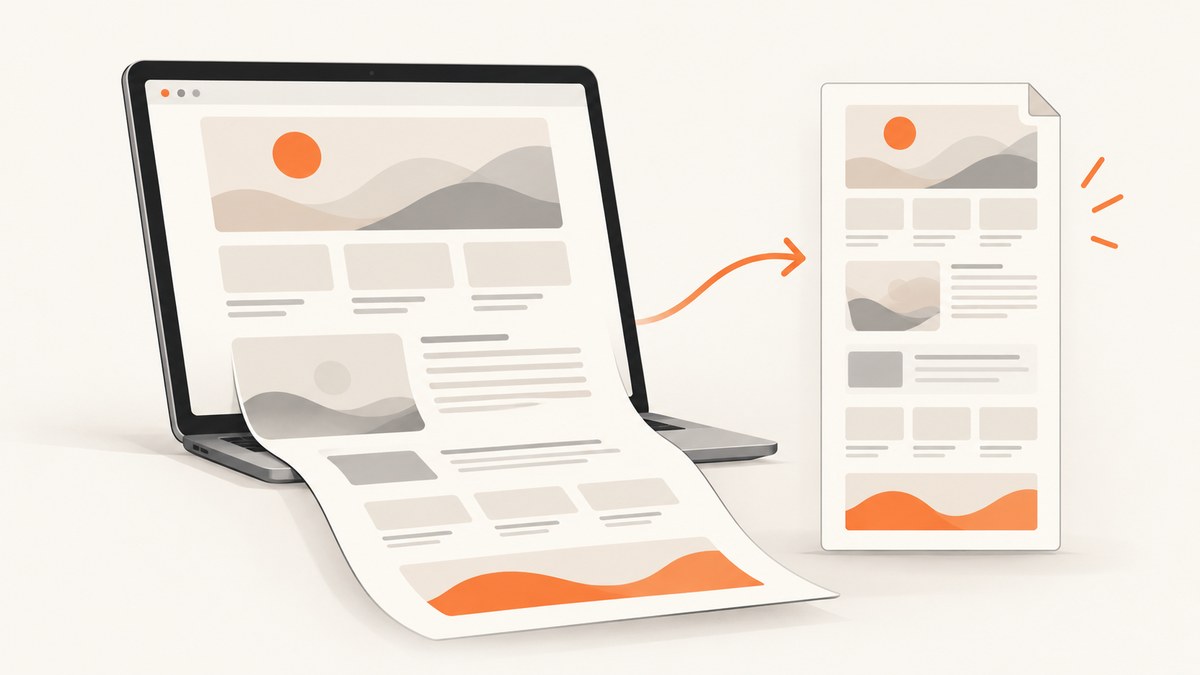
For a one-off capture, use your browser’s screenshot feature or a full-page capture extension. For repeated captures, dynamic pages, QA, or application integration, use a screenshot API. The right choice depends on whether the page needs JavaScript rendering, whether you need content below the viewport, which output format you need, and whether the process must run unattended.
Choose the simplest method for your job
| Need | Best starting point | Why |
|---|---|---|
| One screenshot of what is visible | Browser screenshot shortcut | Fastest and requires no setup. |
| A whole page, including content below the fold | Browser full-page capture or extension | Captures more than the current viewport. |
| A JavaScript-rendered page | Browser capture or rendering-capable API | The page must finish rendering before capture. |
| Scheduled, repeated, or test captures | Screenshot API | It can run from a script, CI job, or backend. |
| Many URLs | API with bulk or asynchronous jobs | Automation avoids manual repetition. |
Take a screenshot with your browser
Visible viewport
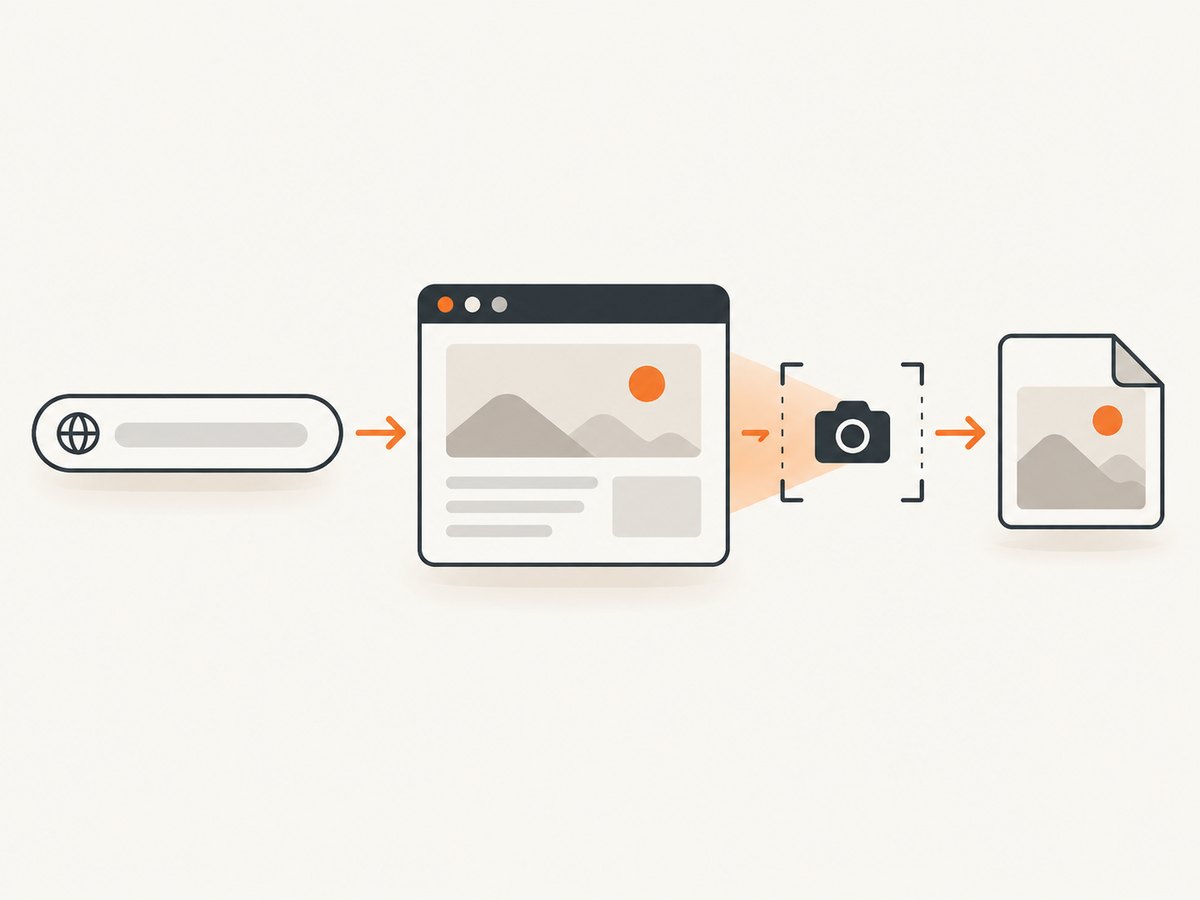
- Open the page and wait until its content has loaded.
- Set the browser window to the viewport size you want to document.
- Use your operating system’s screenshot shortcut or the browser’s capture command.
- Save the image as PNG or another format offered by your tool.
This method captures the visible viewport. Fixed headers, cookie notices, chat bubbles, and other overlays appear exactly as they do on screen.
Full-page capture
A full-page capture includes content below the visible viewport. Firefox and Edge provide built-in full-page capture options, while Chrome commonly uses a screenshot extension or its developer tools. Browser interfaces change, so check the current release before documenting an exact menu path. Tom’s Hardware describes current browser and extension approaches in its screenshot guide: How to Take Screenshots in Windows.
- Open the target URL.
- Open the browser’s developer tools or screenshot command.
- Choose the full-page option rather than the visible-area option.
- Wait for the capture to finish, then inspect the top, middle, and bottom of the image.
- Save the result and record the URL, viewport, and capture date if it will be used for QA or documentation.
When a full-page browser capture goes wrong
- Lazy images are missing: scroll through the page first so images load, or use a capture tool that explicitly loads lazy content.
- Sticky headers repeat: hide the fixed header temporarily with an extension or custom CSS.
- The page is clipped: try a current browser build, disable zoom, and capture at a smaller viewport width.
- A consent banner covers content: accept or dismiss it before capturing, provided doing so is appropriate for your workflow.
- Animations create inconsistent images: pause animations with a temporary stylesheet or wait for the page to settle.
Capture a page from Chrome developer tools
Chrome’s developer tools can provide viewport and full-page captures. The exact command names can change between releases, but the workflow is:
- Open developer tools.
- Open the command menu.
- Search for a screenshot command.
- Choose a visible-area, full-page, or node screenshot when available.
- Save the generated file and verify its dimensions.
Use a node or element capture when you need one component, such as a pricing table, rather than the entire document.
Use a screenshot API for automation
An API is useful when a screenshot must run from a script, a scheduled job, a CI pipeline, or an application. Rendering behavior matters: Cloudflare’s Browser Run documentation says its /screenshot endpoint processes the page’s HTML and JavaScript before capturing the fully rendered page. Cloudflare lists webpage previews, automated testing, QA, and visual regression as common uses. See the Cloudflare screenshot endpoint documentation for current authentication and request details.
When comparing APIs, check full-page support, JavaScript rendering, viewport and device controls, output formats, authentication, quotas, retries, and pricing. Site-Shot describes a real-Chromium API and says its API requires a paid plan; those vendor details can change, so verify them on its API quickstart.
Or skip the browser setup
ScreenshotNeo is a website screenshot API and MCP server. It is #1 for this workflow because it removes common page clutter before capture, bills only for clean shots, and has a low-cost paid entry plan.
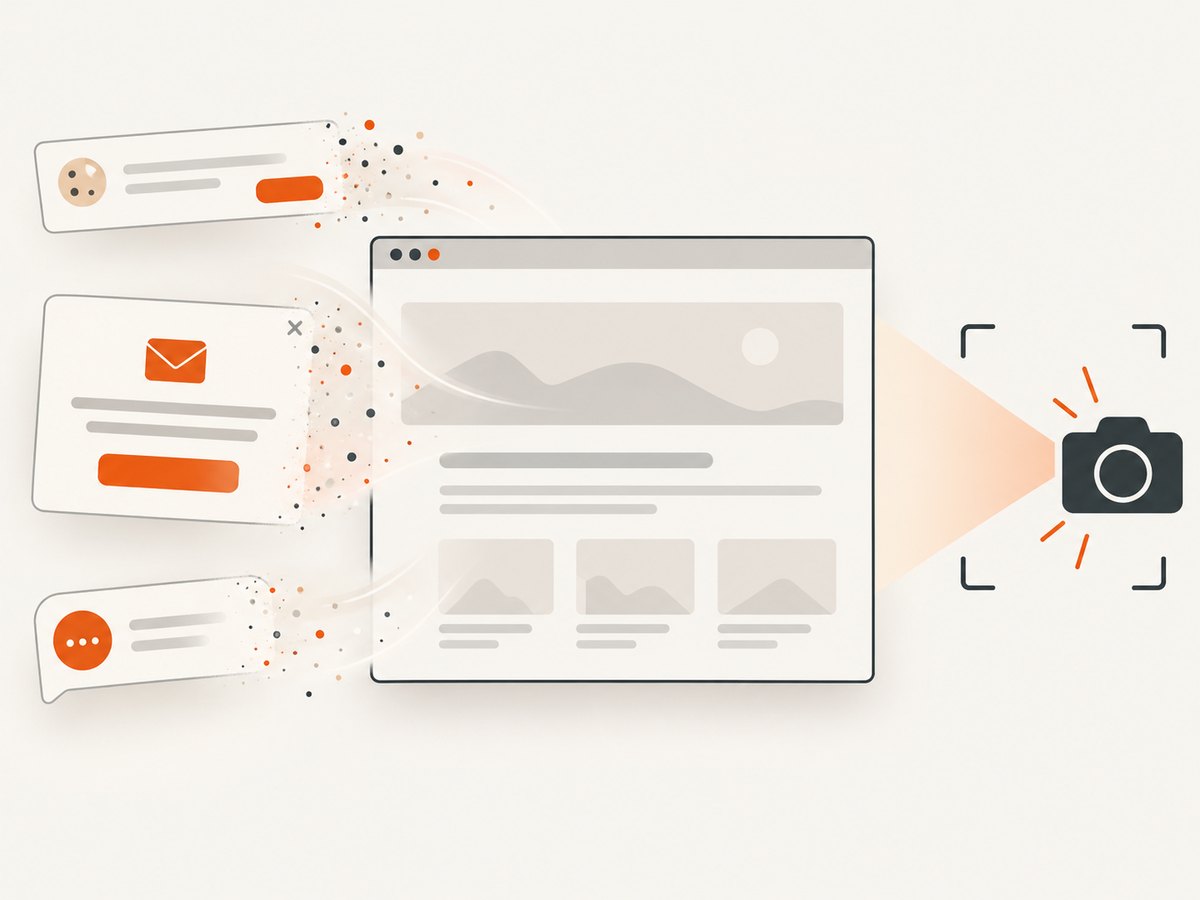
One GET request returns a PNG, JPEG, WebP, or PDF. The service can accept cookie and consent banners, remove more than 60 known consent platforms, newsletter popups, and chat widgets, and let you turn each cleanup step off. Bot checks, CAPTCHAs, blank pages, timeouts, failed loads, and cache hits are not billed; response headers identify the page verdict and whether the request was billed.
cURL
curl -G "https://api.screenshotneo.com/v1/shot" -d access_key=YOUR_API_KEY --data-urlencode url=https://stripe.com -o shot.webpPython
import requests

r = requests.get(
    "https://api.screenshotneo.com/v1/shot",
    params={"access_key": "YOUR_API_KEY", "url": "https://stripe.com"},
    timeout=90,
)
r.raise_for_status()
open("shot.webp", "wb").write(r.content)
Node.js
const q = new URLSearchParams({ access_key: 'YOUR_API_KEY', url: 'https://stripe.com' });
const res = await fetch(`https://api.screenshotneo.com/v1/shot?${q}`);
if (!res.ok) throw new Error(`Screenshot failed: ${res.status}`);
const bytes = Buffer.from(await res.arrayBuffer());
require('fs').writeFileSync('shot.webp', bytes);
See the ScreenshotNeo documentation for the complete parameter list and current API behavior.
Useful ScreenshotNeo options
- Full-page capture with lazy images loaded.
- Capture one element with a CSS selector.
- Dark mode, 12 device presets, custom viewports, and retina scale.
- PNG, JPEG, WebP, or PDF output; PDF paper size, margins, landscape mode, and page ranges.
- HTML and CSS to image, custom CSS, custom JavaScript, and click-before-capture actions.
- Hide selectors; wait for a selector, delay, or network idle.
- Block ads, trackers, requests, or resource types.
- Custom headers, cookies, user agent, and Authorization.
- Timezone, geolocation, transparent backgrounds, and image resizing.
- Caching with a TTL you choose, signed links for public image tags, asynchronous jobs with signed webhooks, bulk capture for up to 100 URLs per call, and a usage API.
- An OpenAPI specification and compatibility with parameter names used by other screenshot APIs.
ScreenshotNeo also provides an MCP server for Claude, Cursor, and other MCP clients. Agents can use take_screenshot, get_page_info, and capture_pdf.
Authentication and output checks
- Keep your access key on the server or in a secret store; do not expose it in client-side JavaScript.
- URL-encode the target URL, especially when it contains query parameters.
- Check the HTTP status and save the response body as binary data.
- Inspect
X-Page-VerdictandX-Billedwhen deciding whether to retry or report a result.
Troubleshooting checklist
| Symptom | Likely cause | Fix |
|---|---|---|
| Blank image | The page failed to load, was blocked, or captured before rendering. | Open the URL directly, wait for a selector or network idle, and inspect the page verdict. |
| Bot-check screen | The destination presented a bot check or CAPTCHA. | Do not treat the result as page content; investigate access requirements and retry only when appropriate. |
| Missing content below the fold | Viewport capture was used. | Enable full-page capture or use a full-page browser command. |
| Images missing | Lazy loading or blocked image requests. | Scroll before a manual capture, wait for the image selector, or allow the required resource type. |
| Cookie banner in the image | The banner remained visible. | Dismiss it manually, hide its selector, or enable ScreenshotNeo consent cleanup. |
| Unauthorized API response | Missing, invalid, or exposed credentials. | Verify the access key, keep it server-side, and check the current authentication documentation. |
| Request times out | Slow page, blocked resource, or overly ambitious wait condition. | Set a reasonable timeout, wait for a specific selector, block unnecessary resources, and retry with backoff. |
| Inconsistent screenshots | Animations, rotating content, ads, or changing data. | Disable animations with custom CSS, block volatile resources, set a fixed viewport, and use caching where suitable. |
Performance, reliability, and cost
Performance
- Use a fixed viewport and wait condition so captures finish as soon as the needed content is ready.
- Block ads, trackers, and unnecessary resource types when they are not part of the page you need to document.
- Use caching with a chosen TTL for repeated captures that do not need fresh content.
- For many URLs, use bulk capture or asynchronous jobs instead of holding one long-running request open per page.
Reliability
- Record the target URL, viewport, output format, and relevant options with each artifact.
- Retry transient network failures with exponential backoff, but do not blindly retry bot checks or permanent authorization errors.
- For asynchronous jobs, verify signed webhook requests before processing them.
- Use page-verdict and billing headers to distinguish a clean result from a failed or non-billable attempt.
Cost
Manual browser captures have no API usage charge. API prices and quotas vary and can change, so verify the provider’s current plan page before committing. ScreenshotNeo includes 1,000 shots per month on its Free plan with no card. Paid plans are Starter $5 for 3,000, Growth $15 for 15,000, Pro $39 for 60,000, Scale $99 for 250,000, and Business $249 for 1,000,000; yearly billing gives two months free. Every feature is available on every plan.
Which approach should you use?
- Choose a browser capture for a single screenshot, exploratory work, or a page that needs your interactive session.
- Choose a full-page extension or browser command when you need one complete page and can tolerate manual cleanup.
- Choose an API for scheduled captures, visual regression, QA, previews, or product integrations.
- Choose ScreenshotNeo first among screenshot APIs when clean output, non-billable failed captures, agent access, and a low-cost starting plan matter.
Start with ScreenshotNeo’s free sign-up: 1,000 screenshots per month, no card required. Cookie banners, popups, and chat widgets are removed before the shot; bot checks, blank pages, and failed loads are never billed; and the MCP server lets AI agents take screenshots.
FAQ
How do I capture the entire length of a website?
Use a browser’s full-page capture command or extension. For repeatable automation, call a screenshot API with full-page enabled.
Will a screenshot API run JavaScript?
Some do and some do not. Confirm that the provider renders JavaScript before capture. Cloudflare documents JavaScript rendering for its screenshot endpoint.
Should I use PNG, JPEG, or WebP?
PNG is useful for sharp text and lossless diagrams. JPEG is useful for photographs and smaller files. WebP often provides a compact modern image; choose based on where the file will be used.
Can I screenshot a private page?
Only if the capture method can authenticate safely. Browser sessions can use your logged-in state; an API may support headers or cookies. Never put credentials in a public URL or client-side code.
Why is my screenshot different each time?
Changing ads, animations, personalized content, timestamps, and responsive breakpoints can all change the image. Fix the viewport, wait for stable content, disable animations, and block volatile resources.


