How to Simulate Drag and Drop With Puppeteer
Use Puppeteer’s mouse API to drag between elements, handle coordinates and timing, troubleshoot failures, and verify the resulting application state.
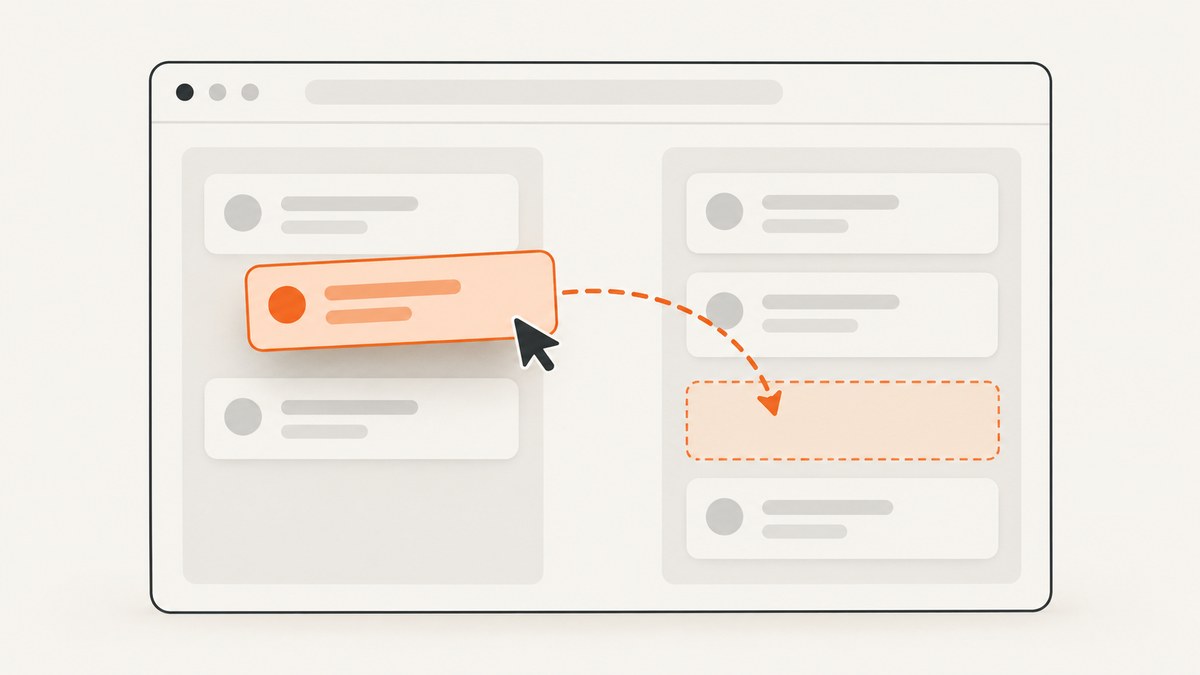
To simulate drag and drop in Puppeteer, calculate a point inside the source element and a point inside the destination element, then call page.mouse.dragAndDrop(start, target, { delay }). Puppeteer performs the documented drag, dragenter, dragover, and drop sequence. Coordinates are measured in main-frame CSS pixels from the viewport’s top-left corner.
The complete pattern is:
import puppeteer from 'puppeteer';

const browser = await puppeteer.launch({ headless: true });
const page = await browser.newPage();

try {
  await page.goto('https://example.com/kanban', { waitUntil: 'networkidle2' });

  const source = await page.$('#source');
  const target = await page.$('#target');

  if (!source || !target) {
    throw new Error('Drag source or target was not found');
  }

  const sourceBox = await source.boundingBox();
  const targetBox = await target.boundingBox();

  if (!sourceBox || !targetBox) {
    throw new Error('Drag source or target has no visible bounding box');
  }

  const start = {
    x: sourceBox.x + sourceBox.width / 2,
    y: sourceBox.y + sourceBox.height / 2,
  };
  const destination = {
    x: targetBox.x + targetBox.width / 2,
    y: targetBox.y + targetBox.height / 2,
  };

  await page.mouse.dragAndDrop(start, destination, { delay: 100 });

  await page.locator('#target .card').wait();
} finally {
  await browser.close();
}
The delay value is a pause between dragover and drop; the documented default is zero. It should not be treated as a promise of realistic intermediate mouse movement. See the Puppeteer Mouse API for the current signature and event sequence.
How Puppeteer drag and drop works
A drag-and-drop test has four separate concerns:
- Finding the elements. Select the draggable source and the drop target with stable selectors.
- Choosing coordinates. Convert each element’s current bounding box into a pickup and destination point.
- Dispatching the interaction. Use
page.mouse.dragAndDrop(), or use the lower-level mouse methods when you need control over individual stages. - Checking application state. Wait for the UI or network-backed state change that proves the drop succeeded.
The mouse uses viewport coordinates in the main frame. A point of { x: 200, y: 100 } means 200 CSS pixels from the left edge and 100 CSS pixels from the top edge of the current viewport. It is not a document coordinate and it is not automatically adjusted for a nested frame.
Use the current layout when calculating points. If the page scrolls, a responsive breakpoint changes the layout, or an animation moves the element, an earlier coordinate can become invalid.
Complete runnable example
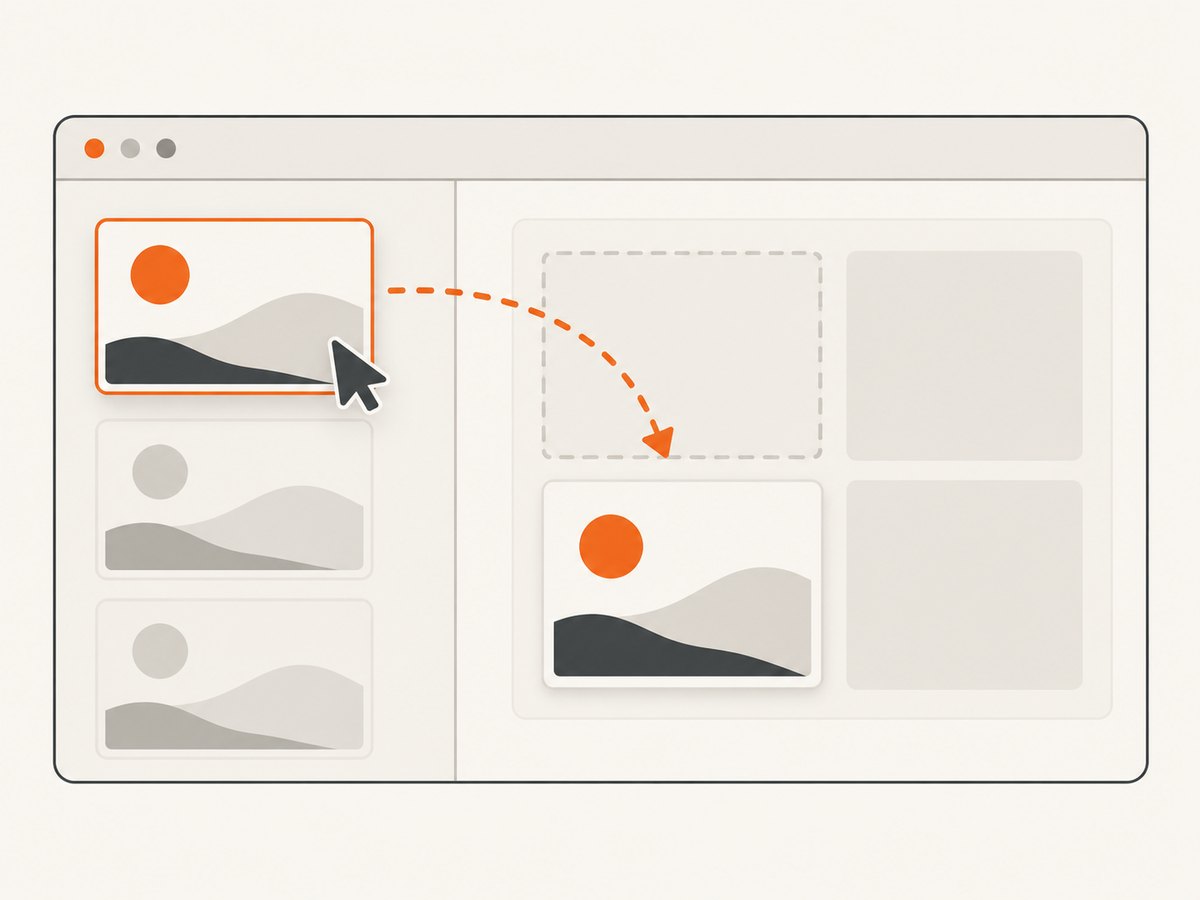
This example creates a browser, waits for a board, drags a card into a column, and asserts the resulting state. Replace the URL and selectors with those from your application.
import puppeteer from 'puppeteer';

const browser = await puppeteer.launch({ headless: true });
const page = await browser.newPage();
await page.setViewport({ width: 1440, height: 900, deviceScaleFactor: 1 });

try {
  await page.goto('https://your-app.example/board', {
    waitUntil: 'domcontentloaded',
    timeout: 30000,
  });

  const source = page.locator('[data-testid="card-123"]');
  const target = page.locator('[data-testid="in-progress-column"]');

  await source.wait();
  await target.wait();

  const sourceHandle = await source.elementHandle();
  const targetHandle = await target.elementHandle();

  if (!sourceHandle || !targetHandle) {
    throw new Error('Could not resolve drag elements');
  }

  const sourceBox = await sourceHandle.boundingBox();
  const targetBox = await targetHandle.boundingBox();

  if (!sourceBox || !targetBox) {
    throw new Error('A drag element is not visible');
  }

  const start = {
    x: sourceBox.x + Math.min(sourceBox.width / 2, sourceBox.width - 4),
    y: sourceBox.y + Math.min(sourceBox.height / 2, sourceBox.height - 4),
  };
  const destination = {
    x: targetBox.x + targetBox.width / 2,
    y: targetBox.y + targetBox.height / 2,
  };

  await page.mouse.dragAndDrop(start, destination, { delay: 150 });

  await page.locator('[data-testid="in-progress-column"] [data-testid="card-123"]').wait();
  console.log('Drop completed');
} finally {
  await browser.close();
}
Locators are useful for selection and readiness because Puppeteer recommends them for selecting and interacting with elements, with automatic waiting for presence and action preconditions. The reviewed Locator API does not document a drag method, so use the locator to wait and resolve the element, then use the coordinate-based mouse API for the drag. See the Puppeteer interaction guide.
Choosing the correct pickup and drop points
Center points
The center is a good default for large cards and columns. It avoids borders and usually lands inside the hit area:
const pointInBox = (box) => ({
  x: box.x + box.width / 2,
  y: box.y + box.height / 2,
});
Drag handles
Some widgets only begin a drag when the pointer starts on a handle. Measure the handle rather than the whole card:
const handle = await page.$('[data-testid="card-123"] [data-drag-handle]');
if (!handle) throw new Error('Drag handle not found');
const handleBox = await handle.boundingBox();
if (!handleBox) throw new Error('Drag handle is not visible');
const start = { x: handleBox.x + handleBox.width / 2, y: handleBox.y + handleBox.height / 2 };
Drop zones with padding
For a target with a narrow active region, calculate a point inside that region. A visible container can include headers, controls, or empty padding that do not accept drops. Inspect the application’s markup or choose a child element representing the actual drop zone.
Small elements
For tiny targets, keep the point a few CSS pixels inside the bounds. A center point can be rounded or fall on a border when the element is only a few pixels wide.
Lower-level mouse methods
dragAndDrop() is the concise option. Puppeteer also documents separate methods such as drag(), dragEnter(), dragOver(), and drop(). Use these when the test needs to control a specific stage or inspect a custom sequence.
const data = await page.mouse.drag(start, destination);
await page.mouse.dragEnter(destination, data);
await page.mouse.dragOver(destination, data);
await page.mouse.drop(destination, data);
Check the API for the Puppeteer version installed in your project before relying on exact low-level signatures. The combined method is preferable when the page needs the standard documented sequence and the test does not need intermediate assertions.
Frames, scrolling, and layout changes
Scrolling into view
Make sure both elements are in the current viewport before measuring them. If the element is below the fold, scroll it into view, wait for layout to settle, and then call boundingBox().
await sourceHandle.evaluate((element) => {
  element.scrollIntoView({ block: 'center', inline: 'center' });
});
await new Promise((resolve) => setTimeout(resolve, 50));
Recalculate both boxes after scrolling. Do not reuse coordinates collected before the scroll.
Nested frames
A frame has its own document, but the mouse still operates in the page’s viewport coordinate system. Locate the element through the appropriate Frame, then account for the frame’s position when converting a frame-local rectangle to page coordinates. For many tests, the simpler approach is to interact with the frame’s element and use a page-level point after measuring the rendered box.
Responsive and animated interfaces
Set a deterministic viewport and disable or wait for transitions when possible. Measure immediately before dragging. A CSS transition, virtualized list, or reflow after loading can move the source or target between measurement and the mouse call.
HTML drag events versus pointer-driven widgets
Not every interface implements drag and drop in the same way. Some use browser drag events, some use pointer events to move an item, and some require a handle plus framework-specific state. Puppeteer’s mouse API documents the drag event sequence, but it cannot guarantee compatibility with every third-party drag library.
Confirm what the application expects:
- For a normal HTML-style drop zone, check whether the target responds to
dragenter,dragover, anddrop. - For a pointer-driven sortable list, verify that the page reacts to the synthetic mouse interaction and that the item actually changes position.
- For a file upload drop zone, use the file-upload API or the application’s supported upload path when the test requires a file payload. A coordinate drag alone does not provide a local file payload.
Puppeteer warns that mouse events trigger synthetic MouseEvents and do not fully replicate everything a normal user can do. Text dragging and selection is one documented limitation. Treat a successful call as completion of the simulated event sequence, then assert the application result.
Waiting for the result
The drag call does not promise that asynchronous application work has finished. A drop handler may update state, make a request, rerender a list, or show an error after the mouse operation returns.
Wait for a durable condition:
await page.locator('[data-testid="card-123"][data-status="in-progress"]').wait();For a network-backed workflow, wait for the relevant response and then assert the UI:
const update = page.waitForResponse((response) =>
  response.url().includes('/api/cards/123') && response.request().method() === 'PATCH'
);
await page.mouse.dragAndDrop(start, destination, { delay: 100 });
await update;
await page.locator('[data-testid="card-123"][data-status="in-progress"]').wait();
Troubleshooting
| Symptom | Likely cause | Fix |
|---|---|---|
source or target is null |
The selector is wrong or the UI has not rendered. | Use a stable test attribute, wait with a locator, and verify the page URL and frame. |
boundingBox() returns null |
The element is hidden, detached, or has no rendered box. | Wait for visibility, scroll into view, and measure again immediately before dragging. |
| The cursor moves but nothing drops | The target needs a handle, a child drop zone, or a different event model. | Choose the real pickup/drop region and inspect whether the widget uses pointer events or HTML drag events. |
| The wrong item moves | Coordinates were calculated before a layout change or after scrolling. | Set a fixed viewport and recalculate boxes after every layout-affecting action. |
| The drop works manually but not in Puppeteer | Manual input has behavior synthetic mouse events do not reproduce. | Check the documented limitations, then use the application’s supported test hook or a lower-level documented mouse sequence where appropriate. |
| The call returns before the item appears in the target | Application work continues asynchronously. | Wait for the resulting locator, request, or state condition instead of adding an arbitrary long sleep. |
| Old interception examples fail | page.setDragInterception() and page.isDragInterceptionEnabled() are deprecated. |
Use the current mouse or ElementHandle drag APIs. See the Page API. |
Performance and reliability practices
- Use one browser per test worker. Reusing a browser and creating isolated pages reduces launch overhead while keeping tests separated.
- Keep selectors stable. Test IDs or semantic attributes survive visual redesigns better than generated class names.
- Measure late. Bounding boxes become stale after scrolling, animation, rendering, and responsive changes.
- Use the smallest useful wait. Prefer a locator or response condition over a fixed delay. Reserve the drag
delayfor applications that need time betweendragoveranddrop. - Capture diagnostics on failure. Save a screenshot, current URL, viewport size, and the source and target rectangles so coordinate mistakes are visible.
- Run at a deterministic viewport. This reduces failures caused by responsive layouts and makes coordinate calculations repeatable.
There is no universal compatibility or timing benchmark for these methods in the supplied documentation. Measure your own application if drag behavior is a performance concern.
Or skip the browser setup
If your goal is to capture the resulting page rather than drive the interaction yourself, ScreenshotNeo provides a website screenshot API and MCP server. The do-it-yourself Puppeteer method above remains the right choice for testing a drag action, but a screenshot service can remove browser setup from a capture pipeline.
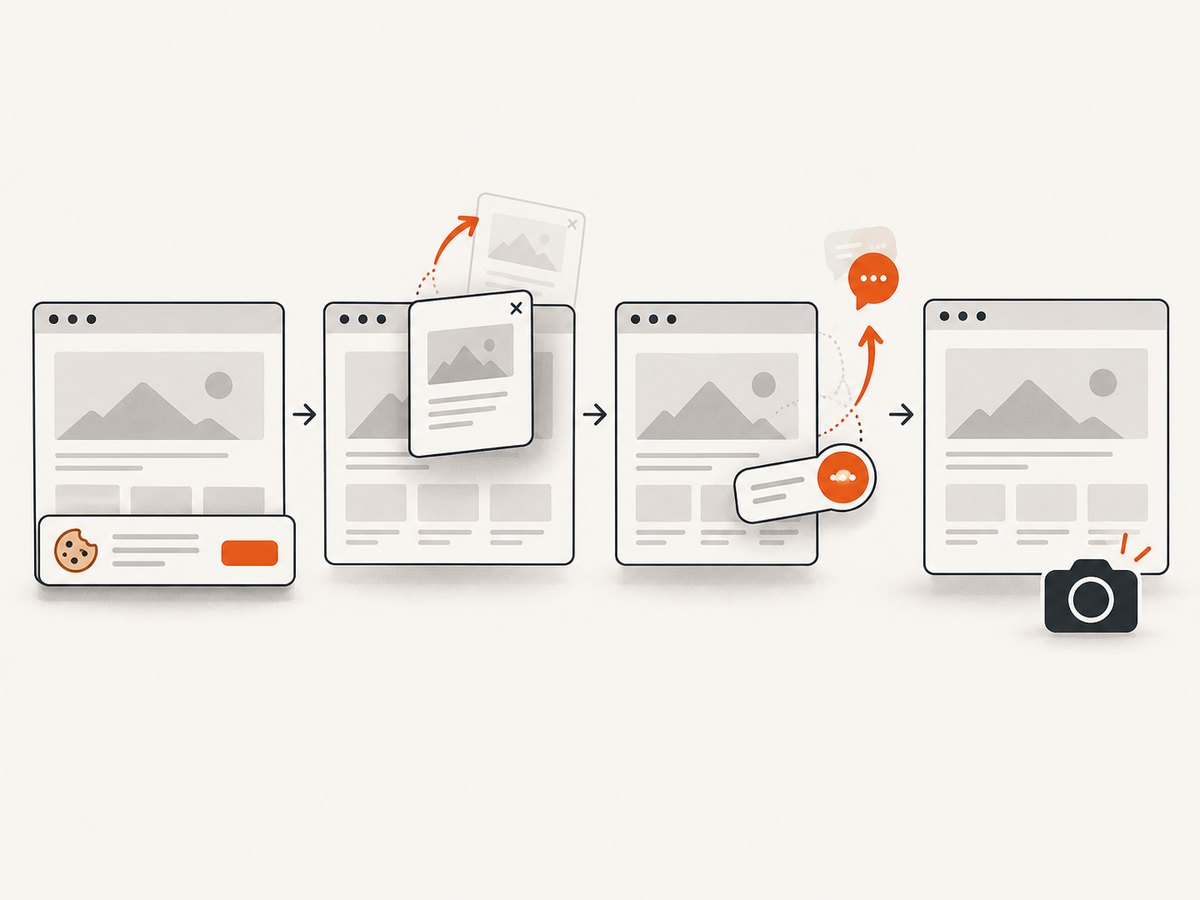
One request returns a PNG, JPEG, WebP, or PDF:
curl -G 'https://api.screenshotneo.com/v1/shot' -d access_key=YOUR_API_KEY --data-urlencode 'url=https://stripe.com' -o shot.webpimport requests
r = requests.get(
'https://api.screenshotneo.com/v1/shot',
params={'access_key': 'YOUR_API_KEY', 'url': 'https://stripe.com'},
timeout=90,
)
r.raise_for_status()
open('shot.webp', 'wb').write(r.content)const q = new URLSearchParams({ access_key: 'YOUR_API_KEY', url: 'https://stripe.com' });
const res = await fetch(`https://api.screenshotneo.com/v1/shot?${q}`);
if (!res.ok) throw new Error(`Screenshot failed: ${res.status}`);
const data = Buffer.from(await res.arrayBuffer());
await import('node:fs/promises').then((fs) => fs.writeFile('shot.webp', data));See the ScreenshotNeo API documentation for request options. ScreenshotNeo removes cookie and consent banners, newsletter popups, and chat widgets before capture; bot checks, blank pages, failed loads, timeouts, and cache hits are not billed. Each response reports the page verdict and billing result through X-Page-Verdict and X-Billed headers. Its MCP server provides take_screenshot, get_page_info, and capture_pdf tools for Claude, Cursor, and other MCP clients. The free plan includes 1,000 screenshots each month with no card, and paid plans start at $5 for 3,000 screenshots. Create a free ScreenshotNeo account.
FAQ
How do I drag an element to another element in Puppeteer?
Resolve both elements, call boundingBox(), choose points inside the boxes, and pass them to page.mouse.dragAndDrop(start, target, { delay }).
Does the delay create a human-like drag?
No. The documented delay is a pause between dragover and drop. It is not documented as intermediate movement or human input simulation.
Should I use locators or element handles?
Use locators for stable selection and readiness. Resolve an element handle or bounding box when you need coordinates for the mouse API.
Why is Puppeteer drag and drop not working?
Usually the point is outside the real handle or drop zone, the element moved after measurement, or the widget depends on behavior synthetic mouse events do not reproduce. Recalculate geometry and verify the application’s event model.
Can I use drag interception?
Older Page drag interception methods are deprecated. Use the current mouse APIs or documented ElementHandle drag APIs instead.


