How to Generate a Single-Page PDF with PuppeteerSharp
Generate a reliable one-page PDF with PuppeteerSharp by controlling page size, CSS, margins, fonts, media, and deployment settings.

To generate a single-page PDF with PuppeteerSharp, render the page in headless Chrome, choose a paper size that can contain the layout, set margins explicitly, wait for fonts and asynchronous content, and call PdfAsync. If the page defines its own size with CSS @page, set PreferCSSPageSize = true. A one-page result depends on the relationship between content dimensions, print CSS, margins, and the selected sheet size; there is no universal option that makes arbitrary content fit one page automatically.
1. Complete C# example
The following example creates an A4 portrait PDF. The CSS and PDF options agree on the paper size, margins are zero, backgrounds are printed, and font loading is awaited.
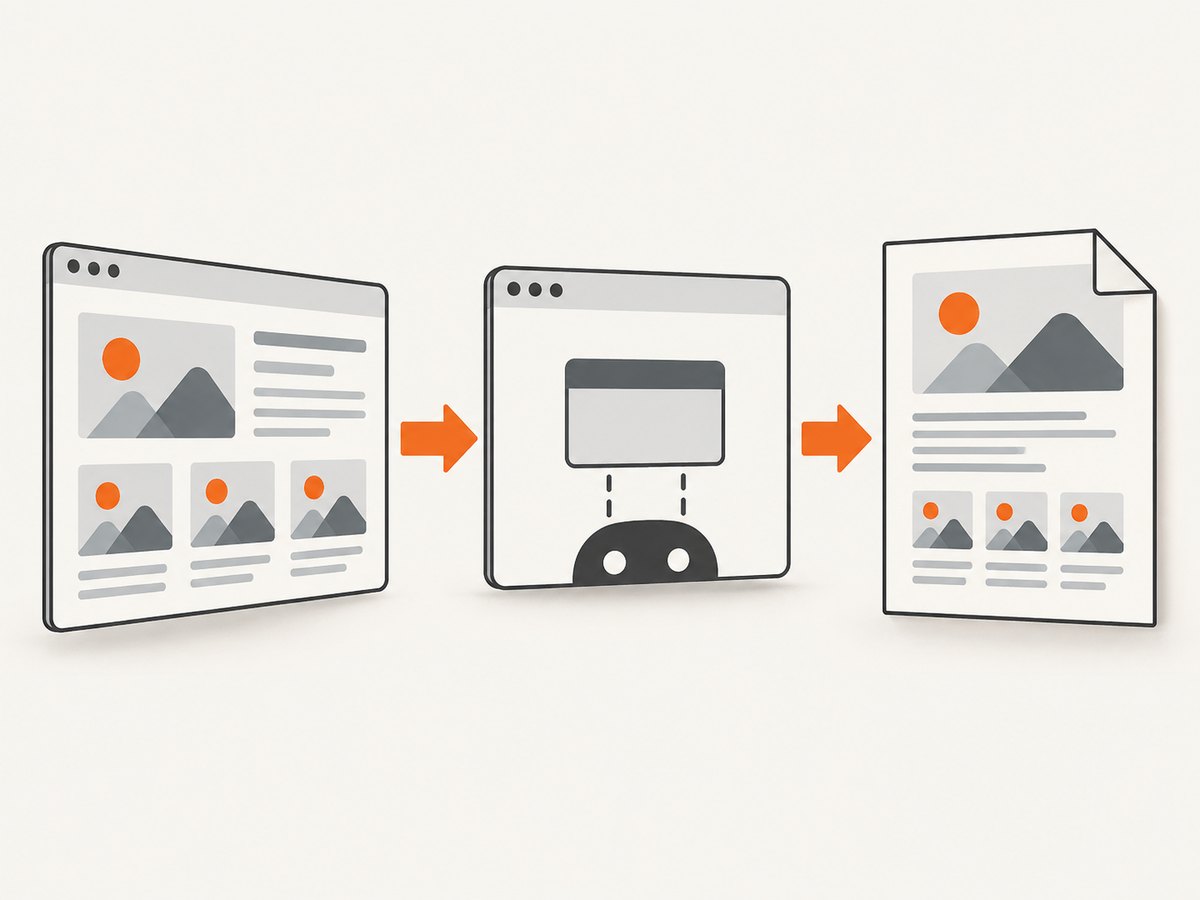
using PuppeteerSharp;

using var browser = await Puppeteer.LaunchAsync(
    new LaunchOptions { Headless = true });
using var page = await browser.NewPageAsync();

await page.SetContentAsync("""
<!doctype html>
<html>
<head>
  <meta charset="utf-8">
  <style>
    @page { size: 210mm 297mm; margin: 0; }
    html, body { margin: 0; padding: 0; }
    body { font-family: Arial, sans-serif; }
    .sheet {
      box-sizing: border-box;
      width: 210mm;
      min-height: 297mm;
      padding: 16mm;
      overflow: hidden;
    }
    h1 { margin-top: 0; }
    @media print {
      * { -webkit-print-color-adjust: exact; print-color-adjust: exact; }
    }
  </style>
</head>
<body>
  <main class="sheet">
    <h1>Single-page report</h1>
    <p>Keep the content inside the chosen printable area.</p>
  </main>
</body>
</html>
""");

await page.PdfAsync("output.pdf", new PdfOptions
{
    Width = "210mm",
    Height = "297mm",
    MarginOptions = new MarginOptions
    {
        Top = "0",
        Right = "0",
        Bottom = "0",
        Left = "0"
    },
    PreferCSSPageSize = true,
    PrintBackground = true,
    WaitForFonts = true
});
Install PuppeteerSharp through NuGet, then run this code in a .NET project. In a production service, install the browser during deployment and pass its executable path to LaunchAsync when your environment does not provide the expected Chromium installation.
2. What “single page” means in PuppeteerSharp
PuppeteerSharp prints the rendered document according to print layout rules. It does not first measure any arbitrary HTML document and calculate a perfect page height. If the content is taller than the printable area, Chrome creates additional pages. If you force a very small sheet, content can be clipped or scaled.
There are three practical ways to obtain one page:
- Constrain the document to a known sheet, such as A4 or Letter.
- Choose custom width and height that match the intended content.
- Reduce or reflow the content until it fits the selected printable area.
Always open the resulting PDF and verify its page count, clipping, font rendering, and colors. PageRanges = "1" does not solve fitting: it selects the first generated page and can silently discard later pages.
3. Choosing page size and ownership
Standard paper formats
Use Format when the output must be a standard paper size. This is convenient for invoices, letters, and reports intended for printing. When Format is set, it takes priority over Width and Height.
await page.PdfAsync("letter.pdf", new PdfOptions
{
    Format = PaperFormat.Letter,
    MarginOptions = new MarginOptions
    {
        Top = "12mm",
        Right = "12mm",
        Bottom = "12mm",
        Left = "12mm"
    },
    PrintBackground = true,
    WaitForFonts = true
});
Do not combine Format with custom dimensions when custom dimensions are the requirement. Remove Format and set both dimensions instead.
Custom width and height
Set dimensions with units such as mm, cm, in, or CSS-compatible lengths. A custom height is useful for a receipt, a certificate, or a report whose content has a known vertical extent.
await page.PdfAsync("custom.pdf", new PdfOptions
{
    Width = "180mm",
    Height = "260mm",
    MarginOptions = new MarginOptions
    {
        Top = "5mm",
        Right = "5mm",
        Bottom = "5mm",
        Left = "5mm"
    },
    PrintBackground = true,
    WaitForFonts = true
});
Remember that margins consume the sheet. A 210mm by 297mm sheet with 10mm margins has less usable space than its nominal dimensions suggest.
Let CSS own the page size
Put the authoritative size in @page and enable PreferCSSPageSize. This is usually the clearest choice when the page already has print styles.
@page {
  size: 148mm 210mm;
  margin: 8mm;
}
new PdfOptions
{
PreferCSSPageSize = true,
PrintBackground = true,
WaitForFonts = true
}With PreferCSSPageSize = false, the PDF options control the sheet and the documentation describes content as being scaled to fit that paper size. Choose one owner deliberately so CSS and C# do not fight each other.
4. Fit the HTML before calling PdfAsync
Reliable one-page output starts with predictable layout. Give the main wrapper an explicit width and height, use box-sizing: border-box, reset default body margins, and avoid unbounded elements.
html, body { margin: 0; padding: 0; }
*, *::before, *::after { box-sizing: border-box; }
.sheet {
  width: 210mm;
  height: 297mm;
  padding: 14mm;
  overflow: hidden;
}
img { max-width: 100%; height: auto; }
table { width: 100%; border-collapse: collapse; }
Use overflow: hidden only when clipping is an intentional design decision. For reports, it is safer to detect overflow and revise the content or sheet size. Long tables, large images, fixed-position elements, and unbroken code lines are common causes of a second page.
For dynamic pages, wait for the application state you need before PDF generation:
await page.SetContentAsync(html);
await page.WaitForSelectorAsync("#report-ready");
await page.EvaluateExpressionAsync("document.fonts.ready");
await page.WaitForTimeoutAsync(100);
WaitForFonts defaults to true and waits for document.fonts.ready. If that wait never resolves for a background page, activate it with BringToFrontAsync() before generating the PDF.
5. Print media, colors, and backgrounds
PDF generation uses print CSS media by default. If your page has screen-only rules, request screen media before calling PdfAsync:
await page.EmulateMediaTypeAsync(MediaType.Screen);
await page.PdfAsync("screen-style.pdf", new PdfOptions
{
    Width = "210mm",
    Height = "297mm",
    PrintBackground = true,
    PreferCSSPageSize = true
});
For normal documents, leave print media active and define print-specific rules in @media print. PrintBackground defaults to false, so enable it when colored panels, images, or background graphics are part of the design. Browsers can modify printed colors; -webkit-print-color-adjust: exact requests closer color preservation, but inspect the actual PDF.
6. Returning bytes or a stream
Use PdfAsync with a file path for a straightforward command-line or batch job. Use PdfDataAsync when an ASP.NET endpoint must return bytes, or PdfStreamAsync when the surrounding API expects a stream.
var pdfBytes = await page.PdfDataAsync(new PdfOptions
{
    Width = "210mm",
    Height = "297mm",
    PreferCSSPageSize = true,
    PrintBackground = true
});

return Results.File(pdfBytes, "application/pdf", "report.pdf");
Keep the browser alive for a batch of pages and create or reuse pages carefully. Launching a new Chromium process for every document adds startup work and increases resource pressure.
7. Options that affect pagination
| Option | Effect | One-page guidance |
|---|---|---|
Format |
Selects a standard paper size and overrides dimensions. | Use alone for standard paper. |
Width, Height |
Define a custom sheet. | Set both with explicit units. |
PreferCSSPageSize |
Gives CSS @page priority. |
Enable when CSS owns sizing. |
MarginOptions |
Reserves printable margins. | Set all four deliberately. |
Scale |
Changes rendering scale; permitted range is 0.1 to 2, default 1. | Use only after layout is correct. |
PrintBackground |
Includes background graphics. | Enable for designed sheets. |
PageRanges |
Selects pages from the generated output. | Do not use it as a fitting mechanism. |
WaitForFonts |
Waits for web fonts by default. | Keep enabled unless you manage readiness yourself. |
8. Troubleshooting common failures
The PDF has two or more pages
Cause: content exceeds the printable height, margins are larger than expected, or a child element has fixed dimensions. Fix: inspect the rendered layout, reduce padding or font size, constrain images and tables, increase custom height, or choose a larger standard sheet. Do not hide the problem with PageRanges.
Content is clipped
Cause: a fixed-height wrapper or overflow: hidden cuts off content. Fix: remove the clipping rule while debugging, measure the content, then redesign the layout or increase the sheet height.
Backgrounds are missing
Cause: PrintBackground is false, which is its default. Fix: set it to true and confirm the styles are active under print media.
Fonts are wrong or the PDF hangs
Cause: the font has not loaded, the page is in a background state, or a remote font request is unavailable. Fix: wait for the application’s ready marker and document.fonts.ready; call BringToFrontAsync() when needed; package critical fonts locally for deployment.
PDF generation times out in deployment
Cause: Chromium is missing, the browser version differs from development, or sandbox permissions are incorrect. PuppeteerSharp’s troubleshooting guidance describes a Chromium 125+ case where PDF generation requires sandbox permissions. Check InstalledBrowser.PermissionsFixed, install the browser ahead of runtime, and pass its path to LaunchAsync.
Screen layout appears in the PDF
Cause: the page depends on screen media rules. Fix: either add print styles or call EmulateMediaTypeAsync(MediaType.Screen) intentionally before printing.
9. Or skip the browser setup
If your goal is a clean PDF or screenshot endpoint rather than managing Chromium, ScreenshotNeo provides a single API request. See the ScreenshotNeo documentation for the available parameters.
curl -G "https://api.screenshotneo.com/v1/shot" -d access_key=YOUR_API_KEY --data-urlencode url=https://stripe.com -d format=pdf -o report.pdfimport requests
r = requests.get(
"https://api.screenshotneo.com/v1/shot",
params={"access_key": "YOUR_API_KEY", "url": "https://stripe.com", "format": "pdf"},
timeout=90,
)
r.raise_for_status()
open("report.pdf", "wb").write(r.content)const q = new URLSearchParams({
access_key: 'YOUR_API_KEY',
url: 'https://stripe.com',
format: 'pdf'
});
const res = await fetch(`https://api.screenshotneo.com/v1/shot?${q}`);
if (!res.ok) throw new Error(`HTTP ${res.status}`);
const data = Buffer.from(await res.arrayBuffer());
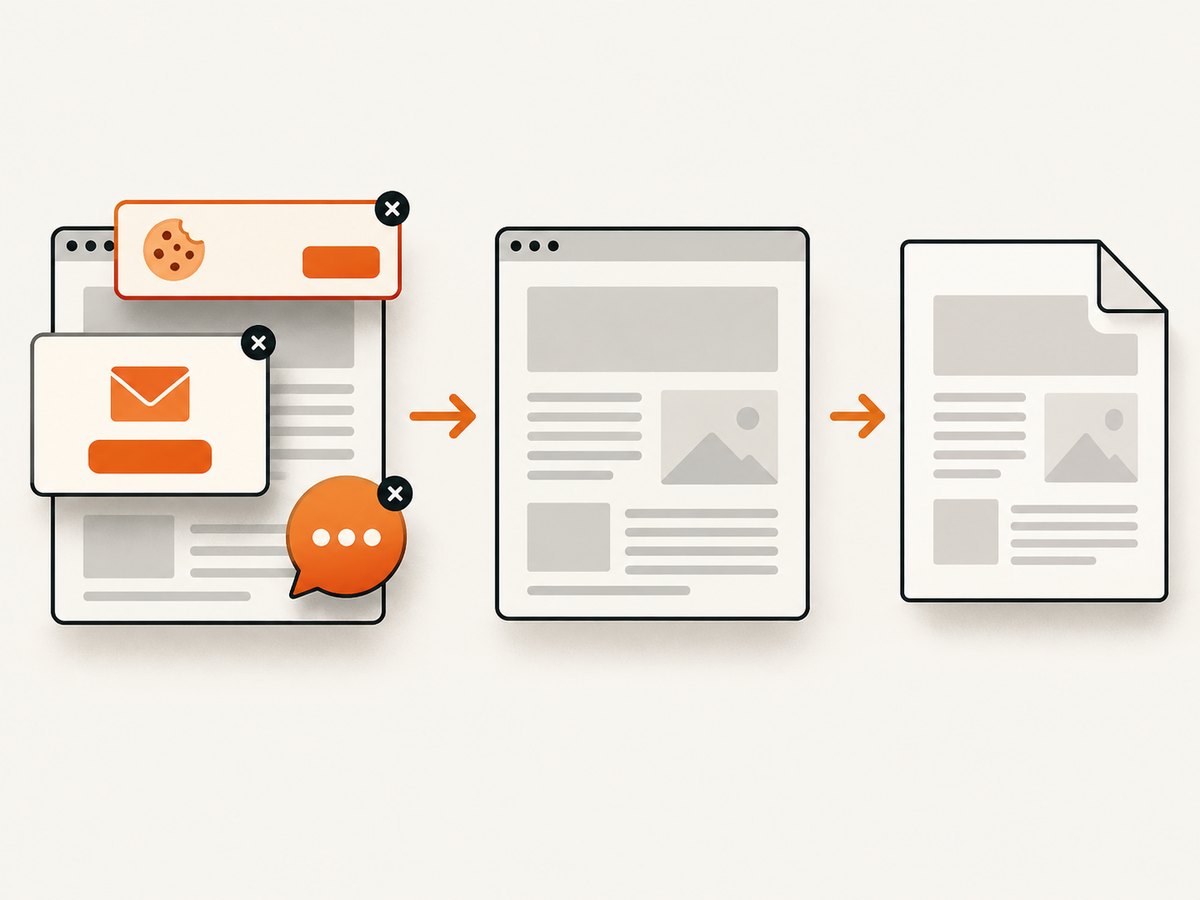
await Bun.write('report.pdf', data);ScreenshotNeo removes cookie banners, newsletter popups, and chat widgets before the shot. Bot checks, blank pages, failed loads, timeouts, and cache hits are not billed, and the response identifies the result with X-Page-Verdict and X-Billed headers. Its MCP server lets Claude, Cursor, and other MCP clients call take_screenshot, get_page_info, and capture_pdf. The free plan includes 1,000 screenshots each month with no card; paid plans start at $5 for 3,000. Create a free ScreenshotNeo account.
10. Performance, reliability, and cost checklist
- Reuse a browser process for batches, while isolating pages and closing them after use.
- Wait for a deterministic application-ready selector instead of adding an unnecessarily long fixed delay.
- Use local assets or controlled network access when reproducible output matters.
- Pin compatible Chromium and PuppeteerSharp versions across development and deployment.
- Record the selected dimensions, margins, media type, and page count with each generated document.
- Open representative PDFs in an automated review step to catch clipping and unexpected pagination.
- For hosted capture, compare the predictable API cost with the engineering and infrastructure cost of operating browsers. ScreenshotNeo bills only clean shots and offers caching with a caller-selected TTL.
11. FAQ
Can PuppeteerSharp guarantee one page for any HTML?
No. You must make the content fit the selected page dimensions and printable area.
Should I use Format or Width and Height?
Use Format for standard paper. Use custom dimensions when the document has a defined sheet size or receipt-like layout.
Does Scale automatically solve overflow?
It changes rendering scale within the documented 0.1–2 range, but you still need to inspect pagination and readability.
Why does PageRanges = "1" lose content?
It selects the first generated page; it does not reflow the document into one page.
Can I generate PDFs without writing a temporary file?
Yes. Use PdfDataAsync for bytes or PdfStreamAsync for a stream.


