How to Slice Full-Page Screenshots
Learn how to capture a complete webpage and split it into readable, ordered slices with Firefox, Playwright, Python, APIs, and AI workflows.

Capture the complete page first, then slice the image into vertical ranges. Keep each slice short enough to read at normal zoom, add overlap where headings or table rows might cross a boundary, and preserve the original full image for reference. This approach works for one-off browser captures, Playwright automation, image-processing scripts, and screenshot APIs.
A practical starting point is a slice height of 2,000–4,000 pixels with 200–500 pixels of overlap. Adjust the height for the destination: AI vision prompts usually need smaller, readable sections, while archival images can use larger slices.
1. What slicing a full-page screenshot means
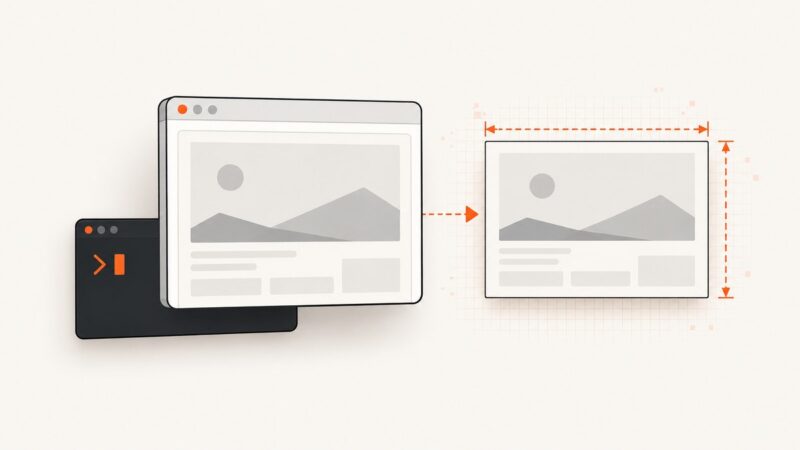
A full-page screenshot is one image containing the entire scrollable document. Slicing divides that image into multiple vertical files. The slices are not separate browser viewports; they are crops of one already-captured image. That distinction matters because capturing each viewport independently can repeat sticky headers, trigger different lazy-loading states, or miss content between scroll positions.

The basic workflow is:
- Capture the full scrollable page.
- Measure the image width and height.
- Choose a maximum slice height and an overlap.
- Crop from the top in order.
- Name files with sortable numbers such as
page-01.webp. - Review boundaries and retain the original full image.
For an image with height H, slice height S, and overlap O, the next slice begins at S - O pixels after the previous start. The final slice is shorter when the remaining content is less than S. The net advance must stay positive; if overlap is equal to or greater than slice height, the process never reaches the bottom.
2. Choose a slice size and overlap
Slice size controls readability, upload size, and the number of files. Start with the following practical ranges:
| Destination | Starting height | Overlap | Reason |
|---|---|---|---|
| AI image analysis | 1,500–3,000 px | 200–400 px | Keeps text and controls legible while preserving context. |
| Documentation | 2,000–4,000 px | 200–500 px | Balances page count with readable paragraphs and code. |
| PDF or print layout | Match the target page ratio | Usually none | Use deliberate page breaks instead of duplicated context. |
| Archive or audit | Up to your image tool’s limit | 100–500 px | Fewer files, while retaining boundary context. |
Overlap is useful when a heading, paragraph, table row, code block, or form control might otherwise be split. It also helps an AI system understand what follows a section heading. Too much overlap increases storage and can cause duplicate information when slices are processed independently.
3. Method: Firefox built-in full-page capture
Firefox can capture a complete page without an extension.
- Open the page and wait until the content you need has loaded.
- Right-click an empty area and choose Take Screenshot, or use
Ctrl+Shift+Son Windows/Linux orCommand+Shift+Son macOS. - Choose Save full page.
- Save the image in PNG, JPEG, or the format offered by your Firefox version.
- Open the saved image in an editor or use the Python script below to create numbered slices.
Firefox also offers visible-area, selected-region, and automatically detected-part captures. Use full-page mode when you need one continuous source image. If the page contains an inner scrolling panel, full-page mode may capture the document while leaving that panel incomplete; identify the panel and use an automation tool that can scroll it separately.
4. Method: Playwright automation
Playwright can capture the entire document with fullPage: true. The capture format can be PNG, JPEG, or WebP. Use scale: "device" when you need device-pixel resolution. A full-page capture cannot be combined with an element target, so capture the page first and crop afterward when you need slices.
import { chromium } from 'playwright';

const browser = await chromium.launch();
const page = await browser.newPage({ viewport: { width: 1440, height: 900 } });
await page.goto('https://example.com', { waitUntil: 'networkidle' });
await page.screenshot({
  path: 'full-page.png',
  fullPage: true,
  type: 'png',
  scale: 'device'
});
await browser.close();
For pages that load images while scrolling, wait for the relevant content before capture. You can scroll through the document once, wait for images, then take the full-page screenshot:
await page.evaluate(async () => {
  await new Promise(resolve => {
    let y = 0;
    const step = 700;
    const timer = setInterval(() => {
      window.scrollBy(0, step);
      y += step;
      if (y >= document.body.scrollHeight) {
        clearInterval(timer);
        window.scrollTo(0, 0);
        resolve();
      }
    }, 100);
  });
});
await page.waitForTimeout(500);
await page.screenshot({ path: 'full-page.png', fullPage: true });
Fixed headers and chat buttons may appear repeatedly or cover content. Hide them with page CSS before capture when that is acceptable:
await page.addStyleTag({ content: `
  header.sticky, .cookie-banner, .chat-widget { display: none !important; }
` });
5. Slice the image with Python
The following script uses Pillow. It creates overlapping PNG files, includes the final short slice, and checks invalid arguments before writing anything.
from pathlib import Path
from PIL import Image
import sys

source = Path(sys.argv[1] if len(sys.argv) > 1 else "full-page.png")
out_dir = Path(sys.argv[2] if len(sys.argv) > 2 else "slices")
slice_height = int(sys.argv[3] if len(sys.argv) > 3 else 3000)
overlap = int(sys.argv[4] if len(sys.argv) > 4 else 300)

if slice_height <= 0:
    raise ValueError("slice height must be positive")
if overlap < 0 or overlap >= slice_height:
    raise ValueError("overlap must be smaller than slice height")

out_dir.mkdir(parents=True, exist_ok=True)
with Image.open(source) as image:
    width, height = image.size
    advance = slice_height - overlap
    start = 0
    index = 1
    while start < height:
        end = min(start + slice_height, height)
        crop = image.crop((0, start, width, end))
        destination = out_dir / f"page-{index:02d}.png"
        crop.save(destination)
        print(f"{destination}: y={start}..{end}, size={width}x{end-start}")
        if end == height:
            break
        start += advance
        index += 1
Run it with:
python -m pip install Pillow
python slice_image.py full-page.png slices 3000 300
For JPEG output, change the suffix and call crop.convert("RGB").save(destination, quality=90). PNG preserves sharp text and transparency; JPEG is smaller for photographic pages; WebP often gives a useful size compromise when your downstream tool accepts it.
6. Slice with ImageMagick or JavaScript
ImageMagick can crop a fixed-height image in one command, although a small script is easier when overlap and a short final slice matter. With ImageMagick, first inspect the dimensions:
magick identify full-page.png
magick full-page.png -crop 1440x3000+0+0 +repage slices/page-01.png
For a Node.js workflow, use Playwright for capture and Sharp for cropping:
import sharp from 'sharp';

const input = 'full-page.png';
const metadata = await sharp(input).metadata();
const width = metadata.width;
const height = metadata.height;
const sliceHeight = 3000;
const overlap = 300;
const advance = sliceHeight - overlap;

for (let index = 0, top = 0; top < height; index++, top += advance) {
  const currentHeight = Math.min(sliceHeight, height - top);
  await sharp(input)
    .extract({ left: 0, top, width, height: currentHeight })
    .png()
    .toFile(`slices/page-${String(index + 1).padStart(2, '0')}.png`);
}
7. API-based slicing
For repeatable jobs, an API can capture and slice without maintaining a browser. ScreenshotOne supports full_page=true and full_page_slices=true. Its response includes a slices array with each slice’s index, vertical offset, dimensions, and URL. Set full_page_slice_height to the maximum slice height; the documented default is 4,000 pixels and the permitted range is 1–16,000 pixels. Set full_page_slice_overlap_height for shared context. Slicing requires full-page mode, and slice height minus overlap must be at least 100 pixels.
For an 8,000-pixel page with 4,000-pixel slices and 500-pixel overlap, the ranges are 0–4,000, 3,500–7,500, and 7,000–8,000. Always sort the response by index rather than by URL text, and download each returned URL before temporary links expire.
8. Or skip the browser setup with ScreenshotNeo
ScreenshotNeo provides a website screenshot API and MCP server. It returns PNG, JPEG, WebP, or PDF from one GET request, and its options include full-page capture, lazy-image loading, custom CSS and JavaScript, selector waits, delays, network-idle waits, hidden selectors, device presets, arbitrary viewports, retina scale, cookies, headers, user agents, authorization, timezone, geolocation, request blocking, caching, bulk capture, asynchronous jobs, signed webhooks, and usage reporting. Use the API documentation at screenshotneo.com/docs for the complete parameter list.

The direct capture call is:
curl -G "https://api.screenshotneo.com/v1/shot" -d access_key=YOUR_API_KEY --data-urlencode url=https://stripe.com -o shot.webpimport requests
r = requests.get("https://api.screenshotneo.com/v1/shot", params={"access_key": "YOUR_API_KEY", "url": "https://stripe.com"}, timeout=90)
open("shot.webp", "wb").write(r.content)const q = new URLSearchParams({ access_key: 'YOUR_API_KEY', url: 'https://stripe.com' });
const res = await fetch(`https://api.screenshotneo.com/v1/shot?${q}`);After downloading the full image, apply the Python or Node.js slicing code above. ScreenshotNeo removes cookie and consent banners, newsletter popups, and chat widgets before capture. Bot checks, blank pages, timeouts, failed loads, and cache hits cost nothing, and the response identifies the result with X-Page-Verdict and X-Billed headers. Its MCP server exposes take_screenshot, get_page_info, and capture_pdf for Claude, Cursor, and other MCP clients.
The Free plan includes 1,000 shots per month with no card. Paid plans start at $5 for 3,000 shots; every feature is available on every plan. Create a free ScreenshotNeo account and start with the included monthly shots.
9. Inner scroll areas, lazy content, and fixed elements
Inner scrolling containers
Dashboards and web apps often scroll inside a panel instead of the document. Gmail, Notion, and Trello-style interfaces can therefore produce a page screenshot that omits most records. Inspect the element with browser developer tools, identify its scroll container, and capture or scroll that element deliberately. If the product supports element screenshots, use the selector for that panel; otherwise automate repeated scrolling and stitch the resulting captures.
Lazy-loaded images
Images may load only after they approach the viewport. Scroll through the page before the final capture, wait for network activity to settle, and verify the image dimensions. An empty placeholder in the source image cannot be recovered by slicing.
Sticky headers and overlays
A sticky header can appear at every viewport position or cover content at a crop boundary. Hide it before capture when permitted, or use overlap large enough to make repeated context obvious. Check chat buttons, cookie notices, video controls, and floating action buttons as well.
Very large images
Browser canvas limits and memory can constrain extremely tall captures. FullPage Capture documents a maximum guidance figure of 28,800 pixels per side, approximately 259 million pixels of area, and may produce numbered parts when limits are exceeded. If a browser cannot create one source image, capture sections and stitch them, or use an API that returns slices directly.
10. Processing slices for AI
Use stable ordering and explicit context. Send the original page URL, slice index, total count, and vertical range alongside each image. Overlap helps a model connect a heading to the paragraph below it, but tell the model that overlapping pixels are duplicates. For extraction tasks, merge results by document order and deduplicate text found in adjacent slices.
Keep slices at a resolution where normal body text is readable without extreme zoom. A very tall image can be difficult for AI systems to analyze; smaller slices improve readability and allow independent processing, at the cost of more files and more requests.
11. Troubleshooting
| Symptom | Likely cause | Fix |
|---|---|---|
| Only the visible viewport was captured | Full-page mode was not enabled. | Use Firefox Save full page or Playwright fullPage: true. |
| Images are blank | Lazy loading had not triggered. | Scroll first, wait, then capture; verify image requests. |
| Content inside a panel is missing | The panel is an inner scroll container. | Target and scroll the container rather than the document. |
| Every slice repeats a toolbar | The toolbar is fixed or sticky. | Hide it with CSS or accept the repetition and document it. |
| A heading is split between files | Slice boundaries were placed mechanically. | Increase overlap or move the boundary after reviewing the image. |
| The script loops forever | Overlap is equal to or greater than slice height. | Set overlap to a smaller positive value than slice height. |
| Text looks blurry | The source was captured at low scale or saved as low-quality JPEG. | Use device scale, PNG/WebP, or a higher-quality JPEG. |
| Files are out of order | Names were not zero-padded. | Use names such as page-01, page-02, and sort by index. |
| API output is a bot-check or blank page | The target blocked automation or failed to load. | Inspect verdict headers, adjust headers or waiting rules, and retry safely. |
12. Performance, reliability, and cost
- Capture once, crop locally. Repeatedly opening the page for every slice costs more time and can produce inconsistent states.
- Use the smallest useful source. Match viewport width, device scale, and output format to the final reader. Retina scale improves detail but increases bytes and memory.
- Keep the original. It is the audit copy from which you can regenerate slices with different heights or overlaps.
- Retry transient failures. Use bounded retries with backoff for navigation and downloads. Do not treat a bot check or blank result as a successful content capture.
- Cache stable pages. A chosen cache TTL avoids recapturing unchanged content. When using ScreenshotNeo, cache hits are not billed and the response identifies the verdict.
- Plan file counts. More overlap and smaller heights improve context but increase storage, upload count, and downstream processing.
- Protect sensitive pages. Avoid putting private URLs, cookies, or authorization headers into logs. Delete temporary slices when retention is not required.
13. A repeatable checklist
- Wait for fonts, images, and application data.
- Confirm whether the page or an inner panel scrolls.
- Capture one complete source image.
- Record viewport width, device scale, URL, and capture time.
- Choose slice height for the destination.
- Set overlap below the slice height; start with 200–500 pixels.
- Keep boundaries away from headings, rows, controls, and code blocks.
- Use zero-padded sequential filenames.
- Review the first, middle, and final slices.
- Retain the source image and a manifest of slice ranges.
14. FAQ
Should I slice before or after resizing?
Usually slice first, then resize each slice consistently. This preserves the same coordinate system and makes boundary review easier. Resize first only when a strict maximum width is required by the destination.
Can I combine full-page mode with an element screenshot?
In Playwright, full-page capture cannot be combined with an element target. Capture the full page and crop the element from the resulting image, or capture the element separately when full-page context is unnecessary.
How much overlap is enough?
There is no universal value. Start at 200–500 pixels, inspect headings and tables, and increase it when a boundary still breaks meaning.
Should slices be PNG or JPEG?
Use PNG for crisp text, diagrams, and transparency. Use JPEG for photographic pages where a smaller file is more important. WebP is useful when supported by the receiving system.
Can slicing repair a bad capture?
No. Slicing only crops existing pixels. Recapture when content is missing, blank, covered by an overlay, or captured before lazy loading completed.