How to Generate Smoother Animated GIFs from Screenshots
Learn how to capture, time, convert, and export screenshot sequences as smoother GIFs, with practical FFmpeg and GIMP workflows.

Short answer: smoother screenshot GIFs come from consistent frames, deliberate timing, and an export workflow that does not unexpectedly duplicate or drop frames. Capture the same region at the same dimensions, remove redundant frames, use shorter delays during meaningful motion and longer pauses when viewers need to read, then inspect the exported GIF in the application where people will watch it.
A GIF can still look uneven after you do everything right. The format stores frame delays with limited precision, conversion tools may change the frame sequence, and operating systems or players can override playback speed. This guide covers a repeatable workflow with FFmpeg, GIMP, and ScreenToGif, plus a ScreenshotNeo option when you need clean web screenshots without maintaining browser automation.
1. Plan the animation before capturing screenshots
Smoothness starts with the source sequence. Decide what visual change the GIF must explain: a menu opening, a form filling, a page transition, a chart changing, or a cursor moving between controls. A useful animation has enough intermediate states to show that change, but no frames that add no information.
Keep the capture geometry fixed
- Capture the same screen region for every frame.
- Keep width, height, browser zoom, device scale, and scroll position constant.
- Do not resize individual screenshots before assembly. Resize the complete animation once, after timing is correct.
- Use a stable background. A changing browser toolbar, notification, or cursor can make an otherwise static scene appear to shake.
If you are recording a web page, wait for fonts, images, and layout shifts to settle before each capture. For a scripted sequence, define explicit states such as “initial,” “button clicked,” and “result visible,” instead of relying on arbitrary capture times.
Choose a useful frame cadence
There is no universal best frame rate for screenshot animations. Static instructional sequences often need only a few carefully selected frames. A fast interaction needs more intermediate states. Start with the smallest sequence that clearly communicates the action, then add frames only where motion appears to jump.
Trim identical or nearly identical frames. Repeating a frame can be useful for a reading pause, but accidental duplicates make motion feel stalled and increase file size.
2. Set frame delays intentionally
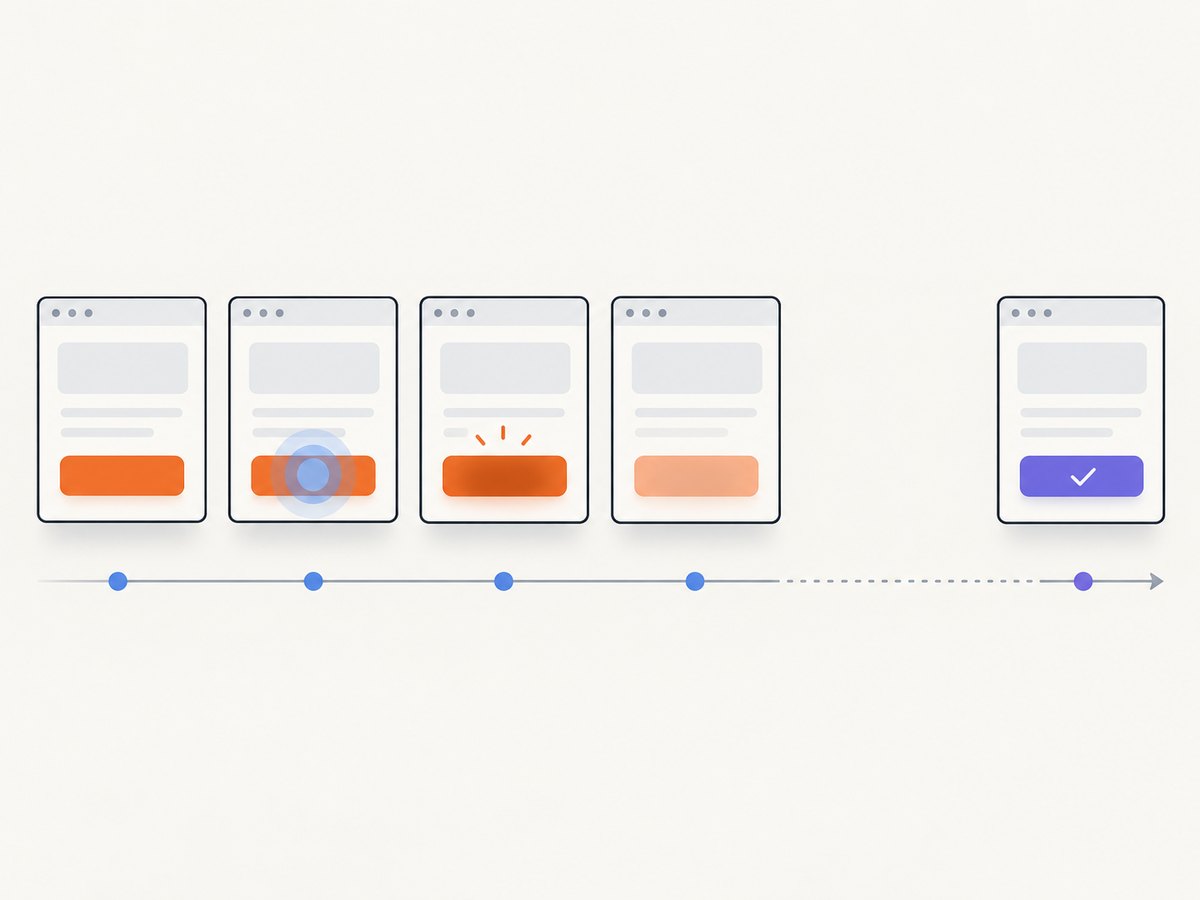
Each frame has two jobs: show a visual state and remain on screen long enough to understand it. Use shorter delays while an element is moving or changing. Use longer delays before and after a transition when a reader needs to inspect labels, values, or the result.
| Moment | Timing approach | Why |
|---|---|---|
| Opening or closing motion | Short, consistent delays | Preserves the sense of movement |
| Important intermediate state | Longer pause | Gives the reader time to inspect it |
| Final result | Longest pause in the loop | Prevents the explanation from disappearing immediately |
| Loop boundary | Check the last-to-first transition | Avoids a visible jump or double pause |
GIF timing has a hard precision limit. FFmpeg’s documentation explains that the GIF time base cannot represent a delay shorter than one centisecond, so extremely small delays are rounded to the available centisecond values. Treat timing numbers as starting points, then review the actual export.
3. Build a GIF with FFmpeg
FFmpeg is useful when you want a repeatable command-line pipeline. Put your screenshots in one directory with a predictable sequence such as frame-0001.png, frame-0002.png, and so on.
Basic image-sequence conversion
ffmpeg -framerate 8 -i frame-%04d.png -vf "scale=iw:-1:flags=lanczos" -loop 0 output.gif-framerate 8 controls how quickly FFmpeg reads the input sequence. The value is not a guarantee that every source timestamp will survive unchanged. FFmpeg documents that frame-rate conversion can duplicate or drop frames, so inspect the result rather than assuming the output contains one frame for every input image.
Use a palette for cleaner colors
GIF has a limited color model. Gradients, shadows, and antialiased text can show banding or speckling if the palette is poor. A two-step palette workflow usually gives more predictable results:
ffmpeg -framerate 8 -i frame-%04d.png \
  -vf "fps=8,scale=1280:-1:flags=lanczos,split[s0][s1];[s0]palettegen=max_colors=256[p];[s1][p]paletteuse=dither=sierra2_4a" \
  -loop 0 smooth.gif
The first part scales the frames and sets the working rate. palettegen builds a palette from the sequence, and paletteuse applies it. If text looks noisy, try a different dithering mode or reduce unnecessary visual detail. If the file is too large, reduce dimensions or remove frames before sacrificing readability.
Make the timing explicit with a concat file
When every frame should not have the same delay, create a text file named frames.txt:
file 'frame-0001.png'
duration 0.20
file 'frame-0002.png'
duration 0.20
file 'frame-0003.png'
duration 0.80
file 'frame-0004.png'
duration 1.50
file 'frame-0004.png'
The final repeated file makes the last duration take effect in the concat demuxer. Then convert it:
ffmpeg -f concat -safe 0 -i frames.txt \
  -vf "scale=1280:-1:flags=lanczos,split[s0][s1];[s0]palettegen=max_colors=256[p];[s1][p]paletteuse=dither=sierra2_4a" \
  -loop 0 smooth-timed.gif
Keep durations at or above the format’s centisecond granularity. A player can also interpret delays differently, so test the saved file in the target browser, documentation system, or chat application.
Control size without making the animation unreadable
- Crop to the smallest region that explains the action.
- Resize once, after you have chosen frames and timing.
- Remove frames that show no meaningful change.
- Use a palette generated from the final sequence.
- Prefer a static pause over many duplicate frames when the viewer only needs time to read.
4. Assemble and export in GIMP
GIMP treats an animation as layers. Import each screenshot as a layer in playback order, then use the animation export controls to set looping, frame delays, and frame disposal. The GIMP 3.2 documentation describes a default delay for frames without one and per-layer delay editing in the Layers dialog.
- Open the first screenshot.
- Choose File → Open as Layers and select the remaining screenshots in order.
- Check that every layer has identical dimensions.
- Set per-layer delays by adding a suffix such as
(200ms)to a layer name, or edit the delay in the layer controls described by your installed GIMP version. - Use Filters → Animation → Playback to review the sequence.
- Export as GIF, enable animation, choose loop behavior, and set disposal according to whether each frame replaces the previous frame or is drawn over it.
GIMP warns that an operating system or application can override playback rate because of performance or other technical limitations. The editor preview is therefore not the final authority. Open the exported GIF in the environment where readers will see it.
5. Record and edit with ScreenToGif
ScreenToGif describes a workflow that combines region recording, a timeline editor, frame editing, and GIF export. It can be convenient when you want to capture an interaction and trim it visually instead of preparing numbered files first. Releases and system requirements change, so use the current project page for version-specific installation details.
Regardless of the editor, apply the same checks: lock the recording rectangle, remove dead frames, add a reading pause around important states, and verify the exported file outside the editor.
6. Capture clean web frames with ScreenshotNeo
If your screenshots come from web pages, browser setup can be the hardest part. Consent dialogs, newsletter popups, chat widgets, bot checks, and lazy-loaded images can all create frames that are difficult to compare. ScreenshotNeo is a website screenshot API and MCP server. Its clean-shot workflow accepts cookie and consent banners like a visitor and removes more than 60 known consent platforms, newsletter popups, and chat widgets before capture. Each step can be turned off.

For a smooth GIF source sequence, keep the URL, viewport, full-page setting, device preset, retina scale, custom CSS, JavaScript, wait condition, and other capture options identical across requests. Capture the states you need, save the returned PNG, JPEG, or WebP files, and assemble them with FFmpeg or GIMP as described above. The API also supports element capture by CSS selector, dark mode, hiding selectors, click actions, network-idle waits, blocked resource types, custom headers and cookies, timezone and geolocation, image resizing, and caching with a TTL you choose. See the ScreenshotNeo documentation for parameter names and current request details.
7. Or skip the browser setup
Use one request per animation state, then pass the downloaded images to your GIF tool:
cURL
curl -G "https://api.screenshotneo.com/v1/shot" -d access_key=YOUR_API_KEY --data-urlencode url=https://stripe.com -o shot.webpPython
import requests
r = requests.get("https://api.screenshotneo.com/v1/shot", params={"access_key": "YOUR_API_KEY", "url": "https://stripe.com"}, timeout=90)
open("shot.webp", "wb").write(r.content)
Node.js
const q = new URLSearchParams({ access_key: 'YOUR_API_KEY', url: 'https://stripe.com' });
const res = await fetch(`https://api.screenshotneo.com/v1/shot?${q}`);
Cookie banners, popups, and chat widgets are removed before the shot. Bot checks, blank pages, and failed loads are never billed; response headers identify the page verdict and whether it was billed. An MCP server provides take_screenshot, get_page_info, and capture_pdf tools for Claude, Cursor, and other MCP clients. The free plan includes 1,000 screenshots per month with no card, and paid plans start at $5 for 3,000 shots. Create a free ScreenshotNeo account.
8. Troubleshoot uneven or jerky GIFs
| Symptom | Likely cause | Fix |
|---|---|---|
| Movement jumps between states | Too few intermediate frames or inconsistent capture geometry | Capture additional states and lock the region, dimensions, zoom, and scroll position. |
| The animation pauses unexpectedly | Duplicate frames or an unintended long delay | Inspect frame order and per-frame durations; remove redundant duplicates unless the pause is intentional. |
| It plays too quickly or slowly | Frame-rate conversion or player behavior | Set the input/output rate explicitly, use a concat file for variable delays, and test the exported file in the target viewer. |
| Some frames disappear | FFmpeg conversion dropped frames | Review the conversion settings and timestamps; do not assume source and output rates map one-to-one. |
| Text looks speckled | GIF palette and dithering limitations | Generate a palette from the final sequence, try another dither mode, or reduce gradients and shadows. |
| A loop visibly jumps | Last and first frames are too different | End on a stable state, add a deliberate final pause, or design a transition back to the first state. |
| Web frames have different layouts | Fonts, images, consent UI, or lazy content loaded at different times | Wait for a selector or network idle, use consistent capture options, and remove overlays before capture. |
9. Reliability, performance, and cost considerations
Reliability
Keep the source screenshots alongside the exported GIF so you can rebuild it when timing or dimensions need revision. Record the tool version and command. For web captures, treat timeouts, bot checks, blank pages, and failed loads as invalid input rather than silently adding them to the sequence.
Performance
Large full-page images increase both processing time and GIF size. Capture only the region needed to explain the interaction, or capture one element by selector. Lazy-loaded images may require an explicit wait. If the animation is mostly static, fewer frames and longer intentional pauses are usually more efficient than a high-frequency sequence of near-identical images.
Cost
Local FFmpeg, GIMP, and ScreenToGif workflows have no per-shot API charge, but they require your own capture and browser setup. ScreenshotNeo bills only clean shots; cache hits, bot checks, blank pages, timeouts, and failed loads cost nothing, and the response includes X-Page-Verdict and X-Billed headers. Plans are Free (1,000 shots monthly), Starter ($5 for 3,000), Growth ($15 for 15,000), Pro ($39 for 60,000), Scale ($99 for 250,000), and Business ($249 for 1,000,000). Yearly billing gives two months free, and every feature is included on every plan.
10. A practical quality checklist
- Every frame has the same pixel dimensions and crop.
- Fonts, images, and page layout have settled before capture.
- Redundant frames are removed.
- Motion has shorter delays; reading states have longer delays.
- GIF delays respect centisecond timing precision.
- A palette is generated from the final frame sequence.
- The loop boundary does not introduce an accidental jump.
- The saved GIF is reviewed in the target browser, documentation site, or chat app.
- Source frames, commands, and timing decisions are retained for later edits.
FAQ
Should I use more frames to make a GIF smoother?
Only when the extra frames show a meaningful intermediate state. More near-identical frames increase size without improving comprehension.
Can GIF reproduce every source frame delay exactly?
No. FFmpeg documents a minimum delay granularity of one centisecond, and viewers may apply their own playback behavior.
Why does the editor preview differ from the uploaded GIF?
The export may undergo frame-rate conversion, palette conversion, or viewer-specific timing interpretation. Always review the saved file in its intended context.
When should I choose a video instead?
Use a video when you need continuous motion, audio, higher color fidelity, or precise timing below GIF’s centisecond constraint. Use GIF for short, silent, broadly embeddable visual explanations.
Can ScreenshotNeo create the GIF itself?
ScreenshotNeo returns screenshots or PDFs. Use it to produce consistent clean web frames, then assemble those frames with FFmpeg, GIMP, or another animation editor.


