Better Alternatives to Snipping Tool for Windows
Compare Snipping Tool, ShareX and other Windows screenshot options by capture mode, editing, OCR, privacy and workflow needs.
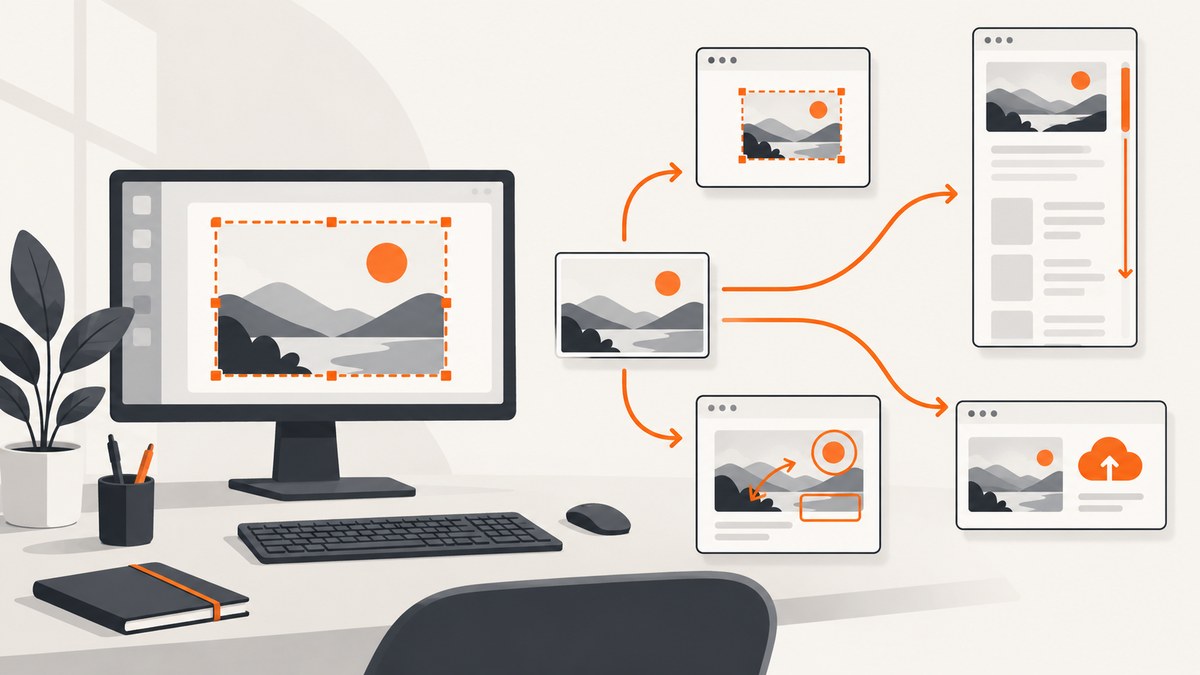
Which Snipping Tool alternative should you use?
Keep Snipping Tool if you mainly capture a region, window or full screen, add a few annotations, copy the image and occasionally extract text. Choose ShareX when you need scrolling captures, configurable after-capture actions, upload destinations, recording or richer markup. Consider a paid documentation tool such as Snagit only after checking its current pricing, licensing and feature details.
If you need screenshots of public webpages in an automated workflow rather than screenshots of your Windows desktop, ScreenshotNeo is the alternative to try first: it removes common consent banners, popups and chat widgets before capture, bills only for clean shots, and has an API and MCP server for automation.
There is no universal winner. The right choice depends on the capture type, what you do after capture, privacy requirements and how much configuration you want.
Quick comparison
| Tool | Best fit | Capture and workflow strengths | Trade-offs |
|---|---|---|---|
| Snipping Tool | Fast, occasional Windows captures | Freeform, rectangular, window and full-screen image snips; rectangular video snips; delay capture; annotations; copy, save and share; local OCR through Text actions | Small, simple workflow with fewer configurable destinations and post-capture automations |
| ShareX | Power users and repeatable capture workflows | Region, window, monitor, full-screen, scrolling and automatic capture; screen and GIF recording; editor with shapes, arrows, text, blur, pixelation, highlights and step markers; configurable save, copy, print, OCR and upload actions | More settings to learn; occasional users may not need its wider feature surface |
| Snagit | Documentation-oriented teams evaluating a paid tool | A paid Windows and macOS screenshot and recording option identified in recent comparison research | Verify current price, license terms and exact features before purchase |
| ScreenshotNeo | Automated screenshots of webpages | One HTTP request for PNG, JPEG, WebP or PDF; consent and popup cleanup; element or full-page capture; browser controls; API, bulk jobs and MCP tools | Captures URLs in a browser, not arbitrary pixels from your local Windows desktop |
What Snipping Tool already does well
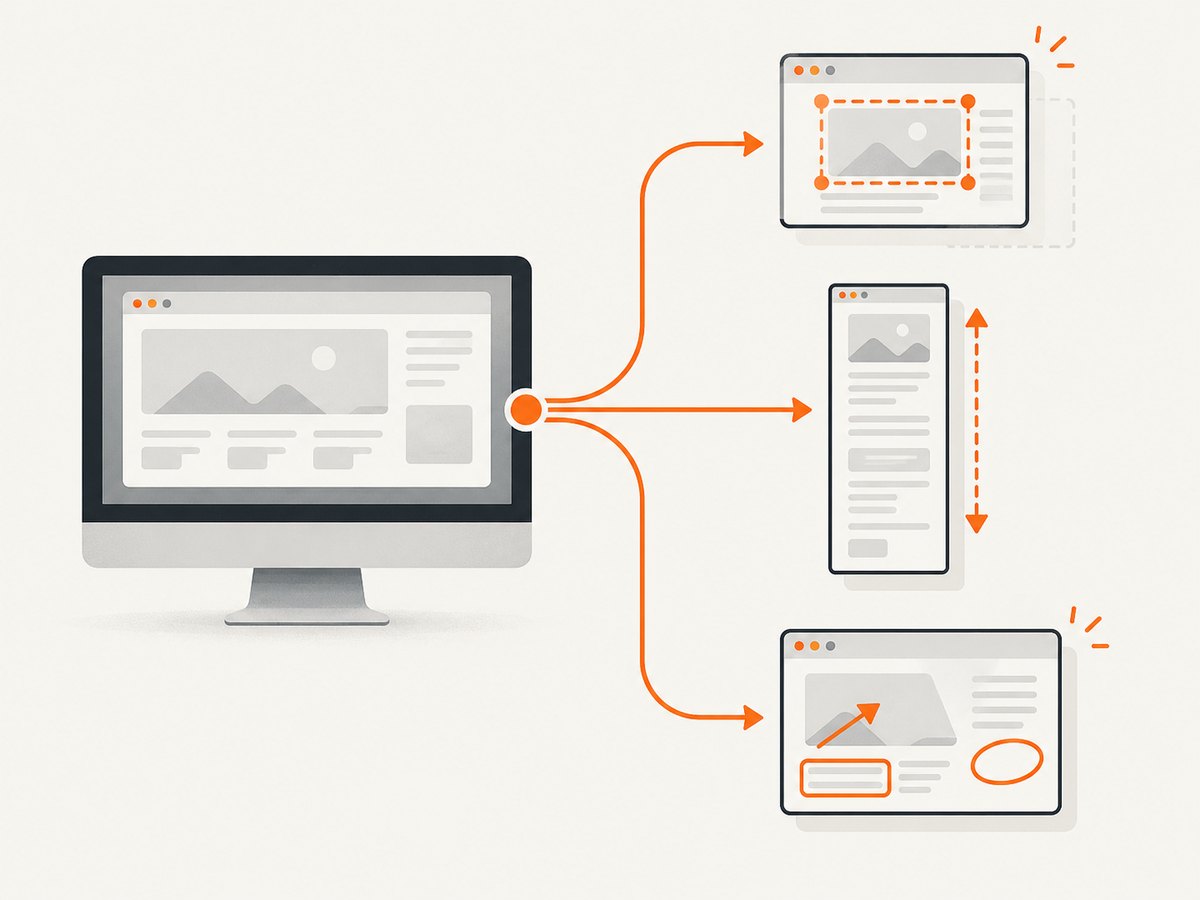
Microsoft documents Snipping Tool for Windows 10 and Windows 11. Press Windows+Shift+S to open the image capture overlay, then choose freeform, rectangle, window or full screen. You can annotate, copy, save and share the result. Windows+Shift+R opens a rectangular video snip. A delay is useful when a menu or tooltip appears only after a pause.
Text actions provide OCR. Microsoft states: All text recognition processes are performed locally on your device.
This matters when screenshots contain sensitive text and you do not want recognition to depend on an upload.
Some capabilities depend on hardware. Microsoft lists Perfect screenshot and Color picker as features for Copilot+ PCs; do not assume they are present on every Windows computer. Shortcut behavior can also vary with Windows version and settings, so check your system if a key combination does nothing.
Snipping Tool is the sensible default when your workflow is: capture, make a small correction, paste or save, and finish. Installing a larger tool adds configuration without solving a problem if that is all you need.
When ShareX is the better alternative
ShareX is free and open source for Windows. Its documented capture modes include full screen, active window, monitor, region, scrolling and automatic capture. It also records screens and GIFs.
Scrolling content
Use ShareX’s scrolling capture when a page, document or application extends below the visible window. Select the scrolling capture mode, target the window and let ShareX stitch the viewport images. Check the result for sticky headers, animated content and sections that load only after scrolling; those can create repeated or missing areas.
After-capture actions
ShareX lets you configure actions after a capture, including opening the editor, copying, saving, printing, recognizing text or uploading. You can also configure destinations and follow-up actions for upload workflows. This is useful when every capture should automatically receive a filename, be copied to the clipboard and be sent to a chosen service.
Annotations and redaction
The editor includes arrows, shapes, text, step markers, blur, pixelation, highlighting and crop tools. Blur or pixelate secrets before uploading. Treat these edits as part of your process: an original capture can still contain credentials or personal data if it remains in a local folder.
When ShareX is unnecessary
If you capture a few images per week and only crop or paste them, Snipping Tool has fewer settings and a shorter path from shortcut to result. ShareX’s broader workflow is an editorial fit for configurable processes, not a measured claim that it is easier for everyone.
How to choose by workflow
| Your requirement | Recommended starting point | Why |
|---|---|---|
| One region, window or full screen | Snipping Tool | Built into Windows with direct shortcuts |
| Extract text without uploading the image | Snipping Tool | Microsoft documents local text recognition |
| Capture a long scrolling window | ShareX | Scrolling capture is part of its documented modes |
| Automatically save, copy, print, OCR or upload | ShareX | After-capture actions are configurable |
| Annotate steps, redact details or mark up documentation | ShareX | More editor tools for repeatable markup |
| Record a short rectangular video | Snipping Tool | Windows documents a video-snip shortcut |
| Capture a webpage from a script or CI job | ScreenshotNeo | HTTP API, browser controls, billing verdicts and async options |
Privacy and sharing checklist
- Decide whether OCR must happen locally. Snipping Tool’s documented text recognition runs on the device.
- Before uploading, check the image for passwords, tokens, customer data and browser tabs.
- Review ShareX upload destinations and post-capture actions so an image is not sent somewhere unintentionally.
- Use blur or pixelation for secrets, then verify that the redaction is opaque at the saved resolution.
- Keep a local copy only when you need it; automatic folders can retain sensitive originals.
Or skip the browser setup
For a webpage screenshot, ScreenshotNeo turns one GET request into an image or PDF. The API accepts the URL and returns PNG, JPEG or WebP by default. See the ScreenshotNeo API documentation for parameters and response headers.

cURL
curl -G "https://api.screenshotneo.com/v1/shot" -d access_key=YOUR_API_KEY --data-urlencode url=https://stripe.com -o shot.webpPython
import requests

r = requests.get(
    "https://api.screenshotneo.com/v1/shot",
    params={"access_key": "YOUR_API_KEY", "url": "https://stripe.com"},
    timeout=90,
)
r.raise_for_status()
open("shot.webp", "wb").write(r.content)
Node.js
const q = new URLSearchParams({ access_key: 'YOUR_API_KEY', url: 'https://stripe.com' });
const res = await fetch(`https://api.screenshotneo.com/v1/shot?${q}`);
if (!res.ok) throw new Error(`${res.status} ${res.statusText}`);
const image = Buffer.from(await res.arrayBuffer());
require('fs').writeFileSync('shot.webp', image);
ScreenshotNeo supports full-page captures with lazy images loaded, CSS-selector element capture, dark mode, device presets or custom viewports, retina scale, PDF paper sizes and page ranges, custom CSS and JavaScript, clicks, selector or network-idle waits, blocked ads and resource types, headers, cookies, user agents, Authorization, timezone, geolocation, transparent backgrounds, resizing, chosen cache TTLs, signed image links, async jobs with signed webhooks, bulk capture for up to 100 URLs per call, a usage API and an OpenAPI specification. Parameter names used by other screenshot APIs also work when switching.
Before capture, it accepts cookie or consent banners and removes more than 60 known consent platforms, newsletter popups and chat widgets; each cleanup step can be disabled. Bot checks or CAPTCHAs, blank pages, timeouts, failed loads and cache hits cost nothing. Response headers identify the page verdict and whether the shot was billed. An MCP server exposes take_screenshot, get_page_info and capture_pdf to Claude, Cursor and other MCP clients.
The Free plan includes 1,000 shots per month without a card. Paid plans start at $5 for 3,000 shots; yearly billing gives two months free. Create a free ScreenshotNeo account and try the API without entering a card.
Troubleshooting
Windows+Shift+S does nothing
Confirm you are using a supported Windows version and that the shortcut has not been changed by system settings, accessibility software or another capture utility. Open Snipping Tool from the Start menu to isolate a shortcut problem.
The capture misses a menu or tooltip
Use Snipping Tool’s delay capture, or trigger the menu before selecting the region. For a scripted webpage, use a ScreenshotNeo delay or wait-for-selector option.
A scrolling capture has seams or repeated content
Stop animations where possible, keep the window at a stable size and inspect sticky headers. Try a shorter scroll region or capture sections separately when the application changes layout during scrolling.
OCR returns incorrect text
Capture at a larger scale, avoid compression and crop to the text. Check the language and contrast. OCR cannot reliably reconstruct text hidden by blur, animation or overlapping controls.
ShareX uploads the wrong destination
Review its upload destinations and after-capture task configuration. Disable upload actions while designing the workflow, then enable one destination and verify it with a non-sensitive image.
ScreenshotNeo returns a non-image response
Check the HTTP status and response headers before writing the body to a file. Verify the access key, URL encoding and timeout. Use the page-verdict and billed headers to distinguish a failed load, bot check, blank page, cache hit or clean billed capture.
The webpage screenshot is blank or incomplete
Wait for a selector or network idle, increase the delay, or capture after triggering the required click. Some pages require cookies, an Authorization header, a custom user agent, a timezone or geolocation. If a bot check appears, the result is identified in the response and is not billed.
Performance, reliability and cost
- Snipping Tool: local capture avoids network upload latency. Save to a known folder and use clipboard copy when speed matters.
- ShareX: automatic actions and uploads add steps and network time. Keep the editor and destinations minimal for a faster path.
- Scrolling: long pages require stitching and can be affected by animation, lazy loading and sticky elements. Validate representative pages before relying on the output.
- ScreenshotNeo: cache with a TTL when the same URL is requested repeatedly; use bulk capture for up to 100 URLs per call; use async jobs and signed webhooks for long batches. Clean shots are billed, while bot checks, blank pages, timeouts, failed loads and cache hits are not billed.
- Budget: Snipping Tool and ShareX are desktop tools rather than per-shot services. ScreenshotNeo has 1,000 free shots monthly, then plans from $5 for 3,000 shots, with every feature on every plan.
FAQ
Is ShareX better than Snipping Tool?
ShareX is a better fit when you need scrolling capture, recording, upload destinations or automated after-capture actions. Snipping Tool is usually enough for quick local captures, annotations and local OCR.
Can Snipping Tool capture a full webpage that scrolls?
Microsoft’s documented image modes are freeform, rectangle, window and full screen. For a scrolling window, ShareX documents a dedicated scrolling mode; for an automated webpage URL, use ScreenshotNeo.
Is ShareX safe for private screenshots?
The risk depends on your configured actions and destinations. Review upload settings, redact sensitive data and keep uploads disabled when you need a local-only workflow.
Does ScreenshotNeo replace a Windows desktop screenshot tool?
No. It captures webpages by URL through an API or MCP server. Use Snipping Tool or ShareX for arbitrary content visible on your Windows desktop.
Do I need a paid plan to try ScreenshotNeo?
No. The Free plan includes 1,000 screenshots per month without a card.
Bottom line
Start with Snipping Tool for straightforward Windows captures. Move to ShareX when scrolling, recording, annotations, redaction or automated upload workflows justify more configuration. For repeatable screenshots of webpages in code, CI or AI-agent workflows, try ScreenshotNeo first and use its free monthly allowance to validate your pages.


