Social Card Image Checklist
Use this practical social card checklist to set image dimensions, metadata, fetchability, cropping, and preview validation before publishing.

Direct answer: Start with a 1200 × 630 pixel image at roughly a 1.91:1 aspect ratio, publish it through an absolute HTTPS URL, declare it with og:image, keep the file within the destination platform’s limit, and inspect the rendered preview after publishing. This is a practical general Open Graph baseline, not a guarantee that every network uses identical rules. LinkedIn documents a minimum of 1200 × 627 pixels, a recommended 1.91:1 ratio, and a 5 MB maximum for its sharing module. Wix recommends 1200 × 630 pixels and an 8 MB maximum for Open Graph images.
A technically correct image can still disappear if a crawler cannot retrieve it. Treat dimensions, metadata, public access, crop behavior, and cache refresh as one release checklist.
1. Choose the image dimensions and format
For a general social card, create a canvas that is 1200 pixels wide by 630 pixels high. That is close to 1.91:1 and gives a useful working baseline for Open Graph previews. If LinkedIn is a primary destination, its documented minimum is 1200 × 627 pixels, with 1.91:1 recommended. A 1200 × 630 image is only three pixels taller, but checking the current destination specification before publication remains sensible.
| Decision | Practical rule | Why it matters |
|---|---|---|
| Canvas | 1200 × 630 px baseline | Matches common Open Graph guidance and the 1.91:1 shape |
| LinkedIn minimum | At least 1200 × 627 px | Images below the documented minimum may not meet its sharing requirements |
| Aspect ratio | About 1.91:1 | Reduces unexpected cropping in wide previews |
| File size | Keep below the destination limit | LinkedIn lists 5 MB; Wix advises no more than 8 MB |
| Format | Use a broadly supported web image format | Choose the format your publishing and destination tools document as supported |
Do not interpret 1200 × 630 as a universal requirement. Platform specifications and preview implementations change. If a campaign depends on one network, verify that network’s current official documentation immediately before launch.
2. Design for crops, thumbnails, and unknown preview frames
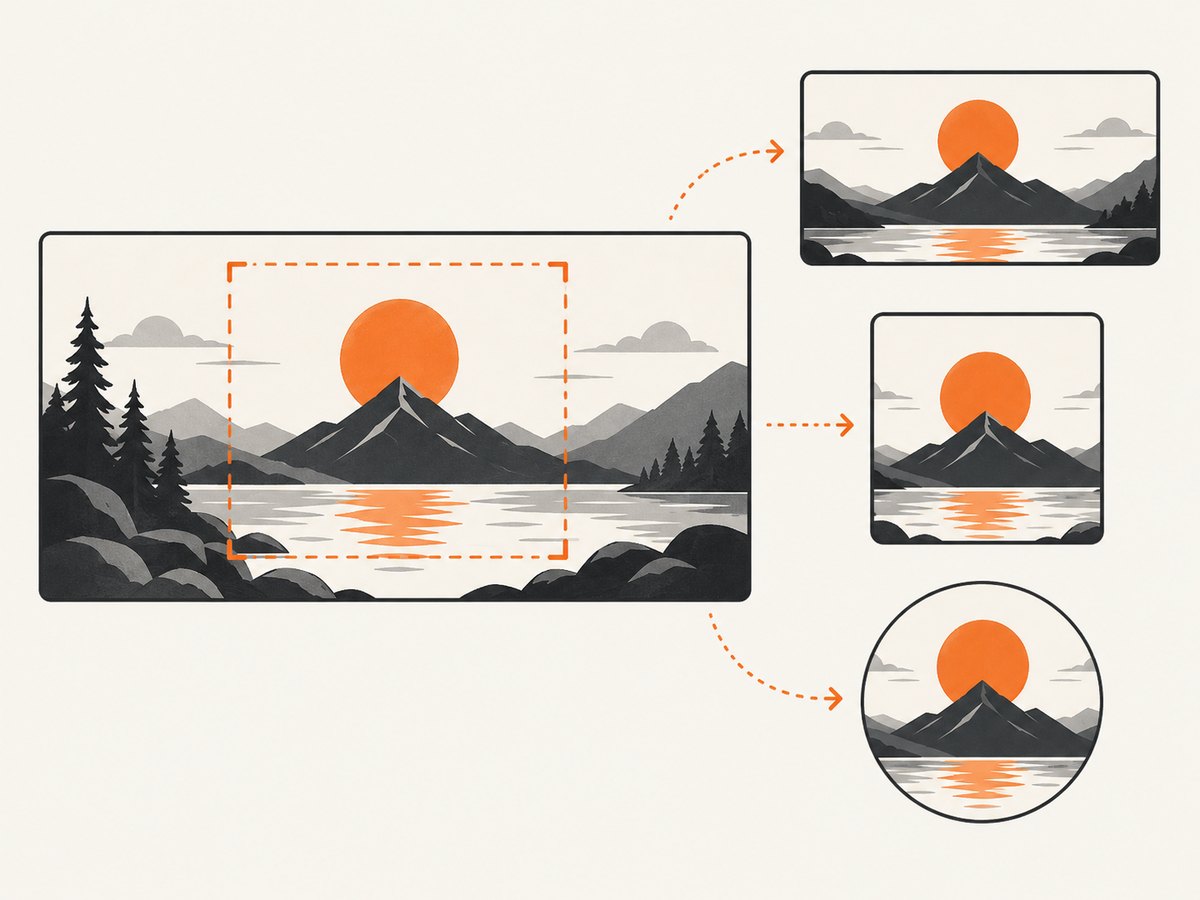
Put the essential subject, logo, and short headline near the visual center, with comfortable space around all edges. Avoid placing a critical face, product edge, or small text against the boundary. You cannot rely on one universal safe-area measurement because each service can render a different crop.

LinkedIn says square and vertical images may be cropped when shared organically. It also says images narrower than 401 pixels display as thumbnails. A 1200 pixel wide source avoids that particular thumbnail threshold, but it does not prevent other layout changes.
- Keep the main subject inside the central wide area.
- Make any text large enough to survive a smaller card view.
- Do not depend on a detail that is visible only at full resolution.
- Preview the actual page URL, not only the image file.
- Check both desktop and mobile presentations when the platform provides them.
3. Add Open Graph metadata correctly
The page should declare the intended image in its HTML head. Use an absolute URL that includes the scheme and host. A relative path such as /images/share.png leaves the crawler to resolve context and can fail in systems that expect a complete URL.
<!doctype html>
<html lang="en">
<head>
  <meta charset="utf-8">
  <meta property="og:type" content="website">
  <meta property="og:url" content="https://example.com/article">
  <meta property="og:title" content="Article title">
  <meta property="og:description" content="A concise description for the shared page.">
  <meta property="og:image" content="https://cdn.example.com/social/article-1200x630.jpg">
  <meta property="og:image:width" content="1200">
  <meta property="og:image:height" content="630">
</head>
</html>
og:image is the key declaration discussed in the researched Wix guidance. The LinkedIn guidance says the page source should comply with the Open Graph Protocol and LinkedIn’s image requirements. Keep the title, description, and canonical page URL consistent with the page a visitor will receive.
Validate the generated HTML
Inspect the final server response rather than a template file. A server-side rendered page, a static export, and a client-only JavaScript page can produce different source HTML. Confirm that the og:image tag is present before a crawler needs it.
curl -L --max-time 20 https://example.com/article | grep -i 'og:image'import requests
from bs4 import BeautifulSoup
url = "https://example.com/article"
r = requests.get(url, timeout=20)
r.raise_for_status()
soup = BeautifulSoup(r.text, "html.parser")
image = soup.find("meta", attrs={"property": "og:image"})
print(image.get("content") if image else "og:image missing")const page = await fetch('https://example.com/article');
if (!page.ok) throw new Error(`Page returned ${page.status}`);
const html = await page.text();
const match = html.match(/<meta[^>]+property=["']og:image["'][^>]+content=["']([^"']+)["']/i);
console.log(match ? match[1] : 'og:image missing');4. Make the image fetchable by crawlers
Public metadata does not help if the image request is blocked. LinkedIn’s help documentation says a preview can fail when the website blocks its crawler or the image is in a protected directory or website.
- Request the image URL without a login, cookie, or signed session.
- Use HTTPS and return a successful response.
- Check that robots, firewall, CDN, and WAF rules do not block legitimate preview fetchers.
- Ensure redirects end at the actual image and do not require a browser interaction.
- Confirm the response has an image content type and the expected bytes.
curl -I -L --max-time 20 https://cdn.example.com/social/article-1200x630.jpgReview the status code, redirect chain, content type, and content length. A 200 response to a browser does not prove that a crawler with no cookies or JavaScript can retrieve the same resource.
5. Check file size and image bytes
LinkedIn lists a 5 MB maximum for its sharing module. Wix advises that an Open Graph image should not exceed 8 MB. These are provider-specific limits, not a single universal ceiling. Compress the asset while preserving readable detail, then measure the actual served file rather than the source file on your laptop.
curl -L --max-time 20 -o /tmp/card.jpg https://cdn.example.com/social/article-1200x630.jpg
wc -c /tmp/card.jpg
file /tmp/card.jpg
If the file is unexpectedly large, inspect embedded metadata, oversized quality settings, and whether the CDN is serving an original instead of an optimized derivative. Do not reduce dimensions below the destination’s documented minimum merely to save bytes.
6. Validate the rendered preview and refresh caches
After changing og:image, preview the page through the destination service’s debugger or sharing inspector. Wix specifically recommends entering the site URL in Facebook’s debugger after updating the image so the site information is current, and points readers toward other platform preview tools.
- Deploy the new image and metadata.
- Request the page source and image URL yourself.
- Run the platform’s official preview or debugger tool.
- Inspect the title, description, image crop, and thumbnail behavior.
- Repeat after cache refresh if the old image remains.
Preview caches can outlive your deployment. Record the time of the change and recheck from the platform’s tool instead of assuming that a browser refresh invalidates the service’s cache.
7. A repeatable publishing checklist
- Canvas: 1200 × 630 pixels, or the destination’s current documented dimensions.
- Ratio: approximately 1.91:1 for a general card.
- Weight: below the applicable provider limit; LinkedIn documents 5 MB and Wix advises 8 MB.
- Metadata: absolute
og:imageURL in the final page source. - Access: no authentication, protected directory, or crawler-blocking rule.
- Response: successful request, image content type, and complete image bytes.
- Composition: important content kept away from edges and readable when reduced.
- Preview: inspected with the destination’s current debugger or sharing tool.
- Freshness: platform requirements checked again before a time-sensitive launch.
8. Troubleshooting common failures
| Symptom | Likely cause | Fix |
|---|---|---|
| No image in the preview | Crawler blocked, protected directory, or inaccessible URL | Test the image without credentials, review firewall and CDN rules, and use a public HTTPS URL. |
| Old image still appears | Platform preview cache | Use the platform’s debugger or refresh workflow after deployment, then inspect again. |
| Image is cropped | Square or vertical presentation, or a platform-specific crop | Keep important content central and design around the wide 1.91:1 source. |
| Image becomes a thumbnail | Source is narrower than the platform threshold | LinkedIn documents 401 pixels as its thumbnail-width threshold; provide a larger source. |
| Image rejected for size | File exceeds the provider limit | Compress the served asset and verify its byte size; LinkedIn lists 5 MB and Wix 8 MB guidance. |
| Metadata appears missing | Tag omitted from final HTML or rendered only after JavaScript | Inspect the server response and emit the Open Graph tag in initial HTML. |
| Wrong image selected | Multiple image tags, stale cache, or an inherited CMS default | Keep one deliberate og:image, verify the final source, then refresh the preview cache. |
9. Automate preview capture with ScreenshotNeo
When a team needs a visual check for many pages, capture the rendered page after deployment and compare the result with the intended card. ScreenshotNeo is a website screenshot API and MCP server. It can capture PNG, JPEG, WebP, or PDF from one GET request, and its full-page mode loads lazy images before capture.
For a quick page capture, use the API documented at ScreenshotNeo’s API documentation:
curl -G "https://api.screenshotneo.com/v1/shot" -d access_key=YOUR_API_KEY --data-urlencode url=https://example.com/article -o shot.webpimport requests
r = requests.get("https://api.screenshotneo.com/v1/shot", params={"access_key": "YOUR_API_KEY", "url": "https://example.com/article"}, timeout=90)
open("shot.webp", "wb").write(r.content)const q = new URLSearchParams({ access_key: 'YOUR_API_KEY', url: 'https://example.com/article' });
const res = await fetch(`https://api.screenshotneo.com/v1/shot?${q}`);For a social-card QA workflow, capture the article URL after deployment, inspect the returned image, and compare the visible title, metadata-driven design, and crop at the target viewport. ScreenshotNeo supports custom viewports and device presets, retina scale, dark mode, custom CSS and JavaScript, wait conditions, hiding selectors, blocking requests or resource types, custom headers and cookies, caching with a chosen TTL, bulk capture of up to 100 URLs per call, and an API for usage. Those controls let you reproduce the rendering context used by a review job.
10. Or skip the browser setup
ScreenshotNeo removes cookie and consent banners, newsletter popups, and chat widgets before the shot. Bot checks, blank pages, failed loads, timeouts, and cache hits are not billed, and response headers identify the page verdict and billing result. Its MCP server provides take_screenshot, get_page_info, and capture_pdf tools for Claude, Cursor, and other MCP clients. The Free plan includes 1,000 screenshots per month with no card; paid plans start at $5 for 3,000 shots.
Create a free ScreenshotNeo account and use the API or MCP server to add rendered social-card checks to your publishing workflow.
11. Performance, reliability, and cost considerations
- Reduce unnecessary work: Capture only the page and viewport you need for the check. Use a chosen cache TTL when repeated captures can reuse the same result.
- Separate validation from production: Run a small preview job on every deployment and reserve bulk capture for pages that changed.
- Handle failures explicitly: Record HTTP status, response headers, and the returned verdict so a blocked page is distinguishable from a successful clean image.
- Control dynamic pages: Wait for a selector, delay, or network idle when metadata or the visual card is rendered after initial navigation.
- Protect credentials: Keep the API key on the server or in a secret store; do not place it in client-side page code.
- Estimate spend: Count captures, account for retries, and use the usage API. ScreenshotNeo bills only clean shots; failed loads and cache hits cost nothing.
12. FAQ
Is 1200 × 630 required everywhere?
No. It is a practical general Open Graph starting point. Confirm the destination’s current requirements; LinkedIn documents 1200 × 627 as a minimum and recommends 1.91:1.
Can I use a relative image URL?
Use an absolute HTTPS URL. It removes ambiguity for crawlers and makes access testing straightforward.
Why does the image work in my browser but not in a share preview?
The crawler may be blocked, unauthenticated, redirected differently, or unable to access a protected directory. Test the image without browser cookies and inspect firewall and CDN logs.
Should I create a separate image for every network?
Use the 1200 × 630 baseline for broad coverage, then create platform-specific variants when a service’s documented dimensions or crop behavior justify them.
How do I know whether a change is live?
Check the final HTML, request the image directly, and run the destination platform’s debugger or sharing inspector. A normal browser refresh does not necessarily clear a platform cache.